Guided Tutorials & Onboarding
At a glance
The tutorials are a card section of the Project tab, under the projects browser: a library of interactive guided tours that run inside the live application, not a video or a slideshow.
A tour spotlights a real control, tells you what to do, and waits for you to actually do it — clicking the highlighted button, filling a field, drawing a polygon — before moving on.
Tours are grouped into four tracks: Getting started (the big picture), Explore the tabs (one deep-dive per tab of the rail), Tools & account (the tool pages, the settings and your account), and Practice (two full, scored end-to-end simulations, and the mascot's own tour).
Each tour runs at a chosen difficulty — Guided, Challenge or Expert — which controls how much is explained, whether hints cost points, and whether the run is timed and scored with stars.
Seventeen tours ship with the app — one per page, plus the mascot's own. Nothing is downloaded or installed: the cards are part of the application and the tours drive the very views you will use for real work.
Prerequisite: none for the lesson tours. The cards show while no project is open, and a running tour temporarily unlocks the rest of the rail so it can walk you through the tabs from a cold start.
A mascot — a little solar panel with a face — has a tour of its own, Cheer up the mascot: its mood is the state of the project, and the goal is to fix what it shows. Finishing tours earns badges that give it something to wear.
Completion, progress, best scores and badges are remembered, but only in the browser you used.
Where it lives and what it is
Open Project — the first entry of the left navigation rail, and the tab the app opens on — and scroll below the projects browser: the Interactive tutorials section lists every tour as a card. There is no tutorials page and no rail entry of its own; the old /tutorials address still works and simply lands on the Project tab.
At the top of the section you will see the heading Interactive tutorials and a one-line explanation: “Learn to use pvSpline step by step. Every tutorial explains everything in Guided; the practice runs also offer Challenge and Expert, which time and score your run.” Under it sits the Badges shelf: the badges you have earned and a preview of the mascot wearing them (The mascot and badges).
Below it the tutorial cards, one per available tour, are drawn like the project cards above them and split into four labelled sections. The section is purely a launcher: you browse the catalogue here, then click a launch button and the tour takes over the page, driving the ordinary views of the application.
Note
The cards are shown only while no project is open: a loaded project turns the Project tab into its editing cards and hides the section. To get back to the tutorials, close the working project with the Close the project button of the projects browser, or open a new browser tab. There is no URL that starts a specific tour; a tour begins when someone clicks a launch button on a card.
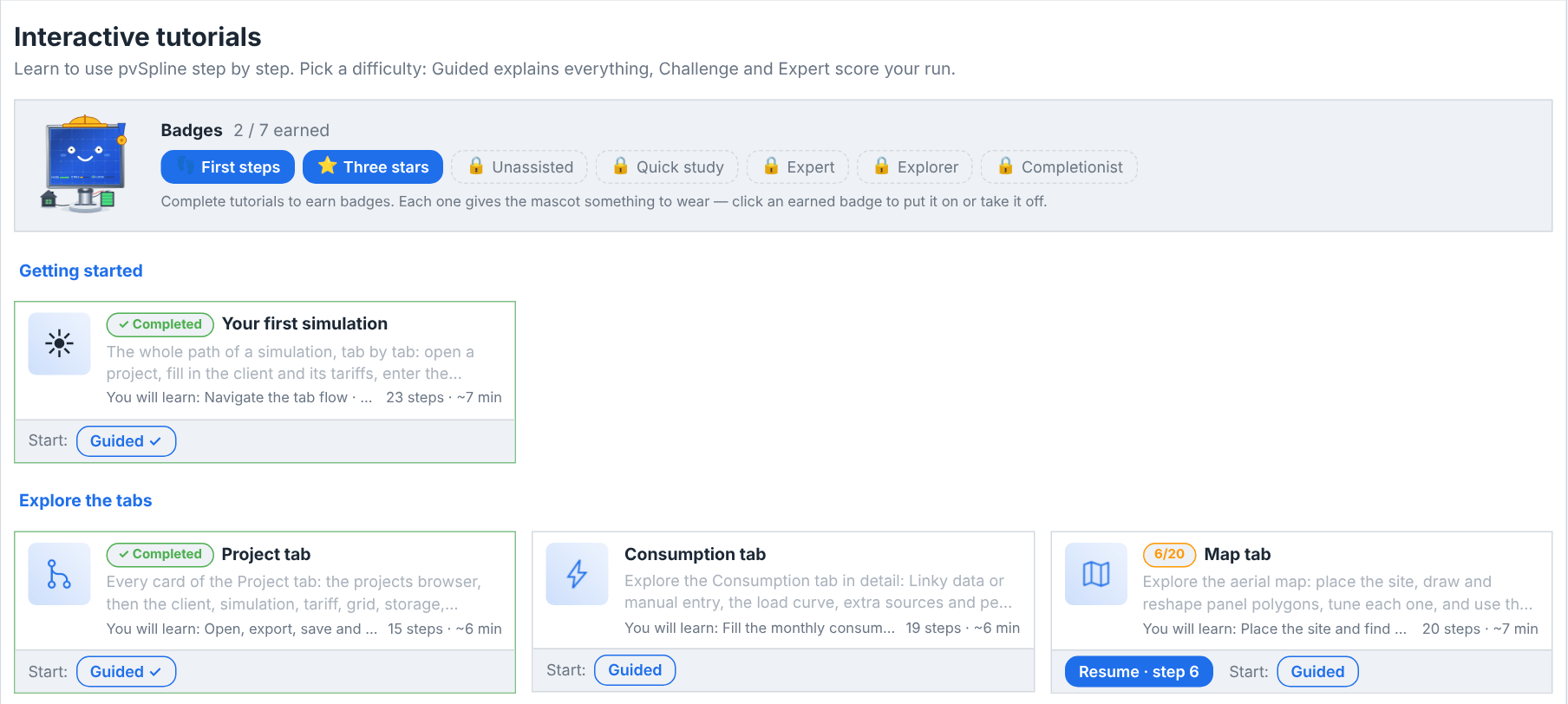
The tutorial catalogue
The cards are grouped, top to bottom, into four tracks:
- Getting started
The single overview tour, Your first simulation. Run this first — it walks the entire input flow end to end so the rest of the application makes sense.
- Explore the tabs
One focused “deep dive” tour per tab of the rail, in rail order: Project tab, Consumption tab, Map tab, Batch tab, Production tab, Diagram tab, 3D tab, Video tab, Results tab, The report and Catalogue tab. Each one opens on that view and explains its cards and controls.
- Tools & account
The tool pages and your account, its settings included: Pre-sizing tool and Account & cloud.
- Practice
Two complete, realistic simulations you build yourself — House simulation and Factory simulation — and Cheer up the mascot, a short one where the mascot stands beside the bubble as sick as its project and you cure it, one fix per step (The mascot and badges). These are the scored tours: you do the work with minimal help and earn a star rating.
Every tour is listed with its step count, estimated time and objectives in Field reference.
Reading a tutorial card
Every card shows, at a glance:
an icon — the rail glyph of the tab a deep dive teaches, or an emoji (a sun, a set square, a person, a house, a factory) for the others;
the title and a one-line description;
a green completion chip — a check mark and
Completed— in front of the title once you have finished the tour at least once, or an amber progress badge like4/11if you started it before but left it partway;a meta line: the number of steps and an estimated time, e.g. “23 steps · ~7 min”. The number is the steps a run started now would show you, counted the way its bubble counts them (The step counter);
a You will learn: line summarising the objectives, separated by dots (hover it for the full list when it is cut short);
a bottom band, Start:, with one launch button per supported difficulty — led, on a tour you left partway, by Resume · step N, which picks the tour up where you stopped and, on a tour offered at several difficulties, names the one it resumes at, as in Resume · step 5 · Challenge (Launching, replaying and tracking progress).
For scored tours, each difficulty's launch button also carries its own completion tick and your best score out of 100 (for example Challenge 85/100), so you can see at a glance where you have room to improve. Hovering a launch button shows what that difficulty does.
How a guided tour works
When you launch a tour a dimmed overlay covers the page and a series of steps plays out. Each step is one of four kinds:
- A lesson step
A spotlight — a bright cut-out in the dimmed background, with a glowing pulsing border — picks out a real control, and a speech bubble, its arrow pointing at the control, explains what you are looking at. You read it and click Next to continue. The dimming is purely visual: you can still hover the spotlighted control and click straight through to the real button underneath. The tour navigates to the right view for you when a lesson step lives elsewhere.
- A navigation step
The spotlight sits on a rail entry and the bubble asks you to click it. There is no Next: arriving at that view is what completes the step.
- An action step
The spotlight sits on a control — a chart row in the list, a theme card, a tab of the diagram's inspector — and the tour advances the moment you click it. Again there is no Next; when the control has been missing from the page for 1.2 seconds, the bubble offers Skip this step instead, which moves on without the click.
- A checkpoint step
The bubble states a goal and Next stays disabled until the project actually satisfies it. A checkpoint that waits for something to open or appear — a project, a form, a result — leaves nothing for Next to confirm: it moves on by itself the moment it is met.
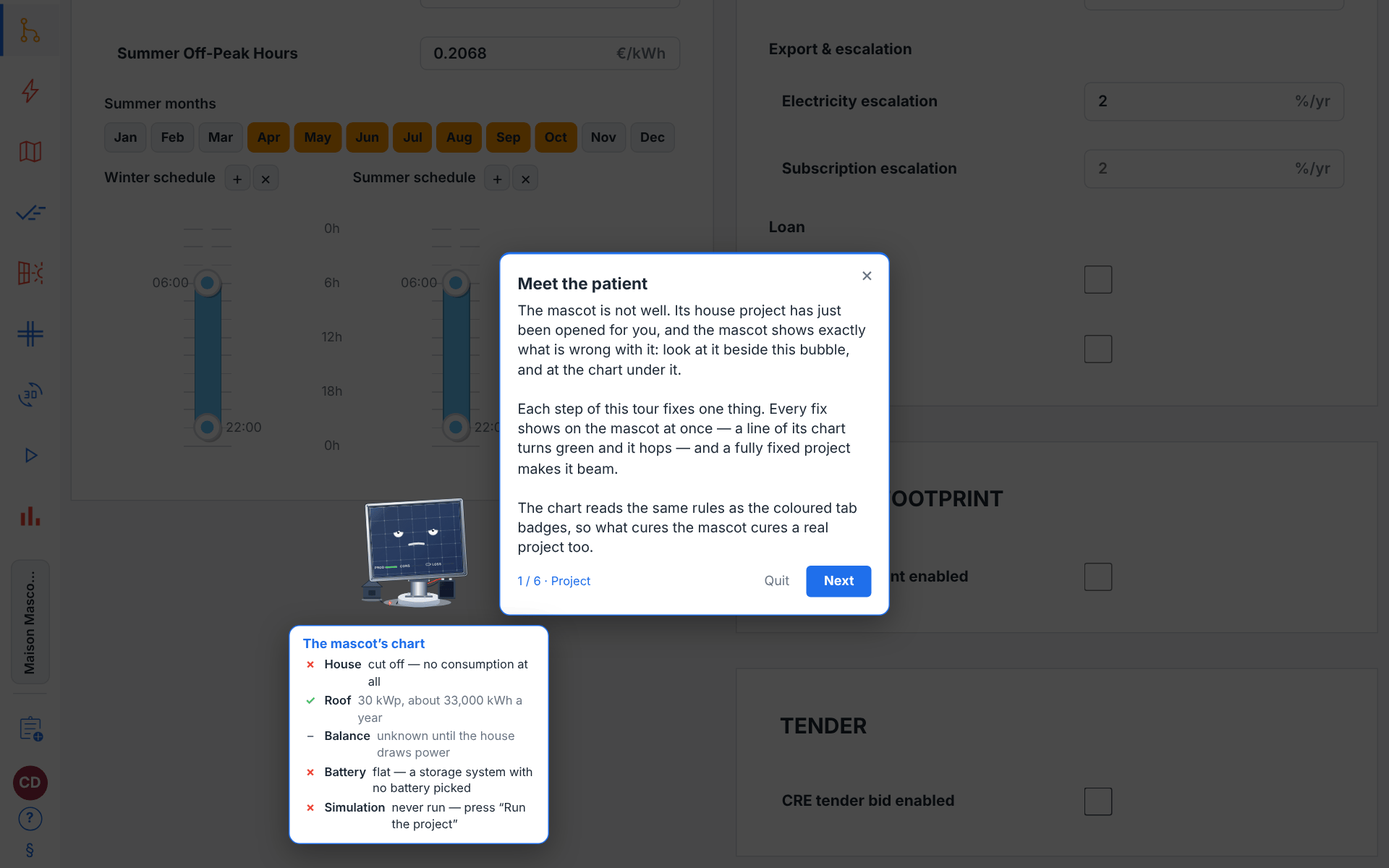
The spotlight and bubble follow their target: the overlay re-measures the highlighted control about four times a second and on every scroll or window resize, so the cut-out stays on the right control as panels scroll, move or relayout, and the target is scrolled into view when the step opens — by its top when it is taller than the window, so a long card opens on its title. The bubble stands below, above or beside its target, wherever it fits whole, so its buttons always stay on screen, with its arrow on the edge facing the control. Over a target that fills the window — the map, the report — it settles in the target's bottom-left corner instead, clear of the toolbars and panels along its top, and has no arrow.
When the control a step points at is not on the page, a step that names a stand-in rings that instead — the control that brings the target up, or the card it appears in — and its text says what to do there. Otherwise the bubble centres itself and, once the control has been missing for 1.2 seconds (a page still rendering is not a missing control), adds a quiet note. The note never sends you looking for the control, since what is missing depends on the project as it stands. On a lesson step it reads “This control is not shown with the project as it stands — read the explanation, then carry on with Next.”; on a checkpoint not yet met, “This control is not shown yet — the explanation above says how to bring it up.” (at Challenge and Expert, which show no explanation, “This control is not shown yet — re-read the goal, or take a hint to see how to bring it up.”); on an action step, “This control is not on the page right now. If it does not appear, skip this step.”, beside Skip this step.
One step leaves the page undimmed: the Map tab tour's “Place the corners” step rings the drawing ribbon at the bottom of the map and keeps its bubble above it, so the roof you are tracing stays readable.
Several tours build state as they go: the Batch tour runs a small study so its results steps have something to show, and the Pre-sizing tour computes a sizing before it reads the monthly table. You click the real control, the step waits for what it produces — the batch's results, the pre-sizing result — and moves on by itself, and the next lesson spotlights what appeared.
Checkpoints
A checkpoint step shows its status as a line inside the bubble:
“Goal: do what is asked above to continue.” (an empty box, muted) — the goal is not satisfied yet;
“Goal reached — click Next to continue.” (a green tick) — satisfied.
The condition is re-evaluated automatically about every 0.6 seconds as you work, so the line turns green live while you type or drag — and can turn back if you undo the change. Next is greyed out until it passes.
Some checkpoints do not wait for Next. The “Open a project” step a tour that works on a project starts with moves on the moment a project is open, whether you opened a saved project or created one with New project, which opens the project it creates. Others wait for what you were asked to make happen: the part form opening in the Catalogue tour, each pre-sizing result and the switch to solar pumping in the Pre-sizing tour, a batch's results in the Batch tour.
Checkpoints read the project as the screen shows it: the values on the cards as you type them, before the tab writes them in. So they check the values, not your keystrokes, and a checkpoint turns green the moment the last value is right. For example, the House simulation tour will not let you leave its “Simulation parameters” checkpoint until the System type is Self-consumption + export and the surplus has the brief's feed-in tariff; its “Financial parameters” checkpoint wants an installation cost of 8 500–9 500 €, the 5.5 % VAT rate of a house under 9 kWp, an electricity escalation of 1.5–2.5 % a year and a 19–21 year loan with debt financing ticked, at the brief's rate. The tolerances are deliberately wide: you are being asked for a realistic project, not an exact transcription.
Note
One checkpoint in each Practice tour — Run the simulation — passes only once a run of the open project has succeeded: a run of another project earlier in the session does not count. Click Run the project on the Results tab, wait for the run to land, and the checkpoint turns green by itself. On the cloud, that run also files the tour's project among your projects, as any run of a project with no cloud save does (Where the run executes). See Getting Started for how a run is started and tracked.
Tip
Hints on a checkpoint step are progressive: each click of Hint reveals one more line, and the lines get more specific. Read the goal and try first — on a scored run every revealed hint costs points, and nothing else does. The hints say how to do a step; the figures to type are in the client's brief, which is free (Practice-tour checkpoint targets).
If you navigate away
You are free to click around during a tour. If you leave the page a step lives on, the tour does not break: the bubble turns into This step is on another tab, spotlights that tab's rail entry and says “Click the highlighted tab to come back to it — nothing is lost.” As soon as you return, the real step resumes exactly where it left off. While that bubble is showing, Next, Hint and the step's own offers (Skip this step, Fill it in for me, Open the demo project) are withheld: going back is the only way forward, though Back and Quit still work.
The bubble also offers Back from the second step onwards, which replays the previous lesson. The steps a run passes over going forward are stepped over going back too — a navigation step you have already satisfied, an “Open a project” step once a project is open, a step that does not apply — so Back lands on the previous thing you were actually told rather than bouncing you forward again.
The step counter
The bubble's counter, n / N, numbers only the steps the run shows you. A step the run passes over is not numbered: a navigation step to the tab you are already on, an “Open a project” step met on arrival — a project already open, or one the tour opens itself — and a step that does not apply to the open project or to your session, such as a card the project's system type hides. The numbers therefore run 1, 2, 3 with no gap, and on the last step the run will show, Next reads Finish.
The total is worked out from the app as it stands each time a step is reached, so it can change on the way when what a step depends on changes: sign in during the Account & cloud tour and its account cards join the run; open a project whose system type hides a card the Project tab tour covers, and that card's step leaves the count. A card's step count and its progress chip use the same rule, applied to the app as it stands when you look at the cards.
What a tour changes in your project
Nothing behind your back. The tours drive the real application with whatever project you have open and read it to evaluate checkpoints; what changes in it is what you do there. A tour brings something of its own in three places:
The getting-started tour's “Open a project” step offers Open the demo project: a small house in Bordeaux, ready to run, which opens unsaved, like an imported file. It is only offered: nothing opens unless you click it.
The two practice simulations open a project of their own when you click Next on their welcome —
Maison Lefèvre (tutoriel)orUsine TechnoSud (tutoriel)— and Cheer up the mascot opensMaison Mascotteas it starts. They open unsaved, and your own projects stay as they are.On a Guided practice run, Fill it in for me types a step's figures from the client's brief into the practice project, as one change you can undo (Practice-tour checkpoint targets).
On the cloud, a run of a project that has no cloud save files it among your projects under its name (Where the run executes), and the tours' projects are no exception: once run, the demo house appears among your projects as Maison de démonstration, a practice project under its own name and the mascot's house as Maison Mascotte. A Manager or an Admin can delete one from its card on the Project tab (The Project Tab).
Everything else a tour has you do lands in the project you have open, and stays there. The Batch tour really runs the small study it builds: like any batch run from the Batch tab, that run stores its study in the open project, in place of any batch study the project held — the one its PDF report prints. The source the Consumption tab tour adds and the polygon the Map tab tour has you draw stay too, until you remove them: the × on the source's tab, Delete on the polygon's card.
Caution
Run the Batch tour on a scratch project, not on live client work: it stores its small study as the project's batch study, in place of the one the project's report prints, like any other batch run.
Note
While a tour is running, the rail entries that are normally greyed out until a project is open become clickable, so a tour can walk you through them from a cold start. The project's validation keeps running: the rail's coloured badges and the field warnings show exactly what they show without a tour, and the overview tour teaches them.
Difficulty levels
Every tour is authored once; the difficulty you pick only changes how that same content is presented and scored. Pure lesson tours (the overview, the deep dives and the tool-page tours) offer Guided only. The two Practice tours offer all three, and their default is Challenge.
| Difficulty | Meaning / effect |
|---|---|
| Guided | Full explanations shown in every bubble, spotlight on, hints free, and the run is not scored. The relaxed learning mode — use it the first time through anything. Hover text: “Every step is explained and highlighted on screen, hints are free and nothing is scored. Best for a first time.” |
| Challenge | Terse one-line objectives instead of full lessons, spotlight
still on, a timer and score appear, and each hint you reveal costs 5
points. Hover text: “Short instructions without explanations, but the
place to act is still highlighted. The client brief is free; each hint costs 5
points. Your run is timed (calculations excepted) and scored out of 100.” |
| Expert | Like Challenge but with no spotlight and no dimming (the
interface is untouched — you must find controls yourself: the bubble waits in
the bottom-right corner of the window rather than beside the control, and the
page is not scrolled to it) and each hint costs 10 points. Hover text:
“No highlighting and no explanations: the bubble keeps to a corner. The
client brief is free; each hint costs 10 points. Timed and scored out of 100
— a real test.” |
Only the Practice tours carry hints at all, so on the fourteen lesson tours the Hint button never appears.
The scored-run HUD
On Challenge and Expert runs a heads-up display heads the bubble, a row under its title bar showing, live:
a timer (a clock icon and
MM:SS) counting your elapsed time. It stops while the server works for you — a run queued or computing, and the site's weather fetched before a first run — and readspausedmeanwhile: that time is not yours;a hint counter: how many hints you have revealed so far in the run, over how many the whole tour offers;
your current Score out of 100, colour-coded green (≥ 80), amber (50–79) or red (< 50).
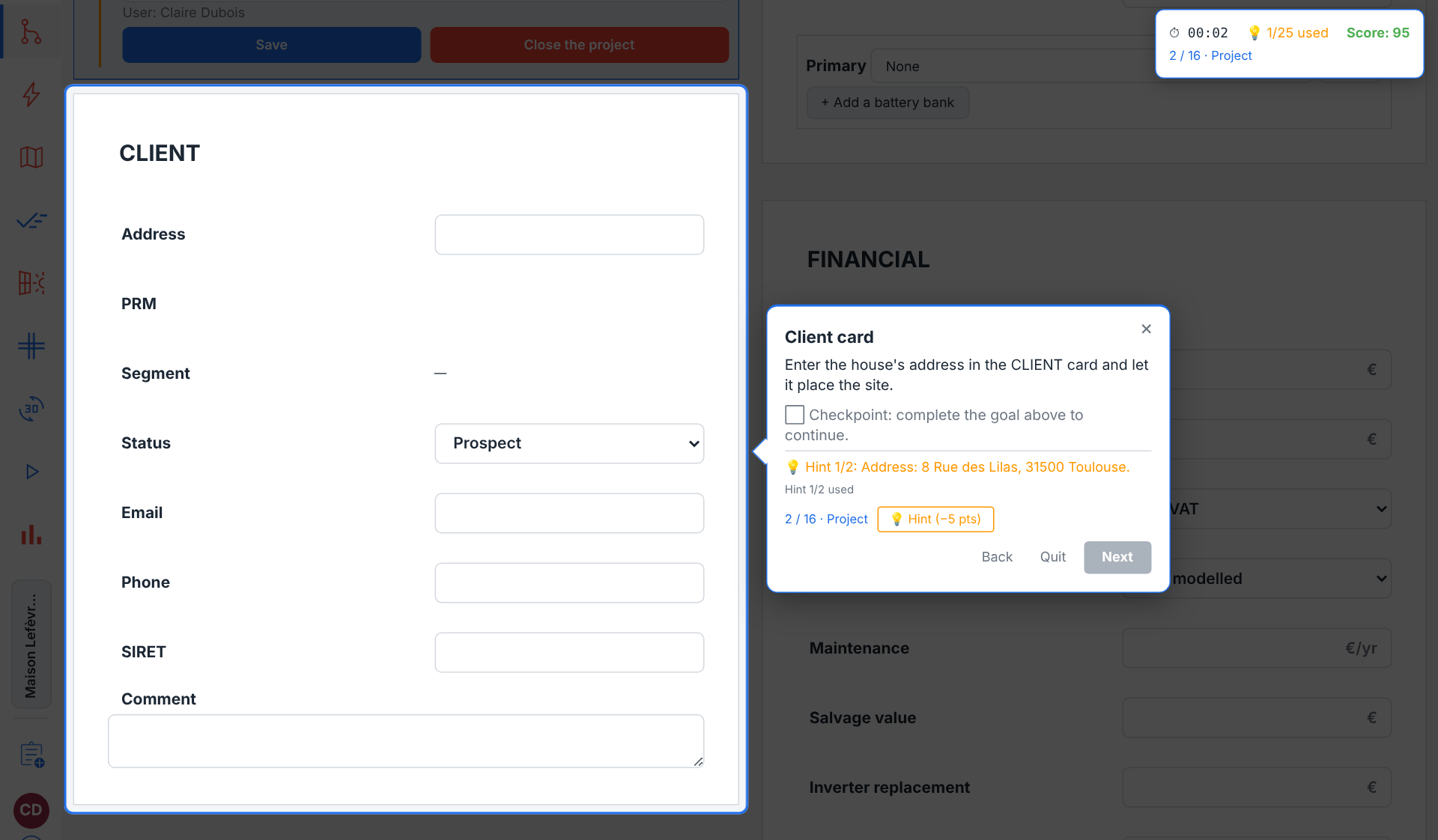
Scoring and stars
Scoring is deliberately simple: you start at 100 and each revealed hint deducts that difficulty's hint cost (5 on Challenge, 10 on Expert), floored at zero. Time is displayed but does not reduce your score. When you finish a scored run a results panel shows:
a star rating — three stars for a score of 80 or more, two stars for 50–79, and one star below 50, with the thresholds printed underneath;
the difficulty, the total time as minutes and seconds, and hints used over the tour's total, with the points they cost in brackets when they cost any;
your final Score: N / 100;
your Personal best for that tour and difficulty, once you have a previous finish to compare against;
New badge!and the badge's name and reward, when the run earned one (The mascot and badges) — otherwise, the badges still to earn.
Click Finish to close the panel. Only an improvement over your previous best is saved, so replaying a tour can raise your record but never lowers it. A Guided run is not scored and ends without a results panel: on the last step Next reads Finish, and simply closes the overlay.
Tip
To earn three stars, finish a Practice tour without opening any hints — that is the only thing that costs points. Take as long as you like: the timer is a record, not a penalty, and the time a run spends computing is not counted.
Launching, replaying and tracking progress
Run your first tutorial
Open Project with no project loaded (close the working project with Close the project in the projects browser if one is open) and scroll to Interactive tutorials.
In the Getting started section, find the Your first simulation card.
Click its Guided launch button.
Read each speech bubble and click Next to advance. When a step asks you to click a spotlighted rail entry or control, click it — the tour advances automatically.
When it asks you to open a project, click Open the demo project for a house that is ready to run, open a saved one, or create one with New project: the tour carries on with it by itself.
Use Back to replay the previous explanation. To leave, click Quit or the bubble's ×, or press Esc: the tour asks first, and its card then offers Resume to carry on where you stopped.
On the final step — “Congratulations!”, or “The whole path” when the project has no roof and its run is therefore empty — click Finish: the tour ends and the card shows its completion chip. Your first completed tour also earns the First steps badge.
Attempt a scored Practice tour
In the Practice section, pick House simulation or Factory simulation.
Click the Challenge (or Expert) button to start a scored run.
Click Next on the welcome: the tour opens its practice project, unsaved and nearly blank, with a flat rate typed in so that its CONSUMPTION RATES card opens on
Manual entry, its Granularity in view. Work through the phases — Project, Consumption, Map, Results, Production — filling in each card, and watch the checkpoint line turn green as you type the values that meet each goal.Open the client's brief with Client brief at the foot of the bubble whenever you need a figure: it is free, at every difficulty.
Run the simulation when the tour asks for it, and wait for the run to succeed.
Reveal a Hint only when stuck; the button shows the point cost.
At the end, read your star rating and score in the results panel and click Finish.
On the cloud, the run has filed the practice project among your projects under its name; a Manager or an Admin can delete it from its card on the Project tab.
Replay any time to beat your Personal best.
Completion and progress.
The cards record, per tour: whether you have completed it (the completion chip before the title, and a per-difficulty tick on each launch button), your best score per difficulty, and — if you left a tour partway — the furthest step you reached, shown as an amber reached/total badge. The badge disappears once the tour is completed. Finishing a tour at any difficulty also ticks its Guided button.
Resuming a tour.
A tour you leave partway keeps its place, even when the browser tab is closed: its card then leads its launch band with Resume · step N. Resume picks the run up on that step, at its difficulty, with the hints it used and the time it took — a scored run cannot shed a penalty by leaving. Start begins again at step 1. On a tour offered at several difficulties the button names the one it resumes at, as in Resume · step 5 · Challenge. Resume first checks every gate before that step: when one no longer holds — no project open, for a tour that works on one — it waits there, with a note saying where it is going back to, and once you meet it (open the project) the tour goes straight back to the step you left. Finishing the tour clears its place.
Watch out
Progress is stored in your browser, on the machine you used, not in your account. Another browser, another computer, a private window or a Clear site data will all show an empty catalogue with no ticks and no scores — the tours themselves are unaffected and can simply be replayed. Badges and what the mascot wears are kept the same way.
The mascot and badges
The pvSpline mascot — a little solar panel with a face, a house on a wire and a battery at its feet — appears in one tour only: Cheer up the mascot, on the Practice track. There it is the patient. The tour opens a project of its own, a house in Lyon in bad shape, and the mascot stands beside the speech bubble looking exactly as bad as that project does:
with no consumption entered, the wire to its house is cut and sparking, the window dark, the panel grey and slumped; a year no household draws — under 2 000 or over 14 000 kWh, an office or a factory profile picked for the house — crosses the chart's
Houseline too;with a roof out of balance with the house — more than three times its consumption — the
LOSSmeter fills and the battery drips; a roof covering less than a quarter of the house's needs turns the window red instead, the wire racing;with a storage system and no battery picked, the battery screen is empty and red, and the house pulls from the grid every evening;
once every fix is in, it beams — and a completed run of the project earns it a victory hop.
Beside the mascot hangs its chart, placed clear of the bubble and of the highlighted control: five lines — House, Roof, Balance, Battery, Simulation — each with a tick or a cross and the figures behind it (how many kWh the house draws, how many times the roof makes that, and so on). Every step of the tour is one of those lines: the step turns green the moment the project is fixed, and the mascot hops. The chart reads part of the rules behind the coloured validation badges on the navigation rail, which is the lesson underneath — when a project of yours turns a badge red or orange, the mascot's lines are a first place to look; the badges watch more, the electrical design among them.
It is also a character to play with: its eyes follow the pointer, a click makes it hop and wink, a double-click sets off a solar flare, and left alone it yawns, stretches or gets a visit from a bird. It shows the sky at the project's site — asleep after sunset there, wearing sunglasses around solar noon, under clouds when the project's own weather data says the season is overcast — and it never stands in your way: it keeps clear of the highlighted control (and, on the step that asks for a consumption profile, of the monthly grid the pick fills), and when it cannot find such a spot, clicks pass straight through it. Quitting the tour sends it away at once.
Note
No other tour shows the mascot, and there is no setting for it: it is on stage when you start its tour and nowhere else. On a phone-width window it draws smaller, and it holds still when your system asks for reduced motion.
Badges
The Badges shelf above the tutorial cards lists seven badges, with a count such as 2 / 7 earned. A badge you have not earned yet shows a padlock; hover any badge to read what earns it and what it gives the mascot to wear:
| Badges | Meaning / effect |
|---|---|
| First steps | Complete any tutorial. Reward: a hard hat. |
| Three stars | Score 80 or more on a Challenge or Expert run. Reward: a gold medal. |
| Unassisted | Finish a Challenge or Expert run without a single hint. Reward: a hero's cape. |
| Quick study | Finish a Challenge or Expert run faster than its estimated time — a Guided run advances on Next and does not count. Reward: wings. |
| Expert | Finish any tutorial at Expert difficulty. Reward: a graduation cap. |
| Explorer | Complete every tour of the Explore the tabs track. Reward: a bow tie. |
| Completionist | Complete every tutorial. Reward: a crown. |
A badge is announced the moment a run earns it — on the results panel of a scored run, in a short notice after a Guided one (beside the mascot in its own tour, otherwise in the corner of the window) — and its reward goes on straight away if that spot is free. The mascot wears one item per spot (head, neck, chest, back): click an earned badge on the shelf to put its reward on or take it off. Badges your record already proves, such as tours you completed before the shelf existed, appear by themselves.
Which tutorial for which goal
| Pick a tour by goal | Meaning / effect |
|---|---|
| I'm brand new — show me everything | Your first simulation (Getting started). A walk through the whole flow — Project → Consumption → Map → Results → Report — plus how projects are opened, run and saved, and how validation is surfaced. No project yet? It offers a demo house, ready to run. |
| I need to master clients, sizing and finance | Project tab. Every card of the tab: the projects browser and the open project's row, the client card, the simulation parameters, the consumption rates, their rate source and schedule, grid pricing, the battery and special systems, the financial card, the carbon footprint and the tender card. See also The Project Tab. |
| I'm entering or importing consumption | Consumption tab. Linky data or manual entry, the consumption profile and the annual estimate, the monthly grid, the production comparison, the daily curve and its open/closed days, adding a source such as an electric vehicle and removing it again, the peak-hour schedule and the bill import. See also The Consumption Tab. |
| I'm siting panels on a roof | Map tab. Address geocoding, navigating the aerial map, drawing panel polygons, panel type, tilt/azimuth, the compass and the panel colour tool, and the PVGIS production sync. See also The Map & Site Design Tab and Running a Simulation & the Production Tab. |
| I want to compare many variants at once | Batch tab. The four-step pipeline: define a study (auto-size with its cost options and Optimize now, sweep, matrix, parts or CSV), review the scenario list, run the batch and follow it, compare the results and apply the best scenario — the tour really builds and runs a small sweep. See also Batch Simulation & Scenario Sweeps. |
| I want to understand what the engine computed | Production tab. The latest run's five KPIs, the loss cascade and its schedules, the weather, model and simulation settings, and the check against measured production. See also Running a Simulation & the Production Tab. |
| I'm wiring the system | Diagram tab. Rendering the one-line diagram, selecting an element, sizing the DC strings, the wire schedule, the installation data the Consuel dossier asks for, the warnings and the settings. See also Electrical Design & the One-Line Diagram. |
| I want to see the site in 3D | 3D tab. Starting a session, the sun deck and the sky, the view overlays, the scene layers, culling and the STL export, the shading bake, the map calibration and the sun-path video. See also The 3D Earth Site View. |
| I want to replay a sun-path clip | Video tab. The clip slots the 3D view fills, the player, its transport and keeping a clip. |
| I want to read the results | Results tab. The run bar, the chart categories and the report beside them, the loss diagram, the per-chart PDF-visibility checkboxes, the financial charts, and the multi-year projection with its strip and its export. See also Charts, Heatmaps & Tables. |
| I'm producing the client deliverable | The report. The report on the Results tab: the page list, the run to preview, the PDF preview, the four document tabs, downloading the PDF, the other files (the tables, the drawing and the bill of materials), the tender dossier, the permit package and its form, the Consuel dossier, and the theme selector and editor. See also Reporting & Export. |
| I'm looking for a module, an inverter or a tariff | Catalogue tab. The ten categories, search and filters, adding or importing parts, the list and its sorting, a part's identity, favourites and how they reach the project pickers. See also The Component Catalogue. |
| I need a quick off-grid or pumping size | Pre-sizing tool (Tools & account). Mode, site and climate, the loads or the water need, the suggested sizing and its monthly table, and applying the pump and tank to a pumping project. |
| I want to set up the app for myself | Account & cloud (Tools & account). Its last steps walk your preferences, in the account page's Preferences section: theme and colours, language and currency and the preferences file. See also Preferences, Tariffs & Theming. |
| I'm managing my account or my company's cloud usage | Account & cloud (Tools & account). Signing in and password help, then the account page's sections in their order: your team and its seats, their usage with its meters and cloud runs, your plan and billing, two-factor authentication and service tokens, and your preferences. See also Your Account, Team & Cloud Runs. |
| I want to prove I can do it (residential) | House simulation (Practice, scored). A full 3 kWp self-consumption-with-export house in Toulouse, on a practice project of its own, entered from scratch without Linky data and run through to the PDF. |
| I want a harder test | Factory simulation (Practice, scored). A factory in Montpellier whose roof, about 12 kWp, is sized to its load so that it uses nearly all it produces, on a practice project of its own: a working-day consumption of 55–70 MWh a year, a two-polygon industrial roof, the run and its self-consumption rate. |
Note
The tours teach the interface, not the underlying physics. For how the simulation engine turns your inputs into energy and money — irradiance transposition, the loss cascade, the PCHIP/spline interpolation that refines coarse inputs — see Simulation Physics & Data Reference. Set your tariffs in The project's consumption-rate and grid-pricing cards before running a scored tour so the displayed amounts match your own assumptions.
If you set the Rate source of the CONSUMPTION RATES card to From an hourly CSV, choose its price file too: without one, every hour is priced at the peak and off-peak rates the card hides, and a run raises a warning. It warns the same way about Tempo (EDF) until all six of its prices are typed.
Field reference
The tutorial cards (the launcher)
| Field / Control | Type & unit | Default | What it does & how to set it |
|---|---|---|---|
| Interactive tutorials | heading | — | Title of the card section on the Project tab, below the projects browser. Below it, a static subtitle explains the difficulty concept. |
| Getting started | section header | — | Groups the single overview tour. First section shown. |
| Explore the tabs | section header | — | Groups the eleven per-tab deep-dive tours, in rail order. |
| Tools & account | section header | — | Groups the two tours of the tool pages and your account: pre-sizing, and the account with its settings. |
| Practice | section header | — | Groups the two full, scored end-to-end simulations and the mascot's own tour. |
| Tutorial card | card | — | One per tour: icon, title, description, meta line (steps and estimated minutes), objectives, and per-difficulty launch buttons. |
| Completion chip | indicator | off | A green chip, a check mark and Completed, before a card title once the tour has been finished at least once, at any difficulty. |
| Progress badge | indicator | hidden | Amber reached/total on a card whose tour you started then left without finishing: the furthest step reached. Only grows; hidden once the tour is completed. Its tooltip tells Resume and a fresh start apart. |
| Resume | button | hidden | Resume · step N, leading the launch band of a tour you left partway: picks the run up where it stopped, at its difficulty, with its hints and time. On a tour offered at several difficulties it names the difficulty: Resume · step N · Challenge. A tour that needs an open project waits at its “Open a project” step first when none is open. |
| Steps / time meta | label | — | Read-only summary, e.g. “23 steps · ~7 min”. The step count is the steps a run started now would show (The step counter); the time estimate is fixed per tour. |
| You will learn | label | — | Read-only list of the tour's objectives, dot-separated. |
| Launch button (per difficulty) | button | — | Starts the tour at that difficulty. Text shows the difficulty name, a tick when completed at that difficulty, and your best score N/100 for scored difficulties. Tooltip describes the difficulty. |
Instruction bubble (all step kinds)
| Field / Control | Type & unit | Default | What it does & how to set it |
|---|---|---|---|
| Step counter | label | — | “X / Y”: the step's number over the steps the run shows, with the phase name appended (e.g. “… · Consumption”) when the step declares one. A step the run passes over — a tab you are already on, a gate already met, a step that does not apply to the open project or your session — is not numbered, so the numbers have no gap (The step counter). |
| Arrow | indicator | — | On the bubble's edge facing the spotlit control, pointing at it. None when the bubble is centred, or lies over a target that fills the window. |
| Close (×) | button | — | In the bubble's top-right corner: leaves the tour as Quit does, after the same question. Esc does too, unless the focus is in a field or on a control that uses Esc itself (a drawing on the map, an open panel). |
| Open the demo project | button | hidden | Only on the getting-started tour's “Open a project” step: opens a small house in Bordeaux, ready to run, unsaved; the tour then moves on. Withheld while the bubble sends you back to the step's tab. |
| Fill it in for me | button | hidden | Guided practice runs only, on the steps whose figures take longest to type, until the step's checkpoint passes: writes the client brief's answer into the practice project, as one change you can undo (Practice-tour checkpoint targets). |
| Client brief | button | hidden | The two practice simulations only, on every step and at every difficulty: unfolds the client's brief — address, contract and prices, costs, consumption, roof — in the bubble, and Hide the brief folds it. Free: it costs no points. |
| Checkpoint line | status line | pending | Only on checkpoint steps. “Goal: do what is asked above to continue.” while pending; “Goal reached — click Next to continue.” in green once satisfied. Re-evaluated about every 0.6 s, in both directions. |
| Hint | button | hidden unless the step has hints | Reveals one more progressive hint for the step, appended in amber above the buttons with a “Hint N/M used” counter. On scored runs the label shows the point cost (“Hint (-5 pts)”); it disappears once every hint for the step is revealed. Only the Practice tours carry hints. |
| Back | button | hidden on step 1 | Replays the previous step, stepping over the steps the run passes over: navigation steps you have already satisfied, the “Open a project” step once a project is open, steps that do not apply. |
| Quit | button | hidden on the last step | Leaves the whole tour, as the × and Esc do — not just the step. Asks “Leave this tutorial?” first, then ends the tour, with no results panel. Your furthest step is saved as progress, and the step you left is what the card's Resume picks up. On the last step it gives way to Finish, which ends the tour. |
| Skip this step | button | hidden | On an action step whose control has been missing from the page for 1.2 s: moves on without the click. |
| Resume note | label | hidden | On a resumed run waiting at an earlier step: “… once this step is done, the tour takes you back to step N.” |
| Next | button | shown on lesson and checkpoint steps | Advances to the next step; reads Finish on the last step the run will show. Absent on navigation and action steps, where performing the action advances the tour; disabled on a checkpoint step until its condition passes. |
| Target-missing note | label | hidden | Shown, with the bubble centred, when the step's control has been missing from the page for 1.2 s and the step names no stand-in to ring instead. It says the control is not shown with the project as it stands — on an action step, that you can skip the step — and never asks you to navigate to it. |
| This step is on another tab | redirect bubble | — | Replaces the step content when you leave the step's tab: “Click the highlighted tab to come back to it — nothing is lost.” Spotlights the rail entry to click; Next, Hint and the step's own offers are withheld until you return. |
Scored-run HUD (Challenge / Expert)
A row at the head of the bubble.
| Field / Control | Type & unit | Default | What it does & how to set it |
|---|---|---|---|
| Timer | label | 00:00 | Elapsed run time, MM:SS, counting up. Stopped, and marked paused, while a run is queued or computing or the site's weather is fetched. Displayed only; does not affect the score. |
| Hints counter | label | 0/N used | Hints revealed so far in the run, over the number the whole tour offers. |
| Score | label | 100 | Live score. Starts at 100, drops by the hint cost per revealed hint, floored at 0. Green ≥ 80, amber 50–79, red < 50. |
Results panel (end of a scored run)
| Field / Control | Type & unit | Default | What it does & how to set it |
|---|---|---|---|
| Tutorial complete! | heading | — | Title of the panel. Shown only for Challenge and Expert runs. |
| Star rating | indicator | — | Three stars for score ≥ 80, two for 50–79, one below 50, drawn as filled and hollow stars out of three. |
| Difficulty | label | — | Guided, Challenge or Expert (only scored runs open this panel). |
| Total time | label | — | Elapsed run time as “N min SS s”. |
| Hints used | label | — | Hints revealed over the total the tour offers, with the points they cost in brackets when they cost any. |
| Score | label | — | Final score out of 100, followed by the star thresholds. |
| Personal best | label | hidden on a first finish | Your best saved score for this tour and difficulty before this run. Only improvements are saved. |
| New badge! | notice | hidden | One line per badge the run earned, with its reward. When the run earned none, a line names the badges still to earn. |
| Finish | button | — | Closes the results panel. |
Badge shelf and mascot
| Field / Control | Type & unit | Default | What it does & how to set it |
|---|---|---|---|
| Badges | shelf | — | Above the tutorial cards: a preview of the mascot in its rewards, the seven badge chips and a count N / 7 earned. |
| Badge chip | button | locked | A padlock until earned, then the badge's icon and name. Tooltip: what earns it, its reward, and whether a click puts the reward on or takes it off. Clicking an earned chip dresses or undresses the mascot; one item per spot. |
| Mascot | animated figure | its own tour | On stage in Cheer up the mascot only: stands beside the bubble, its mood the state of the project, its chart beside it, hopping at each fix. Draws smaller at phone width. |
| Mascot's chart | readout | its own tour | Five lines beside the mascot, clear of the bubble — House, Roof, Balance, Battery, Simulation — each a tick, a cross or a dash, with the figures behind it. The tour's checkpoints are these lines. |
| New badge (unscored run) | notice | hidden | After a Guided run that earned a badge, a note names it and its reward for a few seconds — beside the mascot in its own tour, otherwise in the corner of the window. |
Available tutorials
The step counts are the ones the cards show on the Project tab with no project open, signed in to your account (The step counter).
| Field / Control | Type & unit | Default | What it does & how to set it |
|---|---|---|---|
| Your first simulation | Getting started · 23 steps · ~7 min | Guided | Overview of the complete simulation process, following the input flow: the tab rail and its validation badges, opening a project — one of yours, or the demo house it offers, ready to run — and the Project cards, including the HP / HC hours (lighting the rates card itself when the rates have no peak / off-peak schedule), the consumption, the map, the loss cascade on the Production tab, running the project from the Results tab and where the run lands, the charts, the report, then saving and closing the project. A project with no roof ends on a closing step that says its run is empty instead of congratulating you. Run this first. |
| Project tab | Explore the tabs · 17 steps · ~6 min | Guided | Every card of the Project tab, top to bottom: the projects browser and how a project is opened, the open project's row (export, save, close), the client card, the simulation parameters, the components the project uses, the consumption rates with their rate source and peak-hour schedule, grid pricing, the battery, the special systems, the financial parameters, the carbon footprint and the tender card. A card the open project's system type does not show is passed over. |
| Consumption tab | Explore the tabs · 19 steps · ~6 min | Guided | Linky data or manual entry, the consumption profile and the estimate from an annual total, the monthly grid, the production-versus-consumption card and its day shapes, the daily power curve and its open and closed days, adding a source (an electric vehicle, for instance) and removing it again with the × on its tab, the tariff granularity and peak-hour schedule, and the bill import. |
| Map tab | Explore the tabs · 20 steps · ~7 min | Guided | The aerial map, polygon drawing and PVGIS sync: geocoding an address, navigating the imagery, adding polygons, picking the panel type, tilt and azimuth, the compass, the panel colour tool, and the Production view's monthly PVGIS figures. While you trace the roof the map stays undimmed, the bubble clear of the drawing ribbon, and the building-measures step waits until a polygon is typed Building. |
| Batch tab | Explore the tabs · 22 steps · ~7 min | Guided | The four-step pipeline, walked while building and running a small study: the Define modes (auto-size, sweep, matrix, parts, CSV), the auto-size cost options and Optimize now (taught, not clicked: it would apply its winner to your project), the quick-parameter chips, the scenario list, the run settings, the run — the tour waits for its results — and its history, the winner banner, or the line saying there is no best scenario by NPV when every NPV is 0, the results table and chart, and applying a scenario to the project. |
| Production tab | Explore the tabs · 15 steps · ~6 min | Guided | The latest run's five KPIs, the loss cascade and lifetime degradation, the weather and model settings, the simulation settings, the schedules and grid band, probabilistic production, the real-versus-simulated check, measured series and the PVGIS report import. |
| Diagram tab | Explore the tabs · 18 steps · ~6 min | Guided | The one-line diagram: rendering the drawing of record, zoom and pan, selecting a string, the panel's Design, Consuel and Issues tabs (DC array sizing, the wire schedule, the installation data the Consuel dossier asks for, the warnings), inverters and combiner boxes, and the diagram settings. |
| 3D tab | Explore the tabs · 24 steps · ~7 min | Guided | How a session starts, the picture, Advanced mode, the sun deck and the sky, the view overlays and flying the view, the scene layers, culling and the STL export, the shading bake and the map calibration, and the sun-path video. The page shows every control while the tour runs. |
| Video tab | Explore the tabs · 7 steps · ~2 min | Guided | The clip slots the 3D view fills, the player, its playback controls, and keeping a clip. |
| Results tab | Explore the tabs · 13 steps · ~5 min | Guided | The run bar, the chart categories, selecting a chart and its page in the report, the per-chart PDF-visibility checkboxes, the loss diagram, the financial charts, and the detailed multi-year projection with its strip under the report and its export in the menu beside Download PDF above it. |
| The report | Explore the tabs · 25 steps · ~8 min | Guided | The report on the Results tab: the page list, the run to preview, the PDF preview, the four document tabs and their status lines, downloading the PDF, the other files (the tables, the drawing and the bill of materials), then a walk across the tabs — the tender dossier, the permit package and its form, the Consuel dossier — and, back on the study report, the theme selector and the theme editor, which the tour closes before it ends. |
| Catalogue tab | Explore the tabs · 16 steps · ~5 min | Guided | The ten categories, search and its filters, adding your own parts and the part form, the list and its sorting, selecting a part and its actions, a part's identity, favourites, and how the catalogue feeds the project pickers. To a session that may add parts, it has you open the part form (Add a new PV module…, then Enter the characteristics), waits for it, walks it and has you close it with Cancel, saving nothing; without that right, those three steps are passed over (13 steps). |
| Pre-sizing tool | Tools & account · 14 steps · ~5 min | Guided | The mode, the site and array, the climate, the off-grid loads, the pre-sizing itself, the suggested sizing and its monthly table, then the solar pumping mode, its water need, the pumping sizing and applying the pump and tank to the project. It waits for each thing it asks for: coordinates on the site step (taken from the open project; with none open, type them — 43.60 and 1.44 for Toulouse, say), the result of each Pre-size, and the switch to Solar pumping. |
| Account & cloud | Tools & account · 16 steps · ~7 min | Guided | Signed in, it follows the account page's sections: your avatar, who you are, Team & seats, Usage's seats table, members, the simulation meter, cloud runs, Plan & billing, two-factor authentication, service tokens, your colours, your language and currency, the preferences file, and signing out. Signed out, it shows the password help and the sign-in card instead of the account cards, which join the run once you sign in; with no cloud endpoint, it shows only the settings. |
| House simulation | Practice · 16 steps · ~15 min | Guided / Challenge / Expert (default Challenge) | Build a 3 kWp residential self-consumption-with-export project in Toulouse for Sophie Lefèvre, without Linky data, on the practice project the tour opens, Maison Lefèvre (tutoriel): the client's address, the system type and its feed-in tariff, the HP / HC hours and prices, the financial card, the profile and a full year of consumption, the roof of the house on the map, the run, the financial projection, the PDF and the Production tab. Checkpointed and scored. |
| Factory simulation | Practice · 15 steps · ~15 min | Guided / Challenge / Expert (default Challenge) | Size a factory roof in Montpellier for TechnoSud to its load — about 12 kWp, so that it uses nearly all it produces, its rare surplus exported — on the practice project the tour opens, Usine TechnoSud (tutoriel): the client's address, the feed-in tariff, seasonal HP / HC hours and prices, a working-day consumption of 55–70 MWh a year, a two-polygon industrial roof, the run, its self-consumption rate and the PDF. Advanced, checkpointed and scored. |
| Cheer up the mascot | Practice · 6 steps · ~6 min | Guided / Challenge / Expert (default Guided) | The mascot's own tour (The mascot and badges): it opens a house project in bad shape and the mascot shows what is wrong with it. Give the house a household's consumption profile, bring the roof back in balance with it (delete the barn polygon on the Map), pick a battery or a system type that needs none, then run the project — one fix per step, the mascot cheering up at each. Checkpointed and scored. |
Practice-tour checkpoint targets
The two simulations accept a range around each target, so a realistic project passes without matching the reference figures exactly. Every checkpoint reads the Project and Consumption cards as you type, so a step turns green at the keystroke that meets it — and in Cheer up the mascot, the mascot answers there too.
Each simulation's client brief — the address, the contract and its prices, the feed-in tariff, the costs, the loan, the consumption and the roof — is a button at the foot of the bubble, Client brief, on every step and at every difficulty, and costs nothing: Challenge and Expert test what you do with the figures, not whether you remember them, so their costed hints say how to do a step, never with what. On a Guided run the bubbles also quote the figures each step needs, and the five steps whose figures take longest to type offer Fill it in for me, which writes the brief's answer into the practice project as one change you can undo: the client card, the simulation parameters, the time slots, the financial parameters, and the monthly entry (the house) or the industrial profile (the factory). The filled client card places the site as the address lookup would.
On the roof step the map rings the client's address: the roof must be drawn on that building, not on another one down the street.
| Field / Control | Type & unit | Default | What it does & how to set it |
|---|---|---|---|
| House · Open the project | checkpoint | — | A working project is open. Next on the welcome opens the practice project, which meets this step at once: it shows only if that project could not open, and then any project will do. |
| House · Client card | checkpoint | — | The address contains “Lilas” — 8 Rue des Lilas, 31500 Toulouse — and the address lookup has placed the site in Toulouse (latitude 43.5–43.7, longitude 1.3–1.6). |
| House · Simulation parameters | checkpoint | — | System type set to self-consumption with export, and a feed-in tariff of 3.5–4.5 c€/kWh (the brief's 0.04 €/kWh). |
| House · Time slots | checkpoint | — | A peak-hour tariff, with the winter peak window starting between 05:00 and 07:00 and ending between 21:00 and 23:00, and the brief's peak and off-peak prices (0.2700 and 0.2068 €/kWh), each within half a centime. |
| House · Financial parameters | checkpoint | — | Installation cost 8 500–9 500 €; the 5.5 % VAT rate of a house under 9 kWp; electricity escalation 1.5–2.5 %/yr; debt financing ticked with a 19–21 year term at 3.25–3.75 % (the field's 3.5 % default passes). |
| House · Consumption profile | checkpoint | — | The residential profile without electric heating applied (the house is heated with gas): the daily curve peaks in the evening (17:00–22:00) and drops low at night. |
| House · Monthly entry | checkpoint | — | Annual peak-hour total 4 000–5 000 kWh, off-peak total 2 000–2 800 kWh, and a grand total of 7 000–9 500 kWh. |
| House · Locate and draw | checkpoint | — | At least one panel polygon within 35 m of the ringed address, an installed power of 2.8–3.2 kWp from the module fill, with the site still placed in Toulouse. |
| House · Run the simulation | checkpoint | — | A run of this project has succeeded, so charts and the report preview exist; a run of another project does not count. |
| House · Review the results | checkpoint | — | The Financial projection chart is open in the report. |
| House · Final PDF | checkpoint | — | The report has been downloaded with Download PDF. |
| Factory · Open the project | checkpoint | — | A working project is open. Next on the welcome opens the practice project, which meets this step at once: it shows only if that project could not open, and then any project will do. |
| Factory · Client card | checkpoint | — | The address contains “Industrie” — Rue de l'Industrie, 34070 Montpellier — and the address lookup has placed the site in Montpellier (latitude 43.5–43.7, longitude 3.7–4.0). |
| Factory · Simulation parameters | checkpoint | — | System type set to Self-consumption + export: the factory has no battery, and sells its rare surplus, at a feed-in tariff of 4.5–5.5 c€/kWh (the brief's 0.05 €/kWh). |
| Factory · Time slots | checkpoint | — | Winter peak window roughly 06:00–22:00 and summer peak window roughly 07:00–23:00 (or on to midnight), each end accepted within about an hour, and the brief's four seasonal prices, each within half a centime. |
| Factory · Financial parameters | checkpoint | — | Installation cost 16 000–20 000 €; the 20 % VAT rate; electricity escalation 2.0–3.0 %/yr; debt financing ticked with a 14–16 year term at 3.75–4.25 %. |
| Factory · Industrial profile | checkpoint | — | A working-day profile applied (the daily curve peaks between 08:00 and 18:00) and an annual consumption of 55 000–70 000 kWh. |
| Factory · Industrial roof | checkpoint | — | At least two panel polygons within 80 m of the ringed address, an installed power of 10–14 kWp — sized to the load, so that the factory uses nearly all its production — rows at least 0.5 m apart on every panel polygon, so that the rows of the flat roof do not shade each other, with the site still placed in Montpellier. |
| Factory · Run the simulation | checkpoint | — | A run of this project has succeeded, so charts and the report preview exist; a run of another project does not count. |
| Factory · Results analysis | checkpoint | — | The Production / consumption summary chart, which states the self-consumption rate, is open in the report. |
| Factory · Final PDF | checkpoint | — | The report has been downloaded with Download PDF. |
| Mascot · The house is cut off | checkpoint | — | The house draws a household's year: a measured series, or a monthly grid adding up to 2 000–14 000 kWh (a residential profile fills all twelve months; an office or a factory profile does not pass). |
| Mascot · Far too much roof | checkpoint | — | The barn polygon deleted, and a production between a quarter and three times the house's annual consumption — production credited at 1 100 kWh per kWp until a run has computed it. The tour's house roof alone (4 kWp) passes for any household year; with the 36 kWp barn it spills over every one. |
| Mascot · A flat battery | checkpoint | — | A battery picked from the catalogue (or a stored capacity), or a system type with no battery: Self-consumption + export, for instance. |
| Mascot · Make it glow | checkpoint | — | A simulation run of this very project has succeeded. |