Your Account, Team & Cloud Runs
At a glance
What it is:
/account— the one page that answers “who am I to pvSpline, who else is in my company, what does my plan let us do, and how much of this month's allowance is left?”How you get there: the round avatar at the foot of the navigation rail, in every state — signed in or out. Signed in, the page opens at the top, on Team & seats, and for someone with the Manager role a badge on the avatar counts the seats out of an allowance and the people waiting for a seat. The old addresses
/team,/settingsand/cloudland on the matching section.What it holds: a header that says who you are and names your company and its plan, then five sections one under another, each at its own address: Team & seats — the seats in use, the people waiting for one and the invitations; Usage — what each person has left this month, and in Advanced mode the meters and the cloud run history; Plan & billing; Security — two-factor authentication, sessions and service tokens, AI assistants' connections among them; and Preferences — the theme and colours, the interface language and currency, and the preferences file (The Preferences section: your preferences).
The five metered things: simulation (the engine time of cloud runs), 3-D streaming, IGN tile builds, the cloud API itself, and the files you import. Each has a monthly allowance on every plan: the first four count seconds, file imports count megabytes.
Your company's seats come first: Team & seats, at
/account/team, opens the page — the seats in use, adding seats, who is waiting for one (The Team & seats section). The seats table just after it, in Usage, says what each holder has left this month; it is where a Manager changes a role or an Enedis authorisation, or removes someone (The Usage section: your company's month).Per member on a subscription, shared on the free plan. On a subscription every allowance is each member's own: a colleague's use never draws on yours, and what you leave unused does not go to anyone else; work done through a server or CI token counts against the member who created the token. The free plan has one set of allowances for the whole company, which every member shares, and it admits any number of members: it has no seats.
A new account is verified in two checks: your email confirmed, and your company's SIREN found active in INSEE's Sirene register, which pvSpline asks itself. They start its free plan — a new account holds no plan before them — and subscribing needs them too (Verifying your account).
Money lives off-page. Buying and card changes hand off to a hosted payment page; no card details reach pvSpline. The plans and their prices are published on the pricing page of the pvSpline website; Plan & billing states the price of a seat before you buy, and Monthly allowances by plan repeats the plans' monthly allowances.
Where your account lives
The account page is at /account. You reach it from the circular avatar at the bottom of the navigation rail, which shows your initials when you are signed in and ? when you are not; clicking it goes to /account either way. There is no drop-down menu behind it — the page is the menu.
Signed in, the page is one header, then five sections one under another, each under its own title, which a thin rule carries across the page: you scroll from one section to the next. Each section has its own address, which opens the page scrolled to it, so you can bookmark one or send it to a colleague; a bare /account, and an address that names no section, opens the page at the top, on Team & seats:
Team & seats,
/account/team— the seats in use and adding seats, the people waiting for a seat and inviting a colleague; on the free plan, the alert when the pool the company shares runs out, and the Monthly plan in one line (The Team & seats section).Usage,
/account/usage— the seats table: what each person has left of this month's allowances, with their role and Enedis authorisation; on the free plan, the pool and its members. Advanced mode adds the meters, the activity under them, the months before and the cloud run history (The Usage section: your company's month).Plan & billing,
/account/billing— the bill and its buttons, cancelling included, or your plan; and the Monthly plan's offer (The Plan & billing section).Security,
/account/security— two-factor authentication, sessions and service tokens (The Security section: two-factor authentication, sessions and tokens).Preferences,
/account/preferences— the theme and colours, the interface language and currency, and the preferences file (The Preferences section: your preferences).
There is no tab bar. Following a link to a section — one of these addresses, the link in an e-mail or in the banner, or a link on the page itself — scrolls the page to it; the address changes when you follow such a link, not as you scroll. For someone with the Manager role, the avatar on the rail keeps its count of the seats out of an allowance and the people waiting for a seat (The Team & seats section), and a payment on your subscription that is failing keeps its notice under the header (Plans and what they unlock). Every section is on the page from the start, but what it shows from the cloud is read as it comes into view, so a section further down can take a moment to fill in. The ? link at the foot of the rail opens this chapter at the section in view.
At the top, the header says who is signed in and names your company and its plan, with Sign out at its right. Under it, before the first section, the page shows what concerns the whole page, such as a payment that failed or the identity checks a new account still owes (The header, and the notices under it).
Older addresses land on the section that took over from them, so an old bookmark or a link from a colleague still works:
/team— the former Team & seats page. It lands on/account/team, its query kept:/team?show=outstill leads to the seats that are out, at the top of the seats table./settings— the former settings page. It lands on/account/preferences./cloud— the former cloud page. It lands on/account/usage#cloud-runs, which shows the run history, opens it and scrolls to it. Any query it carried rides along./account#cloud-runsand/account?save=<id>— older links to the run history. Signed in, they open it as/account/usage#cloud-runsdoes.
A few addresses open the page in a given state:
/account/usage?save=<id>— opens the run history filtered to one project, with a dismissible chip naming it./account/usage?show=out— the address of the Managers' banner: the page scrolled to the seats table, where the seats that are out come first. The same query under/account/team, in links sent before, lands there too./account/security#tokens— the Service tokens card, where the seats table's Service tokens link leads./account/billing#offer— the Monthly plan's offer, where the Managers' banner, the run card's notice and the e-mail about the free plan's pool lead (From inside your account)./account?next=<path>— written by the sign-in wall. After a successful sign-in you are returned to<path>instead of being left on the account page. Only same-origin paths are honoured, so the parameter cannot be used to bounce you off the site.
The Start for free buttons of the pvSpline website open /account?signup=1, which shows the registration form straight away when self-service signup is open on your deployment, and the sign-in card otherwise.
Signed out, the page has neither header nor sections: it is the sign-in card, under an ACCESS title, followed by your preferences, the SETTINGS band, whichever section its address names — except on a deployment that asks you to sign in before anything else, where the sign-in card is all the page shows. Once you sign in, the page opens on the section its address names, or at the top; your preferences are then its last section, titled Preferences.
Signing in, signing out, and what an anonymous visitor can reach
The mechanics of the sign-in form — the fields, the reset and verification-resend panels, and the registration form — are covered in Getting Started. This section covers the consequences: what a session is, where it is kept, and what you can and cannot do without one.
The four sign-in panes
The signed-out card shows exactly one of four panes at a time, and links at the bottom switch between them:
Sign in — Username and Password, the default pane.
Reset your password — behind Forgot your password?. Takes an Email and requests a single-use link valid for 60 minutes.
Resend verification email — behind Resend verification email. Same shape; confirming your address is one of the two checks that start a new account's free plan (Verifying your account).
Create your account — behind Create a free account, and only when self-service signup is open on your deployment. When it is closed the card says
New account creation is temporarily closedand points you at your company administrator instead. While signup is closed, only pvSpline creates accounts, so your administrator asks pvSpline for yours atcontact@pvspline.fr.
Note
The reset and resend panels answer identically whether or not the address matches an account, so their confirmations never claim that an email was sent. That is deliberate: it stops the form being used to discover who has an account. Check your inbox — and your spam folder — rather than reading the message as a promise.
The login wall
On the hosted service the app is signed-in-only. Any route outside a short public list redirects to /account?next=<where you were going>, and the whole navigation rail greys out until a session exists, so the wall is visible rather than an unexplained bounce. The rail's avatar stays live — it is the way in.
These addresses stay reachable with no session at all, because the emails and the purchase flow need them:
| Route | Why it is public |
|---|---|
/account and its sections | The sign-in surface itself, and the wall's own target. Signed out, the address of any section shows the sign-in card. |
/claim | Where emailed links land: password reset, and e-mail verification. The signed token in the link is the credential. |
/join/decide | The emailed approval link for someone asking to join your company. |
/legal | The EULA, the DPA and the other notices, linked beside the acceptance checkboxes of the registration form and the purchase page. Like every page, it opens once the licence agreement has been accepted in this browser. |
/buy | The public purchase page. It has its own gate and explains itself when signup is closed. |
/billing/success | Where the payment page returns after a successful checkout. |
/billing/cancel | Where it returns after an abandoned one. |
What a session is, and what survives
Signing in stores a session for this browser. It survives a page reload, a new tab and a browser restart; it does not follow you to another browser or another machine, and it is never shared with a colleague. The session carries a server-set expiry, and pvSpline stops treating it as valid the moment that passes.
That expiry falls 24 hours after you sign in. Three events end a session sooner, in every browser at once: setting a new password from a reset link ends every session of the account, a change of role ends the sessions of the person whose role changed, and removing someone from the company ends theirs (Removing someone from the company).
One device at a time
A pvSpline account belongs to one person, and it is used on one device at a time. Signing in on another computer, or in another browser, ends the session you had: the next thing you do there fails, and the sign-in card says Signed out: your account was signed in on another device. The sign-in that ended it tells you so as well: a notice under the account page's header names the other session, its browser and when it signed in. If that was not you, someone else knows your password: reset it with Forgot your password? on the sign-in card. Each person in your company needs an account of their own; a manager invites colleagues from this page (Inviting a colleague).
The Sessions card, in the Security section, states the rule your account follows and lists where it is signed in now: the browser and system, when it signed in, and the address it came from. This browser marks the one you are reading it in. Sign out beside another session ends it at once; your own ends with Sign out in the page's header.
Three things behave differently:
Your projects live in the cloud store of record, so they follow you to any machine you sign in from (The Project Tab), with the weather, consumption and other series they had fetched (What a project saved to your account keeps).
Your preferences follow you too: language, theme, colours, catalogue favourites and the rest of what you set in this page's Preferences section roam with your account, with nothing to switch on (What each setting is stored in, and what follows you).
Everything on this page — roster, meters, run history — is read from the server on every visit and cleared on sign-out.
Watch out
If a tab is left open until the session lapses, nothing re-renders at the moment it expires — so the first action you take afterwards fails. The account page then shows Session expired — please sign in again above the sign-in form, and the run, token and roster lists are cleared. The project open in the tab stays as it was, unsaved changes included, and so do the copies of unsaved work this browser keeps for recovery: sign in again and continue.
Sign out sits at the right of the page's header. It ends the session on pvSpline's servers as well as in this browser, so a copy of it left anywhere stops working, and it clears, deliberately, every colleague's name and spend figure with it: on a shared machine nothing of the previous session is left on the page.
Signing out also closes the project open in the tab, without asking — its unsaved changes are lost — and deletes every copy of unsaved work this browser keeps for recovery (Updates, reloads and recovering work), including those left by tabs closed earlier without saving: whoever signs in next on the same computer neither sees your work nor is offered it back. Save before you sign out. Other tabs still open on pvSpline keep the project they show, so on a shared computer save the work in them too, and close them before you leave.
What a project saved to your account keeps
Saving a project to your account also stores the data embedded in it: its PVGIS and Open-Meteo weather years, its measured Enedis consumption, an imported weather file, the point-of-view pictures of the 3-D view (Pictures for the report) and the other series it carries. Reopen the save — on any computer you sign in from, or an earlier version of it from its history — and the data comes back with it, so the project runs straight away, without fetching its weather or downloading its consumption again. The shading tables of a 3-D bake are part of the project itself and are kept by every save (Baking real 3D shading into the yield).
This data stays with every version of the save that carries it, with two exceptions:
Enedis consumption leaves once your client's authorisation for its meter has expired or been revoked and no other authorisation of your company covers that meter (When your client's authorisation expires). The consumption is then removed from every version of the saves that name the meter — on a project with several meters, every meter's consumption — while the rest of the project, its weather included, stays.
All of it is erased with the rest of your company's data at the end of the service.
Note
Storing this data never puts the save at risk. If it cannot be stored, the project is saved without it, and a warning under Save says so. The data stays in the open project as unsaved changes, so saving again retries, and closing the project asks first. If it cannot be downloaded when you reopen the save, the project opens without it, and a warning under Save says that too: close the project and open it again to retry, since saving it as it is stores it without the data. Such a project behaves like one that has fetched nothing: its weather is fetched again before its next run, an imported weather file has to be imported again, and its measured consumption has to be downloaded again on Consumption; until it is, the run warns that the project bills no consumption.
The header, and the notices under it
The page opens with one header, which states what the service knows about you and your company. On its left, an avatar with your initials, in the colour of the rail's avatar, then:
Signed in as {name}, with your username at the start of the line below.Profile: {role}— one of Admin, Manager or User. The role decides what you may see and change in your company (Roles, and what a manager can change).Enedis authorized: Yes/No— whether your account may pull French metering data through pvSpline's Enedis connection. Without it the Enedis import in Consumption is closed to you (The Consumption Tab). Someone with the Manager role can grant it in the seats table, in Usage (Roles, and what a manager can change). On the free plan it readsNowhatever that switch says, withThe free plan does not include Enedis data; the subscription does.below it (Plans and what they unlock). While Enedis access is suspended for every account it readsNofor everyone, withEnedis access is suspended for every account until the next Enedis contract takes effect.below it.
On its right:
Your company's name, when the service has one on record.
SIRET — your company's French registration number, which identifies it as a professional customer. Its first nine digits, the SIREN, are what the Sirene check looks up (Verifying your account). Colleagues join your account through an invitation (Inviting a colleague).
Your plan, as a pill: its name —
Web (monthly)orFree—,{plan} — expiredfor a plan that is no longer active, orNo plan(Plans and what they unlock).Sign out (One device at a time).
There is no profile editor here: your display name, username and e-mail address are set when the account is created, and only pvSpline can change them — a Manager account cannot, so write to pvSpline to have one changed. Your password is changed through the reset link, not through a field on this page — request one from Forgot your password? on the signed-out card, then set a new password (at least 8 characters) on the page the link opens. Your interface language is a preference, not an account property, and lives in this page's Preferences section (The Preferences section: your preferences). A phone number given at sign-up is kept as a contact only: the page does not show it, so write to pvSpline to change it.
Between the header and the first section, the page shows what concerns the whole page, when it applies:
Just after you register, a one-off reminder:
Account created — a verification link is on its way to your inbox. Your free plan starts once you confirm your email; we check your company in INSEE’s Sirene register ourselves (see “Verify your account” below).Until then the account holds no plan, and Plan & billing says so (Plans and what they unlock). An account opened before the identity checks needs only the click (Verifying your account).After a sign-in that ended your session somewhere else, which one it ended:
Your account was also signed in elsewhere: {devices}. That session is now signed out, as an account is used on one device at a time. If it was not you, reset your password.(One device at a time).While a payment on your subscription is failing, a red box headed
A payment on your subscription failed, with Manage billing for someone with the Manager role, or the founding member (Plans and what they unlock).While your identity checks are pending, the Verify your account card (Verifying your account).
The Team & seats section
/account/team, the first section of the page, puts your company's seats in one place: how many are in use, who is waiting for one, and the invitations. What each holder has left of this month's allowances is the seats table, next on the page, in Usage (The Usage section: your company's month). Every member of the company can read it. Only someone with the Manager role in your company, or its founding member, is offered what binds the company — adding seats, deciding who joins, inviting a colleague; every other member reads Seats and billing are handled by {names}. at the end of the section's rule instead. The bill is in Plan & billing (The Plan & billing section).
On a subscription
A Manager has Add seats at the end of the section's rule (Adding seats). Under it, one row of cards:
Seats in use:
{used} of {paid}, then the people, the server or CI tokens and the free seats, one square each, and for a Manager a+that adds seats; when your company uses more seats than its subscription pays for, the card says so in red.Waiting for a seat, for a Manager and only while somebody is waiting: each person who asked to join, with Approve — or Add a seat and approve when every seat is taken — and Decline (Approving on Team & seats).
Invite a colleague, for a Manager (Inviting a colleague).
No alert or count of the seats that are out sits over these cards: the seats table, next on the page, lists those seats first, tinted, with what ran out in red (The Usage section: your company's month), and the badge on the rail's avatar counts them.
Adding seats
Add seats — at the end of the section's rule, on the + of Seats in use, as Add a seat and approve beside someone waiting, or as Add a seat and invite {email} when an invitation finds every seat taken — opens one window:
Seats in total: the new number of seats, with a minus and a plus button beside it, and +1, +2 and +5 to add a few at once. The line under it says how many seats you have, how many are in use, and what the change adds.
Who gets the new seats: tick Approve {name} for each person waiting, and type a colleague's address in each New seat {n} · invite by email (optional) field. A seat left without a name stays free, for an invitation later. Ticking someone when no new seat is left raises the number by one.
Each new seat brings, every month: the allowances of one seat, for its holder alone, from today.
Price: the new monthly total, and about what is charged now — the price of the new seats for the days left until your subscription renews.
The button says what it does: Add {n} seats · about {amount} charged to your saved card. The card is the one saved with your subscription; you do not enter card details. Once the payment has gone through, the window approves the people you ticked, sends the invitations, and says what was done, line by line, with what was charged.
If your bank declines the payment or asks you to confirm it (3-D Secure), no seat is added: the window reads Your bank hasn't accepted the payment yet and offers Open the invoice on Stripe, where you pay or confirm it; the seats are added as soon as the invoice is paid. Manage billing changes the card.
The same window lowers the number: choose fewer seats than you have, and its title reads Change seats. Removed seats are credited on your next invoice, and the number cannot go below the seats in use. A subscription invoiced by pvSpline outside online checkout changes on request: the window sends it, and pvSpline applies the new number once the contract is adjusted.
When a colleague leaves, removing them can take their seat off the subscription in the same step (Removing someone from the company).
Add a seat for a colleague who asked to join
Open Team & seats (
/account/team). The Waiting for a seat card lists the request.Click Add a seat and approve. The window opens with one more seat and Approve {name} ticked.
Read the new monthly total and what is charged now, then click the button that names them.
The window confirms the new number of seats and that your colleague is approved: they can sign in at once.
On the free plan
The free plan has no seats: one set of allowances for the whole company, whose meters and members are in Usage (The Usage section: your company's month). When part of it is used up, a red box at the top of the section says which — Your company’s free simulation time is used up, for instance — and until when: nobody in the company can use it until the 1st.
Then one line sets the Monthly plan beside the free plan: On the Monthly plan, each member has their own allowances: {each} of simulation each, where the Free plan shares {pool} between all {n}. A Manager's See the Monthly plan, at its end, scrolls to the full offer in Plan & billing, where the company subscribes (From inside your account); every other member reads who can subscribe instead. Waiting for a seat and Invite a colleague follow, as on a subscription; on the free plan an approval never meets a limit.
When a seat runs out: the badge, the banner, the email
The badge. For a Manager, a number on the account avatar at the foot of the rail counts the seats out of an allowance (one for the free plan's pool) and the people waiting for a seat. It is red while something is out; hover the avatar for the details.
The banner. Above every page but the account page, a Manager reads who is out and until when — or that the free pool ran out, or that someone is waiting while every seat is taken — with a link: Show them to the seats that are out, See the Monthly plan to the offer, Add seats to Team & seats. Its cross hides it until the next day, or until something else runs out.
The email. The first time in a month that a seat — or, on the free plan, the company's pool — runs out of an allowance, your company's Managers receive an email saying what ran out, with a link to the seats table,
/account/usage— on the free plan, to the Monthly plan's offer,/account/billing#offer.The run card. When a cloud run is refused because the allowance is used up, the Run the working project card says which allowance, the day it renews, and who in your company sees it or can change the plan, with a link: See the Monthly plan for a Manager on the free plan, See the seats, to the seats table, for everyone else.
A seat that ran out cannot be given more time: its allowances renew on the 1st. Adding seats gives new colleagues allowances of their own.
Roles, and what a manager can change
In the Usage section, each person's role and Enedis authorisation sit in their row of the seats table, in two columns of their own — on the free plan, beside their name in the Members list (The Usage section: your company's month). They are the two things that genuinely vary per person, and someone with the Manager role in your company, or its founding member, changes them in the row itself:
Role — a dropdown offering User and Manager. Manager accounts can manage members and approve people joining the company; User accounts cannot.
Enedis authorised — a checkbox granting that person access to the Enedis metering connection. On the free plan it is greyed out, and its tooltip says why:
The free plan does not include Enedis data; the subscription does.(Plans and what they unlock); while Enedis access is suspended for every account it is greyed out too, withEnedis access is suspended for every account until the next Enedis contract takes effect.
The box saves the moment you tick or untick it; a new role saves once you confirm it, as below. A line above the table confirms either change: {name} updated. There is no separate Save button. If the server refuses the change, the control snaps back to what is still true rather than showing a value that was not accepted.
Caution
Changing someone's role signs them out. The confirmation says so: promoting asks “Give {name} the Manager role? They will be able to manage members and approve people joining the company. They will be signed out and will need to sign in again.” Demoting asks the mirror question. Expect the person to have to sign in again, and pick your moment.
You cannot change your own role — on your own row the Role column reads your role as text, and hovering it says Your own role is changed by another Manager account. The row of a pvSpline administrator who sits in your company has no control either. Every member who may not manage the company reads both as text instead — in the seats table, the role and Yes or No — and, at the foot of Advanced mode's details, A Manager account changes roles and Enedis authorisation, in the seats table above.
The account that opens a company — by registering it, by buying a plan on the purchase page, or when pvSpline sets the company up for you — holds the Manager role from the start. Colleagues who join later start as User, and a Manager account can give them the Manager role from their row of the seats table.
Beyond managing members, the role decides what you see and may change elsewhere in pvSpline. Unlike a User, a Manager account:
sees, opens and saves over every project of the company, where a User sees only their own (Getting Started);
deletes projects and saves;
adds, imports, edits and deletes parts in the company's component catalogue (The Component Catalogue);
opens the result of any colleague's cloud run, and cancels it while it is queued (Cloud runs: the job history);
decides requests to join the company;
subscribes, manages billing and cancels for the company.
Note
Whether you may manage anything is decided by the server, not guessed from your role label. A Manager account is the usual case. A company with no Manager account at all — its only Manager account has left, say — is managed by its founding member, its longest-standing remaining member: they may change roles and Enedis authorisation, remove a member, decide join requests and handle billing, while opening colleagues' projects and runs, deleting projects and changing the catalogue still need the Manager role itself. Once the company has a Manager account, those rights pass to it: a founding member who promotes a colleague to Manager hands them over, and can be given the Manager role in turn by that colleague.
Removing someone from the company
When a colleague leaves the company, Remove, under their name in the seats table — or in the Members list on the free plan — takes them off it. It is offered to someone with the Manager role in your company, or its founding member, under every name but their own, and never under a pvSpline administrator who sits in your company. It asks first, in a window titled Remove {name} from {company}? that says what removing does:
the person is signed out at once and can no longer open the company's projects: their account is closed, and they cannot sign in again;
what they made stays with the company, where a Manager still sees it — for good: should their account be erased later on, their projects pass to the company's longest-standing Manager;
their seat becomes free, for an approval or an invitation. Their service tokens are revoked with the account, so a server or CI token of theirs frees its seat too;
they get an email saying their account is closed, in which company and by whom —
L'équipe pvSplinewhen a pvSpline administrator did it;the invitations they sent that are still waiting are withdrawn with them, and the window names them. Their links stopped working when the person left, but they would still have held a seat until they expired; to invite those colleagues after all, send the invitations again yourself (Inviting a colleague).
On a subscription whose seats you may change, the window also offers a box, unticked: Also take the seat off the subscription: {from} → {to} seats, credited on the next invoice. Tick it and the subscription loses that seat in the same step, as if you had lowered the number in the add-seats window (Adding seats); leave it unticked to keep the seat for someone else — when somebody is waiting for one, a line under the box names them. The box is not offered when the number cannot drop: never below the seats still in use once the person has left. On a subscription invoiced by pvSpline outside online checkout, the new number is passed on to pvSpline, which applies it once the contract is adjusted.
Keep {name} has the focus, so pressing Enter by mistake removes nobody; it closes the window and changes nothing, as Esc and a click outside the window do. Remove {name} removes the person, and a line above the table says what was done — {name} was removed from the company and signed out., and, when the seat went too, how many seats your subscription now has; then the invitations withdrawn with them, and No email could be sent to {name}. when the email could not go out, for instance because their account has no address. The company always keeps a Manager: its last Manager cannot be removed, and the page answers The company’s last Manager cannot be removed: give another member the Manager role first.
Caution
Removing someone cannot be undone from the page: coming back later takes a new invitation (Inviting a colleague), which creates a new account. Their service tokens stop working at once, so check what a script or a CI pipeline of theirs still uses before you remove them.
Joining a company, approving a colleague, claiming a link
pvSpline deliberately makes it hard to end up with two accounts for one company, because a second account would mean a second subscription and a second budget. The way in for a colleague is an invitation from the company's manager.
Inviting a colleague
If you manage your company's account, the Team & seats section shows an Invite a colleague card. Type your colleague's email address and press Send invitation: they receive a link that creates their account inside your company, with nothing for them to type but a username and a password, and nothing for you to approve afterwards. The link works once, for 7 days.
Pending invitations are listed under the form, with who sent each and when it expires. Revoke withdraws one — its link then no longer works — and inviting an address again sends a fresh link with a new week.
On a subscription each colleague takes a seat, and an invitation still waiting counts as a seat promised: when every seat is taken or promised, the card says so — free one, revoke an invitation or add seats, then invite again — and offers Add a seat and invite {email}, which opens the add-seats window with that address in its first invitation field (Adding seats). The free plan has no seats and never fills up.
An address that already has a pvSpline account cannot be invited: an account belongs to one company. If the person asked to join your company, their request is waiting for you under Waiting for a seat, in the same section.
Accepting an invitation
The link in the invitation email opens /join/invite. Choose a username and a password, accept the EULA, and press Accept the invitation: your account is created inside the company that invited you, with the email address the invitation was sent to, and you are signed in. Nothing happens when the page merely loads, so a mail scanner opening the link cannot spend it.
If the link has expired, has been used, or the invitation was withdrawn, the page says so: ask your company's manager to invite you again. If every seat of your company's plan is taken, the page says that too, and your invitation stays valid until your manager frees or adds a seat.
Registering with a SIRET that is already known
If you register with the SIRET of a company whose account pvSpline set up for it, no second company is created. Your account is held, no session is issued, and the sign-in card explains: That SIRET already belongs to {company} on pvSpline, so your account is waiting for one of their administrators to approve it. You can sign in as soon as they do — we will email you.
The same guard applies on the purchase page: buying with that SIRET is refused before any payment is attempted, with That company already has a pvSpline account, so there is nothing to buy — you have not been charged.
A SIRET under which other people created accounts themselves does not hold you back: you get a company of your own. To work in your colleagues' account instead, ask its manager to invite you.
Approving from the emailed link
An approver gets an email with a decision link that lands on /join/decide with the request identified in the address. The page states the request, repeats the consequence — Approving gives them access to your company's projects and Enedis authorisations, and to your plan's monthly allowances — their own on a subscription, the company's shared ones on the free plan. Approve only someone you recognise. — and offers Approve and Decline. Nothing is submitted when the page loads: mail scanners follow links, and an automatic decision would be made by a robot.
Each link works once. If it has already been used or has expired, or the request has already been decided, the page says which; a request still waiting can be decided from your account page instead. Once you have decided, Go to my account takes you there.
Approving on Team & seats
If the email was filtered or the link expired, the same decision is available on /account/team. In the row of cards at the top of the section, a Waiting for a seat card appears to someone with the Manager role, or the founding member, only when somebody is waiting — a non-approver never sees it at all. It lists each requester's username, e-mail address and the day they asked, marked same SIRET, with Approve and Decline. On a subscription whose seats are all taken, Approve gives way to Add a seat and approve, which opens the add-seats window with one more seat and that person ticked (Adding seats); the free plan has no seats, so an approval never meets a limit.
Approve a colleague's request to join
Open
/account/teamand find Waiting for a seat, in the row of cards at the top of the section. No card means nothing is waiting for you — or that you are not an approver.On a subscription, look at the button: Approve while a seat is free, Add a seat and approve when every seat is taken — Seats in use says how many are free. The request stays waiting until you decide. On the free plan there is no seat to count.
Check the username and e-mail address against someone you actually recognise.
Press Approve and confirm. The prompt restates what you are granting:
Approve {name}? They will get access to your company's data and their own monthly allowances.on a subscription,Approve {name}? They will get access to your company's data and share its monthly allowances.on the free plan.The card reports
{name} now has access to your company., the list re-reads, and the seats — the members, on the free plan — update.
Watch out
On a subscription, an approval that finds every seat taken — a colleague took the last one meanwhile, say — is refused with Every seat is taken, so {name} could not be approved; the request stays waiting., and a Manager is offered Add a seat and approve under it. Nothing is lost; the request simply waits. The free plan never fills up.
Claiming a link: password reset and e-mail verification
Every emailed credential link lands on /claim:
Password reset — the page asks for a New password (at least 8 characters) and Set password. On success it tells you the username to sign in with and carries it into the sign-in form for you, which matters when you only remember your e-mail address.
E-mail confirmation — the page shows Confirm your email and a single Confirm my email button. It is a button, not something that happens on load, so that a mail scanner opening the link cannot burn it before you get there. The page then says what the click did:
Email confirmed — your free plan is active, {username}.when it started your free plan;Email confirmed, {username}. Your free plan starts as soon as INSEE’s Sirene register confirms that your company is active — we keep asking it ourselves, so there is nothing more for you to do.while the register has not answered (Verifying your account); andEmail confirmed — thank you, {username}.when your company already holds a plan, so there was nothing to start.After a public purchase — the same page is where you set your first password, from the link mailed to the address you paid with.
A link is single-use. This link has already been used and This link is invalid or has expired — request a new one are the two messages you may meet; both are recovered by requesting a fresh link from the sign-in card.
The Usage section: your company's month
/account/usage says what everyone in your company has used of this month's allowances, and what is left. It opens on the seats table — on the free plan, the pool your company shares and its members — and Advanced mode, at the end of the section's rule, adds the details under it: the meters, their days, splits and activity, the months before and the cloud run history. Your company's name and SIRET are in the page's header (The header, and the notices under it), its seats in use in Team & seats.
The seats table
A line opens the section with the month, how far into it you are and when the allowances renew: {month} · day {today} of {days} · allowances renew on {date}. Each figure is what that person has left of their own allowance. On a subscription the Seats table follows: one row per member, the seats that are out first, then those running low, then the rest — and for a member without the Manager role, their own seat above them all. Each allowance has a column, headed with what a seat gets every month, and each cell says what that person has left, 690 s left for instance, over a bar of what they spent. A seat that is out is tinted all along its row, and the allowance it used up reads Used up, in red; a bar running low turns amber. The table always shows the month under way.
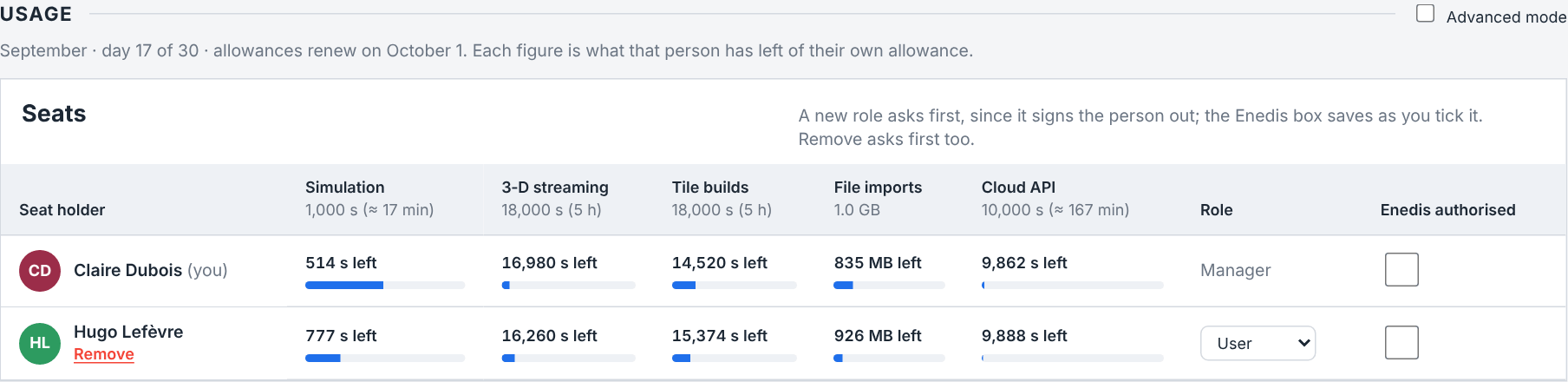
A seat is out when nothing usable is left of one of its allowances — for 3-D streaming, less than the 60 s a session needs to start. It is running low when, at the rate it has been spent since the 1st, an allowance runs out before the month ends. A pvSpline administrator who sits in your company is listed as pvSpline team · no seat and never counted as out: they do not take one of your seats.
The last two columns are each person's Role and Enedis authorised. For a Manager they are controls in the person's row (Roles, and what a manager can change), and a line over the table says how they behave: A new role asks first, since it signs the person out; the Enedis box saves as you tick it. Remove asks first too. Everyone else reads them as text.
For a Manager, Remove, under a name, takes that person off the company (Removing someone from the company) — under every name but the Manager's own and a pvSpline administrator's. To read one person's month in full, tick Advanced mode and pick them in Show usage for (Advanced mode).
The server and CI tokens close the table as one row: each takes a seat, and what it runs counts against the allowances of the member who created it; the row's Service tokens link scrolls to the card in Security where such tokens are made (The Security section: two-factor authentication, sessions and tokens).
On the free plan: the pool and its members
The free plan has no seats, so the section shows the pool your company shares instead, under a line for the month: {month} · day {today} of {days}. One pool for the whole company, however many members join; it renews on {date}. The shared pool this month gives each allowance, what is left of it and, when it is running low, the day it runs out at this month's pace. Beside it, Members lists who spent it, biggest spender first, each with their simulation and 3-D streaming time this month and their role — and, for a Manager, Remove under each name, the Role dropdown and the Enedis authorised box, as in the seats table. The free plan does not include Enedis data, so nobody's box can be ticked.
Advanced mode
The section opens on the seats table alone. Tick Advanced mode, at the end of the section's rule, and the details follow under the table: Show usage for and the month picker, the Month by month table, then one card per meter — its budget line and bar, its pace line, per-day chart, splits by task type and activity fold (Cloud runs: the job history). The table keeps to the month under way; the details can open an earlier one.
The box stays unticked until you tick it, and your choice is kept with your preferences, so the section opens the way you left it. A link to your cloud runs — /account/usage#cloud-runs, where the old /cloud address lands too — shows the details for that visit without ticking the box, and a guided tour shows everything while it runs.
Show usage for
At the head of the details, the Show usage for dropdown picks whose figures they show: All members, first and selected by default, or one person, biggest spender first, yours marked (you).
On a subscription, pick a colleague and every meter shows their month against their own allowance; with All members selected, the meters show yours. On the free plan every meter shows the company's month against the company's allowance, whoever is selected. The selection also scopes the split-by-kind bars, the per-day charts and the four activity ledgers — the whole company's with All members — which is what the line beside the dropdown says, applies to figures, splits, days and activity.
Tip
Pick a colleague in Show usage for and open the Cloud runs fold: you get exactly their runs for the month, with their engine time stated above it. Select All members to go back to the company view.
Earlier months
The meters reset on the 1st, but the months before stay readable. Once your company has a month behind it, a month picker sits beside Show usage for: a dropdown of the recorded months, up to two years back, with the month under way marked (current), between a Previous month arrow and a Next month arrow. Pick a month and the details show it: the meters, the splits by kind and the per-day charts; the seats table above stays on the month under way. The person you selected stays selected, so one colleague's month is two clicks away.
A past month is closed: a Period line under the picker gives its dates, says closed and offers Back to the current month, and its figures are final. It carries no allowance, because none is kept for a past month and your plan may have changed since. So each meter states in words what was used that month instead of drawing a bar against a quota, the person selected is given their share of the month rather than of their allowance, and there is no pace line and no mark for today. Cloud API calls are kept day by day for about two months, so an older month keeps its API totals but has no per-day API chart.
The four activity folds follow the month too: they list that month's own runs, 3-D sessions, tile builds and cloud API calls, newest first, up to the latest 200 of each, and their header line names the month — 12 runs listed for July 2026. A past month's run list does not refresh on its own; its Refresh button re-reads it. The call list of a month older than the call log's two months holds only the calls still on record, and says so.
Month by month
In Advanced mode, above the meters, the Month by month fold lays the months side by side: one row per month, newest first, with its engine time and, for each other meter your company has used, its total — 3-D streaming, tile builds, cloud API calls, file imports. A dash marks a month with nothing on that meter. The table follows Show usage for like everything below it. Click a month's name to open that month in the cards below.
Cloud runs: the job history
The Cloud runs fold sits inside the Simulation meter card of the Usage section's details, under the budget the runs draw from, in Advanced mode (Advanced mode). It starts closed; a deep link to /account/usage#cloud-runs shows it, opens it and scrolls to it. It lists the company's cloud jobs — plain runs, optimizations and batch sweeps — filtered by whoever is selected in Show usage for.
Everyone in the company sees the whole list, with every run's engine time, but a run's result and its input stay with its author: on a User account, View result and Cancel work on your own runs only, while a Manager account can open and cancel any run of the company.
The list and its filters
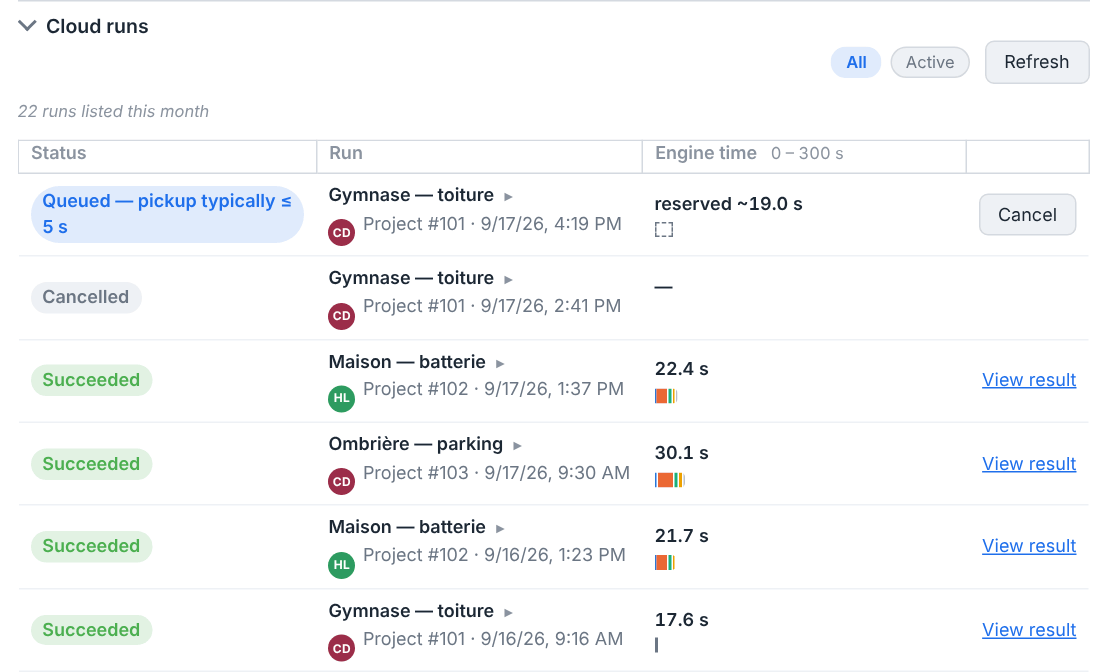
A header line reports {n} runs listed this month, and adds Only the latest 50 runs are listed. when the list is at its cap — so a long month never reads as complete when it is not.
All / Active — two chips. Active keeps only jobs that are still queued or running.
A project chip appears when the list was opened pre-filtered to one project. It names the project — or reads
Project #{id}when no listed run carries the name — and clicking it clears the filter (Show every project).Refresh — re-lists from the server.
Note
While the page is open, jobs that are still moving are re-read about every three seconds, so a queued run turns into a running one and then into a result without you touching anything. Jobs started elsewhere — another tab, a colleague's session — do not appear until you press Refresh.
Reading a row
Each row has four cells:
- Status
A coloured pill: Queued, Running, Succeeded, Failed or Cancelled. A queued row reads
Queued — pickup typically ≤ 5 s, because a worker polls for work rather than being pushed at. On the free plan it readsQueued — on the free plan, runs start once no paying customer’s run is waitinginstead, and a batch sweep or optimization stopped to make room for a paying customer's run readsQueued again — stopped to make room for a paying customer’s run (free plan); it starts over once a worker is free(Paying customers' work goes first).- Run
The project's name, which is also the button that opens the row's drawer. A project you cannot open reads
Project #{id}instead: a colleague's project on a User account, or a project deleted since the run. The name is the project's current one, so a project renamed since its runs shows its new name on them. An Optimize or Batch badge marks a non-plain run. Below it: the member's initials avatar, theProject #{id}reference when the name is shown, the submission time, and the error message on a failed job.- Engine time
The figure that is charged to the allowance — the member's own on a subscription, the company's on the free plan — with a bar drawn on one shared scale so rows compare at a glance (the column header states that scale,
0 – {max} s). A job still in flight showsreserved ~{n} sinstead — an estimate from the project's size, held against the budget until the run finishes, at which point the measured figure replaces it. A job that fails is charged the engine time it used, like one that succeeds; a job whose worker stopped answering is ended as failed by the service, with a message asking you to queue it again, and keeps its reserved estimate as its charge. A row too small to draw gets a tick mark and the tooltipToo small to draw at this scale — open the row.- Actions
View result and Cancel, as applicable — see below.
Note
Cloud runs wait in one queue that every pvSpline company shares, and paying customers' runs go first: a run queued on the free plan starts only once no paying customer's run is waiting (Paying customers' work goes first). Among paying customers' runs, and among free-plan ones, the workers take turns between companies: each time one is free, it starts the oldest waiting run of the company served longest ago. Another company's backlog therefore cannot hold your run behind all of its jobs — unless you are on the free plan and it is a paying customer — and with nobody else waiting your company's runs take every free worker. Within your company, runs start in the order they were submitted, so earlier runs from a colleague, a script or an assistant go first. The five seconds hold while a worker is free; when every worker is busy, a row stays Queued until its turn comes, and that wait — the drawer's Queue, which reads waiting for pickup meanwhile — is never charged.
The row drawer
Clicking the run name expands a drawer with two halves.
Composition — where the metered seconds went.
The engine figure is repeated with a one-line statement of its status (charged to the allowance of the member who ran it, on the free plan charged to the company's allowance; the reservation note; or Cancelled before a worker picked it up — nothing charged.), then a table of the stages the worker clocked inside it: Prepare, Physics, Financial, Simulate, Report and Unaccounted, each with its seconds and its share. Optimizations and batch sweeps run their candidates in parallel, so physics and financial are reported as one Simulate stage and the drawer says so; a pass count is printed beside it. A run completed by an older worker reports only its total, and the drawer says No stage breakdown.
Wall clock — where the elapsed time went.
A three-part timeline from submit to finish:
Queue —
until a worker picked it up.Engine — the part that is
charged to the company budget.Transfer —
input download and artifact upload — not charged.
A footer names the job and the engine version it ran on.
Tip
Wall clock and engine time are not the same number, and only the second one costs you anything. A run that “took two minutes” may have spent most of that waiting for a worker and shipping files — neither is metered.
Re-opening a finished run
View result — on a succeeded row. A plain run opens in the full results view, with every chart and the report beside it (Running a Simulation & the Production Tab, Charts, Heatmaps & Tables, Reporting & Export), and counts as a calculation of its project in this browser: open that project afterwards and its Results entry is not flagged
The calculation has not been run. An optimization or a batch opens on the Batch tab, which owns the candidate table and the comparison grid (Batch Simulation & Scenario Sweeps). To come back to this list, open/account/usage#cloud-runs, which opens the fold and scrolls to it.Cancel — offered on queued rows only. Once a worker has claimed a job it cannot be stopped, and clicking on a row that was claimed between two polls answers plainly:
This run already started on the worker and cannot be cancelled — it will finish on its own.A run cancelled before pickup costs nothing.
The usage meters
Advanced mode's details carry one meter card per metered dimension, each against its allowance: your own on a subscription, where every member has one of each, and the company's on the free plan, which every member shares. Four of them — simulation, 3-D streaming, tile builds and the cloud API — count seconds; file imports count megabytes.
Where the seats table gives what is left at a glance, each card gives the month in full: its budget line and its bar, then the pace line, the per-day chart, the splits and the activity fold described below (Advanced mode).
Simulation
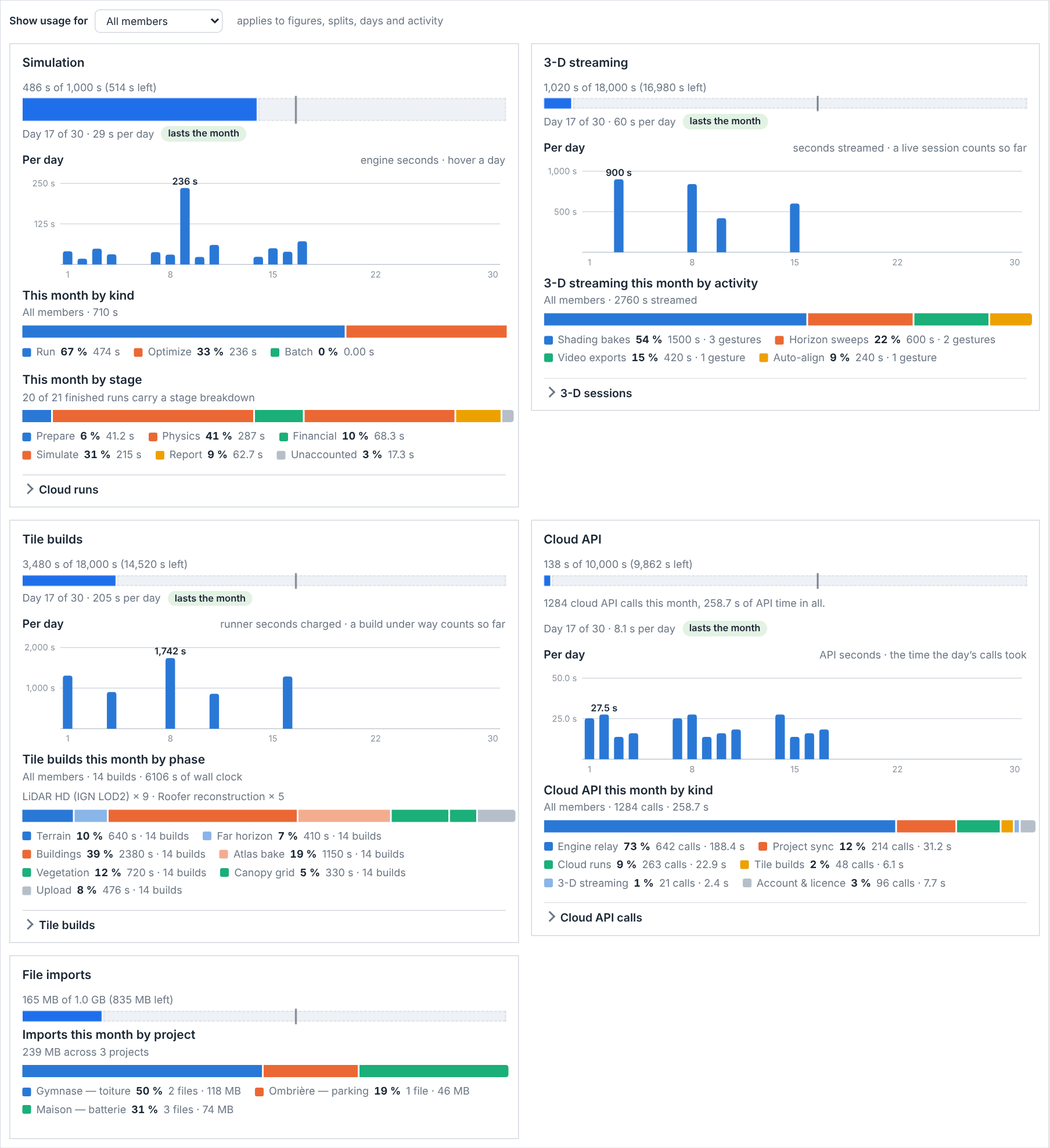
Simulation, the engine time of your cloud runs, is the headline meter and the only one that is always present. One line above its bar says what the month has spent, out of the allowance, and what is left — {used} of {quota} ({left} left), in seconds: 486 s of 1,000 s (514 s left). Hover the line for the same figures in full, minutes or hours in parentheses — 486 s (≈ 8 min) of 1,000 s (≈ 17 min) — and the reminder that a light run takes about 1 s. The bar fills with that month, the unspent remainder outlined. On a subscription the month and the allowance are your own, and with a colleague selected the line and the bar are theirs; on the free plan they are the company's, whoever is selected. The figure spent is what the month's runs actually used, so it can end a little above the allowance: a run admitted while time was left finishes even when it takes longer than its reservation.
Below the bar, two splits show where the month went:
This month by kind — Run, Optimize and Batch, in fixed slots, each with its share and seconds.
This month by stage — the same month broken into Prepare / Physics / Financial / Simulate / Report / Unaccounted. Its scope line says how many of the month's finished runs actually carry a breakdown, so a month run by older workers reads as “0 of 12” rather than as an empty month.
The Cloud runs ledger (Cloud runs: the job history) folds underneath.
3-D streaming
3-D streaming appears once your plan carries a streaming allowance or a session has streamed. It counts the seconds streamed, from each session's first frame to its end, against a monthly allowance separate from engine time — your own on a subscription, the company's on the free plan. Its line reads {used} of {quota} ({left} left). A session starts only with at least 60 s of the allowance left, and one still live is stopped when the allowance runs out.
Its split, 3-D streaming this month by activity, says what the sessions were asked to do: Shading bakes, Horizon sweeps, Video exports, Auto-align, and Live view — the session time nothing else was tallied against. The 3-D sessions fold lists the sessions themselves: status (Starting, Live, Ended, Failed), who started it and when, the duration, the streaming class, region and end reason where recorded, and in Charged the seconds it was charged. A session still under way reads {n} so far there, with the time it went live beside it (or, while it is still starting, the time it was requested); one that never served a frame was charged nothing and reads not billed. See The 3D Earth Site View for the viewer itself.
Caution
The clock runs while a 3-D session is open, whether or not you are looking at it. The viewer's own dock keeps its seconds in sight on every other page, and its tooltip says so — Still on the meter while it is open — end it when you are done. Booting the renderer never counts against the allowance; end the session when you are finished rather than leaving the tab open.
Tile builds
Tile builds appears once your plan carries a build allowance or a build was queued, and its line reads {used} of {quota} ({left} left). It counts the seconds of build-runner time the month's builds took: each build is charged the time the runner spent on it, measured stage by stage, so a build that reuses most of the project's previous one is charged only the stages it actually ran. A build that fails is charged the same way, its runner time measured up to the failure — or, if its build runner stopped answering, up to that runner's last progress report; one that failed before reporting any stage is charged from the moment a runner took it to its end. A build stopped before it started costs nothing; one you stop while it runs publishes what it finished and is charged like any other build. On the free plan, a build taken back for a paying customer's is charged nothing for that attempt (Paying customers' work goes first). One still under way counts its time since a runner took it, so the meter rises while it runs. On the free plan, an account not verified yet has a tile-build allowance of 0 s (Monthly allowances by plan).
Its split, Tile builds this month by phase, shows the build runner's clock by pipeline phase, with a line above it counting the builds by the buildings geometry they asked for — LiDAR HD (IGN LOD2), Roofer reconstruction, the dense presets, or No buildings. The Tile builds fold lists each build: status, who queued it, which project and layers, the per-build phase bar, and the duration, followed by its Cost, the runner time the build was charged — its time so far while it runs, nothing for one that never ran.
Cloud API
Cloud API appears once any call has been recorded. It counts the seconds of server time spent answering your requests — and, on the free plan, your colleagues', since the allowance is the company's — against a monthly allowance on every plan, and its line reads {used} of {quota} ({left} left). The allowance counts everything the app asks of the cloud — project sync, cloud runs, tile builds, 3-D streaming, Enedis, the engine relay, AI assistants and the rest — except signing in and the account, licence, billing, checkout and company pages and calls.
Once the allowance is spent, the counted calls are refused until it renews on the 1st: runs are not queued, saves to your account are refused and a 3-D session in progress is ended. Signing in and this page keep working, so you can still read your plan and subscribe, and so does anything that stops spending — cancelling a run, ending a 3-D session, stopping a build.
The card states the month's calls and their seconds of API time, splits them by route family (Engine relay, Project sync, Cloud runs, Tile builds, 3-D streaming, Enedis, Account & licence, Admin console, AI assistants (MCP), Other) — the uncounted families as well, since every call is measured — and folds a Cloud API calls log underneath: the answer code, the method and path, the task type, who made it and when, whether a service token signed it, and how long the gateway took — with the part spent waiting on the engine broken out.
File imports
File imports appears once your plan carries an import allowance or something was imported. It counts the files you upload to the cloud for an import — a weather file, a CAD building, permit photographs — in bytes, and a month also allows a limited number of files. A file already stored costs nothing when you import it again, and a small file travels inside its request and is not counted.
Like the other meters, it is your own on a subscription and the company's on the free plan: its line reads {used} of {quota} ({left} left) in megabytes, and its bar is that month; on a subscription, with a colleague selected, both are theirs. Its split, Imports this month by project, shows which projects the bytes went to. This card has no pace line, no per-day chart and no activity fold.
Note
Each of the four ledgers lists at most the latest 50 rows and says so. They are read once when you open them and re-read by their own Refresh button; only the run list polls on its own. On a past month they list that month's rows instead, up to the latest 200, and none of them polls.
Reading a meter: budget, pace, days and splits
The meter cards share one layout, so learning it once is enough. The scope line, the budget line and the bar head each card; the pace line, the per-day chart, the split and the activity fold follow them.
- Scope line
With a colleague selected, the card opens with their name: on a subscription the figures below it are theirs, and on the free plan the line and the bar stay the company's while the rest follows the selection. With All members selected there is none — the meter is yours, or on the free plan the company's.
- The budget line and bar
One line: what has been spent, out of the allowance, and what is left — on a subscription by the person shown, out of their own allowance; on the free plan by the whole company, out of its shared one. Hover it for the time figures with their minutes or hours. Then a bar filled with that month as a share of the allowance — so the bar is only as full as the month actually is. The unspent remainder is outlined at the right. A thin marker shows where today falls in the month, so you can see at a glance whether the fill is ahead of the calendar.
- Pace line
Day {d} of {n} · {rate} per day, followed by either a greenlasts the monthor an amberruns out ≈ {date}. The pace of the month the meter shows — the person's on a subscription, the company's on the free plan — against that allowance; it disappears while nothing has been spent.- Per day
A column chart titled Per day, one column per calendar day of the month, with the peak labelled directly. Hover or tab to a column for its date and value; empty days are drawn as gaps, and a month with nothing in it says
No usage yet this month.The captions state each chart's unit and its caveat — a live 3-D session, like a tile build under way, counts its time so far.- Split by task type
A single stacked bar plus a legend, giving each category's share and figure.
- The activity fold
The ledger itself — runs, 3-D sessions, tile builds or API calls — scoped by the same member selection. All four start closed and stay as you leave them.
Tip
The pace line is the one to watch. “Day 9 of 30 · 340 s per day · runs out ≈ 21 Sep” tells you on day nine that the month will not last, while the bar alone still looks comfortably under half. If the pace is wrong, the split-by-kind bar usually says why — a batch sweep is a far heavier row than a plain run.
Note
On a subscription every allowance is per member: each bar is one person's month against their own allowance, and nothing a colleague runs, streams, builds or imports draws on yours; the company's totals, with All members selected, are there to read, not a budget anyone spends. On the free plan it is the other way round: each bar is the company's month against the one set of allowances every member draws on, and selecting one person shows their part of it.
When you run out
Quota is enforced where the work is started, not on this page. What you see depends on which allowance ran out — your own on a subscription, the company's on the free plan, where a colleague's use spends it as well as yours:
| Situation | What you see, and what to do |
|---|---|
| Engine allowance spent | your monthly simulation allowance is used up — the run was not queued. The meter is on the Account page. Nothing was charged and nothing was queued. The same refusal comes when the run's reserved estimate (Cloud runs: the job history) is more than what is left of the month, so a heavy optimization or batch can be refused while a lighter run still fits. Wait for the day the allowances renew, which the Usage section gives. A subscription carries a larger allowance than the free plan. On the Run the working project card the refusal reads as a notice instead: which allowance, the day it renews, and who in your company sees it (The Team & seats section). |
| Subscription inactive | your company's subscription is inactive — cloud runs are paused. See the Account page. Your account holds no plan at all — a new account holds none until it is verified (Verifying your account), while a company whose subscription ended is on the free plan instead. Otherwise, someone with the Manager role in your company, or its founding member, subscribes from Plan & billing. |
| Not signed in | sign in to your account to run on the cloud plane. |
| 3-D allowance spent | Your monthly 3-D streaming allowance is used up. A session starts only with at least 60 s left, so this can appear with a few seconds still on the meter. If the allowance runs out mid-session the stream is stopped and you are told the session is on the ledger up to that moment only. |
| 3-D with no active plan | Your plan does not include 3-D streaming. Every plan carries a 3-D streaming allowance, so this means your account holds no plan at all — a new account holds none until it is verified (Verifying your account), while a company whose subscription ended is on the free plan, which has one. Otherwise, someone with the Manager role in your company, or its founding member, subscribes from Plan & billing. |
| Every 3-D server busy | Every 3-D server is busy right now. Try again in a few minutes — on the free plan, a session starts only when no paying customer needs the server. The 3-D servers are shared and paying customers come first (Paying customers' work goes first): on the free plan, a session starts only when a server is free and no paying customer needs it. Try again a few minutes later. A paying customer meets this only when no free-plan session is left to give way. |
| 3-D session ended for a paying customer | Free-plan sessions give way to paying customers when every 3-D server is busy, so this one was ended. It is on your ledger up to that moment only — start it again in a few minutes. On the free plan, a paying customer's start ended your session to take its server; its status line reads Session over — ended to make room for a paying customer. The seconds streamed until then are charged, as at any end. |
| Tile-build allowance spent | Your monthly tile-build allowance is used up. The allowance renews on the 1st of the month; a subscription carries a larger one. |
| Tile builds with no active plan | Your plan does not include tile builds. Your account holds no plan at all — a new account holds none until it is verified (Verifying your account), while a company whose subscription ended or was cancelled is on the free plan, which carries tile builds. Otherwise, someone with the Manager role in your company, or its founding member, subscribes from Plan & billing. |
| Cloud API allowance spent | A message that your monthly cloud API allowance is used up. Runs, saves to your account, tile builds and other cloud work are refused until the allowance renews on the 1st, and a 3-D session in progress is ended. Signing in and your account page keep working, and so does cancelling or stopping something. |
| Import allowance spent | Your monthly import allowance is used up: {used} of {quota} stored this month, {left} left. It resets at the start of next month. When the number of files is the limit, You have reached your monthly limit of {n} imported files. It resets at the start of next month. |
| Subscribing before the account is verified | Checkout is refused before the payment page opens, naming the checks still missing — email or SIREN. Complete them (Verifying your account) and subscribe again. |
| Member seats full | Every seat of your plan ({seats}) is taken, by people or by server and CI tokens. The pending request keeps waiting, and a new server or CI token is refused the same way. A Manager adds a seat from /account/team (The Team & seats section). Only a subscription has seats: the free plan never fills up. |
| Payment being retried | The red notice under the account page's header. Meanwhile your company is on the free plan; someone with the Manager role in your company, or its founding member, fixes the card from Manage billing, and the subscription comes back when the payment goes through. |
Tip
Prefer Refresh tiles to Rebuild tiles. Once a project has a successful build, Refresh is charged only the build-runner seconds of the layers it actually builds — nothing at all when none is missing. Rebuild redoes every layer and takes about as many seconds as a whole build: keep it for tiles that look stale or wrong.
The Plan & billing section
/account/billing says what your company's plan is and what it costs. Every member reads it; the buttons that bind the company — managing billing, cancelling, subscribing — are offered only to someone with the Manager role in your company, or its founding member (Roles, and what a manager can change). Seats are changed with Add seats, at the top of the page, whose window lowers the number too (Adding seats). The section's cards, as they apply:
Billing — for a Manager, while a subscription runs or its payment is failing. On a subscription it is the section's one card: the header's pill names the plan, and the card gives the rest, row by row: Renews on and the day the subscription renews (
November 14) — Ends on once it is cancelled, Valid until for a plan set up with pvSpline outside online checkout; Next invoice, while the subscription renews: its amount excl. VAT, the seats times the price of a seat; Seats:{n} seats × {price}; Payment:Saved card, through StripeorInvoiced by pvSpline. Under the rows, Manage billing opens Stripe's billing portal, where you change the card, download invoices and edit the billing address, and Cancel subscription sits at the other end of the row (Cancelling a subscription). A subscription set up with pvSpline outside online checkout has no Manage billing: the card says that pvSpline invoices it, and where to write to change it.Plan — for every other member, and whenever there is no subscription to bill: the plan's name and, on the free plan, how many members share its one set of allowances — or why there is none (Plans and what they unlock). A subscription's dates are the Billing card's. Every other member also reads who handles seats and billing. While a payment is failing, a Manager sees it beside the Billing card.
The Monthly plan's offer — while your company is on the free plan or has no plan at all, but not while a payment is failing: the comparison, the seats, the total and the checkout, the one way to subscribe (From inside your account). Its address is
/account/billing#offer.
Plans and what they unlock
Reading your plan
The header's pill names your plan. A Manager on a subscription reads the rest on the Billing card (The Plan & billing section); everyone else reads it on the Plan card of Plan & billing, in one of these states:
{name} — with, on the free plan,
{n} members share one set of allowances. The free plan has no end date, and a subscription's renewal is read on its Manager's Billing card.No plan yet — your free plan starts as soon as your account is verified (see “Verify your account” above).on a new account whose identity checks are not all done (Verifying your account).No active plan.when there is none — an account set up without one.Your plan could not be read. Reload the page to try again.when the page could not read it. Until it can, the section shows neither the bill nor the Monthly plan's offer.{plan} — expiredwhen the plan on record is no longer active.
A paid plan does not end in No active plan.: when the subscription ends — at the end of its period after a cancellation, or for want of payment — and while its renewal payment is failing, your company is on the free plan and the pill reads Free.
Plan names as they appear on the page are Web (monthly) and Free. Older subscriptions may still show the name of a plan that is no longer sold, such as Web (annual), because a subscription sold under one keeps it.
Watch out
While a payment is being retried, a red box under the page's header, headed A payment on your subscription failed, reads A payment on your subscription failed. Until it goes through, your company is on the free plan — update your payment method from Manage billing to get your subscription back. Meanwhile your company is served the free plan's allowances, and the page offers Manage billing — in that box and on the Billing card — rather than the Monthly plan's offer: buying again would start a second subscription beside the one being retried. Fix the payment method and the subscription comes back as soon as the payment goes through; leave it, and once the retries run out the subscription ends and your company stays on the free plan.
Only someone with the Manager role in your company, or its founding member, has Manage billing (Roles, and what a manager can change). If you do not see it, pass the message on to them.
The dimensions a plan carries
Rather than a feature list, think of a plan as a set of monthly allowances, each with its own column in the seats table and its own meter in the Usage section's details:
| Dimension | Unit | What it buys |
|---|---|---|
| Simulation | seconds | Cloud simulations: plain runs, optimizations and batch sweeps, each charged the engine time it used. A run holds a reservation while it is queued or running; one cancelled before a worker picked it up costs nothing, and one that fails is charged the time it ran. A light run costs about one engine-second. |
| 3-D streaming | seconds | Time in the streamed 3-D site viewer, from a session's first frame to its end, including shading bakes, horizon sweeps, point-of-view captures, video exports and auto-align (The 3D Earth Site View). |
| Tile builds | seconds | IGN 3-D tile builds, each charged the time the build runner spent on it — a failed build too. A build under way counts its time so far; one that never ran costs nothing. |
| Member seats | seats | On a subscription, how many people may hold an account on the company: an approval spends one, and so does a service token made for a server, a container or a CI pipeline. The free plan has none and admits any number of members. |
| Cloud API | seconds | Server time spent answering your requests: project sync, cloud runs, tile builds, 3-D streaming, Enedis, the engine relay, AI assistants and the rest. Signing in and the account, licence, billing, checkout and company pages are not counted. |
| File imports | megabytes, files | The files you upload to the cloud for an import, such as a weather file, a CAD building or permit photographs. |
One feature is not in every plan: Enedis data, the download of a meter's consumption from Enedis (The Consumption Tab), comes with the subscription and not with the free plan. On the free plan the download is refused, nobody's Enedis authorised checkbox can be ticked, and the page's header reads Enedis authorized: No, whatever a Manager had set before. A company whose subscription ends loses Enedis data while it is on the free plan; its members' authorisations are kept, and count again once it subscribes.
Monthly allowances by plan
Every plan carries an allowance on each meter, written here in the seconds the meters count, with the minutes or hours they make in brackets, and in megabytes for file imports. In the order the pricing page lists them — simulation, 3-D streaming, 3-D tile builds, file imports, cloud API:
Free, for the whole company: 60 s (1 min) of simulation, 600 s (10 min) of 3-D streaming, 600 s (10 min) of tile builds, 100 MB of file imports and 600 s (10 min) of cloud API time.
Monthly subscription, for each member: 1,000 s (≈ 17 min) of simulation, 18,000 s (5 h) of 3-D streaming, 18,000 s (5 h) of tile builds, 1,000 MB of file imports and 10,000 s (≈ 167 min) of cloud API time.
The allowances renew on the 1st of each month. On the subscription each member has every allowance to themselves: a colleague's use never draws on yours, and nobody can use a colleague's unused share. On the free plan they are one set for the whole company, shared by all its members and not growing with their number — the free plan admits any number of members — so a colleague's use draws on the same allowance as yours. The free plan has no time limit; a new account's starts once the account is verified (Verifying your account). Past an allowance, new work of that kind is refused until the allowance renews or the plan changes. A run or a tile build admitted while time was left runs to its end, so a month can close a little above its allowance.
Note
These are the published figures of the plans. Your own company's head the columns of the seats table, in Usage, which also says what is left — on the free plan, the shared pool gives them; the plans on sale and their prices are on the pricing page of the pvSpline website.
Paying customers' work goes first
The servers that run cloud simulations, build 3-D tiles and stream the 3-D view are shared by every pvSpline customer, and paying customers' work comes first. On the free plan, your work waits for theirs, and some of it can be stopped to make room:
Cloud runs. A free-plan run starts only once no paying customer's run is waiting, even one queued after it. A free-plan batch sweep or optimization under way can be stopped, at its next scenario or candidate, when a paying customer's run has waited about 30 seconds with every worker busy: it is queued again, keeping its place among the free-plan runs, and starts over from the beginning. The stopped attempt is not counted against your simulation allowance. A plain run is never stopped; it only waits. In the Cloud runs list, a queued row says whether it is waiting for a paying customer's run or was stopped for one (Cloud runs: the job history).
Tile builds. Paying customers' builds are taken first. A free-plan build under way when a paying customer's has waited about a minute with every build runner busy is taken back: nothing of it is published, it is queued again and starts over, and the attempt is not charged against your tile-build allowance (Tile builds).
3-D sessions. When every 3-D server is busy, a free-plan session does not start, and a paying customer's start can end the free-plan session that has been open longest, to take its server. The seconds it streamed until then are charged, as at any end (What a session costs).
Subscribing lifts all of this at once: when your company buys a plan, or pvSpline gives it a paid one, the work it already has queued or running goes first from then on, like any paying customer's.
Verifying your account
Two identity checks apply to an account opened through the sign-up form or the purchase page since October 2026. Such an account holds no plan until both are on file: they start its free plan (Monthly allowances by plan), and it may not subscribe before them either.
Your email confirmed — through the link mailed to you at sign-up, with Confirm my email on the page it opens. The signed-out card's Resend verification email sends a fresh link.
Your company's SIREN found active in the Sirene register — the SIREN is the first nine digits of the SIRET you gave at sign-up. pvSpline asks INSEE's Sirene register whether that company exists and is still active, and keeps the date it said so. Only the SIREN, which is public company data, is sent.
The second check asks nothing of you: pvSpline asks the register itself, as soon as you register. A company the register lists as ceased, or does not know, cannot sign up: the form answers The Sirene register lists this company as ceased, so it cannot sign up. If that is wrong, write to contact@pvspline.fr. or The Sirene register has no company with this SIREN — check the SIRET (its first nine digits are the SIREN)., and no account is created. When the register cannot be reached at that moment, the account is created all the same: the register is asked again when you confirm your email, and then every few minutes, for seven days after you registered, until it answers.
Verify a new account
Register with your company's SIRET. The register is asked about its SIREN there and then.
Open the link mailed to you and press Confirm my email. If the register has found your company active, nothing is missing: your free plan starts, and the page says so.
If the register has not answered yet, the page says your free plan starts as soon as it does, and there is nothing more to do. Signed in, the Verify your account card, under the account page's header, lists the two checks and marks those already done; Check now asks the register sooner. As soon as both checks are on file the free plan starts, and the card says so.
Should the register answer later that the company is ceased, or that it has no company with that SIREN, the account holds no plan. Check the SIRET in the account page's header: only pvSpline can correct it, so write to contact@pvspline.fr with the right number. Checks on demand are rationed per company, so do not press Check now in a loop. When pvSpline changes a company's SIRET to another company's number, its Sirene check starts over.
An account opened before the checks were introduced, or set up for you by pvSpline, keeps the rule it started under: confirming its email is all its free plan waits on, and it subscribes as before. Buying on the purchase page (The public purchase page /buy) checks the SIREN before payment, and opening the activation link afterwards confirms the email, so an account bought there has both checks on file.
Note
A phone number is not one of the checks. The registration form and the purchase page offer a field for one, as an optional contact: a number you give is kept with your account, is part of the copy of your data you can ask for, and is erased with the account.
Buying a plan, and returning from checkout
Payment is handled by a hosted payment page: No card details reach pvSpline. Every buy button therefore leaves the app entirely and comes back through /billing/success or /billing/cancel.
From inside your account
Subscribing, managing billing and cancelling bind the whole company, so Plan & billing offers them only to someone with the Manager role in your company or, in a company that has no Manager account, its founding member (Roles, and what a manager can change). Every other member reads the Plan card instead, without any of those buttons, and Only someone with the Manager role in your company, or its founding member, can subscribe, manage billing or cancel. Ask them to sign in to do so., with the names of those who can.
While your company is on the free plan — where it lands when a subscription ends — or has no plan at all, but not while a payment is failing, the section ends with the Monthly plan's offer, the one way to subscribe. The Managers' banner, the run card's notice, Team & seats and the e-mail about the free plan's pool lead to it, at /account/billing#offer. Under the title Give each member their own allowances, it states the price of a seat and its terms, then:
Seats, for a Manager: a number with a minus and a plus button beside it — at least the seats your company uses, one per member and one per server or CI token, and at most 50.
The comparison, per month: what the company shares on the free plan,
Free, shared by all {n}, against what each member has on the Monthly plan,Monthly, each member’s own— the five allowances, Enedis data, andOn busy servers:Waits for paid workagainstRuns first(Paying customers' work goes first). A company with no plan at all has no free column to compare.For a Manager, the total,
{amount} excl. VAT a month, with the seats times the price and the simulation time the company would have.For a Manager, two boxes: I accept the pvSpline terms of sale (CGV) on behalf of my company, which I am authorised to bind., with a Read the CGV link beside it, and the export declaration. No order is concluded without accepting the terms of sale, so they are asked for at every checkout, not only at sign-up.
Continue to payment on Stripe, which names the seats and the monthly total —
Continue to payment on Stripe · {n} seats, {amount} a month— and opens Stripe's checkout page once both boxes are ticked.
Every other member reads the comparison and who can subscribe: {names} can subscribe for the company. The free plan has no billing to manage and nothing to cancel, so the offer is all Plan & billing shows under its Plan card.
An account the identity checks apply to subscribes only once it is verified (Verifying your account): until then Continue to payment on Stripe stays unavailable, with Verify your account before subscribing: confirm your email and have your company’s SIREN checked. above it, and checkout is refused before the payment page opens. Nothing is charged.
Two refusals have plain explanations rather than raw errors: Online purchase is not available yet. Contact us to activate a plan. when checkout is not switched on for your deployment, and This account has no billing profile — it was not set up through online checkout. Contact us to make changes. when the company has never bought through online checkout — a free account, or one set up by hand — so the portal has nothing to manage.
The public purchase page /buy
/buy sells to someone who has no account at all. It needs the plan in the address — /buy?price=<plan id> — because which plans are sellable is service configuration, not something the page can list. Opened without one it says This link does not say which plan to buy and points you at sign-in.
The form asks for:
Email —
Your licence and the password link go to this address.Phone number (optional) —
A number we can reach you on, if you wish — it is not needed to buy.A number you give is kept with the account the purchase creates (Verifying your account).Company (optional) and SIRET — the SIRET is required, since pvSpline is sold to professionals only. It goes on your invoice; once the account exists, you invite your colleagues into it (Inviting a colleague).
I am acting for the business of the company identified by this SIRET and am authorised to bind it. pvSpline is sold to professionals only. — your declaration that you buy for that company and may commit it.
I accept the pvSpline terms of sale (CGV), EULA and data processing agreement. — with Read the CGV, Read the EULA and Read the DPA links beside it, so the documents you are accepting are one click away.
An export declaration —
I confirm that I am not located in an embargoed destination, am not a restricted party, and will not re-export to an embargoed destination.
Continue to payment stays disabled until the address, the SIRET, the three checkboxes and a plan in the link are all present.
Before the payment page opens, the SIRET's first nine digits, the SIREN, are looked up in INSEE's Sirene register. A company the register lists as ceased, or does not know, is refused — check the SIRET — and if the register cannot be reached you are asked to try again in a few minutes. Either way nothing is charged. The register's answer, and the phone number when you give one, travel with the order to the payment provider, and are kept with your account once it is created.
Note
The page asks for no password, and creates no account when you abandon checkout. Your account is created only once payment has actually gone through, and you set the password from the link mailed to you afterwards. Opening that link also confirms your email.
Coming back from checkout
/billing/cancel—Checkout cancelled, thenNothing was charged and no account was created. You can start again any time./billing/success—Thank you for your order, then one of three things depending on who you are.
If you were signed in when you bought, the page checks your entitlement a few times over about ten seconds — Activating your plan… — because activation and this redirect race each other. It then either confirms Your {plan} plan is active. or says plainly: Your plan is not active yet. After a card payment it usually appears within a minute. A SEPA direct debit activates it once your bank confirms the debit, usually within 6 business days — your company keeps the free plan until then, and there is no need to pay again. This page does not need to stay open. Check again re-reads it on demand, and Back to my account returns to Plan & billing, where the plan shows once it is active.
If you bought from the public page there is no session to show anything against, so the page is honest about it: Thank you — your order is placed. and A link to set your password goes to the address you paid with: within a minute for a card payment, or once your bank confirms a SEPA direct debit, usually within 6 business days. Open it to finish setting up your account.
Either way the page prints a Reference line with the checkout session identifier. That is a support handle, not a receipt — your invoice is sent to you separately.
Watch out
Nothing on the success page grants anything. It reports what the service says about your plan, and a plan that has not appeared yet is not a failed purchase. Closing the tab does not cancel anything.
Cancelling a subscription
A subscription renews automatically at the end of each period — every month for the Monthly plan — until you cancel it. You can cancel online at any time, at no cost, from the Plan & billing section of your account page, as the terms of sale promise (CGV, § 9), or from the cancellation page of the pvSpline website: pvspline.fr/resilier in French, pvspline.fr/cancel in English. Both record the same cancellation: the subscription ends with the current period, you keep full access until then, and your company then moves to the free plan, which does not include Enedis data (Plans and what they unlock).
Cancel from your account page
Open
/account/billingand press Cancel subscription, at the other end of the Billing card's row from Manage billing. A line under the row says first what it does:Cancelling stops the renewal: the plan ends on that date and your company moves to the free plan; a confirmation is emailed to you.— the date being the card's Renews on. Only someone with the Manager role in your company, or its founding member, sees it — the same people who may subscribe and manage billing.Check the summary: the plan, and the date the subscription ends. Press Confirm cancellation, or Keep my subscription to leave it running.
The Billing card's first row now reads Ends on, with the date your subscription ends, and a confirmation is e-mailed to the address of your account. Later visits show
Cancelled: your subscription ends on {date} and will not renew — your company then moves to the free plan.until that date.
The website's cancellation page takes three steps. Unlike Plan & billing, it also lets you record a reason for cancelling.
Cancel from the website's cancellation page
Open the page and sign in with the e-mail address or username and the password of a Manager account of your company, or of its founding member — the only accounts that may cancel, as on Plan & billing.
Check the summary of your contract: the plan, when it started, when the current period ends, the amount and the contract reference. A reason is optional; give one if you cancel on a specific legal ground.
Press Confirm my cancellation request. The page states the date your subscription ends, and a confirmation is e-mailed to the address of your account.
Any other member of the company can sign in to that page and read the summary, but the confirmation is refused: Only someone with the Manager role in your company, or its founding member, can cancel the subscription. Ask them to sign in here, or write to the address below. Nothing has been cancelled.
Cancelling stops the renewal and nothing else: the subscription runs to the end of the period already paid, you keep full access until then, you are not charged again, and nothing is refunded or cut short. When it ends, your company moves to the free plan, with nothing to do. A subscription already set to end says so instead of offering the button again.
Note
If the cancellation page is unavailable, write to contact@pvspline.fr: a cancellation request sent there is honoured on the date it is received.
Plan & billing says so itself when a cancellation cannot go through: Cancellation is temporarily unavailable, and nothing has been cancelled. Please try again shortly, or write to contact@pvspline.fr — a request by email is honoured on the date we receive it. If no subscription is left to cancel when you press the button, it answers This account holds no active subscription, so there is nothing to cancel.
The Security section: two-factor authentication, sessions and tokens
/account/security holds how your account gets in, its cards side by side:
Two-factor authentication — after your password, each sign-in is confirmed with a passkey (your fingerprint, face or device PIN) or a security key, which work only on pvSpline. Add a passkey or security key asks for a Name and your Current password, then your browser asks for the passkey or a touch of the key. The first one turns two-factor authentication on and shows ten recovery codes, once: each signs you in once if you lose your keys, so keep them somewhere safe, such as your password manager. Each key can be renamed or removed, and New recovery codes replaces the codes you have. Administrator accounts must use it.
Sessions — the one-device rule and where your account is signed in now, with Sign out beside every other session (One device at a time).
Devices — only for accounts holding device seats: Revoke frees a seat.
Service tokens — machine credentials for scripts, workers and AI assistants, with your company's AI assistants switch (Connecting an AI assistant). The next section describes them.
Connecting an AI assistant
Claude Code, Cursor, VS Code or another AI assistant on your computer can create projects, run simulations and read their results in your account, through pvSpline's MCP server — the Model Context Protocol, the standard assistants use to call tools. AI Assistants is the guide: what you need, the entry to add for each client, and what the assistant can do. The account page's Security section holds the two controls it relies on, both on the Service tokens card: the company's AI assistants switch (Turning assistants on for your company), and the connections and tokens assistants use, listed with the other service tokens (Connecting an assistant).
Service tokens for scripts and workers
Service tokens, a card of the account page's Security section, are machine credentials for CI runners, compute workers and AI assistants — scoped, revocable, and never tied to your password. They are how a script, a build pipeline, a compute worker or an AI assistant authenticates without anyone typing a password.
To mint one, type a name (the placeholder suggests Token name (e.g. CI runner)) and press Create token. The secret is then shown once: Token created — copy it now:, with This is the only time it will be shown. Store it in your secret manager. It is never stored by the browser and cannot be retrieved later — if you lose it, revoke the token and mint another.
Beside the name, the scope list sets what the token may reach. Scripts and CI, the default, reaches the cloud API in your name — the token of a script or a CI pipeline (Automating Cloud Runs). AI assistant (MCP) opens the AI-assistant endpoint only: it is the token for an assistant that cannot sign in (An assistant that cannot sign in), and choosing it shows a hint whose Setup guide link opens AI Assistants in a new tab.
Each listed token shows its name, its identifier, its scopes, and either last used {date} or never used. Revoke ends it. Connections an AI assistant made by signing in are listed here too, named after the assistant with (OAuth) (Connecting an assistant).
Tick For a server, container or CI pipeline — takes a seat before Create token when the token will live on a server, in a container or in a CI pipeline rather than with you. On a subscription such a token takes a member seat of its own, like a person; a token you use yourself, on your own computer, takes none. The list marks it server / CI · takes a seat, and revoking it frees the seat. When every seat is taken it is refused: Every seat of your plan ({seats}) is taken, so this server or CI token cannot have one. Revoke a server or CI token, remove someone, or add seats to your subscription.
On the free plan the box reads For a server, container or CI pipeline, and the list marks such a token server / CI: the free plan has no seats, so you can create as many of these tokens as you like.
Note
Whoever makes it, a service token acts as a User of your company (Roles, and what a manager can change). Even one made by someone with the Manager role in your company, or by its founding member, cannot subscribe, manage billing or cancel, accept the data processing agreement, decide a request to join, set the company's SIRET, or change a colleague's role or Enedis authorisation: those need a person signed in.
Caution
Revoking is immediate and irreversible, and the confirmation says so: Revoke the service token ``{name}''? Anything still using it — a CI runner, a compute worker — stops working immediately, and this cannot be undone. Check what is using a token before you revoke it; the only label it carries is the name you chose months ago.
Service tokens are what a script uses to reach the cloud; see Automating Cloud Runs for the requests that take one.
Watch out
If the token list cannot be read, the card says Could not load your service tokens rather than showing an empty list. No service tokens yet. only ever means the server said there are none — so you never mint a duplicate over a live token you could not see.
The Preferences section: your preferences
/account/preferences, the page's last section, holds how the application looks and reads for you, and the file that carries those choices to another browser. Its three cards are described with the rest of the settings in Preferences, Tariffs & Theming:
COLORS — the theme, the button, background and card colours, and Reset (Appearance: the application theme);
LANGUAGE — the interface language and the currency symbol;
DATA & MAINTENANCE — Export preferences and Import preferences….
They are settings of this browser, not of your session: they need no sign-in, and signing out leaves them as they are. Signed out, they follow the sign-in card as the SETTINGS band, whichever section the address names; on a deployment that asks you to sign in before anything else, the sign-in page shows the sign-in card alone, and the settings appear once you are signed in. While you are signed in, your preferences follow you through your account to every browser you sign in from, with nothing to switch on (What each setting is stored in, and what follows you).
Legal documents and the licence
/legal carries the bundled legal pack. Once the licence agreement has been accepted in this browser, it is reachable from the § glyph at the foot of the navigation rail, signed in or not, and from the Read the CGV, Read the EULA and Read the DPA links beside the acceptance checkboxes of the registration form, the purchase page and the Monthly plan's offer. A header line names the web app's build, the version of the engine this session is talking to (once one has answered) and the publisher, gives a contact address, and prints the four document versions currently in force (EULA version {v} • Enedis mandate version {v} • DPA version {v} • CGV version {v}).
Ten tabs hold the documents themselves, rendered rather than printed as source:
| Document | Meaning / effect |
|---|---|
| EULA | The End User License Agreement — the licence you accept before the app will open. Its version is what the acceptance is recorded against. |
| Enedis mandate | The mandate under which pvSpline retrieves French metering data from Enedis. It has its own acceptance flow, prompted when your account is Enedis-authorised and the mandate on file is missing, stale or lapsed. |
| Third party / open source | The notices for the libraries and data
sources pvSpline builds on. A line above them links
third-party-licenses.txt, the full licence texts of the open-source
components bundled in the web app, regenerated with every update; it opens in
a new tab. |
| Accessibility | The accessibility statement. |
| DPA | The data processing agreement. Registering a new company, or buying on the public purchase page, records an acceptance covering it, which is why both forms link it beside their checkbox. A colleague who joins an existing company records only the EULA. |
| Terms of sale (CGV) | The terms of sale, in French. Registering a new company and buying on the public purchase page record an acceptance covering them, and so does every checkout from your account, since no order is concluded without accepting them. A colleague who joins an existing company records only the EULA. |
| Simulation disclaimer | What pvSpline's production and sizing results are and are not: indicative inputs to a study that a qualified professional signs. Shown beside the agreement at first launch and printed in every PDF report. |
| Financial disclaimer | The same for the financial results — the banking plan, subsidies, tax and payback are illustrative, not a credit offer or advice. Printed right after the simulation disclaimer in every report with a financial section. |
| Legal notice (mentions légales) | The legal notice, in French: who publishes pvSpline — the company, its registered office, registration and VAT numbers, telephone, e-mail and director of publication — and who hosts it, then intellectual property, personal data, cookies and the applicable law. |
| Acceptable use | The acceptable use policy: what the service may not be used for, and the limits on its shared cloud resources. The EULA and the terms of sale incorporate it. |
A tab can be opened directly with /legal?doc=dpa (or eula, mandate, thirdParty, accessibility, cgv, simulationDisclaimer, financialDisclaimer, legalNotice, aup), which is exactly what the Read the CGV, Read the EULA and Read the DPA links do.
The last tab, Data sources, after the ten documents, credits every source of the data pvSpline reuses — solar and weather data, maps, addresses and buildings, electricity data, the financial model, the component catalogue, the electrical design, the carbon balance and the methods, as the Third party / open source notices list them — with what each is used for and the licence and credit it comes with. Its links open the Enedis mandate and Third party / open source tabs, and /legal?doc=dataSources opens it directly.
The licence gate
The first time the app opens — before any sign-in — it presents the agreement in a modal gate you cannot work around: the rest of the page is not merely disabled but not even loaded. The simulation and financial disclaimers sit in tabs beside the agreement. Tick I have read and accept the End User License Agreement and the simulation and financial disclaimers. and press Accept; the checkbox is disabled if a text failed to load. Decline and exit parks the app on a terminal notice with Review the agreement as the only way back. See Getting Started for the gate's controls.
Note
Your acceptance is recorded in this browser, and the first account that signs in afterwards claims it as its own. When another account signs in on the same browser, the gate opens again, so on a shared computer each person reads and accepts the agreement for themselves. When the agreement changes, the gate opens again the first time the updated app is opened in each browser, signed in or not.
Field reference
Every control on the account, purchase, checkout-return, claim, join-decision and legal surfaces. The sign-in, registration and password-reset panels are listed in Getting Started and are not repeated here.
The header and the notices under it
| Field / Control | Type & unit | Default | What it does & how to set it |
|---|---|---|---|
| Signed in as {name} | read-only | — | Your display name, or your username when no display name is set. The line below repeats the username. |
| Profile: {role} | read-only | — | Your role: Admin, Manager or User. The account that opened your company is Manager; colleagues who join later are User until promoted. Decides what you may see and change in the company, from members and billing to the catalogue and colleagues' projects. |
| Enedis authorized: Yes/No | read-only | — | Whether your account may use pvSpline's Enedis metering connection. Granted by a Manager account from your row of the seats table, in Usage. Reads No on the free plan, which does not include Enedis data, and while Enedis access is suspended for every account, with a line saying which. |
| Company name | read-only | — | Your company as the service records it. Hidden when the record cannot be read. |
| SIRET | read-only | — | Your company's registration number; its first nine digits, the SIREN, are what the Sirene check looks up. Colleagues join by invitation. |
| Plan pill | read-only | — | The plan's name — “Web (monthly)”, “Free” —, “{plan} — expired” for a plan that is no longer active, or “No plan”. A company whose paid plan ended, or whose payment is failing, reads “Free”; a new account reads “No plan” until it is verified. |
| Sign out | button | — | Ends the session in this browser and clears every list on the page, including colleagues' names and figures. Also closes the project open in the tab without asking — unsaved changes are lost — and deletes every copy of unsaved work this browser keeps for recovery. A session that expires keeps both. |
| Payment notice | read-only | hidden | Red box under the header, shown to every member while a payment is being retried, with Manage billing for someone with the Manager role, or the founding member. Meanwhile the company is on the free plan. |
The sections
| Field / Control | Type & unit | Default | What it does & how to set it |
|---|---|---|---|
| Team & seats | section | — | /account/team, the page's first section, where a bare /account opens: the seats in use, the people waiting for a seat and the invitations. For a Manager, the account avatar on the rail counts the seats out of an allowance (one for the free plan's pool) and the people waiting for a seat, red while something is out. |
| Usage | section | — | /account/usage: the seats table, or the pool and its members on the free plan; in Advanced mode, the meters and the cloud run history. |
| Plan & billing | section | — | /account/billing: the bill and cancelling, or the plan; and the Monthly plan's offer. |
| Security | section | — | /account/security: two-factor authentication, sessions and service tokens. |
| Preferences | section | — | /account/preferences, the page's last section: the theme and colours, the interface language and currency, and the preferences file. |
Verify your account
| Field / Control | Type & unit | Default | What it does & how to set it |
|---|---|---|---|
| Email address | read-only | — | “Confirmed.”, or “Not confirmed yet” with where the confirmation link is. The signed-out card's Resend verification email sends a fresh one. |
| Company (SIREN) | read-only + button | — | Your SIREN, the first nine digits of your SIRET, and whether the Sirene register has found it active (with the date it did). Until it has, pvSpline keeps asking the register on its own, for seven days after sign-up once your email is confirmed; Check now asks it sooner, and its answer is written underneath when it is not “active”. Checks on demand are rationed per company. |
The card shows only on an account the identity checks apply to, and only while one is missing — then once more, to say Your account is verified — your free plan is active.
Team & seats (/account/team)
| Field / Control | Type & unit | Default | What it does & how to set it |
|---|---|---|---|
| Seats and billing are handled by {names}. | read-only | — | At the end of the section's rule, for every member who may not manage the company's seats. Reads “Seats and billing are handled by your company’s Managers.” when no name is known. |
| Add seats | button | — | At the end of the section's rule, for a Manager on a subscription. Opens the add-seats window, which lowers the number too. The + square of Seats in use opens it as well. |
| Seats in use | read-only | — | On a subscription: “{used} of {paid}”, then the people, the server or CI tokens and the free seats, one square each, with a + for a Manager. Says so in red when the company uses more seats than its subscription pays for. |
| Approve | button | — | Waiting for a seat, for a Manager. Grants access to the company's projects, Enedis authorisations and plan, and on a subscription spends a member seat. Asks for confirmation naming the person. When every seat was taken meanwhile, the request keeps waiting and Add a seat and approve is offered under it. |
| Add a seat and approve | button | — | Beside a person waiting, when every seat is taken. Opens the add-seats window with one more seat and that person ticked. With a seat free, the button is Approve and asks for confirmation naming the person. |
| Decline | button | — | Refuses the request; no account is created. Asks for confirmation naming the person. |
| Add a seat and invite {email} | button | — | Under the Invite a colleague card, when every seat is taken. Opens the add-seats window with that address in the first invitation field. |
| Pool alert | read-only | hidden | On the free plan, once part of the pool is used up: which allowance — “Your company’s free simulation time is used up”, say — and until when. Nobody in the company can use it before then. |
| Monthly plan line | read-only | — | On the free plan, or with no plan: what each member would have of their own on the Monthly plan, against what the free plan shares between all its members. |
| See the Monthly plan | link | — | At the end of that line, for a Manager. Scrolls to the Monthly plan's offer in Plan & billing, /account/billing#offer. Every other member reads who can subscribe. |
Usage — the seats table (/account/usage)
| Field / Control | Type & unit | Default | What it does & how to set it |
|---|---|---|---|
| Month line | read-only | — | “{month} · day {today} of {days} · allowances renew on {date}.”, then what each figure is. On the free plan: “One pool for the whole company, however many members join; it renews on {date}.” |
| Advanced mode | checkbox | off | At the end of the section's rule. Off, the section keeps to the seats table; on, Advanced mode's details follow under it. Kept with your preferences; a link to your cloud runs shows the details for that visit without ticking it. |
| Seat row | read-only | — | One per member, the seats that are out first, then those running low: the holder, what they have left of each allowance over a bar of what they spent — “Used up” in red for what ran out, the row tinted —, their role and their Enedis authorisation. Your own is marked “(you)”, a pvSpline administrator's “pvSpline team · no seat”. |
| Role | dropdown | current role | Options: User, Manager. A dropdown on a colleague's row, for a Manager; text on your own row, on a pvSpline administrator's and for every other member. Manager accounts may manage members, approve join requests, handle billing, change the catalogue and see every project of the company. Asks for confirmation first, warning that the change signs the person out, then saves. |
| Enedis authorised | checkbox | current state | A checkbox for a Manager, “Yes” or “No” for everyone else. Grants or withdraws that person's access to the Enedis metering connection, and saves as you tick it. Greyed out on the free plan, which does not include Enedis data, and while Enedis access is suspended for every account, with the reason under the table. |
| Remove | button | — | Under each name but your own, for a Manager; never under a pvSpline administrator. Asks first, in the removal window (Removing someone from the company). |
| Service tokens | link | — | In the row of the server and CI tokens, which closes the table. Scrolls to the Service tokens card, in Security, /account/security#tokens. |
| The shared pool this month | read-only | — | On the free plan, in place of the table: each allowance, what is left of it, and the day it runs out at this month's pace once it is running low. |
| Members | read-only | — | On the free plan: who spent the pool, biggest spender first, each with their simulation and 3-D streaming time and their role and, for a Manager, Remove under the name and the Role and Enedis authorised controls. |
| Read-only notice | read-only | — | At the foot of Advanced mode's details, when you may not manage members: “A Manager account changes roles and Enedis authorisation, in the seats table above.” |
Removing a member: the confirmation window
| Field / Control | Type & unit | Default | What it does & how to set it |
|---|---|---|---|
| Remove {name} from {company}? | read-only | — | The window's title — “Remove {name} from your company?” when the company's name is not known —, then what removing does: signed out at once, no longer able to open the company's projects, their service tokens no longer working, what they made left with the company, an email telling them so; on a subscription, “Their seat becomes free.” |
| The invitation {name} sent to {email} is withdrawn too | read-only | — | When the person sent invitations that are still waiting: which, and that you can send them again yourself. They are withdrawn with the person. |
| Also take the seat off the subscription: {from} → {to} seats, credited on the next invoice | checkbox | off | On a subscription whose seats you may change, when the number can drop: never below the seats still in use once the person has left. Ticked, the subscription loses the seat in the same step. With somebody waiting for a seat, a line under it says “Leave it unticked to give the seat to someone else: {name} is waiting for one.” |
| Keep {name} | button | — | Closes the window and changes nothing. It has the focus when the window opens; Esc and a click outside the window do the same. |
| Remove {name} | button | — | Removes the person: signed out, their account closed, their waiting invitations withdrawn, an email sent to them, their seat freed and, ticked, taken off the subscription. A line above the table says what was done. |
Invite a colleague card
| Field / Control | Type & unit | Default | What it does & how to set it |
|---|---|---|---|
| Colleague's email | empty | The address the invitation goes to; the account it creates uses it. Shown only to your company's managers. | |
| Send invitation | button | — | Mails a single-use link, valid 7 days, that creates your colleague's account inside your company. For an address already pending, sends a fresh link. Refused for an address that already has a pvSpline account, and on a subscription when every seat is taken or promised to a pending invitation. |
| Pending invitation row | read-only | — | The address, who sent the invitation and when it expires. |
| Revoke | button | — | Withdraws the invitation; its link stops working. |
Add seats window
| Field / Control | Type & unit | Default | What it does & how to set it |
|---|---|---|---|
| Seats in total | number with minus / plus | one more than now | The new number of seats, from the seats in use up to 50. +1, +2 and +5 set it that far above what you have. |
| Approve {name} | checkbox | off | One per person waiting. Approved once the seats are added. Ticking one when no new seat is left raises the number by one. |
| New seat {n} · invite by email (optional) | empty | One per new seat not taken by an approval. An invitation goes to each address once the seats are added; a seat left empty stays free. | |
| Add {n} seats · about {amount} charged to your saved card | button | — | Changes the number of seats; Stripe charges the card saved with the subscription for the days left until it renews. Reads Remove {n} seats when the number goes down, and Request {n} seats for a subscription invoiced by pvSpline. |
| Open the invoice on Stripe | link | — | After a declined payment or a 3-D Secure request: Stripe's invoice page, where you pay or confirm. The seats are added once it is paid. |
Usage — Advanced mode's details
| Field / Control | Type & unit | Default | What it does & how to set it |
|---|---|---|---|
| Show usage for | dropdown | All members | All members, then one entry per person, biggest spender first, yours marked “(you)”. On a subscription, picks whose month the meters show — a colleague's, or with All members your own; on the free plan the meters show the company's month whoever is selected. It also scopes the splits, per-day charts and the four activity ledgers, the whole company's with All members. |
| Previous month / Month / Next month | arrows + dropdown | current month | Once the company has a month behind it: the recorded months, up to two years back, the month under way marked “(current)”. Opens that month in the details; the seats table stays on the month under way. |
| Period | read-only | hidden | For a closed month only: “{start} – {end}” and “closed”, with Back to the current month. Its figures are final. |
Meter cards
The meter cards come with Advanced mode.
| Field / Control | Type & unit | Default | What it does & how to set it |
|---|---|---|---|
| Budget line | read-only | — | Spent, out of the month's allowance, and what is left, on one line: “{used} of {quota} ({left} left)” — seconds of engine time, of streaming, of build-runner time or of API time, or the bytes of imported files. Hovering it gives the time figures with their minutes or hours, and on the engine card that a light run takes about 1 s. |
| Budget bar | chart | — | The month as a share of the allowance — the shown person's own on a subscription, the company's on the free plan — the unspent remainder outlined at the right, and a marker at today's position in the month. |
| Pace | read-only | — | “Day {d} of {n} · {rate} per day”, flagged green “lasts the month” or amber “runs out ≈ {date}”. The shown person's pace on a subscription, the company's on the free plan. |
| Per day | chart | — | One column per day of the month, peak labelled, every other day on hover or keyboard focus. “No usage yet this month.” when the month is empty. |
| Split by task type | chart + legend | — | Engine: by kind (Run / Optimize / Batch) and by stage. 3-D: by activity. Tiles: by runner phase, with builds by buildings geometry above. API: by route family. Imports: by project. |
| Activity fold | disclosure | closed | Cloud runs · 3-D sessions · Tile builds · Cloud API calls. Opens the matching ledger, scoped by the member selection. Stays as you leave it; a deep link opens the runs fold for you. |
Cloud runs ledger
| Field / Control | Type & unit | Default | What it does & how to set it |
|---|---|---|---|
| All | chip | on | Show every run in the selection. |
| Active | chip | off | Show only runs still queued or running. |
| Project chip | chip | hidden | The project filter, when the list was opened pre-filtered. Shows the project's name, or “Project #{id}” when no listed run carries it. Click to clear it (“Show every project”). |
| Refresh | button | — | Re-lists from the server. Needed to see runs started in another tab, by another client, or by a colleague. |
| Status | table column | — | Queued (“pickup typically ≤ 5 s”; on the free plan, “on the free plan, runs start once no paying customer’s run is waiting”, or “Queued again — stopped to make room for a paying customer’s run (free plan); it starts over once a worker is free” for a batch or optimization stopped for one), Running, Succeeded, Failed, Cancelled. |
| Run | table column | — | The project's current name — also the button that opens the drawer — or “Project #{id}” for a project you cannot open. Carries the Optimize / Batch badge; below it the member avatar, the project reference when the name is shown, the submission time and any error message. |
| Engine time | table column · s | — | The seconds charged to the allowance (the member's own on a subscription, the company's on the free plan), with a bar on one shared scale (header: “0 – {max} s”). An in-flight job shows “reserved ~{n} s” until the measured figure replaces it. A failed job is charged the engine time it used; one the service ended because its worker stopped answering keeps its reserved estimate. |
| View result | link | — | Succeeded rows only. Plain runs open in the results view; optimizations and batches open on the Batch tab. On a User account, your own runs only. |
| Cancel | button | — | Queued rows only. A job already claimed by a worker cannot be cancelled and says so. A run cancelled before pickup costs nothing. On a User account, your own runs only. |
| Composition | drawer table | — | The stages the worker clocked inside the metered span — Prepare, Physics, Financial, Simulate, Report, Unaccounted — with seconds and share, plus the pass count on parallel kinds. |
| Wall clock | drawer timeline | — | Submit to finish, split into Queue (until pickup), Engine (charged) and Transfer (input download and artifact upload, not charged). |
3-D sessions, tile builds and API-call ledgers
| Field / Control | Type & unit | Default | What it does & how to set it |
|---|---|---|---|
| Refresh | button | — | Re-lists that ledger from the server. These three do not poll on their own. |
| Status (sessions) | table column | — | Starting, Live, Ended or Failed. |
| Session | table column | — | Who and when, the duration or “live since {time}”, the streaming class, region and end reason where recorded, and what the session was asked to do. |
| Charged | table column · s | — | What the session was charged: the seconds from its first frame to its end, with minutes or hours in parentheses. A live one shows “{n} so far”; one that never served a frame was charged nothing and reads “not billed”. |
| Status (builds) | table column | — | Queued, Running, Succeeded or Failed. |
| Build | table column | — | Who and when, which project, the layers requested, any error, and a per-build phase bar with its legend. |
| Duration | table column · s | — | The runner's wall clock. A build in flight shows “building since {time}”; one with nothing recorded shows “no timing recorded”. |
| Cost | table column · s | — | The runner time the build took — its stages' time, summed — counted against the month's tile-build allowance. A failed build is charged it too, through the stage it died in. A build under way shows its time so far; one that never ran costs nothing. |
| Status (calls) | table column | — | The answer code the gateway returned, or “no answer”. |
| Call | table column | — | Method and path, the task type, who made it and when, and the service token that signed it where one did. |
| Gateway time | table column · ms | — | How long the call took, with the part spent waiting on the engine broken out below it. |
Plan & billing (/account/billing)
| Field / Control | Type & unit | Default | What it does & how to set it |
|---|---|---|---|
| Plan | read-only | — | For every member who may not bind the company, and whenever there is no subscription to bill: the plan's name, then on the free plan how many members share it. “No plan yet” on a new account until it is verified, “No active plan.” when there is none. |
| Billing notice | read-only | hidden | On the Plan card, for every member who may not act: “Only someone with the Manager role in your company, or its founding member, can subscribe, manage billing or cancel. Ask them to sign in to do so.”, then who handles seats and billing. |
| Renews on / Ends on / Valid until | read-only | — | The Billing card's first row, for a Manager on a subscription: the day it renews (“November 14”); Ends on and its last day once it is cancelled; Valid until for a plan set up with pvSpline outside online checkout. |
| Next invoice | read-only | — | Billing card, while a subscription billed through Stripe renews: the amount of the next invoice, excl. VAT — the seats times the price of a seat. |
| Seats | read-only | — | Billing card: “{n} seats × {price}”, or the number of seats when no price is on record. |
| Payment | read-only | — | Billing card: “Saved card, through Stripe” or “Invoiced by pvSpline”. |
| Manage billing | button | — | Billing card, and the payment notice under the header, for Manager accounts and the founding member, while a paid plan is active and while its payment is failing. Opens Stripe's billing portal: the card, the invoices, the billing address. Absent for a subscription invoiced by pvSpline outside online checkout, which the card says instead. Reports when the account has no billing profile because it was set up by hand. |
| Cancel subscription | button | — | At the other end of the Billing card's row from Manage billing, for Manager accounts and the founding member, while a subscription renews. Shows the plan and the end date, then cancels on confirmation: the subscription ends with the current period, the company then moves to the free plan, and a confirmation is e-mailed. Once cancelled, the card's first row reads Ends on, and the button is gone. |
| Confirm cancellation / Keep my subscription | dialog buttons | — | The two answers of the “Cancel your subscription?” dialog, under the plan and the date it ends: the first cancels at the end of the current period, the second leaves the subscription running. |
The Monthly plan's offer (/account/billing#offer)
| Field / Control | Type & unit | Default | What it does & how to set it |
|---|---|---|---|
| Seats | number | seats in use | For a Manager. The seats to buy: at least the members and server or CI tokens, at most 50. |
| I accept the pvSpline terms of sale (CGV) on behalf of my company, which I am authorised to bind. | checkbox | off | For a Manager. Required: you accept the terms of sale for your company and declare that you may bind it; no order is concluded without accepting them, so they are asked for at every checkout. The link beside it opens them. |
| Export declaration | checkbox | off | For a Manager. Required. Confirms you are not in an embargoed destination, are not a restricted party, and will not re-export to one. |
| Continue to payment on Stripe | button | — | For a Manager. Enabled once both boxes are ticked and, on an account the identity checks apply to, once it is verified; names the seats and the monthly total, then opens Stripe's checkout page. Says so when online purchase is not enabled for your deployment. |
Service tokens
| Field / Control | Type & unit | Default | What it does & how to set it |
|---|---|---|---|
| Token name (e.g. CI runner) | text | empty | The token's label — the only human-readable thing on the row later. Create stays disabled while it is empty. |
| Token scope | dropdown | Scripts and CI | What the token may reach. Scripts and CI reaches the cloud API in your name, for a script or a CI pipeline. AI assistant (MCP) opens the AI-assistant endpoint only, for an assistant that cannot sign in; choosing it shows a hint ending in a Setup guide link to this manual's chapter on AI assistants, which opens in a new tab. The choice stays for the next token. |
| For a server, container or CI pipeline — takes a seat | checkbox | off | Tick for a token that will live on a server, in a container or in a CI pipeline: on a subscription it takes a member seat of its own, and is refused when every seat is taken. On the free plan, which has no seats, it reads “For a server, container or CI pipeline”. Cleared after each token. |
| AI assistants | checkbox | off for a new company | Whether AI assistants may use your company's pvSpline accounts, for every member at once. A Manager account ticks or unticks it; every other member reads which way it is. Ticked, the card says what an assistant sends to its provider and which plan to prefer with it. Unticking asks for confirmation first: every assistant connected to a colleague's account stops working. |
| Create token | button | — | Mints the token and shows the secret once. It is never stored by the browser and cannot be retrieved later. |
| Revoke | button | — | Ends a token immediately and irreversibly. Asks for confirmation by name; anything using the token stops working at once. |
| Token row | read-only | — | Name, identifier, scopes, and either “last used {date}” or “never used”. A server or CI token carries “server / CI · takes a seat” (“server / CI” on the free plan). A revoked row reads “Revoked” in place of the button. |
Join decision page (/join/decide)
| Field / Control | Type & unit | Default | What it does & how to set it |
|---|---|---|---|
| Approve | button | — | Approves the request the emailed link identifies. Nothing is submitted when the page loads — the click is the decision. |
| Decline | button | — | Declines it; no account is created. |
| Go to my account | link | — | Returns to /account. Shown once you have decided, and when the link is incomplete. |
Invitation page (/join/invite)
| Field / Control | Type & unit | Default | What it does & how to set it |
|---|---|---|---|
| Username | text | empty | The name you sign in with: 3 to 100 letters, digits, dots, underscores or hyphens. |
| Password | password | empty | At least 8 characters. |
| I accept the pvSpline EULA, with its acceptable use policy. | checkbox | off | Required. The links beside it open the EULA and the acceptable use policy in a new tab. |
| Accept the invitation | button | — | Creates your account inside the company that invited you and signs you in. Disabled until the username, a password of 8 characters or more and the EULA are there. Nothing is submitted when the page loads. |
| Open pvSpline | link | — | Shown once your account is ready. |
| Go to my account | link | — | Shown once your account is ready, and when the link is incomplete. |
Claim page (/claim)
| Field / Control | Type & unit | Default | What it does & how to set it |
|---|---|---|---|
| New password | password | empty | At least 8 characters — Set password stays disabled below that. Shown on a password-reset link. |
| Set password | button | — | Sets the new password, then names the username to sign in with and carries it into the sign-in form. |
| Confirm my email | button | — | Shown on a verification link. Confirms the address — one of the two identity checks that start a new account's free plan, and the only one an older account needs — then says whether the free plan started. A button rather than an automatic action, so a mail scanner cannot spend the link. |
| Go to sign-in | link | — | Returns to /account, with the username pre-filled after a successful reset. |
Purchase page (/buy)
| Field / Control | Type & unit | Default | What it does & how to set it |
|---|---|---|---|
empty | Where the licence and the password link go. Required. | ||
| Phone number (optional) | phone | empty | A number pvSpline can reach you on, if you wish; it is not needed to buy. A French number may be typed the national way, any other with its country code. Kept with the account the purchase creates. |
| Company (optional) | text | empty | Your company's name. |
| SIRET | text | empty | 14 digits. Required: pvSpline is sold to professionals only. Goes on the invoice; colleagues join the account later by invitation. The SIRET of a company whose account pvSpline set up is refused before any payment is attempted, and so is one whose SIREN the Sirene register lists as ceased or does not know. |
| I am acting for the business of the company identified by this SIRET and am authorised to bind it. pvSpline is sold to professionals only. | checkbox | off | Required. Your declaration that you act for the company whose SIRET you entered and are authorised to commit it. |
| I accept the pvSpline terms of sale (CGV), EULA and data processing agreement. | checkbox | off | Required. The three links beside it open the terms of sale, the EULA and the DPA in a new tab. |
| Export declaration | checkbox | off | Required. Confirms you are not in an embargoed destination, are not a restricted party, and will not re-export to one. |
| Continue to payment | button | — | Hands off to the hosted payment page. Disabled until the address, the SIRET, the three checkboxes and a plan in the link are all present. Nothing is written by submitting it — an abandoned checkout leaves no account behind. |
| Go to sign-in | link | — | Shown when the link names no plan, or when self-service signup is closed. |
Checkout return (/billing/success and /billing/cancel)
| Field / Control | Type & unit | Default | What it does & how to set it |
|---|---|---|---|
| Check again | button | — | Re-reads your plan when activation has not landed inside the page's own checking window. Not an error state — the plan appears on its own. |
| Back to my account | link | — | Returns to the Plan & billing section of your account page, /account/billing. |
| Reference | read-only | — | The checkout session identifier, for a support question. Not a receipt — your invoice is sent to you separately. |
Legal notices (/legal)
| Field / Control | Type & unit | Default | What it does & how to set it |
|---|---|---|---|
| Identity line | read-only | — | The web app's build, the version of the engine this session is talking to once one has answered, the publisher, and a contact address. |
| Version line | read-only | — | The EULA, Enedis mandate, DPA and CGV versions currently in force. |
| EULA | tab | selected | The End User License Agreement. Open directly with /legal?doc=eula. |
| Enedis mandate | tab | — | The mandate under which pvSpline retrieves Enedis metering data. |
| Third party / open source | tab | — | Notices for the bundled libraries and data sources, under a link to the full licence texts. |
| Licence-file link | link | — | third-party-licenses.txt, shown above the Third party / open source document only. Opens, in a new tab, the full licence texts of the open-source components bundled in the web app, regenerated with every update of the application. |
| Accessibility | tab | — | The accessibility statement. |
| DPA | tab | — | The data processing agreement. Open directly with /legal?doc=dpa. |
| Terms of sale (CGV) | tab | — | The terms of sale. Open directly with /legal?doc=cgv. |
| Simulation disclaimer | tab | — | What the production and sizing results are and are not. Open directly with /legal?doc=simulationDisclaimer. |
| Financial disclaimer | tab | — | What the financial results are and are not. Open directly with /legal?doc=financialDisclaimer. |
| Legal notice (mentions légales) | tab | — | Who publishes pvSpline and who hosts it, with the other legally required information, in French. Open directly with /legal?doc=legalNotice. |
| Acceptable use | tab | — | The acceptable use policy the EULA and the terms of sale incorporate. Open directly with /legal?doc=aup. |
| Data sources | tab | — | The last tab, after the documents: every source of the data pvSpline reuses (solar and weather data, maps, addresses and buildings, electricity data, the financial model, the component catalogue, the electrical design, the carbon balance and the methods), each with its use, licence and credit, the CC BY 4.0 licence link and how pvSpline changes the data. Open directly with /legal?doc=dataSources. |