Reporting & Export
At a glance
Reporting lives on the Results view (
/results): the report is its canvas, beside the chart list. That address is the report workspace — bookmark it, or paste it to a colleague.The workspace previews the branded PDF the engine renders from a finished run, and exports it, prints it, themes it and re-runs the project when the stored run has drifted — ready to hand to a client, an EPC or a lender.
Everything on the page is driven by what you simulated: the cover headline, the site plan, the one-line diagram, the financial pages and every chart page appear only when the corresponding data exists and the chart is ticked.
The report shares the workspace with three more documents, each behind a tab of its own and previewed in place: the run's tender dossier, the French déclaration préalable (DP) permit package (CERFA 16702) and the Consuel dossier technique. A line under each tab's name says whether its document is ready.
Prerequisite: a project must be open (set the site in The Project Tab). The study report and the tender dossier also need a simulation that succeeded (run it from Running a Simulation & the Production Tab); the permit package and the Consuel dossier are drawn from the project itself.
What it produces: a
.pdfreport, a tender dossier, a permit.pdfdossier, a Consuel.pdfdossier, and.csv/.xlsxspreadsheets — all delivered as browser downloads.The exported figures are the same ones you see on screen; the engine that renders the PDF is the same engine that ran the simulation.
Where reporting lives
There is no separate Report entry in the navigation rail. The report is the canvas of the Results view.
Open Results (/results): the report workspace fills the column to the right of the chart list.
The report has its own address
The workspace is the Results view itself, so it answers at the view's addresses:
/resultsor/results/cloud/<job-id>— the report workspace, beside the chart list./results?doc=tender,/results?doc=permitor/results?doc=consuel— the workspace showing the tender dossier, the town-hall permit or the Consuel dossier instead of the study report (The documents' header). The key rides on any of the addresses above, a run's included./results?permit=1— the workspace on the town-hall permit, with its form already open (The permit package (déclaration préalable)).
Picking a tab writes its document into the address — the study report needs no key — so a reload, a bookmark or a link you paste to a colleague opens the same document.
Two consequences worth knowing. First, the report surface is bookmarkable and shareable like any other page. Second, any older /themes or /results?view=report address you may have bookmarked lands here too.
Note
The chart list beside the report is its outline. It is titled Charts and carries the hint (tick to include in the PDF): tick and untick chart pages and watch the report change, or click a chart's name to scroll the preview to that chart's page. See Charts, Heatmaps & Tables for the chart catalogue itself.
The list stands beside the study report only. On the other tabs the column holds that document's own panel: the tender dossier's outline and figures (The tender dossier), the permit package's checklist (The permit package (déclaration préalable)) and the Consuel dossier's findings (The Consuel dossier).
What the workspace contains
Top to bottom, the report workspace holds:
The documents' header: a tab per document — Study report, Tender dossier, Town-hall permit and Consuel dossier — each with a status line under its name, then, on the right, the study report's theme button and the Download PDF button of the document on screen, joined to the arrow that opens its menu: that document's other entries, then the project's other files (The documents' header).
The PDF preview: the document on screen, page after page in one scrolling column.
The financial projection's payback / IRR / LCOE strip under the study report's preview (Exporting the financial table and the bill of materials).
A collapsible theme selector on the right of the study report, hidden until you toggle it on (Report themes).
The run the report describes is chosen at the top of the tab, beside Run the project, where a stale badge also says when that run no longer matches the open project (Choosing which run the report describes).
While that run is on its way — queued, running, or its results still loading — a loading mark takes the preview's place and says what it waits for, and nothing else on the page moves. The run's two documents wait with it: the Study report and Tender dossier tabs read Waiting for the run, and their Download PDF and menu entries stay disabled until the run is there — hovering Download PDF says Not available yet: this run’s report is still on its way. A run that ends without a report says why in the preview's place, and the study report's tab reads No report.
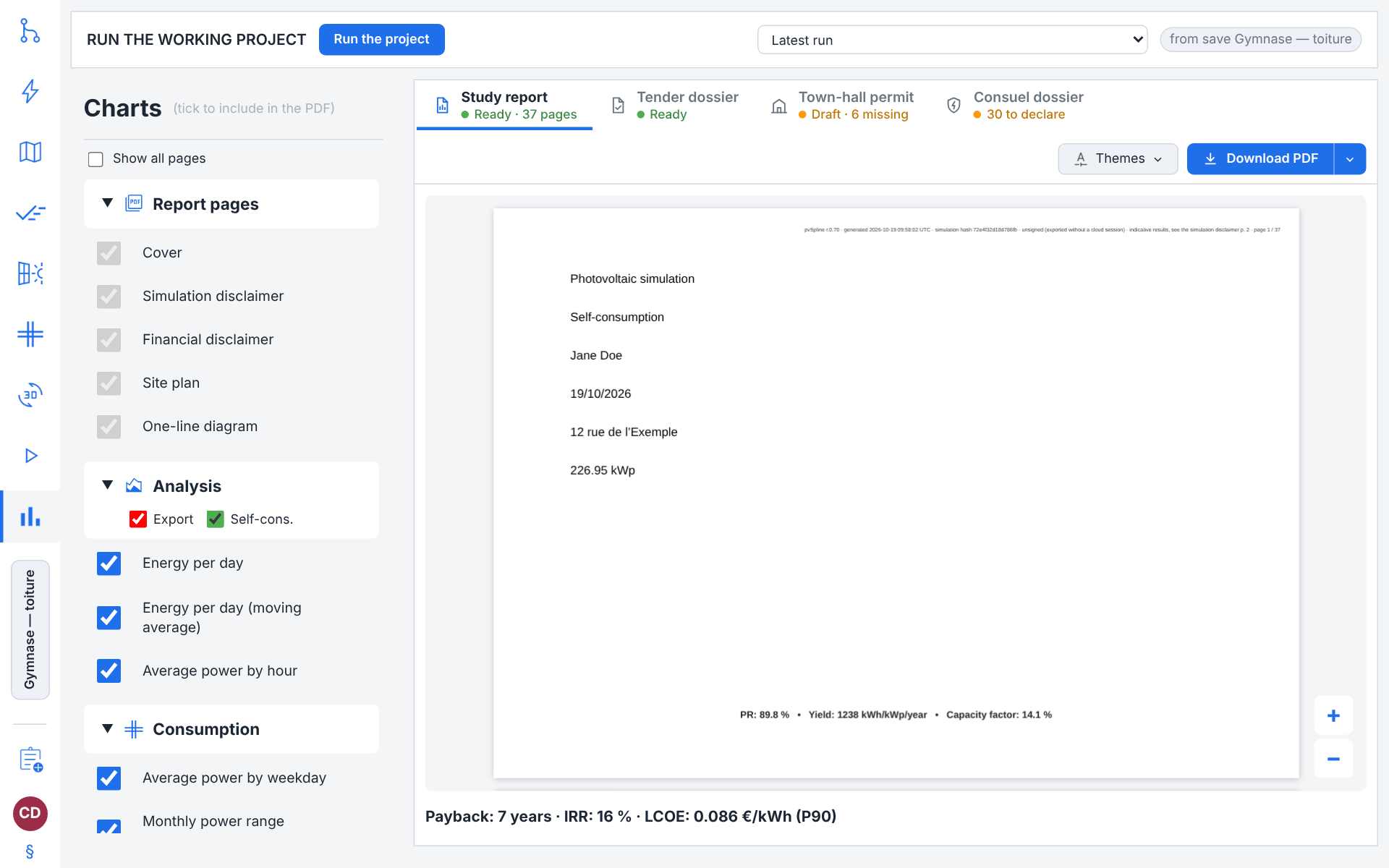
With no completed run the Study report tab reads No run yet and its preview says so: No completed run yet — press “Run the project” at the top of this tab, and the PDF report previews here once the run is done. Its Download PDF still works from that state (see What an export ships); the town-hall permit and the Consuel dossier need no run at all, and neither do the project's files in the menu beside Download PDF.
Navigating the preview
The preview is a real PDF renderer, not an image: zooming re-renders the page crisply rather than scaling a bitmap.
Scroll through the whole document in one continuous column. The report opens at a zoom that fits the first page entirely in the viewport.
Pan by clicking and dragging inside the page; the cursor changes to a hand.
Zoom with the floating + / - buttons pinned to the bottom-right corner, or by holding Ctrl and scrolling the mouse wheel — the wheel zoom anchors on the point under the cursor, so the detail you were looking at stays put. Zoom ranges from
25%to400%; each button press steps by a factor of1.25. A plain wheel scroll still scrolls.
The four documents' previews work the same way.
Note
The gutter around the pages follows the Background colour you chose in Preferences, Tariffs & Theming, so the on-screen proof matches the rest of the application. The pages themselves are always white — they are the print surface, and report colours are a separate system from the application's light/dark theme.
The documents' header
Above the preview, the header holds a tab per document on the left and, on the right, what you take away from the document on screen: Download PDF, with the arrow that opens the document's menu — which ends on the project's other files. On the study report, the theme button comes first (The theme button). The preview comes right under the header.
The four documents
The tabs, in the order a project files its documents, make up the list Documents of this project:
| Document | Meaning / effect |
|---|---|
| Study report | The client PDF of the run on screen, with the charts ticked in the list beside it — the report most of this chapter is about. Built from a finished run. |
| Tender dossier | The dossier productible of a French CRE call for tenders, built from the same run and written in French (The tender dossier). |
| Town-hall permit | The déclaration préalable for the town hall (form CERFA 16702), with the plans and photographs it asks for — built from the project, no run needed (The permit package (déclaration préalable)). |
| Consuel dossier | The Consuel dossier technique: the forms the installation files, the values your electrical design fills in and what is left to fix or to declare — built from the electrical design, no run needed (The Consuel dossier). |
Under each name, a status line — a dot and a few words — says whether the document can be handed over: green when it can, orange for a run that is stale or that warned, a draft or items still to declare, red for something to fix or a document that could not be had, the accent colour while it is on its way, grey when there is nothing to show yet. Hover a tab for what its document is and, when the line alone does not say, why it says what it says.
| Status line | Meaning / effect |
|---|---|
| Ready, Ready · N pages | The document can be handed over as it stands. The page count appears once its preview has opened it; the tender dossier of a succeeded run reads Ready until you open its tab. |
| Stale, Stale · N pages | Study report and tender dossier: the project changed since the run on screen, so the document describes the project as it was — the stale badge beside Run the project says so too. Press Run the project to bring it up to date; the tab's tooltip says what moved. |
| Ready · N warnings, Stale · N warnings | Study report and tender dossier: the run on screen has N warnings — read them in the Warnings card above before handing the document over. They take the page count's place, after Stale when the run is stale too. |
| No run yet | Study report: there is no run to show. |
| Waiting for the run | Study report and tender dossier: the run on screen is queued or running, or its results are still loading. |
| Rendering… | Study report: the report is on its way to the preview. |
| No report | Study report: the run ended without a report. The tab's tooltip says why. |
| Needs a finished run | Tender dossier: there is no succeeded run to build it from. |
| Preparing… | Tender dossier: the dossier is being fetched. |
| Unavailable | The document could not be had. The tab's tooltip says why. |
| Draft · N missing | Town-hall permit: N pieces are still missing — Until every piece is in, the PDF is stamped “draft” and the town hall will not accept it. |
| Open a project | Town-hall permit and Consuel dossier: no project is open. |
| Checking the design… | Consuel dossier: the electrical design is being checked. |
| No electrical design | Consuel dossier: the project has none yet — Create the electrical design on the Diagram tab: the dossier follows it. |
| N to fix | Consuel dossier: findings to fix or to check remain. |
| N to declare | Consuel dossier: nothing to fix, but items are left to declare. |
Click a tab to show its document in the preview below. The tabs answer the keyboard too: Left and Right move to the previous or the next tab, from the last back to the first, Home and End to the first and the last, and the tab the focus lands on is shown at once.
The document you pick is written into the address (?doc=tender, ?doc=permit or ?doc=consuel; nothing for the study report), so a reload or a shared link opens the same one, and choosing another run at the top of the tab keeps it on screen. The column beside the preview follows the tab: the chart list for the study report, the document's own panel for the other three.
Choosing which run the report describes
The report describes the run the Results tab shows, chosen beside Run the project at the top of the tab (The run selector); the documents' header has no run choice of its own, and the tender dossier follows the same run. While a cloud run is open, that choice is a dropdown, Run to preview. Its default entry is Latest run — the tab follows the newest run that succeeded, so a fresh simulation automatically becomes the report you are looking at. The other entries are the succeeded runs this browser session is tracking, each labelled with its id and its submission time; the save a run came from is named on the chip beside the dropdown. The list survives a page reload but not a new tab, and it keeps the 50 most recent runs.
Latest run is the tab's Follow latest run mode — it reads Latest run while the tab follows the newest run and is showing it, or while the run on screen has not finished yet, and choosing it ticks Follow latest run and brings the tab to the newest run.
Picking a specific run pins it: the tab shows that run and stops following newer ones (Follow latest run is unticked), so a run landing later cannot swap it out. A pinned run is an archival export by declaration: it is never silently replaced, whatever the project has done since. The run selection and the stale badge beside Run the project disclose exactly what you are shipping.
Download PDF and the document's menu
On the right of the header, Download PDF downloads the document on screen, and the arrow joined to it — named More for the Study report, and so on, for a screen reader — opens the menu: under the document's name, its other formats and what else it offers, then the other files (The other files). Each document's button and entries are described with the document; the study report's are:
- Download PDF
Downloads the report. This is the fast path — one click, no dialog. The file lands wherever your browser puts downloads, under the name described in Where the file goes and what it is called. Disabled only when there is nothing to export from — no rendered report and no open project (the tooltip then reads No project is loaded. Open or create a project before exporting a report.).
- Save to a folder…
The same report, but asks where to put it. Browsers that support a true save dialog (Chrome and Edge, at the time of writing) open one, pre-filled with the suggested filename and filtered to PDF; dismissing it cancels the export. In other browsers this falls back to an ordinary download, and your browser's own “ask where to save each file” setting is then the location chooser.
- Print…
Opens the rendered PDF in a new browser tab and asks that tab's viewer to print it. Disabled until a report has been rendered. If your browser blocks the pop-up, the workspace says so: The browser blocked the print window — allow pop-ups for this site, or export the PDF and print it from your viewer.
- Proof of authenticity
The study report's last group, while there is a run to show: Signature file (.sig), The digital signature of this PDF, and Open the pvSpline verifier, which opens the free checker in a new tab (Report verification).
The menu closes when you pick an entry, press Escape, click outside it or change tab. Opening it puts the keyboard focus on its first entry: Down and Up walk its entries, Home and End jump to its ends, and Escape hands the focus back to the arrow. When it is taller than the room under it, the menu scrolls.
Watch out
Printing hands the document to the browser's PDF viewer, which owns the print dialog. Some embedded viewers ignore the request and simply display the file — press Ctrl+P in that tab if the dialog does not appear on its own.
The other files
Under every document alike, the menu ends on what is not a document of its own: the run's tables, the one-line diagram and the bill of materials.
From this run, while a run is on screen: Export tables (XLSX), the financial projection's workbook — or No tables for this run. when the run has none to export (Exporting the financial table and the bill of materials).
From the working project: One-line diagram (SVG), One-line diagram (PDF), Bill of materials (CSV) and Bill of materials (XLSX), under the note Drawn from the project as it is open now, not from the run above. They are there before the first run (Exporting the financial table and the bill of materials).
When one of these files cannot be had, the reason shows above the document, whichever tab is on screen.
The theme button
On the study report, the header's actions open on the theme button, before Download PDF:
- Theme: <name> / Themes
Toggles the theme panel on the right (Report themes). When hidden, the preview reclaims the space.
The button names the theme in force — a long name is cut short — or reads Themes while there is none. The other documents take no theme, and show no such button.
Building the branded PDF report
Generate a client-ready PDF report
Open your project and run the simulation so the charts and the financial table are populated (Running a Simulation & the Production Tab).
Open Results (
/results): the report workspace is its canvas.Optional: in the chart list on the left, tick exactly the charts you want in the report (Charts, Heatmaps & Tables); only ticked charts that have data for this run become pages.
Proof the report in the preview: scroll through it, zoom in on the cover and the financial table.
Check the run selection and the stale badge beside Run the project. If the badge says the project has changed, re-run it with Run the project.
Click Download PDF, or open the arrow beside it and choose Save to a folder… to choose where it lands.
Open the downloaded file from your browser's download list and send it.
What an export ships
An export ships the PDF the cloud worker already produced and stored for the previewed run — it is fetched rather than re-rendered. With no run at all, it simply produces one.
Where the file goes and what it is called
Exports are browser downloads. Download PDF sends the file straight to your download folder; Save to a folder… asks first where supported. Nothing is written to a server, and the workspace keeps no copy — to export again, click again.
The report filename is:
Bilan_<client>_dd-MM-yyyy_hh-mm-ss.pdf
built from the client name recorded on Project, with spaces folded to underscores and dots and colons folded to hyphens. Two honest substitutions: if the project has drifted from the run being exported, the run's id replaces the client name (the file then names what it actually contains); and a project with no client name uses the run id too.
What is on the cover
The cover is the Cover page of the active report theme, so its artwork, logo, colours and fonts are yours. Onto it the engine writes:
Title — Photovoltaic simulation.
Operation type — chosen automatically from the simulation: Self-consumption, Self-consumption with physical battery or Self-consumption with virtual storage.
Client name, date (the day the report was rendered,
dd/MM/yyyy— for a cloud run, the day it ran), site address and installed power in kWp — all read from the project.A headline metric strip across the lower band: PR:
82.4%, then the specific yield (Yield:1180kWh/kWp/year) and the capacity factor (Capacity factor:13.5%) when the run produced them. The strip is omitted entirely when the engine computed no performance ratio.A verification QR code: a code about 25 mm square in the bottom-right corner, on a small white backing drawn over the theme's artwork, captioned Scan to verify and, when the code attests your consumption data, the first 16 characters of that data's SHA-256 fingerprint (Report verification). The code is not a slot, so keep that corner of your cover artwork clear.
The title, operation type, client, date, address and power are named slots in the theme, so you decide where each sits and what it looks like; a slot you hide simply does not print. The metric strip sits in a fixed band at the foot of the cover. With no report theme at all, the engine prints a plain cover carrying the same fields, without artwork.
What is on every inner page
Inner pages carry the theme's inner-page artwork — background, header, footer and logo, the slots you edit on the theme editor's Charts page — plus the page title in the theme's title slot, and a two-line company contact block anchored to the theme's power slot: e-mail and phone on one line, address and SIRET on the other.
That block comes from your company profile on the account page, fetched when you are signed in. Without a session the block is simply omitted; it is chrome, not data, and its absence never blocks a render.
Which pages the report contains
pvSpline never prints an empty page. The document is assembled in this order, and each entry appears only when it has something to show:
| Report page | Meaning / effect |
|---|---|
| Cover | Always, as described above. |
| Site plan | A plan view of your site, titled Layout proposal, rendered by the engine from the project itself — the drawn polygons, the placed module grid and, where coverage allows, orthophoto imagery underneath, with a pill on each polygon giving its installed power, module count and panel model. Skipped when the project carries no drawable geometry. You do not have to capture anything: unlike the map sheets of the permit package, this page needs no screenshot. |
| One-line diagram | The electrical single-line diagram built from the project (Electrical Design & the One-Line Diagram). Skipped when the project has no diagram yet; if the stored one cannot be drawn, the page prints No one-line diagram has been generated for this project. rather than a blank sheet. |
| Chart pages | One page per chart you ticked in the chart list, in the list's own order, each drawn full-bleed under its page title. A ticked chart with no data for this run is skipped, so a Full export project does not print empty self-consumption charts. The pages that are not plain charts print the same way: the production / consumption summary as its energy-flow diagram, bankability as its coverage figures and sensitivity table (a financed project only), the bill of materials as its priced table, over as many pages as it needs (a project with something to bill only), and the agrivoltaic transect as its ground-light profile. The two point-of-view pictures have no tick box: they print whenever the project the run was computed from carries them (Summary and picture pages). The financial projection prints as described below. |
| Off-grid site summary | Off-grid site projects only (Storage, EV & Specialized Systems), among the chart pages: at the head of the generator set's chart in the System and grid family, whatever its tick, the run's stand-alone balance as figure cards, in the theme's table look, on one page titled Off-grid site — reliability & energy balance: the solar fraction, the loss of load by time and by energy and the effective autonomy in days; the energy the load needed, the energy served, the energy missing and the energy left unused (E_Load, E_User, E_Miss, E_Unused), in kWh; and the generator set's energy, fuel and operating hours. |
| Water-pumping or DC-grid totals | Solar water-pumping and DC-grid (railway / trolleybus) projects only, among the chart pages: at the head of that system's charts in the System and grid family, whatever their ticks, the run's totals as a list, on one page titled Water pumping (isolated, sun-driven) or DC-grid (railway / trolleybus). For pumping: the water pumped, the water demand, the water delivered to users and the missing water, in m3; the loss of load by volume; the specific energy in kWh/m3; the pump and system efficiencies; the tank autonomy in days; and the array energy at the maximum power point, the hydraulic energy and the energy left unused while the tank was full or the pump at its limit. For a DC grid: the energy injected into the DC grid, the energy curtailed while the grid could not take it and the energy reverse-fed to the AC grid, and the traction demand, in MWh; the acceptance, the curtailment and the traction coverage by PV; the system efficiency; and the array energy at the maximum power point and the converter loss. No other page prints these totals: the charts of those system types are heatmaps and monthly balances. |
| Agrivoltaics agronomy | Among the chart pages too, at the head of the agrivoltaic ground-light charts: ground light reaching the crops, growing-season PAR and shade uniformity. Printed when an agrivoltaic run produced ground-light data. |
| Carbon balance | Whenever Carbon footprint enabled is ticked on the project's CARBON FOOTPRINT card (The Project Tab), among the chart pages: at the head of the CO2 charts in the Financial family, whatever their ticks, one page titled Carbon balance — CO2, in the theme's table look: the embodied CO2, the CO2 avoided over the project's life, the CO2 a generator set's diesel emitted when it burned any, the net balance, which subtracts it, and the carbon and energy payback times, as figure cards; the embodied emissions by component, each with its calculation basis, and their total; and a note on the method naming the grid intensity the run used and the sources of the default figures. The cumulative balance over the years is the next page, the first of the CO2 charts. |
| First-year financial summary | Year-one revenue and costs, printed whenever the run has them and the First-year financials tick in the chart list is left on — on by default. Not in Full export mode, nor for a pumping or DC-grid project. |
| Financial projection (2 pages) | Each has its own tick in the chart list: Financial projection for the first, Multi-year financial summary for the second. The first is a bar chart of EBITDA per year with the run's headline financial figures listed under it, one per line: LCOE (left out when the run has no production), VAN (NPV ratio), TRI (IRR) — your equity IRR, tagged (equity) when a loan makes it differ from the project IRR and (before tax) when a tax rate was modelled —, Payback period (to a tenth of a year) and EBITDA (20y), the EBITDA total over the projection's horizon. The second is the multi-year projection table in the theme's table style, carrying the theme's key-data overlays (Payback time: …, IRR: …%, tagged (before tax) when a tax rate was modelled) and the performance footer below. When the run books tax or incentives, a second column beside the list, Taxes and incentives, gives the project and equity IRRs after tax, the corporate tax, IFER and VAT over the projection, the grants and incentives received and the tax credits. Skipped when the run computed no financial table. |
| Taxes, incentives and tender settlement | Right after the projection table, when the run has them, each behind its own tick in the chart list (Taxes, incentives and tender settlement): a page French incentives (EDF OA) citing the CRE grid the run booked, with the IFER below it and the CRE's source as a link; then one page per year-by-year table, Tax computation, year by year and CRE tender settlement, year by year, each scaled to fit its page. When the IFER sentence is the only text, it heads the first table page instead of taking a page of its own. |
| Batch study — scenario comparison | The batch study stored in the project (Batch Simulation & Scenario Sweeps), as one annotated chart of the metric the Batch tab's Y axis: was set to — NPV by default, or another such as IRR (%), DSCR min or LLCR: a marker per completed scenario in the column of its X axis: value, a reference line through the scenario you set as baseline, a verdict block naming the best scenario, and a caption giving the scenario count, the failures, the NPV winner and what is plotted. Printed as the last chart page when the project the run was computed from stores a study with results and the study's tick in the chart list — on by default — is left on. The Batch tab stores the study in the open project once a batch run on it completes, so run the project again after a batch before you export. |
| Simulation disclaimer | Always, at the end of the report, after the study's pages: pvSpline's simulation disclaimer, word for word, in two columns — what the production, sizing and loss results are and are not, and who signs the real study. About two pages. It is part of the report and cannot be unticked. |
| Financial disclaimer | Right after the simulation disclaimer, when the report carries a money page (the first-year financial summary or the financial projection): pvSpline's financial disclaimer, word for word, in two columns. About three pages. |
The pages that are not charts — the cover, the site plan, the one-line diagram and the disclaimers — are listed in the chart list too, first, as its Report pages family, in the order the report prints them; the off-grid summary, the pumping or DC-grid totals and the agrivoltaics page are listed with their system's charts, under System and grid, and the carbon balance with the CO2 charts, under Financial. Their tick boxes are locked: such a page is part of the report whenever the project has what it shows. Click one to scroll the preview to it. The list shows the pages of the PDF on screen; tick Show all pages above it to see every page the report can hold, those this PDF does not print greyed out.
A chart the chart list does not offer for the project's mode is not printed either, whatever data the run has for it (How the mode and system type filter the list).
Tip
The chart list is the report's table of contents. If the report is longer than you want, untick chart families you do not need; if a page you expected is missing, the usual cause is that the chart has no data for this scenario — click its name in the chart list, and a note over the preview says when the report has no page for it.
Note
The report does not say which exceedance percentile its figures are at, and it uses two. The energy figures of the cover strip are P50 — the deterministic year — whatever percentile the project is computed at, and so is the first-year financial summary. The energy drawn on the chart pages and in the loss diagram is at the project's percentile (Probabilistic production (P50/P75/P90/P99)), and so is the financial projection, with the NPV, IRR, LCOE and payback computed from it wherever they are printed: P90 unless you chose another, as the Production tiles say (Specific yield · P90). Unless the project is at P50, year 1 of the projection table therefore differs from the first-year financial summary, and the performance footer mixes the two percentiles (below). For a report that is P50 throughout, pick P50 and run the project again before you export.
The performance footer
Where the run produced a performance ratio, the financial-table page carries a standards-aligned line — in the theme's key-data slot, or as an italic line under the table when the theme has none:
Performance Ratio (IEC 61724-1) and, when it genuinely differs, the temperature-corrected PR.
E_AC net — the year-one net AC energy at the meter, after the full pvSpline loss cascade, at the project's percentile (P90 unless you chose another); the spreadsheet exports give it at P50, in their Net AC at meter (pvSpline loss cascade) row.
Y_f (specific yield, kWh/kWp/yr) and CF (capacity factor, %), both at P50: unless the project is at P50, Y_f is not E_AC net divided by the installed power.
Note
These metrics — plus the lender ratios DSCR and LLCR, and the carbon block — are also written into the Excel workbook (Exporting the financial table and the bill of materials), so an analyst pulling the workbook sees them without opening the PDF.
The language of the exported PDF
The words in the PDF — page titles, chart labels, the water-pumping and DC-grid totals, the one-line diagram — follow the interface language set in Preferences, Tariffs & Theming, and so do the figures written in the footers and overlays of the financial pages, on the water-pumping and DC-grid totals and on the one-line diagram: a French report prints 12 345 kWh where an English one prints 12,345 kWh. A cloud run's report is rendered once, in the language the page used when you started the run; to get it in another language, switch the language and run the project again. A run an AI assistant queues for you (Good to know) is written in English — its report, its charts and its workbook — whatever your interface language. The tender dossier is the exception: it is always written in French. The two disclaimers follow the language too: a French report prints their French text, an English one their English text. So do the site plan's page title (Layout proposal) and the payback period in the Payback time overlay (9 years, 9 ans in French) — except in a run an AI assistant queued, whose report and workbook give the payback period as 9 ans.
Report themes
A report theme is your branding for the PDF: the cover artwork and its text slots, the inner-page chrome, and the colours and fonts the report's tables and charts are drawn with. It is an entirely separate system from the application's own light/dark theme (Preferences, Tariffs & Theming) — the two never borrow from each other.
Picking a theme
On the Study report tab, click the theme button in the header, before Download PDF — Theme: <name>, naming the theme in force, or Themes when there is none. The panel is headed Theme Selection and lists every stored theme as a card showing two real rendered thumbnails, its cover and its inner page, so you can tell themes apart at a glance rather than by name alone. Click a card to apply it: the choice is remembered across sessions and across the whole application.
If the list is empty the panel says No themes available. Open the theme editor to create one. If you are working against the cloud without being signed in, it says Sign in to your cloud account to edit the company's report themes.
Note
There is no “no theme” card. With no stored choice, the first theme in the list applies.
Watch out
A cloud run's report was rendered by the cloud worker with the theme that was selected when the run was submitted. Picking a different theme now governs the next submission; it cannot re-brand a stored cloud artifact.
The theme editor
The Theme editor button at the top of the panel opens Theme editor, a full-screen workspace branded Theme Studio. Close it with the Close cross in its top-right corner, by clicking the backdrop, or with Escape.
Everything on the A4-landscape canvas is rendered by the same painters that print the report, and the clickable boxes come from the engine's own text metrics — so what the editor shows is what the report prints. The page is 1050 × 742 design units (the status bar says so), which is A4 landscape.
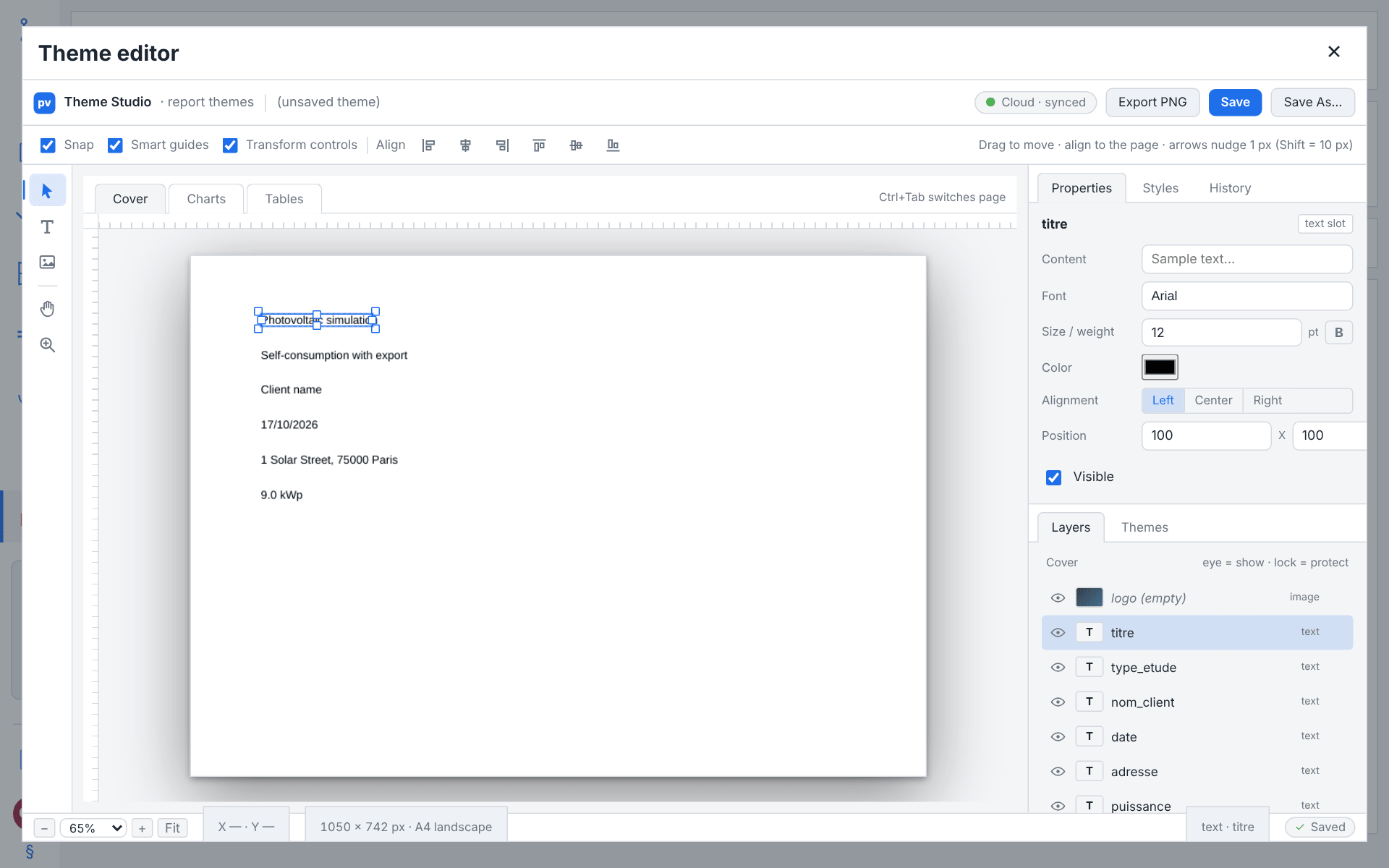
The theme is a fixed-slot model: you cannot invent new elements, you fill named slots. “Adding” a logo means loading an image into the logo slot.
The three document tabs.
Across the top of the canvas, in the report's own order: Cover is the cover page. Charts and Tables are the inner pages exactly as the report prints them. Charts is a chart page: one real report chart, drawn by the engine with the theme's chart settings. Tables is the Multi-year financial summary page: the projection table drawn with the theme's table settings, with the payback time, the IRR and the performance line in the key-figure slots. Both carry the theme's inner-page artwork — background, header, footer and logo — with the report's page title, your company's contact details when your account has them, and the line every report page ends on (version, date, simulation hash, page number). Both draw fixed sample figures, so they do not move when you load a different project. Ctrl+Tab cycles the three (Ctrl+Shift+Tab the other way).
Because the two inner pages are the printed pages, they carry only the slots the report prints there, filled with the report's own words: the title slot shows the page's title, never its sample text. The subtitle and chart-title slots appear on neither page, and the key-figure slots only on Tables and beside the Monthly consumption by band chart. Every slot stays in the Layers list.
On the Charts page, the Sample chart list at the end of the options bar picks the chart: Self-consumption and Export per month, Monthly production, Monthly consumption by band or Consumption by time-of-use band. One chart is shown at a time, as in the report, and between them they show every chart colour the report uses. The choice changes nothing in the theme.
Working on the page.
Click an element to select it, and drag it to move it. Arrow keys nudge the selection by 1 unit, Shift+arrow by 10. Double-click a text to edit its content in place; Enter commits, Escape reverts. Everything else about the selected element — font, size, colour, image, scale, tint — is set in the Properties dock. Hold Space and drag to pan the page; Ctrl+wheel zooms to the cursor.
Moving things precisely.
The options bar offers Snap (on by default — the dragged element's edges and centres snap to the page's edges and centre and to every other element's, within a small tolerance), Smart guides (on by default — draws the alignment guide you snapped to) and Transform controls (on by default — the selection box with its handles). The four corner handles resize: an image's scale, a text's point size. Six alignment buttons snap the selection to the page's left, centre, right, top, middle or bottom edge.
The docks.
On the right, two stacked docks with tabs:
Properties — everything about the selected slot: content, font, size, bold, colour, alignment, position, visibility for a text; position, scale, tint, tint opacity, Replace image… and visibility for an image. Nothing selected shows Click an element on the canvas or a row in the Layers panel.
Styles — the report's table and chart appearance: header and cell fonts and size offsets, the column margin, the header row's height, five table colours, the chart font and size offset, and fifteen chart colours. Each colour has a small Reset to default cross beside it; an empty colour means “use the default”. The table settings repaint the table on the Tables page, the chart settings the chart on the Charts page.
History — the undo timeline as a clickable list, with Undo / Redo. Ctrl+Z and Ctrl+Shift+Z (or Ctrl+Y) step through it.
Layers — every slot on the open page, with an eye to show/hide it and a padlock to protect it from dragging. Delete clears the selected slot's content (it never removes the slot). Empty slots are listed as
<name>(empty).Themes — the library: a name field with New theme, Import file…, a card per stored theme with its rendered thumbnails, last-edited date and a cross that deletes it, + Save as new theme…, Delete and Export file.
Saving.
Save overwrites the loaded theme (Ctrl+S); Save As… asks for a name and stores a copy (Ctrl+Shift+S). A brand-new document has no stored row behind it — the title bar reads (unsaved theme) and Save routes to Save As…. A dot beside the theme name and an Unsaved chip in the status bar mark unsaved work.
Caution
The editor lives inside the report workspace. Clicking another rail entry would destroy an unsaved theme and its undo history, so pvSpline stops you first and asks Save / Discard / Cancel; closing or reloading the tab raises the browser's own leave-page warning. Deleting a theme asks for confirmation and cannot be undone.
Sharing themes.
Themes are stored in your company's pool: Themes are stored in your company's cloud pool — every save is shared with all signed-in machines. Export file writes the open theme as a portable .json and Import file… reads one back.
Pictures in a theme.
Image slots accept PNG, JPEG and BMP, up to about 25 MB per file. Over that, the picker refuses the file up front and names both numbers — nothing is uploaded and nothing is read. An imported theme .json is bounded at about 67 MB.
Exporting a page as an image.
Export PNG writes the page currently on the canvas at its full 1050 px design width, as <theme>-cover.png, <theme>-charts.png or <theme>-tables.png — each page exactly as the canvas shows it, the Charts page with its sample chart.
Report verification
A report rendered in the cloud — a cloud run's stored report — can be checked by anyone it reaches. When it is issued, the company PvSpline signs it, seals its key figures and registers the PDF's fingerprint. Its cover then prints a verification QR code and, beside it, a box reading Check this report with the report's ten-character verification code and its sealed figures: the installed power, the annual production and the price including VAT. Every page prints the same code at the top right, and the report's integrity section, on the first page of the simulation disclaimer, sums it all up.
The free checker on the pvSpline website, pvspline.fr/verify (pvspline.fr/fr/verify in French), takes the report three ways:
Scan the QR code with a phone's camera. It opens the checker on that report, which checks the seal in the browser and shows the figures pvSpline sealed, to compare with the document in hand.
Drop the PDF on the page. The browser computes the file's fingerprint and asks pvSpline's registry whether that exact file was issued; the file itself never leaves the device. A copy changed since still shows the figures it was sealed with, so any difference stands out.
Type the code. The checker shows the registry's public record of the report: its issuer, date, page count, status and where its data comes from — never its figures, nor any client data.
There is nothing to tick: every run you start from this application asks for the seal. The checker also says when pvSpline has withdrawn a report, or replaced it with a newer version.
Note
Only a report the cloud signed carries the code. The tender dossier, the permit package and the Consuel dossier never do, nor does a run an AI assistant queues for you (Good to know); a script's run carries one only when its request asks for it (Automating around the cloud).
The signature file.
The run also keeps the report's signature beside the PDF: the company PvSpline's signature over its simulation hash, the SHA-256 the report prints in its integrity section. Signature file (.sig), in the study report's menu under Proof of authenticity, downloads it under the report's file name with .sig appended. Keep it with the PDF: dropped on the checker, it shows that PvSpline signed the hash every page of the report prints, without asking pvSpline's registry. The entry is disabled for a report that carries no signature, and says so: This report has no signature file: it was not signed (only reports rendered in the cloud are).
The tender dossier
The Tender dossier tab shows the run's tender dossier (dossier productible) — the French energy-yield report a CRE call for tenders asks for.
It opens on the project's identity (project, client, PRM, the tender scheme and period, installed power), then states the basis of the yield estimate — an hourly pvSpline simulation on PVGIS data, losses per NF EN 61724-1, a P50 / P90 / P99 envelope per IEC 61724-3 — as a table of annual and cumulative energy at each exceedance level. It goes on with the loss cascade stage by stage, the reference-price and remuneration figures, the simplified carbon assessment (ECS) against the tender's threshold, and a note on PVsyst equivalence. Outside Full export, the remuneration figures end with the note Revenu AO non comptabilisé dans le plan de trésorerie : l'offre ne s'applique qu'à la vente totale. — the bid's revenue is then a stand-alone projection, not part of the run's NPV and IRR. The dossier is always written in French, whatever the interface language.
It is built from the run on screen — the one the study report describes — and fetched when its tab opens, then previewed in place; a run's dossier never changes, so coming back to the tab does not fetch it again. With no succeeded run the tab reads Needs a finished run and the preview says No finished run yet — the tender dossier is built from a run’s result. Press “Run the project” at the top of this tab.
Download PDF — the dossier on screen: Download the tender dossier (“dossier productible”) of the run on screen, as a PDF. It reads Preparing the dossier… while it works.
Save to a folder…, in its menu — the same PDF, through a save dialog where the browser offers one.
It downloads as <run-id>-dossier.pdf. A run whose engine is too old, or whose dossier was not retained, reports The tender dossier is not available for this run.
Note
In the dossier's table, the annual energy at each exceedance level is averaged over the project's lifetime. The specific yield printed under the table (Productible spécifique) and the loss cascade are first-year figures instead, at the project's percentile — P90 unless you chose another (Probabilistic production (P50/P75/P90/P99)) — and the dossier does not say so. To print them at P50, pick P50 and run the project again.
The dossier's outline and figures
Beside it, in the column the chart list holds for the study report, the Dossier productible panel reads The CRE tender deliverable, in the order the specifications read it. Built from the run on screen; written in French, as the tender asks. It lists the dossier's six sections, numbered as the dossier numbers them — Project identity, Productible, Loss cascade, Economics — complément de rémunération, Simplified carbon assessment (ECS) and PVsyst equivalence — and a click on one brings its page into view. A dossier whose pages carry no section names says so over the preview: This page is not in the file — download it again from a run made with this version.
Under What the dossier states come the figures the dossier prints, read off the same run:
P50, P90 and P99, in MWh: the dossier's lifetime-average rows — The yearly average over the lifetime at each exceedance level, as the dossier’s table prints it.
Performance ratio.
Carbon (ECS) verdict, when the project names a CRE tender family: Below the ceiling, Above the ceiling or Carbon data missing.
Reference price (bid), in €/MWh, when the project made a bid.
The panel ends on a link to the Project tab, where the tender’s family, period, bid price and carbon data are set (The Project Tab). With no succeeded run it lists the sections greyed out, and says the dossier needs a finished run.
The permit package (déclaration préalable)
The Town-hall permit tab holds the French déclaration préalable dossier — the planning pack a homeowner files at the town hall for a roof-mounted PV installation (form CERFA 16702). It is drawn from the project, not from a run, so it is there before the first simulation; with no project open the tab reads Open a project.
Three things make it up: the package itself, previewed in place; the checklist beside it, which says what is in and what is missing; and the form where the dossier is written. Edit the full dossier… opens the form, and so does the address /results?permit=1, so a link or a bookmark can take you straight to it.
The package and its preview
The preview is the package the town hall gets, rendered from the project and the dossier as they stand. While a piece is missing the engine stamps it as a draft, and a note above it says so: Some pieces are still missing: the PDF is stamped “draft” and cannot be filed as it stands.
It renders when the tab opens, and again a moment after the project or the dossier changes while the tab is on screen — a sheet captured on Map, a photograph added, the form closed — but never while the form is open over it: it waits for the form to close. Rendering it changes nothing in the project; only a download writes the dossier back into it.
Download PDF downloads the package as it stands — Download the permit package (déclaration préalable, CERFA 16702) as it stands. While a piece is missing it is stamped “draft”. — and reads Download draft PDF while a piece is missing. Downloading writes the dossier into the project first, a declaration still as the heritage check pre-ticked it included, and the preview then shows the package you took. Its menu holds:
- Save to a folder…
The same package, through a save dialog where the browser offers one.
- Edit the full dossier…
Photos and their captions, DP2 pins, parcel, heritage, installer: opens the form described below.
- Refresh the preview
Renders the package again from the project as it is.
Both downloads are named DossierDP_<project or client>_dd-MM-yyyy.pdf.
The checklist beside it
In the column the chart list holds for the study report, the Déclaration préalable panel is the package's checklist — Form CERFA 16702, for the town hall. Built from the project, with the plans framed on the Map tab and your photos — no run needed. From top to bottom:
A progress box, orange while a piece is missing and green once none is: Draft · N missing or Ready to file, how many of the pieces are in (2 of 6 in) with a bar, and the sentence that goes with it — the draft note above, or Every piece is in: the package can be filed as it stands. The pieces are the four plan sheets, the two photo sheets and, when a declared protection calls for the DP11 notice, the module colour it needs.
Plans and photographs: DP1, DP2, DP4 and DP6, each with its state — the form's own, below — and Frame on the map; DP7, Photographs of the close surroundings, and DP8, Photograph of the distant landscape, each with its photo count and Add photos, which opens the form at its photographs; and, when a protection applies, DP11, Notice for a protected site, saying whether the module colour it needs is in, with Edit.
The declaration: the installer, the parcel, the declared work and the protections as they stand — Not filled in yet or None declared until they are — each with Edit, which opens the form at that section.
Edit the full dossier…, which opens the form at its top.
With no project open the panel says Open a project first: the permit package is built from it.
The permit form
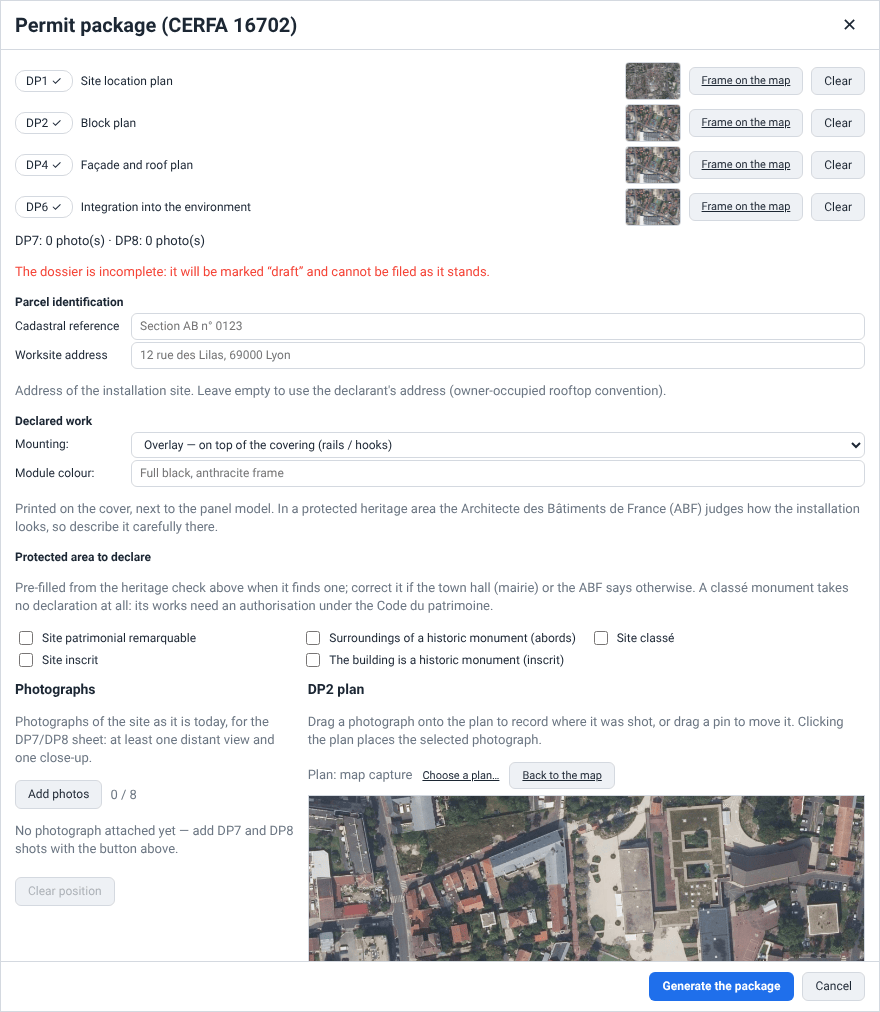
Edit the full dossier… opens the form over the tab, titled Permit package (CERFA 16702): there the dossier is written and checked before it is filed. Like the package, it needs an open project but not a completed run — the dossier is derived from the project.
The plan sheets
The dossier's four plan sheets are pictures of your site, and the form opens with a list of them:
| Sheet | Meaning / effect |
|---|---|
| DP1 — Site location plan | Locates the parcel within the municipality. Frame the map zoomed out. |
| DP2 — Block plan | Plan view of the land and the panel layout. This is also the plan your photo pins are dropped on. |
| DP4 — Façade and roof plan | The supporting roof and the module layout. Frame the map zoomed onto the roof. |
| DP6 — Integration into the environment | Photomontage or aerial view of the finished installation. |
Each row shows the sheet code with a tick, an exclamation mark or a cross, its name, its thumbnail, and one of four states:
captured — pixels in hand, depicting the current layout.
the array moved since this was framed — recapture it — still filable, but the plan underneath is out of date. A warning, not a block.
captured earlier; this browser has no copy — recapture it — the project remembers the sheet and the exact camera it was framed with, but this browser does not hold the pixels (a dossier carried in from elsewhere, or one that outlived a page reload).
not captured — never framed.
Frame on the map beside a row takes you to Map with that sheet armed, because a capture needs the live map canvas (The Map & Site Design Tab); once the sheet is captured, the map sends you back to the Town-hall permit tab, whose preview shows it, and you reopen the form there to carry on. Clear discards a sheet's pixels.
Caution
Sheet and photograph pixels live in the browser tab only — they are multi-megabyte images, and storing them would put the working project at risk. A route change keeps them; a full page reload does not. Everything about them — captions, DP7/DP8 filing, the DP2 pins, the parcel reference and each sheet's camera and capture time — is written into the project and survives, so a reloaded dossier only needs its pictures re-taken, not re-authored.
The dossier facts
Below the sheet list, the form collects what the project cannot carry:
- Parcel identification
Cadastral reference — the section and number, e.g.
AB 123— and Worksite address. Leaving the address empty keeps the owner-occupied convention, where the declarant's address fills both.- Declared work
Mounting: chooses the fixing method the dossier declares — Overlay — on top of the covering (rails / hooks), Integrated (IAB) — the modules replace the covering, or Supporting structure — ground, carport, shade structure. Until you choose, it shows the method the arrays' racking kits agree on (Mounting structure on their map cards, The Map & Site Design Tab), and says so; a choice the racking contradicts is filed as you chose, with a warning and a Follow the arrays' racking button. The height field under it — Height above the covering (cm):, Height above the roof (cm): for modules on tilted frames on a flat roof, Height above the ground (cm): for a supporting structure — is the most the modules stand above it: left empty, the dossier states the racking kit's own figure, or “To be completed”. Module colour: prints on the cover beside the module model; appearance is what the Architecte des Bâtiments de France (ABF) assesses in protected areas.
- Protected area to declare
Five boxes — Site patrimonial remarquable, Surroundings of a historic monument (abords), Site classé, Site inscrit and The building is a historic monument (inscrit). Tick what applies, as the town hall (mairie), the ABF or the Atlas des patrimoines states it. When the form also shows a Heritage protection check above the boxes, it pre-ticks what it can name for certain; a site whose record does not say classé or inscrit, and a monument, are left for you, and once you have ticked or unticked a box, later checks leave your choice alone. Every box but Site inscrit adds the DP11 statement, with two fields for it — the materials beyond the module model and colour, and how the works will be carried out — and makes Module colour: required: without it the dossier is marked draft. The protections are named on the cover, and the next-steps page states the project's review period, agreements, the boxes to tick on the form and the paper copies. Your declaration and the DP11 notes are saved with the project; left as the check pre-ticked it, the declaration is saved when you generate the package.
- Installer / authorised agent
Five fields — Company, Address, SIRET, Email, Phone — printed on the dossier cover. They are kept in this browser for your next dossier, because they belong to you rather than to the project. When you are signed in they are pre-filled from your company profile and the form says so; typing over a field makes it yours again for this dossier.
Any field left empty prints To be completed on the dossier rather than a blank line.
Looking up the parcel and the building
Under Cadastral reference, Locate the parcel fills the reference in from the array you drew, instead of you typing it. It asks two French public services: IGN's cadastre (Parcellaire Express, through API Carto) for every parcel the array stands on, and the Référentiel National des Bâtiments (RNB) for the building under each drawn surface.
The lookup asks with points inside the zones that carry the array on Map (The Map & Site Design Tab). With nothing drawn yet it uses the site placed on the Project tab, and says so: No array is drawn yet: the parcel and heritage lookups use the site address from the Project tab. With neither, the button is greyed out and the form reads Draw the array on the map, or set the site address on the Project tab, to look the parcel up.
What comes back:
Cadastral reference receives one reference per parcel, the parcel carrying most of the array first, in the form
Section AB n° 0123— preceded by its prefix, as inPréfixe 011 · Section AB n° 0123, in a commune that absorbed another. The lookup writes the field only while it is empty or still holds the lookup's own earlier answer: a reference you typed is never overwritten.Parcel (IDU): the 14-character national identifier of each parcel, followed by its commune.
Parcel area: the total area of the parcels in m2, shown only when every parcel has one on record.
Building (RNB): the national identifier of the building under each drawn surface. A building is named only when the register holds a footprint within 2 m of a point inside the surface, so a ground-mounted array or a carport the register does not list gets none.
The form names the source and licence of each identifier beneath them (Licence Ouverte 2.0). When nothing is found it says No French cadastral parcel or listed building under the array — enter the reference by hand. When a service cannot be reached it says which one, and keeps the identifiers you already had rather than blanking them: try again, or type the reference yourself.
Identifiers looked up for an array you have since redrawn, or for a site you have moved, are kept with a warning: The array or the site has changed since these identifiers were looked up. Locate the parcel again before filing. Clear the identifiers removes them, and the reference too when it is still the lookup's own.
The identifiers are saved with the project. On the dossier cover, the project location adds Parcel identifier (IDU), Parcel area and Building (RNB) under the cadastral reference, with a Sources line (IGN — Parcellaire Express (PCI) for the parcel, Référentiel National des Bâtiments for the building) and Licence Ouverte 2.0, retrieved on or before the day you generated the package.
Note
These lookups, and the heritage check below, go from your browser straight to the public services. They carry points inside your array, or the site's coordinates — no name, address or other project data.
The heritage check
When the form opens on a project with a drawn array or a placed site, it checks on its own whether the site falls inside a heritage protection, against the servitudes published on the Géoportail de l'Urbanisme (through IGN's API Carto) — the perimeters the Heritage protections overlay draws on Map. It asks once per layout: reopening the form does not ask again until the array or the site changes.
Under Heritage protection the form reads Checking heritage protections…, then lists what covers the site: the historic monument itself, a site patrimonial remarquable, the surroundings (abords) of one or more monuments, a site classé, a site inscrit, or a protected site whose record does not say whether it is classé or inscrit. Below the list it says what each protection means for the dossier — the agreement of the architecte des Bâtiments de France (ABF) and a month more in a site patrimonial remarquable or the abords, the préfet's express agreement in a site classé, a four-month wait in a site inscrit, the monument's own regime — and which pieces are then required (DP6, DP7/DP8, DP11). What it can name for certain pre-ticks the Protected area to declare boxes described above.
Watch out
No heritage protection is published on the Géoportail de l'Urbanisme here. means that nothing is published, not that nothing is protected: the list of servitudes annexed to the municipality's urban plan (PLU) remains the authority. And within the default 500 m circle around a monument, the ABF's agreement depends on whether the project can be seen from the monument or together with it, which only the ABF judges.
If the service cannot be reached, the form says so — The heritage service could not be reached. Check the Atlas des patrimoines or ask the town hall (mairie) before filing. — and offers Check again.
Site photographs (DP7 / DP8)
CERFA 16702 asks for two distinct photographic pieces, and pvSpline treats them as such:
DP7 — immediate surroundings: the building, its immediate neighbours, the street.
DP8 — distant landscape: the view from further off, showing how the project reads at scale.
Both are mandatory. The form shows a live tally — DP7: 3 photo(s) · DP8: 1 photo(s) — and warns as soon as either is empty.
Add photos attaches image files; you can pick several at once. At most 8 photographs fit the sheet, and the counter beside the button reads n / 8. Each picked file is bounded at about 25 MB; an oversized frame in a multi-select is skipped with a message rather than costing you the rest of the selection. Accepted photographs are automatically re-encoded down to 2400 px on the long side, so a handful of untouched phone pictures does not bloat the dossier.
Each attached photograph gets a row with its thumbnail, a Caption field (the filename, minus its extension, is the initial caption), a Sheet: dropdown (DP7 — immediate surroundings / DP8 — distant landscape) and Remove. Rows are listed in the order the dossier prints them: the whole DP7 sheet first, then DP8, numbered in one continuous run.
Pinning photographs on the DP2 plan
The right-hand side of the form shows the DP2 plan — your captured block plan, or a plan of your own. Dropping a numbered pin on it tells the town hall where each photograph was taken. Three gestures do it:
Drag a photograph's row onto the plan and release: its pin lands where you let go.
Drag an existing pin to move it.
Click the plan to place the selected photograph's pin.
Clicking a pin selects its photograph. A row with no pin is marked with a small hollow circle. Clear position removes the selected photograph's pin.
Choose a plan… substitutes your own image (PNG, JPEG or BMP, up to about 25 MB) for the map capture — a scanned cadastral extract or a surveyed drawing. The status line then reads Plan: custom image attached instead of Plan: map capture, and Back to the map reverts.
Note
A custom plan has unknown orientation, so the dossier will not claim a north arrow on it. A map capture does, and carries one.
Generating
Generate the package writes the dossier and offers it as a download (a true save dialog where the browser supports one), named:
DossierDP_<project or client>_dd-MM-yyyy.pdf
Close or Escape closes the form. Either way the dossier you authored is written back into the project on the way out, so it is there next time.
Generate the package closes the form first: the tab's preview then shows the package you filed, and says there if the download failed. After Close, the preview re-renders a moment later from what you entered.
What the dossier contains
Every sheet carries the fields it needs, filled from your project; anything missing prints To be completed, and a missing sheet prints a labelled placeholder frame rather than a blank page.
| Dossier page | Meaning / effect |
|---|---|
| Cover | Prior declaration package — Roof-mounted photovoltaic installation — CERFA 16702, or Photovoltaic installation on a supporting structure when that is the declared mounting, then four blocks: applicant identification (name / company, address, project reference), project location (worksite address, cadastral reference, the declared protections and, once looked up, the parcel identifier, parcel area and building identifier with their sources), installation characteristics (operation type, installed power in kWp, number of modules, module area, model and colour, tilt, orientation as a cardinal direction) and the installer / authorised agent block. |
| DP1 — Plan de situation | Location of the land within the municipality, with a north arrow and a scale bar. |
| DP2 — Plan de masse | Plan view of the land and the proposed layout, overlaid with the numbered photo-position pins you placed. |
| DP3 — Plan en coupe | A schematic cross-section synthesised by pvSpline of the work declared: a pitched roof with the modules along it, a flat roof with the modules on tilted frames, or tables on the ground. Repeats the slope (or the flat roof and the module tilt), orientation, module area, fixing method, the racking kit as the fixing system, and how far the modules stand above the covering, the roof or the ground — your figure, else the racking kit's, rounded up to the centimetre; “To be completed” when neither states one. |
| DP4 — Plan des façades et toitures | The supporting roof and the module layout, described as DP3 describes the work: on top of the kept covering, in its place, on tilted frames, or on a structure of their own. |
| DP6 — Insertion dans l'environnement | Photomontage or aerial view of the finished installation. |
| DP7 — Photographies en environnement proche | Your photographs of the immediate surroundings, in a numbered, captioned grid. |
| DP8 — Photographies en paysage lointain | The same for the distant-landscape photographs, numbering continuing from DP7. |
| DP11 — Notice des matériaux | Only when a declared protection calls for it: the modules, their colour and appearance, the mounting, and your notes on the materials and on how the works will be carried out. |
| Référence CERFA 16702 | Instructions and next steps for filing: download the form, complete it, attach DP1–DP8 (and DP11 when included), file it online or at the town hall. With a declared protection it ends with this project's review period, agreements, protection boxes to tick and paper copies. |
Caution
An incomplete dossier — any of the four plan sheets missing, either photo sheet with no usable photograph, or a DP11 statement with no module colour — is watermarked DRAFT — INCOMPLETE PACKAGE across every page and cannot be filed as it stands. The form warns you before the download — The dossier is incomplete: it will be marked “draft” and cannot be filed as it stands. — and so do the tab's status line and the note above its preview.
Caution
The permit dossier is a preparation aid, not an official submission. The plans are subject to a technical survey. Verify every field before filing, and attach the signed CERFA 16702 form itself.
The Consuel dossier
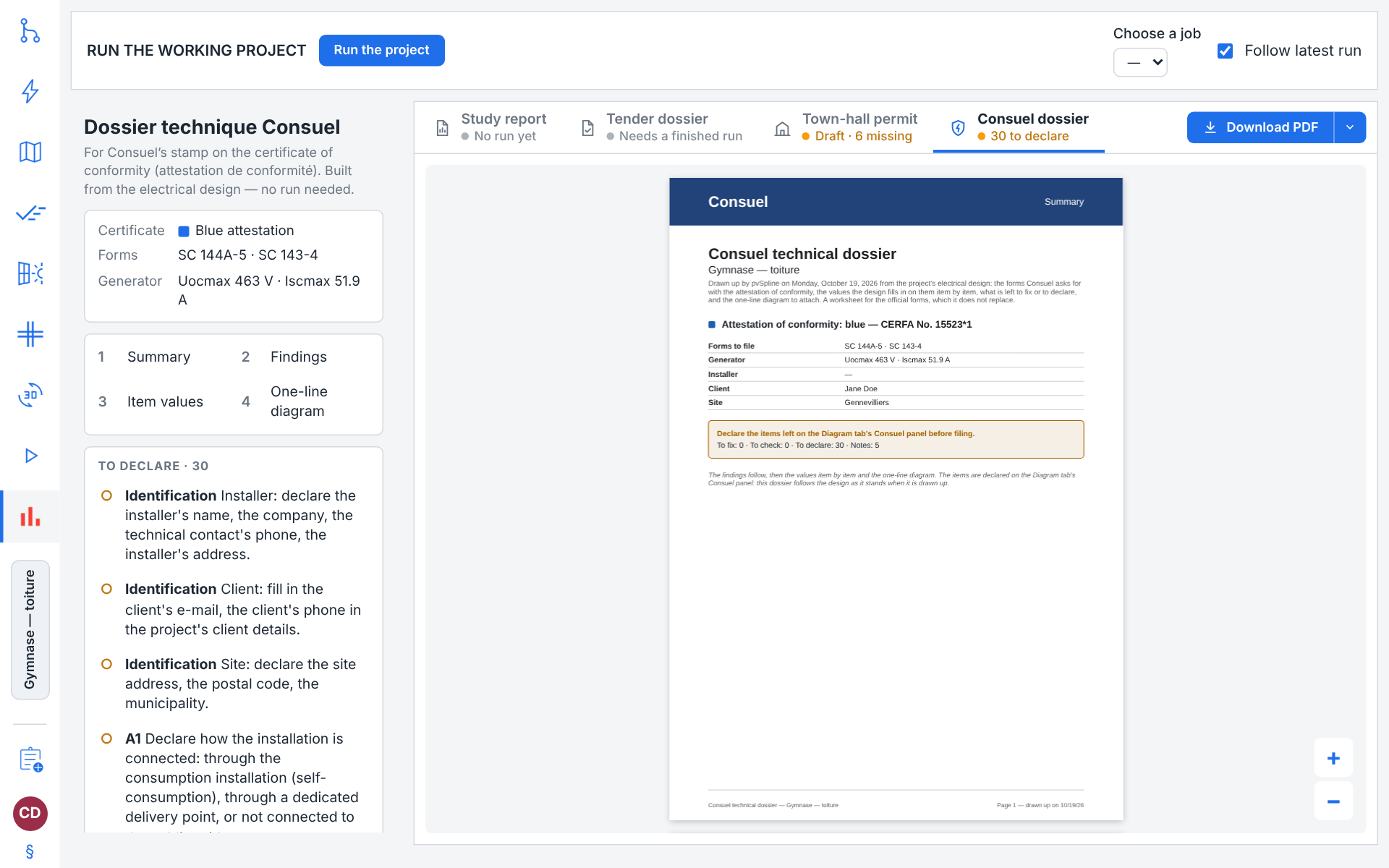
In France a new or modified PV installation needs Consuel's stamp on its certificate of conformity (attestation de conformité) before it is energised, and Consuel asks for a technical file, the dossier technique, with it. The Consuel dossier tab prints that file from the project's electrical design, to file with the official forms, which it does not replace. Like the town-hall permit it needs no run, so it is there before the first simulation.
The dossier reports the same check as the Consuel dossier of the Diagram tab, where its items are declared (The Consuel technical file): what you declare there reaches the dossier here.
The dossier and its preview
The preview is the dossier as the engine draws it from the design as it stands, in the interface language. It renders when the tab opens, and again a moment after the project or the language changes while the tab is on screen. The tab's status line is there before you open it: N to fix while findings to fix or to check remain, N to declare once only items to declare remain, Ready when every item is declared and the checks find nothing to fix in the declared values.
| Dossier part | Meaning / effect |
|---|---|
| Summary page | Under its title, what the dossier is: a worksheet for the official forms, which it does not replace — its values are pre-design values the installer checks and answers for, its checks bear only on the values declared, and nothing left to fix does not mean that the installation conforms. Then the attestation — blue, or purple for an installation with storage — with its CERFA form, then the SC forms to file, the generator's Uocmax and Iscmax, the installer, the client and the site, and a verdict box with the count of each kind of finding: Not ready to file: fix the items marked “to fix” first., Check the items marked “to check”, then declare what is left., Declare the items left on the Diagram tab's Consuel panel before filing. or Every item declared; the checks found nothing to fix in the declared values. |
| Findings | What is left, most severe first and in the forms' order, each line naming the item of the form it is about: To fix and to check, then To declare, then Notes. |
| Pre-filled item values | The values the design fills in on the forms, item by item and in the forms' order, under the headings Item, Description and Value: copy them into the official forms. A dash marks a value the design does not settle — declare it on the Diagram tab. |
| One-line diagram | The installation's schematic, drawn from the design on a landscape page, to attach to the dossier. A design that draws nothing yet says so on that page. |
| Simulation disclaimer | The simulation disclaimer, word for word and in the dossier's language, on the portrait pages that close it, as at the end of a study report. The dossier is a worksheet, not a report: it carries neither the report's imprint nor a seal. |
Each part starts on a page of its own, under a band naming it; every page's footer gives the project's name, the page number and the day the dossier was drawn up.
Download PDF downloads the dossier — the one on screen while it is up to date, a fresh render otherwise — as DossierConsuel_<project or client>_dd-MM-yyyy.pdf: Download the Consuel dossier technique: the forms, the values your design fills in, the findings and the one-line diagram. It reads Preparing… while it works, and stays disabled while the project has no electrical design. Its menu holds:
- Save to a folder…
The same dossier, through a save dialog where the browser offers one.
- Declare the items on the Diagram tab
The Consuel panel, where the installation data is entered: opens Diagram on its Consuel tab.
- Refresh the preview
Checks the design again and renders the dossier from it.
The findings beside it
In the column the chart list holds for the study report, the Dossier technique Consuel panel reads the same check: For Consuel’s stamp on the certificate of conformity (attestation de conformité). Built from the electrical design — no run needed. From top to bottom:
Certificate, Forms and Generator: the attestation (
Blue attestationorPurple attestation (with storage)), the SC forms to file, andUocmax … V · Iscmax … A.Parts of the dossier: Summary, Findings, Item values and One-line diagram. Click one to bring its first page into view.
To fix · N: the findings to fix and to check, each with its item, what is wrong and how severe it is. To declare · N: the items left to declare. A click on a line opens the matching installation data on the Diagram tab's Consuel panel.
Notes: what the check says for information.
Pre-filled item values, a fold with the values by item, and Copy values, which copies the forms and the values to the clipboard, ready to paste into the online form.
With nothing left to fix or to declare, the panel says Every item declared; the checks found nothing to fix in the declared values. instead of the lists.
Without an electrical design, the tab reads No electrical design and the preview says This project has no electrical design yet: create it on the Diagram tab, and the Consuel dossier follows it. The preview and the panel then both offer Open the Diagram tab, where Create initial design starts one (Electrical Design & the One-Line Diagram).
Exporting the financial table and the bill of materials
Beyond the PDF, the report workspace hands you the underlying numbers as spreadsheets: the financial projection's, for the run on screen, and the bill of materials', for the open project — with the one-line diagram beside it as a drawing.
The financial projection
Export tables (XLSX) sits in the menu beside Download PDF, under From this run; the payback / IRR / LCOE strip sits under the study report's preview. It describes the run chosen at the top of the Results view (Charts, Heatmaps & Tables) — the run the report previews too — and is hidden, with the strip, for a run with no payback, IRR or LCOE to report: the menu then says No tables for this run.
- Export tables (XLSX)
Asks the engine for its own workbook (Preparing the workbook…) and downloads it as
<run-id>-tables.xlsx. The table holds plain numeric cells that your spreadsheet formats; the summary rows below it are written in the interface language, labels, units and figures alike — for a cloud run, the language the page used when you started the run, since its workbook is produced with the run. When the run has financial-model details, a second sheet, Financial details, carries them: the taxes and incentives, the EDF OA citation with its source as a link, the IFER, and the two year-by-year tables as numbers. The workbook still opens on the projection.
The Excel workbook always carries the per-column formula legend; the PDF's table page carries none.
The bill of materials and the one-line diagram
Four entries of the menu beside Download PDF, under From the working project, give the project's own files: One-line diagram (SVG), One-line diagram (PDF), Bill of materials (CSV) and Bill of materials (XLSX). Unlike the run's workbook above them, they are built from the project that is open, as it is now: they are there with no run on screen, they do not follow Run to preview, and they are greyed out while no project is open. While the engine works, the entry you picked reads Preparing the drawing… or Preparing the bill of materials…, and the four wait for it.
The drawing downloads as one-line-diagram.svg, or as one-line-diagram.pdf on an A4-landscape page, drawn by the engine in the interface language — the drawing Diagram shows once rendered (Exporting the diagram and the bill of materials). A project with no electrical design reports This project carries no diagram data.
The bill of materials downloads as bom.csv / bom.xlsx. Both are headed with the electrical code they follow: the project's Electrical code, the one the wire sizing on Diagram uses — UTE C15-712-1 (FR) for a project that has never been set. A battery appears in them only while the project simulates storage (System type Self-consumption + storage or Off-grid site). A project with no wiring or components reports This project has no wiring or components to export.
Field reference
The documents' header
| Field / Control | Type & unit | Default | What it does & how to set it |
|---|---|---|---|
| Document tabs | tab list | Study report | Study report, Tender dossier, Town-hall permit and Consuel dossier, each with its status line (The documents' header). Click one, or move along them with Left, Right, Home and End, to show its document. The pick is written into the address as ?doc=. |
| Status line | status line | — | Under each tab's name: whether its document can be handed over. Hover the tab for what the document is and why its line says what it says. |
| Theme: <name> / Themes | toggle button | off | Study report only, in the header before Download PDF. Shows/hides the report theme panel; when hidden, the preview reclaims the space. |
| Download PDF | button | — | The document on screen. What it downloads is listed with each document below. |
| More for the … | menu button (arrow) | — | Joined to Download PDF: opens the menu — the entries of the document on screen, then the other files, the same on every tab: From this run, then From the working project. Down and Up walk it, Escape closes it. |
| Stale | badge | hidden | Right after Run the project at the top of the tab: the previewed run no longer matches the open project. No button of its own — Run the project re-runs. |
| Loading mark | indicator | — | Holds the preview's place while the previewed run is on its way or its report renders, and says what it waits for. |
| Zoom in / Zoom out | floating buttons | — | Step the preview zoom by a factor of 1.25, bounded to 25 %–400 %. Ctrl+wheel zooms to the cursor. |
The study report's menu
| Field / Control | Type & unit | Default | What it does & how to set it |
|---|---|---|---|
| Download PDF | button | — | Downloads the report under the automatic filename. Disabled while an export is running, or when there is neither a rendered report nor an open project. |
| Save to a folder… | menu entry | — | The same export, but opens the browser's save dialog where one is offered; otherwise an ordinary download. |
| Print… | menu entry | — | Opens the rendered PDF in a new tab and asks its viewer to print. Disabled until a report has been rendered; reports a blocked pop-up. |
| Signature file (.sig) | menu entry | — | Shown whenever there is a run to show. Downloads the report's signature (Report verification); disabled for a report the cloud did not sign. |
| Open the pvSpline verifier | link | — | At the foot of Proof of authenticity: opens the free checker in a new tab, in the page's language. |
Theme selector panel
| Field / Control | Type & unit | Default | What it does & how to set it |
|---|---|---|---|
| Theme Selection | card list | last used | One card per stored theme, showing rendered cover and inner-page thumbnails. Click to apply it; the choice persists across sessions. |
| Theme editor | button | — | Opens the full visual theme editor. |
Theme editor — shell
| Field / Control | Type & unit | Default | What it does & how to set it |
|---|---|---|---|
| Cover | document tab | Cover | The cover page, rendered by the engine's own painters. |
| Charts / Tables | document tabs | — | The inner pages as the report prints them, with fixed sample figures: a chart page, and the multi-year financial summary with its table and key figures. Ctrl+Tab cycles all three tabs. |
| Sample chart | dropdown | Self-consumption and Export per month | On the Charts page: the report chart drawn in its chart zone, with fixed sample figures. Changes nothing in the theme. |
| Snap | checkbox | on | Snap the dragged element's edges and centres to the page and to other elements. |
| Smart guides | checkbox | on | Draw the alignment guide while snapped. Independent of Snap. |
| Transform controls | checkbox | on | Show the selection box and its handles. Corner handles resize (image scale / text point size). |
| Align | six buttons | — | Align the selection to the page's left, horizontal centre, right, top, vertical centre or bottom. |
| Zoom level | dropdown + - + | 62.5 % | Presets 35 / 50 / 62.5 / 80 / 100 / 150 / 200 %; the buttons step by 1.25. Fit fits the page (Ctrl+0); Ctrl+1 goes to 100 %. |
| Save | button | — | Overwrites the loaded theme (Ctrl+S). Routes to Save as new theme when the document has no stored row behind it. |
| Save As… | button | — | Prompts for a name and stores a copy (Ctrl+Shift+S). |
| Export PNG | button | — | Writes the open page at full 1050 px width as <theme>-cover.png / <theme>-charts.png / <theme>-tables.png. |
| Position readout | status label | X — · Y — | Cursor position over the page, in millimetres. Beside it, the page size: 1050 × 742 px · A4 landscape. |
| Saved / Unsaved | status chip | Saved | Whether the open document matches what is stored. |
Theme editor — Properties dock
| Field / Control | Type & unit | Default | What it does & how to set it |
|---|---|---|---|
| Content | text field | — | Sample text shown in the editor and preview. Bound slots are replaced with real project data at export. The inner pages never print it: Charts and Tables show the report's own words. Double-clicking the text on the canvas edits it in place. |
| Font | text field + suggestions | theme value | Font family. Free text — a family the engine has but the list lacks is still accepted; the list only removes the guesswork. |
| Size / weight | number · pt + B | theme value | Point size, 6–200, with a bold toggle. |
| Color | colour picker | theme value | Text colour. |
| Alignment | segmented control | Left | Left / Center / Right, relative to the slot's anchor. |
| Position | two number fields · X, Y | theme value | Anchor position in design units, 0–1050 horizontally and 0–742 vertically. Arrow keys nudge by 1 (Shift = 10). |
| Scale | number · × | 1 | Image scale factor, 0.1–10. The corner handles do the same. |
| Tint | colour picker + reset | none | Tint an image; the cross beside the swatch removes the tint. |
| Tint opacity (0–255) | number | 0 | Strength of the tint. |
| Replace image… | file picker | — | Loads a PNG / JPEG / BMP into the selected image slot. Maximum about 25 MB. |
| Visible | checkbox | on | Whether the slot prints at all. |
Theme editor — Styles dock (report tables)
| Field / Control | Type & unit | Default | What it does & how to set it |
|---|---|---|---|
| Header font | text field | Default (document font) | Font family of the financial table's header row. |
| Header size | number · pt | 0 | Header font size offset, -4 to +8 points. |
| Cell font | text field | Default (document font) | Font family of the table body. |
| Cell size | number · pt | 0 | Cell font size offset, -4 to +8 points. |
| Column margin | number · px | 0 | Horizontal margin between columns, 0–200. |
| Header height | number · px | 0 | Extra height for the header row (the column titles), 0–200, on top of what the titles need. The row always fits its titles, which may run over two lines; 0 keeps it at just that height. |
| Table header text | colour | black | Header row text colour. |
| Table cell text | colour | black | Body text colour. |
| Table header background | colour | none | Header row fill. |
| Table even rows | colour | none | Background of even body rows. |
| Table odd rows | colour | none | Background of odd body rows. |
Theme editor — Styles dock (report charts)
| Field / Control | Type & unit | Default | What it does & how to set it |
|---|---|---|---|
| Chart font | text field | Default (document font) | Font family used in the report's charts. |
| Chart size | number · pt | 0 | Chart font size offset, -4 to +8 points. |
| Production series | colour | engine default | PV production series. |
| Self-consumption series | colour | engine default | Self-consumed energy series. |
| Grid series | colour | engine default | Grid import series. |
| Surplus series | colour | engine default | Exported surplus series. |
| HP winter zone | colour | engine default | Peak-hours winter tariff band. |
| HP summer zone | colour | engine default | Peak-hours summer tariff band. |
| HC winter zone | colour | engine default | Off-peak winter tariff band. |
| HC summer zone | colour | engine default | Off-peak summer tariff band. |
| Pie slot 1–4 | four colours | engine default | The four slices of the report's energy-split pie. |
| Chart background | colour | engine default | Chart canvas fill. |
| Chart axes | colour | engine default | Axis lines and labels. |
| Chart grid lines | colour | engine default | Grid lines behind the plot. |
Note
An empty colour means “use the default”: the engine's own colours for a chart, black text and no fill for a table. The reset cross beside a value clears it back to that. These colours style the PDF report's table and charts only — they have nothing to do with the application's own light/dark theme.
Theme editor — Layers and Themes docks
| Field / Control | Type & unit | Default | What it does & how to set it |
|---|---|---|---|
| Layers | list | — | Every slot on the open page — on Charts and Tables, the inner-page slots. The eye shows/hides it, the padlock protects it from dragging. Delete clears the selected slot's content. |
| New theme name | text field | empty | Name for New theme; also seeds the Save As… prompt. |
| New theme | button | — | Creates a blank fixed-slot theme under that name and loads it. |
| Import file… | file picker | — | Reads a theme .json (maximum about 67 MB), stores it and loads it. A duplicate name is refused with a message. |
| + Save as new theme… | card button | — | Same as Save As…. |
| Delete | button | — | Deletes the selected theme after a confirmation naming it. Cannot be undone. |
| Export file | button | — | Downloads the open theme as <theme>.json. |
Tender dossier
| Field / Control | Type & unit | Default | What it does & how to set it |
|---|---|---|---|
| Download PDF | button | — | The dossier on screen, as <run-id>-dossier.pdf. Disabled with no succeeded run, and while the run on screen is on its way; reads Preparing the dossier… while it works. |
| Save to a folder… | menu entry | — | The same PDF, through the browser's save dialog where one is offered. |
| Sections | outline · 6 rows | — | Project identity to PVsyst equivalence: click one to bring its page into view. Greyed out with no run. |
| What the dossier states | figures | — | P50, P90 and P99 in MWh (the dossier's lifetime-average rows), Performance ratio, Carbon (ECS) verdict when the project names a tender family, Reference price (bid) when it made a bid. |
| Project tab | link | — | Opens Project, where the tender's family, period, bid price and carbon data are set. |
Permit package — tab and checklist
| Field / Control | Type & unit | Default | What it does & how to set it |
|---|---|---|---|
| Download PDF / Download draft PDF | button | — | The package as it stands, as DossierDP_<project or client>_dd-MM-yyyy.pdf; the second label while a piece is missing. Writes the dossier into the project first. Needs an open project. |
| Save to a folder… | menu entry | — | The same package, through the browser's save dialog where one is offered. |
| Edit the full dossier… | menu entry · button | — | Opens the permit form (The permit package (déclaration préalable)); also the checklist's last button. |
| Refresh the preview | menu entry | — | Renders the package again from the project as it is. |
| Progress | status box | — | Draft · N missing or Ready to file, how many pieces are in, and what that means for filing. |
| Plans and photographs | checklist rows | — | DP1, DP2, DP4 and DP6 with their state and Frame on the map; DP7 and DP8 with their photo count and Add photos; DP11 when a protection calls for it, with Edit. |
| The declaration | checklist rows | — | The installer, the parcel, the declared work and the protections as they stand, each with Edit, which opens the form at that section. |
Permit form — sheets and facts
| Field / Control | Type & unit | Default | What it does & how to set it |
|---|---|---|---|
| Sheet list (DP1/DP2/DP4/DP6) | status rows | not captured | One row per plan sheet: state (captured / stale / unresolved / not captured), thumbnail, Frame on the map and Clear. |
| Frame on the map | button | — | Leaves the form, or the checklist, for Map with that sheet armed for capture; the dossier is written back first. |
| Clear | button | — | Discards a captured sheet's pixels. |
| Cadastral reference | text field | empty | Parcel section and number, e.g. AB 123. Empty prints “To be completed”. |
| Locate the parcel | button | — | Fills Cadastral reference from the drawn array, or from the placed site, and looks up the parcel identifier, the parcel area and the building identifier (Looking up the parcel and the building). Greyed out with no array drawn and no site placed. Never overwrites a reference you typed. |
| Clear the identifiers | button | — | Shown once the project carries looked-up identifiers. Removes them, and the reference too when it is still the lookup's own. |
| Worksite address | text field | empty | Address of the installation site. Empty keeps the owner-occupied convention (the declarant's address fills both). |
| Heritage protection | automatic check | — | Runs when the form opens on a drawn array or a placed site: lists the heritage protections published for the site and what they mean for the dossier, and pre-ticks Protected area to declare (The heritage check). Check again retries after a failure. |
| Mounting: | dropdown | the racking's, else Overlay | Overlay — on top of the covering (rails / hooks), Integrated (IAB) — the modules replace the covering, or Supporting structure — ground, carport, shade structure. Shows the method the arrays' racking kits agree on until you choose one; a choice they contradict is flagged, with Follow the arrays' racking. Drives the cover, DP3, DP4 and DP11 wording. |
| Height above the covering (cm): | number field · cm | empty | Height above the roof (cm): for modules on tilted frames on a flat roof, Height above the ground (cm): for a supporting structure; hidden for an integrated array, which is flush with the covering. The most the modules stand above it, stated on DP3 and DP11. Empty: the racking kit's own figure (shown in the field), else “To be completed”. |
| Module colour: | text field | empty | e.g. Full black, anthracite frame. Printed on the cover beside the module model; appearance is what the Architecte des Bâtiments de France (ABF) assesses in protected areas. |
| Protected area to declare | five checkboxes | from the heritage check | Site patrimonial remarquable, surroundings of a historic monument (abords), site classé, site inscrit, historic monument (inscrit). Named on the cover; all but site inscrit add the DP11 statement. Saved with the project once you tick or untick one, or generate the package. |
| DP11 — materials / execution | two text areas | empty | Shown while a declared protection calls for DP11; printed on the statement after what pvSpline already knows (module model, colour, mounting). Saved with the project. |
| Company / Address / SIRET / Email / Phone | five text fields | remembered | The installer / authorised agent block on the dossier cover. Kept in this browser between dossiers. Pre-filled from your company profile when signed in. |
Permit form — photographs and plan
| Field / Control | Type & unit | Default | What it does & how to set it |
|---|---|---|---|
| Add photos | file picker · multiple | — | Attaches site photographs. Disabled at 8 photos; the counter beside it reads n / 8. Each file is capped at about 25 MB and re-encoded to 2400 px on the long side. |
| Caption | text field | filename | Printed under the photograph on its sheet. |
| Sheet: | dropdown | DP7 — immediate surroundings | Files the photograph on DP7 — immediate surroundings or DP8 — distant landscape. Both sheets are mandatory. |
| Remove | button | — | Detaches the photograph. |
| DP2 plan | click / drag canvas | map capture | Drag a photo row onto the plan to drop its numbered pin, drag a pin to move it, or click to place the selected photograph's pin. Clicking a pin selects its photograph. |
| Clear position | button | — | Removes the selected photograph's pin. Disabled when it has none. |
| Choose a plan… | file picker | — | Substitutes your own PNG / JPEG / BMP (max about 25 MB) for the map capture — a cadastral extract or a surveyed drawing. |
| Back to the map | button | — | Discards the custom plan. Disabled when none is attached. |
| DP7 / DP8 tally | status line | 0 / 0 | Live count per sheet, with a warning as soon as either is empty. |
| Generate the package | button | — | Writes the dossier and downloads it as DossierDP_<ref>_<date>.pdf. |
| Close | button | — | Closes the form (Escape does the same). The dossier is written back into the project either way. |
Consuel dossier
| Field / Control | Type & unit | Default | What it does & how to set it |
|---|---|---|---|
| Download PDF | button | — | The dossier, as DossierConsuel_<project or client>_dd-MM-yyyy.pdf, in the interface language. Disabled while the project has no electrical design; reads Preparing… while it works. |
| Save to a folder… | menu entry | — | The same dossier, through the browser's save dialog where one is offered. |
| Declare the items on the Diagram tab | menu entry | — | Opens Diagram on its Consuel tab, where the installation data is entered. |
| Refresh the preview | menu entry | — | Checks the design again and renders the dossier from it. |
| Certificate / Forms / Generator | summary | — | The attestation, the SC forms to file, and the generator's Uocmax and Iscmax. |
| Parts of the dossier | outline · 4 rows | — | Summary, Findings, Item values and One-line diagram: click one to bring its first page into view. |
| To fix · N / To declare · N | finding lists | — | A line opens the matching installation data on the Diagram tab's Consuel panel. |
| Open the Diagram tab | button | — | Shown with no electrical design, in the preview and in the panel: opens Diagram, where the design is created. |
Spreadsheets and the diagram
| Field / Control | Type & unit | Default | What it does & how to set it |
|---|---|---|---|
| Payback / IRR / LCOE strip | text | — | The run's headline money figures, on the line under the preview. Hidden, with Export tables (XLSX), when the run has none of them. |
| Export tables (XLSX) | menu entry | — | In the menu beside Download PDF, under From this run. The engine's own workbook. Downloads as <run-id>-tables.xlsx. |
| One-line diagram (SVG) | menu entry | — | In the menu beside Download PDF, under From the working project, in every state: the open project's one-line diagram as one-line-diagram.svg. Greyed out while no project is open. |
| One-line diagram (PDF) | menu entry | — | The same drawing on an A4-landscape page, as one-line-diagram.pdf. |
| Bill of materials (CSV) | menu entry | — | The open project's bill of materials as bom.csv. |
| Bill of materials (XLSX) | menu entry | — | The same as bom.xlsx. |
File names and size limits at a glance
| Field / Control | Type & unit | Default | What it does & how to set it |
|---|---|---|---|
| Report PDF | download | — | Bilan_<client>_dd-MM-yyyy_hh-mm-ss.pdf; the run id replaces the client name when the project has drifted or no client is set. |
| Signature file | download | — | The report's file name with .sig appended. |
| Permit dossier | download | — | DossierDP_<project or client>_dd-MM-yyyy.pdf. |
| Consuel dossier | download | — | DossierConsuel_<project or client>_dd-MM-yyyy.pdf. |
| Tender dossier | download | — | <run-id>-dossier.pdf. |
| Financial projection | download | — | <run-id>-tables.xlsx. |
| Bill of materials | download | — | bom.csv / bom.xlsx. |
| One-line diagram | download | — | one-line-diagram.svg / one-line-diagram.pdf. |
| Theme file / page image | download | — | <theme>.json; <theme>-cover.png / <theme>-charts.png. |
| Theme and plan artwork | upload limit | ≈25 MB | PNG / JPEG / BMP. Oversized files are refused by the picker before anything is read, with both numbers named. |
| Permit photographs | upload limit | ≈25 MB each | At most 8 per dossier; automatically re-encoded to 2400 px on the long side. |
| Imported theme file | upload limit | ≈67 MB | Parsed in the browser. |