Batch Simulation & Scenario Sweeps
At a glance
The Batch tab (
/batch) runs many full simulations of the currently loaded project in one pass, so you can compare configurations side by side instead of editing the project and re-running by hand.Use it after a project is loaded — the rail entry stays greyed out until one is open (like Map or Production).
Five ways to build the comparison set: Auto-size (build the candidate power grid the sizing optimizer would score), Sweep (vary one parameter over a range or list), Matrix (the cross-product of several parameters), Parts (one scenario per catalogue component) and Import (scenarios from a CSV).
Optimize now on the Auto-size page does the whole job in one click: it builds the candidate grid, runs it as a batch and applies the best design to the project — the array re-packed on the map, the inverters in the one-line diagram.
Every scenario runs the same physics + financial pipeline as a normal run — a scenario that changes the array is simulated on a string layout planned for it, the one Apply to project writes.
The result is a sortable comparison grid — energy, performance ratio, NPV, LCOE, payback, near shading, the equity IRR and, for a project financed by a loan, the lender's DSCR min and LLCR — and a chart of any of them but payback, across all scenarios.
The finished study is stored in the project, so a save keeps it, and the project's next simulation run adds it to Results and to the PDF report as a page of its own.
The tab also shows a sizing study — a ranked list of candidate system sizes — when you reopen one; the old
/optimizeaddress redirects here.The ▸ Run batch button queues the study as a cloud job against your plan's quota; the job keeps running after you close the tab.
What batch mode is for
A batch is one loaded base project plus a list of scenarios. Each scenario overrides a few of the project's inputs — a parameter value or a swapped component — and then runs a complete simulation. When the batch finishes you get one comparison table (and chart) with a row per scenario, ranked on whatever metric matters: net present value, levelised cost of energy, performance ratio, specific yield, the equity IRR or a lender's coverage ratios.
This replaces the tedious loop of “change one number in Project, re-run, write the answer down, change it back, repeat.” Typical questions the Batch tab answers in a single run:
How big should the array be? — sweep installed power, or let Auto-size build the priced candidate grid for you.
Is a battery worth it, and how large? — sweep battery capacity from 0 to 100 kWh in steps.
Which panel wins? — a Parts shoot-out that runs one scenario per favourited module.
How sensitive is the business case to the discount rate, inflation or the feed-in tariff? — a preset sensitivity sweep.
How much debt can the project carry? — the
Loan sensitivitypreset sweeps the loan share from 0 to 80 %; the IRR (%), DSCR min and LLCR columns show what each share does to your return and to the lender's cover.How much near shading does a tighter row pitch cost me? — the
Row spacing (near shading)preset re-packs the drawn layout at each gap and reports the near-shading loss.
Where it lives
The tab is the Batch entry in the left navigation rail, at /batch. Two other addresses land here:
/optimizeis a redirect into/batchthat keeps the query string, so an old bookmark or a link a colleague sent you still works./batch?cloud=<id>adopts a cloud job: the tab reads what kind of job it is and either follows a running batch to its KPI table or reopens a finished sizing study's candidates. This is the link the tab itself writes into the address bar when you queue a cloud run, so a reload — or the same URL pasted on another machine — picks the job back up.
The four steps
The tab is a top-to-bottom pipeline of four numbered cards, and you normally work through them in order:
Define — the generator card, where you describe the study.
Scenarios — the board where the generated (or hand-entered, or imported) scenarios are reviewed and edited.
Run — the action bar with ▸ Run batch, progress and log.
Results — the comparison grid, the chart, and the actions to apply a winning configuration back to the project.
On a wide window steps 1 and 2 sit side by side and steps 3 and 4 span the full width; on a narrow one everything stacks into a single column in the same workflow order.
Note
The Batch tab remembers what you were doing. The study you authored, the scenario table, the run settings and the results you were reading survive navigating to another tab and back, and survive a page reload. They are scoped to the browser tab: opening pvSpline in a fresh tab starts you on a clean generator.
A finished study that this browser tab ran on the project as it now stands — its scenario table, results, baseline and chart axes — is also stored in the project itself (The study in the project and in the report), so a save keeps it. The tab never reopens a study from the project, though: a fresh browser tab, or the same project opened on another computer, starts on a clean generator even while the project carries the study for its report.
Step 1 — Define the study (the generator card)
The first card is titled Define — what do you want to study? A segmented row of buttons at the top chooses the study mode; the panel below changes to match. The five modes are Auto-size, Sweep, Matrix, Parts and Import, and hovering a segment shows a one-line description of it.
At the bottom of the card (in every mode except Import) sit two verbs: Add to scenarios appends the study's scenarios to the step-2 board (keeping what is already there, de-duplicating names), and Replace scenarios clears the board first and puts only the new set there. Import applies through its own button instead. On the Auto-size page a third button, Optimize now, comes first (see below).
The whole configuration area — both step 1 and step 2 — is greyed out and non-editable while a run is in flight, so a study can never be edited out from under the run describing it.
Auto-size — build the candidate power grid
Auto-size is the default mode and the most common entry point. Instead of you guessing the right array size, it builds a grid of candidate powers, each one costed at its own size, and hands that grid to the scenario board so the batch can score every candidate through the full financial model.
Note
Auto-size ranks candidates on NPV or IRR, so it needs a project with grid economics. On an Off-grid solar pumping or DC grid (rail / trolleybus) project the whole page is greyed out — Optimize now, Add to scenarios and Replace scenarios included — under the note Auto-size needs a financial objective: it is unavailable for off-grid pumping and DC grid projects, which carry no tariff or cashflow. Use a sweep or matrix study instead.
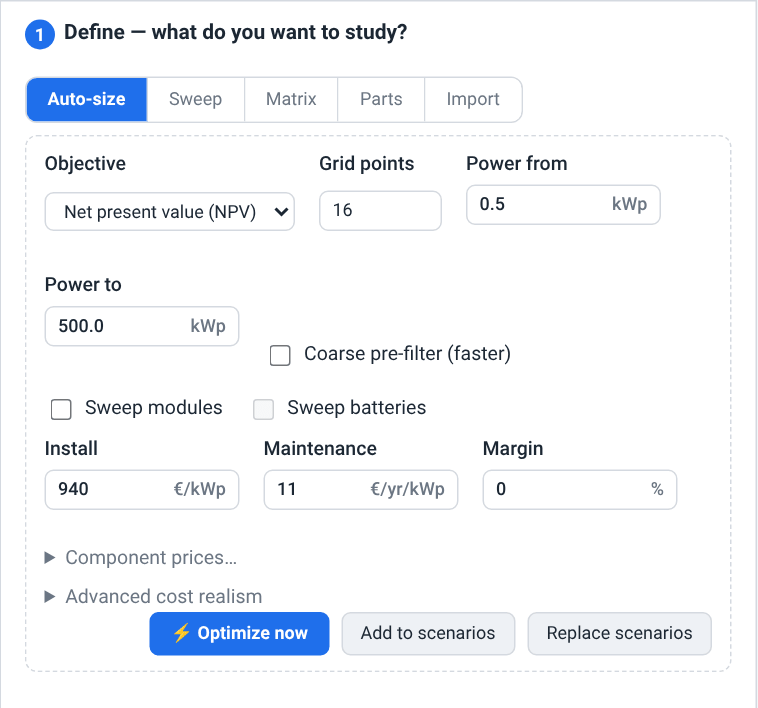
Objective chooses how the study ranks candidates:
Net present value (NPV)maximises net present value;Equity IRRmaximises the internal rate of return. A batch, Optimize now included, breaks an IRR tie on the higher NPV; a sizing study re-run from step 4 (The sizing study) breaks it toward lower capex, then the smaller power.Grid points is how many powers the grid holds — 16 by default, between 1 and 500. At
1the power axis is off: the window below is greyed out and a note names the one power the study runs at, the project's own installed power. Above 64 points the live optimizer is out of reach (see The sizing study), but Add to scenarios still materializes the whole grid into the table, and a note under the field says so.Power from / Power to define the sweep window in kWp. They are pre-filled from the loaded project the first time you open the tab — 0.5 kWp up to three times the current power (capped at 500) — and re-seeded whenever you switch projects.
A cost model makes the grid economically meaningful: Install (€/kWp), Maintenance (€/yr/kWp) and Margin (%). Each candidate's install bill and maintenance are recomputed at its own power from these rates. Without a cost model every candidate keeps the project's absolute costs and the ranking is biased toward the largest power — the tab asks you to confirm before building such a grid. These three fields are pre-filled from the project's own per-kWp cost model when it has one, and building the grid writes the values you typed back into the project.
Coarse pre-filter (faster) ranks the whole grid at a coarse dispatch step, then refines only the top candidates at full fidelity — a large-sweep accelerator that may slightly reorder near-ties. It applies to the live optimizer, not to a materialized batch.
Sweep modules and Sweep batteries add component axes to the candidate grid: each one multiplies the power grid by your favourited (and current) modules or batteries. They need an Install rate — without one the tab warns that the part axes will be skipped — and the module axis competes only the modules you have priced, and only once every module the project already uses is priced too, because a part comparison is a cost comparison. When an axis cannot take part, a note above the buttons says why once the grid is built.
With Sweep modules on, each module also gets a string-sized inverter and the number of units it needs, picked among the inverters you priced — once both Site Tmin (cells) and Site Tmax (cells) are set on the Diagram tab (Electrical Design & the One-Line Diagram). Without them, or without a priced inverter, every candidate keeps the project's own inverter.
Sweep batteries needs a project that simulates storage. In
Full exportorSelf-consumption + export, on a solar pumping or DC-grid project, or on a project that has neither chosen a system type nor configured a battery, the box is greyed out, because a swept battery would be priced but never simulated; hovering it says so.Component prices… expands a panel listing every module and inverter the study could compete — the ones the project already uses, plus the ones you favourited in Catalogue (The Component Catalogue). Type a € per unit price next to each. The prices are stored on the project, so they travel with it and are reused by every later study.
Advanced cost realism expands a second panel with Scale exponent (economies of scale on the install rate), Reference power (the power at which the effective rate equals the stated €/kWp), Inverter step (€ per physical inverter unit, added without margin) and four Grid connection > 36 / 100 / 250 / 500 kWp surcharges, one per French regulatory power tier. These ride the optimization run itself rather than the project; leave them empty for the plain linear cost model.
Add to scenarios and Replace scenarios then fetch the candidate grid from the engine — the faithful set, with each candidate's power, install bill and maintenance already filled in, one row per module/battery combination when a part axis is on, and, when the module axis picks an inverter for a module, that inverter and the number of units the candidate needs — and drop it into the step-2 board. From there it runs as an ordinary batch in step 3, and step 4 names the winner. On a project with a drawn layout the grid stops at what the drawn PV areas can hold — every area full, with whichever module packs the most power onto them, the project's own or one the sweep competes — because a larger candidate could not be built as drawn; a note on the page says so, and the Power to field keeps your value. If even Power from is more than the drawn areas hold, the window is left as it is and the note asks you to enlarge the layout on the Map tab or lower the window. Past 64 Grid points the engine cannot build the grid, so the tab builds a plain linear power grid itself — power steps only, priced from the three rates, without the part axes, the advanced cost realism or the drawn-layout limit; that path needs both Power from and Power to filled in, and says so if they are not.
Optimize now does all of this in one click: it builds the grid, replaces the step-2 board with it, runs it as a batch, and when the results land it applies the winner — ranked by the Objective this page shows — to the working project as Apply to project would (Deciding and applying), without asking you to confirm: the click is your consent. The apply is still a single undoable step, and step 4 shows no stale badge for the result it applied. While it works the page reads Optimizing… the candidate grid runs as a batch; its winner will be applied to the working project., then Best design applied: “…”.; a batch that fails reads Optimization failed: …, and one with no winner The batch produced no winner to apply — see the results below. The button waits while the study it started is still running.
Watch out
Stay on the Batch tab until Optimize now has applied its winner. If you leave the tab or reload the page while its batch runs, the batch still finishes — a cloud batch keeps running — but nothing is applied for you: come back to the tab, where step 4 picks its results up, and use Apply to project.
Find the best array size
Open a project, then open the Batch tab. It lands on the Auto-size page with the power window pre-filled.
Check Power from / Power to and Grid points; widen or narrow them to bracket the sizes you would actually consider.
Enter an Install rate (€/kWp) and a Maintenance rate so each candidate is costed at its own size — otherwise the ranking favours the biggest system.
Click Replace scenarios. The candidate grid lands in step 2, one row per power, with its capex and OPEX already computed.
Review the grid, then click ▸ Run batch in step 3. When the run lands, step 4 opens with every candidate scored, names the best, and offers Apply to project.
Or, once the window and the rates are set (steps 2 and 3 above), click Optimize now instead of the last two steps: it builds and runs the grid and applies the winner for you.
A batch you run while the Define card shows the Auto-size page names its winner by the Objective that page shows: under Equity IRR the banner reads Best (IRR) and crowns the highest IRR, the higher NPV breaking a tie (when no candidate has an IRR, NPV decides). Run it with another page showing and it ranks by NPV, whichever page built the scenarios. To favour another criterion, sort the results grid on it (for example LCOE) and apply the row you prefer.
Sweep — vary one parameter
Sweep varies a single parameter over a range or an explicit list. Every value becomes a scenario.
Preset is a one-click starter: pick
Battery sizing,PV power,Loan sensitivity,Inflation sensitivity,Discount-rate sensitivity,Degradation sensitivity,Feed-in-tariff sensitivityorRow spacing (near shading)and the parameter, range and name template fill with sensible defaults you can then edit.Customleaves them alone.Parameter is a type-to-search field backed by the list of every parameter the engine accepts as a batch axis — 109 of them, covering installed power, battery capacity and behaviour, tariffs and time-of-use windows, loss terms, financial rates, carbon-balance inputs and drawn layout geometry. Start typing to narrow the list, or pick from it. The six carbon quantity overrides (
carbon_module_qty_override…carbon_disposal_qty_override) have no field on the Project tab and act only inside a batch study — the battery one only with a physical battery — so Apply to project never writes them back.Values switches between
Range(from / to / step) andList(comma- or semicolon-separated values, e.g.0, 10, 20).Name is a template for the scenario names. Use
{value}(or{v}) for the swept value,{token}for the parameter name and{index}for the row number — e.g.Batt {value} kWh. Leave it empty and each scenario is named after its parameter and value.A live count below the panel confirms how many rows you will generate.
When the parameter has no effect in the open project's mode, a warning line under the count says so and why — for example a
Battery sizingsweep on aSelf-consumption + exportproject readsNo effect in this project’s mode: No storage is simulated in this scenario (no battery configured, a sub-mode without storage, solar pumping or DC grid), so this battery input has no effect.You can still generate and run the scenarios; they would simply come out identical. The cases are listed under step 2 (Swept inputs with no effect).
Below the panel, a row of Quick parameters chips (Battery, Power, Loan, Inflation, Degradation, Feed-in tariff) is a shortcut: clicking one selects that preset and fills the page with its starter range.
Note
A scenario that sets a loan row — Loan share (%), Interest rate (%), Loan term (years) or loan_type — runs with Debt financing switched on, and one that sets tax_rate or depreciation_years runs with Corporate tax switched on, even when that box is unticked on the project's FINANCIAL card (The Project Tab). The section's other rows then take the values stored in the project, which the card hides while the box is unticked: tick it to check them before you sweep. A single run of the project ignores the section while its box is unticked.
The grid-pricing inputs are billed only at the GRID PRICING Granularity that uses them: on a project set to None, a sweep of Subscribed power (kVA), kVA price (€/month) or Overrun price (€/kVAh) changes nothing, and on Subscription the overrun price is not billed. A project that has never had a granularity saved bills every swept value, whatever its card shows, until you pick one. The board does not flag these cells, and the granularity itself is not a batch parameter: set it on the Project tab before you sweep (The project's consumption-rate and grid-pricing cards).
Sweep battery capacity from 0 to 100 kWh
Check that the project simulates storage: its System type is
Self-consumption + storageorOff-grid site(Storage, EV & Specialized Systems). On any other project a warning under the scenario count says the parameter has no effect, and the 11 scenarios would come out identical.In step 1, click the Sweep mode button.
Set Preset to
Battery sizing(this fills the rest), or set Parameter tobattery_capacityyourself.Leave Values on
Rangeand enter from0, to100, step10— the note reads= 11 scenarios.Adjust the Name template if you like (
Batt {value} kWh).Click Replace scenarios to put the 11 rows on the board, then run the batch.
Matrix — the cross-product of several axes
Matrix builds the factorial cross-product of two or more axes: row gap 0/50 × battery 0/10 × discount rate 0.04/0.06 becomes eight scenarios without typing them out.
Axis chooses the parameter (same type-to-search field as Sweep); the box beside it takes that axis's comma-separated values.
Add axis commits the axis and clears the value box for the next one; Reset clears them all.
A summary line shows each axis, its value count and the resulting scenario total, e.g.
loss_soiling {2} × battery_capacity {3} → 6 scenarios.Below it, a warning line names every swept parameter that has no effect in the project's mode, whatever the other axes hold, and counts the cells that have none in their own combination — an axis over the system type or the consumption-rate Granularity can make a parameter matter in some combinations only. It is informational: the scenarios can still be generated and run (Swept inputs with no effect).
Name is a template whose placeholders are the axes' own parameter names in braces —
{battery_capacity} · {taux_actualisation}— plus{index}for the row number. Leave it empty and each scenario is named by joining everyparameter=valuepair. The first axis you added varies fastest.
Watch out
A matrix grows multiplicatively. Three axes of five values each is 125 scenarios; add a fourth and it is 625. The generator asks you to confirm before producing more than 1 000 scenarios — and a run is refused above that, since the engine caps one batch job at 1 000 scenarios. Keep value lists short.
Parts — a component shoot-out
Parts builds one scenario per selected catalogue component, so you can compare real hardware head to head.
Category picks
Modules,InvertersorBatteries, and the list below shows what the engine's catalogue holds for that category (up to 200 entries).♥ Favourites only narrows the list to the parts you favourited in Catalogue (see The Component Catalogue) — usually the short list you actually want to compare. The list's last line, Add from the catalogue…, opens that category's tab of the catalogue, to heart or import more.
Tick the parts to compare. Ticks are remembered across categories, so you can tick two modules, switch to
Batteries, tick two batteries, and generate one study containing all four.You can also drag a row out of the Catalogue tab and drop it anywhere on the Batch tab: while a project is open, hovering the Batch rail entry with a part in hand switches to this tab, and the drop adds the part to the list, ticks it and shows its category. A part dragged in this way is listed even when it is not in the engine's own catalogue page.
Each ticked part becomes a scenario that swaps that component by its content fingerprint (see The Component Catalogue). A module swap preserves the array's peak power; an inverter swap re-rates AC clipping, keeping the project's number of inverter units; a battery swap brings that battery's own capacity and terms — power limits and life for a physical pack, fees, subscriptions and conversion ratio for a virtual bank — as picking it on the battery card would.
A module or inverter swap is scored on strings laid out for that part — the series length the module's voltages and the inverter's MPPT window allow, spread over the inverter's inputs (Deciding and applying) — so the shoot-out compares each part wired for itself rather than on your project's current strings. A module swap changes the module only: every zone keeps its own tracking, so a tracker module type competed on fixed zones is scored, and applied, as a fixed array; pick it on Map to give the zones its tracking.
A battery shoot-out needs a project that simulates storage. On one that does not (Swept inputs with no effect), a swapped battery is never simulated: every battery row scores what the project scores without one, and nothing on this page or on the board warns you.
Note
If the list is empty, the engine exposes no catalogue for that category, or nothing there is favourited — the card says which.
Note
A scenario that swaps a part — from this page, from an Auto-size part axis or from an imported CSV's part columns — runs with that part's own specification. When you run the batch, the tab attaches every swapped-in part to the copy of the project it submits, taken from the engine's catalogue or from your company's shared components (The Component Catalogue); your working project is left as it is. A part neither holds cannot be simulated: the run's Log names it and opens by itself, and the rows that use it are not run — they come back Failed, and step 4 lists them under Scenarios the engine did not run:.
Import — scenarios from a CSV
Import reads a batch-parameters CSV: the same format that step 2's Export CSV… writes. Click Import CSV… to replace the current list from a file, or drag and drop a .csv anywhere on the tab to merge it into the existing rows (names are de-duplicated). A progress bar reports the read, which matters for a large sweep file.
The file is parsed in your browser and is capped at 64 MiB. Two columns are authored and exported here but not honoured by a web run, and the card says so after an import that carries them:
per-row Site (.json/.site) overrides — a site override names a file on the machine running the engine, so a web run stays on the posted project's own site;
online per-row network policies — a web run always works offline, from the weather already embedded in the project, so any policy other than
Offlineis cleared on import.
When the Auto-size module axis picks an inverter for a candidate, the row also carries the number of units it needs. Export CSV… writes that count in an inverter_count column beside inverter, and an import reads it back: it must be a whole number of at least 1, on a row that names an inverter, or the import is refused with the line at fault.
Step 2 — Review & edit the scenarios
The second card, Scenarios — review & edit, is the board that holds whatever step 1 produced (or scenarios you enter or import by hand). Until the first scenario exists it shows an empty-state hint reminding you of the three ways to populate it. A toolbar and a View (Table / Cards) switch sit above the board, with a live scenario count on the right.
The scenario table
In table view each row is a scenario and each column an input:
Scenario — the display name, which also becomes the output sub-folder. Names are validated live: an empty, duplicated or path-unsafe name turns red with a tooltip explaining the problem, because the run would reject it.
Site (.json/.site) — an optional per-scenario site override. Empty (shown as
(project site)) means the project's own site. A web run ignores this column, as explained above; it is kept because it drives the weather-site estimate below the board.Network policy — a dropdown per row:
(inherit)orOffline. A web run works offline from the project's embedded series either way.One further column per swept parameter, headed with the parameter's engine column name and showing that scenario's override. An empty cell means “keep the base project's value” — it is not the same as setting the value to zero. Type
0explicitly to force zero.Part — a read-only summary column, shown only when at least one scenario swaps a component.
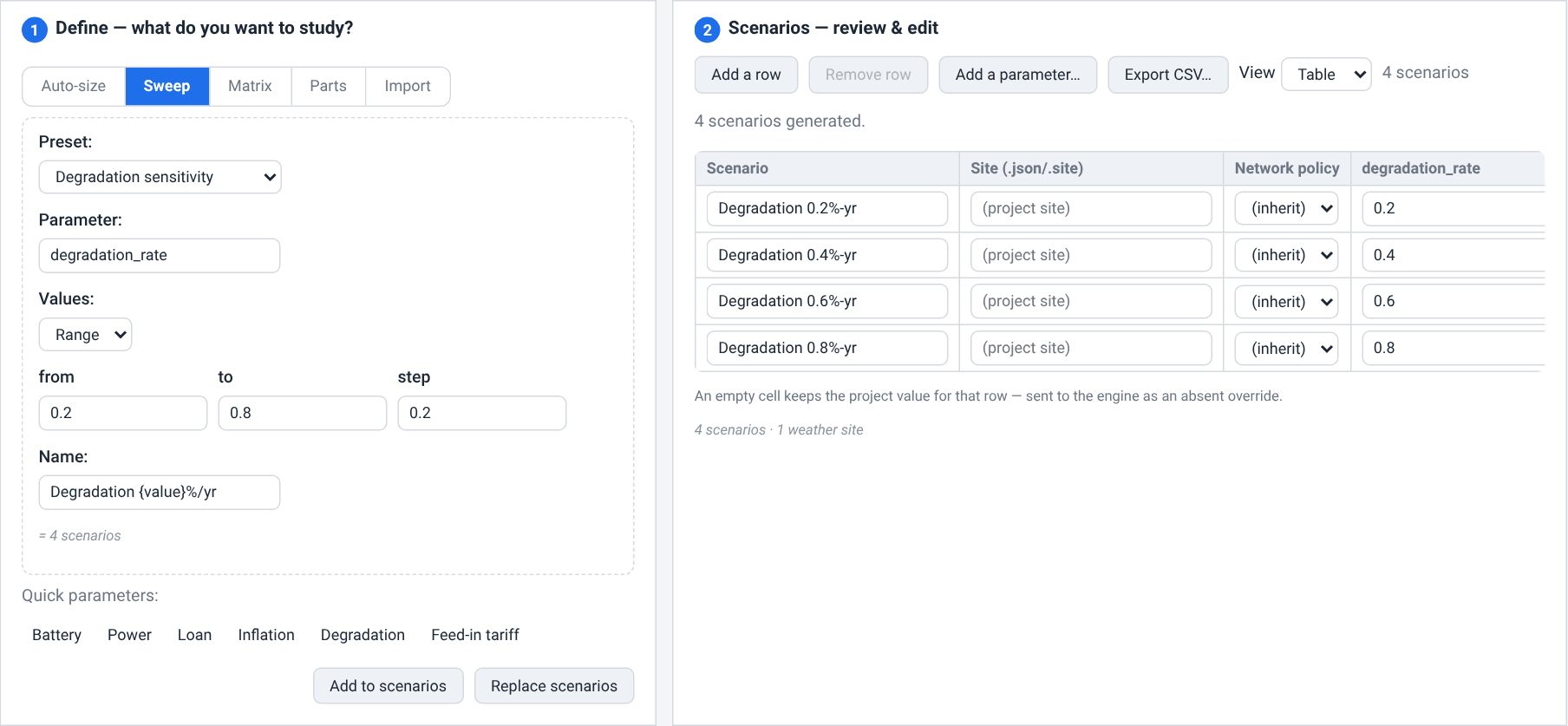
The toolbar offers Add a row (a blank scenario named Scenario N), Remove row (deletes the selected one — click a row to select it), Add a parameter… (reveals a picker and an Add column button, which adds an empty override column for any sweepable parameter) and Export CSV… (downloads the whole board as batch.csv). All name, site, policy and override cells are editable in place.
Below the board a muted estimate reads, for example, 12 scenarios · 3 weather sites. Because weather is cached per site, N scenarios spread over K distinct sites would trigger only K fetches — the second number is what the run would cost in network terms.
Four conditions are flagged in place, and two of them block the run:
more than 200 rows — only the first 200 are shown; the rest are still there and still run;
more than 1 000 rows — an error, because the engine caps one batch job there. Split the study or coarsen the step.
a parameter the engine cannot sweep (only reachable through a hand-edited CSV) — an error naming the offending columns.
a swept cell that has no effect in its scenario's mode — a warning only: the run still goes ahead (Swept inputs with no effect).
The card view
The View switch flips the board to a stack of cards, one per scenario. Each card shows the name, a line of chips describing what varies — the override as a friendly parameter name and value, a site: chip, the network policy, the swapped part — and Duplicate / Remove row buttons. A card that varies nothing is chipped no variation; a card whose name is empty, duplicated or path-unsafe is prefixed with a warning marker and a tooltip, and an unnamed one reads (unnamed). Duplicating a card inserts a de-duplicated copy right after it — handy as a starting point for a hand-tweaked variant.
An override chip that has no effect in its scenario is outlined and prefixed with the warning marker, and its tooltip gives the reason (Swept inputs with no effect).
Tip
Drag a .csv onto the tab to merge scenarios; drag a site .json or .site onto the tab to stamp its name into the selected row's Site cell (with no row selected it applies to every row).
Swept inputs with no effect
The engine ignores the inputs the Project tab hides for the project's mode, so a scenario that sweeps one runs exactly like its neighbours. In the cases listed below the board marks such a cell, judged on that scenario's own values: in the table the cell is outlined in the warning colour with a warning marker beside it, in the card view its chip is outlined and prefixed with the marker, and hovering either reads No effect in this project’s mode: followed by the reason. Below the estimate, a line sums it up before you run — for example 1 swept parameter has no effect in this project’s mode: Feed-in tariff (c€/kWh). Its scenarios still run, with identical results. — and, when a column has no effect in some rows only, counts the cells concerned. Nothing is blocked: drop the column, or give the project a mode that uses the input, if you meant to study it.
Because each row is judged on its own values, a row that also changes the system type, the grid sub-mode, the consumption-rate Granularity or the off-grid switch can bring its cells back into play. The marked cases (an input the GRID PRICING Granularity leaves unbilled is not one of them; see the note under Sweep):
Consumption-rate granularity.
Flat ratebills every hour at one rate, so the summer-peak, winter-off-peak and summer-off-peak tariffs (HPE, HCH, HCE) have no effect;Peak / Off-peakhas no seasons, so the summer tariffs (HPE, HCE) and the summer peak-hour windows have none; the Tempo prices act only underTempo (EDF). Reason:The selected tariff mode does not use this rate or schedule.Solar pumping and DC grid. These book no grid cash flow, so every money input has no effect — installation cost, maintenance, subsidy, salvage value, the four tariffs and the feed-in tariff, the escalations, the discount rate, the loan and tax rows and the grid-pricing prices. Reason:
Solar pumping and DC grid book no grid cashflow, so this financial or tariff input has no effect.No storage simulated. In
Full exportorSelf-consumption + export, on a solar pumping or DC-grid project, or on a project that has neither chosen a system type nor configured a battery, every battery input has no effect — the capacity, the virtual bank's fees and subscriptions, the storage type, the physical pack's parameters, the battery quantity and the battery's carbon figures. Reason:No storage is simulated in this scenario (no battery configured, a sub-mode without storage, solar pumping or DC grid), so this battery input has no effect.No surplus sold.
Self-consumption + storageandOff-grid sitesell no surplus, so the feed-in tariff has no effect. Reason:The self-consumption + storage sub-mode sells no surplus, so the feed-in tariff has no effect.
Step 3 — Run the batch
The third card, Run, is a compact action bar. ▸ Run batch starts the run once a project is open and at least one scenario exists.
While a run is in flight a status line shows the job's state.
A collapsible Log panel records the submission and, when some of the parts the scenarios swap in could not be attached to the project, names them — it then opens by itself. A cloud job's progress shows in the status line, and if it fails, step 4 reports the reason.
The parts line reads, for example, 2 part(s) the scenarios swap in could not be attached to the project; rows using one the engine’s own catalogue lacks will not run: followed by the parts' names. The tab found such a part neither in the engine's catalogue nor in your company's shared components, and a row that uses one the engine cannot resolve comes back Failed. Import the part's file in Catalogue (The Component Catalogue) — an import is stored in your company's shared components — and run again, or drop those rows.
Run settings
Run settings… opens a dialog with the output and weather options (their defaults are right for most runs). Close it with Close, the ×, a click outside it, or Esc.
Formats — shown greyed out: a cloud batch delivers its comparison table only, so no per-scenario files are produced.
Network policy is pinned to
Offline: the study's base weather is fetched into the project before the submit when it is missing or out of step with the drawn arrays (the same pre-pass a single run makes), then every scenario reuses it, so no scenario fetches anything.On fetch failure —
Fall back to base weather(the default),Abort the batchorSkip the scenario.Keep polygon coordinates — when a site override is applied, keep the array polygons where they are instead of re-projecting them onto the new site.
Running in the cloud
Caution
While a batch is running the whole configuration area is frozen and the Apply to project actions are disabled — applying a scenario mutates the live project and would collide with the run.
- Cloud
The study is queued as a cloud job and draws on your company's engine-time allowance: when it is queued it reserves an estimate sized by its scenario count, and the engine time it actually used replaces that estimate when it finishes; a batch whose job fails — its row in the cloud run list reads Failed — is charged the engine time it used before failing. It keeps running when you navigate away or close the tab, and the address bar gains
?cloud=<id>so you can come back to it — from a reload, a bookmark, or a link. Artifact formats do not apply: the comparison table is the whole deliverable. There is no Cancel on this tab, and the Batches list in this card stays empty for cloud runs: the job lives in the cloud run list on the Account page (Cloud runs: the job history), where a batch that is still queued can be cancelled at no charge.
A cloud run needs you to be signed in with an active plan — the free plan or a subscription; it is attributed to the cloud save your project is bound to, and one is created for you if there is none. If the project no longer matches that save, you are asked whether to run it anyway. Three refusals have their own wording: an exhausted allowance, an inactive subscription and a project too large to submit. See Your Account, Team & Cloud Runs for the allowances, plans and the cloud run list, and Running a Simulation & the Production Tab for running the project once rather than N times.
On the free plan, paying customers' runs go first: a batch starts only once no paying customer's run is waiting, and one under way can be stopped at its next scenario to make room for one. Its status line then reads Queued again, and the batch starts over from its first scenario once a worker is free; the stopped attempt is not charged (Paying customers' work goes first). A sizing study in the cloud is treated the same way, stopping at its next candidate.
Step 4 — Compare & decide (the results)
The fourth card, Results — compare & decide, appears as soon as a result is loading and fills when it lands. It pairs a sortable results grid with a chart, side by side in a draggable splitter. A line at the top names the job id, with a chip when the result came from the cloud or from a sizing study.
If the working project has changed since a run this browser tab submitted, a stale badge sits above the table with a one-click Re-run that puts the scenario board, as it now stands, back through the Run action against the project as it is now.
The results grid
One row per scenario, with columns Scenario, Design (a summary of what that scenario varied, repeated as a tooltip because it outgrows its width), Status (Succeeded or Failed), Payback, NPV (€), LCOE (€/kWh), PR, Yield (kWh/kWp), Production (kWh), Near shading (kWh), Near shading (%), IRR (%), DSCR min and LLCR; the two near-shading columns move when a layout sweep changes the row gap. A scenario the engine could not score reads Failed in red; its figures are not meaningful — 0 from NPV (€) to Near shading (%), a dash in the last three columns — and it is left out of the chart and of the best-value highlights, but not out of the sort or the differences against a baseline.
A scenario can also come back Failed because the engine refused to run it: it swaps in a part that neither the project nor the engine could supply, and run as it stands it would have scored the project's own part under that part's name. A red list headed Scenarios the engine did not run: then sits above the grid, with one line per refused scenario, in the engine's own words, naming the scenario and the part it could not find.
The last three columns are the figures an investor and a lender read. IRR (%) is the equity internal rate of return, before tax: the return on the money you put in yourself — the installation cost less the borrowed share — once each year's loan repayment is paid. It is the IRR the winner banner, the Equity IRR objective, the PDF report and the KPI strip of the financial projection on Results (The multi-year financial projection) use. Without a loan it equals the project IRR, the return on the whole investment; with one the two differ, and the strip tags its figure (equity). DSCR min (the debt service coverage of the tightest year of the loan) and LLCR (the loan life coverage ratio) exist only for a scenario financed by a loan — a Loan share above 0 % with Debt financing on (The Project Tab); a 0 % interest rate still counts. On a debt-free scenario they read “—”, and so does an IRR the cash flow cannot produce. A financed scenario always carries both ratios, however weak — 0 when it earns nothing to repay its debt — so in those two columns a dash only ever means that there is no loan. A dash is never ranked: it takes no best-cell tint, shows no difference against the baseline and stays off the chart.
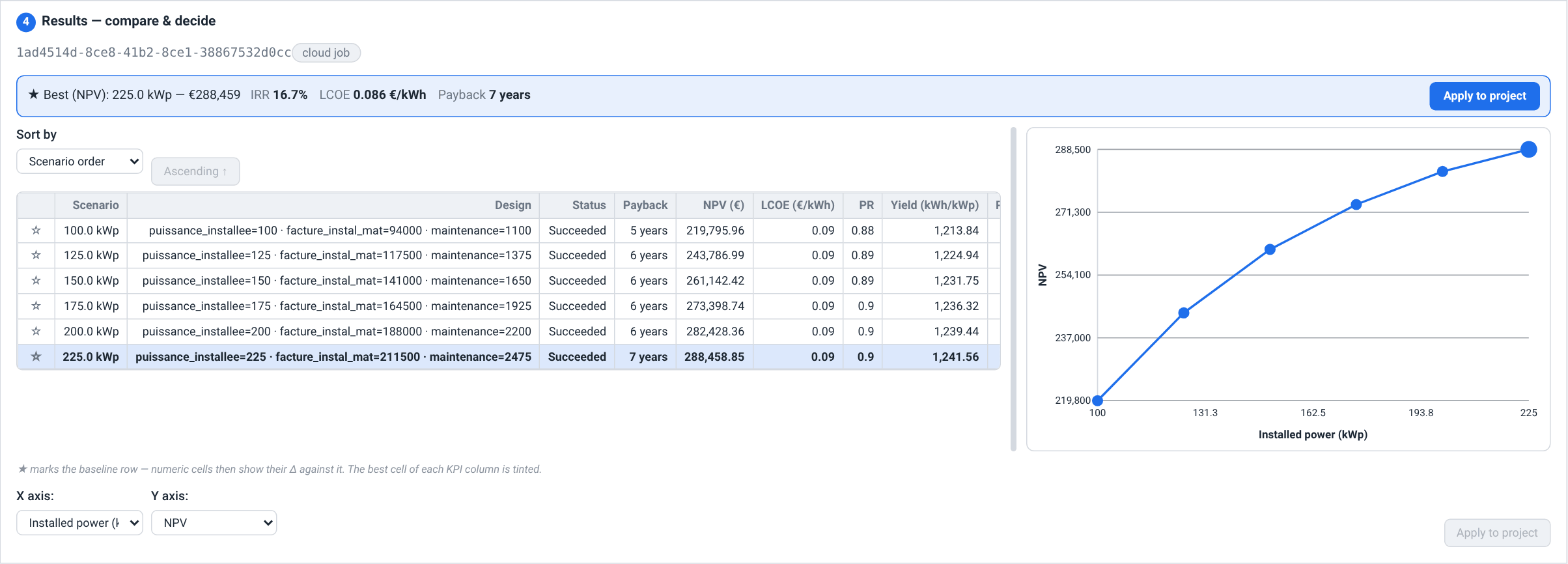
Use the Sort by dropdown above the grid to order it on any column, and the button beside it to flip between Ascending and Descending; Scenario order restores the order the scenarios ran in. Payback sorts on the years it names, a >N years just after N years. Scenarios with no value in the sorted column (a dash or an empty cell) always sink to the bottom, but a failed row's 0 sorts like a real figure — first in an ascending LCOE (€/kWh) sort — so check Status before you read the top of the list.
Two visual aids help you read the comparison:
Every row starts with a star button, Set as baseline, which pins that row as the comparison reference. The baseline row is tinted and its star filled in; every other scenario's numeric cells then show their difference against it, coloured green when they beat the baseline and red when they trail it. Click the star again to unpin.
After the run the winning scenario — the one the banner names — is highlighted, and the single best cell in each metric column is tinted (the lowest for LCOE and near shading, the highest everywhere else) so the winner in each dimension stands out at a glance.
The chart
The chart plots one result metric against a swept parameter so trends read at a glance. X axis: offers Index (order) plus one entry per parameter that was actually swept; Y axis: chooses NPV (€), LCOE, PR, Yield, Production, Near shading (%), IRR (%), DSCR min or LLCR. The best point is drawn larger in an accent colour, and a study that also varies parts or sites is split into one coloured curve per combination, with a legend when there are between two and eight of them. Clicking a point jumps the grid selection to that scenario, and clicking a grid row highlights its point.
The best point follows the metric: the lowest value for LCOE and Near shading (%), the highest for every other one. A scenario with no figure for the plotted metric is left off, so on a study without a loan the DSCR min and LLCR axes have nothing to plot and the chart shows only Run a batch to view the results. — pick another metric.
Drag the handle between the grid and the chart to re-balance them; it also responds to the arrow keys when focused.
Deciding and applying
A winner banner across the top of the card names the best scenario — by NPV, or by IRR for an Auto-size study run under Equity IRR — with its NPV followed by its IRR, LCOE and payback — each only when the run produced it, so a scenario with no IRR simply shows none — and carries an Apply to project button. The same action sits below the chart for whichever row you have selected.
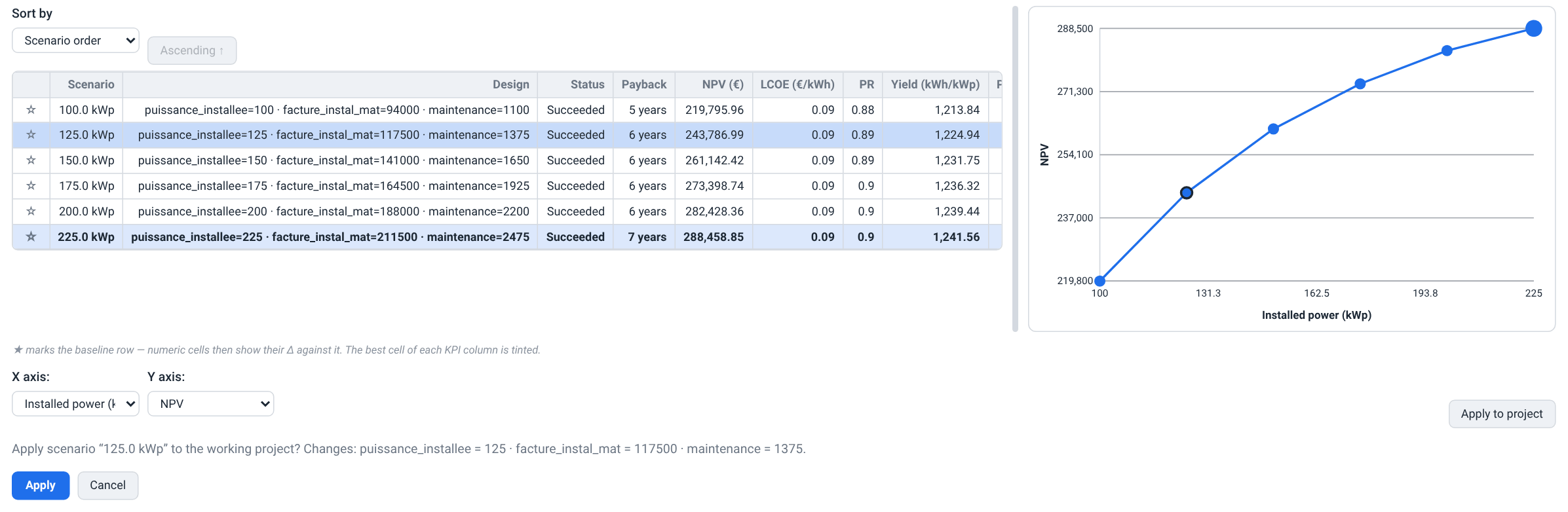
Apply to project asks you to confirm, listing exactly which parameters it is about to write and their new values. Confirming applies the scenario the way the batch ran it, and writes each part where the project keeps it, so it stays applied:
The installed power is built on the map: the drawn PV areas are re-packed to whole modules at or just below the scenario's power, each area keeping its share of the total, and each gets the power cap that holds it there — so the next map edit, or reopening the project, does not change it back. When the drawn areas cannot hold the power, every area is filled and the notice says how much they hold. A project with no drawn layout simply takes the power as written.
A swapped module is set on every PV area, and the areas are re-packed with the new module's size — at the scenario's power when it sets one, else at the project's own; each area keeps its own tracking.
A swapped inverter replaces the inverters of the one-line diagram — one row per unit, as many units as the scenario ran — so the Diagram tab shows exactly what was scored; a project without a diagram gets one.
A swapped battery becomes the project's battery.
The strings are written as the scenario was scored. A scenario whose array differs from your project's — another power, module, inverter or layout — is simulated on a string layout chosen for it, roof face by roof face (each plane of an East-West or butterfly zone counts as a face): the series length that keeps the strings inside the inverter's MPPT window through the year's hours with the least loss (from the same hourly irradiance and cell temperature the simulation uses), never above the cold-voltage limit described below, split evenly between strings and spread over the MPPT inputs within their current rating and the number of strings each input takes (Max strings per MPPT on the Diagram tab). When two layouts lose almost the same energy, the one with fewer, longer strings wins, and with several inverters the length must suit every one's MPPT window. Applying paints exactly those strings onto the modules on the map, in place of the strings painted there, and connects each to the MPPT input it was scored on; Strings takes the planned count and Modules / string the length most of the modules are wired at. It also unticks the Map's Auto strings, so the strings stay as painted. The notice lists the strings face by face, for example Strings written as scored: 2 × 12, 1 × 16 + 1 × 15 modules. When a roof face ends up with a different number of modules than the scenario scored, that face is re-split by the same rule, and the notice says so. If the map cannot place every module, only the string counts and MPPT inputs are written and the painted strings are cleared — untick Auto strings on the Map and paint them again (The Map & Site Design Tab).
A scenario that keeps your array keeps your strings. A scenario applied without a scored layout — a sizing-study candidate other than its winner, or a row whose scored layout no longer fits the design, which the notice then says — re-derives the strings when the project declares its site temperatures, and drops string cells you painted on modules the smaller layout no longer places.
Note
Applying the strings a scenario was scored on unticks Auto strings in the Map's Strings (DC) section, and the notice says so. Left on, the map would re-wire every zone into serpentine strings of Mod./string modules each the next time it lays out the modules, and the next run would no longer match the row you applied. Tick it again on the Map to go back to automatic wiring (The Map & Site Design Tab); the string count then follows that wiring.
The cold-voltage check.
A string's open-circuit voltage rises as it gets colder, and must stay below the inverter's absolute maximum input voltage (its MPPT maximum when the part data gives none) and the module's maximum system voltage, whichever is lower, at the coldest temperature the site reaches in daylight, taken in full sun — the conservative case of NEC 690.7, IEC 62548 and UTE C 15-712-1. The module's rating is the one in its part data (Field reference): the IEC rating, or the UL one when the Electrical code in the Diagram tab's settings is NEC (US); a part that states only one rating uses it for both. A module whose part data states none — one converted from the CEC list, or one imported before the rating was read — is held to the inverter's MPPT maximum as well, and the notice asks you to check its datasheet. The temperature used is, in this order: the site minimum you set on the Diagram tab — Site Tmin (cells), which counts only once Site Tmax (cells) is set too, and then wins even over a colder record (Electrical Design & the One-Line Diagram); else the coldest daylight hour of the project's multi-year weather record (Open-Meteo, from 2014 to last year; five years at least), which the project stores with its source when its weather is fetched; else the simulated year alone, in which case the notice says the check is unverified — set both site temperatures to verify it; and with no hourly weather at all, -10 °C, which the notice calls assumed. The notice after applying gives the highest string voltage, the limit, the temperature and where it came from, and warns when the strings need more MPPT inputs or more current than the inverters offer.
The forms and the recompute update in place, a notice lists what changed, and the whole apply is a single undoable step. The swapped components are also added to your Catalogue favourites, so every project picker offers them. A scenario carrying a battery capacity reminds you that the value only applies while no catalogue battery is selected.
Applying is a round trip to the engine, which rewrites the project, so Apply greys out until it answers. For a scenario that swaps parts, the confirmation also says where each one goes. The notice opens with Scenario “…” applied to the working project. and then goes through what changed — the installed power and whether the drawn layout was re-packed, the module set on every PV area, the inverters now in the one-line diagram, the battery, the strings and any painted string cells dropped. If the engine cannot apply the scenario — it swaps in a part that neither the engine's catalogue nor your company's shared components hold, its power does not reach one module on the drawn layout, or the one-line diagram cannot take its inverters — nothing changes and the card reads Apply failed: followed by the reason. An edit you make while the apply is on its way wins: the card then reads Apply failed: The project changed while the scenario was being applied — apply it again.
Two kinds of value apply differently. A scenario that sets a loan or a corporate-tax value ran with that section switched on, even where the project's FINANCIAL card has it off, so applying it also ticks Debt financing or Corporate tax there. The six carbon quantity overrides act only inside a batch study, so applying never writes them: the confirmation and the notice add Note: the carbon quantity overrides apply only inside a batch study — they were not written to the project. A scenario that varies nothing the tab can write back — one that sweeps only carbon quantities, for instance — is refused with This scenario varies no scalar parameter the web can write back.
Note
Applying a batch result needs this browser tab's own record of what each scenario contained — the engine's result table carries only numbers, not the inputs behind them. A batch you opened from the history of an earlier session, or a cloud batch adopted from a link someone sent you, is therefore read-only: you can read, sort, baseline and chart it, but not apply it, and the card says so. Re-run it here to get a copy you can apply. A sizing study is different: its result document names each candidate's power and parts, so a reopened study can always be applied.
Note
The results are correlated back to their scenarios by a snapshot taken when the run started, so editing the step-2 board after a run can never re-map a result onto a different scenario. Re-generate and re-run to reflect edits.
The study in the project and in the report
While a run's results are on screen in step 4, the tab stores the study in the working project: the scenario table, the scenarios the run simulated, each scenario's results in the order they ran, the baseline you pinned and the chart's X axis: and Y axis:. Pin another baseline, change an axis or edit the step-2 board, and the stored copy follows; sorting the grid changes nothing, and a newer run replaces the study. The Define card and the run settings are not part of it, and nothing on the tab deletes a stored study.
The study is stored only while it describes the open project: the run must have been submitted by this browser tab, from this project, with no edit to the project since. A run of another project, a run the project has drifted from (it carries the stale badge) and a run this tab did not submit — a /batch?cloud=<id> link opened in a fresh tab or on another computer — are shown but never stored, and the project keeps whatever study it had. A cloud batch that finishes while you are on another view is stored the next time the Batch tab shows it.
The stored study is part of the project, so a save and the exported .pvspline.json keep it (The portable project file). Storing it is an unsaved change like any other, and the run shown on Results turns stale because the project changed — but the batch run in step 4 does not: its badge stays quiet.
The PDF report prints the stored study as one page, Batch study — scenario comparison, which is also listed under Financial in Results (Batch study — scenario comparison) with its own include-in-PDF tick, ticked by default. The page is a chart, not a copy of the grid: each completed scenario is a marker in the column of its value on your X axis:, at the height of the metric on your Y axis:, labelled where there is room with its name and what it scored; a line runs through the baseline you pinned, and a verdict names the best scenario on that metric. However many scenarios the study holds, none is cut. A caption counts them and always names the best NPV, so for a study run under Equity IRR it can name a different scenario from the tab's Best (IRR) banner. On the IRR (%), DSCR min and LLCR axes a scenario without that figure is left off, and a study in which none has one prints No numeric data to plot for this axis.
The page belongs to a simulation run: each run draws it from the study its project held when the run was submitted. So run the project again after a batch; until you do, the run's report has no page for the study, and clicking its row on Results says so.
The sizing study
Everything above scores a list of scenarios you wrote. A sizing study is the other direction: you describe a search space and the engine searches it, returning a ranked list of candidate designs with the winner identified. It is the same machinery Auto-size builds its grid from, run as a job of its own, and it lives in this tab — /optimize redirects here.
Auto-size does not start a study of its own: its grid always runs as a batch, as described above. A sizing study reaches step 4 when you reopen one — by its /batch?cloud=<id> link or from the cloud run list on the Account page — and the sections below describe what you then see.
What it sweeps
A study searches over the installed power, on the grid described by Power from, Power to and Grid points, and optionally over two component axes: Sweep modules competes your priced favourited (and current) modules, picking a string-sized inverter for each one among the inverters you priced once the site's cell-temperature extremes are set — Site Tmin (cells) and Site Tmax (cells) on the Diagram tab; Sweep batteries competes your favourited catalogue batteries against the project's own, on a project that simulates storage (Self-consumption + storage or Off-grid site). Each candidate is costed at its own size from the Install / Maintenance / Margin rates, plus whatever Advanced cost realism adds — economies of scale, a per-inverter hardware step and the grid-connection tier surcharges — and every candidate is then scored through the complete physics and financial pipeline, on a string layout planned for its own array (Deciding and applying). Objective decides what “best” means, and Coarse pre-filter (faster) trades a little precision near ties for speed on a large grid.
The live optimizer accepts at most 64 grid points. A finer grid is still perfectly legal: Add to scenarios materializes it into the step-2 board, as a plain power grid without the part axes or the advanced cost terms, and the batch runner scores it there instead, under its own 1 000-scenario cap.
Reading a candidate
A finished study fills step 4 with one row per candidate, in the same grid the batch results use: Scenario (the candidate's name), Design (its power and any part swaps), Status, Payback, NPV (€), LCOE (€/kWh), PR, Yield (kWh/kWp), Production (kWh), IRR (%), DSCR min and LLCR. Sorting, the best-per-column tint, the baseline comparison and the chart all work exactly as they do for a batch, so you can ask “which size gives the best LCOE” as easily as “which gives the best NPV”. A candidate the engine could not score reads Failed and carries no NPV.
Running, reopening and promoting a candidate
A cloud sizing study is reached by its
/batch?cloud=<id>link, which the tab adopts and follows to its candidates; the same link works from the cloud run list on the Account page (Your Account, Team & Cloud Runs).A study this browser tab submitted carries the stale badge like any other result once the project changes; a study opened from a link or from the run list carries none. The badge's Re-run submits a new study — to the live optimizer — built from the Auto-size page's current settings and the project as it is now, and the new candidates replace the old ones. It needs 64 Grid points or fewer, and it is refused on a solar pumping or DC-grid project, which has no financial objective to rank on — the Auto-size page says so. The favourite parts the study may compete are attached to the copy of the project it submits; any that cannot be attached are named in the Log, which opens by itself, and do not compete. A study queued this way is announced on the Auto-size page.
Promoting a candidate is the same Apply to project the batch results use, and it is not limited to the winner: select any candidate row — the cheapest, the one that just fits the roof, the one under the grid-connection tier you want to stay below — and apply it. Its power and parts are applied as for a batch (Deciding and applying) — the layout re-packed, the inverters in the diagram, its parts added to your catalogue favourites — and its costs too while the step-2 board still holds that candidate's grid row. Only the winner brings the string layout it was scored on; another candidate's strings are re-derived as for a row without a scored layout.
Tip
A study is only as honest as its cost model. Before running one, set the Install and Maintenance rates, and price the modules and inverters you want to compete under Component prices…. Without a per-kWp cost model every candidate inherits the project's absolute costs, and the biggest system always “wins”.
Field reference
Generator card — mode selector and footer
| Field / Control | Type & unit | Default | What it does & how to set it |
|---|---|---|---|
| Study mode | segmented buttons | Auto-size | Chooses the generator page: Auto-size, Sweep, Matrix, Parts or Import. Each segment carries a one-line tooltip. |
| Quick parameters | chip buttons | — | Shortcut chips (Battery, Power, Loan, Inflation, Degradation, Feed-in tariff), shown only in Sweep and Matrix. In Sweep a chip selects that preset and fills its starter range; in Matrix it only points the axis picker at the parameter. |
| Add to scenarios | button | — | Builds the study and appends its scenarios to the step-2 board; existing rows are kept and names de-duplicated. Hidden in Import mode. |
| Replace scenarios | button | — | Builds the study and replaces the entire step-2 board with its scenarios. Hidden in Import mode. |
Auto-size page
| Field / Control | Type & unit | Default | What it does & how to set it |
|---|---|---|---|
| Objective | dropdown | Net present value (NPV) | How candidates are ranked, both from the full financial model. Net present value (NPV) maximises NPV; Equity IRR maximises the internal rate of return, a sizing study breaking ties toward lower capex. A batch run while this page is showing names its winner by the same metric, an IRR tie going to the higher NPV. |
| Grid points | number | 16 | How many powers the candidate grid holds. Whole number, 1–500; at 1 the power axis is off and the study runs at the project's installed power. Above 64 the live optimizer refuses it, but Add / Replace scenarios still materializes the grid into the table, as power steps only. |
| Power from | number · kWp | 0.5 | Lower bound of the sweep window. Pre-filled from the project and re-seeded on a project switch. Greyed out at 1 grid point. |
| Power to | number · kWp | 3× current, max 500 | Upper bound of the sweep window. Must be at or above Power from. On a project with a drawn layout the grid stops at what the drawn PV areas can hold; the field keeps your value and a note says so. |
| Coarse pre-filter (faster) | checkbox | off | Ranks the whole grid at a coarse dispatch step, then refines only the top candidates at full fidelity. Faster for large sweeps; may slightly reorder near-ties. |
| Sweep modules | checkbox | off | Also competes the priced favourited (and current) modules, picking a string-sized inverter — and its unit count — per module among the priced inverters once Site Tmin (cells) and Site Tmax (cells) are set on the Diagram tab. Needs component prices, including one for every module the project already uses. |
| Sweep batteries | checkbox | off | Also competes the favourited catalogue batteries against the project's own battery, ranked on real battery spend. Greyed out, with a tooltip saying why, when the project simulates no storage; a tick left from another project is ignored. |
| Install | number · €/kWp | project's rate | Installation cost per kWp. Each candidate's install bill = this rate × its kWp × (1 + margin). Without it every candidate keeps the project's absolute install bill, biasing NPV toward the largest power. Building the grid also writes the rate into the project. |
| Maintenance | number · €/yr/kWp | project's rate | Annual maintenance per kWp; each candidate's maintenance = this rate × its kWp. |
| Margin | number · % | project's rate | Installer margin applied to the PV-side capex. |
| Optimize now | button | — | One click: builds the candidate grid, replaces the step-2 board with it, runs it as a batch and applies the winner (by Objective) to the working project, as Apply to project does but without asking you to confirm — provided you stay on the Batch tab until the batch lands. Disabled with no project open, while the grid is being built and while a run or a submission is in flight; unavailable, with the whole page, on a solar pumping or DC-grid project. |
Component prices… (expandable panel):
| Field / Control | Type & unit | Default | What it does & how to set it |
|---|---|---|---|
| Modules / Inverters | price rows · €/unit | — | One row per module or inverter the study could compete: everything the project currently uses (tagged (current)) plus everything favourited in Catalogue. Type a unit price to let that part compete; clear it to drop it. Prices are stored on the project. With nothing priceable the panel explains how to favourite parts. |
Advanced cost realism (expandable panel — these ride the optimization run, not the project; empty fields keep the plain linear model):
| Field / Control | Type & unit | Default | What it does & how to set it |
|---|---|---|---|
| Scale exponent | number | — | Economies of scale on the install rate: effective €/kWp = rate × (kWp / reference)(exponent-1). 1 keeps the linear model; below 1 makes larger systems cheaper per kWp. Needs a reference power. |
| Reference power | number · kWp | project's power | Anchor power at which the effective install rate equals the stated €/kWp exactly. Leave empty (auto) to use the project's current power. |
| Inverter step | number · €/unit | — | Cost per physical inverter unit, added to each candidate's capex without margin. The unit count is re-derived per candidate. |
| Grid connection > 36 / 100 / 250 / 500 kWp | number · € | — | One-off grid-connection surcharge added once a candidate's power crosses each French regulatory tier. Four independent fields; leave any blank for none. |
Sweep page
| Field / Control | Type & unit | Default | What it does & how to set it |
|---|---|---|---|
| Preset: | dropdown | Custom | Starter study that fills the parameter, range and name template. Options: Custom, Battery sizing, PV power, Loan sensitivity, Inflation sensitivity, Discount-rate sensitivity, Degradation sensitivity, Feed-in-tariff sensitivity, Row spacing (near shading). |
| Parameter: | type-to-search field | — | The parameter to vary, out of the 109 the engine accepts as a batch axis. Type to narrow the list or pick from it. |
| Values: | dropdown | Range | Switches the value entry between Range (from / to / step) and List (comma-separated). |
| from / to / step | text | — | Range bounds and increment when Values: is Range. A comma decimal separator is accepted. A step of the wrong sign yields no scenarios. |
| List: | text | — | Explicit values separated by commas or semicolons (e.g. 0, 10, 20) when Values: is List. |
| Name: | text | — | Scenario-name template. {value} or {v} = the swept value, {token} = the parameter name, {index} or {i} = the row number. Empty names each scenario after its parameter and value. |
| No-effect warning | read-only line | — | Shown under the scenario count when the parameter has no effect in the open project's mode: No effect in this project’s mode: and the reason. Informational; generating and running are not blocked. |
Matrix page
| Field / Control | Type & unit | Default | What it does & how to set it |
|---|---|---|---|
| Axis: | type-to-search field | — | Parameter for the axis being added (same picker as Sweep). |
| values, e.g. 30, 45 | text | — | Comma- or semicolon-separated values for that axis. |
| Add axis | button | — | Commits the axis to the cross-product and clears the value box. |
| Reset | button | — | Clears every axis. |
| No-effect warning | read-only line | — | Shown under the axis summary: names the swept parameters that have no effect in the project's mode and counts the cells that have none in their own combination. Informational; generating and running are not blocked. |
| Name: | text | — | Scenario-name template whose placeholders are the axes' own parameter names in braces (e.g. {battery_capacity}), plus {index} or {i}. Empty joins every parameter=value pair. The first axis added varies fastest. |
Parts page
| Field / Control | Type & unit | Default | What it does & how to set it |
|---|---|---|---|
| Category: | dropdown | Modules | Component class to list: Modules, Inverters or Batteries. |
| ♥ Favourites only | checkbox | off | Narrows the list to the parts favourited in Catalogue. Parts dragged in from the Catalogue tab are always shown. |
| Parts list | checkable list | — | Up to 200 parts from the engine's catalogue for the chosen category, plus anything dragged in. Ticks persist across categories, so one study can mix modules and batteries. One scenario per ticked part, swapped in by fingerprint. Ends on Add from the catalogue…, a link to the category's catalogue tab (batteries: Physical batteries). |
Import page
| Field / Control | Type & unit | Default | What it does & how to set it |
|---|---|---|---|
| Import CSV… | file picker | — | Reads a batch-parameters CSV and replaces the scenario board. Dragging a .csv onto the tab merges instead. Parsed in the browser, 64 MiB ceiling. |
Scenario board (step 2)
| Field / Control | Type & unit | Default | What it does & how to set it |
|---|---|---|---|
| Add a row | button | — | Adds a blank scenario named Scenario N and selects it. |
| Remove row | button | — | Deletes the selected scenario; disabled until a row is selected. |
| Add a parameter… | button | — | Reveals a parameter picker and an Add column button, which adds an empty override column for that parameter. |
| Export CSV… | button | — | Downloads the whole board as batch.csv. Disabled while the board is empty; refuses a board with an unnamed row. |
| View | dropdown | Table | Switches the board between the spreadsheet table and the per-scenario card view. |
Table columns (name, site, policy and override cells are editable in place):
| Field / Control | Type & unit | Default | What it does & how to set it |
|---|---|---|---|
| Scenario | text | Scenario N | Display name and output sub-folder. Validated live — empty, duplicate or path-unsafe names turn red and block the run. |
| Site (.json/.site) | text | — | Optional per-scenario site file. Empty ((project site)) uses the project's site. A web run ignores this column and says so; it drives the weather-site estimate. |
| Network policy | dropdown | (inherit) | Per-row weather policy: (inherit) or Offline. A web run works offline from the project's embedded series either way. |
| <parameter columns> | text | — | One column per swept parameter, headed with its engine column name. Empty ((keep)) keeps the project's value — not zero; type 0 to force zero. A cell that has no effect in its row's mode is outlined and marked, with the reason as its tooltip; it never blocks the run. |
| Part | read-only text | — | Summary of the components a scenario swaps. Shown only when at least one scenario swaps one. |
Card view actions:
| Field / Control | Type & unit | Default | What it does & how to set it |
|---|---|---|---|
| Duplicate | button | — | Inserts a de-duplicated copy of the card right after it. |
| Remove row | button | — | Deletes that scenario. |
Run settings dialog (step 3)
| Field / Control | Type & unit | Default | What it does & how to set it |
|---|---|---|---|
| Network policy | dropdown (fixed) | Offline | Pinned: a web run always reuses the weather embedded in the posted project. |
| On fetch failure | dropdown | Fall back to base weather | What happens if a scenario's weather cannot be obtained: Fall back to base weather, Abort the batch or Skip the scenario. |
| Keep polygon coordinates | checkbox | off | On a site override, keep the array polygons in place instead of re-projecting them onto the new site. |
| Close | button | — | Closes the dialog (as do the ×, a click outside it and Esc). |
Run bar (step 3)
| Field / Control | Type & unit | Default | What it does & how to set it |
|---|---|---|---|
| ▸ Run batch | button | — | Runs every scenario. Enabled once a project is open and the board holds between 1 and 1 000 scenarios. It queues the study as a metered cloud job. |
| Run settings… | button | — | Opens the output / weather dialog above. |
| Log | toggle button | collapsed | Shows or hides the run log: the submission and the swapped-in parts that could not be attached to the project. Opens itself when such a part is named. |
Results view (step 4)
| Field / Control | Type & unit | Default | What it does & how to set it |
|---|---|---|---|
| Sort by | dropdown | Scenario order | Column to sort the grid on; Scenario order keeps the order the scenarios ran. Payback sorts on its years, >N years just after N years. Rows with no value for the column sink to the bottom. |
| Ascending / Descending | toggle button | Ascending | Flips the sort direction. Disabled while Sort by is Scenario order. |
| Scenarios the engine did not run: | read-only list | — | Shown above the grid only when the engine refused rows: one line per refused scenario, in the engine's words, naming it and the swapped-in part it could not find. Those rows read Failed. |
| Set as baseline | star button, per row | none | Pins that row as the comparison baseline: it is tinted and starred, and every other row's numeric cells show their difference against it, green when better and red when worse. Click again to unpin. Stored with the study in the project; the report's batch-study page marks the same baseline. |
| X axis: | dropdown | Index (order) | Chart horizontal axis: Index (order), or any parameter this study actually swept. Defaults to installed power when that was swept. Stored with the study; the report's batch-study page uses the same axis. |
| Y axis: | dropdown | NPV (€) | Chart metric: NPV (€), LCOE, PR, Yield, Production, Near shading (%), IRR (%), DSCR min or LLCR. The best point is the lowest for LCOE and near shading, the highest otherwise; a scenario without the figure is not plotted. Stored with the study; the report's batch-study page plots the same metric. |
| Apply to project | button | — | Applies the winning (banner) or selected (below the chart) scenario to the working project after a confirmation listing its parameters: the drawn layout re-packed to its power, a swapped module on every PV area, swapped inverters in the one-line diagram, a swapped battery as the project's battery, the strings the scenario was scored on (unticking the map's Auto strings, so the map keeps them), and the components added to the catalogue favourites. Never writes the carbon quantity overrides, and says so. Disabled during a run, and absent for a batch result this browser tab did not run. |
| Apply / Cancel | buttons | — | Confirm or abandon the pending apply. Apply greys out while the engine applies the scenario. |
| Re-run | button (stale badge) | — | Appears once the project has drifted from a run this browser tab submitted. Re-runs the scenario board as it stands (a batch) or a new study from the Auto-size settings (a sizing study), against the project as it is now. |
| Splitter handle | drag / arrow keys | 3:2 | Re-balances the results grid against the chart. Home restores the opening split. |
Results grid columns (read-only, sortable):
| Field / Control | Type & unit | Default | What it does & how to set it |
|---|---|---|---|
| Scenario | text | — | Scenario or candidate name; the baseline row is starred. |
| Design | text | — | What the scenario varied (overrides as friendly names, part swaps, site). Repeated as a tooltip. |
| Status | text | — | Succeeded or Failed (red). A failed row's figures are not meaningful; a row the engine refused to run is explained in the list above the grid. |
| Payback | text | — | Payback period — when the cumulative cash flow turns positive, undiscounted, read to a tenth of a year — in the interface language (8.6 years); >N years means the scenario is not paid back within its N-year horizon. |
| NPV (€) | number · € | — | Net present value; the winner banner ranks on this, unless an Auto-size study ran under Equity IRR. |
| LCOE (€/kWh) | number | — | Levelised cost of energy (lower is better). |
| PR | number · 0–1 | — | Performance ratio. |
| Yield (kWh/kWp) | number | — | Year-1 specific yield, at P50 whatever exceedance percentile the project is computed at (Probabilistic production (P50/P75/P90/P99)), so on a P90 project it reads higher than the Production tab's Specific yield · P90. The money columns follow the project's percentile. |
| Production (kWh) | number | — | Year-1 annual energy, at P50 likewise. |
| Near shading (kWh) / (%) | number | — | Year-1 near-shading loss booked by the local-physics chain (inter-row plus 3-D near field). Always in a batch result, absent from a sizing study; it moves when a layout sweep changes the row gap. Lower is better. |
| IRR (%) | number · % | — | Equity internal rate of return, before tax: your own funds against the cash flow left after loan repayments — the kind of IRR the Results tab's KPI strip headlines, which tags it (equity) when a loan makes it differ from the project IRR. A dash when the cash flow has no IRR. |
| DSCR min | number | — | The lowest yearly debt service coverage over the loan — the year a lender's covenant binds. Each year's coverage is the cash available for debt service (EBITDA less tax) over that year's repayment; below 1 that year's cash does not cover it. A dash on a debt-free scenario. |
| LLCR | number | — | Loan life coverage ratio: the discounted cash available for debt service over the loan, divided by the amount borrowed. A dash on a debt-free scenario. |