Electrical Design & the One-Line Diagram
At a glance
Diagram — at
/diagram— draws your plant's one-line diagram automatically and is where you size cables, wire strings to combiners and MPPT inputs, and set the electrical code.The diagram is generated from the design — you edit data (strings, combiners, inverters, wire runs) and the picture redraws itself; there is no manual drawing.
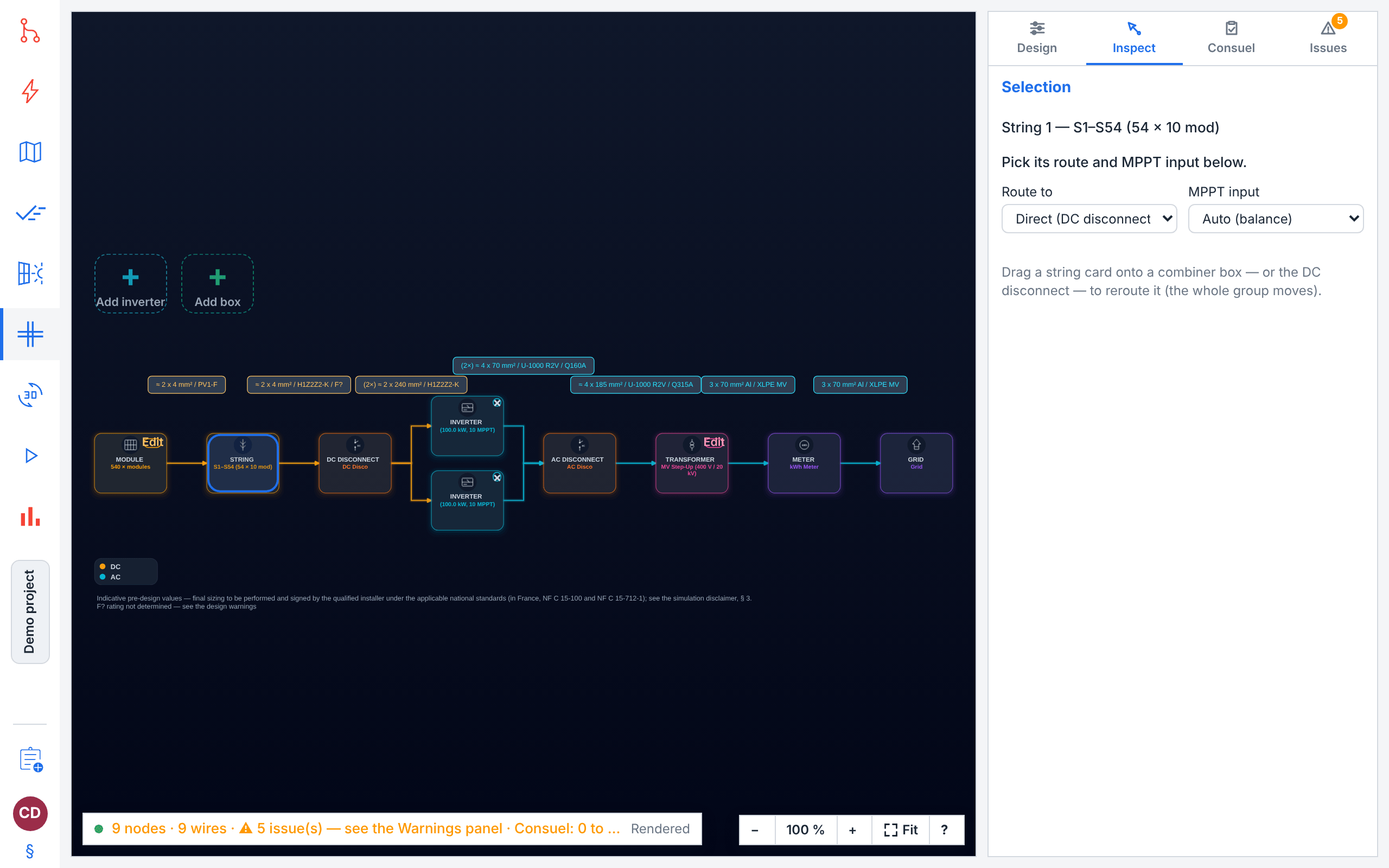
Reading order is left to right: Modules → Optimizer (if fitted) → Strings → Combiner boxes → DC disconnect → Inverters (MPPT inputs) → AC disconnect → Transformer (only ≥ 100 kVA) → Meter → Grid.
Your browser sketches the diagram immediately from the project, then the engine's authoritative drawing replaces it. Only the engine's drawing is interactive and only it is exported.
What you set here has teeth: every sized cable, combiner resistance and power-factor setpoint feeds real ohmic (I2R) loss into the simulation loss cascade (see Simulation Physics & Data Reference).
Do this first: favourite the inverters and combiner boxes you plan to use in The Component Catalogue, and place panels in The Map & Site Design Tab. Each inverter or combiner row then offers them in Pick from favourites, and the canvas menu lists them first — but a manual add is always available.
For an installation in France it also assembles the Consuel technical file (dossier technique): which attestation and forms apply, the values the design pre-fills, and what you still have to declare (The Consuel technical file).
Produces: a one-line diagram, a wire schedule, a bill of materials, and the ohmic-loss inputs the engine needs. The diagram and the bill of materials download from Results, in the menu beside Download PDF above the report (Exporting the diagram and the bill of materials), and the Consuel technical file prints there as a PDF, on the Consuel dossier tab (The Consuel dossier).
Where it lives and what it shows
Diagram sits in the left navigation rail as the one-line-diagram view, at /diagram. Like the other project views it is greyed out in the rail until a project is open. Its canvas is a pan-and-zoom drawing of the whole electrical topology, rebuilt a fraction of a second after any change you make here, in Map (panels, strings, pins) or in Catalogue (inverter/box specs). You never lay out nodes by hand.
Each block on the canvas is a card: an inverter, a combiner box, the PV array (Modules) card, a String card, the DC/AC disconnects, an optional transformer, the meter and the grid. Conductors between cards are drawn as orthogonal “pills” that carry the sized gauge and protection once you size them. A transformer column appears only when the total AC nameplate reaches the 100 kVA medium-voltage threshold — and a microinverter design collapses the DC fan-out entirely, because there is no DC trunk to draw.
The engine's drawing also shows a physical battery, on the card it hangs from — the hybrid inverter (else the first inverter) for a DC-coupled bank, the AC disconnect for an AC-coupled one — with its name and capacity in kWh, but only while the project simulates it: a physical pack picked on the BATTERY card under the Self-consumption + storage or Off-grid site system type (Storage, EV & Specialized Systems).
An instant sketch, then the real drawing
The canvas is never blank while you wait. The moment you arrive, your browser draws the diagram itself from the project: the same cards in the same columns, with the same wires between them, as a plain schematic. It is marked Preview on the status chip, with the note “Drawn in your browser while the server drawing loads.”
At the same moment pvSpline asks the engine for the authoritative drawing — proper symbols, gauge pills, warning badges — and it replaces the sketch by itself, typically in well under a second. There is nothing to press: the chip at the foot of the canvas then reads Rendered. From then on the drawing tracks the project on its own: every change — a design edit, a new wire run, an undo — re-renders it, and the chip reads Rendering… meanwhile. Leave the view and come back, and it starts the same way: the browser sketch first, then the engine's drawing.
Both drawings are written in the interface language you use (Preferences, Tariffs & Theming): the card labels — DC Disco, AC Disco, kWh Meter and Grid in English, Sect. DC, Sect. AC, Compteur kWh and Réseau in French — and the figures on the cards and cable labels, which take that language's decimal mark and no thousands separator (10.0 kW in English, 10,0 kW in French). The browser sketch uses the engine's own words, so nothing changes language when the render replaces it; switch the language while a render is on screen and it is redrawn in the new one.
Note
The two drawings are not interchangeable, and pvSpline never pretends they are. Only the engine's render is clickable (selection, drag-to-reroute and the warning badges all ride its geometry), and only the engine's render is exported. While the preview is up, the canvas menu's Export SVG… stays visible but disabled; the files on Results are always drawn by the engine (Exporting the diagram and the bill of materials).
If the engine is unreachable the preview stays on screen and the note changes to say so, so a dropped connection costs you the exports and the interaction, never the picture. The chip then offers Retry, and the next change to the project tries again too. The preview deliberately declines a few cases rather than guess: a project with no electrical design, a design with zero strings or zero modules per string, and a design whose real string count the browser cannot work out on its own — modules placed but no string wired on the map yet, or strings that Limit string length to MPPT window shortens (both are counted by the engine).
Note
If the canvas is empty, the line on it says why. A project with no electrical design at all opens the panel's Design tab on This project has no electrical design yet. and its Create initial design button, which seeds a workable default you can then edit (The starter inverter). A design whose Strings or Modules / string is 0 draws nothing, and the canvas says so once the engine has answered. Where the browser cannot count the strings itself, it does not sketch the design, so the canvas stays blank until the engine's drawing arrives.
Moving around the canvas
The view is pan-and-zoom. The controls are:
Scroll wheel — zoom, anchored under the cursor.
A floating zoom cluster over the canvas: -, 100 %, + and Fit, then ?, which shows the gesture legend.
+ / - — zoom in / out; 0 — reset to 100 %. These work when the canvas itself has keyboard focus.
Fit — scale the whole diagram to fit the view.
Click-and-drag empty space — pan.
Arrow keys — move the current selection card to card in wiring order (left to right, then top to bottom inside a column).
Zoom is between 0.2× and 8×. The drawing is framed for you when it first appears and when the panel beside it changes shape — but once you have zoomed or panned by hand, pvSpline stops re-framing it under you: the re-renders that follow your edits keep your view, and only Fit, or a Retry after a failed render, frames it again.
Tip
The page fits itself to the browser window: the canvas and the panel beside it scroll independently and the page as a whole never does. On a wide window, drag the divider between them to resize the panel. Below about 900 px of page width the panel becomes a bottom sheet: tap its handle to cycle between peek, half and full height.
The four editing gestures
Identical-looking cards respond to different gestures. The ? button at the end of the zoom cluster — or Show gesture help on the canvas menu — shows this legend over the canvas at any time; on your first visit of a session a single-line reminder appears at the foot of the canvas instead.
Click a card — select it: the panel beside the canvas switches to Inspect, which shows its details and its form, and the matching row in Design is highlighted. Clicking a cable label opens its sizing form there, on the wire-schedule run the cable stands for, or on a new run for its link when no sized run matches it yet (Sizing a cable).
Double-click a cable label — size a new cable for that link. For every other card the single click has already opened its form.
Drag a String card onto a combiner box (or onto the DC disconnect for a direct-coupled string) — re-route that string. A grouped string card moves all of its members at once.
Right-click anything — a context menu listing every action available for that element. This is the self-documenting path if you forget a gesture; right-clicking the empty canvas gives the full action set.
Keyboard equivalents on the selected card: Enter takes you to its form in Inspect (on a cable label it sizes a new cable, like a double-click), Delete removes (inverter/combiner cards only, with a confirmation prompt), Esc clears the selection, and the Menu key (or Shift+F10) opens the context menu.
A few small controls are drawn on the cards themselves: a × chip removes an inverter or combiner; an Edit pill on the Modules card jumps to DC array sizing and the one on the Transformer card to the Diagram settings (Diagram settings); an orange ! badge marks an element with active warnings and takes you to the Issues panel.
Caution
Removing an inverter also discards its map pin and the string routing attached to it; removing a combiner box sends every string routed through it back to Direct. pvSpline asks you to confirm in both cases. There is no undo button on this view, but the working project keeps an undo history, so the change can be reversed like any other project edit.
The canvas menu and the status chip
The page has no toolbar: the canvas fills it, and its page-wide actions are on the canvas menu. Right-click an empty part of the canvas and it offers, from top to bottom:
Adding an inverter or a combiner box. Your favourite catalogue devices come first (picking one adds an entity already bound to that part), then the parts this project already uses, then Add inverter manually… / Add combiner box manually…, then Manage favourites (Catalogue tab)…, which takes you to Catalogue (
/catalogue, The Component Catalogue). The Design tab and the dashed “+” ghost cards on the drawing add them too.Add wire run… — open the wire-sizing form in Inspect to size a new cable (Sizing a cable).
Fit view and Zoom 100%, as on the zoom cluster.
Diagram settings… — go to the settings at the top of the Design tab (Diagram settings).
Export SVG… and Export PDF… — download the drawing (Exporting the diagram and the bill of materials).
Show gesture help — the legend the ? button shows.
At the foot of the canvas the status chip shows the census of the current drawing (“N nodes · M wires”). When the validator has findings it turns warning-coloured and appends “N issue(s) — see the Warnings panel”; it never prints “0 issues”. When the Consuel dossier has open work it also appends “Consuel: N to fix, M to declare”. The chip also states whether you are looking at a preview or a render, and offers Retry when a render has failed.
The diagram panel
Beside the canvas (or below it, on a narrow window) sits the diagram panel, with four tabs: Design, Inspect, Consuel and Issues. It opens on Design, and moves to Inspect when you select something on the drawing. The Issues tab carries a badge with the number of design warnings plus Consuel findings to fix, so you can see at a glance that something needs attention without leaving the tab you are on.
Inspect — what you clicked
Shows the current selection — an inverter (AC kW and MPPT count), a combiner box (input count), a string card, the DC disconnect or a cable — with a one-line description, and beneath it Remove (an inverter, a combiner box or a cable's stored run) and Place its pin on the map… (an inverter or a combiner box) where they apply. When nothing is selected it prompts you to click an element. There is no Edit… button: the selected element's own controls sit right under its description.
Selecting an inverter or a combiner box brings its full form into this panel, so you can read the drawing and edit the device side by side: Pick from favourites first, then the device's characteristics (and, for an inverter, Import a .OND file…), then the settings that belong to the installation. This is the one place the characteristics are edited. Selecting a string card adds two pickers, Route to and MPPT input, which are the always-visible form of the drag gesture and the context menu's routing entries. Selecting a cable opens its sizing form here (Sizing a cable): on the wire-schedule run the cable stands for, whose conductor, length and voltage drop make the description, or — when no sized run matches it yet, as the description then says — on a new run for its link.
Design — the inventory
The Design tab is the project's electrical inventory: the diagram settings, open at the top (Diagram settings), the DC array sizing form, the inverters, the combiner boxes, the string assignments and the wire schedule; the Consuel installation data has a tab of its own (The Consuel technical file). There is no Apply button — an edit commits itself once you stop typing, and a short status line under the panel — on this tab, on Consuel, and on Inspect while an inverter, a combiner box or a string is selected — tells you whether it is Saving when you stop typing…, Saving… or done. If the engine rejects a design it says so and offers Retry.
DC array sizing
This is where the array's series/parallel geometry and the site temperature extremes live. These four controls drive the string-sizing validator (Voc at minimum temperature against each inverter's maximum DC voltage and, when the module's part data states one, against the module's own maximum system voltage, Vmpp at maximum temperature against each inverter's window).
Strings — total number of strings in the project. Once modules are placed, pvSpline counts them on the Map: the strings its Auto strings wiring makes, or the strings you paint with it off (The Map & Site Design Tab). The field is then read-only, and the line under it says where the number comes from — Counted from the map: the strings Auto strings wires there., Counted from the map: the strings painted there., or, with Auto strings off and nothing painted yet, Counted from the panels on the map: no string is wired there yet. You type the number only while no module is placed (No panel on the map yet: type the number of strings.), for a study sized before the array is drawn. The map wires each zone on its own, so the count follows each zone's modules: 15 and 3 modules at 11 a string make three strings.
Modules / string — modules in series per string. This value is shared two-way with the Map view's Strings section: both edit the same project value. It is constrained by the selected inverter's Vmpp and Voc limits, checked at compute time. It is the length the map's automatic wiring cuts strings to, and the length of any string not wired on the map: a string wired on the map is simulated at its own length (The Map & Site Design Tab). The validator's voltage checks test this value rather than each wired string, so a string painted longer than this value escapes them.
Site Tmin (cells) and Site Tmax (cells) — the cell temperature extremes. Each reads “unspecified” at its minimum, and both must be moved off it before the temperature-corrected voltage checks run. A line under the fields tells you which state you are in. Once both are set, the site minimum is also the cold design temperature a batch study lays out a scenario's strings for, ahead of the project's weather record (Deciding and applying), so enter the value you design for rather than a rough guess: a minimum set too warm lets the planned strings grow too long.
Limit string length to MPPT window — shortens the Map's Auto strings where needed: a zone whose module would take a string of Modules / string above the top of the most restrictive inverter MPPT window on the coldest day (its own Voc at Site Tmin (cells)) is wired in shorter strings, and the string count follows. Use it for mixed-technology arrays (say a PERC roof plus a TOPCon carport) where one modules-per-string value cannot suit both. It needs Site Tmin (cells) and Site Tmax (cells) set, and it never leaves a panel unwired: a string too short for the heat, or more strings than the inverter inputs take, only raises a warning.
String assignments
The section opens on a switch. Automatic routing runs every string straight to the DC disconnect and lets the engine balance the strings over the MPPT inputs; there is nothing to fill in. A combiner box takes only the strings you route to it. Manual routing shows a three-column table — String, Combiner box, MPPT input — with one row per string; past ten strings the table folds behind a String table (n) button that opens and closes it. In the table, Direct runs a string straight to the DC disconnect and Auto leaves its MPPT slot to the engine's balancer. Routing a string by hand anywhere — in the table, from Inspect or by dragging its card on the diagram — puts the switch on manual. Switching back to Automatic routing returns every string to Direct and Auto, after a confirmation when some were routed by hand. Very large designs show the first 400 rows and say so; the drag gesture and the context menu reach the rest.
Wire schedule
The tab ends on a table of every sized run, under a reminder that its values are indicative pre-design figures, to be confirmed and signed by the qualified installer: Run, Conductor (gauge, parallel-set multiplier and material), Length (m) and ΔV (%). Hovering a row shows its design current, insulation, parallel sets, conduit and the justification the sizer gave. Click a row to open its run in Inspect, where it is re-sized or removed, and to centre the drawing on its cable; Add wire… under the table sizes a new run there (Sizing a cable). The other way round, the canvas menu of a cable label offers Show in wire schedule, which brings you back here to that cable's row.
Issues — the validator
The string-sizing / MPPT-window / DC:AC validator writes its findings here as a list — over-voltage strings, over-committed MPPTs, combiner input counts exceeded, oversized/undersized inverter ratios, and so on. A finding that names an element is a button: click it to select and flash that card on the diagram. Findings are informational; they never block a design from being saved. Under them sits the Consuel dossier, described in The Consuel technical file.
A string whose cold open-circuit voltage is above the module's own rating reads Voc(Tmin)=… V × … modules = … V exceeds the module maximum system voltage … V. It names no card, so it is plain text: lower Modules / string or choose a module rated for that voltage. Right after Create initial design, the starter inverter's note heads the list (it names that inverter) for as long as the note stays on the Design tab, and an offer to resize the starter is listed as well while one is pending (The starter inverter). Both count in the tab's badge and on the status chip, so a fresh starter design shows at least one issue even when it passes every check.
Note
An empty list means different things at different times, and pvSpline is careful to say which: before any render, “No warnings — apply a design to validate it.”; after a render that also ran the checks, “No warnings — this design passes the sizing checks.”; and, on an engine that drew the diagram but returned no design model, “Sizing checks did not run” — which is not a clean bill of health.
Diagram settings
The diagram-wide settings are the Diagram settings section at the top of the Design tab, always open. They belong to the project's electrical design, so they show as soon as it has one. The canvas menu's Diagram settings… and the Edit pill on the Transformer card take you there. These are project-wide presentation and code choices, and each takes effect as you make it: there is nothing to confirm.
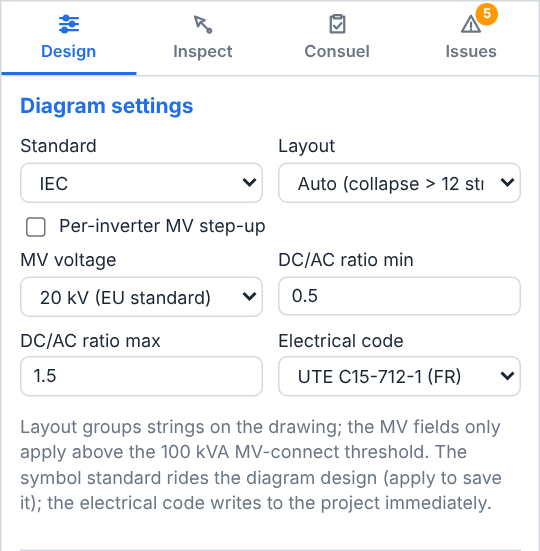
Standard —
IEC(European, default) orIEEE(North-American/ANSI) symbol set. Purely how symbols are drawn.Layout — the compact-display strategy when the string count is high:
Auto (collapse > 12 strings)groups strings beyond that threshold,Always collapsealways groups them,Never collapsedraws every string.Per-inverter MV step-up — draw one transformer per inverter (utility multi-skid) instead of a single shared unit. Use it for utility-scale plants where each inverter station has its own step-up. Below 100 kVA total AC nameplate it has no effect, because no MV step-up is drawn either way.
MV voltage — the medium-voltage busbar downstream of the transformer, from a preset list (11 / 15 / 20 / 22 / 33 kV) or, via
Custom…, typed in kV. It drives both the transformer label and the MV cable cross-section. No effect below 100 kVA.DC/AC ratio min and DC/AC ratio max — the acceptable inverter loading band. Below the minimum the validator warns “inverter heavily oversized”; above the maximum “significant clipping expected”. Bifacial and tracker plants often run at 1.5–1.7 by design — widen the band to silence them. The DC side is the installed power of the PV zones on Map, carport decks included — the figure the starter inverter is sized from (The starter inverter).
Electrical code — the jurisdiction used for wire sizing, voltage drop, conduit fill, string fuses and the bill of materials:
UTE C15-712-1 (FR),NEC (US)orIEC 60364. A project that has never been set followsUTE C15-712-1 (FR), the French rules, and shows it; the language the page is shown in plays no part.
The Standard, Layout and MV voltage dropdowns offer a (keep current) row while the corresponding setting has never been chosen for this project; picking anything else writes it. The symbol standard and the layout ride the diagram design and are saved with it; the electrical code is written straight to the project and is reused by the wire-sizing editor and by the bill-of-materials export (Exporting the diagram and the bill of materials).
The electrical code reaches beyond the cables. It decides which of a module's two maximum system voltages (Field reference) a string is held to: the UL listing under NEC (US), the IEC rating under UTE C15-712-1 (FR) and IEC 60364. A module that states only one rating is held to that one. The string checks on the Issues tab and the strings a batch study plans (Deciding and applying) use the same rating. The code also picks the inverter efficiency a run uses when no inverter of the project carries an efficiency curve from its .OND datasheet: the CEC weighted efficiency under NEC (US), the Euro weighted efficiency under the two others, each falling back on the other when the datasheet gives only one. Switching to or from NEC (US) can therefore change the inverter loss, and the yield, of the next run.
Tip
Pick the Electrical code that matches where the plant is built before sizing any cable. It changes the ampacity tables, the derating factors, the default voltage-drop target (typically 3 % DC, 5 % AC) and the conduit-fill limits used everywhere downstream. A run already in the schedule keeps the gauge it was sized with: click its row in the wire schedule (or its cable label), then press Calculate and Update run in Inspect.
Adding and editing inverters
Add an inverter with Add inverter in the Design tab's Inverters section, with the dashed “+” ghost card on the diagram, or from the canvas menu, which lists your favourite inverters first. Each inverter is a row showing its name, kind and a one-line summary (“10.0 kW AC · 2 MPPT”); Add inverter opens the new row on its Pick from favourites. Expanded with its chevron, a row holds what belongs to the installation — the favourite pick, the backup and master/slave settings and the Consuel installation status. The inverter's characteristics are edited in Inspect: select the row, or the card on the diagram, or follow the row's Characteristics: edit in Inspect link.
The quickest way to get a correct inverter is to bind it to a catalogue part: pick one from Pick from favourites, which heads the form. This overwrites the electrical fields below with the part's. The dropdown lists only the inverters you have favourited in the catalogue (Marking favourites (the curator's core job)); its last entry, Add from the catalogue…, binds nothing: it opens the catalogue's Inverters tab, to import or heart the one you need. The dropdown keeps showing the part for as long as the row's characteristics are the part's; override one by hand and it reads —, because the row then carries a specification of your own.
To start from a manufacturer datasheet instead, click Import a .OND file… in Inspect and pick the inverter's PVsyst .OND file. It fills the row's electrical fields: rated power, MPPT count and window, the DC voltage and current limits, the efficiencies and efficiency curve, and any hybrid or microinverter data. The row is no longer bound to a catalogue part, because it now carries its own specification. With the Manager or Admin role, which every catalogue change needs (Importing PVsyst datasheets), the device is also added to your Inverters catalogue, where you can favourite it to pick it again later; a datasheet the catalogue already holds is reused rather than duplicated. With the User role the row is filled and nothing is added. A file over the catalogue's import ceiling is refused before it is read. .OND import failed: … means the file could not be read as an inverter datasheet; The inverter was loaded, but could not be added to the catalogue: … means the row is filled and only the catalogue copy failed. The import's progress and these messages appear under the form in Inspect.
Rated power, MPPT count, Max DC voltage, MPPT min voltage, MPPT max voltage, Max DC current, Max strings per MPPT — the electrical envelope the string-sizing validator checks your array against.
AC voltage and Phases — the output side the diagram sizes the inverter's breaker and AC cable from.
Weak-grid backup capable — allow this inverter to form a micro-grid during an outage (islanding, UL 1741-SA / IEEE 1547-2018). Ticking it on at least one inverter enables the “Weak-grid backup” dispatch mode; unticking it on a specific hybrid excludes that unit from the backup while keeping its DC-coupled benefits. Only hybrid devices can island, so for anything else the box is fixed and a note says so.
Master/slave operation plus Number of units (master/slave) — stage a group of identical inverters sharing one PV array: at low DC power only the master runs and the slaves start one by one as the power rises, which lifts low-load efficiency. The project power is the catalogue device's per-unit nameplate multiplied by the number of units. Not available for microinverters.
Consuel — installation status —
New (added)(the default),Replacement of an existing inverterorExisting, kept as is. When you modify an existing installation, the Consuel dossier then reports the new part only and the schematic draws the kept inverters as existing (The Consuel technical file).
Note
A microinverter design redraws the whole diagram: the strings, combiners and DC disconnect disappear, because each module feeds its own inverter. One flagged microinverter is enough to switch the entire drawing to that layout.
Note
Applying a Batch scenario that swaps the inverter rewrites this list: one row per unit of the model the scenario was scored with (one row for a microinverter model). Rows already bound to that model keep their names, map pins and settings; the other rows go, and the new ones take over their map pins. A project without a design gets the starter design first. The same apply writes the strings the scenario was scored on into Strings, Modules / string (the length most of the modules are wired at) and the string assignments (Deciding and applying).
The starter inverter
A project with no electrical design opens the Design tab on This project has no electrical design yet. and a Create initial design button. Clicking it writes a starter design into the project straight away: one generic inverter — two MPPT inputs and a 1000 V DC limit, with no datasheet and no catalogue model behind it — rated for your array. pvSpline takes the installed power of the PV zones on Map (a carport's deck counts; biome, obstacle and plain building zones never do) or, while nothing drawn carries power, the project's stated installed power; divides it by a DC/AC ratio of 1.15, inside the validator's default band; and rounds up to the next 0.1 kW. A 36 kWp roof gets a 31.4 kW starter, a 9 kWp roof a 7.9 kW one. A project with neither an array nor an installed power gets no inverter at all, so its runs are not capped. The starter design's string count follows the modules you place, as every design's does (Strings under DC array sizing).
A note above the inverter list says which case applied: Starter inverter sized to 31.4 kW for the 36.0 kWp drawn on the map (DC/AC 1.15). Vegetation, obstacles and plain buildings are not counted. Replace it with your actual inverter., Starter inverter sized to … kW for the stated installed power (… kWp, DC/AC 1.15): nothing drawn on the map carries power yet. Resize it once the array is drawn. or No array or installed power to size against: no starter inverter was added, so runs are not capped. Once the array is drawn, this tab offers a starter sized to it. It stays while you keep the starter as it is, goes as soon as you resize, replace or add an inverter, and is not repeated on a later visit.
pvSpline never resizes the starter by itself. If the array changes while the design still holds the starter exactly as it was created — you redraw the roof on Map, say — the Design tab says so above the inverter list as soon as you open the view: The array is now 36.0 kWp, but the starter inverter is still rated 7.9 kW for the array it was created with., with a Resize the starter inverter to 31.4 kW button. A starter design that placed no inverter reads The array is now … kWp and the design has no inverter yet. and offers Add a starter inverter of … kW. One click applies the re-rated starter, by the same 1.15 rule; it is still the starter afterwards, so a later change to the array brings the offer back. Once you change the inverters yourself — another Rated power, a catalogue part, a datasheet, an inverter added or removed — the design is yours and the offer does not come back.
The starter is a placeholder, and the results say so: until you replace it, the Warnings card on Results notes that the run used the generic starter inverter, with no datasheet efficiency, and a run with no inverter at all is noted as modelled with a flat conversion loss and no clipping, so a few percent optimistic (Charts, Heatmaps & Tables). Neither note appears on an Off-grid solar pumping or DC grid (rail / trolleybus) project, whose run models no grid-tie inverter. Replace the starter with the inverter you will install: pick it from Pick from favourites on the starter's own row, or select the starter and load its datasheet with Import a .OND file…; or add the inverter and remove the starter, which otherwise stays in the design beside it.
Combiner boxes
A combiner box merges several string inputs onto one DC trunk, each input fused. Add one with Add combiner box in the Design tab, with the dashed “+” ghost card on the diagram, or from the canvas menu. Each box is a row with a one-line summary (“6 inputs · 15 A fuse”); expanded, it holds the box's Pick from favourites, and its fields below are edited in Inspect.
Inputs — number of DC inputs, one per incoming string.
Input fuse — fuse rating on each input; must cover the string's Isc×1.25 (NEC) or ×1.40 per the applicable code.
Max DC voltage — the box's voltage rating; must be at least the string Voc corrected to the site minimum temperature.
Per-input series R — the round-trip path resistance per input (busbar share, fuse and connector, both legs). It is auto-derived from the input count until you type over it; this is what produces the combiner's ohmic loss in the simulation. Set it to
0to skip combiner-loss modelling entirely. Typical values are 0.001–0.020 Ω.Pick from favourites — bind the box to one of the boxes you have favourited, overwriting these fields with its own; it keeps naming the box until you edit one of them. The dropdown ends on Add from the catalogue…, which opens the catalogue's Combiner boxes tab instead.
Watch out
Changing Inputs re-derives Per-input series R unless you have already set that field by hand. If you have tuned the resistance for a measured box, re-check it after changing the input count.
Sizing a cable
Cables are sized in a form that opens in Inspect. Click a cable label on the drawing to open it on the run that cable stands for (or on a new run for its link, when no sized run matches it yet); double-click a cable label to size a new cable for its link; or start a new run with Add wire… under the wire schedule on the Design tab, or with the canvas menu's Add wire run…. The form is headed Add a wire run (or Edit the wire run for a stored run), with the everyday fields first and the rest behind More options.
A new run opened from a cable label starts on that link: its circuit role and diagram edge are already chosen, and Auto has already filled in the current, the protection, the voltage and the power factor. For the combiner trunk and an inverter's AC run, the length is estimated from the map pins as well, when both ends are pinned. A run started with Add wire… or Add wire run… opens on the defaults, as a DC string.
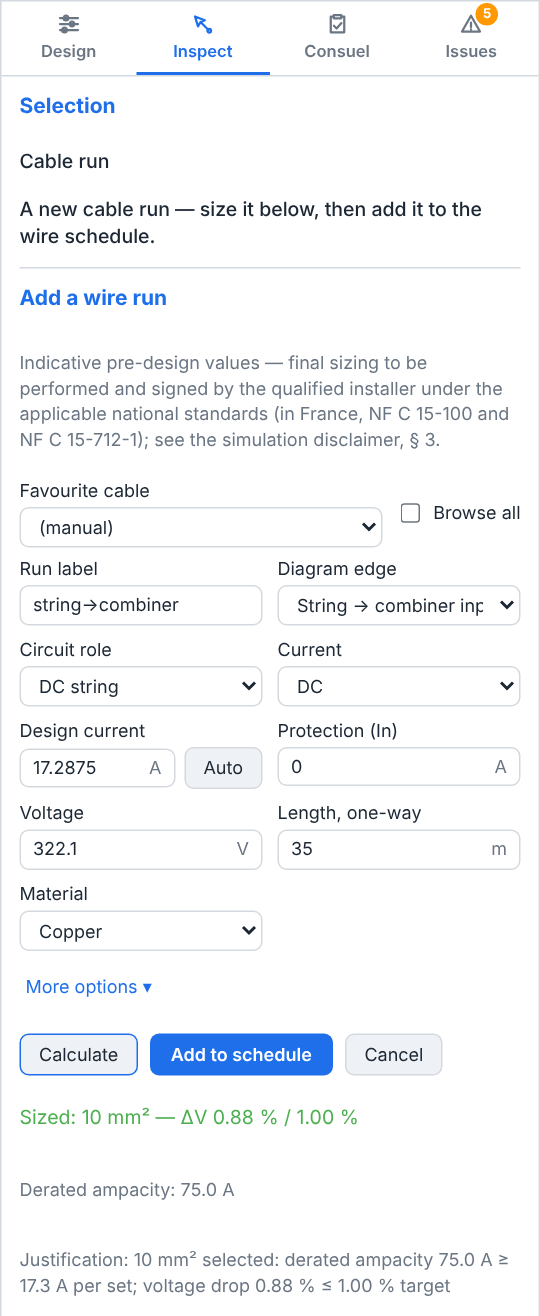
When a cable catalogue is attached, a Favourite cable dropdown sits at the top; tick Browse all to see non-favourites too. Picking an entry applies its material and insulation and stamps the part reference on the run — the sizer still derives the gauge from the code book, so the catalogue's own ampacity is informational. (manual) keeps free entry. The last entry, Add from the catalogue…, opens the catalogue's Cables tab; like any move to another view, it closes the editor without adding the run.
Size a DC string cable
Click Add wire… under the wire schedule on the Design tab. The form opens in Inspect.
Leave Circuit role on
DC string(or set it). Changing the role applies its defaults — for DC string: DC current, 400 V,PV_USE2insulation, 2 conductors in conduit — and filters the Diagram edge list to DC-string edges.Choose a Diagram edge (e.g.
String → combiner input) so the sized cable binds to that segment of the diagram. A canonical keyword is stamped into the Run label for you.Click Auto next to Design current to derive the current, voltage, power factor and current type from the project for that edge (DC edges use the panel inventory's worst-case Isc×1.25 scaled by the strings feeding the segment), and the rating of the breaker or fuse the diagram draws on it, Protection (In). Adjust anything you like afterwards.
Set Length, one-way in metres, or — for a DC trunk or an AC circuit — use Calculate from plan to estimate it from the map pins.
Open More options if you need to change the insulation, the installation method, the ambient temperature, the conductors per conduit, the parallel sets, the conduit or the voltage-drop target.
Click Calculate. The result line reports the chosen gauge and the calculated versus target Δ V, plus the derated ampacity and the justification for the choice.
Click Add to schedule (or Update run) to store the run and feed its I2R loss to the simulation. The run joins the wire schedule and stays selected, its form now showing what was stored.
Watch out
Editing any field after a successful calculation clears the result and disables Add to schedule again. That is deliberate: a sizing is only valid for the exact inputs it was derived from, so change what you need and press Calculate once more.
Cancel discards what you typed: a stored run gets its stored values back, and a new run is dropped, along with the cable selection. Selecting anything else closes the form as well, unsaved values included. To delete a stored run, select it and press Remove at the top of Inspect; pvSpline asks you to confirm, naming the run.
How it maps a current to a gauge
The sizer does three things at once, all governed by the selected electrical code:
Ampacity — it picks the smallest conductor whose ampacity, after the ambient-temperature derate and the conduit-grouping derate, still carries the design current, and the Protection (In) rating when one is set, so the cable cannot overheat before its breaker or fuse trips. A buried run is also derated for the soil's thermal resistivity, except under
NEC (US).Voltage drop — it computes Δ V from k·(I/parallel)·(L/1000)· impedance, with k=2 for DC and single-phase and k=√(3) for three-phase, and upsizes if Δ V exceeds the target (code default, or your override).
Conduit fill — if a conduit is chosen, it checks the fill ratio against the code limit.
For strings it also applies the NEC 690.7 cold-temperature Voc rule (Site Tmin) and the 1.25× continuous-current factors when you use Auto. If no conductor can satisfy both ampacity and Δ V, the editor says so rather than storing a run you cannot build. The physics is detailed in Simulation Physics & Data Reference.
Watch out
The Auto button needs a Diagram edge other than “(custom)”, and either the panel inventory (DC edges) or an inverter (AC edges). On a multi-inverter plant the DC-disconnect and meter edges give the conservative whole-array current — trim it by hand if each inverter has its own disconnect or feeder.
Estimating a length from the plan
For a DC trunk or an AC circuit, and once the rendered diagram knows which cards are pinned, an estimator row appears: pick the Inverter (and, for a trunk, the Combiner box), set a Routing factor and a Vertical drop, and press Calculate from plan. pvSpline measures the geodesic distance between the pinned entities, multiplies it by the routing factor and adds the vertical reserve. The two tunables are remembered on the project, so the next cable opens with them.
Note
Both endpoints must be pinned on the map, otherwise the estimate is refused. Use Place its pin on the map… in Inspect to pin a card, or place the pins directly in Map (/map), covered in The Map & Site Design Tab. A DC string run cannot be estimated this way — type its length.
The Consuel technical file
In France a new or modified PV installation needs a Consuel attestation before it is energised, and Consuel asks for a technical file (dossier technique) with it. The Diagram view prepares that dossier from the design: the engine works out which attestation and which forms apply, pre-fills the item values it can derive from the drawing, and lists what is still wrong or missing. Its checks run with the sizing checks, on every render.
The Results tab prints the dossier as a PDF, the one-line diagram attached, on its Consuel dossier tab (The Consuel dossier), and sends you back here to complete it: its Declare the items on the Diagram tab opens this view on the Consuel tab, and a finding in its side panel opens the fold of the installation data the finding is about.
Reading the dossier
The Consuel dossier group sits on the Issues tab, under the warnings. From top to bottom:
The attestation and the forms — for example
Blue attestation — SC 144A-5for a string-inverter design without storage, orPurple attestation (with storage)once the project simulates a physical battery: a physical pack picked on the BATTERY card under the Self-consumption + storage or Off-grid site system type. A pack left behind after you switch to another system type, or a virtual battery, does not count, and the dossier stays blue.The generator line,
Uocmax … V · Iscmax … A: the PV generator's maximum open-circuit voltage and short-circuit current, as the forms ask for them.A count,
N to fix · N to check · N to declare, orEvery item declared; the checks found nothing to fix in the declared values.The findings, each with its item number and a glyph: a cross for to fix, a warning triangle for to check, an open circle for to declare and an i for a note. Click a finding to open the installation data it is about on the Consuel tab.
Pre-filled item values, a fold listing the values the design fills in on the form, by item. Copy values copies the forms and these values to the clipboard, ready to paste into the Consuel form.
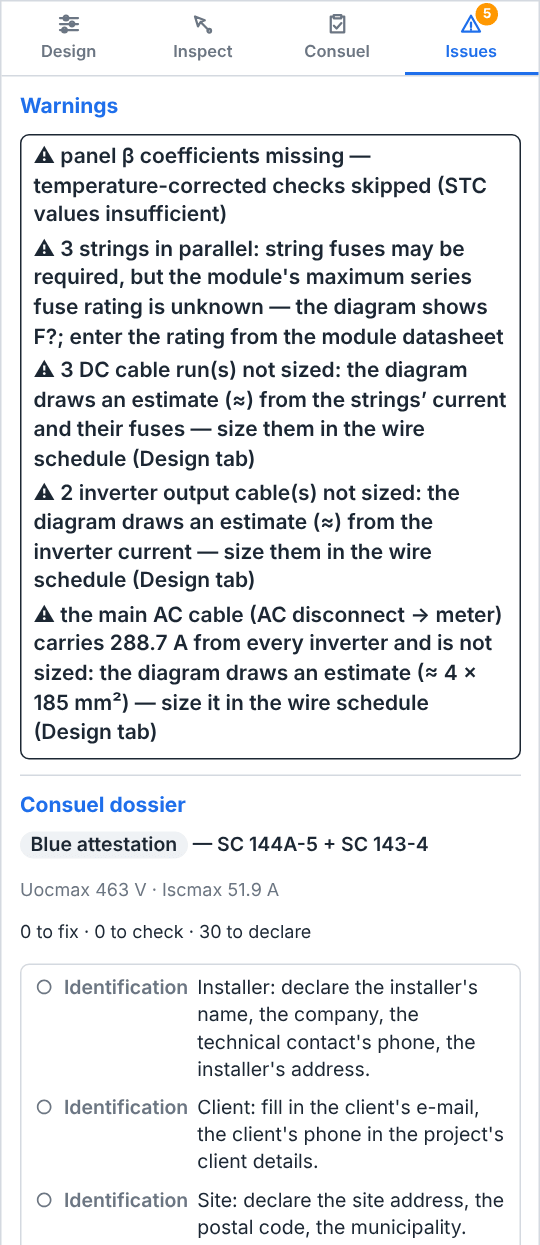
The number beside the group title counts the findings to fix and to check; they also raise the Issues tab's badge, while items merely left to declare do not. Before there is a design the group reads No design yet — the dossier follows the diagram., and before the first check The Consuel checks run with the design checks — they appear once the server has drawn the diagram.
Declaring what the design cannot know
Some items depend on facts no drawing contains: how the installation is connected, the protective devices fitted, the earthing arrangement, who the installer is. You declare them in Installation & protection (Consuel), on the panel's Consuel tab, between Inspect and Issues. Its item numbers follow form SC 144A-5. Before the project has a design the tab reads No electrical design yet: create one in the Design tab, then declare the installation here.
Every field starts on —, not declared, and an undeclared item stays listed as open in the dossier rather than passing silently. Fields that do not apply to this design — the battery items without a battery, the DC switch and DC surge-protection items on a microinverter design — are greyed out. Each fold's title shows how many items in it are still open (N open). Clear all sets every field back to —. A declaration saves with the design, like every other design edit.
Greying a field out never clears it: bring the design back to where the item applies and your value returns. While it is greyed out, though, it counts for nothing. The dossier does not check it, list it under Pre-filled item values or copy it with Copy values, and it cannot clear a finding. The engine's drawing, which prints your declared protection on its cards (switch ratings, fuses and breakers, surge protectors, the earthing bus, the battery branch, other sources), leaves it out as well.
| Installation & protection folds | Meaning / effect |
|---|---|
| Connection | How the installation is connected (through the consumption installation, a dedicated delivery point, or not connected to the public grid), the service connection, the board and the connection type. |
| DC side | The main PV cable (cross-section, rated voltage, core temperature), the general DC switch, the earthed polarity, the lightning rod and the DC surge protector. |
| Inverter & AC board | Decoupling and its EN 50549 certificate, the AC breaker (the drawing puts it on every new or replacement inverter's circuit), the residual-current device and the AC surge protector. |
| Earthing & island mode | The earthing arrangement, the earth resistance, the bonding conductor, and the backed-up circuits and island earthing of a system that runs islanded. |
| Battery | The storage items (SC 144C-5 / SC 144C2-2). They apply while the project simulates a physical battery; otherwise the fold's fields are greyed out under a note that says so — also when a pack is still picked but the System type hides the BATTERY card. |
| Identification | The installer, the company, the contact details and the site address. The client's name, e-mail and phone come from the project's client details. |
| Modification | Whether this modifies an existing installation, its initial power and the year it was energised. Mark each inverter's status in the inverter list. |
| DC protection | Every DC overcurrent device, integrated ones included. |
| SC 143 | For an installation behind a monitored-power (above 36 kVA) or HTA delivery point. |
| Charging point | A bidirectional (V2H / V2G) charging point feeding the installation (SC 145-1). |
Exporting the diagram and the bill of materials
The diagram's files download from Results, from four entries of the menu beside Download PDF above the report, under From the working project (Exporting the financial table and the bill of materials). All four are drawn by the engine from the open project as it is now — not from the run the report shows — so they are there before the first run, and they arrive as ordinary browser downloads.
One-line diagram (SVG) — the drawing the engine renders, as
one-line-diagram.svg, in the interface language. It is drawn when you click, so it does not wait for a render on this view.One-line diagram (PDF) — the same drawing as an A4-landscape
one-line-diagram.pdf. This is the permit-set form of the drawing.Bill of materials (CSV) and Bill of materials (XLSX) — the bill of materials for the electrical design: every component and every sized run, as a spreadsheet. A battery is listed only while the project simulates storage: a pack the BATTERY card no longer shows, because another System type is selected, is left out of the list and of its total. Each run is listed with the gauge it was sized with, under a title on the file's first row that names the project's Electrical code, whatever code the runs were sized under. A zone mounted on a racking kit (Mounting structure on its map card, The Map & Site Design Tab) adds its rails, clamps and attachments under the Mounting structure category, counted row by row from the packed layout.
On this view, right-clicking the canvas offers the drawing too: Export SVG… hands over the drawing on screen, so it needs a render and stays disabled while only the browser preview is up, and Export PDF… asks the engine for the A4-landscape PDF.
The French déclaration préalable dossier is not among these files: it is a document of its own, the Town-hall permit tab above the report, which previews the package and lists what it still lacks (The permit package (déclaration préalable)). Until the project is ready the package is watermarked as a draft — capture its four plan sheets on Map (The Map & Site Design Tab), and attach a close-up and a distant site photograph (DP7 and DP8) in its form. Neither is the Consuel technical file, which has the Consuel dossier tab (The Consuel dossier).
The one-line diagram also appears as its own page in the generated PDF report (Reporting & Export) whenever the project carries an electrical design — you do not have to export it separately to get it into a client document.
The SVG and the PDF are in the interface language you are using when you export, labels and figures alike; switch the language on the account page and export again for the other one. The report's one-line page is drawn in the report's language — for a cloud run, the language the page had when you started the run — card labels and figures included.
Note
There is no PNG export and no dedicated print button: for a printable sheet, use One-line diagram (PDF) on Results or Export PDF… on the canvas menu, or your browser's own print command on the page. An engine that is too old for one of these routes says so rather than failing silently: above the document on Results, and in a line above the canvas on this view.
Reactive power and the power factor
Grid operators often mandate a cosφ setpoint below unity. Those controls belong to the AC-side loss picture rather than to the drawing, so they live in Production (/production), in the Schedules & grid band of the Configuration card, on its Grid / reactive power tab. They matter here because they change what the conductors on this page carry: a cosφ<1 clips active power to P=min(Pac, S·cosφ) and raises the AC ohmic and transformer copper losses by 1/cos2φ.
The setpoint is chosen with Reactive power mode (Disabled (cos φ = 1), Fixed cos φ or Monthly cos φ), together with Direction, Nominal inverter power expressed in kVA (apparent) and an optional reactive-energy tariff. Running a Simulation & the Production Tab documents every field; what matters on this page is the consequence for the conductors.
Watch out
A non-unity cosφ raises the apparent current the AC side actually carries, because I = Iactive/cosφ. Size AC circuits for that current, not for the active power: set the Power factor (cos φ) of each AC run in the wire-sizing editor to match the setpoint. The Auto button fills in the worst-case cos φ the inverters' own specification allows (1 when it states none), not the setpoint, so check the value after pressing it — otherwise the cable is sized for a current the plant does not run at.
DC-grid systems (rail / trolleybus)
A PV plant can feed a 600–1500 V DC traction network through a DC/DC converter instead of a grid-tie inverter. Set System type to DC grid (rail / trolleybus) in the SIMULATION section of Project (/project) and a DC traction grid card appears in that view's Systems section.
On the wiring side this changes what the diagram is describing. The AC disconnect, the MV step-up and the meter columns still draw the export path, but the plant's real point of delivery is the catenary: the defining physics is acceptance, because a diode substation can only absorb PV power while a vehicle is drawing it, so surplus is curtailed unless the substation is reversible. Size the DC side of the plant — strings, combiners, trunk cables — exactly as you would for any other project; what changes is the ceiling the energy meets, not the conductors that carry it. The dispatch and storage consequences are covered in Storage, EV & Specialized Systems.
Two of that card's fields change how you wire the plant, so they are worth reading here:
Network type sets Nominal voltage to the canonical catenary voltage — ≈600 V trolleybus, 750 V tram and metro, 1500 V rail. That figure, not a 230/400 V AC bus, is the reference the delivery-side cable is sized against, so set the network before you size anything downstream of the converter.
Reversible substation decides whether there is an AC export path at all. Left off, there is nothing to feed back and no AC feeder to size beyond the plant's own auxiliaries; ticked, the feed-back circuit (capped by Feed-back limit) is a real AC run and should get its own entry in the wire schedule.
Everything else on that card — Converter efficiency (0–1), Converter threshold, Peak traffic power and Weekend factor (0–1) — shapes the traction demand and the acceptance budget rather than the wiring, and is documented in full in Storage, EV & Specialized Systems.
How this drives loss in the simulation
Nothing on this view is cosmetic. Each sized run contributes an I2R term to the loss cascade, integrated over the year: because current — and thus I2R — follows the sun-shape rather than the design worst case, the annual ohmic loss lands at roughly 0.70 of the design-current voltage-drop percentage. Combiner Per-input series R adds a separate DC-side combiner loss, and a cosφ<1 inflates the AC ohmic and transformer copper losses by 1/cos2φ. Set these carefully and your simulated energy and financials reflect the real conductors. Leave the wire schedule empty and the engine falls back to generic figures instead: a default DC wiring loss of 1.5 % at STC (the usual PVsyst assumption) and the flat AC ohmic losses percentage on the Production tab. The full loss ordering is documented in Simulation Physics & Data Reference.
The strings and the inverters count too. Each MPPT input is simulated with the strings routed to it, each at the length it is wired with on Map, so a short last string on a roof face is scored as short; the hours a string spends outside the inverter's MPPT voltage window are booked as Inverter below MPPT voltage or Inverter above MPPT voltage. The inverters' AC rating is the limit the run clips at, booked as Inverter over nominal power; when clipping costs 2 % of the year's production or more, the Warnings card on Results says so (Charts, Heatmaps & Tables), except on an Off-grid solar pumping or DC grid (rail / trolleybus) project.
Field reference
Canvas, canvas menu and status chip
| Field / Control | Type & unit | Default | What it does & how to set it |
|---|---|---|---|
| Zoom cluster | button group | 100 % | Buttons floating over the canvas: zoom out, reset to 100 %, zoom in and Fit, followed by ?. Zoom range 0.2×–8×; the scroll wheel zooms under the cursor. |
| ? | toggle button | off | The last button of the zoom cluster: shows the gesture legend over the canvas. The canvas menu's Show gesture help does the same. |
| Canvas menu | context menu | — | Right-click an empty part of the canvas: add an inverter or a combiner box (favourite catalogue devices first, then the parts this project uses, then a manual add, then a link to the Catalogue), Add wire run…, Fit view, Zoom 100%, Diagram settings…, Export SVG…, Export PDF… and Show gesture help. Right-clicking an element gives that element's own actions instead. |
| Retry | button | — | On the status chip, only after a render has failed (the engine unreachable, or the project refused): asks the engine for the drawing again; “Rendering…” while it runs. Otherwise there is nothing to press: the drawing renders on arrival and after every change. |
Inspect panel
| Field / Control | Type & unit | Default | What it does & how to set it |
|---|---|---|---|
| Remove | button | — | Deletes the selected inverter, combiner box or cable run from the project, after a confirmation. Shown only for those, and for a cable only once its run is stored in the wire schedule. |
| Place its pin on the map… | link | — | Shown for an inverter or a combiner box. Jumps to the Map view to pin the selected card, which is what the cable-length estimator measures between. |
| Route to | dropdown | — | Where the selected string card's strings go: “Direct (DC disconnect)” or a combiner box. Blank when the card's strings disagree. |
| MPPT input | dropdown | — | The MPPT slot for the selected string card: “Auto (balance)” or a specific “Inverter n · MPPT m”. Blank when the card's strings disagree. |
| Wire-sizing form | form | — | Shown while a cable is selected, and after Add wire… or Add wire run…: the fields of the wire-sizing tables below. |
Starter design (Design panel)
| Field / Control | Type & unit | Default | What it does & how to set it |
|---|---|---|---|
| Create initial design | button | — | Shown only while the project has no electrical design. Writes a starter design into the project: one generic inverter rated for the array at DC/AC 1.15, rounded up to the next 0.1 kW, or none when the project has neither an array nor an installed power. Also ticks Auto. |
| Starter note | read-only line | — | How the starter was rated: for the kWp drawn on the map, for the stated installed power, or not at all. Also heads the Issues list. Gone once you resize, replace or add an inverter, and not repeated on a later visit. |
| Resize the starter inverter to … kW / Add a starter inverter of … kW | button | — | Shown when the array has changed since the untouched starter was rated. Applies the re-rated starter in one click; greyed out while a change is being saved. Not offered again once you have edited the inverters yourself. |
DC array sizing (Design panel)
| Field / Control | Type & unit | Default | What it does & how to set it |
|---|---|---|---|
| Strings | number | — | Total strings in the project. Once modules are placed, counted from the Map — the strings Auto strings wires, or the strings painted with it off — and read-only; typed only while no module is placed. Range 1–256. Anything below 1 makes the design undrawable, so it is floored at 1. |
| String count source | read-only line | — | Under the fields: where Strings comes from — the strings Auto strings wires, the strings painted on the map, the panels on the map when nothing is wired yet, or the number you type while no panel is placed. |
| Modules / string | number | — | Modules in series per string; comes from the design. Range 1–64. Shared two-way with the Map view; constrained by the inverter Vmpp/Voc window at compute time. The length of the map's automatic wiring and of any string not wired on the map, and the length the voltage checks test; a string wired on the map is simulated at its own length. |
| Site Tmin (cells) | number · °C | unspecified | Site minimum cell temperature for the Voc(Tmin) string check, which holds each string below the inverter's Max DC voltage and, when its part data states one, the module's maximum system voltage. Range -50 to 50; -50 reads “unspecified”. Once both temperatures are set, also the cold design temperature of the strings a batch study plans. |
| Site Tmax (cells) | number · °C | unspecified | Site maximum cell temperature for the Vmpp(Tmax) check. Range 0 to 100; 0 reads “unspecified”. Both temperatures must be moved off their minimum before the checks run. |
| Limit string length to MPPT window | checkbox | off | Shortens the map's Auto strings where needed, so that no string exceeds the top of the most restrictive inverter MPPT window on the coldest day, by each module's own Voc. For mixed-technology arrays. Needs Site Tmin and Site Tmax; every panel is still wired. |
Inverter rows (Design panel / Inspect)
The row in the Design panel holds Pick from favourites, the two operating settings and the Consuel installation status; the characteristics, from Rated power to Max strings per MPPT, and Import a .OND file… are in Inspect.
| Field / Control | Type & unit | Default | What it does & how to set it |
|---|---|---|---|
| Rated power | number · kW AC | 10 (added row) | Per-unit AC nameplate. Minimum 0, step 0.1. Drives the DC:AC check and the 100 kVA transformer threshold, and is the AC limit the run clips at. The starter inverter is rated for the array instead (The starter inverter); typing a value on it ends its resize offer. |
| AC voltage | number · V | 400 (added row) | Nominal output voltage. Minimum 0; 0 reads as unknown and takes the phase default (230 V single-phase, 400 V three-phase). With Phases, sets the rated output current the diagram sizes the inverter's breaker and cable from. |
| Phases | dropdown | Three-phase (added row) | Single-phase or Three-phase. |
| MPPT count | number | 2 | Independent MPPT inputs. Minimum 1. |
| Max DC voltage | number · V | 1000 | Absolute DC input ceiling; the Voc(Tmin) check tests the string against it. Minimum 0, step 10. |
| MPPT min voltage | number · V | 200 | Bottom of the MPPT tracking window. Minimum 0. |
| MPPT max voltage | number · V | 800 | Top of the MPPT tracking window. Minimum 0. |
| Max DC current | number · A | 15 | Per-MPPT DC current limit. Minimum 0, step 0.5. |
| Max strings per MPPT | number | 2 | Parallel strings one MPPT input accepts. Minimum 1; drives the slot-capacity check. |
| Weak-grid backup capable | checkbox | on | Allow this inverter to island during an outage. Editable only for hybrid devices; enables the “Weak-grid backup” dispatch mode when on for at least one inverter. |
| Master/slave operation | checkbox | off | Stage a group of identical inverters on one array for better low-load efficiency. Unavailable for microinverters. |
| Number of units (master/slave) | number | 2 | Units in the staged group. Range 2–64. Shown only when Master/slave is on. Project power = per-unit nameplate × units. |
| Pick from favourites | dropdown | — | Binds the row to one of the inverters you have favourited in the catalogue and overwrites its characteristics with the part's. Heads the form. Keeps naming the part until one of those values is edited, then reads —. Its last entry, Add from the catalogue…, opens the catalogue's Inverters tab instead. Shown only when the engine serves a catalogue. |
| Import a .OND file… | button · file picker | — | In Inspect. Parses a PVsyst inverter datasheet (.OND) and fills this row's electrical fields; the row is then no longer bound to a catalogue part. With the Manager or Admin role the device is also added to your Inverters catalogue (a datasheet already there is reused); with the User role nothing is added. A file over the import ceiling is refused before it is read. Greyed out on every row while an import runs. |
| Consuel — installation status | dropdown | New (added) | Or Replacement of an existing inverter or Existing, kept as is. For a modification of an existing installation: the Consuel dossier reports the new part only. An inverter kept as is also keeps its own breaker on the drawing: the breaker rating declared on the Consuel tab goes on the new and replacement inverters only. |
| Remove | button | — | Deletes this inverter. Its map pin and string routing go with it; you are asked to confirm. |
Combiner-box rows (Design panel / Inspect)
The row in the Design panel holds Pick from favourites; Inputs, Input fuse, Max DC voltage and Per-input series R are in Inspect.
| Field / Control | Type & unit | Default | What it does & how to set it |
|---|---|---|---|
| Inputs | number | 6 | DC inputs, one per incoming string. Minimum 1. Changing it re-derives the per-input series R unless you have set that by hand. |
| Input fuse | number · A | 15 | Fuse rating per input. Minimum 0. Must cover the string Isc×1.25 (NEC) or ×1.40 per the applicable code. |
| Max DC voltage | number · V | 1000 | Box voltage rating. Minimum 0, step 10. Must be at least the string Voc at the site minimum temperature. |
| Per-input series R | number · Ω | 0.0080 | Round-trip path resistance per input (busbar share + fuse + connector, both legs). Range 0–0.2, step 0.001. Auto-derived from the input count until edited. Produces the combiner ohmic loss; 0 skips combiner-loss modelling. Typical 0.001–0.020. |
| Pick from favourites | dropdown | — | Binds the row to one of the boxes you have favourited in the catalogue and overwrites its fields with the box's. Keeps naming the box until one of them is edited. Its last entry, Add from the catalogue…, opens the catalogue's Combiner boxes tab instead. Shown only when the engine serves a catalogue. |
| Remove | button | — | Deletes this box. Strings routed through it fall back to Direct; you are asked to confirm. |
String assignments (Design panel)
| Field / Control | Type & unit | Default | What it does & how to set it |
|---|---|---|---|
| Automatic routing / Manual routing | switch | Automatic routing | Automatic runs every string straight to the DC disconnect, the engine balancing the MPPT inputs, and shows no table; manual shows the table below. Reads manual as soon as one string is routed by hand. Back to automatic returns every string to Direct and Auto, after a confirmation when some were routed by hand. |
| String table (n) | button | closed | Manual routing with more than ten strings: opens and closes the table. Up to ten strings the table shows without it. |
| Combiner box | dropdown | Direct | Which combiner box this string feeds, or “Direct” to run it straight to the DC disconnect. One row per string. |
| MPPT input | dropdown | Auto | Which MPPT slot this string lands on, written as “Inverter n · MPPT m”, or “Auto” to let the engine balance it. |
Diagram settings (Design panel)
Always open at the top of the Design panel, once the project has an electrical design; the canvas menu's Diagram settings… and the Transformer card's Edit pill lead there. Each change takes effect as you make it.
| Standard (symbol set) | Meaning / effect |
|---|---|
| IEC | European symbol set (default). |
| IEEE | North-American / ANSI symbol set. |
| Layout (compact display) | Meaning / effect |
|---|---|
| Auto (collapse > 12 strings) | Groups strings once their count exceeds the threshold. |
| Always collapse | Always groups strings into a compact form. |
| Never collapse | Draws every string individually (can be very tall). |
| MV voltage | Meaning / effect |
|---|---|
| 11 kV (UK / Commonwealth) | Common UK and Commonwealth distribution voltage. |
| 15 kV | 15 kV busbar. |
| 20 kV (EU standard) | The usual continental-European MV level. |
| 22 kV (FR / CH) | French and Swiss variant. |
| 33 kV (utility / NA MV) | Utility-scale and North-American MV. |
| Custom… | Reveals a field for any value in kV. |
| Electrical code | Meaning / effect |
|---|---|
| UTE C15-712-1 (FR) | French PV wiring code, and the default: a project that has never been set follows it. |
| NEC (US) | US National Electrical Code (690 series). Holds strings to the module's UL rating, and is the only choice that simulates the inverters at their CEC efficiency when none carries an imported curve. |
| IEC 60364 | International low-voltage installation standard. |
| Field / Control | Type & unit | Default | What it does & how to set it |
|---|---|---|---|
| Per-inverter MV step-up | checkbox | off | Emit one transformer per inverter (utility multi-skid) instead of one shared unit. No effect below 100 kVA total AC nameplate. |
| MV voltage | dropdown (+ number · kV) | 20 | MV busbar voltage after the transformer. Presets, or “Custom…” to type a value (minimum 0, step 0.1). Drives the transformer label and the MV cable cross-section. No effect below 100 kVA. |
| DC/AC ratio min | number | 0.50 | Lower loading threshold; below it the validator warns “inverter heavily oversized”. Range 0.10–2.00, step 0.05. |
| DC/AC ratio max | number | 1.50 | Upper loading threshold; above it the validator warns “significant clipping expected”. Range 1.00–3.00, step 0.05. |
| Electrical code | dropdown | UTE C15-712-1 (FR) | Reference used for cable sizing, voltage drop, conduit fill, string fuses and the BOM title. Stored on the project and reused by the wire sizer and the BOM export. Also picks the module voltage rating (UL or IEC) the string checks and a batch's planned strings use, and the weighted efficiency (CEC under NEC, Euro otherwise) a run uses when no inverter carries an imported .OND curve. |
Wire schedule (Design panel)
| Field / Control | Type & unit | Default | What it does & how to set it |
|---|---|---|---|
| Run | table column | — | The run's label. Click it, or anywhere on the row, to open the run in Inspect, where it is re-sized or removed. |
| Conductor | table column | — | Chosen gauge, with “×N” when parallel sets are used, plus the material. |
| Length (m) | table column | — | One-way length stored for the run. |
| ΔV (%) | table column | — | Voltage drop the sizer computed, to two decimals. |
| Add wire… | button | — | Opens the sizing form in Inspect on a new run. |
Wire sizing — main fields
| Circuit role | Meaning / effect |
|---|---|
| DC string | Module string to combiner. Applies DC, 400 V, PV_USE2 insulation and 2 conductors in conduit. |
| DC trunk | Combiner to inverter. Applies DC and 800 V. |
| AC circuit | Inverter to metering. Applies AC single-phase and 230 V. |
| Current | Meaning / effect |
|---|---|
| DC | Direct current; the voltage-drop formula doubles the length for the return. |
| AC single-phase | Two active conductors, same factor of 2. |
| AC three-phase | Uses the √(3) form of the voltage-drop formula. |
| Diagram edge | Meaning / effect |
|---|---|
| (custom) | Unbound; always offered. Disables the Auto button. |
| Module → string | DC-string role. |
| String → combiner input | DC-string role. |
| Combiner input → box | DC-string role. |
| Combiner → DC disconnect | DC-trunk role. |
| String → DC disconnect | DC-trunk role, for a directly coupled string. |
| DC disconnect → inverter | DC-trunk role. |
| Inverter → AC disconnect | AC-circuit role. |
| AC disconnect → meter | AC-circuit role. |
| Field / Control | Type & unit | Default | What it does & how to set it |
|---|---|---|---|
| Favourite cable | dropdown | (manual) | Start from a favourite catalogued cable, applying its material and insulation and stamping its part reference. “(manual)” keeps free entry. The last entry, Add from the catalogue…, opens the catalogue's Cables tab and closes the editor. Hidden when no cable catalogue is attached. |
| Browse all | checkbox | off | Widen the cable dropdown from favourites to the whole catalogue. |
| Run label | text | — | Free label identifying this segment in the bill of materials and on the diagram. Auto-filled with a canonical keyword when you choose a diagram edge. |
| Diagram edge | dropdown | (custom) | Binds the cable to a specific segment of the diagram, so two runs of the same role get distinct gauges. Choices are filtered by the circuit role; an edge the new role does not offer falls back to “(custom)”. |
| Circuit role | dropdown | DC string | Role of the cable in the installation. Sets the defaults above and the available diagram edges. |
| Current | dropdown | DC | Current type, which selects the voltage-drop formula. |
| Design current | number · A | 10 | Isc×1.25 (DC) or full-load current ×1.25 (AC) per the applicable code. Minimum 0, step 0.1. |
| Auto | button | — | Derives current, protection, voltage, power factor and current type from the project for the selected diagram edge. Needs an edge other than “(custom)” plus the matching inventory — the panel library for DC edges, an inverter for AC edges. Every derived value stays editable. |
| Protection (In) | number · A | 0 | Rating of the breaker or fuse protecting the cable. The sizer picks a conductor that carries it too (In ≤ Iz), so the cable cannot overheat before the protection trips. Auto fills in the one the diagram draws on the edge (there is none on the DC disconnect → inverter cable); 0 means none. |
| Voltage | number · V | 600 | Nominal circuit voltage, the reference the Δ V percentage is taken against. Minimum 0. Role defaults: 400 DC string, 800 DC trunk, 230 AC. |
| Length, one-way | number · m | 20 | Segment length; the formula doubles it for the return. Minimum 0, step 0.5. |
| Material | dropdown | Copper | Copper or Aluminium. Aluminium has about 1.6× the resistivity at equal cross-section, so it needs larger sections. |
Wire sizing — length estimator
Shown only for the DC trunk and AC circuit roles, and only once the rendered diagram lists pinned inverters.
| Field / Control | Type & unit | Default | What it does & how to set it |
|---|---|---|---|
| Inverter | dropdown | first pinned | The inverter endpoint of the run, from the pinned cards on the plan. |
| Combiner box | dropdown | first pinned | The other endpoint, for a DC trunk only. |
| Routing factor | number | 1.30 | Multiplies the geodesic distance to approximate the actual routing. Minimum 1, step 0.05. Remembered on the project. |
| Vertical drop | number · m | 3 | Vertical reserve added to the horizontal length. Minimum 0, step 0.5. Remembered on the project. |
| Calculate from plan | button | — | Estimates the length from the map pins and writes it into Length. Refused when an endpoint is not pinned. |
Wire sizing — More options
| Insulation | Meaning / effect |
|---|---|
| PVC_60 | 60 °C-rated PVC. |
| THWN_75 | 75 °C thermoplastic, wet-rated. |
| THHN_90 | 90 °C thermoplastic, dry. |
| XLPE_90 | 90 °C cross-linked polyethylene (the default). |
| EPR_90 | 90 °C ethylene-propylene rubber. |
| RHW_75 | 75 °C thermoset, wet-rated. |
| PV_USE2 | PV-rated conductor accepted on exposed DC runs (the DC-string default). |
| Installation | Meaning / effect |
|---|---|
| Free air | Single conductor in free air (highest ampacity). |
| Conduit in air | Conductors in conduit run in free air (the default). |
| Buried conduit | Conduit run underground. |
| Direct buried | Cable buried directly in the ground. |
| Cable tray | Conductors on an open tray. |
| Conduit | Meaning / effect |
|---|---|
| None | No conduit sizing (the default). |
| EMT | Steel electrical metallic tubing. |
| PVC sch 40 | Schedule-40 PVC. |
| PVC sch 80 | Schedule-80 PVC. |
| Metric | Metric conduit sizes. |
| Field / Control | Type & unit | Default | What it does & how to set it |
|---|---|---|---|
| Source polygon | dropdown | (Unassigned) | PV polygon on the map where this circuit starts, used by the length estimator. “(Unassigned)” leaves the run attached to the project as a whole rather than to one array. |
| Power factor (cos φ) | number | 1.00 | cos φ of an AC circuit (1.0 = purely resistive). Range 0–1, step 0.01. Affects the reactive part of the voltage drop. |
| Parallel sets | number | 1 | Parallel conductor sets carrying the same current; divides the per-conductor current. Minimum 1. Typical for large gauges. |
| Ambient temp. | number · °C | 30 | Ambient around the cable; drives the ampacity thermal derate. Typical 30, up to 60 on a sunny roof. |
| Soil resistivity | number · K·m/W | 2.5 | Thermal resistivity of the ground around a buried run: the higher it is, the hotter the cable runs and the less current it carries. Damp soil is about 1, dry sand 2.5 to 3. Range 0.5–3; 2.5 is the reference. Shown only for Buried conduit and Direct buried, and not under NEC (US), whose tables do not correct for it. |
| Conductor temp. (0 = code default) | number · °C | 0 | Maximum conductor temperature in service. 0 uses the selected insulation's typical value (60 / 75 / 90 °C). |
| Conductors in conduit | number | 1 | Total active conductors sharing the conduit. Minimum 1. Beyond 3 (NEC) or 4 (IEC) a grouping factor derates the ampacity. |
| Insulation | dropdown | XLPE_90 | Determines the maximum admissible conductor temperature. |
| Installation | dropdown | Conduit in air | Installation method; directly affects ampacity and the thermal correction factors. |
| Conduit | dropdown | None | Conduit material. The list is served by the engine, so an engine without it simply hides this row. |
| Conduit size | dropdown | — | Trade size, populated from the chosen material and the code's admissible fill ratio; it lands on the family's first size. Disabled until a conduit material is chosen. |
| Force target ΔV | checkbox | off | Use the target below instead of the electrical code's value (typically 3 % DC, 5 % AC). |
| Target ΔV | number · % | 3.00 | Maximum allowed voltage drop as a percentage of the nominal voltage. Minimum 0.1, step 0.1. Shown only when Force target ΔV is ticked. |
| More options / Fewer options | toggle | collapsed | Shows or hides the block above. Hidden fields keep their values. |
Wire sizing — result and actions
| Field / Control | Type & unit | Default | What it does & how to set it |
|---|---|---|---|
| Calculate | button | — | Runs the sizing against the engine's conductor tables under the selected electrical code. Reads “Calculating…” while it runs. |
| Sized | result line | — | “Sized: gauge — ΔV x % / y %” — the chosen gauge and the calculated versus target voltage drop. |
| Sizing failed | result line | — | Why the code book refused, e.g. “no conductor satisfies ampacity and ΔV together”. |
| Derated ampacity | result line · A | — | Ampacity after the ambient and grouping derates. |
| Justification | result line | — | The two checks the chosen gauge passes: its derated ampacity against the current per parallel set, and its voltage drop against the target. |
| Add to schedule / Update run | button | — | Stores the run and feeds its I2R loss to the simulation; the run stays selected. Enabled only after a successful calculation; any edit clears the result and disables it again. |
| Cancel | button | — | Discards what you typed: a stored run gets its stored values back, and a new run is dropped, along with the cable selection. |
Consuel dossier (Issues and Consuel tabs)
| Field / Control | Type & unit | Default | What it does & how to set it |
|---|---|---|---|
| Finding | button | — | One open item, with its glyph and item number. Click it to open the matching fold of the installation data on the Consuel tab. |
| Pre-filled item values | fold | closed | The values the design fills in on the form, by item. |
| Copy values | button | — | Copies the forms and the pre-filled values to the clipboard; says Copied to the clipboard. or asks you to copy by hand. |
| Installation field | dropdown, number, text or date | — | One item to declare. — means not declared. Greyed out when the item does not apply to this design. |
| Clear all | button | — | Sets every installation field back to —. Disabled while nothing is declared. |
Exports
The diagram's own files are on Results, in the menu beside Download PDF; their field reference is in Reporting & Export. The canvas menu keeps two of them:
| Field / Control | Type & unit | Default | What it does & how to set it |
|---|---|---|---|
| Export SVG… | menu entry | — | Downloads the engine's rendered drawing as one-line-diagram.svg. Disabled while only the browser preview is on screen. |
| Export PDF… | menu entry | — | Asks the engine for an A4-landscape one-line-diagram.pdf. |
Controls that live on other views
Two groups of settings drive what this view models without being part of it, so they are documented where they are edited rather than repeated here:
| Field / Control | Type & unit | Default | What it does & how to set it |
|---|---|---|---|
| Grid / reactive power | panel | — | The cosφ setpoint, its direction, the kVA-nameplate switch and the reactive-energy tariff. On the Production view, in the Schedules & grid band of the Configuration card. Full field reference in Running a Simulation & the Production Tab. |
| DC traction grid | card | — | Network type, catenary voltage, converter efficiency and threshold, substation reversibility, feed-back limit, peak traffic power and weekend factor. On the Project view's Systems section, and only for the DC grid (rail / trolleybus) system type. Full field reference in Storage, EV & Specialized Systems. |