The 3D Earth Site View
At a glance
3D view (the 3d icon, at
/earth) is a real-time, photorealistic 3D view of your site, rebuilt from IGN's national datasets for sites in metropolitan France. It is streamed: the renderer runs on a cloud GPU and your browser shows its video and sends your mouse and keys back.The 2D design you build on Map assembles itself into 3D automatically: panels rest on the real terrain and rooftops, drawn footprints rise as buildings, and obstacles cast ray-traced shadows. Edits on the map reach the streamed scene a fraction of a second after you make them.
Use it after you have placed a project on the map, to inspect self-shading, fly around the array, and produce stills and time-lapse clips.
You can drive a physically-accurate sun (by site, date and time of day), paint real Open-Meteo weather onto the sky, animate a day sweep, and bake real 3D shading factors back into the yield model.
Prerequisites: a project with a location, a cloud account, and an active plan. A session spends seconds of a monthly streaming allowance while it is open — see Your Account, Team & Cloud Runs.
The sky, weather and cosmetic sun are visualization only. Only the explicit Bake 3-D shading action, and the Far horizon without a 3-D sweep setting beside it, feed the simulation.
The scene can also leave the page as an STL file, for CAD software or a 3-D printed site model (Exporting the scene as STL).
What the streamed 3D view is
Open 3D view and you get a page with a large black picture box, a deck of sun controls under it, and an inspector beside it. The page opens on its essentials: the inspector has a single tab, Essentials, one page that holds them all. Tick Advanced mode in the session bar and every control appears, sorted into seven tabs: Sun & sky, View, Scene, Culling, STL, Bake & align and Video (Essentials and Advanced mode). The tab you leave open is saved with the project.
The picture is not drawn by your machine. When you click Start streaming, the service reserves a cloud GPU, boots a 3D renderer on it, loads your project into its scene, and opens a live video connection to your browser. What you see is that video; what you do with the mouse and keyboard is sent back up the same connection. Nothing is installed, and the picture looks the same on a laptop with no graphics card as on a workstation.
The scene is rebuilt from IGN's national datasets, which cover metropolitan France only. Its ground — RGE ALTI terrain with BD ORTHO aerial imagery draped over it — arrives with the project's own tile build (Tile builds), as do the trees and the building layers of the scene console (Scene layers and tile builds). Until the project's tiles are built the scene has no ground: you see your own design and, where IGN has published them, its LiDAR-derived LOD2 buildings. Outside metropolitan France tile builds are refused, so there the scene never gets its ground or its imagery. Because the geometry streams on demand, the first seconds after a session goes live show tiles resolving from coarse to sharp as the camera settles.
Note
The 3D sky, cosmetic weather and Simulate real sun are for inspection and presentation. They never change your energy result. Two things on the page do: the explicit Bake 3-D shading action, which measures shading factors in the 3D scene and feeds them into the loss cascade, and the Far horizon without a 3-D sweep project setting beside it — see Baking real 3D shading into the yield, and Running a Simulation & the Production Tab for how near-shading enters the simulation.
Essentials and Advanced mode
The page opens on what a first visit needs: start the view, set the moment and the sky, choose how far the map reaches, bake the shading and record the sun path — with the inspector's controls on one tab, Essentials, a single page you scroll. Advanced mode, the box at the end of the session bar beside Full screen, shows every other control, in seven tabs. It is off until you tick it, and your choice is saved with the project.
Always on show: the session controls, Fly to the PV arrays, Full screen and the sun deck. On the Essentials tab, from top to bottom: Real weather and the weather Preset; Map size, with Refresh tiles and the tile-build tracker under it, Floating stats, Panel shadow overlay and Keyboard layout; Bake 3-D shading, with what it reports; and the sun-path video's Date, Camera and Record the sun path.
Advanced mode adds: the seven tabs in place of Essentials; Quality, Performance HUD and Pop out the picture in the session bar; the whole of the Scene, Culling and STL tabs — the scene layers, each with its own reach in place of Map size, culling and the STL export; the sun's own settings and the four weather amounts; Exposure bias and the camera speeds; the bake's quality knobs, Far horizon without a 3-D sweep, Capture POV charts, the per-array factors of an inherited bake, Auto-align 3D with the map offset fields and the sweep diagnostic; and the clip's orbit, hours, frames, frame rate, warm-up, delay between frames, resolution, format, file name and options.
Hiding a control does not switch it off: it keeps its value and goes on applying it, so a bake knob you set or a layer you switched off still counts with the box unticked. What a bake, an alignment or a recording reports shows in both modes, and so do the warnings that a baked table no longer matches the project. One thing stays in reach whatever the box says: while the Scene tab is hidden, its warning that footprints are extruded at an assumed height appears on the Essentials tab, above Bake 3-D shading. The guided tour of this page (Guided Tutorials & Onboarding) shows every control while it runs.
Map size is the beginner's one distance for the whole scene: how far the 3D map reaches around the site, from 0.3 to 8 km (2 km at first). It is the Buildings row's reach on the Scene tab, and the Terrain, Monuments and Vegetation rows follow it in proportion — at 4 km the trees reach 2 km, the terrain and the monuments their 10 km ceiling — replacing any distance set there row by row. Like the rows' sliders it is saved with the project, and it changes the view and its speed only, never the simulated yield (Scene layers and tile builds). Past the edge of the tiles built for the site, a larger map has nothing more to show until a tile build prepares them: the page then says so, and Refresh tiles, right under the slider — the Scene tab's own button — starts one (Tile builds). That build is sized to the map alone — the buildings and the trees; the terrain and the monuments, which reach further, show what is already built out there. While a build is known, a tracker under the button follows it: the Scene tab strip's headline (ETA ~4:10, the queue, Build complete), a bar of how far the whole build has come, one line per layer — its planned time, its percentage while it runs, done, or skipped — what the build costs the allowance, and Stop build while it runs.
What the project keeps
Every setting on this page is saved with the project, like the fields of any other tab: a change marks the project as modified, and it reaches your account or your project file when you save. Reopen the project — on another computer, or as a colleague — and the page comes back as it was left: Advanced mode and the open tab, the scene layers and Map size, Quality, the keyboard layout and the camera speeds, the bake's settings, the sun deck's day and animation speed, the sky, the overlays, the clip's settings and the STL export's choices. A project that has never saved its 3D page opens on your own last choices, which the page keeps for you as well.
The one exception is Performance HUD: it measures the computer the picture runs on, not the project, so it stays your own choice — opening a project never switches it on or off.
What is not a setting is not saved: a running session, full screen, the folded side panel, and the recorded clips themselves, which stay in the browser until you download them (Video and fly-through export).
What a session needs
Start streaming needs everything below. What the page can check before you click — a project, a signed-in account, the streaming player — leaves the button disabled, with a line under the session bar saying why; the rest is the service's answer to a start, shown in the same line. Either way every control on the page keeps working: you can still set the weather row, the bake knobs and the offset, and each still saves where it belongs. They simply have no renderer to reach until a session is up.
A project with a location. With none, the page shows only “No working project yet — open or import one on the Project tab first.”
A signed-in cloud account (“Sign in to your cloud account to start a streaming session.”). See Your Account, Team & Cloud Runs.
3D streaming enabled on this deployment, and the streaming player shipped with it. Otherwise you get “3-D streaming is not enabled on this deployment” or “The streaming player is not installed on this deployment”.
An active plan — every plan carries a 3D streaming allowance, the free plan a small one (Your Account, Team & Cloud Runs); with no active plan, “Your plan does not include 3-D streaming.”
At least a minute of streaming left this month — a session starts only with 60 s or more of the allowance left; otherwise “Your monthly 3-D streaming allowance is used up.”
A free 3-D server — the 3-D servers are shared by every pvSpline customer, and paying customers come first. When every one of them is busy, a start on the free plan is refused: “Every 3-D server is busy right now. Try again in a few minutes — on the free plan, a session starts only when no paying customer needs the server.” A paying customer's start ends a free-plan session instead (see below); a paying customer meets this message only when no free-plan session is left to give way (Paying customers' work goes first).
What a session costs
A live session is metered in seconds, from its first frame to its end, against your monthly allowance — your own on a subscription, your company's on the free plan — separate from engine compute time. While a session runs, a meter beside the session status shows what this session has used and what is left of the allowance this month, refreshed about every 30 seconds.
Boot does not count. The status line during start-up says so explicitly: “Starting the cloud renderer (the boot does not count against your streaming allowance)…” The meter starts when the picture goes live.
Parked still counts. Leaving the page does not end the session (see below) — it keeps running and keeps spending seconds.
Running out stops the stream. If the allowance is exhausted mid-session the service terminates it and the page says “The streaming allowance ran out mid-session, so the stream was stopped. The session is on your ledger up to that moment only.”
The cloud API allowance stops it too. When your monthly cloud API allowance runs out, the session ends itself rather than run on unseen, and the page says that the session is on your ledger up to that moment only.
On the free plan, a paying customer can take the server. When every 3-D server is busy and a paying customer starts a session, the free-plan session that has been open longest is ended to make room. Its page says “Free-plan sessions give way to paying customers when every 3-D server is busy, so this one was ended. It is on your ledger up to that moment only — start it again in a few minutes.” and the status line reads “Session over — ended to make room for a paying customer”. The seconds streamed until then are charged, as at any end.
One hour at most. No session lasts longer than an hour from the moment it is requested: the service then ends it and the status line reads “Session over”.
Everything a session does draws on the monthly streaming seconds: the live view, shading bakes, horizon sweeps, auto-align, the point-of-view captures and the sun-path video exports. Past the allowance a session is refused or stopped. Each session counts the seconds it streamed, from its first frame to its end, with no rounding up to the minute.
Each session is recorded in the company ledger with its duration and what it was asked to do — bakes, horizon sweeps, video exports and auto-aligns are each counted and timed. Quota figures, the ledger table and the per-member breakdown live on Your Account, Team & Cloud Runs; this chapter does not repeat them.
Caution
The meter runs on wall-clock time, not on effort. A session left open over lunch costs the same as one flying the site. End it with End session when you are done — the corner dock keeps that button one click away from every other page.
Starting, watching and ending a session
Start a session and fly around the site
Make sure a project with a location is open (the sun, the weather and the scene all need one).
Click Start streaming. The status line walks through “Requesting a session…”, “Starting the cloud renderer (the boot does not count against your streaming allowance)…” and then “Live”. If it has not started within five minutes the page gives up and hands the reservation back, freeing its GPU and its session slot.
Press and hold the left mouse button on the picture to take the camera, then fly with W/A/S/D — Z/Q/S/D with the AZERTY keyboard layout (Flying the camera) — and steer with the mouse. Hold Shift for the fast speed. Release the button to get your cursor back.
Click Fly to the PV arrays to move the camera in front of your placed panels, facing the array. With no PV footprint drawn it answers “This project has no PV footprint to fly to.”
Click End session when you are finished.
The session survives leaving the page
Navigating to Map or Results does not end the stream. The picture moves into a small dock in the bottom-right corner of the window. Under the picture, one line reads the seconds the session has used and the seconds left this month, as in 150 s / 17,625 s; hover over it for the same figures in minutes and the reminder “Still on the meter while it is open — end it when you are done.” While the session is still starting, the line shows its phase instead. Two buttons sit under it: Back to 3-D, which returns you to /earth (clicking the dock's picture does the same), and End session.
If the dock covers something you need, drag it away by its picture or its meter line: it goes anywhere in the window, and this browser remembers where you leave it. A click on the picture that does not move it still takes you back to 3-D. To make it bigger or smaller, drag the small handle in the corner of the picture that faces the middle of the window: the opposite corner stays put and the picture keeps its 16:9 shape, from 240 px wide up to as big as the window allows. The browser remembers the size too.
Because a live session keeps spending seconds, the browser also asks for confirmation before you close or reload the tab while one is running.
When the connection is poor
The picture is a video stream, so a weak link shows up as a soft or stuttering image rather than as a slow machine. Three consequences are worth knowing:
The session needs contact. A heartbeat goes out about every 30 seconds; if several in a row fail to land, the service assumes the tab is gone and closes the session, and the status line reads “Session over — the page stopped answering and the session was closed”. A short network hiccup is harmless — the heartbeats simply resume. The heartbeats begin once the picture is live: while the renderer is still starting, the service waits up to five minutes for it, as the page does.
The pictures do not depend on the link. Auto-align's views from above, the point-of-view captures and the sun-path videos are rendered by the 3-D server itself and downloaded once they are ready, so a weak link makes them slower to arrive, never softer.
Tile streaming has its own budget. On a slow link an Aggressive tile-load budget can make the shading bake's tile wait time out. See Culling and the streaming budget.
What you can do with no session
The whole control surface renders and persists without a renderer. Weather, sun, offset, bake knobs, culling, scene layers and the video settings all edit and save normally; the buttons that genuinely need the picture (Bake 3-D shading, Auto-align 3D, Capture POV charts, Record the sun path) say so instead of failing quietly, for example “Start the stream to bake: the measurement is made by the engine, in the scene it renders.” When the next session goes live, everything you set is pushed to it at once.
Flying the camera
Hold to control
The camera is taken by holding a mouse button down on the picture and released when you let go. While you hold, the mouse looks, W/A/S/D (or Z/Q/S/D, see Keyboard layout below) fly, Shift boosts, and the rest of the scene's keys are live. It is a free camera: it moves at once wherever you steer it. Between holds nothing you type reaches the scene — so typing in a field on the page can never move the camera.
Tip
If the camera does not turn while you hold, the browser refused the pointer lock (this can happen in a sandboxed frame, and pointer lock does not exist on iOS). The drag still works, it is just absolute rather than relative. Pressing Esc always gives the pointer back.
While a measurement or a capture runs
The scene holds still while the 3-D server measures it or renders it: during the shading bake and the POV pictures that follow it (Baking real 3D shading into the yield), Capture POV charts (Pictures for the report), Auto-align 3D and its offset sweep (Aligning the 3D scene (map offset)), and a sun-path recording until its last frame is in (Video and fly-through export). Meanwhile the pvSpline logo lies over the picture, naming the work — Measuring the 3D shading…, Rendering the POV charts…, Aligning the 3D view on the map…, Running the offset sweep…, Recording the sun-path video… — and the picture takes no mouse or keys, so the camera stays where the work needs it. A bar under the sun deck follows the work, as it does for the bake: the bake's sun bins, the two POV pictures, the alignment's zoom levels, the sweep's points, then the recording's frames and the server finishing the file. One of them runs at a time: the others' buttons wait for it.
The rest of the page stays live. What you change meanwhile — the weather, the quality, a scene layer, an edit on Map — is kept, and reaches the view the moment the work ends, never in the middle of a measurement or a picture; Fly to PV flies then too. A recording borrows the sun deck for the date and clock of its frames: the deck is greyed out until the last frame is in, then shows your date and time again. The clip keeps the sky and the north it started with.
Full screen
Pop out the picture, in Advanced mode, fills the screen with the picture; the same button then reads Back in the tab, and Esc also returns. It is enabled only while a session is live. In full screen, browsers that support keyboard lock (Chrome and Edge) hand the scene's own keys — including the Ctrl+W combination that would otherwise close the tab — to the renderer instead.
Full screen, the four-corner button at the end of the session bar, fills the screen with the whole view instead — the picture, the sun deck and the inspector — with or without a session; Esc, or the same button (now Exit full screen), brings it back. A tab on the inspector's left edge (Hide panel / Show panel) folds the inspector away so the picture takes its column, in the page or in full screen.
Quality
The Quality dropdown, which Advanced mode adds to the session bar, sets the renderer's fidelity: Medium, High (the default), Epic, Cinematic. Medium is the lowest the picture runs at: a project last saved at Low opens at Medium. It is saved with the project, and applies live. Raise it for a presentation still, lower it to Medium if the stream looks soft or arrives late on a modest connection.
The Performance HUD checkbox beside it shows a card in the picture's top-left corner with what the 3D engine reports twice a second: the frame rate, the frame time and the worst frame of the last ten seconds, the engine's game-thread, render-thread and GPU times, its CPU share and the whole computer's, its memory and video memory, the GPU's load, and the settings in force — the quality, the picture's size and its render scale. On a cloud session, every figure is the cloud computer's. While a sun-path recording or a 3D shading bake runs, the card stays on top of the picture's veil and adds what that work costs: the bake's phase and progress, and how long the last captured frame took to render and to save. A frame that took long shows in the worst frame. Use it to compare settings: change one, and watch the card. It is never part of a screenshot or a video.
Camera preferences
The Viewer preferences group on the View tab holds three values saved with the project, re-sent to the renderer on every connect: Mouse sensitivity, Movement speed and Fast speed (Shift). Match the speeds to the scale of your site — a rooftop array wants a slow speed for fine framing, a large ground plant a fast one to cover ground.
The same group opens with Keyboard layout, the letters that fly the picture while you hold the mouse button on it: QWERTY (W A S D) moves with W A S D and goes down / up with Q / E; AZERTY (Z Q S D) moves with Z Q S D and goes down / up with A / E, the same places on a French keyboard. Space / Ctrl, Shift and the arrows work the same with both. Until you pick one, pvSpline uses your computer's layout where the browser can tell, else a guess from the browser's language; your pick is saved with the project.
From the 2D design to 3D
You do not build anything in 3D by hand. Everything you draw on Map (see The Map & Site Design Tab) becomes scene geometry automatically:
Rooftop- and terrain-aware panel placement. Each panel's corners are sampled against both the terrain and the building geometry, and the panel rests on whichever is higher — so panels sit on a real roof or follow the slope of the ground rather than floating at a nominal height. The tilt and azimuth you set on the map are preserved.
Procedural buildings from a footprint. Draw a polygon, switch it to building mode, and it extrudes into a solid with the height and roof shape you chose — a house, factory, or carport — casting shadows onto the array.
Near-shading obstacles. Buildings, obstacles and vegetation cast the scene's ray-traced shadows for visual continuity, and (once baked) become real near-shading factors that debit the yield.
Edits on the map reach the scene live
While a session is open, every polygon, module layout, building and vegetation edit is forwarded to the streamed scene a fraction of a second after it lands in the project — drag a corner on Map, come back, and the panels have moved.
Footprint heights
The Scene tab opens with two notes about the heights the scene extrudes your footprints at. “n footprint(s) are extruded at an ASSUMED 10 m” means the project carries no height for them, so the shadows they cast are illustrative rather than measured; “n footprint(s) use the height stored in the project” means the value came from the project. Heights are authored on the building card of Map, not here.
Watch out
An assumed 10 m footprint is a guess, and a bake measures against whatever the scene shows. Set real heights on Map for any building that actually shades the array before you bake, or the measured near-shading loss is a guess with three decimal places.
Which buildings the site gets
The scene serves two independently-hosted building datasets and picks per site. When the site falls short of LOD2, a chip on the Buildings row of the scene-layer console says which one you got; an LOD2 site shows none, since the row's own subtitle already names LOD2:
| Buildings tier | Meaning / effect |
|---|---|
| LOD2 (no chip) | IGN's LiDAR-derived LOD2 buildings cover this site: roof forms and pitches are modelled, so panels snap to real roof planes and the 3D shading bake sees them. |
| Buildings: LOD1 (flat roofs) | No LOD2 published for this site yet, so the view fell back to footprints extruded to their surveyed height, with flat roofs. Shading and neighbour occlusion still work, but roof form and pitch are not modelled — results are not directly comparable with an LOD2 site. |
| Buildings: none here | The 3D viewer found no building around this site in its building data, so the terrain shows without buildings. Shading from neighbouring buildings is not modelled; if the site does have neighbours, draw them as building footprints on Map so the bake sees them. |
The last two are tinted as a warning, and the first bake of a session on such a site repeats the explanation once before it runs — a disclosure, not a refusal. Until the viewer has a clean answer — while the scene is still reloading after a change, say — the chip stays blank rather than guess.
Bifacial and agrivoltaic visualization
Design choices made elsewhere in pvSpline show up in the 3D scene. A bifacial array renders with the ground gap and rear exposure that drive its rear-side gain, so you can see how much sky and ground each row's back sees — and the per-array floating cards (below) report the sky-view and rear-view factors numerically. An agrivoltaic design (elevated or vertical canopies over a crop) renders as raised canopies above the ground biome, and the crop restages through the year as you move the inspection date. These are visualization aids for the physics you configure on Production (Running a Simulation & the Production Tab).
Every choice of the map card's Field list draws its own rows: Rows (sheds) as collectors at the card's pitch, Brise-soleil as louvers climbing the façade at the blade tilt, both agrivoltaic types lifted to their mounting clearance on support posts — the vertical one standing at 90°, facing east — and an East-West dome's rows facing east and west in turn. A zone steep enough to be a wall (a tilt of 85° or more) is drawn as one, whether it is a BIPV façade, a fence or a noise barrier: its module rows stand one on another against the zone's back edge instead of standing on the ground as separate fins. For a façade that back edge is the side toward the building, since a façade faces away from its wall. Draw a wall as a thin strip along its foot (for a façade, outside the building), about 15 cm deep per row of 1.7 m modules; the map shows the rows it holds, and the count and yield are the same either way.
CAD and near-shading import
You can bring external 3D geometry — a neighbouring building, a piece of plant, an architect's massing model — into the scene as site context. It is a building subtype of a map polygon, not a separate importer: you manage it from the per-polygon card on Map.
Import a CAD model as site context
On Map, draw a polygon where the object stands, switch it to building mode, and set its Building model to CAD import.
Under 3D model (CAD), click the Import 3D model… file picker and choose your model. Accepted:
.glb,.gltf,.dae,.3ds,.fbx,.obj,.stl. The engine converts everything except glTF;.glb/.gltfare stored as they are.A progress bar tracks the upload; the conversion itself runs as a job on the engine and can take a while (it is abandoned after three minutes with “The conversion timed out — try a smaller scene or a pre-exported .glb”).
Set Scale on the polygon card — a uniform multiplier,
1.00meaning original size. The mesh anchors at the polygon's centroid and follows it, so dragging or rotating the polygon re-poses the mesh.Attached scene: <name> appears once it has landed, with a Detach button beside it. The model is filed in your company's cloud model store, which is where the streamed scene fetches it from; if it cannot be stored there, it is not attached and the card says why.
Watch out
File size is capped before anything is read. Against the cloud service the ceiling is about 25 MB per file. A file over the cap is refused by the picker, by name, with both numbers — nothing is uploaded.
Note
SketchUp .skp has no direct importer — export to .dae or .fbx first. PVsyst .pvc Collada is not supported.
Scene layers and tile builds
The Scene tab, shown in Advanced mode, carries the Scene layers console: one card per layer. They are saved with the project, like every setting on this page (What the project keeps). With Advanced mode off, Map size on the Essentials tab moves the reach rows together (Essentials and Advanced mode).
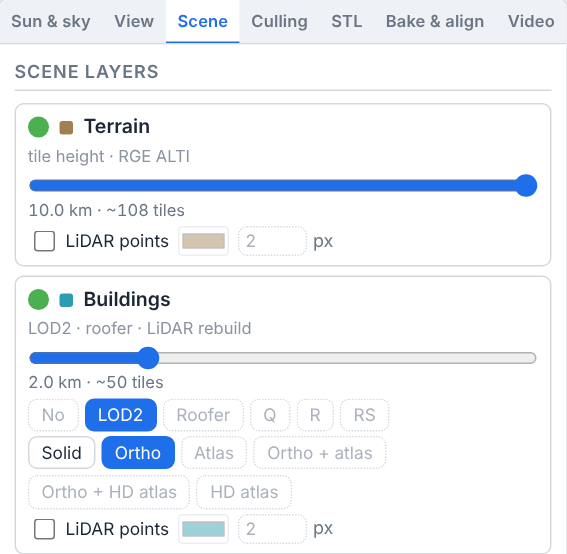
Four layers are listed: Terrain (tile height, RGE ALTI), Buildings (LOD2, rebuilt by roofer, or every building rebuilt from the LiDAR), Monuments (heritage meshes) and Vegetation (LiDAR HD canopy). Each card offers:
an eye toggle — and this one is not cosmetic: a hidden layer leaves the shading measurement too, so hiding it changes simulated yield. See the bake guard in Baking real 3D shading into the yield. A row whose layer is not part of the site's build has nothing to hide and shows a faint placeholder instead: Monuments until the build has reconstructed them. The Buildings eye shows and hides the buildings whatever their geometry, the rebuilt ones included. On Vegetation the eye and the mode chips are one state: hiding is the same as No, and the eye reopens on the mode last shown. A row's LiDAR points (below) show and hide with its eye.
a reach slider — the row's one distance knob, with a live
3.0 km · ~1000 tiles · built to 0.7 kmestimate beside it. Reach does two jobs. Inward, it culls: only tiles within that distance of the site stay loaded. Outward, past the edge of what has already been built, it also sets how far the next tile build for that layer is asked to go — but nothing is queued on your behalf. A line under the rows tells you a layer wants tiles that do not exist yet, and Refresh tiles (or Rebuild tiles) is what builds them (Tile builds). Dragging back in only narrows what streams; the tiles stay built. Terrain has a distance of its own instead of an area: reaching out on its row asks the next build for more ground, at full detail (1 m) out to about 6 km and at 5 m beyond, and a shorter distance makes the next Rebuild tiles quicker — the hills that shade the site are measured out to 8 km either way; Monuments shares one box with Buildings, and the last row moved sets it. Reach is view and performance only — the shading bake lifts every culling radius while it measures, so it never changes simulated yield. On Buildings with Q, R or RS, the reach is also how far every building is rebuilt from the LiDAR. A long reach is more than one tile build rebuilds: each build rebuilds the buildings nearest the site first and stops before its time limit, the buildings not rebuilt yet show in their simpler version meanwhile — the row says partly rebuilt: Refresh tiles — and Refresh tiles continues where the last build stopped. From a distance, each rebuilt building is drawn as a lighter copy of itself, replaced by the full one as you get closer; the shading measurement uses the full buildings around the site.geometry and texture chips. Every row but Terrain leads with a No chip that leaves the layer out of the next tile build; the choice underneath is kept, so switching the layer back on restores it. Terrain has no chips: it is always RGE ALTI relief draped with the BD ORTHO aerial imagery, which every tile build makes. Buildings offer one group of chips: LOD2 or Roofer — IGN's LOD2 buildings, or the same rebuilt by roofer from the LiDAR — and the quality presets Q (0.5 m sampling, faceted), R (0.3 m, smoothed, faceted) and RS (the detailed mesh with smooth normals), which rebuild every building within the row's reach from the LiDAR HD points, over the LOD2 or Roofer buildings last picked. Their texture treatment — Solid (untextured), Ortho (aerial imagery draped over the buildings), Atlas (per-building baked textures with real facade elevations), Ortho + atlas (roofs baked from aerial imagery onto each roof plane, with baked facades on the walls) and, with Q, R or RS, Ortho + HD atlas and HD atlas (in high definition, with walls and roofs made from real material photos and a room behind every window — floor, walls and furniture that shift as the view moves, the way flight simulators show building interiors; heavier to load and to prepare) — dresses the rebuilt buildings and the others alike. Texture choices are purely visual. Monuments offers the same presets and Roofer, its default. With Q, R or RS, Buildings adds a Ground clip (how much of each rebuilt building's foot is cut back,
0to3m above the local ground,1m by default), four plane fields — Walls and Roofs, each with a cleanup and a symmetry percentage,0to100in steps of10,0(off) by default — and a vegetation filter — No veg. filter, Veg: low, Veg: medium or Veg: high — that drops foliage the LiDAR welded onto the buildings, read from the aerial imagery. Each applies to every rebuilt building. The plane fields refine each dense mesh into the flat planes a building is made of: cleanup flattens every wall or roof slope onto its plane and sharpens the corners, eaves and ridges between them, while symmetry straightens the planes onto the building's own grid — walls upright and parallel or square to its main direction, roof slopes facing along or across it, nearly equal pitches made equal and nearly flat roofs made flat. Shadows are traced against these meshes, so the plane fields and the filter change simulated yield, and they are rebuilds rather than display toggles; a change of the plane fields rebuilds only the detailed buildings, quickly. Vegetation offers No, PCG foliage (the default) or Grid only — PCG foliage scatters solid procedural trees from the canopy density grid and shades the simulation identically to Grid only, which draws no trees at all.a LiDAR points line. No row offers the laser survey as one of its choices: every row can instead draw the raw points of IGN's airborne laser survey (LiDAR HD) over whatever it shows — tick LiDAR points, then pick the points' colour and their size in screen pixels (
1to10,2by default). Each row draws its own classes: the ground and water returns over the terrain, the building returns over the buildings — what LOD2, Roofer and the rebuilds are all made from, so a shape can be checked against the measurement — the returns inside each rebuilt monument's outline, and the low, medium and high vegetation over the trees, with PCG foliage or over Grid only. Each row starts in its own colour, the swatch beside its name, so several clouds on one screen read apart. The ground and building points cover a few square kilometres around the site. The points are a display layer only: the shading measurement never sees them, so neither the box nor the colour nor the size changes simulated yield. They are prepared only on request: ticking the box asks for them at the next tile build, the row says points not built until then, and Refresh tiles adds them without rebuilding anything else. A row on No has no points to draw.
Under the buildings row, Building colour pins the baked colour of every Roof or every Wall to one you choose, by ticking the box and picking the colour; otherwise each building's colour is measured from aerial imagery. It is useful where the imagery reads a roof wrong (in tree shade, under an overcast capture) and for walls, which aerial photography never sees. It takes effect with the next tile build and is purely visual.
Tile builds
A choice the site's cached tiles cannot show needs a tile build: the service builds this project's area of interest from the national datasets. Builds are counted against a separate monthly allowance of build-runner time, in seconds (Your Account, Team & Cloud Runs) — which is why they are buttons rather than reactions to a chip or a slider — and they are keyed to the project's cloud save, so a project that has never been saved to the cloud answers “Save the project to the cloud first — tile builds are keyed by the cloud save.”
A build also needs a plan; with none — a new account until it is verified (Verifying your account), or an account set up without one, since a company whose subscription ended or was cancelled is on the free plan — the page answers “Your plan does not include tile builds.” A build is charged the time the build runner spent on it: one that fails, or whose build runner stops answering, is charged the time it held the runner (Your Account, Team & Cloud Runs); one cancelled while still queued costs nothing.
Refresh tiles completes the site's tiles: it keeps every layer the existing build already has and builds only what a previous build reported missing or skipped. A build that is already complete is reused as is, so nothing is charged unless something is genuinely missing, and a build that reuses most of the previous one is charged only the runner time of the layers it builds.
Rebuild tiles queues a fresh build of every layer, past the covering cache — for tiles that look stale or wrong.
Stop build stops a build in flight and keeps what it has: the stage under way finishes, the rest is skipped, and the finished layers are published as this site's scene. A build still in the queue is cancelled outright instead. Refresh tiles afterwards finishes the job without redoing what was built.
Picking a geometry, texture or vegetation option the cached tiles cannot show does not start a build: the row says it needs one, and a line under the rows points you to Refresh tiles. The one ask the page makes on its own is when a layer of the site's tiles fails to load: it then asks the service for this site's tiles again, which is free where the build still stands, and says what came of it — newer tiles now streaming, nothing newer (the layer stays on its fallback; Rebuild tiles if it persists), or a rebuild under way.
While a build is known, a Tile build — this site strip appears with its cache key and its area of interest in kilometres, and each layer row of the console carries its own stage track — Terrain with the far horizon, Buildings with the atlas bake and, with Q, R or RS, the rebuild and its atlas, Monuments, Vegetation with its sources and canopy grid — each showing a planned figure, a live percentage and elapsed time, or its finished duration; the strip itself keeps the final Upload. The headline reads ETA ~4:10 (or the queue position, or that a build runner is starting), and its tooltip says whether that estimate comes from the fleet's recent builds or from static planning figures. It ends on Build complete, Build failed, or Build stopped early — showing what was built. The strip refreshes about every 20 seconds. With Advanced mode off, the same build shows on the Essentials tab as a tracker under Map size and its Refresh tiles: the strip's headline and cost, one bar for the whole build, one line per layer, and Stop build while it runs (Essentials and Advanced mode); Rebuild tiles stays on the Scene tab. Refusals are explicit: no site geometry drawn, an area of interest too large for one build, a site outside metropolitan France, no active plan, or the allowance used up.
Builds wait in one queue that every pvSpline customer shares, and paying customers' builds are taken first. While a build waits, the headline gives its place — queued · 2 ahead · ETA ~4:10. On the free plan that count includes every paying customer's build waiting, even one queued after yours, and the tooltip adds On the free plan, paying customers’ builds go first — including ones queued after this one — so the wait can grow while they run.
A free-plan build that is running when a paying customer's has waited about a minute with every build runner busy is taken back (Paying customers' work goes first). The headline then reads paused for a paying customer’s build · queued again instead of stopping · publishing what is built: the runner throws the build away, so nothing of it is published, and the build is queued again, to start over once a runner is free. The attempt is not charged against the tile-build allowance. While it waits again, the tooltip reads On the free plan, paying customers’ builds go first: this build was paused for one and queued again, and starts over once a runner is free.
Culling and the streaming budget
The Culling tab, shown in Advanced mode, carries the culling card. Like the scene layers, it is saved with the project, and it is pushed to the renderer on every connect.
Culling decides how much of the streamed globe the renderer keeps loading and refining, so it is the lever to pull when a large site streams badly, or when a distant hillside looks too coarse in a presentation shot. Each of the three layers (Terrain, Buildings, Vegetation) has a Detail (screen-space error) slider and three switches:
Detail (screen-space error) is the maximum screen-space error in pixels: a tile keeps refining until its projected error drops under this value. Higher = coarser tiles, fewer loads and a lighter scene; lower = sharper geometry at a real streaming cost. The default of
16is the renderer's shipped setting.Frustum skips tiles wholly outside the view. Leave it on; switching it off keeps refining off-screen tiles so fast camera swings look smoother, at a real streaming cost.
Fog skips tiles hidden behind the atmospheric fog.
Occlusion skips tiles hidden behind other geometry. It is inert until the renderer's experimental occlusion setting is enabled; the choice is kept for the day it is.
At the top of the card, Frustum culling (whole scene) decides frustum culling for every layer at once: the three layers, and also the monuments, the rebuilt buildings and the LiDAR points, which have no switch of their own. It is on by default. Untick it and nothing outside the picture is skipped any more: quick camera turns show no gaps, and the buildings, trees and relief behind the camera stay loaded and keep casting their shadows into the view, but the renderer downloads and keeps a lot more. While it is off, each layer's own Frustum switch is greyed out and has no effect; it keeps its value for when the whole-scene switch is back on.
Three scene-wide knobs follow. Tile-load budget sets how many tile loads the renderer keeps in flight: Balanced (default) is the shipped setting, Conservative is for a link or machine that hitches, and Aggressive streams faster at the cost of frame hitches (on a slow link it can also make the shading bake's tile wait time out). Tile cache caps how many megabytes of tiles each layer keeps resident for when the camera swings back. Ortho detail (screen-space error) is the aerial imagery drape's own screen-space error: lower is sharper imagery, and changing it re-streams the drape. Reset to defaults returns every knob to the shipped posture, the Viewer defaults note reappears, and the section leaves the project file altogether.
Note
Culling is view and performance only. The 3D shading bake lifts the whole posture while it measures and restores your settings afterwards — so nothing on this card changes the simulated yield. The reach sliders of the scene-layer console, on the Scene tab, are saved with the project too, and the reach you leave on a row is what the next tile build for that layer is sized to.
Exporting the scene as STL
The Export STL card, on the STL tab, writes the site's 3-D scene as an STL file, cut to a square around the site: the tiles the 3D view and the shading bake use, the project's PV modules and CAD models, and the trees. It needs no streaming session — the engine downloads the built tiles itself, so a large square takes a while — but it does need the site's tiles to be built (Tile builds); until then the card says so and points to Refresh tiles.
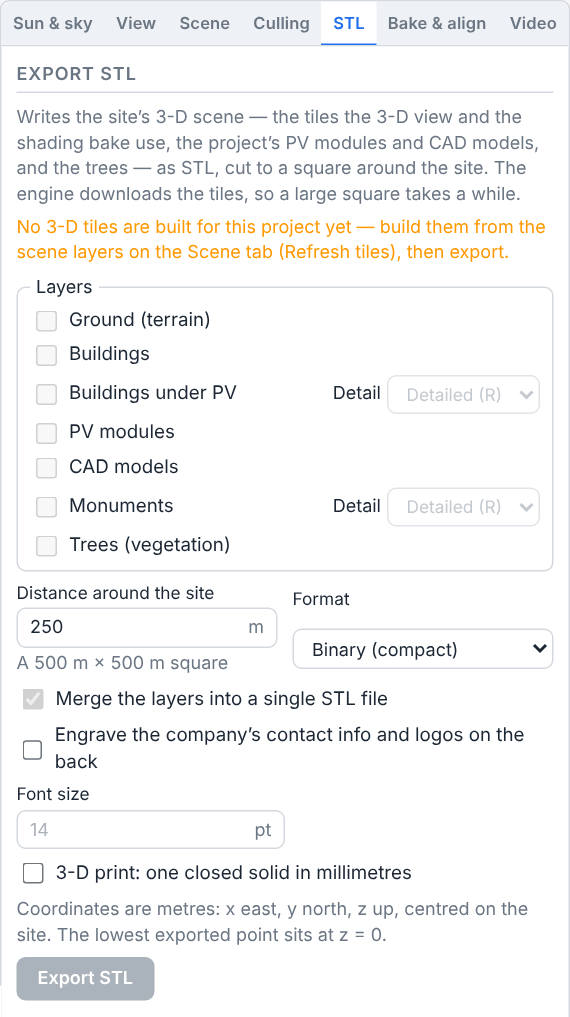
Layers — tick what goes in: Ground (terrain), Buildings, Rebuilt buildings (Q, R, RS), PV modules, CAD models, Monuments, Trees (vegetation). A layer the project does not have is unavailable, with the reason. The modules are fitted onto the ground, roof or CAD model under them exactly as in the 3D view, even when those layers are not exported; the trees are solid cones.
Detail — beside Rebuilt buildings (Q, R, RS) and Monuments: Detailed (R) or Fast (Q), the reconstruction to export.
Distance around the site — half the side of the exported square, shown as
A 400 m × 400 m square. Nothing is exported past the ground the tiles were built for.Merge the layers into a single STL file — unticked, each layer gets a file of its own, downloaded together as a ZIP; every file shares the same frame, so the layers reassemble exactly.
Format — Binary (compact) or ASCII (text, one named solid per layer). Coordinates are metres, x east, y north, z up, centred on the site, with the lowest exported point at z = 0.
3-D print: one closed solid in millimetres — merges the chosen layers into one closed solid on a flat base that a slicer can print, with a Print width, a Base thickness and a Vertical exaggeration (a flat site reads better at 1.5 to 3); the resulting scale is shown as
Scale 1:2000.Engrave the company's contact info and logos on the back — cuts the company's name, address, phone and email, its logo and the pvSpline logo, mirrored, into the underside, at the Font size you set.
Export STL shows the engine's progress (Cancel stops it), then reports the triangle count, the file name, where the frame is centred, and the map-data credit to keep with the model wherever you share or print it; Download again fetches the same file. An export that would be too large asks you to reduce the distance, choose fewer layers, or use the binary format.
Baking real 3D shading into the yield
This is the one action on the page that changes your energy result. Bake 3-D shading measures shading factors against the actual 3D scene — terrain, imported meshes, procedural buildings, neighbours and vegetation — and stores them in the project, where the next simulation uses them in place of its analytic near-shading model.
What is measured
The engine plans the request (so the sun grid and the geometry fingerprints cannot drift between surfaces), the renderer measures, and one table per PV array comes back. Each table carries:
a direct-beam shaded fraction sampled over a regular sun grid — a rectangular mesh of azimuth × elevation bins covering the site's sun path, stored per panel group and per substring band, so a partially shaded array is debited per string rather than as a whole;
a sun-independent sky-view factor per panel group, which governs how much diffuse irradiance the plane of array actually sees;
a rear-view factor per group, which does the same for the back of a bifacial module.
Riding the same gesture, a terrain skyline sweep fires one horizon sample at each array's footprint centroid. The replies are merged into the project and feed the far-shading gate — which takes, direction by direction, the higher of this measured skyline and the site's far horizon, so a sweep can add a nearby obstacle but never erase a distant valley wall — and the yellow measured line on the horizon panorama chart (Charts, Heatmaps & Tables). The status line reports it: “Terrain skyline sweep requested for 3 array(s) — it rides the bake”, then “2 terrain skyline(s) stored in the project (far-shading gate + horizon chart)”. If the renderer returns no skyline, the PVGIS horizon stays in force; a sweep that ran on partly streamed tiles is flagged, since its skyline may miss terrain that had not loaded.
The far horizon without a sweep
Beside the button, Far horizon without a 3-D sweep decides what an array that was never swept gets. Auto — far horizon alone (default) applies the site's far horizon anyway — the tile build's terrain model marched from the array, else the PVGIS horizon — because the irradiance sources pvSpline converts carry no horizon of the site; On — far horizon alone pins that; Off — only with a 3-D sweep applies no far horizon until the array is swept. A PVGIS G(i) run never attaches one, whatever this says: its irradiance already includes the horizon. It is a project setting the simulation reads, and the same choice appears on the weather card of Production (Running a Simulation & the Production Tab).
What it changes in the yield
For every array whose table is accepted, the solver's near-shading term stops being an analytic estimate of row-to-row shading and becomes a measurement of the real scene: the actual neighbour, the actual tree line, the actual chimney. The sky-view and rear-view factors likewise replace the analytic diffuse and rear-side geometry. Arrays without a table keep the analytic model, silently and per array — a partial bake is perfectly valid.
Watch out
A hidden scene layer leaves the measurement. If any layer is switched off in the scene console when you bake — Monuments included — the bake measures a scene without it and the simulated yield will not include its shading. The page guards against this: “The following scene layers are switched off: … Bake anyway?”, with Bake anyway and Cancel. Do not click through it out of habit.
The same confirmation lists the other ways a bake would measure the wrong scene: layers streaming a fallback instead of this project's own tiles; Buildings hidden while Q, R or RS streams their rebuild, so the building the panels stand on casts no shadow; vegetation on with no canopy density grid loaded; ground within reach of the arrays where the tile build has no data; buildings from a build too old for the bake to see beyond the camera; and simple building blocks from a build made before each block stood on the ground, which float their own height above the terrain (the Buildings row says so too: floating: Refresh tiles). Each names its remedy — usually Refresh tiles. A row's LiDAR points never come into it: the measurement never sees them, built or not.
After a bake, a table measured on a scene that had not fully streamed — the tile wait timed out, or the panels had not settled — is reported as measured best effort, with the share of tables affected; bake again once the scene has streamed.
The quality knobs
Six knobs sit above the button. They are saved with the project and apply to the next bake.
Penumbra samples sets how many depth captures are jittered within the sun's 0.53° disc per sun position.
1gives hard shadows (fastest, and the default);8–16produce fractional penumbra at shadow edges. Higher values multiply bake time.Foliage picks the season the vegetation attenuation is baked for — deciduous trees block less light in leaf-off winter. Annual (the default) uses full foliage; a per-month choice needs a canopy density grid loaded in the scene.
Hourly suns traces all 8760 hourly sun positions rather than interpolating between sun-grid bins, which is most accurate at low sun. It is honoured only by ray-tracing builds and ignored otherwise, so it is safe to leave ticked. Over the cloud stream the 8760 positions travel in several pieces; a cloud session that cannot take them gets the request without the list, the page says so under the bake's status, and the bake measures the usual sun grid.
Opaque canopy treats every tree crown as fully opaque — the solid-tree upper bound an independent near-shading model quotes. Off (the default), light passes through the crown at the opacity the LiDAR measured. Bake both for a bankability report, and quote the pair.
Tree growth (years) grows the trees that many years past the LiDAR flight before measuring (about 0.35 m of height and 0.15 m of crown radius per year).
0is the canopy as flown; a mid-life value approximates the plant's lifetime mean.Clearing (m) is the width of the cleared strip around each array footprint. The LiDAR predates the plant, so vegetation standing where the arrays are drawn — plus this buffer — is removed before the bake.
How long it takes, and how to follow it
A real bake is minutes, not seconds. A progress row appears under the picture headed 3-D shading bake: and walks through requesting…, waiting for tiles…, waiting for placement…, then a determinate bar reading 420 / 2 500 sun bins · 1 / 3 array(s) · ETA 3 min 20 s, and finally finished in 4 min 51 s. The ETA comes from a running average of the measured bin rate, so it settles after the first few events. The row lingers six seconds on completion, and hides itself after two minutes of silence. While the bake runs, and the POV pictures after it, the 3D view is locked (While a measurement or a capture runs).
Caution
The browser waits for as long as the viewer keeps reporting progress, so a long bake is never cut short. It stops waiting when the viewer answers nothing within a minute of the request, when it falls silent for five minutes in the middle of the bake, or when it has finished and the missing tables have not arrived within a minute and a half. Whatever arrived is stored and the page reports “Bake incomplete — m of n table(s) received and stored; the missing arrays keep the analytic model.” Bake again to fill the missing arrays.
Other outcomes: “Bake complete — n shading table(s) stored in the project. Save to keep them.”; “Add at least one PV polygon before baking shading.” When nothing could be stored, the status line says why: the viewer refused the request; it did not start the bake (“nothing came back within a minute” — it is usually still busy with an earlier bake: wait a moment and bake again, or end the session and start a new one); it stopped reporting in the middle of the bake; it measured the tables but the page could not download them from the session; or it finished but no table reached the page. Each ends “nothing was stored” — bake again. A finished bake also triggers the point-of-view captures described in Pictures for the report.
Caution
Baked tables live in the project document, not in the browser. Save the project after a bake or you will spend the streaming seconds twice. A save to your account keeps them, and so does an exported project file.
Telling whether the bake is still valid
Once a project carries tables, an Inherited 3D shading bake panel appears under the button and tells you, array by array, whether the measurement still applies. This is the most important part of the page for anyone who has to defend a yield figure.
It opens with the summary: “This project carries n measured shading table(s) baked in the 3D viewer. The simulation uses them instead of its analytic near-shading model — but only while what they were baked against still matches: the arrays' layout and the buildings and obstacles drawn around them.” Then one line per array with its Sky view and, when non-zero, its Rear view factor. Then its verdicts.
Whether a run applies a table is the engine's call: before it uses one, it recomputes the array's layout key — a fingerprint of the fields named below and of every building and obstacle drawn on Map — and compares it with the key the table was measured under. The panel asks the engine for those keys whenever the arrays change, so its verdicts are the engine's own. When the engine cannot answer, the panel compares the project with the snapshot saved alongside the bake instead, and adds the last two notes below.
| Verdict | Meaning / effect |
|---|---|
| Array(s) …: the layout changed here | You edited a field the engine fingerprints — tilt, azimuth, panel gap, row gap, orientation mode, dome ground coverage ratio, floating, field type, or the footprint's position (to about 0.1 m) — or the buildings or obstacles drawn around it: one drawn, deleted, moved, given another model or another height re-keys every array. The engine will refuse the baked table: the array then runs on the analytic model, which sees no building and no tree — without rows, a dome or sheds, it counts no near shading at all. Re-bake. |
| Array(s) …: the engine refuses the baked table | The engine's key for the array no longer matches the table's, by a change the saved snapshot does not show — or the table was keyed by an older engine. Same consequence as above. Re-bake. |
| Array(s) …: the scene moved | A building, an obstacle or the array itself moved by less than the fingerprint notices (about 0.1 m), so the engine will keep applying factors measured against the old scene. Silently wrong rather than merely estimated. Re-bake before trusting the result. |
| Array(s) …: the engine's layout check passes | The tables were measured on the layout these arrays have now, so a run uses them instead of the analytic model. If the report of such a run has no Near shading page, the measurement found no shade on those arrays: the report prints no page for a chart with nothing to draw. |
| Array(s) … were never baked | Those arrays always run on the analytic model. |
| Nothing that would invalidate a table has changed | No detectable change since the last save. Read it as “nothing has been proved to have changed” — the page cannot recompute the engine's fingerprint, so it can never confirm a bake is fresh, only report one that is stale. |
| Change-checking covers … | Three fingerprinted fields — ground coverage ratio, tracker and rotation limit — are not carried in the snapshot the check compares against, so a change to those would go unreported here even though the engine would still drop the table. They change when a baked zone takes a module type with other tracking — a tracker type on a fixed zone, a fixed type on a tracked one, or a tracker with another rotation limit or ground coverage ratio — through a Panel type pick on Map or the PARAMETERS Type row (The Map & Site Design Tab): re-bake after such a pick, whatever this panel says. Nor can it tell which fingerprint version keyed a table: one baked before the fingerprint began keying the array's position is refused by the current engine exactly as a changed layout is — bake it again. |
Tip
The safe habit is simple: bake last. Finish the layout, the module types, the buildings and the obstacles, then bake, then save and run. If you touch the geometry afterwards, look at this panel before you quote a number.
Inspecting shade before you bake
Panel shadow overlay on the View tab colours every panel by the fraction of beam sunlight it is missing at the current sun — pale for fully lit, deep blue for fully shaded — with a legend drawn in the bottom-left corner of the picture. It updates live as you scrub the time of day, and counts nearby obstacles and vegetation only; the distant horizon is a separate calculation. It needs a live session, and it changes nothing: it is the fastest way to find out which obstacle is the problem before spending a bake on it.
Aligning the 3D scene (map offset)
Photoreal 3D tiles can carry a small horizontal datum shift, so placed panels and buildings may not line up perfectly with the mesh. X — East and Y — North on the Bake & align tab nudge the tileset east and north in metres to correct it. The offset is saved per project and re-applied whenever a session connects.
Rather than dial it in by hand, click Auto-align 3D — like the two fields, it is shown in Advanced mode. It sets a clear noon sky and has the 3-D server render a view of the site from straight above at four zoom levels, each at exactly the ground scale of the 2D basemap for the same spot and with your placed geometry hidden. It correlates each against the basemap, fuses the results and writes the two fields; your own view of the scene does not move. Progress appears under the button (“Noon + clear sky…”, “The 3-D server is rendering z20 from above (attempt 1)…”, “Correlating z19…”, “Fusing 4 zoom level(s)…”), and the outcome reads Aligned: ΔE 1.8 m, ΔN -0.4 m (quality 7.3, ±0.31 m) — the eastward and northward shift it measured, a quality score, and the spread across the four levels. The sky is put back afterwards.
Tip
If newly placed panels appear to hover beside a rooftop rather than on it, run Auto-align 3D once. The measured offset persists with the project, so you normally only do this a single time per site.
Alignment fails honestly rather than guessing: “The 3-D server could not render the view from above — wait for the tiles and retry”, “The basemap tiles could not be read … the imagery server refused or is unreachable”, “Alignment quality too low across the zoom levels. Let the tiles stream in so the same buildings are clearly visible, then retry.”
The sweep diagnostic
Tick Show the sweep diagnostic to reveal a diagnostic row: Rows, Columns, Spacing (m) and Zoom level, plus Sweep offset (diag). It samples the measured offset across a grid of points around the site and downloads the result as pvspline-offset-sweep.csv. It does not change the applied offset — it exists to show whether the shift is uniform across the site or varies with position. The toggle is saved with the project.
The sky and weather
The Weather group on the Sun & sky tab drives the scene's cosmetic sky. Pick a Preset (Clear, Partly cloudy, Overcast, Fog, Rain, Storm, Snow) and it fills in sensible cloud, precipitation, fog and wind amounts, which you can then fine-tune with the four percentage fields. Wind drives foliage sway, rain skew and cloud drift, not just clouds. All six values save with the project, and the panel says plainly: “Visual only — the sky never feeds shading or yield.”
Real weather from Open-Meteo
Tick Real weather to paint the actual archived weather for your site onto the sky, using the same Open-Meteo data the simulation uses, on the inspection date at the chosen time of day. The preset and amount fields go read-only and are filled from the data; the status line reports the resolved condition, for example Overcast at 14:00, 12 Jun 2025 (9 °C). Scrubbing the time of day re-derives the sky hour by hour — a passing shower or gust appears — without refetching. Because the weather archive lags real time, selecting the current or a future year falls back to the most recent fully-archived year for the same calendar day, and the status line flags this as “— latest archived year”. Real weather pairs with Simulate real sun to reproduce a specific moment. It needs a project location; with none it answers “No project location yet — open or place a project on the map first” and unticks itself.
While the archive is looked up the status line reads “Fetching weather…”. If the weather service cannot answer, the line turns red and reads “Weather unavailable:” followed by the reason. Real weather stays ticked and the preset and amounts stay locked, so untick it to set the sky by hand; moving the date or the clock, or ticking the box again, asks the service again.
The accurate sun, the day sweep and the season
The sun is driven from the deck under the picture and the top of the Sun & sky tab.
The Date picker on the deck sets the inspection day, and four quick-jump buttons sit beside it: Mar 20 (spring equinox — the sun rises due east and sets due west), Jun 21 (summer solstice — highest sun, shortest shadows), Sep 22 (autumn equinox), Dec 21. The winter solstice gives the lowest sun and the longest shadows — the worst case for self-shading, and the date most worth inspecting. The buttons keep the year you are on.
A time slider runs the whole day at one-minute resolution, with a clock field beside it reading
14:30. Both are Local time, the site's clock, named beside them (UTC+2): the site's legal time, summer time included — that of the place where it lies and, within a few kilometres of a border, of the country the address lookup found. In metropolitan France that is Paris time,UTC+1in winter andUTC+2in summer; across the border it is Berlin or London time, in Seattle Pacific time. Far out at sea, it is the whole-hour offset from UTC nearest the site's longitude. Type into the clock or drag the slider; the sun, the shadows and any real-weather sky follow immediately.Animate the day sweeps the clock round the whole day, from 00:00 to 23:59, and loops, starting from the time on the clock; the button becomes Pause. The dropdown beside it sets the pace, in seconds of animation for each hour of the day:
5 s per hourby default, so the whole day plays in 2 minutes, from0.5 s per hourfor a quick look at the day to20 s per hourto follow one shadow across a roof. A new speed applies at once, even mid-sweep, and it is saved with the project. This is the shadow study you show a client. While it runs the sky itself plays in time-lapse too — the clouds drift across the sky at sixty times their real pace, so the weather moves with the shadows instead of standing still — and it returns to its real pace when you pause. It stops by itself whenever a measurement, a capture or a recording holds the scene, and cannot be started again until it ends (While a measurement or a capture runs). The sweep has no hours to set: to show only part of the day, record a sun-path clip, whose From / to hours set its span (Video and fly-through export).Simulate real sun (on by default) positions the sun physically from the site location, date and time of day, so the ray-traced shadows reproduce real self-shading. Untick it for a simple day/night cycle.
North yaw aligns the scene's north with true north. Leave Auto north yaw ticked (the default) to derive it from the georeferenced scene; untick it only to calibrate by hand, in which case set it so a solar-noon shadow points true south.
The sun's current position, in azimuth and elevation, is on the corner card of the Floating stats overlay, drawn in the picture (The floating stats overlay).
Watch out
With Auto north yaw off, a wrong North yaw value rotates every shadow, making the self-shading you inspect inaccurate — and a bake run in that state measures the rotated scene. Unless you have a specific reason, keep it on.
The inspection date is also the “current day” that drives the biome growth season: as you move it, agrivoltaic crops and drawn vegetation re-stage (green, then dry, then cut) and re-height, and any real-weather sky re-derives for the new day. It also sets the blade angle of a Brise-soleil on a seasonal or monthly schedule, which the scene redraws as you move it. This links the 3D scene to the seasonal picture you build across the map and production views.
The floating stats overlay
Floating stats (on by default) shows heads-up cards inside the picture — so a screenshot, or a recorded clip, carries them:
a corner card headed with the inspection moment and its clock (
21 Jun 2025 · 14:30 UTC+2), carrying Sun (azimuth and elevation), Weather (preset and cloud percentage) and, once a run has finished, that run's Production and Performance ratio plus its loss and gain lines in cascade order: Transposition, Far shading, Near shading, Mismatch, Bifacial gain, Temperature. Zero rows are skipped. Production is the year-1 net AC energy at the project's exceedance percentile (Probabilistic production (P50/P75/P90/P99)) — P90 by default — although the card does not name the percentile;one card floating above each baked array showing its live Beam shade at the current sun, its Sky view factor and, when non-zero, its Rear view factor. The beam-shade line is re-interpolated from the baked table every time the sun moves, so it animates as you scrub the clock, and is dropped at night.
The cards are display only and never affect the simulation. The toggle is saved with the project.
Pictures for the report
Point-of-view captures
Capture POV charts, on the Bake & align tab, has the 3-D server render two pictures and writes them into the project:
the horizon panorama — a 360° strip rendered all around the eye point the terrain horizon sweep measured from, the site's own panels hidden, drawn at true angular scale from 10° below the horizon up to the sweep's own 60° ceiling, with the measured skyline drawn over it as a yellow line. The line should hug the rendered ridge and rooftop silhouette; a floating or buried line means the sweep measured from the wrong place and the far-shading gate should not be trusted;
the near-shading render — a depth view of the array from the sun's own direction, nearer surfaces brighter, with every panel spot the shading measurement samples marked green when it is sunlit, red when it is shaded and slate when its panel faces away from the sun. Every shape that turns a spot red is an occluder the near-shading loss debits.
This runs automatically after every successful bake, and on demand from the button (a bake is minutes, the pictures are seconds). It needs a live session and at least one PV array. Progress reads “Horizon panorama — the 3-D server is rendering it…”, then “Near shading render — the 3-D server is rendering it from the sun…”; your own view of the scene does not move. If the sun row is below the horizon the panorama is still captured and the render is skipped, with the reason given. A 3-D server that cannot render them says so beside the button, which stays greyed out: “This 3-D server cannot render the POV charts yet.” Captures are filed per site in this browser and survive a reload. They are also written into the project, so a downloaded project file carries them, and a project saved to your account keeps them with its fetched series (What a project saved to your account keeps).
Exposure
Exposure bias on the View tab sets the auto-exposure compensation applied to the view and to the pictures captured from it. Raise it to brighten a shot dominated by dark shadow, lower it for a bright sky. It is saved per project.
The 3D view and the PDF report
The PDF report is rendered by the simulation engine, which has no 3D renderer to photograph, so a report exported from the browser carries no live 3D page. The point-of-view captures above are the exception: the view writes them into the project, and the report prints them from there — the horizon panorama with its measured skyline and the near-shading render with its caption — under Losses and shading, like the chart list of Charts, Heatmaps & Tables. A capture taken after a run reaches the report from the next run (Summary and picture pages). To put the 3D view itself in front of a client, take a screenshot of the picture (with Floating stats on, the numbers come with it) or export a clip. See Reporting & Export for the report itself.
Video and fly-through export
The Video tab records a time-lapse of the scene while the sun sweeps across a chosen day, and hands the finished clip to Video player. The 3-D server records the clip itself: it renders every frame at the chosen resolution, then encodes the clip and sends the finished file to the page, so the clip keeps the full resolution whatever the stream shows, and its format does not depend on your browser. The page says so under the button, with the shortest the export can take: “Clip length: about 4.0 s. The 3-D server renders each frame at the chosen resolution and encodes the clip itself: the export takes at least 15 s, warm-up included.” A 3-D server that cannot record videos says so there instead, “This 3-D server cannot record videos yet.”, and Record the sun path stays greyed out.
Export a sun-path fly-through
With a session live, open the Video tab. Set the Date — or click Use the viewer's date to take the one on the sun deck.
Choose the Camera mode. Fixed (current view) holds the camera where it is so only the shadows move (a shadow study — and the default). Orbit around the site circles the camera; it exposes Orbit radius, Camera height and Revolutions. Path flies the smooth open curve of the map's Video path and is offered only once that path has at least two waypoints.
Set the sweep window with the two From / to fields (hours on the deck's clock) and tick Skip frames while the sun is below the horizon to drop night frames.
Set Frames and FPS; together they set the clip length, shown live. Pick a Resolution up to 4K — the export is rendered at that size, not at your window size — and a Format; the formats the 3-D server cannot encode are greyed out.
Set the capture timing: Warm-up gives the scene time to settle at the first frame before the recording starts, and Delay between frames gives every frame time to settle before it is captured — a smoother clip, a longer export (see below).
Name the file in File name and decide whether Download the clip when the recording finishes stays on.
Click Record the sun path. A frame counter tracks it and Cancel the recording stops it (a cancelled recording keeps nothing). The counter then says the 3-D server is finishing and sending the clip, and that the page downloads it — part by part, for a large clip. When it finishes you land on
/videowith the clip loaded.
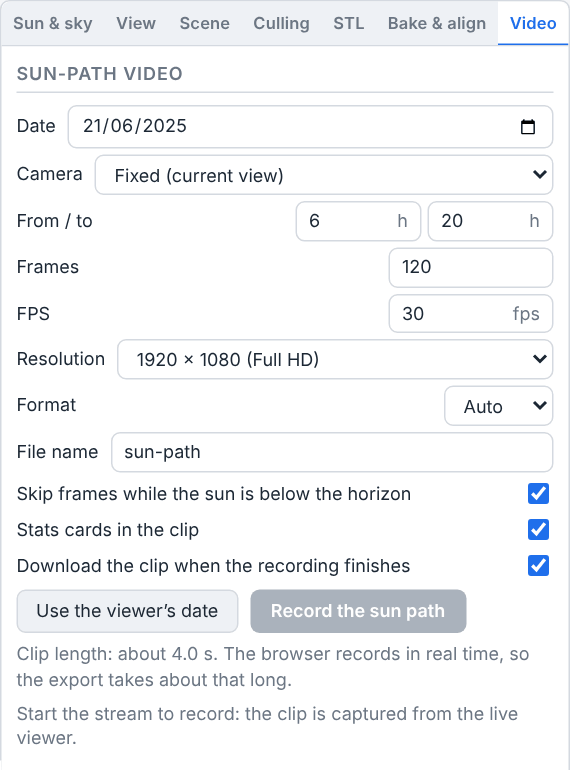
The clip settings — date, camera and orbit geometry, time span, frames, frame rate, warm-up and delay between frames, resolution, format, night skipping and the stats cards — are saved with the project, so a clip set up once is what the next export renders.
Warm-up and Delay between frames decide how settled the recorded picture is. The warm-up (1 s at first) is spent on the first frame's sun, sky and camera before the recording starts, so that its tiles stream in and its shadows settle; it is never part of the clip. Then, for every frame, the page moves the sun, the sky and the camera, waits for the Delay between frames, and has the 3-D server render the frame. The wait is never shorter than 0.12 s, even at 0, the default. A longer delay gives each frame's shadows and tiles more time to settle before it is rendered. The clip keeps its frame rate and its length, and only the export takes longer: at 0.3 s, the default 120 frames take at least 37 s to export instead of 15 s, as the line under the button shows, and each frame's render and encode on the server come on top. Keep the page in front while it records: a browser slows the timers of a page left in the background, and the export then takes longer.
In Path mode the camera optics come from the Video polygon's own card on Map (The Map & Site Design Tab): the camera holds that zone's Camera azimuth while it travels, unless Focus nearest panels is on, in which case it aims at the closest array and hands focus from array to array. Heights are metres above the ground — one uniform Height (8 m by default) or one per point — Lens zoom narrows or widens the rendered view (1× natural, up to 8× telephoto, down to 0.5× wide), and Follow terrain picks between hugging the ground dynamically and flying level at the path's mean terrain height.
Stats cards in the clip (on by default) draws the floating cards into every frame, refreshed to that frame's own sun and clock, so the recorded clip carries stats that match its shadows. Nothing is drawn unless Floating stats is switched on.
The clip is rendered under the sky of the Sun & sky tab: every frame carries the weather row — preset, cloud, precipitation, fog and wind — at that frame's own time of day, so the sky goes through dawn, day and dusk with the shadows rather than holding whatever clock the tab was parked at. With Real weather on, the archive weather is re-derived for each frame's hour, so a passing shower or a clearing afternoon moves through the clip the way it does when you scrub the clock. The clouds drift in time-lapse across the recording, and the viewer's sky returns to its real pace when the recording ends.
Caution
A recorded clip lives in the browser's memory and, best effort, in its local storage. Leave Download the clip when the recording finishes on. If a reload destroys clips that were neither downloaded nor stored, the page tells you which ones and reminds you that nothing can bring them back.
The Video player
Video player (the video icon, at /video) plays the clips generated in the 3D view. Every clip you record is appended as a Video: slot button across the top, labelled with its file name and auto-selected as soon as it lands; click a slot to load and play it. Its rail entry is greyed out until a project is open, but the page itself needs none — clips are browser artefacts, and /video stays reachable even after you clear the project.
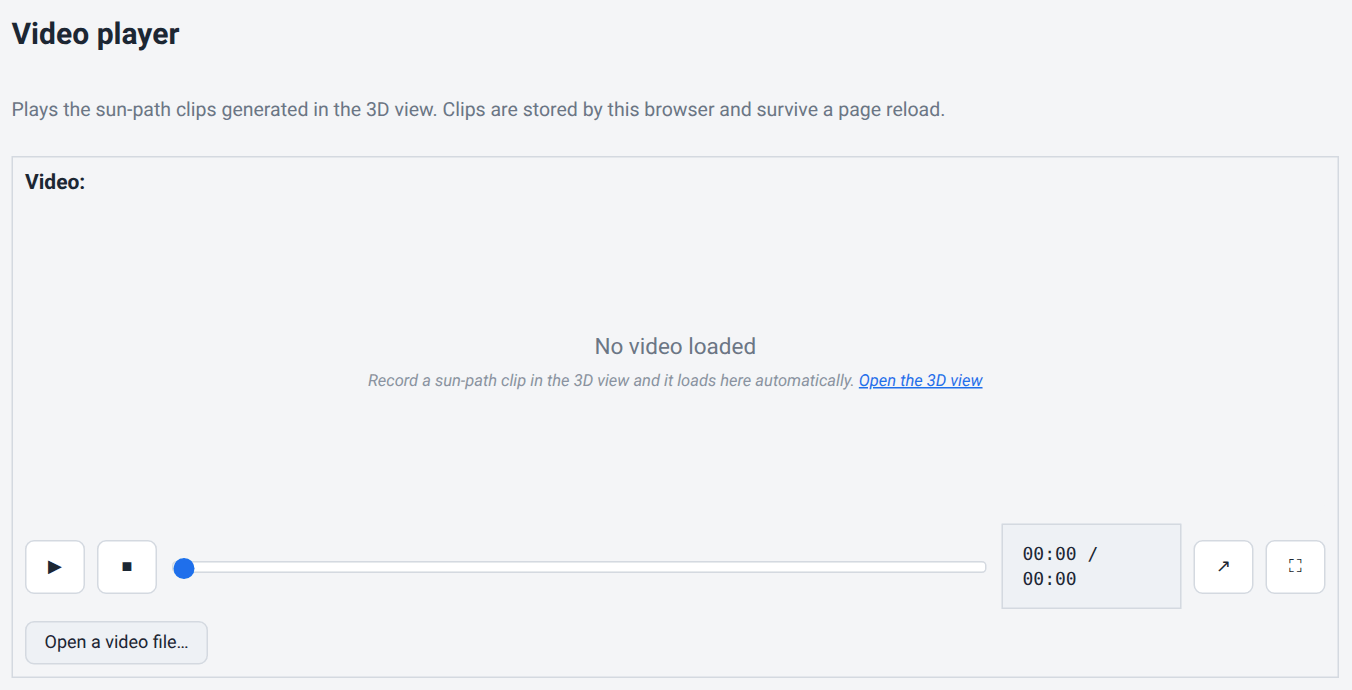
The transport row carries Play / Pause, Stop, a seek bar with an 01:12 / 04:00 readout, Open in a new tab and Toggle full screen (F). Keyboard, with the video focused: Space plays and pauses, F toggles full screen; double-clicking the video also toggles full screen. Clips loop and play muted (a recorded clip carries no sound).
Three web-shaped actions sit below: Download … saves the current clip to disk, Open a video file… loads a clip back from disk (the way back for one you downloaded and then lost), and Drop this clip removes it — with a confirmation when it was never downloaded, because its stored copy goes with it. A footer counts the clips this browser is holding, with the space they take, and warns when some of them would not survive a reload. The browser keeps every clip until you drop it, within the space it allows the site: when that is full, a new clip stays in memory only, so download it. If a clip will not decode, the slot row says “Error: invalid media”.
Field reference
The tables list every control on the page, under the tab Advanced mode shows it on. Without Advanced mode, the essentials among them share the one Essentials tab and the rest are hidden, and Map size, Refresh tiles and the build tracker, listed with the View tab, stand in for the Scene tab's reach sliders and build strip (Essentials and Advanced mode).
Session bar and picture controls
| Field / Control | Type & unit | Default | What it does & how to set it |
|---|---|---|---|
| Start streaming | button | — | Reserves a cloud GPU, boots the renderer on your project and opens the live picture. Disabled until you are signed in and the streaming player is available. Boot does not count; the meter starts when the picture goes live. |
| End session | button | — | Releases the GPU and closes the ledger entry. Replaces Start streaming while a session is requesting, starting or live. |
| Session status | read-out | Not connected | Not connected / Requesting a session… / Starting the cloud renderer… / Live / Session over / Session failed, with the reason appended in words when there is one, such as “the page stopped answering and the session was closed”, or “ended to make room for a paying customer” for a free-plan session a paying customer's start ended. |
| Meter | read-out | — | The seconds this session has streamed and what is left of your monthly streaming allowance. Refreshed about every 30 s. See Your Account, Team & Cloud Runs. |
| Quality | dropdown | High | Render fidelity of the streamed picture: Medium, High, Epic, Cinematic. Medium is the lowest; a project last saved at Low opens at Medium. Applies live; saved with the project. Advanced mode only. |
| Performance HUD | checkbox | off | Shows the 3D engine's frame rate, frame times, CPU, GPU, memory and video memory use, the settings in force and, while a recording or a bake runs, what it costs, in a card over the picture. Never in a screenshot or a video. Your own preference, not saved with the project. Advanced mode only. |
| Fly to the PV arrays | button | — | Moves the camera in front of the placed panels, facing the array. Needs a live session and at least one PV polygon. |
| Pop out the picture | button | — | Fills the screen with the picture; becomes Back in the tab. Esc also returns. Enabled only while live. Advanced mode only. |
| Advanced mode | checkbox | off | Shows every control of the page, in seven tabs: Quality, Performance HUD and Pop out the picture here, the Scene, Culling and STL tabs and the expert settings of the other tabs (Essentials and Advanced mode). Off, the page keeps to its essentials, on the one Essentials tab. Saved with the project. |
The sun deck (under the picture)
| Field / Control | Type & unit | Default | What it does & how to set it |
|---|---|---|---|
| Date | date picker | 2025-06-21 | Inspection date — sets the season and thus sun elevation. Also drives the vegetation growth season, the blade angle of a scheduled brise-soleil and the real-weather lookup day. |
| Mar 20 / Jun 21 / Sep 22 / Dec 21 | buttons | — | Jump to the equinoxes and solstices, keeping the selected year. Dec 21 is the lowest sun and the longest shadows — the worst case for self-shading. |
| Local time (slider) | slider · min | 12:00 | The whole day at one-minute resolution, on the site's clock named beside it: the site's legal time, summer time included, such as Paris time in metropolitan France. Saved per project. |
| Local time (clock) | time field | 12:00 | The same moment as HH:MM, steps of one minute. A cleared or half-typed value is ignored rather than read as midnight. |
| Animate the day | button | — | Sweeps the clock round the whole day, from 00:00 to 23:59, and loops, at the speed set beside it, starting from the time on the clock; becomes Pause. Stops automatically when a capture, an alignment or a recording needs the camera. |
| Animation speed | dropdown | 5 s per hour | How fast Animate the day runs, in seconds of animation for each hour of the day: 0.5, 1, 2.5, 5, 10 or 20. At the default, the whole day plays in 2 minutes. A new speed applies at once, even mid-sweep. Saved with the project. |
Sun & sky tab — sun
| Field / Control | Type & unit | Default | What it does & how to set it |
|---|---|---|---|
| Simulate real sun | checkbox | on | Positions the sun physically from the site location + date + time of day, so ray-traced shadows reproduce real self-shading. Off = simple day/night cycle. Display only. |
| Auto north yaw | checkbox | on | Derives North yaw from the georeferenced scene. Untick to set it by hand. |
| North yaw | number · ° | 0 | Aligns the scene's north with true north. Range -180 to +180, step 1. Disabled while Auto north yaw is on; when off, set it so a solar-noon shadow points true south. |
Sun & sky tab — weather
| Field / Control | Type & unit | Default | What it does & how to set it |
|---|---|---|---|
| Real weather | checkbox | off | Drives the sky from Open-Meteo archive data for the site, on the inspection date at the chosen time of day. Locks the preset and the four amounts while on. Needs a project location. Shows “Weather unavailable: …” when the weather service cannot answer; untick it to set the sky by hand. Display only. |
| Preset | dropdown | Clear | Sky/weather preset. Picking one autofills sensible cloud/precipitation/fog/wind amounts you can then fine-tune. Saved per project. |
| Cloud | number · % | 5 | Cloud coverage. Range 0–100, step 5; 0 = clear, 100 = full overcast. Saved per project. |
| Precip | number · % | 0 | Precipitation intensity — rain, or snow when the preset is Snow. Range 0–100, step 5. Saved per project. |
| Fog | number · % | 0 | Fog density. Range 0–100, step 5. Saved per project. |
| Wind | number · % | 0 | Wind intensity — drives foliage sway, rain skew and cloud drift. Range 0–100, step 5; 0 = calm, 100 = gale. Saved per project. |
| Preset | Meaning / effect |
|---|---|
| Clear | Near-clear sky, light breeze (5 % cloud, 10 % wind). |
| Partly cloudy | Scattered cloud with a little haze (35 % cloud, 5 % fog, 20 % wind). |
| Overcast | Full cloud, no precipitation (90 % cloud, 10 % fog, 30 % wind). |
| Fog | Heavy fog, calm (50 % cloud, 85 % fog, 5 % wind). |
| Rain | Rain with strong cloud and wind (85 % cloud, 60 % precipitation, 20 % fog, 45 % wind). |
| Storm | Heavy rain, full cloud, gale-force wind (100 % cloud, 100 % precipitation, 25 % fog, 100 % wind). |
| Snow | Snowfall with heavy cloud — precipitation renders as snow (90 % cloud, 70 % precipitation, 30 % fog, 35 % wind). |
View tab
| Field / Control | Type & unit | Default | What it does & how to set it |
|---|---|---|---|
| Map size | slider · km | 2.0 | How far the 3D map reaches around the site, from 0.3 to 8 km in steps of 100 m: the Buildings reach, with Terrain, Monuments and Vegetation following in proportion. On the Essentials tab only — Advanced mode shows the Scene tab's Reach sliders it moves instead. View and speed only; saved with the project. |
| Refresh tiles | button | — | Under Map size, on the Essentials tab only: the Scene tab's own button, which completes the site's tiles out to the reach the map asks for (Tile builds). Needs the project saved to your cloud account; a build takes a few minutes and counts against the monthly allowance. |
| Tile build tracker | read-out | — | Under Refresh tiles, on the Essentials tab only, while a build is known: the Scene tab strip's headline and cost, a bar of the whole build, one line per layer (planned time, percentage, done, skipped or failed), and Stop build while the build runs. |
| Floating stats | checkbox | on | Draws the heads-up cards inside the picture: a corner card with sun, weather and the newest finished run's production, performance ratio and loss/gain lines, plus a card above each baked array with its live beam shade and sky-view factor. Display only; saved with the project. |
| Panel shadow overlay | checkbox | off | Colours each panel by the fraction of direct sunlight it is missing at the current sun — pale = fully lit, deep blue = fully shaded — with a legend in the picture. Updates live as you move the time of day. Counts nearby obstacles and vegetation only. Needs a live session. Display only. |
| Exposure bias | number · EV | 2.0 | Auto-exposure compensation for the view and the pictures captured from it. Range -10 to +15, step 0.5. Raise to brighten shadowed shots, lower for bright skies. Saved per project. |
| Keyboard layout | dropdown | your computer's layout | QWERTY (W A S D) or AZERTY (Z Q S D): which keys fly the camera while you hold to control. Saved with the project. |
| Mouse sensitivity | number | 0.5 | Camera rotation gain. Range 0.1–5.0, step 0.1. Saved with the project and re-sent on every connect. |
| Movement speed | number · m/s | 30 000 | Normal camera fly speed. Range 100–10 000 000, step 100. Match it to site scale. |
| Fast speed (Shift) | number · m/s | 1 000 000 | Camera speed while Shift is held. Range 100–100 000 000, step 500. |
Scene tab — layers console
| Field / Control | Type & unit | Default | What it does & how to set it |
|---|---|---|---|
| Layer visibility (eye) | toggle per layer | on | Shows/hides the layer. Not cosmetic: a hidden layer leaves the shading bake, so its shadows stop being measured — this changes simulated yield. A faint placeholder replaces it while the layer is not part of the build (Monuments not reconstructed); on Buildings it shows and hides the rebuilt buildings too; on Vegetation, hiding is the same as No. |
| Reach | slider · m, per layer | see text | The row's one distance knob, with a live tile-count and built-to estimate beside it. Inward it culls: only tiles within this distance of the site stay loaded. Outward, past the built edge, it also sizes that layer's next tile build — nothing is queued for you; Refresh tiles or Rebuild tiles starts one. Defaults: Terrain 10 000 m (range 1 000–10 000), Buildings 2 000 m (300–8 000; with Q, R or RS also how far every building is rebuilt), Monuments 5 000 m (500–10 000), Vegetation 1 000 m (200–4 000). With Advanced mode off, Map size sets them together. |
| Layer off (No) | chip per layer | — | Leaves the layer out of the next tile build; the choice underneath is kept for when it is switched back on. Every layer has one but Terrain, which every tile build makes. |
| Buildings | chips | LOD2 | No, LOD2, Roofer, Q, R or RS — one group. LOD2 or Roofer: a rebuild of the site's tiles, not a display swap — Refresh tiles or Rebuild tiles builds it when you are ready. Q (0.5 m sampling, faceted), R (0.3 m, smoothed) or RS (detailed mesh, smooth normals): every building within the row's reach rebuilt from the LiDAR, over the LOD2 or Roofer buildings last picked — a long reach takes more than one tile build, nearest the site first, and Refresh tiles continues it. With a preset: Ground clip (0–3 m, default 1 m), the plane fields (Walls and Roofs cleanup and symmetry, 0–100 %, default 0 — flat, square walls and flat, matched roof slopes; a rebuild that changes simulated yield) and the vegetation filter (No veg. filter, Veg: low, Veg: medium, Veg: high — a rebuild that changes simulated yield), each for every rebuilt building. |
| Buildings texture | chips | Ortho | Solid (untextured), Ortho (aerial imagery draped), Atlas (per-building baked textures with real facades), Ortho + atlas (roofs baked from imagery onto each roof plane, baked facades on the walls) and, with Q, R or RS, Ortho + HD atlas and HD atlas (real material photos and rooms seen through the windows). One choice for the rebuilt buildings and the others alike. Purely visual. |
| Building colour | checkbox + colour, Roof and Wall | off | Pins the baked colour of every roof or every wall instead of the colour measured from aerial imagery. Needs a tile build; purely visual. |
| Monuments | chips | Roofer | Heritage wrapper quality: Roofer, Q, R or RS. |
| Vegetation | chips | PCG foliage | No (removes vegetation from the scene and the bake), PCG foliage (solid procedural trees from the canopy density grid — shades the simulation identically to Grid only) or Grid only (the canopy density grid alone, no trees drawn). |
| LiDAR points | checkbox per layer | off | Draws the layer's raw LiDAR HD points over it: the ground and water returns (Terrain), the building returns (Buildings), the returns inside each rebuilt monument (Monuments), the vegetation returns (Vegetation). Display only — never measured, never changes simulated yield. Prepared on request: ticking asks for them at the next tile build; the row says points not built until then. Inert while the layer is on No; shown and hidden with the layer's eye. |
| LiDAR point colour | colour per layer | the layer's colour | The one colour every point of that layer is drawn in. Each layer starts in its own. Display only. |
| LiDAR point size | number · px, per layer | 2 | How big each point is drawn on screen, in pixels. Range 1–10. Display only. |
| Refresh tiles | button | — | Completes this site's tiles: keeps what the existing build has, builds only what a previous build reported missing or skipped. A complete build is reused, so nothing is charged unless something is missing, and a partial build is charged only the runner time of what it builds. Needs a cloud save and an active plan. |
| Rebuild tiles | button | — | Queues a fresh build of every layer past the covering cache — for tiles that look stale or wrong. Charged the build-runner time it takes against the tile-build allowance. Needs a cloud save and an active plan. |
| Stop build | button | — | Stops the build in flight and publishes the layers it finished; a build still queued is cancelled outright. Enabled only while a build of yours is queued or running. |
Culling tab (per project)
| Field / Control | Type & unit | Default | What it does & how to set it |
|---|---|---|---|
| Frustum culling (whole scene) | checkbox | on | Frustum culling for every layer at once: Terrain, Buildings and Vegetation, and the monuments, rebuilt buildings and LiDAR points that have no switch of their own. Off skips nothing outside the view — no gaps on quick camera turns, and what is behind the camera keeps casting its shadows — at a real streaming and memory cost; each layer's Frustum switch is then greyed out and has no effect. |
| Detail (screen-space error) | slider · px, per layer | 16 | Maximum screen-space error, 1–64 px, for Terrain / Buildings / Vegetation. A tile keeps refining until its projected error drops under this: higher = coarser and lighter, lower = finer at a real streaming cost. |
| Frustum | checkbox per layer | on | Skip tiles wholly outside the view. Off keeps refining off-screen tiles for smoother fast camera swings, at a real streaming cost. |
| Fog | checkbox per layer | on | Skip tiles hidden behind the atmospheric fog. |
| Occlusion | checkbox per layer | on | Skip tiles hidden behind other geometry. Inert until the renderer's experimental occlusion setting is enabled; the choice is kept for the day it is. |
| Tile-load budget | dropdown | Balanced (default) | How many tile loads the renderer keeps in flight — see the choices below. |
| Tile cache | number · MB | 256 | Per-layer tile cache cap, 64–4096 MB in steps of 64. Larger keeps more tiles resident when the camera swings back; smaller re-fetches more. |
| Ortho detail (screen-space error) | slider · px | 8 | The aerial imagery drape's own screen-space error, 1–32 px. Lower is sharper imagery at a real streaming cost; changing it re-streams the drape. |
| Reset to defaults | button | — | Back to the shipped posture; enabled only while something differs from it. The “Viewer defaults” note then shows and the section is omitted from the project file. |
| Tile-load budget | Meaning / effect |
|---|---|
| Conservative | Half the shipped budget — for a link or machine that hitches. |
| Balanced (default) | The shipped budget. |
| Aggressive | The largest budget — fastest streaming, at the cost of frame hitches; on a slow link it can make the shading bake's tile wait time out. |
Bake & align tab — 3-D shading bake
| Field / Control | Type & unit | Default | What it does & how to set it |
|---|---|---|---|
| Penumbra samples | number | 1 | Depth captures jittered within the 0.53° solar disc per sun position. 1 = hard shadows (fastest); 8–16 = fractional penumbra at shadow edges. Range 1–32. Multiplies bake time. Applies to the next bake; saved with the project. |
| Foliage | dropdown | Annual | Season the vegetation attenuation is baked for (leaf-off winters block less light). Annual uses full foliage; a per-month choice needs a canopy density grid loaded. Applies to the next bake. |
| Hourly suns | checkbox | off | Traces all 8760 hourly sun positions instead of interpolating between sun-grid bins — most accurate at low sun. Honoured only by ray-tracing builds; ignored otherwise. Applies to the next bake. |
| Opaque canopy | checkbox | off | Treats every tree crown as fully opaque — the solid-tree upper bound. Off, light passes through the crown at the opacity the LiDAR measured. Bake both for a bankability report. |
| Tree growth (years) | number · yr | 0 | Grows the trees this many years past the LiDAR flight before measuring (about 0.35 m of height and 0.15 m of crown radius per year). Range 0–50. 0 = the canopy as flown. |
| Clearing (m) | number · m | 0 | Width of the cleared strip around each array footprint; vegetation standing where the arrays are drawn, plus this buffer, is removed before the bake. Range 0–100. |
| Bake 3-D shading | button | — | Measures beam shading, sky view and rear view against the real 3D scene and stores one table per array in the project; the next simulation uses them. Fires the terrain skyline sweep and, on success, the POV captures. Needs a live session. The browser waits while the viewer reports progress and keeps whatever arrived. |
| Bake anyway / Cancel | buttons | — | The thin-scene guard: appears when a scene layer is switched off, because a hidden layer leaves the measurement and the yield will not include its shading — or when the bake would otherwise measure the wrong scene (fallback layers, missing ground data, no canopy grid). |
| Far horizon without a 3-D sweep | dropdown | Auto | Whether an array never swept gets the site's far horizon: Auto — far horizon alone (default), On — far horizon alone, Off — only with a 3-D sweep. Saved per project; the simulation reads it. Never applied on a PVGIS G(i) run. |
| Capture POV charts | button | — | Has the 3-D server render the horizon panorama and the near-shading render, and writes them into the project. Runs by itself after every bake. Needs a live session whose 3-D server renders them, and at least one PV array. |
Bake & align tab — inherited bake inventory (read-only)
| Field / Control | Type & unit | Default | What it does & how to set it |
|---|---|---|---|
| Summary | read-out | — | How many measured shading tables the project carries, and the warning that the simulation uses them only while what they were baked against — the arrays' layout and the buildings and obstacles drawn around them — still matches. |
| Array n — Sky view / Rear view | read-out | — | Per-array sun-independent factors from the stored table. Rear view is shown only when non-zero (a bifacial array). |
| Layout changed | warning | — | Lists the arrays whose fingerprinted layout moved (tilt, azimuth, panel gap, row gap, orientation mode, dome GCR, floating, field type, footprint position), or around which a building or obstacle was drawn, deleted, moved or changed. The engine will refuse those tables and fall back to the analytic estimate. |
| Scene moved | warning | — | Lists the arrays whose footprint, or a building or obstacle around them, moved by less than the fingerprint notices (about 0.1 m). The engine will keep applying factors measured against the old scene — re-bake before trusting the result. |
| Nothing invalidating has changed | note | — | No detectable change since the last save. It cannot confirm a bake is fresh, only report one that is stale. |
| Never baked | note | — | Arrays with no table — they always run on the analytic model. |
| Change-checking limits | note | — | Names the fingerprinted fields (ground coverage ratio, tracker, rotation limit) the check cannot see, so a change to those would go unreported even though the engine would still drop the table. A zone takes new values for them when it is given a module type that tracks differently on Map — re-bake after such a pick. |
Bake & align tab — 3D map offset
| Field / Control | Type & unit | Default | What it does & how to set it |
|---|---|---|---|
| X — East | number · m | 0.0 | Eastward nudge of the 3D tileset so placed panels and buildings line up with the photoreal mesh. Range -200 to +200, step 0.5. Saved per project and re-applied on every connect. |
| Y — North | number · m | 0.0 | Northward nudge of the 3D tileset. Range -200 to +200, step 0.5. Saved per project. |
| Auto-align 3D | button | — | Measures the offset automatically by matching the 2D basemap against views from straight above that the 3-D server renders at four zoom levels, then writes the two fields. Reports the shift, a quality score and a standard deviation. Needs a live session whose 3-D server renders them; sets a clear noon sky for the captures and restores your sky afterwards. |
| Alignment status | read-out | — | Under Auto-align 3D: its progress and outcome, red on failure. Shown in both modes. |
| Show the sweep diagnostic | checkbox | off | Reveals the diagnostic grid sweep below. Saved with the project. |
| Rows / Columns | number | 3 / 3 | Grid size of the diagnostic sweep, 1–9 each. |
| Spacing (m) | number · m | 250 | Distance between sweep points, minimum 10, step 10. |
| Zoom level | number | 19 | Basemap zoom the sweep correlates at. Range 14–21. |
| Sweep offset (diag) | button | — | Samples the offset across the grid and downloads it as CSV. Does not change the applied offset. |
Video tab — sun-path video
| Field / Control | Type & unit | Default | What it does & how to set it |
|---|---|---|---|
| Date | date picker | sun date | Day whose sun path is rendered; starts on the sun deck's own date. Solstices show worst/best-case shadow extents. |
| Use the viewer's date | button | — | Copies the sun deck's current date into the field above. |
| Camera | dropdown | Fixed (current view) | Fixed (only the shadows move), Orbit around the site, or Path — the last offered only once a map Video path carries at least two waypoints, and labelled with the count. |
| Orbit radius | number · m | 300 | Horizontal camera distance from the site (Orbit only). Minimum 10, step 10. |
| Camera height | number · m | 150 | Camera height above the site ground (Orbit only). Minimum 10, step 10. Raise it to frame a larger array. |
| Revolutions | number | 1 | Full turns around the site across the clip (Orbit only). Minimum 0.25, step 0.25. |
| From / to | two numbers · h | 6 / 20 | First and last hour of the sweep, on the deck's clock. Range 0–24, step 0.5; the end must be after the start. |
| Frames | number | 120 | Sun positions sampled across the span. More frames = smoother but longer to record. Range 2–2000, step 10. |
| FPS | number · fps | 30 | Playback frame rate. With the frame count this sets the clip length, shown live. Range 1–60. |
| Warm-up | number · s | 1 | Time the scene is given at the first frame's sun, sky and camera before the recording starts, so that its tiles stream in and its shadows settle. Never part of the clip. Range 0–60, step 0.5. |
| Delay between frames | number · s | 0 | Time each frame is given to settle before the 3-D server renders it, and never less than 0.12 s after its sun, even at 0. The clip keeps its frame rate and its length; only the export takes longer, as the line under the button shows. Raise it when a clip's shadows lag behind the sun or its tiles have not all arrived. Range 0–10, step 0.05. |
| Resolution | dropdown | Full HD | Output size: 1280 × 720 (HD), 1920 × 1080 (Full HD), 2560 × 1440 (QHD), 3840 × 2160 (4K UHD). The export is rendered at this size, not at your window size. |
| Format | dropdown | Auto | Video codec: Auto, VP9 or AV1. The 3-D server encodes VP9 (a WebM file) and AV1 (an MP4 file), and its Auto is VP9. A format the server cannot encode is disabled. |
| File name | text | sun-path | Base name of the recorded clip; the extension follows the chosen format. |
| Skip frames while the sun is below the horizon | checkbox | on | Drops night frames so the clip only covers daylight. With none left it refuses: “No daylight frames in the chosen window — widen the hours.” |
| Stats cards in the clip | checkbox | on | Draws the floating cards into every frame, quoting that frame's own sun and clock. Nothing is drawn unless Floating stats is on. |
| Download the clip when the recording finishes | checkbox | on | Hands the finished clip to the browser's download flow. Leave it on — a clip that is only in memory does not survive a reload. |
| Record the sun path | button | — | Records the clip after the warm-up, on the 3-D server, frame by frame at the chosen resolution, then opens /video with it loaded. Needs a live session whose 3-D server records videos. While the scene warms up, the counter reads “Warming up the scene…”. |
| Cancel the recording | button | — | Stops a recording in progress. Nothing is kept. |
Video player (/video)
| Field / Control | Type & unit | Default | What it does & how to set it |
|---|---|---|---|
| Video: slot buttons | buttons | — | One per clip this browser holds, labelled with its file name. Click to load and play; a freshly recorded clip is appended and auto-selected. |
| Play / Pause | button | — | Toggles playback. Keyboard: Space with the video focused. |
| Stop | button | — | Stops playback and rewinds to the start. |
| Video progress bar | slider | — | Scrub through the clip; the read-out beside it shows position / duration. |
| Open in a new tab | button | — | Opens the current clip in its own browser tab. |
| Toggle full screen (F) | button | — | Fills the screen with the video. Keyboard: F, or double-click the video; Esc exits. |
| Download … | button | — | Saves the current clip to disk under its file name. The only copy that outlives the browser. |
| Open a video file… | file picker | — | Loads a clip back from disk into a slot — the way back for one you downloaded and then lost from the browser. |
| Drop this clip | button | — | Removes the current clip and its stored copy. Asks for confirmation when the clip was never downloaded. |