Getting Started
At a glance
pvSpline is a photovoltaic (PV) design and simulation application you run in your browser: you describe a site, an array, its components, a consumption profile and a tariff, and it returns energy yield, a loss cascade and a full financial projection.
This chapter gets you from a blank browser tab to a first working project. It covers opening the app, the licence agreement, signing in, and the anatomy of the app shell — especially the vertical icon navigation rail down the left edge.
There is nothing to install and nothing to update by hand. Every view has its own URL, so you can bookmark a screen or paste a link to a colleague.
A project lives in a single portable file (
*.pvspline.json) and, when you are signed in, is also versioned in your cloud account so you can reopen any earlier save from any machine.Prerequisites: a browser and, on the hosted service, an account — see Your Account, Team & Cloud Runs.
Where to go next: The Project Tab (define the project and array), The Map & Site Design Tab (place the site), The Component Catalogue (favourite the panels and inverters you use), Running a Simulation & the Production Tab (run and read results), Preferences, Tariffs & Theming (language, tariff and appearance).
Opening pvSpline in your browser
pvSpline runs as a web application. Open https://app.pvspline.fr in a browser tab — there is no installer, no download and no separate runtime. The app loads in a second or two and, once you are signed in (Signing in), lands you on the Project tab at /project; the bare address / redirects there.
Every view has its own address, listed in The navigation rail. You can bookmark one, reload it, open it in a second tab, or send it to a colleague — the browser back and forward buttons move between views exactly as you would expect.
What you need in a browser
pvSpline is a modern single-page application. Use a current version of a mainstream browser — Chrome, Edge, Firefox or Safari — and keep it up to date. No minimum version number is published; if the app loads and the map draws, your browser is fine.
Two capabilities matter in practice:
WebGL — the interactive map needs it. Without it the map view says so and falls back to editing site and polygon values numerically in the side panel (see The Map & Site Design Tab).
Site storage — the app keeps your working project, your licence acceptance and a few per-tab conveniences in the browser's own storage. In a private window, or with site data blocked, everything still works for the length of the session but nothing is remembered between visits.
Tip
The app is laid out for a wide window. It reflows down to a narrow one, but a laptop screen or larger makes the map, the one-line diagram and the report preview far easier to work with.
Accepting the licence agreement
The very first time you open pvSpline — and again whenever the agreement is updated — a panel titled pvSpline — End User License Agreement appears over the whole app before anything else. It shows the full EULA text, with its version number in the header, and two more tabs beside it: the Simulation disclaimer and the Financial disclaimer, which say what pvSpline's results are and are not. To continue you must:
Read the agreement and the two disclaimers in the scrollable panel.
Tick I have read and accept the End User License Agreement and the simulation and financial disclaimers.
Click Accept.
The Accept button stays disabled until the checkbox is ticked. Your acceptance (and the exact time) is recorded against the current EULA version, so you are not prompted again until the text changes. Nothing behind the panel can be clicked, tabbed into or driven from the keyboard while it is up, and no background work — no data fetch, no simulation — starts until you accept.
Clicking Decline and exit parks the app on a short Agreement declined notice: a web page cannot close a tab it did not open, so instead pvSpline simply becomes unusable. Review the agreement takes you back to the text if you change your mind; otherwise close the tab.
Note
Acceptance is remembered in this browser. A different browser, a different computer or a private window will ask again, because the acceptance is recorded per browser. Once you sign in, the acceptance is also filed against your account, so your company has one audit trail, and from then on it belongs to that account alone: on a shared computer, when someone else signs in on the same browser with their own account, the agreement is shown to them again and they accept it for themselves. The agreement and the other legal texts stay readable at any time afterwards (see Legal notices and version information).
What the first screen shows
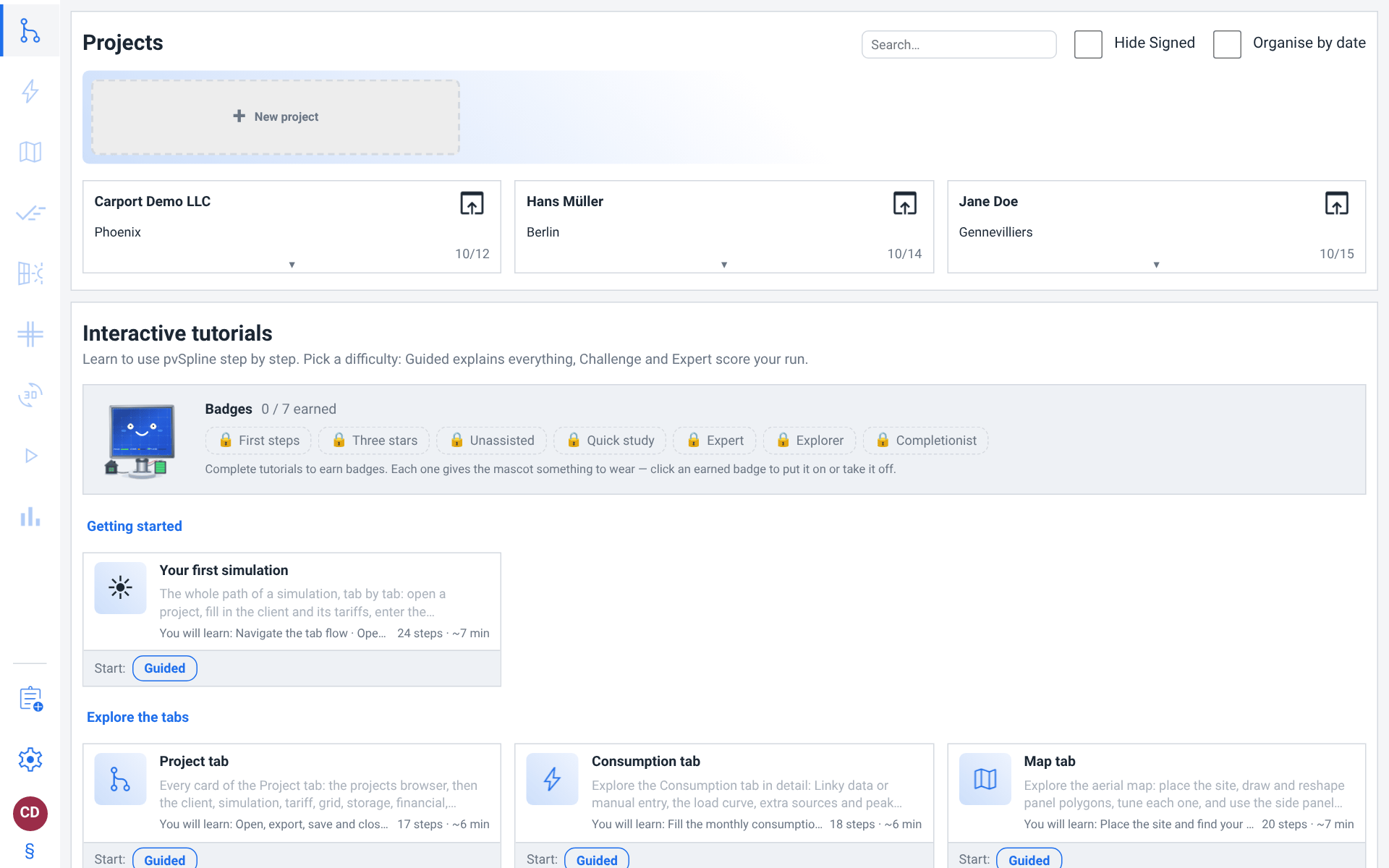
After the agreement, and once you are signed in, you land on the Project tab. With no project open yet, that tab is the project browser: a grid of your saved projects, a search box above it, and a band of dashed New project cards. Working with projects walks through it in full. Below the browser sit the interactive tutorials, the quickest way to learn the app (Guided Tutorials & Onboarding).
Signing in
Accounts, plans, seats, teams and the cloud compute budget are the subject of Your Account, Team & Cloud Runs. This section covers only getting in.
The account page is at /account, reached from the circular avatar at the bottom of the navigation rail. On the hosted service you must sign in before you can do anything else: navigating to any other view bounces you to /account with a ?next= parameter, and the whole rail is greyed out until a session exists so the wall is visible rather than a surprise redirect.
Sign in for the first time
Click the avatar at the bottom-left of the navigation rail (it shows
?while you are signed out), or go to/accountdirectly.Under
Sign in, type your Username and Password.Click Sign in. The button stays disabled until both fields have something in them.
On success the rail unlocks, the avatar shows your initials in a coloured circle, and you are returned to whatever view you were trying to reach.
The sign-in card carries three more links below the form:
Forgot your password? — swaps to a panel that takes your Email and sends a single-use reset link, valid for 60 minutes. The message you get back is deliberately non-committal (the service answers identically whether or not the address matches an account, so it cannot be used to discover who has one).
Resend verification email — same shape, for an account whose verification link never arrived or was lost. Confirming your email is one of the two checks that start a new account's free plan.
Create a free account — only when self-service signup is open on your deployment. When it is closed the card says so and points you at your company's manager instead: a manager of a company that already uses pvSpline invites colleagues from the account page (Inviting a colleague), and otherwise you can request an account at
contact@pvspline.fr. The Start for free links on the pvSpline website open this panel directly (/account?signup).
Note
If your session lapses while a tab is left open, the account page says Session expired — please sign in again above the form rather than presenting a bare login box. Sign in again and you are back where you were.
Watch out
If your company already uses pvSpline, do not register: ask its manager to invite you, and the invitation's link creates your account inside it. See Inviting a colleague.
Note
Registering creates your company with no plan yet: its free plan starts once two checks are done, and subscribing asks for the same two — your email confirmed through the link mailed at sign-up, and your company's SIREN, the first nine digits of its SIRET, found active in INSEE's Sirene register. pvSpline asks the register itself, as soon as you register. Verifying your account walks through them.
The app shell
pvSpline has no menu bar and no floating toolbars. Everything is reached through the vertical icon navigation rail running down the left edge of the page. Each entry is a single icon (hover it to read its name); clicking one swaps the whole central area to that tool and changes the URL. The foot of the rail holds what does not belong to any one project: Catalogue, then your profile avatar, which opens the account page where your preferences are set, a link to this manual and one to the legal notices.
The navigation rail
The project's entries run in workflow order from the top. Catalogue sits apart at the foot of the rail, below a thin line, because it does not depend on the project you have open. The table below lists the entries top to bottom, with the icon to look for, the URL the entry goes to, and a one-line purpose. Detailed coverage of each lives in its own chapter.
| Entry | Icon | Route | What it is for |
|---|---|---|---|
| Project | branching lines | /project | The project browser, the client and project details, and the array/component summary. Your home base. See The Project Tab. |
| Consumption | lightning bolt | /consumption | The load profile: download Enedis metering data, or enter usage by hand. See The Consumption Tab. |
| Map | folded map | /map | Draw the PV field polygons on an interactive map of IGN aerial photography. See The Map & Site Design Tab. |
| Batch | tick with trails | /batch | Parameter studies and automatic sizing that re-run the loaded project across a range of values. See Batch Simulation & Scenario Sweeps. |
| Production | panel and sun | /production | The run of record: its headline figures, the loss cascade and the weather, model and simulation settings. See Running a Simulation & the Production Tab. |
| Diagram | crossed grid | /diagram | The one-line electrical diagram: modules, strings, inverters, protection and wiring. See Electrical Design & the One-Line Diagram. |
| 3D view | “3D” in a circular arrow | /earth | The streamed 3D site viewer for terrain, layout and shading. See The 3D Earth Site View. |
| Video player | play triangle | /video | A player for the sun-path clips recorded in the 3D view. |
| Results | bar chart | /results | The run controls and the full set of result charts — production, losses, cash flow, heatmaps — and, on its Report side, the client PDF report. See Charts, Heatmaps & Tables and Reporting & Export. |
| Catalogue | clipboard | /catalogue | The component library: browse, import and favourite panels, inverters, batteries and boxes. See The Component Catalogue. |
Greyed until a project is open.
Most entries edit or render the project you have open, so with nothing open they are greyed out and do not respond to a click. Only two stay live on a fresh session: Project (where you open or start one, and where the tutorials live) and Catalogue (the parts library is not the project's to own); the profile avatar at the foot always answers. The moment a project is loaded the whole rail lights up. A running tutorial also unlocks the rail, so a lesson can walk you through tabs before you have saved anything.
Note
The routes themselves stay reachable by direct link even while their rail entry is greyed — a bookmarked result or a shared cloud run opens fine. It is the rail affordance that is gated, not the address.
Live status on the icons.
Two things paint themselves onto a rail icon while you work:
A loading beam — the glyph fills or is swept by a bright band while work belonging to that tab is in flight: an Enedis fetch on Consumption, a weather fetch on Map, a simulation on Results.
A validation tint — an icon turns orange when that tab has warnings and red when it has errors. Hover it and the tooltip lists them under the tab's name, one line per issue, each naming the field, the problem and whether it is a warning or an error. A clean tab just shows its name. Results stays red, with
Calculation: The calculation has not been run, until the project you have open has a successful run; a project already run in this browser, in this tab or another, opens without it. The tints stay live while a tutorial runs.
Tip
Because the rail is icon-only, hover any icon to read its name. If you drag a component out of the Catalogue and hold it over the Batch icon, the app switches to that tab so you can drop it there.
The rail foot
Three small controls sit below Catalogue, at the very bottom of the rail.
Profile avatar.
A round avatar shows your initials in a colour derived from them (two words give first + last initial; a single word gives its first two letters). Signed out it shows ? on the plain border colour. Hovering it reads Signed in as {user} or Not signed in; clicking it goes to /account, in both states. Signed in, that page is a header with your identity, role, Enedis authorisation, company, plan and the sign-out button, then five sections one under another: Team & seats, where it opens, Usage, Plan & billing, Security and Preferences (Your Account, Team & Cloud Runs, Preferences, Tariffs & Theming). For a Manager, a number on the avatar counts the seats out of an allowance and the people waiting for a seat; hovering it says which.
User manual.
The question-mark link opens this manual, at /docs, at the chapter of the view you are on: from Map it opens The Map & Site Design Tab, from the pre-sizing tool its section of Storage, EV & Specialized Systems, and from a view the manual has no chapter for, its contents. The manual is readable signed in or out, even before you have accepted the licence agreement. It reads in the interface language (Preferences, Tariffs & Theming); the EN and FR links at its top show it, and the pages you open next, in the other one for this visit, without touching your stored preference.
Above the contents, the search box — Ask a question…, then Search — answers a question with the passages of the manual that match it best, each linked to its section, and says when it is unsure; the contents page suggests three questions to start from. The search runs in your browser: it generates nothing, and your question never leaves the page.
Legal notices.
The section-sign (§) button opens /legal, the bundled legal pack: the EULA, the Enedis mandate, the third-party/open-source notices, the accessibility statement, the DPA, the terms of sale (CGV), the simulation and financial disclaimers and the legal notice. It is reachable signed in or not, once you have accepted the licence agreement in this browser (see Legal notices and version information).
Notices above the view
One strip can appear between the rail and the current view:
The recovery bar, when a previous tab left unsaved work behind — see Updates, reloads and recovering work.
The browser tab
The browser tab's title is the build string, with the open project's name in front of it once there is one (for example Dupont 9 kWp — pvSpline r.1.01 - RT). That makes a screenshot self-identifying, and lets you tell several pvSpline tabs apart at a glance.
Watch out
Each browser tab holds its own working project. Opening a second tab does not give you a second window onto the same project — it gives you an independent session. Saved projects are shared (they live in the store), unsaved edits are not.
Your first project in 10 minutes
The steps below take you end to end. Each references the chapter that covers it in full.
Build and run a first project
Sign in at
/account, then set your language and currency in the Preferences section of that same page,/account/preferences— see Preferences, Tariffs & Theming.Start the project. On Project (
/project), click the dashed New project card, type the client's name — and email, if you have it — and press Create. The project is saved to your account straight away and opens right there, and the tab turns into its cards. (Have a saved project already? Open it from its card instead.)Locate the site and describe the system. Still on Project, type the client's address on the CLIENT card — it is looked up and places the site — and choose the System type on the SIMULATION card. See The Project Tab.
Choose components. In Catalogue (
/catalogue), mark the panel and inverter you want as favourites: the project's pickers list favourites only. Import a PVsyst.PAN/.ONDfile if you need one that is not there — importing needs the Manager or Admin role in your company (your company's first account holds it). See The Component Catalogue.Draw the array. In Map (
/map), draw one or more PV field polygons over the roof or field and set their module, tilt and orientation. A new project has no electrical design yet: on Diagram (/diagram), click Create initial design to wire the array to a starter inverter sized to it, then replace that starter with your actual inverter. Without any inverter a run may be a few percent optimistic, and its results say so. See The Map & Site Design Tab and Electrical Design & the One-Line Diagram.Add consumption. In Consumption (
/consumption), download the meter's Enedis data or type a monthly profile; a supplier bill is imported from the CONSUMPTION RATES card on Project instead. See The Consumption Tab.Set the financial parameters on the FINANCIAL card of Project — installation cost, subsidy, escalation, loan. See The Project Tab.
Run. Open Results (
/results) and click Run the project. The engine checks the project against its own rules first: an error stops the run and is listed under the button, a warning goes with the run to its Warnings card. The run is a job: the report's place says where it stands, and the charts fill in when it lands. Ctrl+Enter does the same thing from any view.Save. Go back to Project, type a name in the working project's name field and click Save (or just press Enter in that field). See Working with projects.
Report. Proof the client PDF on Results (
/results), where the report sits beside the chart list, then export it. See Reporting & Export.
Working with projects
A pvSpline project bundles everything about one study — site, array geometry, components, consumption, tariff and dispatch — into a single unit. The Project tab is where you create, find, open, save and file them.
The working project
The project you are editing is the working project. It belongs to this browser tab: it survives a reload of the same tab, and it is replaced when you open, import or close another one. Saving is what moves it into a store where it outlives the tab.
The app tracks whether the working project has drifted from its last save. That single fact drives several things you will meet: the unsaved-changes count on the [Working] row, the confirmation you get before replacing it, the browser's own “leave site?” prompt, and the recovery offer described in Updates, reloads and recovering work.
Where your projects are stored
Saved projects live in your pvSpline cloud account. Sign in and the Project tab lists them; sign out and it does not. How much of the list you get depends on your role: a management account sees every save in the company, and an administrator sees more still (see Your Account, Team & Cloud Runs). A save made by a colleague carries a marker on its card — their account number, such as #17 — so you can tell it apart from your own before you open, rename or overwrite it.
If this session has no store at all — you are signed out — the card says so plainly and offers Go to sign-in. File import and export keep working regardless, and are the path that needs no account (The portable project file).
Finding a project
Above the grid sit three controls, and they filter the cards below as you use them:
Search — a case-insensitive substring match against the client name, the save name and the meter reference (PRM). Any hit keeps the card. If everything is filtered out the grid says which query hid it.
Hide Signed — hides projects whose status is Signed, Installed or Completed, so the grid shows live work only.
Organise by date — sorts by last modification, newest first, and cuts the grid into
Today,Yesterday,This week,This month,OlderandNo datesections. Unticked, the grid is sorted by client name.
The two switches are preferences, not per-session filters: they follow your account, so the grid looks the same the next time you sign in.
Reading a project card
One card is one project, not one save — every save of the same project folds into a single card fronted by its newest one. The card shows:
A map thumbnail of the site as the card's cover, fetched as the card scrolls into view.
A status pill (unless the status is unset or the default
Prospect), an Enedis chip (Authorised · real?orNot authorised, and nothing at all when the state is unknown or once your client's Enedis authorisation for the meter has expired), and anN PRMchip when the project covers more than one delivery point.The client name in bold, the site address beneath it, then the client's email and the last-modified date as day and month only (hover it for the creation date).
A colleague's account number (for example
#17), when the save was made by someone else in your company. Your own saves carry no such marker.A bottom band with the simulation type and up to five figures — installed power in kWp, annual production, annual consumption, installation cost and payback in years. Each appears only when it has a value, so a project that has never been simulated shows none of them. A solar pumping or DC-grid project shows neither the installation cost nor the payback, since the simulation ignores grid economics there.
Click anywhere on a card to expand its history below the face; click again to collapse it. Only one card's history is open at a time.
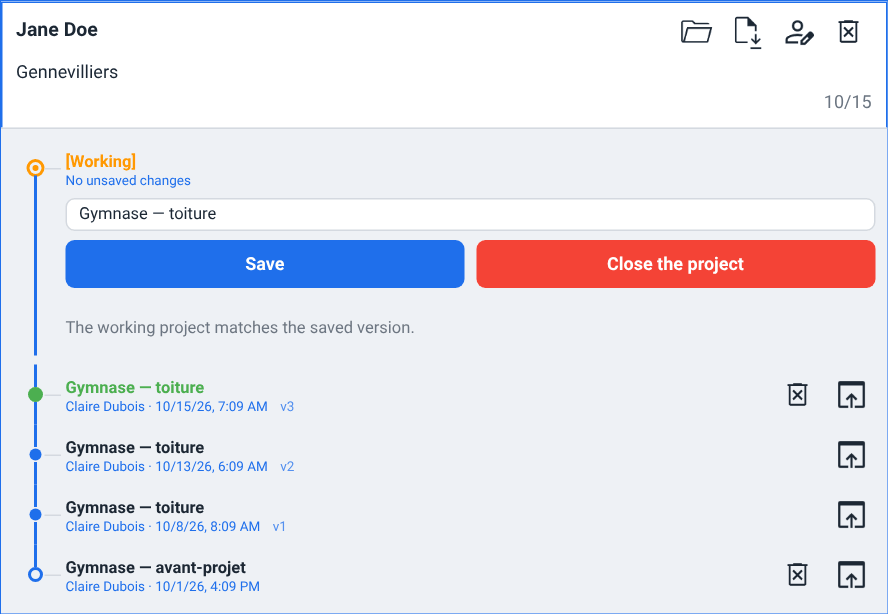
[Working] row with its save-name field, then the project's history, newest first.Once a project is open the grid collapses to that project's card alone, with its history already expanded — the tab then shows what you are editing and nothing else. Close the project and the full grid comes back.
Creating a project
With no project open, a band of dashed cards sits above the grid:
New project — asks for the client's name (required) and email (optional, for the Enedis authorisation), then saves a blank project named after the client to your account and opens it on the spot (sited in the centre of France until you give the client an address): the tab turns into the new project's cards. The name and email identify the client the project's saves are filed under. This is the normal starting point.
New Enedis project — opens the Enedis consent flow in a new tab, so a new delivery point can be authorised for your company. It appears only when you are signed in.
The band disappears once a project is open — there is nothing to add to while you are editing one.
Opening a project
Two ways in:
The Open project button on a card's face loads that project's latest save.
Expanding a card lists every stored state of that project, newest first, each with its own Load this version button.
A saved project also has an address of its own, /project?open=<save id>: following it opens that save directly (after sign-in if needed), asking first if the working project has unsaved changes. It is the link an AI assistant hands back after creating a project for you.
Loading the newest state opens the project for editing and binds it to that save, so your next save appends to the same history. Loading an older state opens it read-only: the app tells you Version N opened read-only — save a version to keep any edits, which is also how you effectively roll back. Nothing moves in the store until you save, and saving always appends — history is never overwritten.
Caution
Opening, importing or closing a project replaces what is in this tab. If the working project has unsaved changes you are asked to confirm first, and the changes are lost if you say yes. Save before you swap. Sign out on the account page clears the working project too, and does not ask first (Updates, reloads and recovering work).
Saving
Saving is explicit; there is no continuous auto-save of your edits. The open project appears at the top of its card's history as a [Working] row, which carries everything you need:
A change chip reading
No unsaved changesorN unsaved changes. Click it to fold away the list beneath, which names every field that differs from the stored version — so you can see exactly what a save is about to record. A batch study you run on the open project is stored in it too: the list names itBatch parameter study, and a save keeps it with the project (Batch Simulation & Scenario Sweeps).A Save name field, pre-filled with the save's own name (or the project's) and editable in place. The placeholder suggests a form like
e.g. Smith - PV simulation 9 kWp.Under the field, two buttons side by side: a blue Save and a red Close the project.
Press Enter in the name field, or click Save, and one of two things happens — without you having to choose:
If the project came from a save, a new version is appended to it, under the name in the field. The app confirms with
Saved as version N. Leave the field alone to keep the existing name; a blank entry never blanks a stored name.If it does not have a save yet (a new project or an imported file), a new project is created in the store under that name, and from then on it is bound like any other. A name is required in this case — Save stays disabled while the field is empty.
Before the first save, the row also shows User: {name}, the account the project is about to be filed under.
A version save refuses to overwrite a project that changed elsewhere since you opened it — in another tab, or by an AI assistant. Nothing is written; the message gives the project's current version and suggests saving your work as a new project, or reopening the project to get the latest version (which discards your unsaved edits).
Close the project drops the working project (asking first if it is dirty) and returns the tab to the browse grid.
Caution
Closing the tab, or navigating away, does not save. The browser will warn you that you have unsaved work — but a browser prompt is leave-or-stay only, it cannot offer to save. If you do leave, Updates, reloads and recovering work explains how to get the work back.
Version history
Expanding a card shows the project's history as a vertical graph, newest at the top. Each row is one stored state and carries:
A dot marking its place — filled for the newest, outlined for the oldest, ringed for the
[Working]row.The save's name, and beneath it the author, the full date and time, and a
vNtag identifying the stored version.Load this version to open it, and Delete this save on the newest row of each save.
The history is loaded with the card, not behind a second click. The card of the project you have open is always expanded.
Renaming and deleting
Rename and delete are offered on the card of the open project, so they can only ever name the project you are looking at — a browse grid full of one-click destructive buttons is how somebody deletes a colleague's work by mistake.
Rename opens an inline New name row. Confirm lights up only once the text is non-empty and actually different; Enter does the same. A rename is metadata only — it costs no version, and the open project follows the new name.
Delete on the card face removes the whole project, every save and every version. You are asked to confirm, and the question names the project and how many saves go with it. The action cannot be undone.
Delete this save on a history row removes just that save, with its own confirmation. This is also how you delete a project you have not opened: expand its card and use the row.
Deleting is restricted to administrator and management accounts; on a normal account the buttons are simply not offered.
The portable project file
A project can be exported to and imported from a single portable file, <name>.pvspline.json.
Export .json downloads the working project exactly as it stands, named after the project. This is a plain browser download — it lands wherever your browser puts downloads.
Import .json opens a file picker and loads the chosen file as the working project, with a progress line while it is read. A freshly imported project counts as clean, not as unsaved work.
Both are icon buttons on the open project's card, next to rename and delete. The browse grid offers no import of its own while you are signed in: to bring a file in from an empty tab, open or start any project first, then use Import .json on its card — the file replaces it.
Since the file embeds the fetched weather and metering series, an exported project opens fully offline on another machine. Component references travel by content fingerprint, so panels and inverters resolve correctly even on a computer that never had them in its catalogue.
Note
The project file is versioned by an internal schema number, and older files are migrated forward automatically when they are read. You do not need to manage this.
Watch out
Project files are refused above 64 MiB, before anything is read — the message names the file, its size and the limit. That ceiling is about keeping the browser tab healthy, not about the file being invalid. Bear in mind too that the per-tab storage that preserves your working project across a reload has a budget of only a few megabytes: a very large project still opens and runs, but may not survive a reload.
When the engine is unreachable
The browser draws the interface; a separate simulation engine does the physics and the finance. Most of the time you never think about it.
What still works without an engine.
The app itself is unaffected — it is already loaded in your browser. You can browse and open projects, edit every field, draw and move polygons on the map, and import or export a project file. What needs the engine is anything that computes: validation, panel packing, the one-line diagram, catalogue and weather-file imports, data fetches and, of course, runs.
Data fetches are separate.
Weather (PVGIS / Open-Meteo) and metering (Enedis) come from their own services, not from the engine, and they are fetched as background jobs with their own progress. Weather follows the site on its own: it is fetched when you place the site and again when you move it far enough. See Running a Simulation & the Production Tab.
What a saved project keeps.
A project saved to your account keeps the series it fetched — its PVGIS and Open-Meteo weather years and its measured Enedis consumption — and its 3-D shading bake, and gives them back when you reopen that save or an earlier version of it, so the reopened project runs without fetching them again. They stay with the save with two exceptions: once no Enedis authorisation for a meter is in force any more — your client's has expired or been revoked, and no other covers the meter — the measured consumption leaves every version of the saves that name that meter (a project with several meters loses the other meters' consumption from those saves too, and downloads it again under their own, still valid, authorisations); and all of them go if your company's data is erased. If the storage that holds them is unavailable, the save still succeeds, only without the series. If a project reopens without its weather, the weather is fetched again before the next run. If it reopens without its measured consumption, download that again on Consumption before you run it; until you do, the run warns that it bills no consumption. That download is refused while no authorisation for the meter is in force (When your client's authorisation expires). An exported project file keeps the series (The portable project file).
Note
Runs go to the metered cloud service, where they are queued and draw on your plan's monthly allowance; the free plan has one too. A cloud run that fails is charged the engine time it used; the time it spent queued is not. Your Account, Team & Cloud Runs has the meter.
Updates, reloads and recovering work
Updates.
There is nothing to install and nothing to update. Reload the page and you are on the current version; you will normally pick it up on your next visit without doing anything. The legal notices page, /legal, reports the version of the web app and of the engine you are talking to (see Legal notices and version information).
What survives a reload.
Reloading the same tab keeps your working project, its unsaved-changes state, the save it is bound to, and any run still in flight (polling resumes). It does not carry to another tab: each tab is its own session.
Recovering after a tab closes.
Closing a tab with unsaved work would ordinarily lose it — the browser's own prompt can only ask you to stay, never to save. So pvSpline keeps a copy of a dirty project outside the tab, and the next time you open the app with nothing loaded it offers it back:
Unsaved project recovered from a previous session (date and time). Restore Discard
Restore adopts the project exactly as it was — unsaved changes and all — and re-binds it to the save it came from, so the next save appends to the right history rather than forking a new project. Discard drops the copy for good. The offer only appears while this tab has no project of its own; start working and it disappears. Copies older than 30 days are abandoned.
Signing out.
Sign out on the account page (/account) closes the working project without asking — its unsaved changes are lost — and deletes every recovery copy this browser holds, so whoever signs in next on the same computer neither sees your work nor is offered it back. A session that simply expires keeps both: sign in again and you carry on where you were.
Legal notices and version information
What you are running, the credits for the data pvSpline reuses and the legal texts all live on one page.
The legal pack.
Click the section-sign (§) button at the foot of the navigation rail, or go to /legal. The page opens with an identity line — the web app's build, the version of the simulation engine this session is talking to, the publisher (PvSpline) and a support email — followed by the EULA, Enedis mandate, DPA and CGV version numbers, then ten document tabs: EULA, Enedis mandate, Third party / open source, Accessibility, DPA, Terms of sale (CGV), Simulation disclaimer, Financial disclaimer, Legal notice (mentions légales) and Acceptable use. The engine's version appears once an engine has answered; signed out, or when none is reachable, the line names the build alone. The Third party / open source tab also links third-party-licenses.txt, the full licence texts of the open-source components bundled in the web app, regenerated with every update; it opens in a new browser tab. This is where to find the agreement you accepted at first launch, at any time afterwards. Until you have accepted it in a browser, this page does not open there: the licence panel takes its place.
A link can open one document directly: /legal?doc=cgv lands on the terms of sale, /legal?doc=dpa on the DPA and /legal?doc=eula on the EULA — the links in the account-creation form work this way.
Data sources.
The last tab, Data sources, after the ten documents, credits every source of the data pvSpline reuses, grouped as the Third party / open source notices group them: solar and weather data (PVGIS, and Open-Meteo with the Copernicus data behind it), maps, addresses and buildings, electricity data, the financial model, the component catalogue, the electrical design, the carbon balance and the methods. Each entry says what the data are used for and the licence and credit they come with; the solar and weather group links the Creative Commons Attribution 4.0 International licence and says how pvSpline changes the data. Like the documents, it reads whether you are signed in or not, and /legal?doc=dataSources opens it directly.
Keyboard and mouse
pvSpline is primarily click-driven; most actions live on buttons and rail icons rather than shortcuts. The shortcuts that work everywhere are:
| Shortcut | What it does |
|---|---|
| Ctrl+Z | Undo the last change to the project, and show a chip naming the step you went back to. |
| Ctrl+Y or Ctrl+Shift+Z | Redo. |
| Ctrl+Enter | Run the working project and jump to its results — from any view. Edits staged in the view you are on are pulled in first, so the run includes what is on screen. |
On macOS, Cmd works in place of Ctrl for all three. The shortcuts deliberately stand down while you are typing in a field, so Ctrl+Z in a text box is the browser's own text undo and never rewrites your project under the caret. They are also inert while the licence agreement is on screen, and while the report's theme editor or permit form is open — the theme editor keeps an undo history of its own.
The undo timeline holds the last 50 labelled steps (or about 20 MB of project states, whichever comes first). A step is a meaningful action — a project opened, a layout applied, a tariff applied, a data fetch, an import — not every keystroke.
Other input conventions worth knowing:
Scroll safety — the mouse wheel will not change the value of a number field, dropdown, slider or date field unless you have clicked into it first; instead the wheel scrolls the panel or the page. This prevents accidental edits while scrolling past a form.
Cards — a project card in the browser is keyboard-reachable: Enter or Space expands and collapses its history.
Save — Enter in the working project's Save name field saves, exactly like the Save button beneath it. Enter in the New name field confirms a rename.
Catalogue — in Catalogue, Delete removes the selected entries; Shift+click selects a range and Ctrl+click toggles individual rows. See The Component Catalogue.
Fullscreen — use your browser's own full-screen command, F11 (Ctrl+Cmd+F on a Mac); the page has no switch of its own.
The map, the one-line diagram and the report preview have shortcuts of their own; they are documented in The Map & Site Design Tab, Electrical Design & the One-Line Diagram and Reporting & Export.
Field reference
This section lists every control introduced in this chapter, grouped by the panel or card it belongs to. Fields specific to a later view (the array, tariff, consumption, etc.) are documented in that view's chapter.
Licence agreement
| Field / Control | Type & unit | Default | What it does & how to set it |
|---|---|---|---|
| End User License Agreement | tab | selected | The agreement itself. The two tabs beside it hold the simulation and financial disclaimers shown with it. |
| I have read and accept the End User License Agreement and the simulation and financial disclaimers. | checkbox | off | Must be ticked to enable Accept. Disabled if the agreement or a disclaimer failed to load. |
| Accept | button | — | Accepts the agreement and unlocks the app. Disabled until the checkbox above is ticked. Records the acceptance in this browser, with the exact time, against the current EULA version. |
| Decline and exit | button | — | Refuses the agreement. The app parks on a terminal notice and stays unusable; nothing is recorded. |
| Review the agreement | button | — | On the declined notice: returns to the agreement text with the checkbox cleared. |
Sign in
| Field / Control | Type & unit | Default | What it does & how to set it |
|---|---|---|---|
| Username | text | — | Your account username. Pre-filled when you arrive from a password-reset link. |
| Password | password | — | Your account password. Cleared as soon as sign-in succeeds. |
| Sign in | button | — | Signs in and returns you to the view you were trying to reach. Disabled until both fields have content. |
| Forgot your password? | link | — | Switches to the password-reset panel. |
| Resend verification email | link | — | Switches to the verification-resend panel. |
| Create a free account | link | — | Switches to the registration panel. Shown only when self-service signup is open; otherwise the card explains that account creation is closed. |
Create your account
| Field / Control | Type & unit | Default | What it does & how to set it |
|---|---|---|---|
| Username | text | — | The name you will sign in with. Required. |
— | Where the verification link goes. Required. | ||
| Phone number (optional) | phone | — | A number pvSpline can reach you on, if you wish. Your free plan does not wait on it. A French number may be typed the national way, any other with its country code. |
| Password | password | — | At least 8 characters — Create account stays disabled below that. |
| Company (optional) | text | — | Your company's name, used when a new company account is created for you. |
| SIRET | text | — | Your company registration number, 14 digits. Required: pvSpline is sold to professionals only. Registering creates your company, with your account holding the Manager role — unless the SIRET belongs to a company whose account pvSpline set up, which you then ask to join, your registration waiting for one of its administrators to approve it. Its first nine digits, the SIREN, are what the Sirene check of a new account looks up, as soon as you register: a company the Sirene register lists as ceased, or does not know, cannot sign up. |
| I am acting for the business of the company identified by this SIRET and am authorised to bind it. pvSpline is sold to professionals only. | checkbox | off | Required. Your declaration that you act for the company that SIRET identifies and are authorised to bind it. |
| I accept the pvSpline terms of sale (CGV), EULA and data processing agreement. | checkbox | off | Required. The three links beside it open the terms of sale, the EULA and the DPA in a new tab. |
| Create account | button | — | Submits the registration. Disabled until username, email, an 8-character password, the SIRET and both checkboxes are all in place. |
| Back to sign-in | link | — | Returns to the sign-in panel. |
Password reset and verification resend
| Field / Control | Type & unit | Default | What it does & how to set it |
|---|---|---|---|
— | The address of your account. The service answers identically whether or not it matches one, so the confirmation never promises that an email was sent. | ||
| Send reset link | button | — | Requests a single-use password-reset link, valid for 60 minutes. Disabled while the field is empty. |
| Send a new link | button | — | On the resend panel: requests a fresh verification link. |
| Back to sign-in | link | — | Returns to the sign-in panel. |
Project browser header
| Field / Control | Type & unit | Default | What it does & how to set it |
|---|---|---|---|
| Search… | search box | empty | Case-insensitive substring match against client name, save name and meter reference (PRM). Filters the grid as you type; purely local, no round trip. |
| Hide Signed | checkbox | off | Hides projects whose status is Signed, Installed or Completed. A preference: it follows your account. |
| Organise by date | checkbox | off | Sorts the grid by last modification, newest first, and adds date section headers (Today / Yesterday / This week / This month / Older / No date). Unticked, the grid sorts by client name. Also a preference. |
New-project band
| Field / Control | Type & unit | Default | What it does & how to set it |
|---|---|---|---|
| New project | add card | — | Asks for the client's name and email in the New client dialog, then saves the new project and opens it on this tab. Hidden while a project is open. |
| New Enedis project | add card | — | Opens the Enedis consent flow for your company in a new tab, to authorise a new delivery point. Shown only when signed in. |
Project card
| Field / Control | Type & unit | Default | What it does & how to set it |
|---|---|---|---|
| Card face | click target | — | Expands or collapses the project's history. Keyboard: Enter or Space. The open project's card is always expanded. |
| Status pill | read-only chip | — | The latest save's project status. Not painted when unset or the default Prospect. |
| Enedis chip | read-only chip | — | Authorised · real? or Not authorised. Absent entirely when the state is unknown — the browser never fabricates a “not authorised” — and once your client's authorisation for the meter has expired, since an expired authorisation is removed from your account. |
| N PRM | read-only chip | — | Shown when the project covers more than one delivery point. |
| Client name / address / email | read-only | — | Taken from the newest save. A colleague's account number (#17) also appears when the save is not yours. |
| Date | read-only | — | Last modification, day and month only. Hover for the creation date; the full stamp is on the history rows. |
| Bottom band | read-only | — | Simulation type, then installed power (kWp), annual production (MWh), annual consumption (MWh), installation cost and payback (years). Each figure appears only when it is greater than zero; payback is also hidden at 100 years and over, its “never pays back” value. Installation cost and payback never appear for a solar pumping or DC-grid project. |
| Open project | button | — | Loads the project's latest save and binds the working project to it. Hidden on the card of the project already open. |
| Import .json | icon button | — | On the open project's card: opens a file picker and loads a portable .pvspline.json file in place of the working project, including its embedded weather and metering data. Refuses a file over 64 MiB before reading it; asks first if the working project has unsaved changes. |
| Export .json | icon button | — | On the open project's card: downloads the working project as a self-contained .pvspline.json file. |
| Rename | icon button | — | On the open project's card: opens the inline rename row. |
| Delete | icon button | — | On the open project's card: deletes the whole project — every save and every version — after a confirmation naming it and the number of saves. Offered to administrator and management accounts only. Cannot be undone. |
The working project row
| Field / Control | Type & unit | Default | What it does & how to set it |
|---|---|---|---|
| [Working] | read-only row | — | The project open in this tab, at the top of its history. |
| N unsaved changes | toggle chip | expanded | Reads No unsaved changes when clean. Click to fold the list of changed fields beneath, which names each one and what it changed from and to. |
| Save name | text | bound save's name, else the project's | The name this save will carry. Placeholder e.g. Smith - PV simulation 9 kWp. Press Enter to save. Left untouched it follows the project; the first keystroke makes it yours and nothing overwrites it afterwards. |
| User: {name} | read-only | signed-in user | Shown before the first save: the account the project will be filed under. |
| Save | button | — | Appends a new version to the bound save, or creates the project in the store when it has none yet. Disabled while a store action is in progress and, for a first save, while the name is empty. |
| Close the project | button | — | Drops the working project and its store binding, returning the tab to the browse grid. Asks first when there are unsaved changes. |
History rows
| Field / Control | Type & unit | Default | What it does & how to set it |
|---|---|---|---|
| Save name | read-only | — | Titles each stored state. Every version of one save carries that save's name; the vN tag tells them apart. |
| Author and date | read-only | — | Who wrote that state and when, in full. |
| Load this version | icon button | — | Opens that stored state. The newest row of a save opens it for editing and binds to it; an older row opens read-only, and saving from there appends a new version. |
| Delete this save | icon button | — | Removes that save, versions and all, after a confirmation. Only on the newest row of each save, and only for administrator and management accounts. |
Rename row
| Field / Control | Type & unit | Default | What it does & how to set it |
|---|---|---|---|
| New name | text | current name | The replacement name. Press Enter to confirm. |
| Confirm | button | disabled | Applies the new name. Enabled only when the text is non-empty and different from the original. Metadata only — it costs no version, and a clean project stays clean. |
| Cancel | button | — | Closes the row without renaming. |
Shell notices
| Field / Control | Type & unit | Default | What it does & how to set it |
|---|---|---|---|
| Recovery bar | notice strip | hidden | Offers back a dirty project left behind by a tab that went away, with the date and time it was last touched. |
| Restore | button | — | Adopts the recovered project with its unsaved changes intact, and re-binds it to the save it came from. |
| Discard | button | — | Drops the recovered copy for good. It is never offered again. |