The Component Catalogue
At a glance
The Catalogue tab (
/catalogue) is pvSpline's component library: PV modules, inverters, combiner boxes, cables, mounting structures, physical and virtual batteries, generators, pumps and utility tariffs, each on its own category tab.It is a curator: you browse, import, edit and — above all — mark Favourites. Favoured parts are what the rest of the app offers you (the Map module and mounting-structure dropdowns, the Diagram add-a-part menus and cable picker, the battery and tariff pickers, the Batch part sweep).
You do not build a project here. You stock the shelf so the other views have something to pick from — which is why its rail entry stays live with no project open.
Import PVsyst datasheets directly:
.PAN(modules),.OND(inverters),.BTR(batteries), plus.PMPpumps and.yamlboxes, cables, mounting kits, generators and tariffs.Every part is identified by a content fingerprint, not a serial number, so renaming a part never changes its identity and two people who enter the same specs get the same part.
Everything on this page is a fast round trip to the engine — a search, an import, a save, a delete all come back in well under a second. Nothing here is queued, and nothing here runs a simulation.
Add part…, Import a file…, Edit and Delete are role-gated (Manager / Admin): the account that opens a company starts with the Manager role, and a colleague who joins it later with the User role. Anyone can browse and mark favourites; parts shipped with the application cannot be deleted.
Where it lives and how it is laid out
Open Catalogue from the foot of the left navigation rail (its glyph is a spec sheet, just above the account avatar), or go straight to /catalogue. It is one of the few rail entries that are not greyed out before you open a project: the parts library is not the project's to own, so you can curate it at any time. Bookmark the route, or paste it to a colleague, and it opens on the module category.
The page is a single card with these bands, top to bottom:
a category tab bar of ten buttons, each with its own icon;
a search row — the Search box plus the Favourites, My parts and Show replaced checkboxes;
a chip row showing how your search was parsed (only while the box has text in it);
an action row — Import a file…, Replace an existing file with the same name, Add part…, a Delete (n) button when rows are selected, and the accepted-extensions hint. If you may not change the catalogue, this row carries a short note saying so instead;
a result-count line;
the data table, with a column set tailored to the open category.
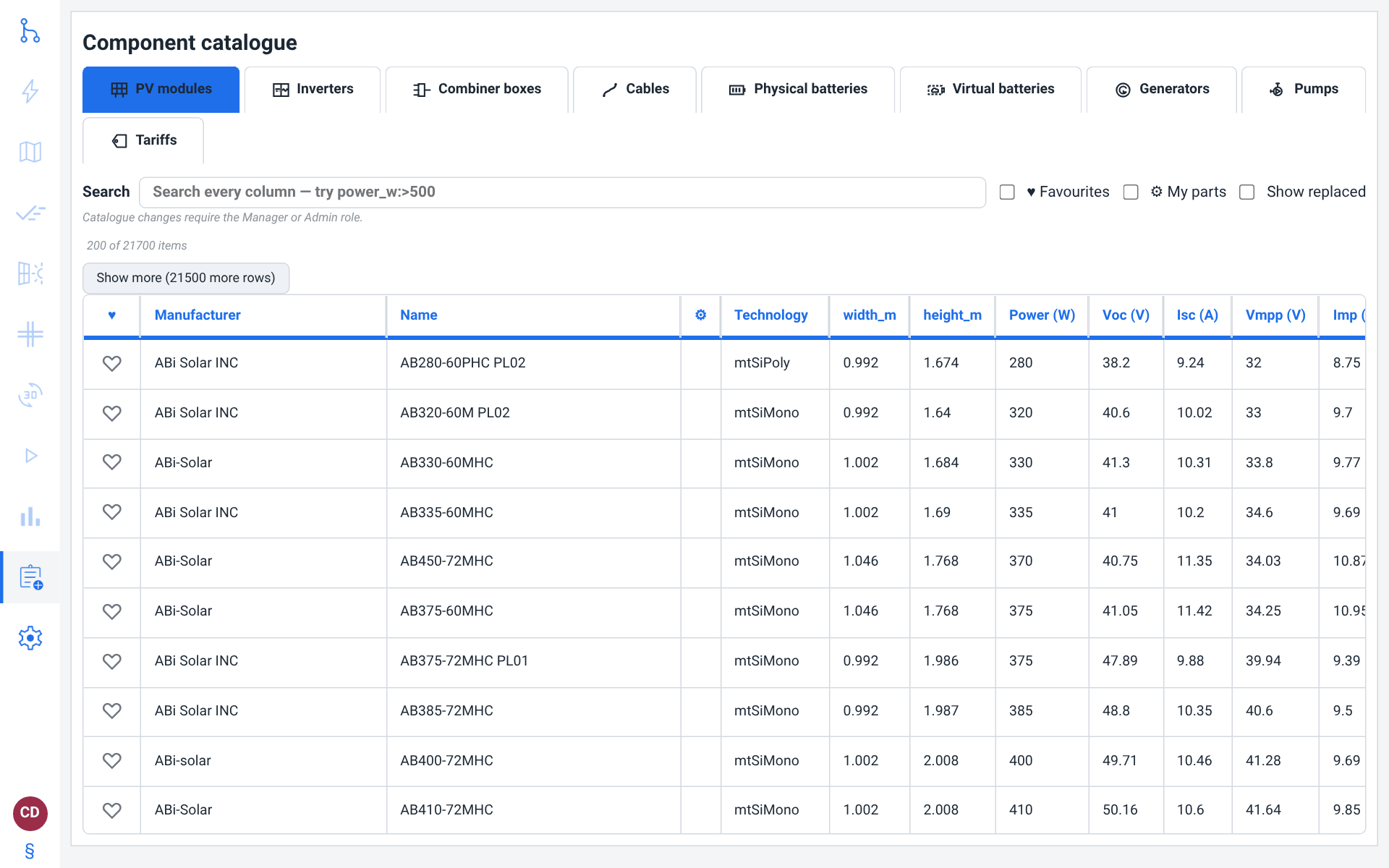
The table scrolls inside the card rather than lengthening the page, so the column headers and the search row stay reachable however long the listing is. Switching category refetches that category's listing but keeps its own sort order and its own row selection, so coming back finds the category as you left it.
Note
The catalogue is shared plumbing. A Search box and the same favourites reappear in the part picker the component editor opens (see The part picker), so once you learn the catalogue you already know the picker.
Tip
For a five-minute guided walk through this page, take the Catalogue tab tour among the tutorial cards (The tutorial catalogue).
The category tabs
Ten categories run across the top, in this order:
| Category | Meaning / effect |
|---|---|
| PV modules | Solar panels. Imported from .PAN or entered by hand. Feeds the array in Map and Production. |
| Inverters | Grid, hybrid and microinverters. Imported from .OND. Feeds the single-line diagram in Diagram. |
| Combiner boxes | DC combiner / AC distribution / junction boxes that group strings before or after the inverter. |
| Cables | DC and AC conductors with ampacity and resistance data, used by the wire-sizing controls. |
| Mounting structures | Racking kits: the rails, clamps and attachments the modules are fixed with. Picked on each zone card in Map; the bill of materials counts what the kit needs row by row, and the permit package states its fixing and height (The permit package (déclaration préalable)). The shipped kits are generic, so add your supplier's. |
| Physical batteries | Real storage packs (chemistry-agnostic): capacity, power, efficiency, lifetime. Feeds the project's storage system (Storage, EV & Specialized Systems). |
| Virtual batteries | “Cloud storage” tariff products — an energy bank billed by a supplier rather than a physical pack. |
| Generators | Backup gensets: rating, fuel curve and emission factor. Switched on and tuned per project in Storage, EV & Specialized Systems. |
| Pumps | Solar-pumping units. Imported from a .PMP datasheet; a pumping system is configured per project in Storage, EV & Specialized Systems. |
| Tariffs | Utility rate plans (buy / sell / grid charges), with a full editor of their own. |
The two battery tabs are two views of one listing: the engine answers both from the same battery library and each tab keeps only its own flavour, so switching between Physical batteries and Virtual batteries is instant and does not refetch.
Browsing and filtering
Search
The Search box (placeholder Search every column — try power_w:>500) filters the open category, and results narrow as you type — the app waits for a short pause before asking the engine, so a long query is not re-run on every keystroke. Matching happens on the engine over the whole category, not over the rows currently on screen, so a search reaches parts the page has not loaded yet.
A bare word matches any column. To narrow to one column, type its key, a colon and a value:
trina— any column containing “trina”;technology:topcon— only the technology column;power_w:450— a number on a numeric column means exactly that value;power_w:>500— numeric comparison;>,>=,<and<=all work;power_w:500..600— a numeric range;name:"Vertex S+"— quote a value that contains spaces.
Terms combine with AND, so trina power_w:>500 bifaciality:>0 is all three conditions at once.
Two affordances make the grammar visible:
Column autocomplete. While you are typing a bare word, a short list of matching column keys drops below the box (up to eight), each with its friendly name. Click one and it is inserted as
key:, caret parked after the colon, ready for the value. The list matches on the key and on the friendly name, which is how you find a column likemu_voc_mv_per_cwithout knowing it by heart. Esc dismisses the list.Term chips. Under the box, every term you typed renders as a chip —
Power (W) > 500,any column ~ trina— so you can see what the box actually parsed to.
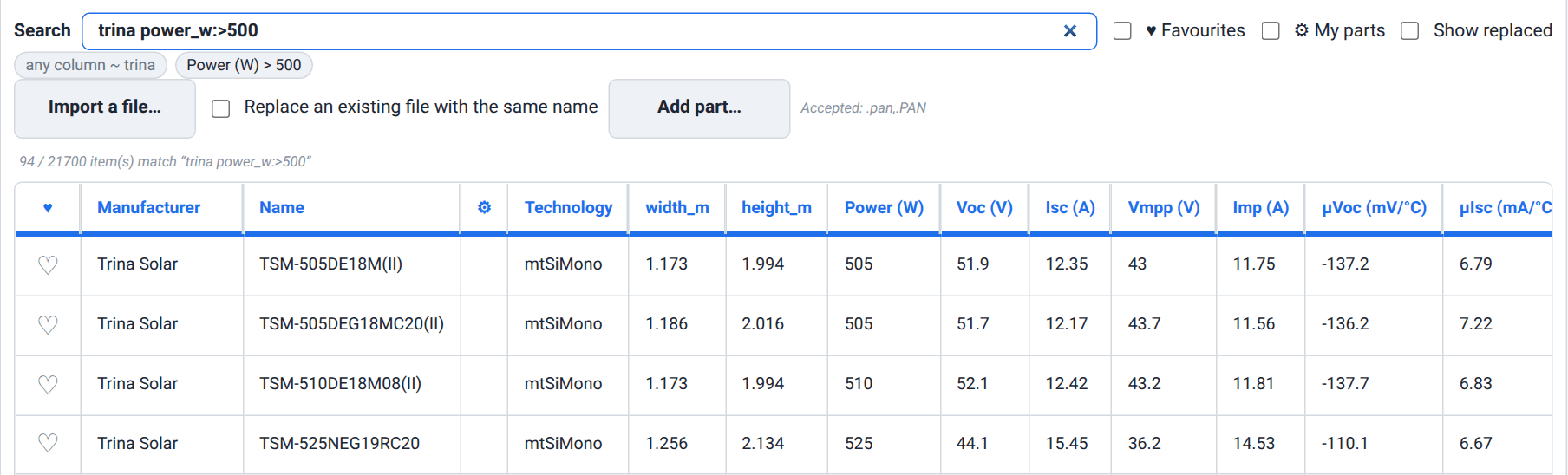
trina power_w:>500, and the term chips it was parsed to.
mu, drops the matching column keys below the box, each with its friendly name.Tip
If a chip turns up flagged and the line reads ``xyz'' is not a column in this category., you have misspelled a column key. The table goes empty immediately without a round trip, because “no such column here” and “no part matches” are different answers and an empty table alone reads as the second. Column keys differ per category — power_w is a module column, not an inverter one.
The three filter checkboxes
Favourites (a heart precedes the label) — hide everything except the parts you have hearted in the current category.
My parts (a gear precedes the label) — hide the components shipped with the application and keep only your own: what you imported, what you typed by hand, and the derived entries (marked with a gear) created when a specification was edited.
Show replaced — also list parts that a later revision replaced. Off by default. A replaced part stays usable in every project that already references it; only the browse list hides it.
The three combine freely with each other and with Search.
Result count
The count line under the action row reflects what the filters leave visible. With nothing filtering it reads 1234 items, or 200 of 1234 items when the page holds only the first slice of a large category. With a filter active it reads 42 / 1234 item(s) match followed by every narrowing you have applied, joined with + — your quoted search text, the word favourites, the words my parts.
Sorting and columns
Click a column header to sort (every column but the gear and Options ones); click again to reverse. A small up or down triangle beside the header name marks the active key and its direction. Sort order is remembered per category.
The engine sorts over the whole category, not just the rows already fetched, so “highest power first” on a 20 000-row module library really does put the category's top module at the top. Hovering a header says so: Sorted over the whole category — the 200 rows shown are the first of 1234 matches. Against an older engine that cannot report a total, the sort covers only the rows loaded so far and a warning line under the count says exactly that rather than letting you believe otherwise.
The heart column leads the table; sorting on it groups your favourites together. Then come Manufacturer and Name, a narrow gear column that marks a derived part, the category's spec columns, and finally an Options column holding the per-row actions. Columns differ by category — see Table columns by category in the field reference. A column the engine has no friendly name for shows its raw key (module width and height are the two you will meet); that key is exactly what you type in the search box.
Scrolling a long category
A listing arrives 200 rows at a time. The Show more (n more rows) button under the count line appends the next 200 to the bottom of the table and says how many are left; the app may also fetch a slice by itself as the page opens, so the count can start at 400 rather than 200. Changing the category, the search, the sort or Show replaced starts again from the top. With Favourites ticked there is nothing to page: every part you have hearted in the category arrives at once.
Selecting rows
Click a row to select it. Shift-click extends a range from the last anchor; Ctrl-click (Cmd-click on a Mac) toggles individual rows. Multi-select matters for batch deletion. The selection is kept per category, so switching tabs and back does not lose it.
Module, inverter and battery rows can be dragged out of the table onto the Batch entry of the rail: hovering it with a part in hand opens the Batch view, and dropping the row there adds the part to its Parts page, ticked (Batch Simulation & Scenario Sweeps). That is how you build a part sweep from parts you are looking at. The Batch entry only takes the drag while a project is open. Dragging a row that is part of the current selection carries the whole selection; dragging an unselected row carries that row alone. Rows in the other five categories are not draggable.
Marking favourites (the curator's core job)
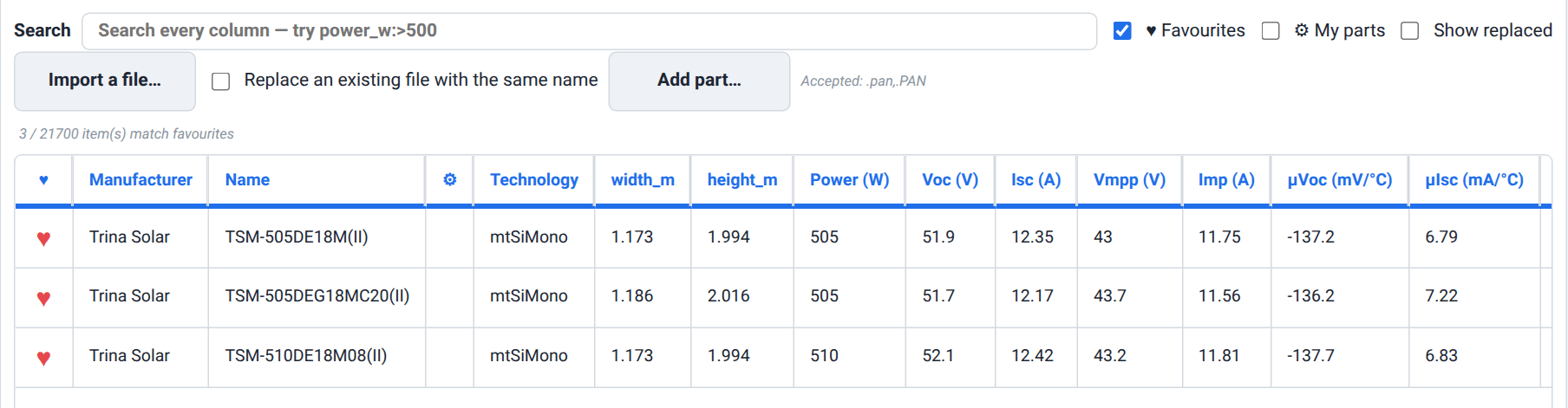
The heart column (leftmost) is how you promote a part so the rest of the application will offer it: click a part's heart to mark it, and again to unmark it.
Tip
Favourite everything you might realistically specify on a project, and nothing else. Most project-side pickers list only favourites, so a tight favourites list keeps those menus short. There is no “use in project” button in the catalogue — hearting a part is the whole hand-off.
Concretely, your hearts feed:
the module dropdown on each Map zone card — and the module a freshly drawn zone is born with, which is the first favourite in the list — and its Mounting structure dropdown (The Map & Site Design Tab);
the Diagram right-click “add an inverter / add a combiner box” entries, the Pick from favourites dropdown of each inverter and combiner-box row, and its Favourite cable picker (Electrical Design & the One-Line Diagram);
the battery pickers for physical and virtual storage (Storage, EV & Specialized Systems);
the Catalogue tariff dropdown of the project's consumption-rates card, under its
From the cataloguerate source, which copies a hearted tariff's rates into the project — and, for a grid-only tariff such as a TURPE network charge, the From the catalogue row of its grid-pricing card (The Project Tab);the Batch tab's Parts page, whose ♥ Favourites only filter narrows its list to the parts you hearted, ready to tick for a head-to-head comparison (Batch Simulation & Scenario Sweeps). The tab's Auto-size page's Sweep modules and Sweep batteries axes also compete your favourite modules and batteries against the project's current parts — the modules, and the inverters picked for them, only once you have priced them (Component prices).
The project's generator and pump pickers are the exception: they list the catalogue's generators and pumps whether or not you hearted them. Hearts also arrive from the other direction: applying a Batch scenario that swaps a component adds that component to your favourites (Batch Simulation & Scenario Sweeps).
Each of those dropdowns, and the generator and pump pickers, ends on the same last entry, Add from the catalogue…, as does the Batch Parts list. It is the way back here: it opens this view on the picker's own category and leaves the picker as it was, so a part you heart then joins the list you came from. The address it opens names the category, as in /catalogue?tab=batteries-physical; the values are panels, inverters, boxes, wires, racking, batteries-physical, batteries-virtual, generators, pumps and tariffs, and such a link opens the same tab when bookmarked or shared.
Favourites are stored per category and persist between sessions: they live in your settings, alongside your other preferences. Turn on settings sync in Preferences, Tariffs & Theming and they follow your account to another browser or another machine; leave it off and they stay in this browser. A heart on a part the engine you are talking to cannot resolve simply does not show up in the project-side pickers — the heart is remembered, the part just is not there.
Adding, editing and deleting
Who may change the catalogue
Adding, importing, editing and deleting are reserved for the Manager and Admin roles. When you do not hold one, the whole action row is replaced by a note that says why:
signed in without the role:
Catalogue changes require the Manager or Admin role.signed out, where the role cannot be known at all:
Sign in to change the catalogue. Adding, importing or removing components requires the Manager or Admin role.
Your role is shown on your account page (/account) as Profile: User, Profile: Manager or Profile: Admin. The account that opens a company — by signing up for a company pvSpline does not know yet, by buying a plan, or as the first account pvSpline opens for it — starts with the Manager role, so it can change the catalogue from its first sign-in. A colleague who joins the company later starts with the User role: they can browse the catalogue and mark favourites, but not change it, until someone who manages your company gives them the Manager role (Roles, and what a manager can change); nobody can change their own role.
The role is re-checked when the page loads, when you switch category, and whenever you come back to the browser tab. The buttons being hidden is only the affordance; the engine refuses a change from an unauthorised caller regardless.
Add
Add part… opens the component editor in place, above the table, on the form for the category you are in — panel, inverter, physical or virtual battery, combiner box, cable, mounting kit, generator, pump or tariff. Every one of the ten categories has a full hand-entry form; see The component editor.
Before saving a new part, the app checks whether its name is already in the category. If it is, it asks — nothing has been written at that point:
Replace the existing one — save as its own entry and mark the old one replaced. The old entry keeps its identity, so projects that already use it keep working; it just stops appearing in the browse list.
Keep both — two entries side by side, no succession recorded.
Cancel — back to the form.
Edit
Edit appears on each row you own and reopens the editor pre-filled with that part's values. It is offered only for one row at a time, and only for parts that are yours — a component shipped with the application has no editable form behind it.
Editing is a merge: only the fields you actually fill are written, and a field you leave blank keeps the part's stored value. A hint above the form says so. The form fills itself in two passes — first from the row on screen, then from the part's full stored specification — so a moment after the editor opens the deeper fields fill in too. Anything you typed while that was in flight is left alone.
If the full specification cannot be loaded, a warning note under that hint says so: This part’s full specification could not be loaded, so only the values shown in the list are filled in. Empty fields still keep their stored values when you save. A blank field then means “not loaded” rather than “no value”. You can still save — a blank field, and a tick box you have not touched, keep what the part has stored — or click Cancel and open the editor again to retry the load.
Watch out
Changing a specification does not edit a part in place: it creates a component with its own identity, and the editor says so. Projects you have already saved keep the component they were built with. That is the point — a simulation you ran last month cannot silently change because someone corrected a datasheet today.
If the specification you type reproduces one the catalogue already holds, the save is refused: two parts with the same specification are the same part, so saving would only add a copy. The editor then offers Use the existing component, which resolves to the incumbent and applies the name you typed to it. Renaming it cannot move its identity, because display names are not part of the specification.
Note
A component that came in from a datasheet file has no editable form either, and the table cannot always tell in advance — so you may open the editor on such a row and only be told when you save: This entry has no editable form: it was either shipped with the application or parsed from a datasheet file (.PAN / .OND / YAML). Import a corrected file, or add a new component instead. That is the way out: correct the datasheet and re-import it, or author a new component with Add part….
Delete
Two routes, both role-gated and both confirmed:
One row. The row's Delete button opens a confirmation dialog that asks
Remove the entry ``X'' from the catalogue? This action is permanent.A selection. Select several rows, then use Delete (n) in the action row or the Delete key while the table has focus. One confirmation covers the batch: it names the first eight entries and counts the rest.
Either way nothing is removed until you click Confirm delete in the dialog; Cancel, Esc or a click outside the dialog leaves the catalogue as it was. The dialog opens with Cancel focused, so a stray Enter deletes nothing.
Components shipped with the application show no Delete button at all, and are dropped from a selection before the confirmation — so the count you read is the count that happens. A selection with nothing deletable in it offers no delete at all: the action-row button is absent and the Delete key does nothing.
Caution
Deletion is permanent. On a shared catalogue it removes the component for everyone who uses it, not just for you.
Your own parts across machines
Parts you create or import are stored in your company's shared components, so they follow you to another machine and to another browser.
Against the cloud service this shared store is where your parts live, full stop: the shared engine carries the components shipped with the application and nothing else.
Importing PVsyst datasheets
pvSpline reads PVsyst's native component files directly, so a manufacturer datasheet you already have for PVsyst drops straight in. Like every catalogue change, an import needs the Manager or Admin role.
Import a file… opens your browser's file picker, filtered to the extensions the open category accepts (the hint beside the button spells them out). A progress bar shows Reading…, Uploading… and Processing… as the file moves; a small file is through all three before the bar has anything to show.
| File type | Meaning / effect |
|---|---|
| .PAN — module | Full module datasheet: geometry, STC electricals, temperature coefficients, IAM curve, cell count and the maximum system voltage (IEC and UL). Import from the PV modules category. |
| .OND — inverter | Inverter datasheet: AC/DC power, MPPT window, efficiency curves, thresholds, hybrid/battery data. Import from the Inverters category, or from an inverter row of the one-line diagram (Electrical Design & the One-Line Diagram), which loads the datasheet into that row for anyone and files the inverter here only with the Manager or Admin role. |
| .BTR — battery | Battery datasheet: capacity, power, efficiency, DoD, lifetime. Import from either battery category; either way it files a physical battery. |
| .PMP — pump | Pump datasheet. Import from the Pumps category. |
| .yaml / .yml | Combiner box, cable, generator and tariff definitions. Import from the matching category. |
Import a PVsyst module (.PAN) into the catalogue
Go to
/catalogueand select the PV modules category.Click Import a file… and choose your
.PANfile.A line confirms the import and the new row appears in the table; tick My parts to see it among your own components. Hover its name to confirm where it came from.
Click the new row's heart so the module appears in the zone dropdown in Map.
Size ceilings
The app checks the file's size before it reads a single byte, so an oversized file is refused immediately and by name rather than after a full upload. The ceiling is about 25 MB per file.
The refusal names the file, its size and the limit that applied. No component datasheet comes anywhere near that number; the check exists so that picking the wrong file gives a clear answer instead of a stalled upload.
Importing against the cloud service
On the cloud service an import is stored into your company's shared components rather than into the shared engine's own catalogue, so your parts stay yours. Two differences follow. There is no review step — the outcome is decided by the content alone, and a re-import of something you already hold is refused outright. And if a file parses into something your company's shared components cannot hold, the app says so and nothing is stored.
Why a renamed part is still the same part
Every component in the catalogue is identified by its specification, not by a name or a serial number. That identity, the fingerprint, is not printed in the table: Copy fingerprint, in the row's Options column, puts it on your clipboard. Three consequences are worth internalising, because most of this chapter's behaviour follows from them:
Renaming a part never changes what it is. The display name is stored beside the specification, not inside it. Rename a module to something your team recognises and every project that uses it keeps resolving to the same module.
Two identically-named parts can be two different parts, and two differently-named ones can be the same part. Trust the fingerprint, not the label — that is what the duplicate and revision prompts are telling you when they appear.
Entering the same specification twice gives you one part. Type a datasheet by hand on your laptop and a colleague type the same datasheet on theirs, and the two of you end up referring to the same component, with no coordination and no shared identifier.
This is also why a corrected datasheet becomes a new entry rather than overwriting the old one, and why “replacing” a part only marks the old one retired: a simulation you ran last year must keep resolving to the component it was actually run with.
Note
A module's maximum system voltage is part of its specification. The modules shipped with the application are converted from the CEC list, which states none. If a module you imported yourself shows no maximum system voltage although its .PAN states one, it was imported before pvSpline read the rating. It keeps its fingerprint, and no rating, until you import the file again — which adds a new entry beside it rather than changing the old one. Your hearts and zones keep using the old entry: heart the new one and pick it for those zones on Map to bring the rating into your projects.
Tip
When you need to refer to a component precisely — in a ticket, in a batch CSV, in a support request — copy its fingerprint rather than its name.
If the browser does not let the page use the clipboard, the full fingerprint is printed in a line above the table instead, so you can select it by hand.
The part picker
Inside the component editor, Pick from the catalogue… opens a picker: a compact single-select browser over the category you are authoring, headed Pick a component to start from. It has a Search box (server-side, narrowing as you type) and a Favourites checkbox like the main table's, plus a count line. Its search is plainer: what you type is matched as one piece of text against every column, so the key:value grammar and the term chips belong to the main table only. If the category already has favourites, the picker opens with the favourites filter on; that filter narrows the rows the picker has loaded, so in a large category type part of a hearted part's name to bring it in. The picker lists the components shipped with the application; your own parts are not offered there.
Select a row and click Choose, or double-click the row, and the whole form — name included — is pre-filled from that component. Cancel closes the picker and changes nothing.
Note
The picker gives you a starting point, not a link. What you save is content-addressed off whatever you leave in the form: change nothing and you are offered the existing part; change one value and you are authoring a new one.
The picker hands over one page of the category at a time. When the page comes back full, the count line says so — refine the search rather than scroll, because the search runs over the whole category on the engine.
The component editor
The editor opens in place, above the table, titled for the category you are in — Add a panel reference, Add an inverter, Add a physical battery, Add a virtual battery, Add a combiner box, Add a cable, Add a generator, Add a pump, Add a tariff — or Edit “X” when you are editing. You cannot change a part's category mid-edit: the category is the tab you are on.
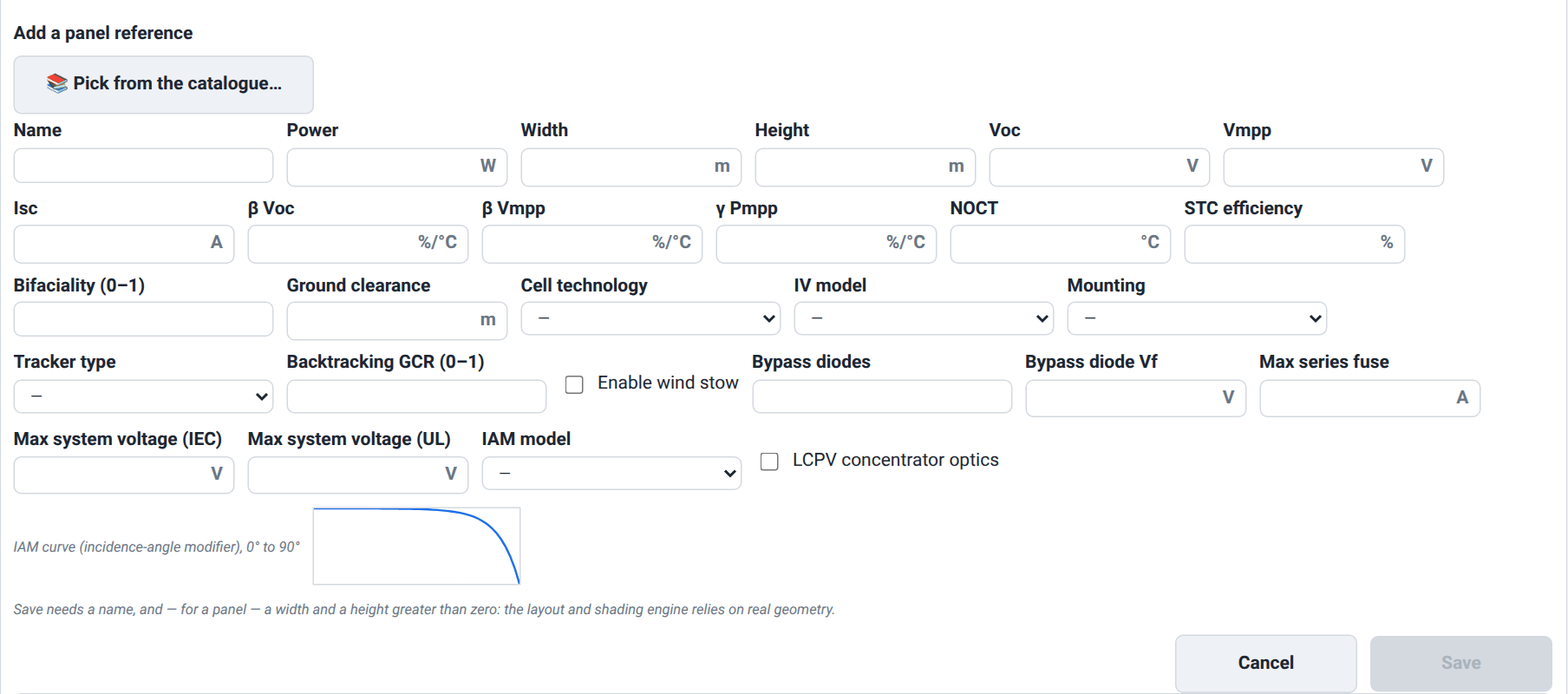
Its layout is one wrapping grid of fields in a fixed order, headed by Pick from the catalogue… and by the Name field, which applies to every category. Number fields carry their unit inside the box. Dropdowns all offer a leading — entry, which means “leave unset” on a new part and “keep the current value” on an edit.
Save stays disabled until the entry is valid. A name is always required for a new part, and a module additionally needs a Width and a Height greater than zero — the layout and shading engine relies on real geometry. A line under the form spells the rule out whenever the button is disabled.
Note
Nothing in this form is pre-filled with a default. Every field starts blank, and a blank field is left to the engine's own default rather than forced to zero. You only need to fill what your datasheet actually gives.
Blocks that appear when you need them
Several groups of fields are hidden until something unlocks them, so the form only ever shows what applies:
| Block | Meaning / effect |
|---|---|
| Rsh shape parameters | Two fields, shown only when IV model is Irradiance-dependent R_sh (PVsyst). |
| Tracking strategy & rotation limit | Shown only for a single-axis tracker — a fixed mount and a two-axis tracker have neither. Saving the module with any other tracker type resets both (Astronomic, no rotation limit), so a two-axis tracker never inherits a single-axis limit. |
| Wind-stow threshold & angle | Shown only while Enable wind stow is ticked. The tick is the gate: unticking it and saving switches stow off. |
| ASHRAE b0 | Shown only when IAM model is ASHRAE (b0). |
| Concentrator optics (HCPV) | Six fields, shown only when Cell technology is multi-junction. |
| LCPV optics | Eleven fields, shown only while LCPV concentrator optics is ticked. |
| Hybrid DC-bus block | Four fields, shown only while Hybrid (battery-capable) is ticked on an inverter. |
Hidden fields are not written. A field you cannot see cannot silently change the part.
Watch out
Choosing multi-junction as the Cell technology pre-fills the concentrator block with the usual literature values for a roughly 500× stack and forces the tracker to two-axis, which the dropdown then refuses to leave. A multi-junction cell physically cannot work on a fixed mount, so the form will not let you build one. A note under the form explains the lock while it is in force.
The IAM curve preview
Under a module form, a small read-only plot draws IAM curve (incidence-angle modifier), 0° to 90° for the model and parameters currently selected: the Martin-Ruiz analytic curve, or the ASHRAE curve for the b0 you typed. It redraws as you type, so you can see what your coefficient actually does to the beam component at grazing incidence.
Select .PAN profile and the plot is replaced by a note: that profile is the tabulated angular response an imported datasheet declares, so there is no formula to preview — it comes in with the file or not at all.
What each category's form covers
PV module — 50 fields: rated power and physical size, the STC electricals and their temperature coefficients, cell technology, bifaciality and ground clearance, the IV-curve model, mounting and tracking (including backtracking and wind stow), bypass diodes and the maximum series fuse, the maximum system voltage (IEC and UL), the IAM model, and the two optional concentrator blocks.
Inverter — 20 fields: AC and DC power, the MPPT count and window, DC current and string limits, AC voltage and phases, the two weighted efficiencies, standby and night-time draw, the microinverter flag, and the hybrid battery-bus block.
Physical battery — 9 fields: capacity, charge and discharge power, round-trip efficiency, the state-of-charge floor, cycle and calendar life, bus voltage and installed cost.
Virtual battery — 7 fields: the banking cap, the withdrawal fee, two subscription forms, the billing period, the conversion ratio and whether credits expire.
Combiner box — 24 fields: manufacturer and type, DC inputs and fusing, AC output and breaker, protection and ingress rating, the operating temperature window, monitoring and metering, the series resistance that drives its Joule losses, and the enclosure dimensions.
Cable — 19 fields: cross-section and gauge, conductor material and insulation, the voltage and temperature envelope, resistance and reactance per km, three install-context ampacities, and three certification flags.
Mounting kit — 16 fields: manufacturer and year, what the kit mounts on, the rails (direction, count, bar length, overhang, profile and end caps), the attachment and its spacing, the clamp range and the earthing clips, and the two facts the permit package states: the modules' height above the surface and the finish.
Generator — 10 fields: rating in kW and kVA, power factor, the two fuel-curve coefficients, the minimum load fraction and the CO2 factor.
Pump — 8 fields: technology, submersible flag, nominal power, maximum flow and head, the start-up threshold and the wire-to-water efficiency.
Tariff — 16 fields in three groups: identity and validity; the buy side (granularity plus the flat or peak/off-peak rates); the sell side and grid charges. All the rate fields are shown at once and only the ones your chosen granularity uses are kept.
Every one of those fields is documented individually in Field reference.
Editing a project's inverter
Attaching an inverter to a project, and setting the few properties that belong to the project rather than to the datasheet, is not done here. The catalogue curates; the project views consume. Those controls live on the one-line diagram in Diagram (Electrical Design & the One-Line Diagram), on each inverter row: a Pick from favourites list, an Import a .OND file… button that loads a datasheet straight into that row (and, with the Manager or Admin role, also files the inverter in this catalogue), a weak-grid backup flag (only meaningful on a hybrid device, since a grid-tie inverter cannot island), and master/slave grouping with its unit count; From favourites… beside the inverter list adds a new row from your favourited inverters.
Fetching measured production online
Pulling measured production from an inverter manufacturer's cloud (Enphase, SolarEdge, APsystems, SolaX) to compare against a simulation is a Production feature, not a catalogue one — what it retrieves is a production time series, not a component datasheet. See Running a Simulation & the Production Tab for the provider list, the credentials each one needs and how the fetched series is used.
Component prices
Per-unit prices are a property of the project, not of the catalogue, so they are set where they are used: in the Component prices… section of the Batch view's auto-sizing study (Batch Simulation & Scenario Sweeps). It lists the modules and inverters the sweep can consider — your favourites plus the project's current parts — each with an editable price per unit. The prices are stored on the project, so they travel with it. They shape the candidate grid Auto-size builds, provided its Install rate is set: with Sweep modules ticked, only the modules you have priced compete (and only once every module the project already uses is priced too), each candidate is costed with its module's price on top of that rate, and — once Site Tmin (cells) and Site Tmax (cells) are set on the Diagram tab — the inverter sized for each module is picked among the inverters you have priced. A sizing study ranks its candidates on them the same way (The sizing study).
Note
That list is drawn from your favourites, which is one more reason to curate them here before pricing a project.
Field reference
Browse controls
| Field / Control | Type & unit | Default | What it does & how to set it |
|---|---|---|---|
| Search | text field | empty | Filter the open category. A bare word matches any column; key:value narrows to one, with >, >=, <, <= and lo..hi on numeric columns. Terms combine with AND. Results narrow as you type; matching runs on the engine over the whole category. |
| Favourites | checkbox | off | Show only items marked as favourites in this category. Combines with Search. |
| My parts | checkbox | off | Show only your own components — imported, hand-entered, and the derived entries created when a specification was edited. Hides the components shipped with the application. |
| Show replaced | checkbox | off | Also list parts a later revision replaced. They stay usable in existing projects; only the browse list hides them. |
| Import a file… | button | — | Open a file picker filtered to the extensions this category accepts. Reads Importing… while a file is processed. Manager / Admin only. |
| Replace an existing file with the same name | checkbox | off | No effect on the cloud service, where an import is filed by its content and never overwrites a stored file. |
| Add part… | button | — | Open the component editor for this category. Manager / Admin only. |
| Delete (n) | button | — | Delete every deletable row in the selection, after one confirmation that names the first eight. Appears only when the selection holds something deletable. The Delete key does the same while the table has focus. |
| Heart column | toggle cell | off | Mark or unmark a part as favourite. Sorting on this column groups favourites. |
| Replaced badge | read-only badge | — | Beside the name of a part a later revision replaced, which the list shows only with Show replaced ticked. Projects that already use the part keep working. |
| Derived column | read-only badge | — | Marks a part derived from a hand-edited specification. |
| Options | buttons | — | The row's actions. Copy fingerprint puts the part's identity on your clipboard (the table does not print it); Edit and Delete appear on rows you own (Manager / Admin), and Delete asks for confirmation in a dialog first. |
| Show more | button | — | Sits under the count line while more rows remain; appends the next 200 to the bottom of the table and shows how many are left. Absent with Favourites ticked, which lists every hearted part at once. |
Component editor — shared
| Field / Control | Type & unit | Default | What it does & how to set it |
|---|---|---|---|
| Pick from the catalogue… | button | — | Browse this category and pre-fill every field of the form from an existing component. A starting point, not a link. |
| Name | text field | empty | Name of the item added to the catalogue. Required for a new part. On an edit it opens with the current name; emptying the box keeps that name, which then shows as the placeholder. |
| Save | button | — | Write the part. Disabled until a name is present and — on a module — Width and Height are both greater than zero. |
| Cancel | button | — | Close the editor without writing anything. |
Module — power, geometry and STC electricals
| Field / Control | Type & unit | Default | What it does & how to set it |
|---|---|---|---|
| Power | number · W | — | Panel rated power in watts, at standard test conditions. |
| Width | number · m | — | Panel width, in metres. Required and greater than zero — the layout and shading engine needs real geometry. |
| Height | number · m | — | Panel height, in metres. Required and greater than zero. |
| Voc | number · V | — | Open-circuit voltage at STC. Sets the cold-weather string ceiling the sizing checks work against. |
| Vmpp | number · V | — | Maximum-power-point voltage at STC. Sets the hot-weather floor of the MPPT window check. |
| Isc | number · A | — | Short-circuit current at STC. Drives the parallel-string current check and the DC fuse rating. |
| β Voc | number · %/°C | — | Temperature coefficient of Voc (typically -0.27 %/°C for c-Si). Leave at 0 to disable the correction. |
| β Vmpp | number · %/°C | — | Temperature coefficient of Vmpp (typically -0.34 %/°C for c-Si). Leave at 0 to disable the correction. |
| γ Pmpp | number · %/°C | — | Temperature coefficient of Pmpp (typically -0.40 %/°C for c-Si). Always ≤ 0 — power drops as temperature rises. 0 = not specified. Distinct from β Vmpp. |
| NOCT | number · °C | — | Nominal Operating Cell Temperature (typically 45 °C for c-Si). Feeds the Sandia cell-temperature model: Tcell = Tamb + (NOCT-20)/800 · Gpoa. |
| STC efficiency | number · % | — | Efficiency at STC (typically 18–22 % for modern c-Si). If 0, the chain derives it from power divided by area. |
Module — optics, mounting and tracking
| Field / Control | Type & unit | Default | What it does & how to set it |
|---|---|---|---|
| Bifaciality (0–1) | number | — | Rear-face / front-face power ratio. Commercial bifacial modules: 0.65–0.85. 0 = monofacial module, rear-face gain disabled. |
| Ground clearance | number · m | — | Height under the module. Drives rear-face self-shading. Flush-mount roof ≈ 0.05, residential stand-off ≈ 0.1, ground-mount farm ≈ 1.0–1.5, canopy ≈ 2.0+. |
| Cell technology | dropdown | — | Photovoltaic cell type: mono-Si, poly-Si, PERC, HJT, TOPCon, IBC, amorphous-Si, CdTe, CIGS, multi-junction, Other. Drives the spectral correction and the degradation defaults (LID plus annual degradation). Choosing multi-junction reveals the concentrator block and locks the tracker to two axes. |
| IV model | dropdown | — | I-V curve model used for the calculations. De Soto 2006 covers most modules; Irradiance-dependent R_sh (PVsyst) adds a light-dependent shunt for better low-light accuracy and reveals the two fields below. |
| Rsh,0 / Rsh,ref (blank = 4.0) | number | — | Ratio of shunt resistance at G → 0 to that at Gref. Typical range 2.0–8.0. Shown only for the irradiance-dependent model. |
| Rsh exponent (blank = 5.5) | number | — | Controls how quickly Rsh approaches Rsh,ref as irradiance rises. Typical range 3.0–8.0. Shown only for the irradiance-dependent model. |
| Mounting | dropdown | — | Free mounting (ground / carport) or Building-integrated (BIPV). Drives the Faiman thermal coefficients (rear cooling), not the PVGIS mounting parameter: PVGIS is asked for a building-integrated mounting unless the zone is on water. |
| Tracker type | dropdown | — | Fixed, Single-axis, horizontal N–S, Two-axis, Single-axis, vertical, Single-axis, horizontal E–W, Single-axis, tilted. Drives the PVGIS request — a fixed plane, a single-axis tracker or a two-axis tracker — and the tracker physics in the simulation chain: a zone takes the type's tracking (with its strategy, rotation limit, backtracking GCR and wind stow) when you pick the type for it on Map. In the simulation chain the four single-axis choices turn alike, about a horizontal axis along the zone's azimuth; the PVGIS irradiance follows the choice: a vertical, horizontal E–W or tilted type asks PVGIS for that tracker's irradiance, and the horizontal N–S type asks for an east–west tracker's when the zone's azimuth is within 45° of east or west, a north–south one's otherwise (The Map & Site Design Tab). Editing the tracking here makes a new component (Why a renamed part is still the same part): pick it for the zones that should track that way. Locked to two-axis for a multi-junction cell. |
| Tracking strategy | dropdown | — | Astronomic points at the sun (ideal tracking); Irradiance optimization re-aims under a diffuse or overcast sky to the angle that maximises POA irradiance, and is identical to astronomic in clear sky. Shown only for single-axis trackers. |
| Rotation limit (blank = no limit) | number · ° | — | Mechanical rotation limit of the single-axis tracker — a hardware property, so it applies to every strategy. Blank = no limit (bounded to ±90°). Typical ±45 to ±60°. The hours it holds the tracker short of the sun cost yield, shown with backtracking on the Tracker backtracking / rotation limit line of the loss diagram (Tracking). It is also the tilt the weather-derived soiling and snow losses take for the tracker: 45° when blank. Shown only for single-axis trackers. |
| Backtracking GCR (0–1) | number | — | Ground Coverage Ratio = module length / row pitch. Activates backtracking on single-axis trackers to avoid inter-row shading at sunrise and sunset. 0 = no backtracking (ideal tracking). Typical 0.30–0.50. The yield backtracking costs appears on the Tracker backtracking / rotation limit line of the loss diagram (Tracking). |
| Enable wind stow | checkbox | off | Put the tracker in stow position when the hourly wind speed exceeds the threshold. Costs production in those hours but protects the mechanics. No effect on fixed systems. Unticking it and saving switches stow off. On a tracker the stow is part of the module's identity: the same tracker with and without a stow, or with another threshold or angle, are two parts. |
| Wind-stow threshold | number · m/s | — | Wind speed at 10 m above which the tracker goes to stow. Typical 12 m/s. Shown only while wind stow is enabled. |
| Wind-stow angle | number · ° | — | Tracker rotation in stow, not an absolute tilt. 0° = flat for a horizontal single-axis tracker, where POA reduces to global horizontal irradiance. Shown only while wind stow is enabled. |
| Bypass diodes | number | — | Number of bypass diodes (substrings) in the module — 3 on virtually every crystalline module, 60/120- and 72/144-cell alike; 96-cell modules use 4. Two or more enables per-substring partial-shading modelling and lets a 3-D shading bake be consumed. 0 = unspecified, and the engine then assumes 3. |
| Bypass diode Vf | number · V | — | Bypass-diode forward voltage drop (typically 0.45 V Schottky, 0.7 V silicon). Used by the partial-shading mismatch model. 0 = unspecified. |
| Max series fuse | number · A | — | Maximum series fuse rating per the module datasheet (typically 15–25 A on c-Si). Caps the DC fuse rating the single-line diagram picks. Blank = unspecified, and the picker applies the 1.56 × Isc rule without a ceiling. |
| Max system voltage (IEC) | number · V | — | Maximum system voltage the module is certified for under IEC 61730 (VMaxIEC in a .PAN; typically 1000 or 1500 V). A string's cold-weather open-circuit voltage is held below it as well as below the inverter's limit. Blank = unknown: the UL rating stands in; with neither stated, the string layouts Batch plans for its scenarios are held to the inverter's MPPT maximum (Deciding and applying), and the Diagram tab's Issues check tests strings against the inverter's limit only. Part of the module's identity, so the 1000 V and 1500 V versions of one module are two parts. |
| Max system voltage (UL) | number · V | — | Maximum system voltage of the module's UL listing (VMaxUL in a .PAN; 600, 1000 or 1500 V). Applies instead of the IEC rating when the project's Electrical code is NEC (US) (Electrical Design & the One-Line Diagram). Blank = unknown: the IEC rating stands in. |
| IAM model | dropdown | — | Incidence-angle modifier. Martin-Ruiz (default) is the default analytic curve; ASHRAE (b0) is the one-parameter model; .PAN profile is the angular response an imported datasheet declares, and works only when the .PAN provided one. |
| ASHRAE b0 | number | — | Coefficient of the ASHRAE IAM model: IAM(θ) = 1 - b0 · (1/cosθ - 1). Typically ≈ 0.05 for standard c-Si glass. Shown only in ASHRAE mode. |
| IAM curve preview | read-only plot | — | Live plot of the selected IAM model from 0° to 90° of incidence. Replaced by a note when .PAN profile is selected, whose tabulated points come from the file. |
Module — concentrator optics (HCPV)
These six fields appear only when Cell technology is multi-junction, and are pre-filled with the usual values for a 500× triple-junction stack so a concentrator module is never saved with no optics at all.
| Field / Control | Type & unit | Default | What it does & how to set it |
|---|---|---|---|
| Concentration ratio | number · suns | 500 | Geometric concentration factor. |
| Optical efficiency (0–1) | number | 0.85 | Optical efficiency of the lens / mirror stack. |
| Acceptance half-angle | number · ° | 0.7 | Half-acceptance angle (±°) at 90 % capture. A small number is why the two-axis tracker is compulsory. |
| UF slope above AM threshold | number | -0.02 | Slope of the spectral utilisation factor above the reference air mass (1.5). Negative = loss at high air masses, i.e. morning and evening. |
| CPV thermal U | number · W/m2K | 30 | Heat-sink thermal coefficient of the DNI-driven CPV model: Tcell = Tamb + DNI/U. |
| Tracking error loss (0–1) | number | 0.01 | Permanent pointing loss at the nominal tracking accuracy, as a fraction. |
Module — low-concentration optics (LCPV)
All the fields below appear only while LCPV concentrator optics is ticked. Each carries its own fallback, shown in its label: leave it blank and the engine uses the value calibrated for the concentrator type you picked.
| Field / Control | Type & unit | Default | What it does & how to set it |
|---|---|---|---|
| LCPV concentrator optics | checkbox | off | Low-concentration optics (trough, V-trough, CPC, low-ratio Fresnel) on c-Si cells — a regime most mainstream tools exclude, because of the non-uniform flux the fields below model. Requires direct-beam decomposition (Perez / Engerer2). |
| LCPV type | dropdown | — | Concentrator optics geometry: Linear trough, V-trough, CPC (compound parabolic), Low-ratio Fresnel, Custom. Selects the calibrated per-type defaults for optical efficiency, half-acceptance angle and flux uniformity. |
| Geometric concentration | number · × | — | Cgeo = aperture area / cell area. LCPV range ≈ 1.5×–40×. |
| LCPV optical efficiency (0–1) | number | — | ηopt: mirror reflectance or lens transmittance, times soiling, times the interception factor. Blank = default calibrated to the concentrator type. |
| LCPV acceptance half-angle | number · ° | — | θa. Blank = derived automatically from the concentration and the optics type. |
| Acceptance rolloff (blank = type default) | number · ° | — | Transition width δ of the acceptance function. Sharp for a CPC, soft for a V-trough. |
| Diffuse acceptance (0–1, blank = 1/C) | number | — | Fraction of diffuse radiation admitted by the optics. Blank = the ideal 1/Cgeo — a concentrator of ratio C sees roughly 1/C of the sky. |
| Flux uniformity factor (blank = 0.95) | number | — | 1 = perfect. Below 1 models the non-uniform flux that is the usual reason cited to exclude LCPV. |
| Flux uniformity ref. concentration (blank = 20×) | number | — | Concentration at which the non-uniform-flux penalty saturates. |
| LCPV thermal Uc (blank = polygon) | number | — | Faiman Uc of the concentrator receiver, in W/m2K. A passive-finned trough is ≈ 20–25, hotter than a free rack at 29; active cooling gives a large Uc. Blank inherits the zone's value. |
| LCPV thermal Uv (blank = polygon) | number | — | Faiman Uv (wind coupling), in W·s/m3K. Blank inherits the zone's value. |
| Max valid concentration (blank = 40×) | number | — | Single-diode extrapolation ceiling: beyond it the effective concentration is clipped and the P90 band widens, because the model's parameters were extracted at one sun. Left blank, the engine applies 15× (not the 40× the label shows), safely below the roughly 30× at which the model breaks down on common modules. Do not raise it without verified optics. |
Inverter
| Field / Control | Type & unit | Default | What it does & how to set it |
|---|---|---|---|
| AC power | number · kW | — | Nominal AC output power. For a microinverter, this is the power per unit. |
| Max DC power | number · kW | — | Nominal DC power. Blank = the typical AC rating × 1.15. |
| MPPT inputs | number | — | Number of independent MPPT inputs. |
| Max DC voltage | number · V | — | Absolute maximum DC input voltage. The string's Voc at the site's minimum temperature must stay below it — the string-sizing validator checks exactly this. |
| AC voltage | number · V | — | Nominal AC output voltage: 230 V phase-to-neutral in the EU, 120 V in North America, 400 V phase-to-phase three-phase. |
| Phases | number | — | Number of AC phases: 1 = single-phase, 3 = three-phase. |
| MPPT window min | number · V | — | Lower bound of the MPPT window. The string's Vmpp at the site's maximum temperature must stay above it. Blank = unspecified. |
| MPPT window max | number · V | — | Upper bound of the MPPT window. The string's Vmpp at the minimum temperature must stay below it. Blank = unspecified. |
| Max DC current per MPPT | number · A | — | The sum of the parallel strings' Isc must stay below it. Blank = unspecified. |
| Strings per MPPT (max) | number | — | Maximum parallel strings connectable per MPPT input. Blank = unspecified. |
| Euro efficiency (fraction) | number | — | European weighted efficiency as a fraction — 0.9849, not 98.49. The loss cascade builds the inverter's efficiency curve from it unless the project's Electrical code is NEC (US) (Electrical Design & the One-Line Diagram). 0 = unspecified: the CEC figure stands in, and with both at 0 a generic 96 % curve applies. When an inverter of the project carries an efficiency curve from its .OND, the run uses that curve instead. |
| CEC efficiency | number · % | — | CEC weighted efficiency (California Energy Commission), as found on a North-American datasheet, e.g. 97.2 %. Used instead of the Euro figure when the project's Electrical code is NEC (US). 0 = unspecified, and the computation falls back on the Euro figure. |
| Start threshold | number · W | — | Standby threshold: below this DC input power the inverter shuts off. 0 = unspecified. |
| Night-time consumption | number · W | — | Parasitic draw at night or off production. 0 = unspecified, and a 0.5 W/kW heuristic (minimum 5 W) takes over. |
| Hybrid (battery-capable) | checkbox | off | Hybrid inverter with a built-in DC-coupled battery (SolarEdge StorEdge, Fronius GEN24 Plus, Huawei SUN2000-L1, …). When on, the project's physical battery can recover the energy the inverter clipped at its AC limit, provided the project's battery coupling is automatic or DC (Storage, EV & Specialized Systems). Reveals the four fields below. |
| DC bus min | number · V | — | Minimum DC bus voltage on the battery side. 0 = not specified, and the validator does not check compatibility. Shown only for a hybrid inverter. |
| DC bus max | number · V | — | Maximum DC bus voltage on the battery side. 0 = unspecified. Shown only for a hybrid inverter. |
| Nominal battery voltage | number · V | — | Target nominal voltage for the battery. 0 = unspecified. Shown only for a hybrid inverter. |
| Battery compatibility | dropdown | — | Strict (direct DC coupling) validates the battery voltage inside the DC-bus window; Soft (internal DC-DC converter) relaxes it, for inverters that convert internally. Shown only for a hybrid inverter. |
| Microinverter | checkbox | off | One inverter per module. When on, the single-line diagram drops the entire DC chain — strings, combiners, DC disconnect — and connects each module directly to its inverter. |
Physical battery
| Field / Control | Type & unit | Default | What it does & how to set it |
|---|---|---|---|
| Capacity | number · kWh | — | Nominal battery capacity. |
| Max charge | number · kW | — | Maximum charge power. 0 = no limit. |
| Max discharge | number · kW | — | Maximum discharge power. 0 = no limit. |
| Round-trip efficiency (0–1) | number | — | Round-trip efficiency, typically 0.85–0.95. |
| SOC floor (0–1) | number | — | Fraction of capacity never discharged, to preserve battery life. |
| Cycle life | number | — | Number of full cycles before the pack reaches 70 % capacity. |
| Calendar life | number · years | — | Calendar life before 70 % capacity. |
| DC voltage | number · V | — | Battery-bus DC voltage. Used by the hybrid-inverter compatibility check — it must fall inside that inverter's DC-bus window. 0 = not specified, and the check is skipped. |
| Installed cost | number · € | — | Purchase and installation price. Used by the battery auto-sizer to rank catalogue batteries by profitability (IRR), accounting for end-of-life replacement. 0 = unspecified, and the optimiser uses a default estimate and ignores replacement cost. |
Virtual battery
A virtual battery is a supplier product, so its “spec” is commercial. Note that two fields are both labelled Subscription; they are told apart by the unit inside the box.
| Field / Control | Type & unit | Default | What it does & how to set it |
|---|---|---|---|
| Banking cap per period (0 = uncapped) | number · kWh | — | How much energy the bank can hold in one period. |
| Fee | number · €/kWh | — | Fee charged per kWh withdrawn from the virtual bank. |
| Subscription | number · €/month | — | Flat monthly subscription from the virtual-battery provider. |
| Subscription | number · €/kWp/month | — | Monthly subscription billed per kWp of installed PV power, in addition to the flat one. 0 = flat-only offer. |
| Period (0 monthly / 1 annual) | dropdown | — | Monthly or Annual — the frequency at which the credit bank is reset, if expiry is enabled. |
| Conversion ratio (0–1) | number | — | Fraction of the injected kWh that is credited. 1.0 = lossless. |
| Stored energy expires at period end | checkbox | off | When on, the bank balance resets to zero at the end of each period and unused credits are lost. |
Combiner box
| Field / Control | Type & unit | Default | What it does & how to set it |
|---|---|---|---|
| Manufacturer | text field | empty | Combiner box manufacturer name (free text). |
| Year | number | — | Year placed on the market. 0 = unspecified. |
| Box type | dropdown | — | DC combiner groups several strings before the inverter; AC box distributes the current after it; Junction is a simple connection box. |
| Inputs | number | — | Number of DC inputs, one per incoming string. |
| Input fuse | number · A | — | Rating of the fuse fitted on each DC input. Must cover Isc × 1.25 (NEC) or × 1.40 (IEC). |
| Max input current | number · A | — | Maximum admissible current per input. 0 = unspecified. |
| Max input voltage | number · V | — | Maximum DC voltage the box withstands. Must be at least the string's Voc corrected to the site's minimum temperature. |
| Phases | number | — | Number of AC phases supported (1 or 3). 0 = unspecified. |
| Max output current | number · A | — | Maximum total output current. 0 = unspecified. |
| Output cross-section | number · mm2 | — | Maximum connectable output cable cross-section. |
| Main breaker | number · A | — | Rating of the main output breaker. |
| Nominal AC voltage | number · V | — | Nominal AC operating voltage. 0 = unspecified. |
| Surge protection class | text field | empty | Class of the integrated surge arrester (EN 61643-11): Type 1 for direct lightning, Type 2 for induced surges. |
| DC switch | number · A | — | Rating of the on-load DC disconnect switch. |
| IP rating | number | — | IP protection rating (EN 60529). 65 = dust-tight and water-jet proof, 66 = powerful jets, and so on. |
| Min operating temperature | number · °C | — | Minimum operating temperature of the box. |
| Max operating temperature | number · °C | — | Maximum operating temperature of the box. |
| Monitoring | text field | empty | Monitoring interfaces offered (free text: Modbus RTU/TCP, built-in web server, RS-485, and so on). |
| Energy meter | checkbox | off | Tick if the box integrates a certified energy meter (MID class B, for example). |
| Series resistance | number · Ω | — | Series resistance per DC input — busbar plus fuse plus connectors, typically 1–20 mΩ. Used to compute the box's Joule losses. |
| Width | number · mm | — | Outer width of the box. |
| Height | number · mm | — | Outer height of the box. |
| Depth | number · mm | — | Outer depth of the box. |
| Weight | number · kg | — | Weight of the equipped box. |
Cable
| Field / Control | Type & unit | Default | What it does & how to set it |
|---|---|---|---|
| Manufacturer | text field | empty | Cable manufacturer name (free text). |
| Year | number | — | Year placed on the market. 0 = unspecified. |
| Cross-section | number · mm2 | — | Nominal conductor cross-section. Determines the linear resistance and the reference ampacity. |
| Gauge (AWG) | text field | empty | Gauge per the American Wire Gauge convention, if applicable. The cross-section in mm2 is entered separately. |
| Material | dropdown | — | Copper or Aluminium. Aluminium has roughly 1.6 × the resistivity of copper at equal cross-section. |
| Insulation | text field | empty | Insulation type (PVC, XLPE, EPR, PV1-F for solar, …). Affects the admissible temperature and the ampacity. |
| DC voltage rating | number · V | — | Maximum DC voltage the insulation withstands. Typically 1000 V residential, 1500 V utility-scale. |
| AC voltage rating | number · V | — | Maximum AC voltage the insulation withstands. 0 = unspecified. |
| Max temperature | number · °C | — | Maximum conductor temperature in continuous service. Depends on the insulation: PVC 60–70 °C, XLPE/EPR 90 °C, silicone 180 °C. |
| Outer diameter | number · mm | — | Outer diameter of the insulated cable. Used to compute the conduit fill ratio. |
| Weight | number · kg/km | — | Linear weight of the cable. Useful to estimate cable-tray weight and logistics. |
| Resistance | number · Ω/km | — | Linear resistance of the conductor at 20 °C. Used to compute the voltage drop and the Joule losses. |
| Reactance | number · Ω/km | — | Linear reactance. Relevant for long AC runs. 0 = ignored in the voltage-drop computation. |
| Ampacity, free air | number · A | — | Admissible current in free air under standard conditions (30 °C ambient, one circuit). |
| Ampacity, conduit | number · A | — | Admissible current in conduit, derated by grouping. 0 = unspecified, and it is derived by derating. |
| Ampacity, buried | number · A | — | Admissible current for buried installation, allowing for soil thermal resistivity. 0 = unspecified. |
| UV resistant | checkbox | off | Tick if the insulation is certified UV-resistant (exposed outdoor installation without a protective sheath). |
| Buriable | checkbox | off | Tick if the cable is certified for direct burial without conduit — often armoured. |
| Halogen-free | checkbox | off | Tick if the insulation is halogen-free (LSZH/LSOH), which reduces smoke toxicity in a fire — public buildings, tunnels, server rooms. |
Mounting kit
The rail count and the attachment spacing are the supplier's, from their structural study for the site's snow and wind loads: the form records them, it does not compute them.
| Field / Control | Type & unit | Default | What it does & how to set it |
|---|---|---|---|
| Manufacturer | text field | empty | Mounting kit manufacturer name (free text). |
| Year | number | — | Year placed on the market. 0 = unspecified. |
| Mounts on | dropdown | — | Pitched roof, Flat roof, Ground, Carport or Façade. The permit package takes the way the modules are fixed from it: laid over a roof or façade, or on a supporting structure. |
| Rail direction | dropdown | — | Along the module rows (the usual layout for modules in portrait) or Across the rows, up the slope (modules in landscape). The bill of materials counts rails and clamps run by run in that direction; blank reads as along the rows. |
| Rails per run | number | — | Rails under each line of modules that share them. Blank: the usual 2. |
| Bar length (blank = cut to length) | number · m | — | Length of the rail bars as sold. The bill of materials orders whole bars, reusing the offcuts, and counts a splice wherever a rail is longer than one bar. Blank or 0: rails cut to length, no splices. |
| Rail overhang | number · m | — | How far each rail runs past the outer module edges, at both ends of a run. |
| Rail profile | text field | empty | The rail's profile or reference, as the supplier names it. Printed on the rail line of the bill of materials. |
| End caps | checkbox | off | Tick when the kit caps every rail end: two end caps per rail. |
| Attachment | dropdown | — | Roof hooks, Sheet-metal brackets, Ballast feet, Purlin clamps or Ground posts. Names the attachment line of the bill of materials and the fixing system the permit package states. |
| Attachment spacing | number · m | — | Longest span between two attachments along a rail. Blank or 0: attachments not counted. |
| Clamp range, module frame min | number · mm | — | Thinnest module frame the clamps fit. |
| Clamp range, module frame max | number · mm | — | Thickest module frame the clamps fit. With the minimum, the clamp range printed on the clamp lines. |
| Earthing clips per module | number | — | Bonding clips fitted per module. Blank: none. |
| Module height above the surface | number · mm | — | How far the modules' upper face stands above the covering, the roof or the ground the kit is fixed to, at their lowest edge, frames included: the height the permit package states for the modules (on tilted frames, plus the table's rise). |
| Finish | text field | empty | The visible finish of the rails or structure, e.g. mill-finish aluminium. Stated on the permit package's DP11 notice. |
Generator
| Field / Control | Type & unit | Default | What it does & how to set it |
|---|---|---|---|
| Manufacturer | text field | empty | Generator manufacturer name (free text). |
| Year | number | — | Year placed on the market. 0 = unspecified. |
| Generator type | text field | empty | Generator technology, e.g. diesel-genset. |
| Rated power | number · kW | — | Continuous electrical rating. If left blank, kVA × power factor is used. |
| Rated apparent power | number · kVA | — | Apparent-power rating. 0 = unspecified. |
| Power factor (cos φ) | number | — | Rated power factor. Used with the kVA rating when kW is blank. |
| Fuel intercept F0 | number · L/h/kW | — | No-load fuel-curve intercept. Fuel (L/h) = F0 × rated kW + F1 × output power. 0 = use the model default. |
| Fuel slope F1 | number · L/kWh | — | Marginal fuel-curve slope, in litres per kWh of output. 0 = use the model default. |
| Min load fraction (0–1) | number | — | Minimum load fraction — the wet-stacking guard. 0 = use the model default. |
| CO2 factor | number · kg/L | — | Combustion emission factor, in kg CO2 per litre of fuel. Diesel ≈ 2.68. 0 = use the model default. |
Pump
| Field / Control | Type & unit | Default | What it does & how to set it |
|---|---|---|---|
| Manufacturer | text field | empty | Pump manufacturer name (free text). |
| Technology | dropdown | — | Centrifugal or Positive displacement. Affects the flow-versus-head behaviour. |
| Submersible | checkbox | off | Tick if the pump is submersible — installed inside the borehole or well. |
| Nominal power | number · kW | — | Nominal motor power. 0 = unspecified. |
| Max flow | number · m3/h | — | Maximum (free-delivery) flow rate. 0 = unspecified. |
| Max head | number · m | — | Maximum (shut-off) head. 0 = unspecified. |
| Power threshold | number · W | — | Motor start-up power threshold. 0 = unspecified. |
| Efficiency | number · % | — | Wire-to-water efficiency. 0 = unspecified. |
Tariff
Every rate field is shown at once; only the ones your chosen Granularity uses are kept when you save. Rates are in cents per kWh.
| Field / Control | Type & unit | Default | What it does & how to set it |
|---|---|---|---|
| Supplier | text field | empty | Electricity supplier name (free text). The tariff's own name goes in the shared Name field above. |
| Country | text field | empty | ISO-3166 country code (FR, DE, …). |
| Currency | text field | empty | ISO-4217 currency code (EUR, USD, …). |
| Valid from | text field | empty | Validity start date, which makes obsolescence visible. |
| Granularity | dropdown | — | Flat rate, Peak / Off-peak, or Peak / Off-peak × Season. Fill in the matching rates below. Tempo and the hourly-CSV tariff are import-only. |
| Flat rate | number · c/kWh | — | Single all-hours rate. |
| Peak winter | number · c/kWh | — | Peak-hours rate, winter. |
| Peak summer | number · c/kWh | — | Peak-hours rate, summer. |
| Off-peak winter | number · c/kWh | — | Off-peak-hours rate, winter. |
| Off-peak summer | number · c/kWh | — | Off-peak-hours rate, summer. |
| Feed-in tariff | number · c/kWh | — | Feed-in tariff for PV surplus. |
| Feed-in tariff indexation | number · % | — | Annual indexation of the feed-in tariff. |
| Grid | dropdown | — | Grid charge model: None (included in the tariff) for an all-inclusive regulated tariff, Subscription, or TURPE for a market offer where the grid is billed separately. Applying the tariff to a project sets the project's GRID PRICING card to the same model (The project's consumption-rate and grid-pricing cards), and that decides what is billed: no grid charge with None (included in the tariff), the per-kVA price only with Subscription, the overrun penalty too with TURPE. Left on its blank choice, the tariff leaves the project's grid model as it is. |
| Subscribed power | number · kVA | — | Contractual subscribed grid capacity. The per-kVA price and the overrun penalty apply to it — under a Subscription grid the per-kVA price only, and under None (included in the tariff) neither. |
| Price per kVA·month | number | — | Capacity price per kVA and per month (Enedis publishes a yearly figure — divide by 12). |
| Overrun price | number | — | Power overrun penalty, per kVA·h. Not billed under a None (included in the tariff) or Subscription grid. |
Table columns by category
Every category's table leads with the heart column, Manufacturer, Name and the gear derived badge, and ends with the Options column and its row actions. Between them sit the category's own datasheet columns:
PV modules: Technology, width and height in metres (shown under their raw keys), Power (W), Voc (V), Isc (A), Vmpp (V), Imp (A), µVoc (mV/°C), µIsc (mA/°C), γ Pmp (%/°C), NOCT (°C), TRef (°C), Rshunt (Ω), Rsh0 (Ω), Rsh exp, Bifaciality, Series cells, Parallel cells, Bypass diodes, Diode Vf (V), Concentrator, Concentration (C), Optical η, Acceptance (°), IAM model, IAM b0, and the two rating columns Max system voltage, IEC (V) and Max system voltage, UL (V), shown only when a listed module states a rating.
Inverters: Single/Three, AC power (kW), DC power (kW), Max DC voltage (V), Vmpp min (V), Vmpp max (V), Max DC I (A), V AC nom (V), Inputs, MPPT count, Euro efficiency (%), Hybrid, Vbatt min (V), Vbatt max (V), Vbatt nom (V), η CEC (%), PThresh (W), Aux loss (W), Microinverter.
Physical batteries: Kind, Capacity (kWh), Max charge (kW), Max discharge (kW), Round-trip efficiency, SOC floor, Cycles, Duration (years), Voltage (V), Install cost (€).
Virtual batteries: Kind, Capacity (kWh), Fee (€/kWh), Subscription (€/month), Subscription (€/kWp/month), Conversion, Period, Expires at period end.
Combiner boxes: Year, Type, Inputs, Input fuse (A), Max input I (A), V input max (V), Phases, Max output I (A), Output cross-section (mm2), Breaker (A), V AC (V), Surge, DC switch (A), IP, T min (°C), T max (°C), Monitoring, Energy meter, R series (Ω), W (mm), H (mm), D (mm), Weight (kg).
Cables: Year, Cross-section (mm2), AWG, Material, Insulation, V DC (V), V AC rating (V), T max rating (°C), Outer ∅ (mm), Weight (kg/km), Ω/km, X/km, I free-air (A), I conduit (A), I buried (A), UV, Buriable, Halogen-free.
Mounting structures: Mounts on, Rail direction, Rails / run, Bar length (m), Overhang (m), Rail profile, Attachment, Attachment spacing (m), End caps, Earthing clips / module, Frame min (mm), Frame max (mm), Module height (mm), Finish, Year.
Generators: Year, Type, P (kW), kVA, cos φ, F0 (L/h/kW), F1 (L/kWh), Min. load, CO2 (kg/L).
Pumps: Technology, Submersible, PNom (kW), Max flow (m3/h), Max head (m), Threshold (W), η (%).
Tariffs: Country, Currency, Buy mode, Flat rate (c/kWh), HP winter (c/kWh), HP summer (c/kWh), HC winter (c/kWh), HC summer (c/kWh), Sell rate (c/kWh), Sell escalation (%), Grid, Subscribed (kVA), Capacity (€/kVA·month), Overrun, Valid from.
A cell with no value shows —; a yes/no cell shows a tick or —. Hovering a row's manufacturer or name tells you where the part came from — Library entry (read-only) or User entry, plus Derived from a hand-edited spec where that applies, and, on a retired part, which entry replaced it.