AI Assistants
At a glance
What it is: pvSpline speaks the Model Context Protocol (MCP), the open standard AI assistants use to call tools. Connect Claude Code, Cursor, VS Code or another MCP client on your computer once, then ask in plain words: “What would a 6 kWp roof in Lyon produce?” The assistant creates the project in your account, runs pvSpline's hourly engine and explains the results.
What you need: a pvSpline account with an active plan, AI assistants turned on for your company, and a computer in France — pvSpline accepts connections from France only (What you need).
How it connects: most assistants need only the server address,
https://api.pvspline.fr/mcp: they open a pvSpline page where you sign in and allow them (Connecting an assistant). An assistant that cannot sign in takes an assistant token instead (An assistant that cannot sign in).What it costs: the assistant works inside your account. Its projects appear in your project list, its runs count against your monthly simulation allowance and its requests against the cloud API allowance (Good to know).
How you stop it: Revoke under Service tokens, in the account page's Security section (
/account/security), disconnects it at any time.
What an assistant can do
Connected to your account, an assistant works on your projects at your request. It calls the tools below and tells you what it did; you never type a tool's name yourself. It cannot change your account, users or billing, and cannot delete projects.
| Tool | Meaning / effect |
|---|---|
| create_pv_project | Creates a project in your account from a location — coordinates or an address — and its PV arrays (power, tilt, orientation, fixed or tracking), and places real modules on a footprint at the site. It can also take your yearly consumption, your tariff or price per kWh, and the installation cost. |
| set_project_arrays | Replaces the PV arrays of an existing project (power, tilt, orientation, tracking, module), packed on new footprints at its site, as a new version you can undo in the web app. |
| set_project_economics | Sets the yearly consumption, tariff or prices, peak hours, installation cost and subsidy, maintenance, a loan and the yield basis (P50 or P90) of an existing project, as a new version you can undo in the web app. It refuses a solar pumping or DC-grid project, which has no grid economics. It also refuses a loan's rate, term or type unless the project already has a loan — Debt financing ticked with a Loan share above 0 — or the same request gives a loan share above 0, which ticks Debt financing. A share of 0 unticks it; sent with any other loan value, it is refused. |
| duplicate_project | Copies a project, so the assistant can try a variant without changing the original. |
| run_simulation | Downloads the site's PVGIS and Open-Meteo weather, then queues the hourly simulation on the pvSpline cloud engine. |
| get_simulation | A run's status and, once it has succeeded, its results: yearly energy at P50 and P90, specific yield, performance ratio, the monthly profile and the main losses, plus self-consumption, savings, payback, NPV and IRR when the project has a consumption and prices. Its links open the project and its full results in the web app, where you download the PDF report. |
| list_simulations | Lists your simulations, newest first, so the assistant can reuse the results of an earlier run. |
| list_projects | Lists the projects saved in your account, each with a link that opens it in the web app, so the assistant can also simulate one you drew there. Projects that use an Enedis meter stay out of its reach. |
| get_project | Reads a project back, with its approximate location, arrays and module, its economics and its latest simulations. |
| search_catalogue | Searches the component library for PV modules, inverters, batteries and tariffs. |
| get_usage | Shows your plan and what is left of this month's simulation allowance. |
What you need
- A pvSpline account with an active plan.
The one you sign in to in the web app. The assistant works inside that account, with its projects and its monthly allowances: the engine time its simulations use and the cloud API time its requests take. No account yet? Signing in says how one is created, and Plans and what they unlock describes the plans.
- AI assistants on for your company.
A new company starts with them off; a Manager account turns them on (Turning assistants on for your company).
- A computer in France.
pvSpline accepts connections from France only, so the assistant must run on your computer, in France.
Watch out
A client that runs on your computer — Claude Code, Cursor, Windsurf, VS Code, or one that only starts local commands, through mcp-remote with an assistant token — calls pvSpline from your own internet connection. Connectors that call from their provider's servers abroad, such as Claude's (claude.ai and the Claude apps) and ChatGPT's, are refused, and so is signing in from a browser outside France.
Turning assistants on for your company
AI assistants must first be on for your company. A Manager account turns them on, for every member at once, by ticking AI assistants under Service tokens, below the server and CI box; the card then says what an assistant sends to its provider and which plan to prefer with it. A new company starts with them off. While they are off, the consent page refuses to connect an assistant, and an assistant already connected, or using an assistant token, is refused until they are on again.
Every other member reads which way the switch is set. Unticking it asks for confirmation first: every assistant connected to a colleague's account stops working. The connections are kept, and work again once assistants are back on.
Connecting an assistant
Every client takes the same server address:
https://api.pvspline.fr/mcpThe entry for your client (The entry for your client) gives that address and nothing else: the first time the assistant calls pvSpline, it asks you to sign in.
Connect an assistant by signing in
Add the server address to the assistant, with the entry for your client: Claude Code (then
/mcpto sign in), Cursor, Windsurf and other clients with anmcpServersfile, or VS Code.The assistant opens a pvSpline page,
/oauth/consent. Sign in if asked; you come back to the page afterwards.Read the request:
Connect {client} to pvSpline?, the account it asks for, where your browser goes after you allow it, and what the assistant will be able to do — create projects, run simulations that count against your monthly allowance, read your projects and their results, change the consumption, prices and costs of existing projects, and search the component library. It cannot change your account, users or billing, and cannot delete projects.Press Allow only if you just asked that assistant to connect; Cancel declines.
Each connection then appears under Service tokens, named after the assistant with (OAuth); Revoke disconnects it. Access lasts an hour and renews itself while the assistant is in use, and a connection left unused for 90 days asks you to sign in again. A connection counts towards your limit of active tokens; at the limit the page answers Your account has too many active tokens. Revoke one under Account → Service tokens, then try again.
The entry for your client
Commands and configuration files are the same in every language.
Claude Code.
One command in a terminal, then /mcp in Claude Code to sign in:
claude mcp add --transport http pvspline https://api.pvspline.fr/mcpCursor, Windsurf and other clients with an mcpServers file.
Add the pvspline entry to the file:
{
  "mcpServers": {
    "pvspline": {
      "url": "https://api.pvspline.fr/mcp"
    }
  }
}
VS Code.
In the workspace's .vscode/mcp.json:
{
  "servers": {
    "pvspline": {
      "type": "http",
      "url": "https://api.pvspline.fr/mcp"
    }
  }
}
The consent page (/oauth/consent)
The page the assistant opens asks before anything is connected: which assistant asks, for which account, where your browser goes next, and what the assistant will and will not be able to do. Before Allow, it also says what the assistant's provider receives and what pvSpline never sends it (Your clients' data).
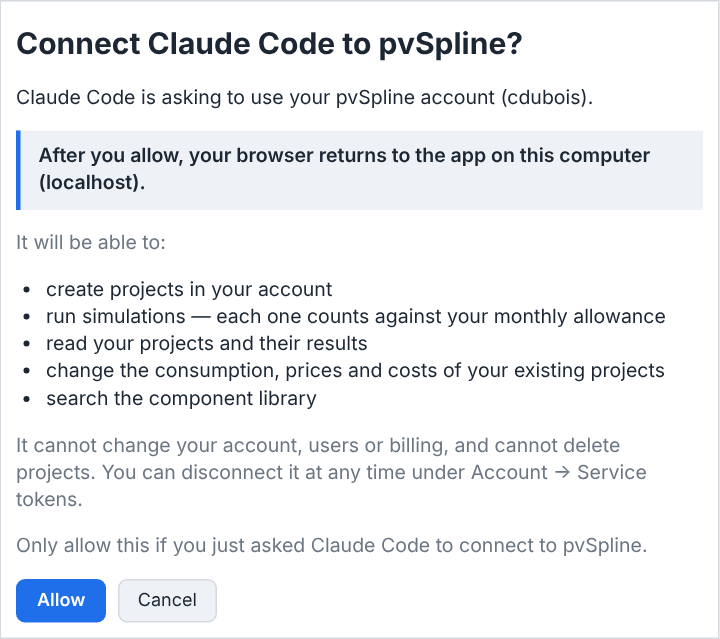
/oauth/consent: which assistant asks, for which account, where the browser goes next, and what it will and will not be able to do.| Field / Control | Type & unit | Default | What it does & how to set it |
|---|---|---|---|
| Allow | button | — | Connects the assistant and sends your browser where the page said. The connection appears under Service tokens, named after the assistant with “(OAuth)”. |
| Cancel | button | — | Declines the connection. When the assistant's return address is a website, the page only says you declined and sends you nowhere. |
| Go to my account | link | — | Shown when the sign-in request is incomplete, invalid or expired — start the connection again from the assistant. |
An assistant that cannot sign in
For an assistant that cannot sign in, mint an assistant token under Service tokens: type a name, choose AI assistant (MCP) in the scope list and press Create token. An assistant token only opens the AI-assistant endpoint, not the rest of your account. The token is shown once, like any service token (Your Account, Team & Cloud Runs). Setup guide, at the end of the hint that choice shows under the form, opens this chapter in a new tab, so the token stays on screen while you read.
Send the token in the Authorization: Bearer header: paste it in place of YOUR_MCP_TOKEN in the entry for your client.
A client that takes HTTP headers.
The same entry, with the token:
{
  "mcpServers": {
    "pvspline": {
      "url": "https://api.pvspline.fr/mcp",
      "headers": {
        "Authorization": "Bearer YOUR_MCP_TOKEN"
      }
    }
  }
}
A client that only starts local commands.
The same entry, through mcp-remote:
{
  "mcpServers": {
    "pvspline": {
      "command": "npx",
      "args": [
        "-y",
        "mcp-remote",
        "https://api.pvspline.fr/mcp",
        "--header",
        "Authorization:${PVSPLINE_AUTH}"
      ],
      "env": {
        "PVSPLINE_AUTH": "Bearer YOUR_MCP_TOKEN"
      }
    }
  }
}
Your first request
Once the assistant is connected, ask it, for example:
“Estimate the yearly production of a 6 kWp roof facing south at 30° in Lyon, plus 3 kWp facing east. Show the monthly profile and the main losses.”
What happens next
The assistant creates the project in your account. It appears in your project list in the web app, like a project you drew yourself.
It downloads the site's weather and runs the simulation on pvSpline's cloud engine. The engine time that run uses comes out of your monthly simulation allowance.
Once the results are ready, it explains them: yearly production (P50 and P90), specific yield, performance ratio, the month-by-month profile and the main losses.
It gives you links to open the project in the web app and see the full results, where you can download the PDF report.
Keep going in the same conversation: “try 9 kWp instead”, “list my projects”, “how much simulation time do I have left?”
Some assistants ask you to approve an action the first time they use it.
Good to know
Allowances. Each run an assistant starts needs an active plan and counts the engine time it uses against your monthly simulation allowance, exactly like a run started in the web app; the assistant can check what is left. Every request it makes counts against your cloud API allowance — your own on a subscription, the company's on the free plan — in seconds of server time. Past that allowance its calls are refused with the
API_ALLOWANCE_EXCEEDEDcode until the 1st of the month (Monthly allowances by plan).The module. Projects are packed with a mainstream 425 W module unless you name another one. Open the project in the web app to draw the real roof, choose components, or use your meter's data.
Savings and payback. Give the assistant your yearly consumption, your tariff or price per kWh, and the installation cost. It spreads the consumption with a standard profile (home, office, shop…) and uses 22:00–06:00 as off-peak hours for a peak/off-peak tariff.
The figures. Results are P50/P90 estimates of the modelled system, from the same engine and weather the web app uses. Savings and payback use the cautious P90 yield unless the project says otherwise.
The report. Its report, charts and workbook are written in English, whatever the interface language. Its PDF report carries no verification QR code (Report verification), unlike those of the runs you start in the web app.
Enedis meters. A project whose consumption comes from an Enedis meter runs only from the web app, which can download the meter's data: the assistant can neither read, change, copy nor run it.
Your open project. A change the assistant makes is a new version of the project. If you have that project open in the app, saving your version is refused rather than overwriting the assistant's (Working with projects).
Your clients' data
What the assistant reads goes to its provider — Anthropic, OpenAI or another — which processes it under its own terms, possibly outside the European Union: project names, their approximate location (to about a kilometre), arrays, consumption estimates, prices, costs and results. pvSpline never sends it your clients' names or addresses, Enedis meter data or your reports.
Tip
Prefer a business or API plan with that provider: it then processes what it receives on your behalf and does not train on it. On a personal plan, turn training off in its settings.
Your company decides: a new company starts with assistants off, and a Manager account turns them on or off for the whole company (Turning assistants on for your company).
For developers
- Endpoint
https://api.pvspline.fr/mcp, over Streamable HTTP. It speaks protocol version 2026-07-28 and the earlier versions, negotiated at initialization.- Sign-in
OAuth 2.1 with dynamic client registration and PKCE. An access token lasts an hour and the client renews it; a connection unused for 90 days signs in again.
- Token fallback
A token with the scope
AI assistant (MCP), sent asAuthorization: Bearer <token>, opens this endpoint and nothing else (An assistant that cannot sign in).- Discovery
The protected-resource metadata,
https://api.pvspline.fr/.well-known/oauth-protected-resource/mcp; the server card,https://app.pvspline.fr/.well-known/mcp/server-card.json;https://app.pvspline.fr/llms.txt; and the server's name in the MCP Registry,fr.pvspline/pvspline.
The endpoint and its metadata answer requests from France only.