The Map & Site Design Tab
At a glance
The Map tab (map icon on the left rail,
/map) is where you draw the array on IGN aerial photography. Every panel, its orientation, its wiring and its 3D placement start life here.You outline one or more zones (polygons) on the basemap — by dropping a ready-made square, clicking vertices by hand, magic-wand picking a roof by colour, adopting an IGN building footprint, importing a Google Earth
.kml, or bringing in the outlines of a CAD drawing (.dxf) — and pvSpline fills each zone with modules as you shape it.A per-zone card floating beside each polygon exposes its physics: azimuth, tilt, where those two angles come from, module orientation, row/column spacing, rack layout, ground albedo, floating/dome/agrivoltaic/BIPV modes, and a peak-power cap.
A docked panel on the right groups global (all-zone) parameters, a live string painter, a drag-and-drop palette for equipment pins, and the permit-sheet shutter.
What you build here drives everything downstream: the module count and geometry set the peak power on The Project Tab, feed the irradiance fetch and loss cascade in Running a Simulation & the Production Tab, and are mirrored into the 3D The 3D Earth Site View viewer.
Prerequisite: a project must be open. The map centres on the site coordinates you set on The Project Tab (typed or geocoded from the address), so set a location first. The imagery is streamed, so the tab needs a network connection and a browser with WebGL. The photography covers France, overseas departments included, and a narrow strip past its borders. Elsewhere it stops at about city scale: zoomed in on a site abroad, the map shows at best a blur and gives no warning, so upload your own aerial or satellite image of the site with Import… and draw on it, or bring the outlines in from a
.kmlor a.dxfwith the same button.
Where it lives and how it is laid out
Open the map icon in the left navigation rail, or go straight to /map. The view fills the window and has two regions:
The map canvas covers the whole page: a pannable, zoomable, rotatable aerial view (IGN Ortho orthophotography, with its required attribution credit on screen). Your drawn zones sit on top of it as coloured polygons, each with draggable corner knobs and a floating parameter card. A compass instrument with a scale ruler and zoom buttons sits in the top-left corner.
The docked panel floats over the imagery at the top right. It carries the site totals line, the Module opacity and Sensitivity sliders, the drawing-tool row, and three sections — PARAMETERS (all-zone overrides, present once at least one zone exists), Strings (DC) (the string painter and the equipment-pin tray) and Permit sheets (CERFA 16702). A chevron tab welded to the panel's left edge folds it out of the way (Hide panel / Show panel) when you want the bare imagery.
The view opens on the camera position saved with the project, or on the project's site coordinates if it has none. Pan by dragging the map, zoom with the wheel or the compass buttons, rotate by dragging the compass ring or by dragging the map with the right mouse button. Wherever the camera comes to rest is written back into the project a moment later, so reopening the tab — or the project — lands on the same frame.
Note
There is no address box on this tab. The map is positioned from the site coordinates on The Project Tab; geocoding an address there moves this map immediately, overriding the saved camera. If the map opens over the wrong place, correct the address there.
With no project open the tab shows only an empty card: a project is opened, imported or created on The Project Tab, never here. New project there creates a new client's blank project at a placeholder location in central France, which this tab opens zoomed out on — enough to get going, but set the real site on The Project Tab before you draw.
Watch out
The interactive map needs WebGL. On a browser or machine where it cannot start, the tab says so and keeps the docked panel fully usable — you can still edit zone attributes — but there is nothing to draw on, and the permit-sheet shutter is disabled.
The totals line
At the top of the docked panel, a one-line summary tallies the whole site: installed power in kWp, and the number of placed modules once a layout has been computed (the zone count before that), so you can read the site's size in one glance without leaving the drawing. The annual production is not repeated here; it is on Production and Results.
Drawing a zone
Every array begins as a zone: a closed polygon of three or more vertices. The tool row in the docked panel offers four ways to create one, an imagery helper, a heritage overlay and a visibility toggle. All of them drop the shape as a normal PV zone that immediately fills with modules; you can reclassify it afterwards from its card.
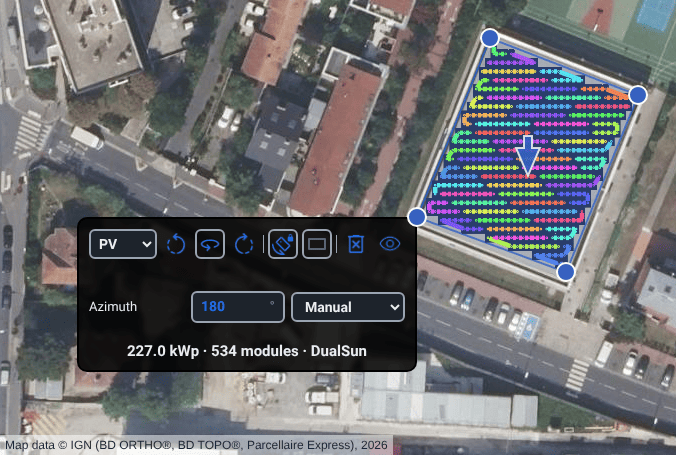
The creation tools
Add polygon — drops a ready-made four-corner square, about 8 m on a side, at the current map centre and recentres on it. Drag its corner knobs to fit the roof. The fastest start for a simple rectangular roof.
Draw a polygon — an armed mode: click the map to drop each vertex in turn, then click the first vertex again to close the ring (three vertices minimum). A rubber band follows the cursor from the last placed vertex, and a halo lights up around the first vertex when you are close enough to close on it. Right-click undoes the last vertex (and cancels the tool once the draft is empty), Esc cancels outright, and double-click or Enter closes the shape. A ribbon along the bottom of the map counts the placed vertices and carries Close polygon and Cancel buttons. Best for irregular outlines; click the tool again to disarm.
Color picker — the magic-wand roof detector (see below). Also an armed mode.
IGN buildings — fetches surveyed building footprints for the area in view and overlays them (see below). Also an armed mode.
Import… — opens a file picker and recognises what you pick from the file itself, whatever its name. A Google Earth / GIS
.kmladds every polygon outline it contains at its true coordinates; a CAD drawing (.dxf) opens the DXF placement panel, previewed on the map, before its outlines become zones (see Importing a CAD drawing (DXF)); a georeferenced image — a GeoTIFF, or a PNG or JPEG picked together with its world file and.prj— is drawn at its true position under the zones, as the canvas to design on where the IGN photography stops (see Designing on your own imagery). A one-shot action, not an armed mode, lit while a drawing is being placed; a progress bar tracks the upload, and a confirmation line reports how many outlines were imported. They take the values grouped in PARAMETERS and the drawing defaults for the rest, so adjust them on the cards afterwards. A file with nothing to import is refused with a line saying why — a DWG is to be exported as DXF first, a KMZ unzipped — and an over-sized file is refused before anything is uploaded (see the ceilings under CAD import below).Heritage protections — shows or hides the protected-heritage perimeters published for the area (see below). A display layer, not an armed mode.
Show/hide polygon controls — toggles the floating per-zone cards on or off, so you can see the imagery under them or take a clean screenshot; the polygons and their corner knobs stay. The button lights up while the cards are hidden.
Trace a roof and fill it with panels
Open Map and pan and zoom until the target roof fills the view.
Click Draw a polygon to arm drawing, then click each corner of the roof in turn. Click the first corner again to close the shape.
The zone appears and fills with modules automatically; its card's stats line shows the running kWp, the module count and the panel's short name, and the docked panel's totals line tallies the site.
Fine-tune the outline by dragging the corner knobs. The fill re-runs live as you drag.
Open the zone's card and set Azimuth and Tilt, pick the Panel type, and adjust Col/Row spacing until the layout matches the real installation.
Repeat for every roof plane. Each plane is its own zone with its own orientation.
Note
Only one map mode can be armed at a time. Arming the colour picker, the IGN overlay, drawing, the string painter or a pin cancels whatever was armed before, so you never have two tools competing for the same click. Right-click or Esc is the universal way out of an armed mode.
The magic-wand roof detector
The Color picker arms a flood-fill roof detector. Arming it hides every overlay so you are picking on the bare imagery — exactly the pixels the detector samples. Hover a roof and pvSpline grows a region outward from the pixel under the cursor, accepting neighbouring pixels whose colour (hue and brightness) is close to it, and previews the result as an oriented quad; click to turn that quad into a four-corner zone. It is ideal for a roof that stands out in colour from its surroundings.
The Sensitivity slider (0–100 %) controls how tolerant the match is: low values select only a tight patch of near-identical colour; high values sweep in a much wider colour range (and can spill past the roof edge). While the picker is armed the mouse wheel is repurposed — rolling it nudges the sensitivity by one point instead of zooming the map, and the preview re-floods under the unchanged cursor, so you can dial the tolerance in and watch the outline breathe. A ribbon along the bottom of the map says so and reads the live value back.
Tip
For a uniform, high-contrast roof, start the Sensitivity around 30–50 % and hover the centre of the roof. If the detected shape leaks onto the ground or a neighbouring roof, roll the wheel down; if it stops short of the edges, roll it up. When the outline is close, click to drop it and clean up the corners by hand.
Adopting an IGN building footprint
IGN buildings asks the engine for the surveyed building outlines in the area currently in view and draws them as amber outlines, with the cadastral parcels shown beneath them while the tool is armed. Hovering one shows its recorded use and, where the survey has it, its height; the panel reports how many footprints came back, and warns you when there were too many to show them all (zoom in for the rest).
Click a footprint and a small menu opens at the cursor with two targets:
| Adopting a surveyed footprint | Meaning / effect |
|---|---|
| Create a PV zone from this footprint | Turns the outline into an ordinary PV zone, ready to fill with modules. |
| Create a 3D building | Turns it into a Building zone instead. Where the survey published a height, the menu prints it on the button and the new building keeps it, so a surveyed warehouse is modelled at its real height rather than the 10 m default. |
Shift-clicking a footprint skips the menu and goes straight to the building. Re-arm the tool after panning or zooming to refresh the overlay for the new area. The button is greyed out when the engine you are connected to does not offer the footprint service.
Checking heritage protections
Heritage protections overlays the perimeters of the French cultural-heritage protections published on the Géoportail de l'Urbanisme, with a legend: Surroundings of a historic monument (abords), Historic monument, Site classé or inscrit and Site patrimonial remarquable. Each protection keeps the Géoportail de l'Urbanisme's own hatching but takes a colour of its own — orange for the abords, magenta for a monument, teal for a site, blue for a site patrimonial remarquable — so where several overlap you can still tell them apart; the legend swatches show both. A protection found here shapes the permit dossier (The permit package (déclaration préalable)). The perimeters are drawn only at town scale or closer — zoomed further out, the legend says “Zoom in to town scale or closer to see the heritage perimeters.” If part of the layer fails to load, the panel warns that a blank patch is not proof of no protection; switch the layer off and on to retry. The source line under the legend reminds you that the list annexed to the municipality's urban plan remains the authority. The overlay steps aside while the colour picker is armed, and it changes nothing in the project.
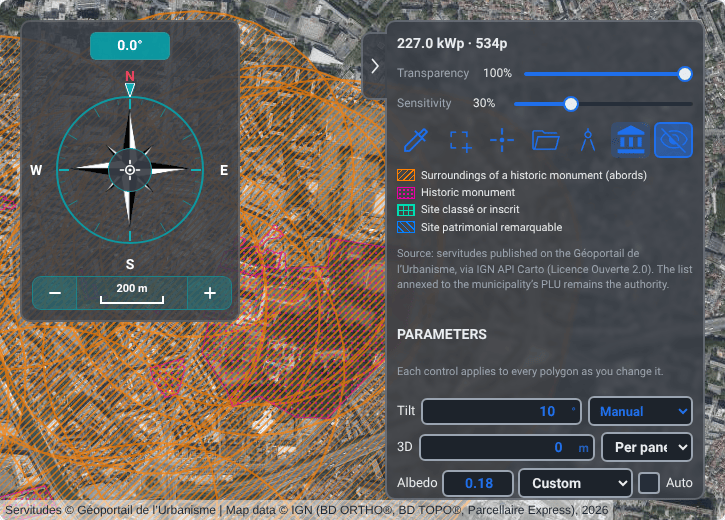
Importing a CAD drawing (DXF)
Import… recognises a CAD drawing (.dxf) and turns its closed outlines — roofs or fields drawn in AutoCAD, BricsCAD, LibreCAD or QGIS — into zones. A .kml carries longitude and latitude, so its outlines land at once; a .dxf carries the drawing's own coordinates, so the outlines first appear in the DXF placement panel, previewed on the map as dashed teal outlines, until you import or cancel them. Nothing reaches the project before Import N outline(s).
What counts as an outline: a closed polyline, a polyline drawn back to its start, or lines on the same layer that join end to end into a loop with no branch. Arcs inside polylines are followed. Outlines under 1 m2 once placed (text, symbols) are left out, and so are shapes drawn on a layout rather than in the model. Block references and hatches are not read: explode the blocks before exporting if the outlines are inside them. The panel's summary line says how many outlines are ready, their total area, and what was left out. A binary DXF or a DWG is refused with a line saying what to export instead.
| DXF placement panel | Meaning / effect |
|---|---|
| Coordinates | Dropdown, Detect from the view by default. Detect from the view reads the drawing in each map grid used around the view — its UTM zone, Lambert-93 and the CC zones in France, Web Mercator, longitude and latitude — and takes the one in which it lands near the view: a surveyor's drawing then lands exactly where it was drawn, and the panel names the grid it recognised. When none fits, the drawing is placed as a local one. Local drawing centres the outlines on the view. Map grid (EPSG) places them by the grid code you type in the EPSG field (it starts on the view's UTM zone): 2154 for Lambert-93, 32631 for WGS 84 / UTM zone 31N, 4326 for longitude and latitude. A grid pvSpline cannot convert is refused with its code. |
| Units | Dropdown, shown for a local drawing. From the file uses the unit the drawing declares; for a drawing that declares none, pvSpline guesses millimetres when it is more than 2,000 units wide and metres otherwise, and says which. Or pick Millimetres, Centimetres, Metres, Inches or Feet. |
| Rotation | Number field · °, shown for a local drawing, 0 by default: where the drawing's “up” points, in degrees clockwise from north. 90 turns its up to the east. |
| Centre on the view | Button, for a local drawing: moves the outlines to the current view centre. The drawing first lands where the view was when you picked the file, so pan to the site and press it. |
| Layers | One checkbox per layer that holds outlines, with their count. Layers the drawing turns off or freezes start unticked, marked off in the drawing. |
Import a roof plan drawn in CAD
Pan the map to the site, then click Import… and pick the
.dxf.Read the line under Coordinates: a surveyed drawing is recognised and already in place; a local one is centred on the view.
For a local drawing, check the Units, then set the Rotation until the dashed outlines sit on the roofs; Centre on the view moves them after you pan.
Untick the layers you do not want (the furniture, the title block).
Click Import N outline(s). The outlines become PV zones with the values grouped in PARAMETERS and the drawing defaults for the rest, and fill with modules.
Designing on your own imagery
Outside France the IGN photography stops at about city scale. Import… lets you design on your own image instead — a drone orthomosaic, a satellite scene, an aerial photograph exported from a national geoportal or a GIS. It is drawn at its true position over the basemap and under every zone, and the colour picker and the albedo estimate read it as they read the photography.
The image has to say where it lies. Pick either a GeoTIFF, which carries its position, or a PNG or JPEG together with its world file (.pgw, .jgw, .tfw, .wld) and, if you have it, its .prj: select the files together in the picker. Without a .prj, pvSpline guesses the coordinate system from the view, the way it places a DXF, and says so; if the image lands in the wrong place, upload it again with its .prj. An image with no position at all, or in a coordinate system pvSpline cannot convert, is refused with a line saying why — reproject it in your GIS, to WGS 84 / UTM or to longitude and latitude. The image is stored with the project, scaled down to at most 2,048 pixels on its longest side: ten centimetres a pixel over a 200 m roof. One image per project; a new upload replaces it.
| Georeferenced image panel | Meaning / effect |
|---|---|
| File line | The file's name, its coordinate system and its ground resolution, for example “WGS 84 / UTM zone 31N · 5 cm per pixel”. |
| Opacity | Slider · %, 100 by default: how opaque the image is over the basemap. Lower it to see the basemap through the image. |
| Hide / Show | Button: takes the image off the map, or puts it back, without removing it. |
| Zoom to image | Button: frames the map on the image. |
| Remove | Button: removes the image from the project, after asking. To see it again you upload the file again. |
Reclassifying a zone
Every new zone is a PV array by default. The Polygon type selector at the top-left of each card reclassifies it. Options are gated by corner count: a 3D building needs exactly four corners, a biome needs three or more, a video path needs only two — and the type a zone is already in is always listed, so the selector can never fail to show what it is.
| Zone type | Meaning / effect |
|---|---|
| PV | A photovoltaic array — fills with modules and contributes production. The default. |
| Obstacle | A non-PV blocker (a tree, a chimney, an adjacent building) that casts shade but holds no panels. Use this for a large site-boundary outline so it does not stay filled. |
| Building | A 3D structure (house, factory, carport, or imported CAD scene) rendered in the The 3D Earth Site View viewer. Available once the polygon has four corners. It holds no panels of its own (a carport is the exception — its deck is a PV array), but it is not an exclusion zone either: draw a PV zone on top of a building to put an array on its roof, and every module inside the footprint stays. |
| Biome | A vegetation region (forest, farmland) sent to the 3D viewer as a planted area. Available from three corners up. |
| Video | The 3D video capture path — an open camera track, not a footprint: the sun-path video export (The 3D Earth Site View) flies a smooth curve through its points, first to last, without closing back. Only one zone can be the video path at a time, it holds no panels and shades nothing, and it saves with the project like any other zone. Available from two points up. |
Obstacle is the only type that removes modules from the zones it overlaps — a Building or a Biome drawn under a PV zone leaves that zone's fill intact.
Turning a PV zone into anything that holds no array — an obstacle, a building other than a carport, a biome or the video path — sets its installed power to 0: it then adds nothing to the totals line, the production or the bill of materials. Its panel choice is kept, should you turn it back into PV.
Tip
To put an array on a modelled roof, draw the Building for the 3D body and a PV zone over it for the modules; the 3D viewer rests each module on the roof beneath it. Use Obstacle only where the modules must not go — a chimney, a rooflight, a neighbour's wall.
Editing a zone's shape
Each zone is bounded by draggable corner knobs, one per vertex, each filled with the zone's own colour. Drag any knob to move that corner; the panel fill re-runs live as you drag. Drag the body of a polygon — anywhere inside its fill — to translate the whole shape without changing it. Three shape aids sit on the edges and knobs:
Add a vertex on this edge — hovering a zone reveals a small + chip on each of its edges; clicking one inserts a new corner at that edge's midpoint, so you can turn a quad into an L-shape. A rectangle-locked quad shows no chips: it owns its four corners.
Right-click a knob to remove that vertex. A ring is never cut below a triangle, and a rectangle-locked quad owns its four corners, so only the knobs that can actually be dropped advertise the gesture in their tooltip.
Rectangle lock — a toggle in the card header (or the global Rectangle row). While it holds, the polygon is forced to a true rectangle: two diagonal corners resize width and depth while preserving right angles, and the other two become rotation handles (they wear a grab glyph instead of the zone tint) that spin the whole rectangle about its centre. Ideal for regularly-framed ground-mount tables. Arming the lock also squares up a quad that had drifted slightly out of true, which is what lets the placer use its fast, perfectly-regular row layout.
A PV zone also carries an arrow showing which way its modules face (a pair of opposed arrows on an East–West dome or a vertical bifacial field), and the edge a footprint lock aligns to is drawn bold. A Building zone is labelled with the length of each wall at its midpoint and its footprint area at the centre, since a building is drawn for the shadow it casts and that shadow is the size of the box.
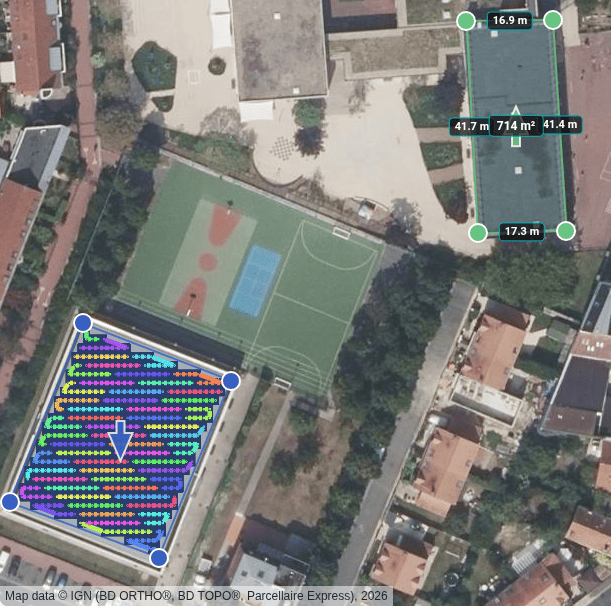
The card header also carries a compact toolbar: rotate the array 90° left or right, toggle Portrait (a 90° turn of the modules, on the map and in the 3D view), the two footprint locks, Delete, and a fold button that collapses the card to a single eye icon.
Caution
Delete asks for confirmation and then writes through immediately — the zone's shape, its settings and any modules placed on it go with it, and so does everything the project keeps for it: its mounting structure, its string wiring, the weather downloaded for it and what the 3D view measured for it (its horizon sweep, its baked shading and the point-of-view pictures shot from it). A zone you draw next starts clean. It is one icon away from the fold button, which is exactly why it asks. A deletion you regret can still be undone with Ctrl+Z, like any other change to the project (Keyboard & mouse shortcuts): the zone comes back with its settings, its mounting structure and its string wiring, its weather is downloaded again before the next run, and its 3D results come back with the next horizon sweep, Bake 3-D shading and Capture POV charts.
What you see while dragging, and what is finally recorded
Module placement runs on its own; there is no “compute layout” button. Two things are happening, and it is worth knowing which is which.
While you drag — a corner, a whole polygon, or a knob on a rectangle lock — the browser re-fills the zone on every frame, so the modules follow the shape with no waiting at all. That drawing is an estimate. The docked panel says so plainly while it is on screen: “Live estimate while you edit — the engine confirms it in a moment.”
When you let go — and about a third of a second after your last edit settles — the request goes to the simulation engine, which runs the same placer the simulation itself uses and answers with the authoritative layout. That answer replaces the drawing, and the resulting installed power is written into the project. From then on the numbers on screen are the ones the simulation will use.
In practice the two agree, cell for cell, on ordinary roofs. Where they differ, the difference is visible and lasts a fraction of a second, never silently stored. Two cases the in-browser estimate declines outright, leaving the last confirmed numbers up until the engine answers: a carport deck (whose deck layout has its own placer) and a zone whose module has no resolvable dimensions.
Note
Installed power is derived here, not typed: the placer computes it from the modules it fits and writes it back. What constrains a zone's size is kWp max, which is an input the placer honours. The one kWp field on the card exists so you can state a target directly; the next settled edit re-derives it.
If the engine you are connected to does not offer the layout service, the panel says so and the in-browser estimate is all you get — still a usable drawing, just never confirmed. If a zone has nothing to pack (no outline, or no module assigned), the panel says that instead.
Per-zone parameters (the floating card)
Every zone gets its own card, floating on the imagery beside its polygon and tracking it as you pan, zoom and rotate. Cards that would land on top of each other push one another apart, so no card is ever edited through another. While a drag is in progress the cards step out of the way of the mouse entirely, so a vertex can be dragged above, through and past the card hanging beside its own polygon.
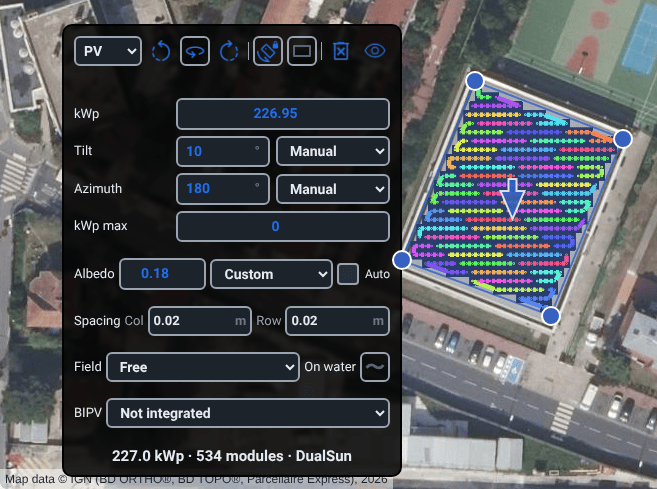
Card edits are staged and then committed half a second after you stop typing — so a typed “180” lands as one change rather than three — or at once when you leave the tab or start a run with Ctrl+Enter; every commit re-runs the fill and refreshes the stats line at the foot of the card.
Orientation and tilt
Azimuth — panel azimuth (orientation) in degrees, -180 to 180 in tenths of a degree. The default 180 faces due south (optimal in the northern hemisphere). Use the rotate-left / rotate-right header buttons for quick 90° steps. Read-only while an automatic azimuth source is selected, and hidden entirely while Auto (longest side) holds — that lock owns the angle. A run warns, in its Warnings card, about a fixed array tilted 10° or more that faces within 20° of its hemisphere's pole — north of the equator, an azimuth within 20° of 0° — since it turns its back to the sun; a zone imported without an azimuth reads 0°, due north, and draws the same warning. Sites within 5° of the equator are spared.
Auto (longest side) — a header toggle that locks the azimuth perpendicular to the polygon's longest edge, facing the equator, so the panels follow the roof ridge. While it holds, reshaping the polygon re-aims the modules on every frame and the azimuth field steps aside; the -90° / +90° buttons stay live and spend their quarter turn on the lock's offset.
Tilt — panel inclination from horizontal, 0° (flat) to 90° (vertical), default 35°. Drives the transposition of irradiance onto the plane and the self-shading. It also re-packs the zone: the placer lays the rows out in plan, shortened by the cosine of the tilt (see below), so the module count and kWp follow it. Read-only while an automatic tilt source is selected, and locked at 90° on an Agrivoltaics (vertical bifacial) field.
Portrait — turns the modules 90° so their long axis runs up the slope instead of across it, letting you match portrait versus landscape mounting. It rotates both the modules drawn on the map and the racks in the 3D view, and it re-packs the layout on the spot.
Tracker — a read-only line, above the card's angle fields, on a zone whose modules are on a sun tracker:
Single-axis(they turn through the day about a horizontal axis) orTwo-axis(they face the sun all day). The simulation then sets the modules' tilt hour by hour — and on a two-axis tracker their azimuth too — rather than using those fields. On a single-axis zone the Azimuth gives the direction of the axis: 180° (or 0°) is a north–south axis. On a PVGIS run the irradiance follows the module type's tracker kind: a vertical, horizontal east–west or tilted single-axis type gets that tracker's irradiance, and the horizontal north–south type gets an east–west tracker's when the azimuth lies within 45° of east or west, a north–south one's otherwise; the exact azimuth sets the angle-of-incidence, backtracking, wind-stow and rear-side calculations. The soiling and snow losses computed from the weather take a single-axis tracker at its rotation limit, and a two-axis tracker, or a single-axis one whose type sets no limit, at 45°, whatever the Tilt (Running a Simulation & the Production Tab). The zone takes its tracking from its module type — the tracker with its strategy, rotation limit, backtracking GCR and wind stow — when that type is assigned to it: a Panel type pick on this card, the PARAMETERS Type row, or a new zone, which starts on the first favourite in the list. A type made as a tracker in Catalogue makes the zone track, and a fixed type makes it fixed again; nothing on the card overrides it for one zone. The zone then keeps that tracking until a module is assigned to it again, so if a zone on a tracker type shows no such line, pick another module and then the tracker one. A fixed zone shows no such line.
Where the tilt and azimuth come from
Tilt source and Azimuth source are two dropdowns, one under each angle. They are the answer to “who owns this number” — and they are per angle, so an array whose tilt follows a measured roof while its azimuth stays hand-set is perfectly normal.
| Tilt source / Azimuth source | Meaning / effect |
|---|---|
| Manual | Your number, untouched. The default. |
| Auto PVGIS | The yield optimum for the site, refreshed on every fetch. When only the tilt is on this source, the request is pinned to the azimuth the array actually has, so what comes back is the optimum for your orientation rather than for one PVGIS picked. |
| Auto 2-D | The pitch, and the way it faces, that IGN's building survey implies for the roof under this array. |
| Auto 3-D | A roof plane measured in the 3-D view. |
A status line under the selectors says what the last lookup produced for this array — the angle adopted, or why nothing was: PVGIS returned no optimum for the site, IGN has no roof pitch for these arrays, no pitched roof was found under this one, the zone has no outline to look an angle up at, or the engine could not be reached. On a site with many arrays, the PARAMETERS panel adds a one-line tally of how many of them took an angle at all.
Note
Availability is never a mode change. An array sitting on Auto 2-D where the survey has no pitch, or on Auto 3-D with no 3-D session running, keeps the mode and keeps its last angle — pvSpline says the source had nothing and leaves the number alone rather than silently reverting to another source. Choosing Auto 3-D before starting the 3-D view sets the mode and applies it as soon as the viewer is live.
Module spacing and the power cap
The placer steps a grid across the zone at (module dimension + gap). Two gaps and a cap shape the layout:
Col — gap between adjacent modules within a row, in metres (default 0.02 m = 2 cm). Changing it re-runs the placement.
Row — gap between module rows, in metres (default 0.02 m). Wider row gaps reduce inter-row self-shading at the cost of density. Hidden on an East–West dome, where the coverage ratio sets the row pitch instead.
kWp max — a peak-power cap (kWp) for this zone. The placer stops adding modules once the installed power would exceed the cap, using the zone's own module wattage.
0means no cap. Applying a Batch scenario that changes the installed power or the module sets this cap on the PV zones, so the layout keeps the scenario's size (Deciding and applying); raise or clear it to let a zone fill again.
The kWp and kWp max fields leave the card when the global kWp max row is broadcasting, and when the array is the project's only zone apart from obstacles and the video path, where the global row is that array's own.
On a tilted plane the placer works in plan: a module's depth and the row gap are drawn as they appear from above, shortened by the cosine of the tilt (up to 85°). A plain zone tilted 85° or more is treated as a wall — a facade or a vertical fence — whose rows stand one above another in the 3D view.
Ground reflectance (albedo)
Albedo — the fraction of light reflected off the ground beneath the array (0.00–0.95, default 0.20). It feeds the bifacial rear-side gain. Grass/dry soil ≈ 0.20; sand/white concrete ≈ 0.50; fresh snow ≈ 0.85.
Ground — a material preset dropdown; picking a material sets the matching albedo automatically. Custom keeps the value in the field. A value you type leaves the dropdown on the material it showed, though the run uses your value; an Auto estimate that differs from the material switches it to Custom.
Auto — when on, the albedo is estimated from the map imagery directly beneath the panels and re-estimated after every reshape; the manual albedo and material controls go read-only. Off by default for a freshly drawn zone.
Note
Auto hands the manual field back whenever it genuinely cannot sample, and says why: the imagery cannot be read here, the array is not on screen (pan to it and the estimate re-runs), or the zone has no drawn outline to sample under. It never leaves a stale albedo feeding the bifacial gain while pretending to maintain it.
Mounting and geometry modes
On water — a wave-glyph toggle on the Field line. It marks the array as pond/reservoir-mounted, switching the engine to a floating thermal model and open-water albedo. It is a mounting property, so it stacks on top of whatever field geometry you chose.
Field — the zone's rack/field-geometry archetype, one choice per zone: Free, the mutual-shading geometries, or East-West dome. Selecting any of them reveals its own sub-fields (row pitch, blade width, mounting height, and so on). The choices are mutually exclusive by design — a dome's coverage ratio already describes its rows, so the engine would ignore a field geometry stated on top of it.
East-West dome (the last option of Field) — turns the zone into two interleaved low-tilt planes facing opposite directions. Dome GCR (ground-coverage ratio, 0.05–0.95) sets the ridge pitch — and therefore the panel count and installed kWp — and drives the inter-row shading; enabling a dome that has never had one seeds it at 0.70. East share (0–1.0, default 0.50 for a symmetric dome) is the area fraction of the primary (east) face. A dome is fixed-tilt and not bifacial-compatible.
| Field (rack/geometry) type | Meaning / effect |
|---|---|
| Free | Free-standing single-orientation array with no inter-row mutual shading. The default. |
| Rows (sheds) | Repeated tilted rows (sheds) with inter-row shading, set by the blade Width, Pitch and Elec. effect fields. |
| Brise-soleil | Facade sun-shade louvres: blade Width, Pitch (centre-to-centre), Façade az., and a blade Tilt that is either Fixed (one Angle) or Seasonal (Summer/Winter angles), plus an Elec. effect (the electrical share of the shading loss). |
| Agrivoltaics (elevated) | Panels raised above crops: Row pitch, collector Width, mounting Height (clearance above the crop) and Elec. effect. |
| Agrivoltaics (vertical bifacial) | Vertical bifacial rows between crops, using the same row-geometry fields. Picking it stands the modules up: the tilt goes to 90° with a Manual source, the array turns to face east (90°) unless it is an East–West layout or its azimuth is owned elsewhere, and a field never tuned before is seeded with an 8 m row pitch, 2 m collector width and 0.5 m clearance. Picking any other option afterwards lays the modules back down to the tilt, tilt source and azimuth they had before (a tilt or azimuth changed in the meantime is kept). When there is nothing to go back to — the page was reloaded, or the project was opened with the field already vertical — only the tilt changes, to 35°, so that a Free zone is not left standing as a wall. |
| East-West dome | East–West butterfly: two interleaved low-tilt planes facing opposite directions, set by Dome GCR and East share. Fixed-tilt and not bifacial-compatible. It belongs in this list rather than beside it because a dome's coverage ratio already describes the rows, so it and a field geometry are alternatives, not layers. |
Watch out
A project written elsewhere (an older build, the headless API) can carry both a dome and a field type. The selector then shows the dome, because that is what the engine runs, and the card explains underneath that the field geometry's own shading is not applied on top of it — shading the same rows twice. For an agrivoltaic field type it adds that the crop outputs (ground light, PAR, uniformity) are reported either way; for a vertical bifacial field, that a dome also suppresses the rear-side gain that field exists for. Picking any option from the list resolves the conflict.
Building-integrated PV
BIPV says how this array is built into the building envelope, which decides the thermal model applied to it. The choice supersedes the module datasheet's NOCT, which is measured on an open rack.
| BIPV | Meaning / effect |
|---|---|
| Not integrated | Keeps the panel datasheet's own mounting. The default. |
| Integrated (insulated back) | A roof-integrated or facade array with no airflow behind the modules — the hottest regime (Faiman Uc = 15 W/m2/K), and the one that costs the most yield. |
| Semi-integrated (ventilated gap) | A ventilated air gap or duct behind the modules (Uc = 20). |
Mounting structure
Mounting structure picks the racking kit the zone's modules are mounted on. It lists the mounting kits you hearted in the catalogue (The Component Catalogue), the zone's own kit when it is not one of them, and Add from the catalogue…, which opens the catalogue on its Mounting structures tab. The bill of materials then counts what the kit needs under them, row by row from the packed layout: a row's end or an obstacle's gap ends a run of modules on shared rails, every run is clamped at both ends, and the rails, splices, end and mid clamps, attachments, end caps and earthing clips are listed under Mounting structure, next to the modules. The rail bars are counted with their offcuts reused. None (the default) leaves the zone out of the structure lines. A carport deck has the row too.
The PARAMETERS panel's Structure row offers the same list for every array at once. While it is ticked — as it is from the start while every array stands on one kit, and always in a project with a single zone apart from obstacles and the video path — the cards show no Mounting structure, and a kit picked on the row mounts every array on it, carport decks included. Untick the row to give each zone a kit of its own.
The shipped kits are generic: rail kits for a tiled roof and a sheet-metal roof, rails up the slope for modules in landscape, a ballasted flat-roof kit and ground-mount purlins. Their attachment spacing in particular follows the site's snow and wind loads, so replace them with the supplier's kit and its structural calculation before ordering: add it on the catalogue's Mounting structures tab, typed in or imported from its .yaml file, and heart it.
The permit package reads the kit too: the fixing method it implies, how far the modules stand above the covering, the roof or the ground, and the kit itself go on its DP3 and DP11 pages (The permit package (déclaration préalable)). The shipped kits' heights are generic as well, so state the supplier's figure there.
Building, carport and CAD sub-cards
When a zone's Polygon type is Building, the card swaps its PV fields for 3D-authoring controls that drive the The 3D Earth Site View viewer. A building holds no modules (a carport is the exception — its deck really does carry modules), but it still counts in the yield through its shade: the 3D shading bake measures the arrays among the buildings drawn here, so a building drawn, deleted, moved or changed after a bake makes every stored table stale until you bake again. Building model picks between House, Factory, Carport and CAD import:
House and factory — a Height (1–100 m, default 10 m), which drives the shadow the building casts on the array, and an Azimuth (-180 to 180°) that rotates the modelled body.
Carport — no height or azimuth row (its deck height comes from its own dimensions, and it rotates through the PV azimuth control). Instead: a Butterfly (E-W) toggle for two opposed slopes per pivot, and six millimetre dimensions — Row spacing, Column spacing, Butterfly gap, Height, Width, Length. These are not cosmetic: the deck placer reads them, so they change the packed module layout as well as the 3D model. A carport keeps the rotation trio, the azimuth and the tilt (which sets the deck tilt, and on a butterfly the common low-face tilt) with their source selectors, but not the ground-PV rows — panel type, spacing, albedo, kWp cap, field geometry and BIPV. The deck still uses the zone's module and albedo, which on a carport only the PARAMETERS Type and Albedo rows change, and its kWp cap, which on a carport only the kWp max row sets: that row, like the Tilt and 3D rows, reaches the arrays — the PV zones and the carport decks — and passes houses, other buildings and biomes by. Its modules always sit 0.02 m apart in both directions, and the run treats it as a free-standing array with its module's own mounting, whatever on-water, BIPV, field or dome setting the zone still carries. With Butterfly (E-W) on, the run simulates the deck as two faces of equal area at the deck tilt, one facing the zone's azimuth and one the opposite way, with no row-to-row shading, so a bifacial module keeps its rear-side gain; off, as one plane facing the azimuth. Above the dimensions sits a 3D preview of four decks drawn from these values, with the posts, the module grid and parked cars for scale: drag it (or use the arrow keys) to turn it, or pick Iso, Front, Side or Top. Clicking into a dimension, the tilt or the azimuth draws that measurement in metres and, with Auto-frame on, turns the camera to show it. Spacing runs pivot to pivot, so when neighbouring decks would overlap the preview draws them as outlines and names the smallest spacing that clears them. A summary line under it gives each deck's size in plan and the height of its low edge, and warns when that edge would sit below ground or under head height.
CAD import — attaches a 3D scene that becomes this building's body in place of a procedural mesh, and that shades the arrays around it like any building. Import 3D model… accepts
.glb,.gltf,.dae,.3ds,.fbx,.objand.stl; the engine converts everything but the glTF pair, which is stored as-is. The card names the attached scene and offers Detach. The model is filed in your company's cloud model store, where the streamed 3D view fetches it; if it cannot be stored there, it is not attached and the card says why. Scale (0.01–1000×, default 1.00) is a uniform multiplier on the imported scene.
Note
The CAD converter is an engine capability. A conversion that times out suggests a smaller scene or a pre-exported .glb. Every upload from this tab — a .kml outline as much as a 3D scene — is size-checked in the browser before a byte leaves it, and refused with both numbers named: the file's size and the ceiling of roughly 25 MB.
Biome sub-card
A Biome is a vegetation region: it carries no modules, so no array attribute is offered on it at all. Biome type chooses Pine forest (the default), Poplar forest or Farmland. Forests take Coverage (0-1) and Density (0-1), both defaulting to 0.5 — the fraction of the area planted, and the tree density as a fraction of maximum.
Farmland adds a Crop picker (None, Sunflowers, Corn, Wheat, Dirt). One control owns three things: the 3D plant meshes, the growth species, and the growth curve, which is reseeded from the new crop's preset when you actually change crop — a curve tuned for wheat is meaningless for corn — and left alone when you re-pick the same one. Below it, Plant distance sets the spacing between plants in centimetres (default 50) and Garden bed spawns a garden-bed mesh beneath the crop.
Video-path sub-card
A zone set to Video becomes the project's 3D camera track. The camera rides a smooth curve through the points, first to last — the path stays open — and it carries no PV modules. The map draws the exact curve the video will fly, with its points on top of it as numbered amber knobs in travel order. They work much like a zone's corner knobs:
Drag a knob to move that point. The curve follows live as you drag.
Right-click a knob to remove that point. A path keeps at least two points, so the last two do not advertise the gesture; to remove the whole path, delete it from its card.
Add a point here — hovering the path reveals a small + chip halfway along each stretch, sitting on the curve itself; clicking one adds a point there, so the curve barely moves.
Extend the path — one more + chip sits just past each end; clicking it adds a point beyond that end, ready to drag into place.
Each point keeps its own camera height through every edit: a point added between two others takes the mean of their heights, and one added past an end takes that end's height.
Camera — the compass direction (-180 to 180°) the camera faces while travelling. Disabled while Focus nearest panels is on.
Focus nearest panels — aims the camera at the closest PV array as it travels, handing focus from array to array, instead of holding the fixed direction.
Lens zoom — the shot's optics (0.5–8×, default 1×). 1× is the natural lens, higher values narrow the view like a telephoto, 0.5× widens it.
Height — camera height above the ground for the whole path, in metres (1–500, default 8 m).
Per-point heights — gives every path point its own camera height instead of one uniform value; a numbered row (P1, P2, …) appears per waypoint. The camera climbs and dives smoothly between them.
Follow terrain — on by default: the camera follows the terrain dynamically, holding its height above the ground under it. Off, it flies level at the path's mean terrain height plus the camera height.
The camera heights are geometry and commit immediately, like a vertex drag; the other knobs ride the card's half-second commit. Only one zone can be the video path at a time — setting a second one converts the first back to a PV footprint (or removes it, if it was only a two-point stub).
Global (all-zone) parameters
The PARAMETERS section in the docked panel applies one value to every zone at once, so you do not have to edit each card. Each row starts with a small apply-to-all checkbox: tick it and the row's control appears, and from then on every change you make to it applies to every zone. Leave it clear and the row is simply not managed globally — each zone's own card owns the value.
What the tick itself does depends on the row. Type, 3D, Albedo (unless its Auto is on), Spacing and kWp max apply the value they show to every zone the moment you tick them, and ticking Rectangle locks every four-corner zone. Structure, Tilt, Field, On water and BIPV only reveal their controls: nothing reaches the zones until you set a value there.
Watch out
Where the zones differ, a row that applies on the tick shows its default rather than one of their values, and the tick applies that default to every zone: for Type the first favourite in the list, for 3D no altitude offset with Per panel levelling, for Albedo 0.20, for Spacing gaps of 0.02 m, and for kWp max no cap at all, which removes every zone's cap. Tick such a row only when every zone is to share one value.
Where the zones share one tilt, the Tilt box shows it. Where they differ, it is empty and reads Mixed, and each zone keeps its own tilt and tilt source until you change the row: a value you type is applied to every PV zone when you press Enter or leave the box, and a source you pick, at once. Clearing the box applies nothing. Buildings and biomes count in that reading, even those whose cards show no tilt: a house drawn at the default 35° makes the row read Mixed beside a 20° roof. The value you set reaches the arrays alone, though — the PV zones and the carport decks, never a house or another building, nor a biome — so with a house drawn, the row reads Mixed again the next time the project opens. A zone you draw afterwards starts at 35°, not at the row's value; unless that value is 35, the row then reads Mixed until you type the value again.
While a row is ticked, the matching control disappears from the per-zone cards, rather than offering an edit the next broadcast would overwrite. Untick the row and the cards get their control back. This holds for Tilt even while it reads Mixed: the cards' Tilt and Tilt source are hidden although the row has applied nothing, so to give two roof faces different tilts, leave Tilt unticked and set each card. A carport deck takes the row's tilt like any other array.
Watch out
A row reaches only the zones that exist when you set it. A zone you draw, import or adopt while a row is ticked starts on the drawing defaults — the first favourite module, gaps of 0.02 m, an albedo of 0.20, no cap and so on — with that row hidden on its card like the others, and only Tilt flags the difference, by reading Mixed. After adding a zone, set the row's value again (for Rectangle, untick it and tick it again). The ticks themselves are not saved: leaving the tab or reloading the page clears them, and the values they applied stay on the zones.
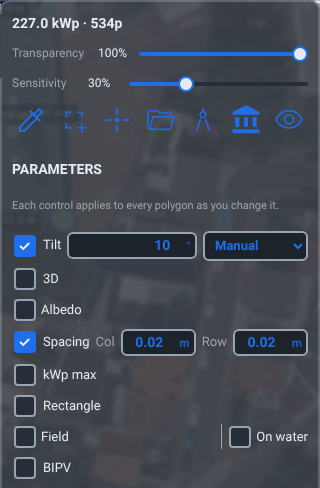
The rows are Type (the panel model), Structure (the mounting kit), Tilt (with its source selector), 3D (Altitude offset and Levelling), Albedo (with Ground material and Auto), Spacing (Col and Row), kWp max, Rectangle, Field (with its geometry sub-rows, the East–West dome included) sharing a line with On water, and BIPV.
A row that changes the layout — Type, Tilt, Spacing, kWp max, Rectangle, and Field with its sub-rows — re-packs every zone it reaches, and their installed power follows just as after a card edit: the cards' kWp, the totals line and the next run all use the new layout.
| Levelling (3D terrain) | Meaning / effect |
|---|---|
| Per panel | Every panel follows the ground directly beneath it (terrain-following). The default. |
| Mean / Min / Max | The whole array sits on one flat plane at the average / lowest / highest panel height. |
| Mean/row, Min/row, Max/row | The same levelling done per panel row, so a sloped field steps row by row. |
Note
When a project holds at most one zone that is neither an obstacle nor the video path, the per-zone versus global distinction is meaningless: the apply-to-all checkboxes disappear, every row simply applies, and the corresponding rows drop off that single card, because the global row is that zone's row. The rows leave the video path's camera track alone, and an obstacle's shape and angles too, except that Rectangle also locks a four-corner obstacle and an automatic source picked on the Tilt row also re-angles obstacles. The Tilt, 3D and kWp max rows reach the arrays — the PV zones and the carport decks — and pass houses, other buildings and biomes by, so when a carport is that single zone, the rows set its deck. On water, BIPV, Spacing and Field have no effect on buildings: a house or a factory is not mounted on anything, and a carport deck always packs its modules 0.02 m apart and is simulated as a free-standing deck.
Watch out
Unticking Rectangle does not unlock the zones it locked — it only hands control back to each zone's own toggle. Unlock them individually from their cards.
Painting DC strings
The Strings (DC) section assigns each placed module to a DC string directly on the map, tinting the modules in each string's own colour. This is the map-side view of the wiring you also manage on Electrical Design & the One-Line Diagram.
Note
Strings are painted over placed modules, so the tools stay dormant until the placer has put modules somewhere. Until then the section says so and tells you what is missing: draw a zone and assign it a module with real dimensions.
A single row carries the whole readout: Mod./string, a ribbon, a count and the live-mode checkbox. The ribbon draws the wiring to scale — one segment per string, its width proportional to the panels assigned to it, painted in that string's own map tint — with anything placed but unwired trailing as an outlined stub. Hover the count beside it for the sentence in full: assigned / total panels · strings.
Automatic wiring
Auto strings is on by default. It keeps every zone wired into serpentine strings of Mod./string modules each (1–64), the modules left over at the end of a zone forming one shorter string, and re-runs whenever the modules change — as you add, remove, reshape or rotate panels. Mod./string is the same value as the DC-sizing modules-per-string on Electrical Design & the One-Line Diagram; changing it in either place changes it in both. While the mode is on, the manual painting tools are hidden, because the next automatic pass would overwrite a hand edit.
The wiring is also where the number of strings comes from. Once modules are placed, Diagram counts its strings from the map — the strings Auto strings wires, or, with it off, the strings you paint — so its Strings field is read-only and a line under it says where the number comes from (Electrical Design & the One-Line Diagram). Each zone is wired on its own, so two zones of 15 and 3 modules at 11 a string make three strings, not two.
With Limit string length to MPPT window ticked under Diagram's DC array sizing and both site temperatures set, a zone whose module would take a string of Mod./string modules past the inverter's maximum MPPT voltage on the coldest morning is wired in shorter strings instead — as many modules as that module allows in series. Only that zone changes: the others keep Mod./string.
Note
A run simulates every string at its own length — the number of panels wired into it, which its ribbon segment shows on hover — not at Mod./string. A string shorter than the rest — the leftover one at the end of a zone, or one you paint short by hand — works at a lower voltage and can fall below the inverter's MPPT window, which the loss cascade books as Inverter below MPPT voltage. Where that matters, choose a Mod./string that divides each zone's module count, or wire the end of the zone by hand.
Note
Applying a Batch scenario paints the strings it was scored on (Deciding and applying) and unticks Auto strings, so the map keeps them as painted. Ticking it again re-wires every zone into strings of Mod./string modules, and wherever the two differ, the next run no longer matches the row you applied.
Manual painting
Untick Auto strings to paint by hand. The existing wiring is kept as your starting point, and from then on the number of strings is the highest string number you paint.
Paint — arms painting: click a module to add it to the active string, or drag a stroke across many modules at once (which is how you wire a 400-module field without 400 clicks). Shift-click a module to pick up its string as the active one. Right-click, or pressing Paint again, finishes.
New — starts painting a fresh string with the next free number.
Eraser — paints with “unassigned”, removing modules from their string. Shift-click still picks up a string; right-click finishes.
Clear — unassigns every module from every string.
A banner across the panel says which string you are painting, and a legend lists each string as String n · k panel(s) in its colour — click a legend row to make that string the active one.
Placing equipment pins
Inside the same Strings (DC) section sits the equipment-pin tray: a palette for inverter, combiner and AC-service-panel markers, used to estimate cable lengths for the bill of materials. The tray auto-fills with one chip per unplaced device, drawn from the inventory you set on Electrical Design & the One-Line Diagram; when every device is placed it reads All markers placed. Pins are placed against the imagery, not against the modules, so they are available before a single panel is packed.
Three gestures place and remove a pin:
Place, move and remove an equipment pin
Drag a chip out of the tray and drop it on the imagery. A ghost of the marker itself travels under the cursor, so what you aim is the pin rather than a chip in a list.
Or click the chip to arm it, then click the map — a banner names what you are placing. This is the gesture for touch and for the keyboard. Right-click or Esc cancels.
Drag a placed pin to reposition it. Drag it back onto the tray — which lights up as a drop target — to remove it, or use the Unpin button on its row in the list under the tray.
Inverter pins are amber, combiners blue and the AC panel green, echoing the chip colours.
Capturing the permit sheets
The Permit sheets (CERFA 16702) section is the shutter for the French déclaration préalable dossier. The sheets it captures are pictures of this map, so the framing has to happen here; everything else about the dossier — thumbnails, site photographs, parcel identification, declared work, installer details — lives on the Town-hall permit tab of Results (The permit package (déclaration préalable)).
Frame the map, then press a sheet: zoom out for the location plan, zoom onto the roof for the roof plan. Four buttons carry their CERFA piece codes and a state mark:
| Permit sheets | Meaning / effect |
|---|---|
| DP1 — Site location plan | The wide view that situates the site. |
| DP2 — Block plan | The site plan showing the array in its plot. |
| DP4 — Façade and roof plan | The close view of the roof carrying the array. |
| DP6 — Integration into the environment | The view showing how the installation sits in its surroundings. |
Each button reports one of four states in its tooltip and its mark: captured; the array moved since this was framed — recapture it; captured earlier; this browser has no copy — recapture it (a dossier carried in from elsewhere, or one that outlived a reload); or not captured.
Arriving from the dossier's Frame on the map (which opens /map with the sheet named in the address) puts the tab into framing mode: the panel unfolds, the map jumps to that sheet's stored frame if it has one, and a prompt offers Capture, Back to the stored frame and Cancel for that sheet alone. Capturing it hands you straight back to the dossier.
Note
Capture reads the map image out of the browser's graphics context, so it needs WebGL. Where that fails the panel says so and suggests another browser or a reload.
The compass, the scale and moving the view
The map's top-left corner carries one instrument rather than a scattering of controls:
A bearing badge at the top prints the map's rotation in degrees.
A rotation ring with cardinal letters and tick marks: press inside the ring band and drag to turn the map; double-click to swing back to north. With the ring focused, the arrow keys turn the map 1° at a time (10° with Shift) and Home returns to north.
A shelf at the foot with Zoom out, the scale ruler and Zoom in. The ruler measures a round distance (1, 2, 5 or 10 times a power of ten) and prints it in metres or kilometres.
A GPS hub at the dial's centre — Centre the map on my position. The browser asks permission the first time. If it refuses, or cannot report a position, a line under the instrument says which: the browser cannot report a position, permission was refused, or location services are off.
The Module opacity slider (0–100 %, default 100) sets how opaque the placed-module preview is drawn over the imagery. It is a display control only — it changes nothing about the layout or the yield — and is the quickest way to check what is actually under an array.
The map offset and the 2D–3D sync
The zones you draw here are the single source of truth for the 3D The 3D Earth Site View viewer: adding, moving, reshaping or reclassifying a polygon streams straight into the 3D scene, where the same panels, buildings and biomes appear on real terrain. Both the in-browser estimate under your cursor and the engine's confirmed layout reach the viewer, coalesced to a few updates a second, so a 3D session open alongside this tab follows your drawing as you make it. The zones' own document changes — buildings, biomes, a committed card — travel the same way.
Because the 3D terrain tileset and the 2D basemap can sit on slightly different datums, a map offset (an east/north shift in metres, -200 to +200 in half-metre steps) aligns them. You set it from The 3D Earth Site View, either with its two offset fields or with its automatic alignment, and pvSpline stores it with the project and re-applies it every time you open the site. Nothing on this tab changes it.
The Video zone you place here is the camera track the 3D view's sun-path video export flies through.
Tip
Draw and orient your zones accurately in 2D first: because the 3D scene is generated from them, a clean 2D layout gives a clean 3D model with no extra work. Use The 3D Earth Site View only for verification (shading, terrain, walk-through) and for the measurements this tab's Auto 3-D angle source asks it for — not for re-drawing.
Field reference
Docked panel chrome
| Field / Control | Type & unit | Default | What it does & how to set it |
|---|---|---|---|
| Hide panel / Show panel | button | shown | The chevron tab welded to the panel's left edge. Folds the docked panel off the right of the map and back. |
| Module opacity | slider · % | 100 | Opacity of the placed-module preview drawn on the map. Display only — does not change the layout or the yield. 0–100 %. |
| Sensitivity | slider · % | 30 | Eyedropper colour tolerance for the magic-wand roof detector: how far a pixel may drift from the picked colour and still join the area. Low = tight patch of near-identical colour; high = wide colour range. 0–100 %. While the picker is armed the mouse wheel nudges this by 1 point instead of zooming. |
Drawing toolbar
| Field / Control | Type & unit | Default | What it does & how to set it |
|---|---|---|---|
| Color picker | armed button | off | Magic-wand roof detector: arm, hover a roof to preview the matching-colour area, click to turn it into a four-corner zone. Uses the Sensitivity slider; right-click or Esc cancels. |
| Add polygon | button | — | Drops a ready-made four-corner square (about 8 m a side) at the map centre and recentres on it. |
| Draw a polygon | armed button | off | Arm, then click the map to place vertices; click the first vertex (or double-click, or Enter) to close, three vertices minimum. Right-click undoes the last vertex, Esc cancels. |
| Import… | button | — | Opens a file picker and recognises the file: a Google Earth / GIS .kml adds its polygon outlines at their true coordinates; a CAD drawing (.dxf) opens the DXF placement panel, its closed outlines previewed until imported as zones; a GeoTIFF, or a PNG / JPEG with its world file and .prj, is drawn under the zones and stored with the project. Lit while a drawing is being placed; hidden when the engine offers none of these imports. |
| IGN buildings | armed button | off | Fetches surveyed building footprints for the area in view and overlays them; click one to create a PV zone or a 3D building from it (Shift-click goes straight to a building). Greyed out when the engine does not offer the service. |
| Heritage protections | toggle button | off | Overlays the protected-heritage perimeters published on the Géoportail de l'Urbanisme, with a legend. Drawn at town scale or closer. Display only. |
| Show/hide polygon controls | toggle button | shown | Hides the floating zone cards (for a clean view or a screenshot); the polygons and their knobs stay. Lit while the cards are hidden. |
Zone card — header
| Field / Control | Type & unit | Default | What it does & how to set it |
|---|---|---|---|
| Polygon type | dropdown | PV | Zone role: PV, Obstacle, Building, Biome or Video. Building needs exactly 4 corners, Biome 3 or more, Video 2 or more; the current type is always listed. A type that holds no array (all but PV and a carport) sets the zone's installed power to 0. |
| -90° / +90° | buttons | — | Subtract or add 90° to the array azimuth (wraps). Live under the longest-side lock, where they offset it. PV zones and carports only. |
| Portrait | toggle button | off | Turns the modules 90° so their long axis runs up the slope (map and 3D view). Re-packs the layout. |
| Auto (longest side) | toggle button | off | Locks the azimuth perpendicular to the polygon's longest edge, facing the equator. While it holds, reshaping re-aims the modules and the Azimuth field disappears. Ground PV only. |
| Rectangle | toggle button | off | Forces a true rectangle: 2 opposite corners resize, 2 become rotation handles, right angles preserved. Arming it squares up a quad that had drifted out of true. Offered on any four-corner zone except the video path, and hidden while the PARAMETERS Rectangle row is broadcasting. The constraint lapses if an edit leaves the zone with anything other than four corners. |
| Delete | button | — | Deletes this zone, after a confirmation naming it. Its shape, its settings and its placed modules go with it, and so do its mounting structure, its string wiring, its downloaded weather and its 3D results. |
| Hide controls / Show controls | toggle button | shown | Folds this card down to its eye icon, leaving the polygon and its knobs on the map. |
Zone card — PV attributes
| Field / Control | Type & unit | Default | What it does & how to set it |
|---|---|---|---|
| Panel type | dropdown | first favourite | The module used for this zone, listed from the modules you hearted on The Component Catalogue. A module the project uses but you have not hearted stays listed so the selector never re-points the zone silently. The last entry, Add from the catalogue…, opens the catalogue's PV modules tab and leaves the zone as it was. With no hearted module listed it is the only choice, under a greyed-out line saying why: No favourite module, Loading favourite modules… while they are fetched, or Favourite modules could not be loaded. Hidden while the PARAMETERS Type row is broadcasting. Ground PV only. |
| kWp | number · kWp | 0 | Installed DC power of this zone. Derived: the placer writes it back from the modules it fits. Type a value to state a target directly; the next settled edit re-derives it. Minimum 0, 0.1 steps. |
| Tracker | read-only | — | Shown only on a tracked zone: Single-axis (a horizontal axis along the Azimuth; on a PVGIS run the type's own tracker kind, the horizontal N–S type reading east–west within 45° of east or west and north–south otherwise) or Two-axis. The simulation then sets the modules' tilt — two-axis, their azimuth too — hour by hour, and the soiling and snow losses computed from the weather take the tracker at its rotation limit, else 45°, not at the Tilt. Taken from the zone's module type when the type is assigned (a Panel type pick, the PARAMETERS Type row, or a new zone); to change it, assign a type with other tracking. |
| Tilt | number · ° | 35 | Panel inclination, 0 (flat) to 90 (vertical), 1° steps. Drives transposition and self-shading, and re-packs the layout. On a carport it sets the deck tilt, as the PARAMETERS Tilt row does. Read-only while an automatic tilt source is selected. Hidden, with its source, while the PARAMETERS Tilt row is ticked or this is the project's only zone apart from obstacles and the video path. |
| Tilt source | dropdown | Manual | Where this array's tilt comes from: Manual, Auto PVGIS, Auto 2-D (IGN's roof survey) or Auto 3-D (a plane measured in the 3-D view). Sits under the Tilt field and is hidden with it. |
| Azimuth | number · ° | 180 | Panel azimuth, -180 to 180 in 0.1° steps; 180 = due south. On a single-axis tracker, the direction of its axis. Read-only under an automatic azimuth source; hidden entirely under the longest-side lock. A run warns about a fixed array tilted 10° or more that faces within 20° of its hemisphere's pole; a zone imported without an azimuth reads 0 (north). |
| Azimuth source | dropdown | Manual | Where this array's azimuth comes from — the same four options as the tilt. Hidden under the longest-side lock, which owns the angle. |
| kWp max | number · kWp | 0 | Peak-power cap for this zone; the placer stops once installed power would exceed it. 0 = no cap. Minimum 0, 0.1 steps. Ground PV only. Hidden while the global kWp max row broadcasts, or when this is the project's only zone apart from obstacles and the video path. Applying a Batch scenario that changes the installed power or the module sets it. |
Zone card — albedo, spacing, mounting
| Field / Control | Type & unit | Default | What it does & how to set it |
|---|---|---|---|
| Albedo | number | 0.20 | Ground reflectance under the array (feeds the bifacial gain). 0.00–0.95, 0.05 steps. Grass 0.20 / sand 0.50 / snow 0.85. Read-only while Auto is on and can actually sample. |
| Ground | dropdown | Custom | Ground-material preset: Asphalt, Grass / dry soil, Concrete, Sand, White concrete / membrane, Red tiles, Brown tiles, White tiles, Water, Fresh snow. Picking one sets the matching albedo; Custom keeps the value in the field. A typed value leaves the material shown, though the run uses the value; an Auto estimate that differs switches to Custom. |
| Auto | checkbox | off | Estimates the albedo from the map imagery below the panels, re-running after every reshape, and makes the two controls above read-only. Hands them back — and says why — when the imagery cannot be read, the array is off screen, or the zone has no outline. |
| Col | number · m | 0.02 | Gap between adjacent modules in a row. 0–10 m, 0.01 m steps. Re-runs the placement. |
| Row | number · m | 0.02 | Gap between module rows. 0–10 m, 0.01 m steps. Wider gaps cut inter-row shading but reduce density. Hidden on an East-West dome. |
| Field | dropdown | Free | Rack/field geometry, one archetype per zone: Free, Rows (sheds), Brise-soleil, Agrivoltaics (elevated), Agrivoltaics (vertical bifacial), East-West dome. Reveals per-type geometry fields below. |
| On water | toggle button | off | Floating (pond/reservoir) mounting: floating thermal model plus open-water albedo. A mounting property, so it stacks on any field geometry. |
| BIPV | dropdown | Not integrated | How the array is built into the envelope: Not integrated (the datasheet's mounting), Integrated (insulated back, Faiman Uc 15 W/m2/K) or Semi-integrated (ventilated gap, Uc 20). Either non-default choice supersedes the module's NOCT. Ground PV only. |
| Dome GCR | number | 0.70 on first use | East-West dome only. Ground-coverage ratio of the dome; sets the ridge pitch (so panel count and kWp follow) and drives the inter-row shading. 0.05–0.95, 0.05 steps. |
| East share | number | 0.50 | East-West dome only. Area fraction of the dome facing east. 0–1.0, 0.05 steps; 0.5 = symmetric. |
Field-geometry sub-fields
| Field / Control | Type & unit | Default | What it does & how to set it |
|---|---|---|---|
| Width (sheds / brise-soleil) | number · m | 1.6 | Width of a shed row or of a sun-shade blade. Minimum 0, 0.1 m steps. |
| Pitch (sheds / brise-soleil) | number · m | 2.5 | Centre-to-centre spacing between rows or blades. Minimum 0, 0.1 m steps. |
| Elec. effect | number | 0.60 | Electrical effect of the shading (cell mismatch) as a fraction of the irradiance loss; 0.6 (≈60 %) is typical. 0–1.0, 0.05 steps. Present on both the shed/brise-soleil and the agrivoltaic blocks. |
| Façade az. | number · ° | 180 | Brise-soleil only. Azimuth of the facade carrying the blades. 0–359°, 1° steps. |
| Tilt (blade schedule) | dropdown | Fixed | Brise-soleil only. Fixed (one Angle) or Seasonal (Summer/Winter angles). A Monthly schedule authored outside the app is listed only while it is in force, so an untouched edit keeps it. |
| Angle | number · ° | 30 | Fixed blade tilt. 0–90°, 1° steps. |
| Summer / Winter | number · ° | 20 / 45 | Seasonal blade tilts. 0–90° each, 1° steps. |
| Row pitch (agrivoltaic) | number · m | 6.0 | Centre-to-centre row spacing. Drives inter-row mutual shading. Minimum 0, 0.1 m steps. |
| Width (agrivoltaic) | number · m | 2.0 | Collector width of a panel row. Minimum 0, 0.1 m steps. |
| Height (agrivoltaic) | number · m | 3.0 | Mounting clearance of the panels' lower edge above the crops. Minimum 0, 0.1 m steps. |
Building, carport and CAD sub-card
| Field / Control | Type & unit | Default | What it does & how to set it |
|---|---|---|---|
| Building model | dropdown | House | House, Factory, Carport or CAD import. Chooses what the 3D viewer builds on this footprint. |
| Height (building) | number · m | 10 | Height of the 3D building; drives the shadow it casts on the array. 1–100 m, 1 m steps. Hidden on a carport and on a CAD import. |
| Azimuth (building) | number · ° | 0 | Building orientation, -180 to 180°, 0.1° steps. Hidden on a carport, which rotates through the PV azimuth. |
| Butterfly (E-W) | checkbox | on | Carport only. East–West butterfly layout, two opposed slopes per pivot. Off = a single slope facing the array azimuth. The run follows it: on, the deck is simulated as two equal faces at the deck tilt, one facing the array azimuth and one the opposite way, with no row-to-row shading; off, as a single plane. |
| Row spacing | number · mm | 16000 | Carport deck geometry: the distance from one row of decks to the next, pivot to pivot, across the ridge. Read by the deck placer, so it changes the packed layout, not just the 3D model. The default clears a butterfly deck and leaves a 6 m aisle. Minimum 0, 10 mm steps. |
| Column spacing | number · mm | 26000 | Carport deck geometry: the distance from one deck to the next along the ridge, pivot to pivot. The default puts 26 m decks end to end. Minimum 0, 10 mm steps. |
| Butterfly gap | number · mm | 300 | Carport deck geometry — the gap at the ridge of a butterfly deck. Minimum 0, 10 mm steps. |
| Height (carport) | number · mm | 3310 | Carport deck height. Not the 3D-building height: same word, different measurement and unit. Minimum 0, 10 mm steps. |
| Width (carport) | number · mm | 6000 | Carport deck width. Minimum 0, 10 mm steps. |
| Length (carport) | number · mm | 26000 | Carport deck length. Minimum 0, 10 mm steps. |
| Import 3D model… | file picker | — | CAD import only. Attaches a .glb, .gltf, .dae, .3ds, .fbx, .obj or .stl scene as this building's 3D body. Converted by the engine (glTF is stored as-is); a progress bar tracks the upload. |
| Detach | button | — | CAD import only. Removes the attached scene, returning the building to a procedural mesh. |
| Scale | number · × | 1.00 | CAD import only. Uniform scale factor on the imported scene; 1.00 = original size. 0.01–1000, 0.1 steps. Editable even where the engine has no converter. |
Biome sub-card
| Field / Control | Type & unit | Default | What it does & how to set it |
|---|---|---|---|
| Biome type | dropdown | Pine forest | Pine forest, Poplar forest or Farmland. |
| Coverage (0-1) | number | 0.5 | Forest coverage as a fraction of the zone's area. 0–1, 0.05 steps. |
| Density (0-1) | number | 0.5 | Tree density as a fraction of maximum. 0–1, 0.05 steps. |
| Crop | dropdown | None | Farmland only. None, Sunflowers, Corn, Wheat or Dirt. Sets the 3D plant meshes, the growth species and the growth curve; changing crop reseeds the curve, re-picking the same one keeps a tuned curve. |
| Plant distance | number · cm | 50 | Farmland only. Spacing between plants. 0–5000 cm, 10 cm steps. |
| Garden bed | checkbox | off | Farmland only. Spawns a garden-bed mesh beneath the crop (3D view only). |
Video-path sub-card
| Field / Control | Type & unit | Default | What it does & how to set it |
|---|---|---|---|
| Camera | number · ° | 180 | Compass direction held while travelling the path, -180 to 180°, 1° steps. Disabled while Focus nearest panels is on. |
| Focus nearest panels | checkbox | off | Aims the camera at the closest PV array as it travels, handing focus from array to array, instead of holding the fixed direction. |
| Lens zoom | number · × | 1.0 | Lens zoom for the capture: 1× natural, higher narrows like a telephoto, 0.5× widens. 0.5–8×, 0.1 steps. |
| Height | number · m | 8 | Camera height above the ground for the whole path. 1–500 m, 1 m steps. Hidden in per-point mode. |
| Per-point heights | checkbox | off | Gives every path point its own camera height; a numbered row appears per waypoint and the camera climbs and dives smoothly between them. |
| P1, P2, … | number · m | uniform height | One camera height above the ground per waypoint, in travel order. 1–500 m, 1 m steps. Commits immediately, like a vertex drag. |
| Follow terrain | checkbox | on | On: the camera follows the terrain dynamically, holding its height above the ground under it. Off: it flies level at the path's mean terrain height plus the camera height. |
Global parameters (docked panel)
Each row has an apply-to-all checkbox; while it is ticked, the matching per-zone control is hidden and every change to the row applies to every zone. Ticking Structure, Tilt, Field, On water or BIPV only reveals the row; the other rows apply their value as soon as they are ticked (Albedo unless its Auto is on). A zone added while a row is ticked starts on the drawing defaults rather than the row's value, and leaving the tab or reloading the page clears the ticks. The checkboxes disappear (and every row applies) when the project has at most one zone apart from obstacles and the video path. The rows leave the video path's camera track alone, and an obstacle's shape and angles too, except that Rectangle also locks a four-corner obstacle and an automatic source picked on the Tilt row also re-angles obstacles. Tilt, 3D and kWp max reach the arrays — the PV zones and the carport decks — and pass houses, other buildings and biomes by.
| Field / Control | Type & unit | Default | What it does & how to set it |
|---|---|---|---|
| Type | checkbox + dropdown | off | Apply one panel model to all zones (obstacles excepted), together with its tracking: every zone becomes a tracker or a fixed array as the model is. A module every zone carries but you have not hearted stays listed, so the row names it rather than going blank. The dropdown ends on Add from the catalogue…, which opens the catalogue's PV modules tab. With no module hearted on The Component Catalogue listed, a greyed-out first line says why — No favourite module, Loading favourite modules… while they are fetched, or Favourite modules could not be loaded — and that entry is the only choice. |
| Structure | checkbox + dropdown | None | Mount every array — the PV zones and the carport decks — on one racking kit, for the bill of materials' structure lines. The dropdown lists None, the kit the arrays stand on when you have not hearted it, the mounting kits hearted on The Component Catalogue, and Add from the catalogue…, which opens the catalogue's Mounting structures tab. Ticked from the start while every array stands on one kit, which it then shows. Where they differ, ticking only reveals the row, which reads Mixed, and each array keeps its kit until you pick one. With no mounting kit hearted listed, a greyed-out line says why — No favourite mounting kit, Loading favourite mounting kits… while they are fetched, or Favourite mounting kits could not be loaded. |
| Tilt | checkbox + number · ° + dropdown | off | Apply one tilt (0–90, 1° steps) to every array — the PV zones and the carport decks; houses, other buildings and biomes keep their own — with a shared tilt-source selector (Manual / Auto PVGIS / Auto 2-D / Auto 3-D). Ticking only reveals the row. The box shows the tilt the zones share; where they differ it is empty and reads Mixed, and each zone keeps its own. A value typed and committed (Enter, or leaving the box) or a source picked sets every PV zone; clearing the box applies nothing. Greyed out unless the source is Manual. The two automatic measured sources resolve each array's own roof, not one angle for all of them. |
| 3D — Altitude offset | checkbox + number · m | off | Raise or lower the panels relative to the terrain in the 3D view, for every array (PV zones and carport decks). -100 to +100 m, 0.1 m steps. 3D hint only; it does not change the yield. |
| 3D — Levelling | dropdown | Per panel | How the 3D view levels each array on the terrain: Per panel / Mean / Min / Max / Mean-per-row / Min-per-row / Max-per-row. Shares the 3D row's checkbox. |
| Albedo | checkbox + number + dropdown + checkbox | off | Apply one ground albedo (0.00–0.95) to all zones, with the Ground material preset and the Auto-from-imagery option on the same line. The tick and a typed value apply the albedo alone, each zone keeping its own Ground material; a material picked on the row applies both. |
| Spacing | checkbox + Col/Row · m | off | Apply one module gap and one row gap (0–10 m, 0.01 m steps) to all zones. The row gap disappears while the global dome is on. Skips buildings: a carport deck always packs its modules 0.02 m apart. |
| kWp max | checkbox + number · kWp | off | Apply one peak-power cap to every array, carport decks included. Minimum 0, 0.1 steps. |
| Rectangle | checkbox | off | Force every zone to a true rectangle. Unticking hands control back to the per-zone toggles — it does not unlock them. Absent when the project has at most one zone apart from obstacles and the video path, where each card's own toggle does the job. |
| Field | checkbox + dropdown | off | Apply one field/rack archetype to all zones, with its geometry on the sub-rows below — including the East-West dome with its Dome GCR and East share. No effect on buildings: a carport is always simulated as a free-standing deck. |
| On water | checkbox + toggle button | off | Floating mounting for all zones. Shares its line with Field, keeps its own checkbox: the checkbox enters the mode, the wave-glyph button is what floats or un-floats every array. Skips buildings. |
| BIPV | checkbox + dropdown | off | Apply one building-integration mode (Not integrated / Integrated / Semi-integrated) to every array. Skips buildings. |
Strings (DC) and equipment pins
| Field / Control | Type & unit | Default | What it does & how to set it |
|---|---|---|---|
| Mod./string | number | from the project | Modules per DC string, 1–64, 1 step. Shared with the DC-sizing modules-per-string on Electrical Design & the One-Line Diagram. Re-wires immediately while Auto strings is on. A run simulates each string at its own panel count, not at this value. |
| Auto strings | checkbox | on | Automatic serpentine wiring: keeps every zone wired into strings of Mod./string modules, the last one in each zone possibly shorter — and shorter still where Limit string length to MPPT window, on Electrical Design & the One-Line Diagram, requires it — re-running as the modules change. The Diagram counts its strings from this wiring. Hides the manual tools while on; a Batch scenario applied with painted strings turns it off. |
| String ribbon | readout | — | One segment per string, width proportional to its panel count, in that string's map tint; placed-but-unwired panels trail as an outlined stub. The count beside it turns blue while the wiring is automatic, and carries “assigned / total panels · strings” as its tooltip. |
| Paint | armed button | off | Manual mode. Click a module to add it to the active string, or drag a stroke across many. Shift-click picks up a module's string; right-click finishes. |
| New | button | — | Starts painting a new string with the next free number. |
| Eraser | armed button | off | Manual mode. Paints with “unassigned” to remove modules from their string. |
| Clear | button | — | Unassigns every module from every string. |
| String legend | button list | — | One row per string, in its colour, reading “String n · k panel(s)”. Click a row to make that string active. |
| Pin tray | drag palette | — | One chip per unplaced inverter, combiner and AC panel, from the inventory on Electrical Design & the One-Line Diagram. Drag a chip onto the map to place its pin, or click to arm it and then click the map. Reads “All markers placed” when none are left. |
| Unpin | button | — | Removes a placed pin, returning its chip to the tray. Dragging the pin back onto the tray does the same. |
Permit sheets and the map instruments
| Field / Control | Type & unit | Default | What it does & how to set it |
|---|---|---|---|
| DP1 / DP2 / DP4 / DP6 | buttons | not captured | Capture the current map view into that sheet of the permit dossier — site location plan, block plan, facade and roof plan, integration into the environment. Each carries its state: captured, stale (the array moved since it was framed), captured elsewhere with no local copy, or not captured. |
| Capture sheet | button | — | Framing mode only (arriving from the dossier). Captures the one sheet you were sent here for and hands you back. |
| Back to the stored frame | button | — | Framing mode only. Returns the map to the camera the sheet was last captured with, so re-framing is an adjustment rather than a fresh hunt. |
| Cancel | button | — | Framing mode only. Leaves framing mode and drops the sheet from the address. |
| Rotation ring | drag control | 0° | Press inside the compass ring band and drag to rotate the map; double-click to swing back to north. Focused, the arrow keys turn it 1° (10° with Shift) and Home returns to north. The badge above prints the bearing. |
| Zoom in / Zoom out | buttons | — | Step the map zoom. The wheel and pinch do the same — except while the colour picker is armed, when the wheel tunes Sensitivity instead. |
| Centre the map on my position | button | — | Recentres on the browser's reported location. The browser asks permission the first time; a line under the instrument explains a refusal or a failure. |
| Scale ruler | readout | — | A bracket rule in the compass shelf spanning a round distance in metres or kilometres at the map centre. |