The Consumption Tab
At a glance
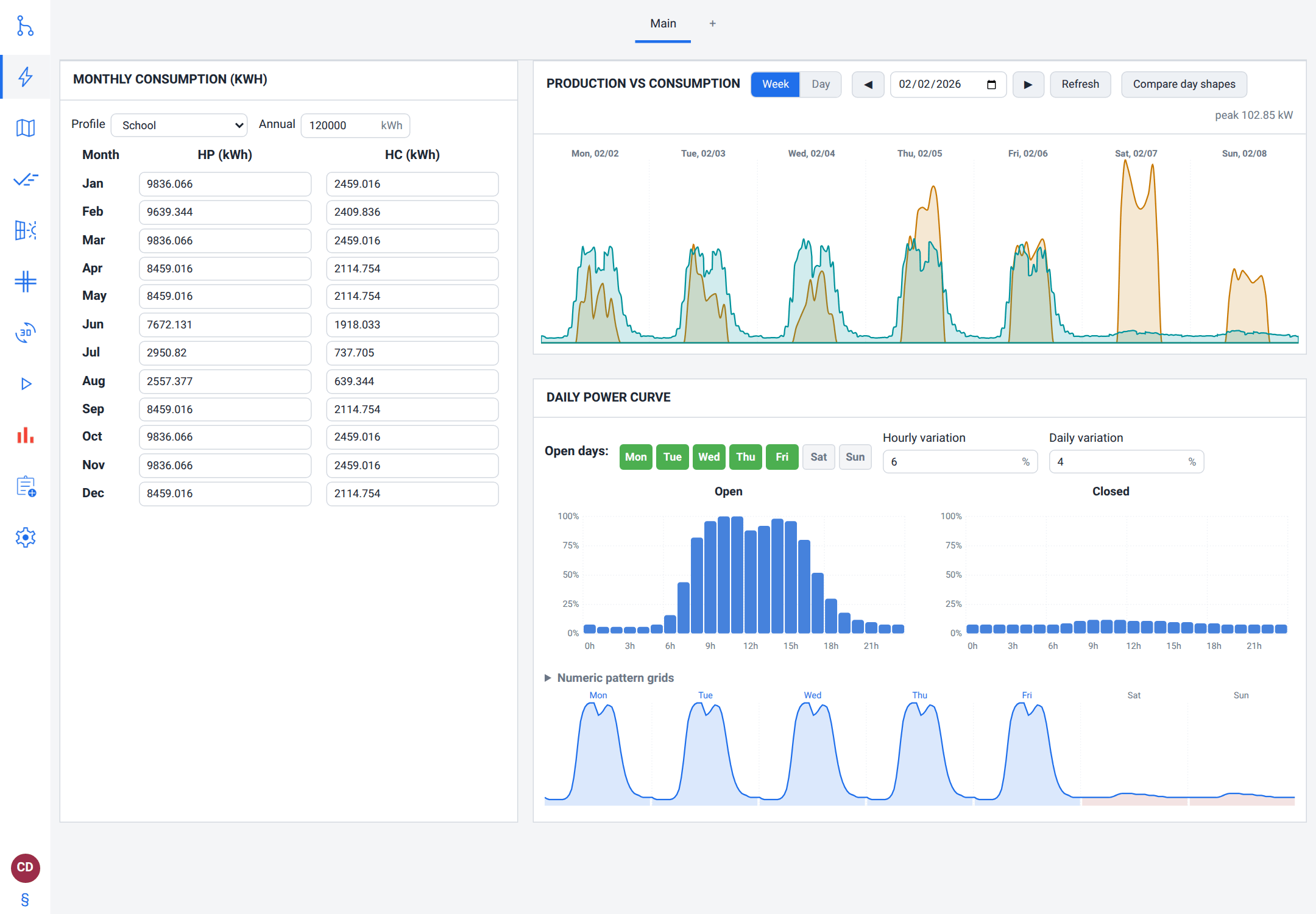
The Consumption tab (the lightning-bolt icon on the left navigation rail, at
/consumption) is where you describe the electrical load the PV system serves — how much energy the site uses, month by month and hour by hour.A good consumption model is what turns raw production into money: self-consumption, grid import, battery dispatch and payback all depend on when your load lands relative to when the sun shines.
You build the primary load on the Main sub-tab — from metered Enedis data, or from a monthly grid you type, fill from a typical profile or import from a bill — and can add further consumption sources, each on its own sub-tab: another manual load, a modelled data centre or an electric vehicle.
The Main sub-tab holds the primary load: a monthly consumption grid, a daily power-curve editor (open-day vs closed-day shapes), and an on-demand production-versus-consumption graph with a day-shape comparator.
Consumption prices (peak/off-peak rates, subscription, Tempo, hourly CSV) live on the Project tab and are documented in The project's consumption-rate and grid-pricing cards — but the rate scheme you pick there reshapes this tab's grid, so this chapter explains the link.
Prerequisites: none to start, but downloading metered data needs an authorised delivery point (PRM) and a signed-in pvSpline cloud account; the data-centre cooling model is most accurate once weather has been fetched for the site (The Map & Site Design Tab).
Where to go next: Running a Simulation & the Production Tab runs the simulation and reads the results, and Storage, EV & Specialized Systems covers the battery that arbitrages this load.
Where it lives and what it produces
Open /consumption, or click the lightning-bolt icon in the left navigation rail. The page is organised as a row of source sub-tabs across the top. The first, Main, is always present and holds the primary load. A trailing + tab adds further sources. Everything you enter here is combined into a single annual load series (summed for extra loads, co-simulated for vehicles) that the simulation engine subtracts from production to compute self-consumption, grid exchange and the bill.
Note
In a Full export project (System type on the Project tab's SIMULATION card) every kWh produced is sold, so the run uses no load at all: the measured series, the monthly grid, extra sources and vehicles stay in the project and on this tab, but nothing here is netted off the export or simulated. Choose a self-consumption system type and the run uses them again. The run still prices a consumption left here as the bill before PV, though.
The tab works on the open project. Until one is open the rail entry is greyed out, and the page shows only No working project yet — open or import one on the Project tab first.
The engine works internally on a fine, roughly 5-minute series. You rarely enter data at that resolution: instead you give monthly totals and a repeating daily shape, and pvSpline interpolates. When you import real Enedis metering, the measured half-hourly curve is used directly and interpolated up. The project's Interpolation method and Time resolution, on Production, choose how that fine series is rebuilt and at what step (The Configuration card).
Note
The cards on this tab are a staged editor. What you type is held on the page and folded into the working project when you leave the tab — which keeps the app from rewriting a project document that embeds a whole year of weather on every keystroke. Two things pull your edits in immediately: adding or removing a source tab, and pressing Ctrl+Enter (Cmd+Enter on macOS) with the focus outside a field, which commits the cards, submits a run from anywhere in the app and takes you to that run's result. The stale badge on the results page answers for the committed document, so it catches up when you navigate away.
Validation feedback while you type
About a third of a second after you stop typing, the app re-checks the project against its rule table and marks what it finds in three places at once:
the Consumption icon in the rail is tinted by the worst issue on this tab, with the messages in its tooltip;
any month whose peak-hours cell is
0gets a warning border, withPeak consumption January is 0(orConsumption January is 0in a single-column rate scheme) as its tooltip. All twelve months must be filled for the project to be valid;if the project carries neither a measured Enedis series nor a manual grid with values in it, the rail tooltip lists
Consumption data not loaded (Enedis or manual entry); on a project with a delivery point, the Enedis download control carries the same flag.
Softer warnings join the rail tooltip without blocking anything: Some peak-consumption months are 0 (incomplete data?), No off-peak consumption entered (all off-peak hours are 0), and Off-peak consumption values are hidden at this tariff granularity but still counted — switch to a Peak/Off-peak granularity to review them. When a split tariff carries off-peak consumption but its schedule holds no peak-hour window, every hour counts as peak: the tooltip says so, starting No peak-hour ranges are set, and the + button of the schedule on the Project tab is flagged as the place to fix it. Add the peak hours there, the hours outside the off-peak hours your bill prints, not the off-peak hours themselves (The project's consumption-rate and grid-pricing cards).
Tip
The rail tint is the cheapest way to tell whether the consumption side is complete before you run. An untinted Consumption icon means all twelve months carry a figure and the engine has something to bill.
Consumption sources and the source tabs
Each sub-tab across the top is one consumption source. The Main tab cannot be closed; every other source tab carries a close button.
Add and manage consumption sources
Click the + tab at the right of the source-tab row. A new source appears, selected, and starts life as a Manual source with twelve empty months, an office-style daily shape, Saturday and Sunday closed, and
5% hourly variation.On the new tab, use the Type dropdown to choose what it models:
Manual(monthly totals plus a daily curve),Datacenter(a modelled IT load), orElectric vehicle(a co-simulated charger).To rename a source, type in its Label field. The tab title follows you as you type. The name is only a label; it never changes what the source computes. An unnamed source shows its kind instead —
Manual source,Datacenter,Electric vehicle,Enedis sourceorBill source.To delete a source, click the × on its tab. A confirmation asks
Delete the consumption source ``…''?because deleting a source discards its configuration.
Note
Extra Manual and Datacenter sources are summed into the total load. An Electric vehicle is different: it is co-simulated — charged from PV surplus or the grid, and optionally discharged back to the house — rather than added as a fixed curve, so it has no monthly grid or daily-curve editor. An Enedis source's identity comes from its delivery point, so its Type selector is hidden: re-kinding one would orphan the measured series stored against its meter.
Caution
Changing a source's Type drops the series that source had already generated. The editor for the kind you leave is kept in the page while you stay on the tab, so a Manual → Datacenter → Manual round trip does not lose what you typed — but the generated curve is rebuilt from scratch on the next run.
The Main editor
The Main sub-tab is laid out as up to three cards: Monthly consumption (kWh) on the left, and a stacked Production vs Consumption graph over a Daily power curve editor on the right. On a narrow window — or a phone — they stack into one column.
Monthly consumption
This card sets how much energy is used each month. Its first row is a mode row that changes shape with the project:
on a project with an authorised delivery point, a Manual checkbox appears first. Unticked (the default), the measured Enedis series is what the engine bills and the row carries the Enedis download button. Ticked, the row swaps to the Profile and Annual controls and the engine regenerates the load from the grid below;
on a project with no delivery point — everything you build by hand — there is nothing to override, so the checkbox is hidden and the Profile and Annual controls are always there.
Below that sits the twelve-month grid you fine-tune by hand.
Fill a year from a typical profile
Pick a shape from the Profile dropdown — for example
Office / commercialorResidential (electric heating). The shapes are derived from Enedis open data.If the Annual field is still zero, pvSpline seeds a representative yearly total for that profile; otherwise it keeps yours. Type your true annual consumption in kWh to rescale — the grid follows as you type, without a button to press.
The twelve monthly cells fill automatically, and so do the daily curve, its two variation knobs and the open/closed days. Edit any cell to fine-tune — doing so switches the Profile selector back to
Custom, since the grid no longer matches a stock shape.
The grid has one row per month. Depending on the rate granularity set on the Project tab, each month shows either a single Consumption (kWh) value (flat rate or hourly-CSV tariff) or a split HP (kWh) (peak) and HC (kWh) (off-peak) pair. In Tempo (EDF) mode the headers name the fixed windows (HP 6h–22h (kWh), HC 22h–6h (kWh)); in the seasonal mode the peak hours follow the winter and summer schedules on the rate card.
Caution
Picking Flat rate in the Granularity dropdown of the Project tab's CONSUMPTION RATES card, or From an hourly CSV as its Rate source, adds each month's off-peak figure into the one Consumption (kWh) cell left visible, which then holds the month's total — type totals there. The peak/off-peak split is not kept: switch back to a peak/off-peak scheme and HP holds the total while HC reads 0. In those two schemes the daily power curve alone spreads each month's total over the day. Only a project that reaches a single-column scheme another way — opened in one, or switched by From catalogue or From PDF bill — can still hide off-peak values; they count in the month's total, and the rail flags them.
Tip
The grid values are the anchor for everything downstream — the daily curve only distributes each month's total across the hours; it never changes the monthly sum. If your annual figure is right but self-consumption looks wrong, the daily shape is usually the thing to adjust, not the monthly totals.
Tempo registers.
When the rate granularity is Tempo (EDF), a Tempo registers (kWh/year) block appears above the grid: six cells for Blue, White and Red days, each split into peak (HP) and off-peak (HC). Type the six annual meter readings from an EDF Tempo bill and click Fill the months to spread each colour across the twelve months in proportion to that colour's day-count in the active Tempo calendar. This is a one-off copy; the monthly cells stay editable afterwards, and editing one returns the Profile selector to Custom.
Where each month's number came from
Under each month's name the grid prints a small caption saying where that month's figure comes from. It is the honest provenance line for a project that mixes measured and invented data:
| Monthly data-source caption | Meaning / effect |
|---|---|
| 2026 30 min 98.4% | A measured month: the year it was read, the meter's recording interval, and how much of the month the readings actually cover. |
| 2026 30 min 61.0% complete | A part-measured month — real readings with gaps filled in. The percentage is the measured share. |
| Synthetic | Generated from the monthly total and the daily curve, not measured. |
| Manual | A figure you typed that no longer matches what the synthetic generation would produce. |
| (blank) | Nothing meaningful to report — typically a project that carries no embedded consumption series at all. |
The captions are recomputed by the engine only when the embedded consumption series or the delivery point changes, not on every keystroke in the grid, so a month that turns from Synthetic into Manual keeps its old caption until the next download or import.
Daily power curve
This card sets when within a day the load occurs. It drives self-consumption because a load that peaks at midday overlaps solar production far better than an evening peak.
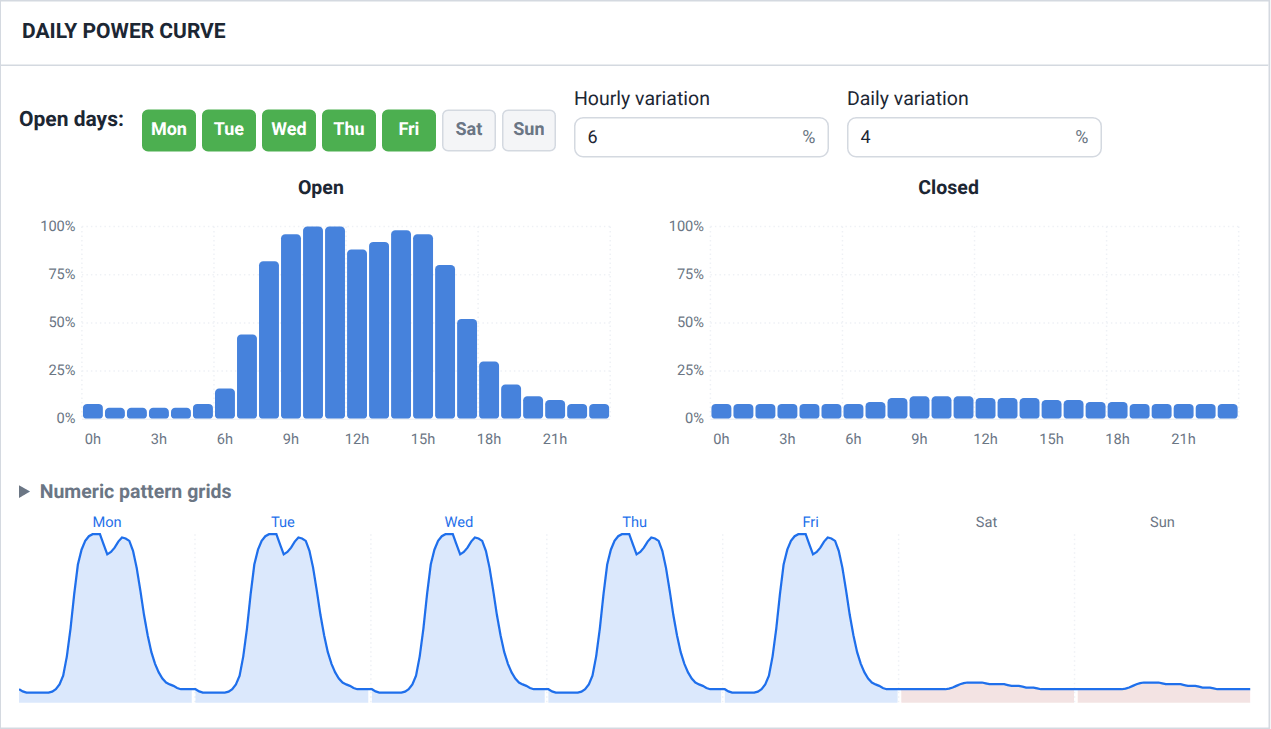
Open days — at the top of the card, the 7-day preview of the daily power curve with a toggle button above each day's column, Monday through Sunday, in your locale's short names. A highlighted (pressed) button is an open/operating day; an unpressed button is a closure day that uses the Closed shape, and its column is hatched. Click a day to switch it. The preview smooths the two shapes into the resulting week, so you can see it before you run. Until the project records closure days, all seven days are open. Applying a typical profile sets them: most profiles close the weekend, the retail profile closes Sunday only.
Hourly variation — a random hour-to-hour spread (0–100 %, default
5) applied to each slot on open days, so the generated curve is not perfectly smooth.Daily variation — a random day-to-day spread (0–100 %, default
0) that jitters whole days while preserving each month's total.Open and Closed shape editors — two side-by-side bar charts, one for operating days and one for closure days, each titled with the days that use it (
Open · Mon–Fri). Each has 24 bars (one per hour, 0–100 %). Press a bar to set it to the height under the pointer; keep the button down and drag across the chart to paint: every bar you pass takes the height of the pointer as it crosses it. Point at a day in the preview and the chart it uses lights up; point at a chart and the buttons of its days are ringed.Numeric pattern grids — a collapsed panel holding the same 2 × 24 weights as plain number fields. This is the keyboard-and-screen-reader surface for the two bar editors, and the place to type an exact value.
Note
The daily shapes are weights, not kilowatts: each month's kWh is spread over its hours in proportion to them (its peak-hour and off-peak kWh each over their own hours), which is why editing the curve never changes your annual total. The two shapes share one scale, so how tall the closed-day bars stand against the open-day bars is how much a closed day draws against an open day: a closed shape drawn flat at 100 % makes every closed day heavier than any open one. The preview is drawn without the random variation, so it shows the underlying shape rather than one particular simulated week.
Metered import from Enedis
For a French site with a Linky smart meter, the most accurate load is the meter's own history. pvSpline downloads it from Enedis by delivery-point identifier (the 14-digit PRM). The PRM belongs to the saved project: it is filled in by the Enedis authorisation flow, shown read-only on the Project tab, and cannot be typed here — a typed override could only point a saved project's download at a meter that project does not own.
The download control is the small download glyph on the monthly card's mode row. It appears only on a project with a delivery point, while Manual is unticked, and it needs a signed-in pvSpline cloud session: Enedis accepts no other credential, and your session token rides with that one request only.
The fetch is a job, not a button press
Pressing the button does not block the page. It queues a fetch job on the engine and returns immediately; the app polls it about once a second and shows its state next to the button as Enedis fetch: Queued, then Running, then Succeeded or Failed. While the job is in flight the Consumption icon in the rail animates, so you can leave the tab and still see that work is outstanding. The job is remembered for the browser session, so reloading the page picks the same job back up rather than losing it.
Download metered consumption
Sign in to your pvSpline cloud account (Your Account, Team & Cloud Runs). Without a session the job is refused before any Enedis traffic happens, with
Enedis requires an authenticated session.Open a project that carries an authorised PRM. If yours does not, use New Enedis project in the project browser on
/project(shown while no project is open): it opens the Enedis consent flow for your company so a new delivery point can be authorised.On Consumption, leave the Manual checkbox unticked and press the download glyph on the monthly card.
Watch the status beside it. On success the working project is replaced by an enriched copy that embeds the measured series, and a line confirms
Project enriched — the working project now embeds the fetched series and can run offline.
Consent before the result is applied
A successful fetch rewrites your working project, so the app only does that silently when the project is still byte-for-byte what it submitted. If you edited anything — or switched project — while the download was running, it stops and asks instead: The fetched data is ready but was not applied automatically (the working project changed, or the download failed). Applying replaces the current working project. Press Apply fetched data to take it, or simply ignore it and keep what you have.
Caution
Applying a fetch replaces the whole working project with the enriched copy, not just the consumption series. The step is undoable from the app's history, but anything you typed between the submit and the apply is what the prompt is warning you about — read it before pressing.
A client with several meters
A client who authorises several delivery points signs one Enedis authorisation per meter. The first successful download of a project for such a client — before any measured series is embedded — adds the client's other meters whose authorisation is in force as Enedis source tabs, summed with the project's own meter, and says so beside the button: This client’s mandate also covers PRMs …: added as consumption sources, summed with this meter. Adding them is one step in the app's history, so an undo takes it back. Later downloads leave the source list as you made it: a meter you removed is not added again.
Every download fetches the project's own meter first, then each other meter among the enabled Enedis sources, one at a time, showing Downloading the other meters: 1 of 2 (PRM …)… while it goes and Readings downloaded for 2 other meters. once done. A meter that fails is listed under Not downloaded: with its PRM and the reason, and the others still come down — unless the session has expired, which every later meter would meet too. The status beside the button and the refusals below are those of the project's own meter: when it fails, the other meters are not asked.
When the download refuses
| Enedis fetch failures | Meaning / effect |
|---|---|
| Enedis requires an authenticated session | No cloud session, or it has expired. Sign in and retry. |
| No Enedis authorization is in force for this PRM | Your client has not authorised this delivery point, or their authorisation has expired or been revoked (When your client's authorisation expires); only a new signature from your client fixes that. Or Enedis access is switched off for your account: a Manager account of your company switches it on (Roles, and what a manager can change). |
| Your Enedis mandate is missing or has expired | Your own mandate, not the client's. A Review the Enedis mandate button appears beside the message; accepting it takes a moment and lasts twelve months. |
| The free plan does not include Enedis data | Your company is on the free plan, which leaves Enedis data out whatever the authorisations say; the subscription includes it (Plans and what they unlock). |
| Error: … | Anything else the engine reported, quoted verbatim. |
Note
Once the series is embedded, the download is a one-off enrichment of the working project, not a live dependency. Pressing the button again re-downloads from Enedis — the project's meter and its Enedis sources' (A client with several meters) — and replaces the embedded series. Saving the project to your account keeps the series with the save, until your client's authorisation ends (When your client's authorisation expires); the copy of unsaved work that this browser keeps for recovery (Updates, reloads and recovering work) and any project file you export with Export .json keep it too.
Watch out
A project you open from your account comes back with the measured series it was saved with — unless the series left the save when the authorisation ended (When your client's authorisation expires), or the storage that keeps the series was unavailable when you saved or reopened it. Without the series, the monthly card does not say that the engine bills a measured series, the Segment on the Project tab reads —, and, while Manual is unticked, the rail flags Consumption data not loaded (Enedis or manual entry). Do not run it that way: the flag does not stop a run, and although the run's Warnings card on Results warns that the meter's series is missing, the run counts no consumption from the meter while the bill before PV is still priced from the monthly grid, so its self-consumption, savings and payback are wrong. Download the series again before you run, which needs your client's authorisation in force (When your client's authorisation expires), or tick Manual and bill the monthly grid, once its twelve months hold the figures you want billed. On a project that covers several delivery points, the glyph downloads the project's own delivery point only. Each of the others is an Enedis source, whose series the app cannot download; without it, that source adds nothing to the load, and no warning says so.
Overriding measured data by hand
While a measured series is embedded, the monthly grid is not what the engine bills — the meter is. The card says so: This project embeds a measured Enedis series. The engine bills THAT series, not this grid. Tick Manual to reverse that: the engine then regenerates the daily consumption from the grid and ignores the meter, and the card confirms Manual override on. Untick it to bill the measured data again. The measured series is never deleted by the override, so you can flip back and forth freely.
When your client's authorisation expires
Your client's Enedis authorisation for a delivery point is in force from the day they sign it, for the duration stated on the form they signed — twelve months by default. From the day it runs out, a download of the meter's data is refused with No Enedis authorization is in force for this PRM, unless another authorisation of your company for the same delivery point is still in force. With none left, pvSpline also removes the measured consumption from every saved version of your company's projects that name that delivery point — on a project that covers several delivery points, the series of all of them — and does the same when an authorisation is revoked before its end. The rest of each save stays as it was, and the working project, its recovery copy and any project file you exported keep their series.
A project you then reopen from your account carries no measured series, and the download that would restore it is refused. For such a project, either have your client sign a new authorisation through the Enedis consent flow (New Enedis project in the project browser on /project, shown while no project is open) and press the download glyph again, or tick Manual and bill the monthly grid, once its twelve months hold the figures you want billed. Until you do one or the other, its runs count no consumption from the meter. On a project that covers several delivery points, either way restores only the project's own delivery point: its Enedis sources still add nothing to the load.
Caution
Nothing in the app warns you before an authorisation runs out, so note the date your client signed. If a study needs its metered data past the end of the authorisation, have your client sign a new one before then: while one is in force, your saves keep the series and you can download it again whenever you need to.
Importing an electricity bill
A supplier bill PDF is the other way to get real numbers into the project. The importer is reached from the Consumption rates card on the Project tab (/project): set its Rate source to From a PDF bill — the rest of the card steps aside until a bill is applied — then press Choose a PDF… on the PDF bill line and pick the file. There is no separate parse step — choosing the file starts the import, and a progress bar reports reading, uploading and processing. pvSpline recognises the major French suppliers (EDF, ENGIE, TotalEnergies, Eni and others) and their tariff options.
Note
Bill import is reachable only from that card, and it is the one place that can fill this tab's monthly grid from a PDF. Nothing from the bill is written to the project until you confirm. Applied with its tariffs, the bill becomes the card's rate source: the rates it set stay greyed out under the bill's file name until the source is switched back to Manual entry. Choosing the file first writes any change still pending on that tab's cards into the project, so applying the bill keeps them.
The confirmation dialog
A successful parse opens a modal titled Parsed followed by the file's name, showing what was extracted and letting you correct it before applying:
a read-only summary: Provider:, Tariff option:, Billing period:, the rate (Price (TTC €/kWh): for a flat bill, HP price (TTC €/kWh): and HC price (TTC €/kWh): for a split one) and Monthly consumption: — either
N month(s) found on the billorno month-by-month table on the bill;Import from this bill: — two checkboxes, tariffs and consumption, both ticked. They are part of the request, so unticking one re-parses the staged file under the new flags and refreshes the summary in place. While consumption is ticked and the bill carries a month table, a line says what that does to this tab: the 12 months of its grid are replaced by the bill's;
a note stating the table's total and basis, or the caveat that only the tariff is imported — which, when the document states an estimated annual consumption, quotes that figure so you can enter it yourself;
Correct anything the parser got wrong before applying. — editable fields for Subscribed power (kVA), Subscription (€/kVA per month) and the per-period rates in €/kWh, all seeded from the parse. Subscription opens on the all-inclusive price per kVA and per month that the import applies — the bill's monthly subscription divided by the subscribed power, or a professional bill's daily price per kVA × 30.4 — not on the monthly amount printed on the bill, and stays empty when the bill prices none. A Tempo bill offers all six colour rates instead;
Off-peak hours on the bill: … with Update the project's HP/HC schedule timelines (both seasons), ticked by default. Ticked, applying replaces every peak-hour window, winter and summer alike, with the rest of the day around those off-peak hours: a bill printing
22:00–06:00leaves a single06:00–22:00window, however many you had drawn. Untick it to keep the schedule you already have. The box has no effect while tariffs is unticked;a tax note:
Rates read from the document’s own all-inclusive TTC column.,Rates reconstructed to all-inclusive TTC: (HT + accise) × (1 + VAT)., or the warning below.
Press Apply to project to fold the values in. Cancel, press Esc or click outside the dialog to throw the parse away — nothing has been written until you apply.
Note
With tariffs ticked, applying also files the project under the bill's scheme. The Granularity of the CONSUMPTION RATES card follows the tariff option: Flat rate for a Base bill, Peak / Off-peak for an HP/HC bill (one HP/HC hours schedule, used all year), Tempo (EDF) for a Tempo bill; an EJP or professional bill prices the project by the hour, and the card shows its hourly grid in place of the Granularity. The GRID PRICING level, which decides what is billed (The project's consumption-rate and grid-pricing cards), becomes Subscription for a bill that prices a subscription and TURPE + peak-shaving for one that prints an overshoot price; a bill that prices neither leaves it as it was. If you type a Subscription price for such a bill, applying switches the project to Subscription, because nothing is billed at None. Whenever applying sets the level, it also turns net metering off if it was on, so a project that had Net metering stops reconciling imports against exports, just as when you pick another level on the card.
Caution
When the note warns that taxes (the accise excise duty and VAT) were not found on the bill, the rates are pre-tax (HT) only and will understate your bill. Verify and correct the rate cells before relying on the financial results.
Note
An EJP or professional bill has no four-period buy side; the importer converts it into an approximate 8760-hour price curve and says so. Adjust that curve afterwards on the Project tab if it matters.
How large a file may be
Every file picker in the app checks the size before reading a single byte, so an oversized file is refused straight away instead of after a long upload. A bill PDF is sent to the engine, which accepts about 25 MB per imported file.
The same ceiling applies to every file that reaches the engine, including a metered-curve or tariff CSV. Bills are almost never anywhere near it; the check exists so a mis-picked file fails with a sentence instead of a timeout.
Files imported through the cloud service also count against your monthly import allowance, set by your plan — your own on a subscription, your company's on the free plan. Once it is used up, an import is refused with Your monthly import allowance is used up, followed by how much you have stored this month; the allowance resets at the start of next month. On the free plan, an account not verified yet has no import allowance (0 MB) until it is verified (Verifying your account).
Synthetic (typical) load profiles
When you have neither meter data nor a bill, the Profile dropdown gives you a realistic starting shape. Selecting a profile fills the monthly grid, both daily shapes, the two variation knobs and the open/closed days; the Annual total scales it. The choices are:
| Typical load profile | Meaning / effect |
|---|---|
| Custom | No preset — the grid you built by hand. Selecting a profile and then editing any value returns the selector here. |
| Residential (no electric heating) | A home with gas or other non-electric heating: modest, evening-weighted load with little winter uplift. Seeds 3 500 kWh/year if the annual total is still blank. |
| Residential (electric heating) | A home heated electrically: a pronounced winter peak on top of the residential daily shape. Seeds 11 000 kWh/year. |
| Office / commercial | An office: strong weekday daytime load, low nights and weekends — the best natural overlap with midday solar. Seeds 40 000 kWh/year. |
| Retail (open Mon-Sat) | A shop open six days a week: continuous daytime load Monday to Saturday, dropping to refrigeration and security lighting on the closed Sunday. Seeds 60 000 kWh/year. |
| Industry (continuous) | A round-the-clock industrial site: high, fairly flat load at every hour, easing to about three quarters of a working day at the weekend. Seeds 250 000 kWh/year. |
| School | A school: strong term-time weekday load with reduced holidays and weekends. Seeds 80 000 kWh/year. |
Every profile also carries its own peak/off-peak split, so applying one to a split-rate project distributes each month between the HP and HC columns rather than dumping it all into one.
Tip
The same Profile and Annual pair appears on every extra Manual source, scaled into that source's own twelve cells. It is the fastest way to add a second building or a tenant without typing 24 numbers.
Data-centre load
A Datacenter source models an IT facility as an electrical load and sums it into the project's consumption. Its power is IT capacity × Base PUE (the cooling/overhead multiplier), shaped over the day by a utilisation schedule and — for AI clusters — a stochastic training-job process. Switch a source's Type to Datacenter to reveal three cards: Data-center parameters and AI training jobs stacked on the left, and a Daily power curve card on the right.
Data-center parameters
IT capacity (kW) and Max utilization (%) — the nameplate IT power and the ceiling the schedule plus jobs may reach.
Base PUE — Power Usage Effectiveness, total facility power divided by IT power (1.0 = no overhead; modern sites are roughly 1.1–1.6).
Temperature source — where the outdoor temperature that drives cooling comes from:
Automaticuses the project's fetched weather when there is any and falls back to a built-in seasonal model before the first fetch;Seasonal modelalways uses the built-in model;Noneremoves the temperature coupling altogether and holds PUE at its base value.Free-cooling threshold (°C) — below this outdoor temperature, PUE stays at its base value; above it, PUE rises.
PUE per °C above threshold — how much PUE climbs per degree above the free-cooling threshold.
Slot noise and Daily noise (%) — random texture applied independently to each time slot and to whole days.
Random seed — the same seed and parameters always reproduce the exact same series.
An estimate line at the bottom reads back the approximate annual consumption and mean utilisation implied by your settings — Estimated annual consumption: ~4 200 MWh (mean utilization 68%) — so you can size the facility before running the simulation. It is a closed-form sizing aid: it folds in the schedule, the jobs and the base PUE, but deliberately leaves out the temperature term and the noise.
Note
The numeric limits on these fields are published by the simulation engine itself, not hard-coded in the browser: hovering a field shows Value must be between … and …, and the engine validates the same bounds when the project is checked. Fields that trade in percentages on screen — Max utilization, Job size min, Job size max — are stored as fractions in the project file. That never affects what you type, only what you would see if you read the file.
AI training jobs
A data centre becomes an AI data centre when it has a training-job process; leave Compute jobs per day at 0 for a regular enterprise or cloud facility. The jobs stack step-shaped plateaus on top of the utilisation schedule:
Compute jobs per day — the Poisson arrival rate of training jobs; above 0 makes this an AI data centre.
Mean job duration (h) — the average job length; actual durations are drawn around it from a log-normal distribution.
Duration spread (σ log) — the standard deviation of the log of duration; 0 means every job runs exactly the mean length.
Job size min and Job size max (% of IT capacity) — each job's power draw is drawn uniformly between these two.
Data-center daily power curve
The Daily power curve card sets the scheduled IT utilisation as a percentage of IT capacity across the 24 hours, with Weekday IT utilization (%) and Weekend IT utilization (%) as two side-by-side 24-bar editors and a 7-day preview below. A data centre runs 24/7, so Saturday and Sunday take the weekend shape without the closed-day tint the Manual card uses.
Electric-vehicle load
An Electric vehicle source adds a vehicle that is co-simulated with the PV system: charged from surplus solar or the grid on a plug-in schedule, and — when it lends power back — discharged to cover the house. Because it participates in dispatch rather than being a fixed load, an EV source has no monthly grid and no daily curve. Its card, EV charging parameters, is written as a sentence, a picture and a verdict. The battery side of the dispatch it takes part in is covered in Storage, EV & Specialized Systems.
The session, stated as a sentence
The top of the card reads like a description of the car's day, with every highlighted word an actual control:
My Tesla Model 3 (LR) gets home at 18:00 and leaves again at 07:00.
By then it needs 10 kWh this session, charged on sunshine only.
The vehicle token is a Model dropdown of common cars that pre-fills battery capacity, charger power and Wh/km; it also reseeds the arriving charge to half the new pack. While
Customis selected the words become a text field where you name the car — that name is the source's label, so it titles the tab too.The two times are 15-minute time pickers. The departure may cross midnight; an overnight 18:00–07:00 stay is the default.
The need is a number whose unit is the mode selector next to it. Changing between kWh and % converts the value rather than reinterpreting it, so “30 kWh at departure” becomes 60 % on a 50 kWh pack.
The strategy token is a single choice covering both solar/tariff charging and whether the car lends power back to the house.
In the km of driving mode a second line appears — It uses 175 Wh/km — ≈ 7.0 kWh/day — where the WLTP consumption converts the distance into energy and the derived figure updates live.
Two optional extras sit beneath: Weekends are different arms a separate weekend plug-in and unplug pair (09:00 and 18:00 when first switched on), and, in the km/day mode only, It also drives a different distance at weekends arms a separate weekend distance (60 km when first switched on). Both are all-or-nothing on purpose: a lone half of a weekend window is not something the engine can read.
| EV charging strategy | Meaning / effect |
|---|---|
| on sunshine only | Charges only from PV surplus. Maximises self-consumption, but reports a shortfall rather than topping up from the grid on dull days. |
| on the cheap tariff | Schedules charging in off-peak windows, falling back to peak hours when needed to meet the departure deadline. |
| on sunshine, lending power back to the house | Solar charging plus vehicle-to-home: during plug-in hours the pack also covers the house load, never below the charge the car needs for its departure. |
| on the cheap tariff, lending power back to the house | Off-peak charging plus vehicle-to-home. The car may also lend against the charging still scheduled before it leaves, which then refills what it lent (Electric-vehicle co-simulation). |
The charge picture
Under the sentence is a drawing of the house and its roof, the grid, the wallbox and the car, with the pack shown as one bar carrying all three energy numbers: the charge it arrives with, the slice this session adds, and the slice it cannot reach. The arrows say where the kWh come from — the roof, the grid, or back out to the house when the strategy lends power back.
The picture is also a control: drag the round knob to set the charge the car arrives with, drag the flag to set the charge wanted at departure, and press the wallbox to step the charger through the common AC sizes (3.7, 7.4, 11 and 22 kW). Dragging the flag also moves the need mode to kWh in the pack by departure, because that is what the flag states.
Will it work?
Below the picture the card answers one question it can settle without running anything — whether the plug-in window is long enough for the charger to deliver what you asked for:
| EV session verdict | Meaning / effect |
|---|---|
| Works | The session fits. The message names the charge the car leaves with, the range that gives it, and how much of the stay was spare. |
| Falls short by N kWh | The window is too short for the charger. The message names the stay length, the charger size and the most it could move, and offers Fit a bigger wallbox and Plug in an hour earlier as one-click fixes. |
| Nothing to charge on | The strategy charges on sunshine but the stay covers almost no daylight (the card counts 08:00–18:00). Offers Charge on the cheap tariff instead. |
| Nothing to do | The pack already meets the target when it arrives, so this session charges nothing. That is a no-op, not unmet energy. |
| Needs a pack and a wallbox | The capacity or the charger power is still zero, so there is nothing to check yet. |
Note
The verdict deliberately answers only what the session itself determines. How much of the charge actually comes off your roof, and what it costs, depend on the PV series and the tariff — those are the simulation's answer, not the card's.
The numbers behind it
A collapsed The numbers behind it panel holds the three specs the sentence implies — EV battery (kWh), Charger (kW), Initial charge (kWh) — plus Consumption (Wh/km) in the modes where it is not already in the sentence. Picking Custom in the model list opens the panel, because those three numbers are exactly what “custom” means. Editing any of them returns the model selector to Custom.
A closing note states the two rules the engine applies whatever you type: the arriving charge is held at or above 20 % of the pack, and the charge leg keeps 92 % of what the wallbox delivers.
Consumption rates and grid pricing
The prices that turn kWh into euros live on the Project tab (/project), on the CONSUMPTION RATES and GRID PRICING cards. They are documented in full in The project's consumption-rate and grid-pricing cards; this section covers only the part that reaches back into this tab. Both cards start with a source selector and, under manual entry, a Granularity dropdown that shows only the fields relevant to the chosen scheme. Hidden values are kept, not discarded, but a hidden price is not billed: on GRID PRICING the level decides what is charged. One exception: until the From an hourly CSV source has a grid loaded, or Tempo (EDF) its prices filled in, the run falls back to the typed rates the CONSUMPTION RATES card hides. Two picks on CONSUMPTION RATES do rewrite what you entered, as the table below says: Flat rate and the From an hourly CSV source fold this tab's off-peak column into the visible one, and Peak / Off-peak copies its single schedule over the summer one.
| Consumption-rate granularity | Meaning / effect |
|---|---|
| Flat rate | A single rate for every hour. The monthly grid collapses to one Consumption (kWh) column; picking it adds each month's off-peak figure into that column, and the daily power curve alone spreads the month over the day. |
| Peak / Off-peak | One year-round HP/HC split with a single editable schedule. The grid shows HP and HC columns. That one HP/HC hours schedule applies all year and, once your edits are committed, also replaces the summer windows. |
| Peak / Off-peak × Season | Separate winter and summer HP/HC rates and schedules. The Summer months strip sets which months use the summer side. |
| Tempo (EDF) | The EDF Tempo six-level tariff: Blue/White/Red days, each split peak/off-peak, with a fixed 22:00–06:00 off-peak window. The grid headers name the windows and the Tempo registers block appears on this tab. |
The rate fields are entered in €/kWh and follow the scheme: Flat rate alone; Peak hours and Off-peak hours; or, in the seasonal scheme, Winter Peak Hours, Winter Off-Peak Hours, Summer Peak Hours and Summer Off-Peak Hours. The card's Rate source fills them all at once instead: From the catalogue, a dropdown of the rates you have favourited in The Component Catalogue, From a PDF bill, the bill importer described above, or From an hourly CSV, an 8760-value hourly price curve loaded from a file in place of the four rates — like Flat rate, it collapses the monthly grid to one column and folds the off-peak figures into it. Below the rates, in the two peak/off-peak schemes, vertical timelines define the peak-hour windows: drag a knob to retime a window, hover a printed time to type it exactly, and use the + / × buttons on each season's header to add a window or drop the last one (up to three per season).
| Grid-pricing granularity | Meaning / effect |
|---|---|
| None | No grid tariff beyond the energy price. |
| Subscription | Adds a subscribed-power (kVA) charge billed per kVA per month. |
| TURPE + peak-shaving | Adds a power-overshoot penalty, a sliding peak window and a peak-shave target on top of the subscription. |
| Net metering | Adds import/export reconciliation over a monthly or annual period, with an offset ratio and a true-up tariff for surplus. |
GRID PRICING opens on a Source of its own — Manual entry, or From the catalogue, a dropdown of the grid-only tariffs you have favourited, which fills the rows in one pick. An Injection cap row sits on the same card in every mode: it summarises the current export limit and Edit schedule opens a 12 × 24 grid of caps in kW, one cell per month and hour, with Apply to all cells and Clear all shortcuts. A cell of -1 means no cap; the engine applies the cap per 5-minute slot and curtails the energy above it.
Tip
Set the rate granularity before you type the monthly grid. Switching afterwards to Flat rate or to the From an hourly CSV source keeps each month's total but loses its peak/off-peak split, and switching to Peak / Off-peak loses a separate summer schedule; any other switch only hides or shows fields.
The production-versus-consumption graph
The Production vs Consumption card at the top right of the Main tab draws the two curves on the same axes, at the resolution the engine caches them: production filled in orange behind, consumption in teal in front, with dotted separators and a date label per day. A muted peak … kW readout gives the vertical scale. The series come from the engine, computed from the project's embedded weather and consumption payloads — so the card fills in as soon as those exist, without waiting for a full simulation.
Its control bar carries:
a Week / Day span switch. Week is where it opens;
◂ and ▸ buttons that step by one week or one day, wrapping round at the ends of the available data, and a date field (Week of or Day) to jump straight to a date;
Refresh, which re-asks the engine for the current window;
Optimize consumption, a toggle that turns the graph into the comparator described below.
Switching span keeps the date anchor, so Day lands inside the week you were looking at. The graph reads the committed project, so edits on this tab's own cards show only once you have left the tab; a committed change clears the graph rather than re-querying on every keystroke — press Refresh when you want the new answer. If there is nothing to draw the card says why, for example because the project carries no consumption series yet.
Comparing day shapes
Pressing Optimize consumption overlays two more curves on the same window: an Average — the typical day for a kind of site, drawn grey and dashed because it is a statistical reference rather than a scenario — and an Optimal — a reshape of your own load at constant daily energy, moved to catch more sun or a cheaper hour. The Real measured curve and PV production stay. Four chips switch each series on and off; Real is offered only where the window actually carries a measurement, and it breaks across unmeasured stretches rather than drawing a site that consumed nothing.
Two pickers frame the comparison:
Average from — which typical day to compare against: any of the six shipped profiles (shown as
Office / commercial — typical dayand so on), orThis site — measured average, offered once the window holds a measurement. It opens on the office profile.Normalize —
Native totalsleaves each curve at its own daily energy, answering “was this day heavier than usual?”;Same daily total(the default) rescales the average to the measured day's energy so only the shape is left to compare, and states the factor it applied. The measured curve itself is never rescaled.
Under the plot, a Day totals (or Week totals) table has three fixed columns, Real, Average and Optimal, with a dash where a series is hidden. Its rows are Daily energy (Weekly energy over a week), Peak power, Self-consumed, Self-consumption, Coverage, Grid import, Day cost (Week cost; only once the project carries a tariff) and Energy moved. Under the From an hourly CSV source the cost is an estimate: each peak and off-peak band is priced at the curve's seasonal average, whereas a run bills the curve hour by hour. Whatever the System type, the cost credits exported kWh at the Feed-in tariff value, whether or not the run pays it.
The optimizer's own constraints sit on the last row, so the result stays explainable rather than magic:
Objective —
Maximize self-consumptionorMinimize day cost. The cost objective is greyed out until the project has a tariff.Shiftable share — a slider capping the share of the day's energy the optimizer may move (0–40 %, default 15 %).
Lock base load — on by default; freezes the night floor so only the flexible load above it moves.
A readout on the right states what it actually moved:
4.2 kWh moved · 11.3 % of the day.
In the Day span, shaded bands behind the plot mark the off-peak hours as the engine's own tariff mask sees them — under Flat rate and the hourly CSV too, where they follow the peak-hour windows the rate card hides — and a note appears when the window is short of measurements or falls on a daylight-saving transition.
Note
The comparator asks the engine one question per day in the window, and the first of those pays for rebuilding the year. Expect the week view to take a few seconds the first time you open it on a given project; after that the answers come back quickly.
Note
The animated energy-flow diagram — PV, house, grid, battery and vehicle with their annual energies and euro savings, and the self-consumption and coverage pills — is not on this tab. It is a read-out of a completed run: the results list it as Production / consumption summary, and the report prints it as a page of its own (Summary and picture pages).
Field reference
Source tab strip
| Field / Control | Type & unit | Default | What it does & how to set it |
|---|---|---|---|
| Main | tab | selected | The primary load: monthly grid, daily power curve and the production-versus-consumption graph. Cannot be closed. |
| (one tab per source) | tab | — | Titled by the source's Label, or by its kind (Manual source, Bill source, Datacenter, Electric vehicle, Enedis source) when the label is blank. |
| × (on a source tab) | button | — | Removes that source after a confirmation. Discards its configuration. |
| + | button | — | Appends a new Manual source and selects it. Pending edits on the open cards are folded into the project first. |
Monthly consumption card (Main)
| Field / Control | Type & unit | Default | What it does & how to set it |
|---|---|---|---|
| Manual | checkbox | off | Ignore the embedded Enedis series and bill the monthly grid instead; the engine regenerates the daily consumption from it. Shown only when the project has a real delivery point. |
| Profile | dropdown | Custom | Fills the monthly grid, both daily shapes, the variation knobs and the open/closed days from a typical shape. Editing any of those returns the selector to Custom. Shown when the grid is the billed source. |
| Annual | number · kWh | — | Total yearly consumption used to scale the selected profile across the twelve months. Minimum 0, step 100. Left at 0, applying a profile seeds that profile's representative total. |
| (Enedis download) | icon button | — | Queues a fetch job that re-downloads this delivery point's consumption from Enedis and replaces the embedded series, then one for each other meter among the enabled Enedis sources (A client with several meters). Shown only on a project with a delivery point while Manual is unticked; needs a cloud session and your client's authorisation in force (When your client's authorisation expires). |
| Consumption (kWh) / HP (kWh) | number · kWh | 0 | Peak-hours (or, in single-rate schemes, total) consumption for each month. Minimum 0. Anchors the month's energy; the daily curve only distributes it. A zero month is flagged as a warning. |
| HC (kWh) | number · kWh | 0 | Off-peak-hours consumption for each month. Minimum 0. Shown only when the rate scheme splits peak/off-peak. Picking Flat rate or the From an hourly CSV source adds it into the visible cell and sets it to 0; off-peak values hidden any other way still count in the month's total. |
| Tempo registers (Blue/White/Red × HP/HC) | number · kWh/year | — | The six annual Tempo meter readings from an EDF bill. Minimum 0, step 50. Tempo granularity only; seeded from the monthly grid when you switch into Tempo. |
| Fill the months | button | — | Spreads the six Tempo registers across the twelve months by each colour's day-count in the active calendar. One-off copy; the monthly cells stay editable. |
Daily power curve card (Main)
| Field / Control | Type & unit | Default | What it does & how to set it |
|---|---|---|---|
| Open days | 7 toggle buttons on the 7-day preview | all open | A pressed button marks an operating day using the Open shape; an unpressed day uses the Closed shape and its column is hatched. Each button stands above its day's column. |
| Hourly variation | number · % | 5 | Random hour-to-hour spread applied to each slot of an open day. Range 0–100, step 1. |
| Daily variation | number · % | 0 | Random day-to-day spread that jitters whole days while preserving the monthly total. Range 0–100, step 1. |
| Open | 24-bar drag editor | office shape | Relative hourly load (0–100 per hour) for operating days. Press to set one bar, drag across to paint several. Its title names the days that use it. |
| Closed | 24-bar drag editor | office shape | Relative hourly load for closure days, on the same scale as Open: the taller its bars against the open-day bars, the more a closed day draws. Its title names the days that use it. |
| Numeric pattern grids | collapsed panel · 2 × 24 numbers | collapsed | The same weights as typed fields, 0–100, step 1. The keyboard and screen-reader surface for the two bar editors. |
| 7-day preview | read-only chart | — | A smoothed week built from the two shapes and the open/closed days, under the day buttons at the top of the card, with closure days hatched. Drawn without the random variation. |
Per-source header
| Field / Control | Type & unit | Default | What it does & how to set it |
|---|---|---|---|
| Label | text | empty | Names the source and titles its tab as you type. A label is cosmetic; it never changes what the source computes. |
| Type | dropdown | Manual | Manual, Datacenter or Electric vehicle. Changes the kind in place and drops the series that source had generated. Hidden on an Enedis source. |
Manual source — monthly consumption
| Field / Control | Type & unit | Default | What it does & how to set it |
|---|---|---|---|
| Profile | dropdown | Custom | The same six typical shapes, scaled into this source's own cells. Hidden on an Enedis source, whose load comes only from its own meter's measured series, which the Enedis download fetches after the project's own meter (A client with several meters); without it the source adds nothing to the load. |
| Annual | number · kWh | — | Yearly total used to scale the chosen profile. Minimum 0, step 100. |
| HP (kWh) | number · kWh | 0 | This source's own peak-hours energy for each month. Minimum 0. Always shown alongside the off-peak column, whatever the project's rate scheme. In Flat rate and under the hourly CSV the two columns simply add up, and this source's daily curve alone spreads the month's total. |
| HC (kWh) | number · kWh | 0 | This source's own off-peak energy for each month. Minimum 0. |
Manual source — daily power curve
| Field / Control | Type & unit | Default | What it does & how to set it |
|---|---|---|---|
| Open days | 7 toggle buttons on the 7-day preview | Mon–Fri open | Operating days for this source. A closed day uses the Weekends shape and its column is hatched. |
| Slot variation | number · % | 5 | Random hour-to-hour spread for this source. Range 0–100, step 1. |
| Day-to-day variation | number · % | 0 | Random day-to-day spread for this source. Range 0–100, step 1. |
| Weekdays | 24-bar drag editor | office shape | Relative hourly weights for this source's operating days. Its title names the days that use it. |
| Weekends | 24-bar drag editor | office shape | Relative hourly weights for this source's closure days, on the same scale as Weekdays. Its title names the days that use it. |
| Numeric pattern grids | collapsed panel · 2 × 24 numbers | collapsed | Typed equivalents of the two bar editors, minimum 0, step 1. |
| 7-day preview | read-only chart | — | The week this source's shapes and closure days produce, under the day buttons at the top of the card. |
Bill import
| Field / Control | Type & unit | Default | What it does & how to set it |
|---|---|---|---|
| PDF bill · Choose a PDF… | file picker | — | Under the From a PDF bill rate source. Picks and immediately imports a supplier bill PDF, after writing any change still pending on the Project tab's cards into the project. Refused up front above about 25 MB. |
| Provider: / Tariff option: / Billing period: | read-only | — | What the parser extracted from the PDF. |
| Price (TTC €/kWh): / HP price (TTC €/kWh): / HC price (TTC €/kWh): | read-only | — | The rates read off the bill, before your corrections. |
| Monthly consumption: | read-only | — | How many months the bill's table covered, or a note that it carries none. |
| tariffs | checkbox | on | Overwrite the project tariffs and the HP/HC schedule from the bill, and set the rate card's Granularity — and, when the bill prices a subscription or an overshoot, the GRID PRICING level, net metering off — to match it. Flipping it re-parses the staged file under the new flags. |
| consumption | checkbox | on | Overwrite the monthly consumption from the bill's month-by-month table. |
| Subscribed power | number · kVA | from bill | Contracted meter power; sets the fixed subscription charge, billed only from the Subscription level of GRID PRICING up. Minimum 0, step 0.1. |
| Subscription | number · €/kVA per month | from bill | The all-inclusive subscription price per kVA and per month that the import applies; empty when the bill prices none. Typing one for such a bill switches GRID PRICING to Subscription when you apply. Minimum 0, step 0.0001. |
| Flat rate (incl. tax) / Peak (incl. tax) / Off-peak (incl. tax) | number · €/kWh | from bill | Editable all-inclusive rates. Only the ones the bill's option carries are shown. |
| Blue off-peak … Red peak | number · €/kWh | from bill | The six Tempo colour rates, on a Tempo bill. |
| Update the project's HP/HC schedule timelines (both seasons) | checkbox | on | Replaces every winter and summer peak-hour window with the hours outside the bill's printed off-peak windows, three windows at most. Unticked, the project's own schedule is kept. Shown only when the bill prints off-peak hours; no effect while tariffs is unticked. |
| Apply to project | button | — | Replaces the working project with the imported values plus your corrections. Nothing from the bill is written before this. |
Data-centre — parameters
| Field / Control | Type & unit | Default | What it does & how to set it |
|---|---|---|---|
| IT capacity | number · kW | 500 | Nameplate IT power. Range 1–1,000,000, step 50, whole kW. |
| Max utilization | number · % | 95 | Ceiling the schedule plus jobs may reach. Range 1–100, step 1. |
| Base PUE | number | 1.45 | Facility power divided by IT power (1.0 = no overhead). Range 1.0–3.0, step 0.01. Modern sites are roughly 1.1–1.6. |
| Temperature source | dropdown | Automatic | Automatic (fetched weather when available, a built-in seasonal model before the first fetch), Seasonal model, or None (no temperature coupling). |
| Free-cooling threshold | number · °C | 18 | Below this outdoor temperature, PUE holds at base; above it, PUE rises. Range -20 to 40, step 0.5. |
| PUE per °C above threshold | number | 0.008 | PUE added per degree above the free-cooling threshold. Range 0–0.1, step 0.001. |
| Slot noise | number · % | 4 | Random variation applied independently to each time slot. Range 0–50, step 0.5. |
| Daily noise | number · % | 3 | Random variation applied to a whole day at once, on top of slot noise. Range 0–50, step 0.5. |
| Random seed | number | 1 | Whole number from 1. The same seed and parameters always reproduce the exact same series. |
| Estimated annual consumption | read-only | — | Closed-form sizing readout: approximate MWh/year and mean utilisation. Excludes the temperature term and the noise. |
Data-centre — AI training jobs
| Field / Control | Type & unit | Default | What it does & how to set it |
|---|---|---|---|
| Compute jobs per day | number | 0 | Poisson arrival rate of training jobs; above 0 makes this an AI data centre, 0 keeps it a regular one. Range 0–50, step 0.1. |
| Mean job duration | number · h | 36 | Average job length; actual durations are drawn log-normally around it. Range 1–2,000, step 1. |
| Duration spread (σ log) | number | 0.8 | Standard deviation of the log of job duration. 0 = every job runs the mean. Range 0–3, step 0.05. |
| Job size min | number · % | 5 | Smallest share of IT capacity a single job draws. Range 0–100, step 1. |
| Job size max | number · % | 25 | Largest share of IT capacity a single job draws; each job's size is drawn uniformly between min and max. Range 0–100, step 1. |
Data-centre — daily power curve
| Field / Control | Type & unit | Default | What it does & how to set it |
|---|---|---|---|
| Weekday IT utilization (%) | 24-bar drag editor | day/night shape | Scheduled IT utilisation as a percentage of IT capacity, hour by hour, Monday to Friday. |
| Weekend IT utilization (%) | 24-bar drag editor | flatter shape | The same for Saturday and Sunday. |
| 7-day preview | read-only chart | — | The resulting week. No closed-day tint — a data centre runs 24/7. |
Electric vehicle
| Field / Control | Type & unit | Default | What it does & how to set it |
|---|---|---|---|
| Model | dropdown | Custom | Pre-fills battery capacity, charger power and Wh/km from a common model, and reseeds the arriving charge to half the new pack. Editing any of those three returns it to Custom. |
| Vehicle name | text | empty | What to call this car, shown in the sentence while no model is picked. It is the source's label, so it titles the tab too. |
| Weekday plug-in / Weekday unplug | two time pickers · 15 min | 18:00 / 07:00 | When the car gets home and leaves again, Monday to Friday. The unplug time may cross midnight. |
| Need | number · kWh, % or km | 10 | How much charge to deliver, read in the unit the mode beside it names. In kWh modes it is capped at the pack; in % mode it runs 0–100. Switching between kWh and % converts the value. |
| (need mode) | dropdown | kWh this session | kWh this session, kWh in the pack by departure, % charged by departure, or km of driving. The km mode swaps the kWh field for a distance field. |
| (strategy) | dropdown | on sunshine only | on sunshine only, on the cheap tariff, on sunshine, lending power back to the house, or on the cheap tariff, lending power back to the house. |
| Distance, weekday | number · km | 40 | Average weekday daily distance. Takes the Need slot in the km/day mode. Range 0–1,000, step 5. |
| Consumption | number · Wh/km | 175 | WLTP consumption used to convert distance to energy. Range 80–400, step 5. In the km mode it sits in the sentence; otherwise in the numbers panel. |
| Weekends are different | checkbox | off | Arms a separate weekend plug-in and unplug pair, seeded at 09:00 and 18:00. Both halves are set and cleared together. |
| Weekend plug-in (optional) / Weekend unplug (optional) | two time pickers · 15 min | 09:00 / 18:00 | Saturday and Sunday window, when armed. |
| It also drives a different distance at weekends | checkbox | off | Arms a separate weekend distance, seeded at 60 km. km/day mode only. |
| Distance, weekend | number · km/day | 60 | Weekend daily distance. Range 0–1,000, step 5. Blank (placeholder same as weekday) means the weekday figure is used. |
| (charge picture) | drag & press | — | Drag the knob to set the arriving charge (floored at 20 % of the pack), drag the flag to set the charge wanted at departure, press the wallbox to step through 3.7 / 7.4 / 11 / 22 kW. |
| (verdict) | read-only + fix buttons | — | Whether the stay is long enough for the charger to deliver the need, with one-click fixes when it is not. |
| EV battery | number · kWh | 50 | Usable pack capacity. Range 5–500, step 1. |
| Charger | number · kW | 7.4 | Wallbox / onboard AC charger cap. Range 0.5–350, step 0.5. |
| Initial charge | number · kWh | 25 | Charge in the pack when the car first plugs in. Range 20 % of capacity up to the full pack. |
Production vs Consumption card
| Field / Control | Type & unit | Default | What it does & how to set it |
|---|---|---|---|
| Week / Day | segmented switch | Week | The span the graph covers. Switching keeps the date anchor. |
| ◂ / ▸ | buttons | — | Step back or forward by one week or one day, wrapping at the ends of the available data. |
| Week of / Day | date field | end of data | Jump to a date. The engine aligns a week on its Monday. |
| Refresh | button | — | Re-asks the engine for the current window. Needed after editing the project, which clears the graph rather than re-querying live. |
| Optimize consumption | toggle | off | Replaces the plain graph with the day-shape comparator below. Nothing is computed for it until you press it. |
| peak … kW | read-only | — | The vertical scale of the plot. Hidden while the comparator is drawing its own. |
Day-shape comparator
| Field / Control | Type & unit | Default | What it does & how to set it |
|---|---|---|---|
| Real | chip · checkbox | on | The measured curve. Offered only where the window carries a measurement, and broken across unmeasured stretches. |
| Average | chip · checkbox | on | The typical day chosen in Average from. |
| Optimal | chip · checkbox | on | Your load reshaped at constant daily energy under the optimizer's constraints. |
| PV production | chip · checkbox | on | The PV curve the reshape is aiming at. |
| Average from | dropdown | Office / commercial — typical day | Which typical day to compare against: any of the six shipped profiles, or This site — measured average once the window holds a measurement. |
| Normalize | dropdown | Same daily total | Native totals keeps each curve's own energy; Same daily total rescales the average to the measured day so only the shape differs. The measured curve is never rescaled. |
| Objective | dropdown | Maximize self-consumption | What the optimizer is reshaping for. Minimize day cost is disabled until the project carries a tariff. |
| Shiftable share | slider · % | 15 | Ceiling on the share of the day's energy the optimizer may move. Range 0–40, step 1. |
| Lock base load | checkbox | on | Freeze the night floor so only the flexible load above it moves. |
| Day totals / Week totals | read-only table | — | Energy, peak power, self-consumed, self-consumption, coverage, grid import, cost (with a tariff) and energy moved, in fixed Real, Average and Optimal columns; a hidden series shows a dash. |