Storage, EV & Specialized Systems
At a glance
This chapter covers everything you add beyond a plain grid-tied array: a battery (a physical pack or a virtual credit bank), electric-vehicle co-simulation, a backup diesel generator, an off-grid (stand-alone) site, a solar-pumping system, a DC traction grid feed, and the grid-availability schedules that model outages and export caps.
Most of these are cards on the Project tab (
/project), unlocked by the System type selector. Picking a mode reveals the matching card; the others stay hidden.The battery, generator and off-grid cards feed the same simulation engine as the rest of the project: they append to the energy balance, the loss cascade and the financial table (LCOE, NPV, payback).
Prerequisites: a location and a consumption profile (The Consumption Tab) so the dispatch has a load to serve, and a tariff (the CONSUMPTION RATES card, The Project Tab) so arbitrage and self-consumption can be valued. Batteries, generators and pumps are picked from the catalogue, so favourite the parts you want first (The Component Catalogue).
You produce: a dispatched storage/backup simulation, reliability metrics (loss-of-load probability, solar fraction, days of autonomy) for off-grid sites, and a full cost picture including fuel, subscriptions and battery replacement.
Where these systems live
Everything in this chapter is a card. The Project tab (/project) lays its cards out as a responsive masonry — CLIENT, SIMULATION, BATTERY, CONSUMPTION RATES, GRID PRICING, FINANCIAL, CARBON FOOTPRINT, TENDER and Systems — and the specialized systems all live inside that last one. The Systems card holds up to four blocks, each with its own heading: Backup generator (weak grid), Off-grid system, Solar pumping and DC traction grid.
Two more pieces of this chapter sit elsewhere, because they belong to another part of the workflow:
the electric vehicle is a consumption source, so you add it on the Consumption tab (
/consumption) — see §Electric-vehicle co-simulation;the grid-availability schedules are the time-varying terms behind two loss-cascade rows, so they live in the Schedules & grid card on the Production tab (
/production) — see §Grid-availability schedules. The one exception is the injection cap, a rule of the grid connection that sits on the GRID PRICING card.
The System type gate
Almost every card in this chapter is gated by one control: System type, the first row of the SIMULATION card. It is a dropdown grouped under three headings — Grid-connected, Off-grid and DC grid:
| System type | Meaning / effect |
|---|---|
| Self-consumption + storage | Grid-tied. PV first covers the on-site load; the surplus charges a battery (if any), then flows to the grid unpaid — the mode has no Feed-in tariff, and only Net metering on the GRID PRICING card credits exports. This is the default and the mode where the battery card does the most work; to be paid for exports, pick Self-consumption + export, which has no battery card. |
| Full export | Grid-tied. All production is sold to the grid; the battery and self-consumption logic are inactive. The CONSUMPTION RATES card is hidden — every kWh is sold. The run takes the household load as zero: whatever the Consumption tab holds, electric vehicles included, is kept but ignored, while inverter clipping and the Injection cap still apply. |
| Self-consumption + export | Grid-tied. Self-consume first, export the rest at the feed-in tariff. |
| Off-grid site | No grid connection. PV + battery (+ optional generator) must cover the load; any shortfall is counted as missing energy. Reveals the Off-grid system block and keeps the battery card. |
| Off-grid solar pumping | A sun-driven pump + tank system with no electrical load and no tariff — the “load” is a daily water need. Reveals the Solar pumping block and hides the consumption-rate, grid-pricing and financial cards. |
| DC grid (rail / trolleybus) | Injects PV into a DC traction catenary (600–1500 V) through a DC/DC converter instead of an inverter. Reveals the DC traction grid block and hides the same grid-economics cards. |
The selector holds exactly these six modes. A project that pins no mode at all opens on Self-consumption + storage.
Which card appears, then, is decided as follows:
BATTERY — Self-consumption + storage or Off-grid site.
Backup generator (weak grid) — Self-consumption + storage and the battery Dispatch strategy set to Weak-grid backup. Both conditions, because the engine only dispatches this generator in that one arrangement.
Off-grid system — follows its own Off-grid (no grid connection) checkbox, which picking Off-grid site arms for you. Unticking the checkbox moves the selector back to Self-consumption + storage, so the mode and the card can never disagree.
Solar pumping — Off-grid solar pumping only.
DC traction grid — DC grid (rail / trolleybus) only.
The Systems card itself disappears when the active mode unlocks none of the four, rather than standing empty.
Note
Hiding a card is a display rule, not a data reset. The values a hidden card holds round-trip through save and reload untouched, and the simulation ignores them: the engine prices and dispatches only what the active mode can actually use. Switch the System type back and your settings are exactly where you left them.
The same holds for what the project delivers: while the BATTERY card is hidden, the battery picked on it is left off the bill of materials, the Consuel dossier and the one-line diagram (Electrical Design & the One-Line Diagram); switch back and it reappears.
Tip
Changing the System type changes which cards you can see but does not run anything. Nothing in this chapter recomputes results on its own — edit the cards, then start a run and watch it land (Running a Simulation & the Production Tab). Once the project drifts from the last run, the results views carry a stale badge.
Battery storage
The BATTERY card has two parts: the Dispatch strategy that decides how the battery is operated, and the bank list below it that decides which catalogue batteries make up the storage.
Dispatch strategy
At the top of the card, Dispatch strategy selects one of four dispatch algorithms. The strategy decides, slot by slot, when the battery charges and when it discharges.
| Dispatch strategy | Meaning / effect |
|---|---|
| Self-consumption (default) | Charges the moment there is a PV surplus and discharges the moment there is a deficit. Maximises self-consumption — the everyday residential choice. |
| Peak shaving | Every day, forces the battery to discharge at the Peak-shave target power through the evening peak (17:00–22:00), lowering the grid draw that the subscribed power and demand charges are sized on. Outside that window it behaves like Self-consumption. The overshoot penalty it avoids is billed only when the GRID PRICING card's Granularity is TURPE + peak-shaving or Net metering; at None or Subscription it reshapes the grid draw but saves no capacity charge. |
| Time of use | Discharges at the Peak-shave target power during peak (HP) hours and, during off-peak (HC) hours, tops the battery up from PV surplus only — never from the grid. Needs a tariff with both peak and off-peak hours; on EDF Tempo it discharges only on White and Red days. Under the Flat rate granularity of the CONSUMPTION RATES card, or its From an hourly CSV rate source, there is no peak window, so it runs as Self-consumption. |
| Weak-grid backup | Discharges to the local load during grid outages, per the grid-unavailability schedule (§Grid-availability schedules); without a schedule there is no outage to cover and it behaves like Self-consumption. Requires a hybrid inverter that can form an islanded micro-grid. |
Peak shaving and Time of use both read their power from Peak-shave target (in kW) on the GRID PRICING card (The project's consumption-rate and grid-pricing cards). That row appears whenever the strategy is Peak shaving, Time of use or Weak-grid backup, whatever the card's Granularity, and at TURPE + peak-shaving or Net metering whatever the strategy. Left at 0, both strategies fall back to Self-consumption. Weak-grid backup uses the same figure as its discharge cap during an outage, or the pack's own capacity per hour when it is 0.
Watch out
Weak-grid backup only islands if at least one inverter in the project is marked as hybrid. If none is, an inline warning appears directly under the strategy selector and the dispatch falls back to Self-consumption. Tick Hybrid (battery-capable) on an inverter in the catalogue part editor (The Component Catalogue) first.
Choosing Weak-grid backup is also what reveals the Backup generator (weak grid) block (§Hybrid diesel / genset generator), so the two are configured together.
Building the battery bank
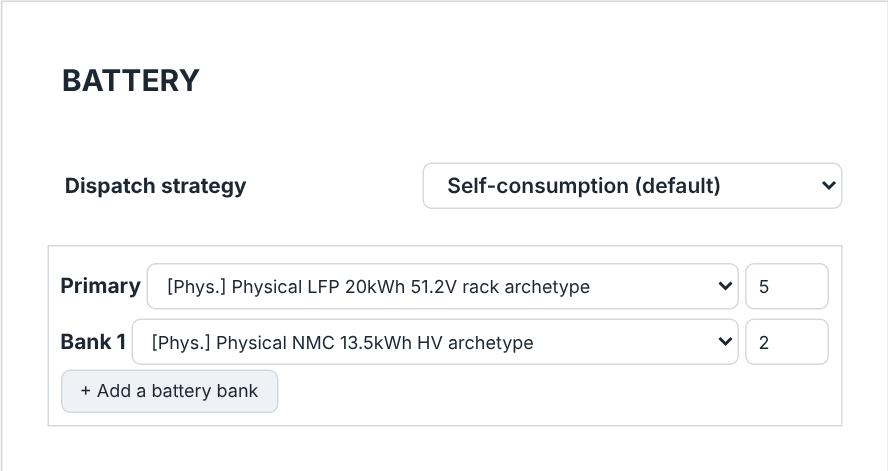
Below the strategy sits the bank list. It always has a fixed Primary line and lets you add more, captioned Bank 1, Bank 2 and so on. Each line is a Battery from the catalogue dropdown and a quantity.
Add a battery to a project
On the Catalogue tab (
/catalogue), heart (favourite) the batteries you want to be able to choose. Only favourites appear in the card's dropdowns; physical and virtual batteries are hearted under their own lists. See The Component Catalogue.On the Project tab (
/project), set System type to Self-consumption + storage.On the BATTERY card, open the Primary line's Battery from the catalogue dropdown and pick a battery. Its whole specification — capacity, power limits, efficiency, depth of discharge, life, fees — is applied automatically.
Set Number of identical units to the number of packs in that bank.
To add a second, different bank, click + Add a battery bank, pick a battery on the new line and set its Quantity. A quantity of
0removes the extra line.Choose the Dispatch strategy.
Run the simulation. The dispatched battery now appears in the energy balance and the loss cascade.
Dropdown entries are prefixed with the battery's kind — [Phys.] for a physical pack, [Virt.] for a virtual bank — followed by the manufacturer and model. None is always the first entry and means “no battery on this line”. The last entry, Add from the catalogue…, is not a battery: it opens the catalogue on its Physical batteries tab, where hearting a battery adds it to these dropdowns. The line keeps the battery it had.
Note
Battery lines are identified by the catalogue fingerprint of the part, not by its name, so renaming a battery never breaks the link. If you open a project whose battery is not in this host's catalogue — a project authored elsewhere, or a part from a company pool — the dropdown still shows and keeps that selection, so browsing the list never strands it.
Virtual and physical batteries
pvSpline models two very different kinds of storage, and which one you get is decided by the catalogue entry you pick, not by a switch on the card.
| Battery kind | Meaning / effect |
|---|---|
| Virtual | An energy-banking subscription (MyLight, Urban Solar Energy, JPME and similar). Surplus is “injected” into a credit bank on the grid and withdrawn later, subject to a conversion ratio, a per-kWh withdrawal fee and monthly subscriptions. There is no physical pack, no aging and no round-trip power limit. |
| Physical | A real battery installed on site (Tesla Powerwall, Enphase, BYD, LG…). Modelled with a usable depth-of-discharge floor, charge/discharge power caps, physics-based aging, a warranty floor and optional end-of-life replacement. |
Picking a physical battery carries over its capacity, maximum charge and discharge power, round-trip efficiency, minimum state-of-charge (depth-of-discharge floor), cycle life, calendar life, and — when the catalogue entry has one — its install cost, which becomes the replacement cost the financial model charges at end of life.
Picking a virtual battery carries over its credited capacity (a catalogue capacity of zero means “no cap”), the withdrawal fee per kWh, the flat monthly subscription, the per-kWp monthly subscription, the deposit conversion ratio, the billing period (monthly or annual) and whether unused credits expire at the end of each period.
Tip
Because every specification travels with the catalogue part, the place to tune a battery is the catalogue part editor (The Component Catalogue), not this card. That keeps one number in one place: change a pack's cycle life once and every project that uses it agrees. If a quoted product differs from the library entry, duplicate the entry and edit the copy.
Aging, warranty and replacement
Physical batteries lose capacity over time, and pvSpline models this so the financial table reflects a shrinking usable pack. The cycle and calendar endpoints come from the catalogue entry; the engine takes the worse of the two, applies a warranty floor, and — when a replacement cost is known — triggers an automatic replacement in the first year the modelled state of health drops below the end-of-life floor, charging the cost as a one-time outflow and restarting the aging clock. Without a replacement cost the pack simply stays clamped at end-of-life for the rest of the horizon.
The underlying models (a conservative linear worse-of-calendar-or-cycle fade, and a BLAST-Lite physical model using square-root-of-time calendar fade and square-root-of-throughput cycle fade with depth-of-discharge scaling and an Arrhenius temperature term) are described in Simulation Physics & Data Reference. A project that already carries those settings keeps them exactly as stored.
When the Primary line is on None and there is no extra bank, there is no pack to age: the run replaces nothing and charges no replacement cost.
Sizing the battery
Three tools help you pick a battery instead of guessing.
Catalogue comparison. On the Batch tab (/batch), the Parts page with the Batteries category runs one full simulation per battery you tick and ranks them side by side on NPV, LCOE and the rest. Add a scenario that keeps the project as it is, and the comparison also tells you whether a battery pays at all. See Batch Simulation & Scenario Sweeps.
Joint sizing. The same tab's Auto-size page can pick the battery while it sizes the array: tick Sweep batteries and every power in the candidate grid is tried with the project's own battery and with each catalogue battery you favourited, each candidate costed on its real battery spend. It needs an Install rate — without one the page warns that the part axes will be skipped — and the checkbox is greyed out while the project simulates no storage. Applying the winner — with Apply to project, or in one click with Optimize now — makes its battery the project's battery. See Batch Simulation & Scenario Sweeps.
Off-grid pre-sizing. For stand-alone sites, the pre-sizing page (§Pre-sizing aids) suggests a PV power and a battery capacity from your autonomy and reliability targets.
Electric-vehicle co-simulation
An electric vehicle is added on the Consumption tab (/consumption): click + on the source tab strip to add a source, then set its Type to Electric vehicle. Unlike a fixed load, the EV is co-simulated — the engine decides when to charge it (and, optionally, when to draw energy back from it), so it interacts with the PV surplus and with the stationary battery.
Caution
Changing a source's Type drops the generated series that source already had. Change a source's type only when you mean to; otherwise add a new one.
The vehicle, stated as a sentence
The card (EV charging parameters) reads as plain sentences, and every highlighted word in them is the actual control for the value it names.
“My Tesla Model 3 (LR) gets home at 18:00 and leaves again at 07:00.”
The vehicle token is a combobox. Pick a model from its arrow to pre-fill the pack capacity, the onboard AC charger power and the WLTP consumption — ten common models are listed (Tesla Model 3 LR and Model Y LR, Renault Zoe R135 and Megane E-Tech, Peugeot e-208 and e-308, Volkswagen ID.3 Pro and ID.4, Hyundai Kona Electric 64, BMW i4 eDrive40). Picking a model also reseeds the arriving charge to half the new pack, because “25 kWh” means something different on a 50 kWh car and an 80 kWh one. Choose Custom instead and the token turns into a text box where you name the car yourself; that name is the source's label, so it also titles the source's tab.
The two times are the plug-in and unplug times, in 15-minute steps. Only while plugged in can the car charge (or, with lend-back, discharge). The unplug time may cross midnight — the default 18:00 → 07:00 is an overnight window.
“By then it needs 10 kWh this session, charged on sunshine only.”
The number is the charge need; the words after it are the dropdown that says what the number means:
| Charge need | Meaning / effect |
|---|---|
| kWh this session | Deliver this many kWh into the pack at every charging session. |
| kWh in the pack by departure | Top the pack up to this absolute charge level before departure. A no-op when the car already arrives above it. |
| % charged by departure | Top the pack up to this state-of-charge percentage before departure — the “always leave at 80 %” policy. |
| km of driving | Derive the need from a daily distance and the vehicle's Wh/km consumption. The number becomes a distance and a third sentence appears with the consumption and the resulting kWh/day. |
Switching between a kWh reading and the percentage reading converts the value against the pack capacity, so “30 kWh by departure” becomes 60 % on a 50 kWh pack rather than a bare 30 %.
The last token is the charging strategy, which folds the charging policy and the lend-back decision into one choice:
| Charging strategy | Meaning / effect |
|---|---|
| on sunshine only | Charges only from PV surplus — cheapest and greenest, but may not always meet the deadline. |
| on the cheap tariff | Schedules charging in off-peak windows, falling back to peak hours only when needed to meet the departure deadline. |
| on sunshine, lending power back to the house | Charges from PV surplus and additionally discharges to cover the household load during plug-in hours (vehicle-to-home). |
| on the cheap tariff, lending power back to the house | Off-peak charging plus vehicle-to-home discharge. |
Weekends. Tick Weekends are different to add a second sentence with a separate Saturday/Sunday plug-in window (it arms at 09:00 → 18:00). The two weekend times are a pair: arming or clearing the checkbox sets or clears both, because a lone half is ignored. In the km of driving mode a separate It also drives a different distance at weekends checkbox arms a distinct weekend distance (60 km when first armed); leave it off and the weekday distance is driven every day.
The picture and the verdict
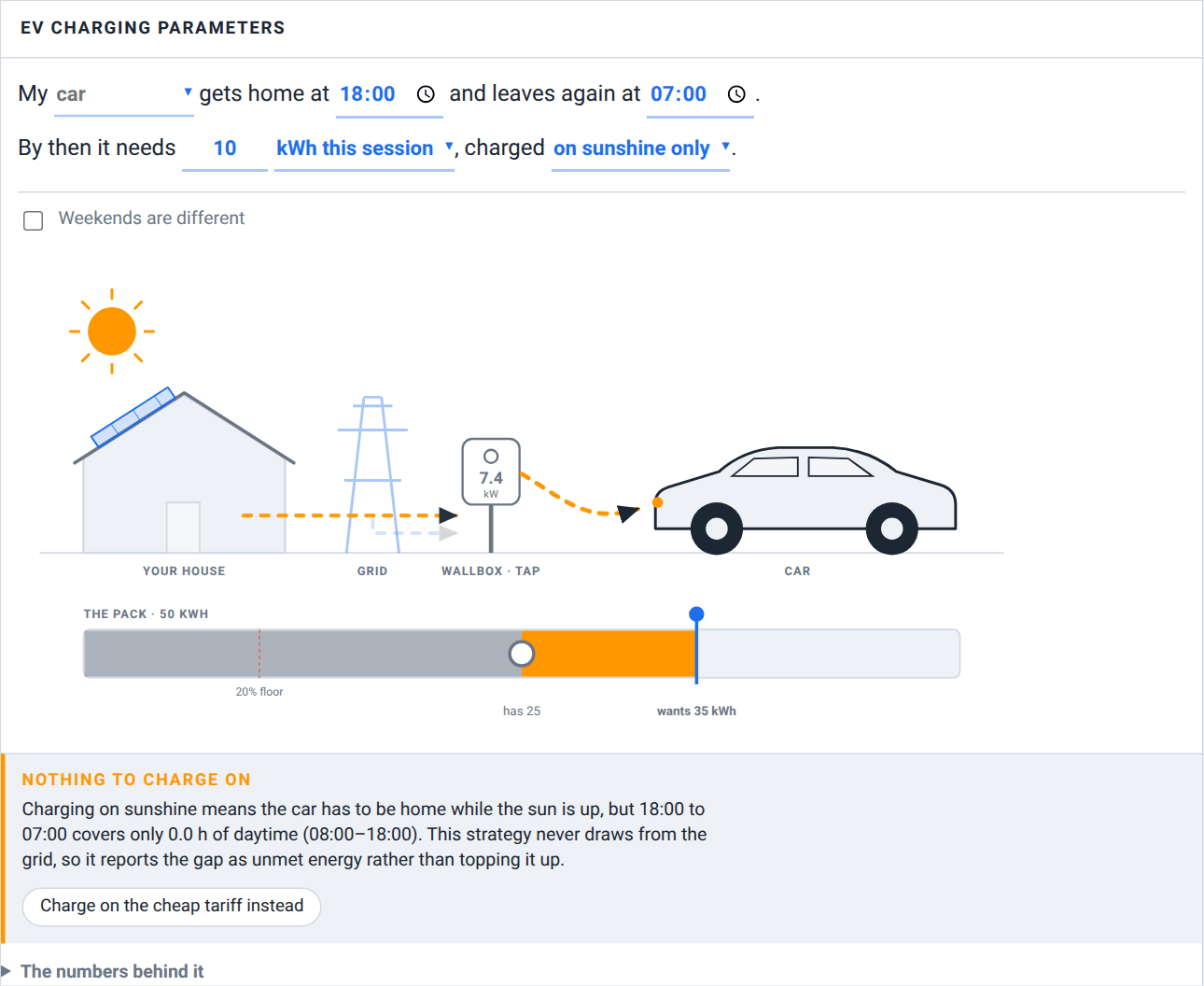
Under the sentences, a diagram shows the house and its roof, the grid, the wallbox and the car, with the pack drawn as one bar: the charge it arrives with, the slice this session adds, and the slice it cannot reach. The arrows show where the kWh come from — the roof for solar-only charging, the grid for the cheap-tariff strategy — and an arrow back to the house when lend-back is on. It is also an editor:
drag the round knob to set the charge the car arrives with (clamped to the engine's 20 %-of-pack floor);
drag the flag to set the charge wanted at departure — this also switches the need mode to kWh in the pack by departure, because that is exactly what the flag states;
press the wallbox to step the charger through the common AC sizes 3.7, 7.4, 11 and 22 kW.
Below the picture, a verdict box answers “will this work?” from the session alone — no simulation needed, because the window's length against what the charger can move through it is pure arithmetic:
| Verdict | Meaning / effect |
|---|---|
| Works | The car leaves holding the charge it wanted, with hours of the stay to spare. When a Wh/km figure is known the verdict also states the range that charge is worth. |
| Falls short by N kWh | The stay is too short for the wallbox to deliver the need, so every session ends short and the year accumulates unmet energy. Offers Fit a bigger wallbox and Plug in an hour earlier, which apply the fix for you. |
| Nothing to charge on | The need fits, but a sunshine-only strategy has almost no daylight inside the plug-in window. That strategy never draws from the grid, so the gap is reported as unmet energy. Offers Charge on the cheap tariff instead. |
| Nothing to do | The pack already meets the target when it arrives, so this session charges nothing. A no-op, not unmet energy. |
| Needs a pack and a wallbox | The capacity or the charger power is still blank. |
The numbers behind it
A The numbers behind it drawer holds the typed surface for the same values: EV battery (pack capacity), Charger (wallbox power), Initial charge (the charge when the car first gets home — later arrivals follow from the charging, any lending to the house and the trips) and, outside the km/day mode, Consumption in Wh/km. Choosing Custom on the model combobox opens the drawer, since those three numbers are what “custom” means. Editing any of them snaps the model back to Custom, so the label never lies about the specs.
Note
The engine keeps the arriving charge at or above 20 % of the pack, and the charge leg keeps 92 % of what the wallbox delivers — the drawer states both in the units of your car, e.g. “keeps the arriving charge at or above 10.0 kWh … puts 6.8 kWh into the pack per hour”. Vehicle-to-home discharge pays the same 92 % on the way out, so the round trip costs about 15 %. When the project also has a home battery, a car charging on sunshine gets first call on the PV surplus and the battery takes what is left; a car on the cheap tariff takes only the surplus both leave, then the grid. See Simulation Physics & Data Reference.
Lending power back never eats into the charge the car needs for its departure. A car charged on sunshine lends only what it holds above that charge — the 20 % floor plus this session's need, or the departure target in the kWh in the pack by departure and % charged by departure modes — because a solar recharge is never taken for granted. A car on the cheap tariff may also lend against the charging still scheduled before it leaves, which then refills what it lent; in the kWh this session and km of driving modes it plans to leave with the charge it came home with plus the trip, so it comes home every evening with that same charge. It lends against that charging only when this pays: what the loan saves, less the 15 % the round trip costs, must still beat the price of the charging that refills it. The car never charges and lends in the same slot, and lending works with or without a home battery.
Several EV sources can coexist — add one per car and each gets its own tab in the source strip.
Off-grid (stand-alone) site
Choosing Off-grid site reveals the Off-grid system block on the Systems card. Here there is no grid to fall back on: whatever PV, battery and generator cannot cover becomes missing energy, quantified as a loss-of-load probability (LOL).
Reliability parameters
Off-grid (no grid connection) is the block's master checkbox: it enables off-grid mode, with no grid injection or withdrawal. It is armed for you when you pick the mode, and unticking it returns the project to Self-consumption + storage.
Deep-discharge floor is the protected state of charge — the battery never drops below this percentage of capacity, preserving its life on a site with no grid safety net. Autonomy target (pre-sizing) and Target loss of load (pre-sizing) record your sizing targets with the project: how many sunless days the battery should cover from full charge, and the acceptable fraction of annual demand left unserved. The simulation does not use them, and the pre-sizing page (§Pre-sizing aids) has its own Battery autonomy and Target loss-of-load (0–1) fields rather than reading these. Value of lost load monetises any shortfall in the financial balance; leave it at 0 to report reliability without pricing it.
Backup generator (off-grid)
Tick Backup genset to add a diesel generator that takes over when PV + battery run short. Its parameters — Genset rated power, Genset fuel (litres per kWh produced), Genset fuel price — feed the financial OPEX. If Genset recharges the battery is on, the genset runs in set-point mode: it starts when the state of charge drops below Genset start SOC and runs until the battery is recharged to Genset stop SOC (fewer starts, more fuel). Otherwise it merely follows the load.
Note
This in-block genset is the off-grid quick form. The full-featured Backup generator (weak grid) block (§Hybrid diesel / genset generator) — with fuel curve, minimum load, emissions and mid-life overhaul — drives the grid-tied weak-grid backup tier and shares the same engine; the two never run at once, because their System types are mutually exclusive.
Hybrid diesel / genset generator
The Backup generator (weak grid) block adds a diesel generator as a third backup source, in the priority order PV → battery → generator → uncovered load. It is the detailed counterpart to the off-grid in-block genset, and it appears only on a grid-tied Self-consumption + storage project whose battery Dispatch strategy is Weak-grid backup — the note at the foot of the block says so: “the generator runs only when the dispatch mode is set to weak-grid backup”.
Enabled is the master checkbox. Left off, there is no generator and behaviour is unchanged.
Choosing a model
Model / template pre-fills the rating and fuel curve. It offers Custom (keep whatever is typed), four generic diesel presets — Generic diesel 8 kVA (6.4 kW), Generic diesel 30 kVA (24 kW), Generic diesel 100 kVA (80 kW) and Generic diesel 250 kVA (200 kW) — and every generator in the catalogue, then, last, Add from the catalogue…, which opens the catalogue's Generators tab instead of filling anything. A pick fills only the datasheet fields (rating, fuel coefficients, minimum load, emission factor); the economics and the SOC thresholds stay yours to set.
Sizing & control
Rated power is the generator's electrical rating. Control strategy chooses how it runs:
| Control strategy | Meaning / effect |
|---|---|
| Load following | Produces only the deficit, starting when the battery can no longer keep up. Minimises fuel but starts often. |
| Cycle charging | Starts at the low SOC threshold, runs at full power and recharges the battery up to the high threshold. Fewer starts, more fuel burned per run. |
Minimum load enforces a floor — a wet-stacking guard; surplus above the served load recharges the battery. Start SOC threshold and Stop SOC threshold bound the cycle-charging band, and Minimum run time keeps the genset running for a minimum period after each start, so start counts stay realistic.
Fuel model & emissions
The fuel curve is the two-coefficient HOMER form Fuel (L/h) = F0 · Prated + F1 · Pout. No-load fuel F0 is the idling term (~0.08 L/h/kW typical) and Marginal fuel F1 the per-kWh term, so the specific consumption at full load is roughly F0 + F1 ≈ 0.30 L/kWh. CO2 sets the combustion emission factor (diesel ~2.68 kg/L; adjust for gas or biofuel), feeding the carbon balance.
Economics
CAPEX folds into the installation cost (depreciated, financed, included in LCOE). Fuel price times the litres burned gives the operating cost, escalated annually by Fuel escalation independently of general inflation. Maintenance is charged per running hour, and Overhaul cost at Overhaul year models a one-time mid-life major service; either set to 0 disables it.
Solar pumping
Choosing Off-grid solar pumping reveals the Solar pumping block. There is no electrical load and no tariff: the “load” is a daily water volume, and the objective is to meet it from the sun, buffering water in a tank. The consumption-rate, grid-pricing and financial cards disappear with the mode, because grid economics do not apply.
Note
With no grid economics, a pumping or DC-grid run books no cash flow: its results and its report carry no NPV, IRR, LCOE, payback or financial projection, and the project card shows no installation price or payback. The carbon balance still runs; its horizon, Simulation duration, sits at the foot of the CARBON FOOTPRINT card in these two modes, once Carbon footprint enabled is ticked. On the Batch tab, Auto-size is unavailable for these projects, and a swept financial or tariff input is flagged as having no effect (Batch Simulation & Scenario Sweeps).
Hydraulic circuit
Hydraulic circuit sets the site type, which decides which head parameters matter:
| Hydraulic circuit | Meaning / effect |
|---|---|
| Deep borehole | A drilled well with drawdown. Uses Static head, Specific drawdown (metres of drawdown per m3/h pumped) and Max pumping depth. |
| Lake / river | A surface source. Uses the geometric Static head and Friction k_f only. |
| Pressurisation | Feeds a pressure network. Uses the Setpoint pressure instead of a lift height. |
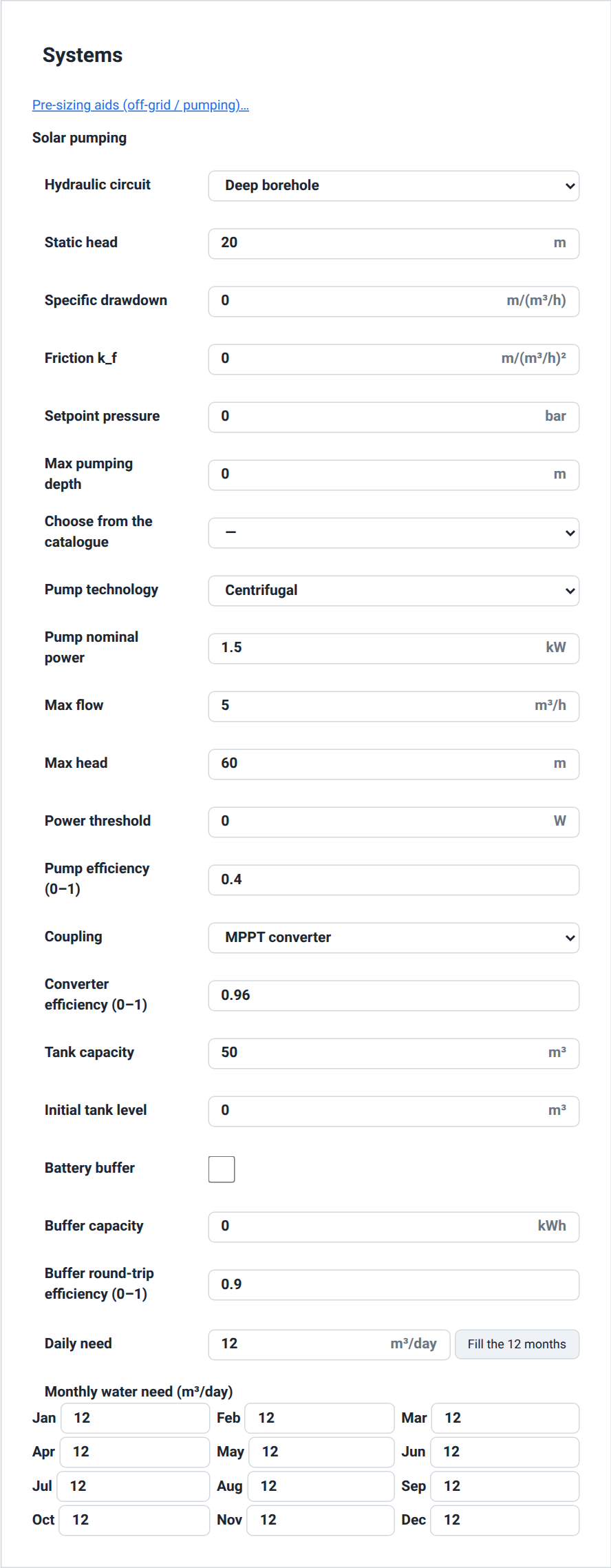
Static head is the resting water level or geometric lift; Friction k_f is the quadratic head-loss coefficient (Hf = kf · Q2). All the head rows stay on screen whichever circuit you choose, so a stored value is never hidden from you — only some of them are read by the physics.
Pump and power conditioning
Pump technology is either Centrifugal (low head, high flow) or Positive displacement (high head, flow proportional to speed). The pump is described by Pump nominal power, Max flow (flow at zero head, the pump-curve intercept), Max head (shut-off head, head at zero flow), Pump efficiency (0–1) (wire-to-water) and a Power threshold — the minimum electrical power before the motor turns.
Coupling sets how the array drives the pump:
| Coupling | Meaning / effect |
|---|---|
| MPPT converter | A DC converter tracks the array's maximum power point. Uses Converter efficiency (0–1). |
| AC inverter | A variable-frequency drive on an AC bus. Uses Converter efficiency (0–1). |
| Direct coupling | Array wired straight to the motor, operating off the maximum power point. Captures only the Direct-coupling efficiency (0–1) fraction (~half the performance). That row appears only in this coupling. |
Tank and demand
Tank capacity and Initial tank level define the reservoir buffer. Monthly water need (m3/day) is a grid of twelve cells and is the authoritative demand figure; Daily need above it is a convenience — type a value and click Fill the 12 months to set them all at once for the uniform case, then edit individual months for a seasonal profile. An optional Battery buffer (a DC buffer, with Buffer capacity and Buffer round-trip efficiency (0–1)) keeps the pump running through a cloud pass or at dawn.
Loading a pump from the catalogue
Choose from the catalogue fills the pump rows above from a library pump and records which one you used; its last entry, Add from the catalogue…, opens the catalogue's Pumps tab instead. The row appears only when the engine you are connected to publishes a pump catalogue; without it the same fields stay editable by hand. Pumps are imported from PVsyst .PMP files — see The Component Catalogue.
DC-grid traction
DC grid (rail / trolleybus) feeds the PV plant into a DC traction catenary (urban trolleybus, tram, metro or DC-electrified railway) at 600–1500 V through a DC/DC converter rather than an inverter. The defining constraint is acceptance: most traction substations use non-reversible diode rectifiers, so PV power can only be injected when a vehicle is actually drawing it. When the line is unloaded the surplus is curtailed (“DC grid not available”), unless a reversible substation lets it flow back to the AC grid. The instantaneous traction demand is therefore the acceptance budget. The simulation reports the acceptance fraction, the curtailment fraction and the traction-coverage (solar) fraction.
As with solar pumping, the consumption-rate, grid-pricing and financial cards disappear in this mode and the run books no cash flow; the note in §Solar pumping lists what that changes.
Network and converter
Network type selects the traction family: Trolleybus, Tram, Metro or Rail. It does two things — it picks the typical daily demand shape for that kind of service, and it resets Nominal voltage to the canonical catenary voltage (600 V trolleybus, 750 V tram and metro, 1500 V rail). That reset only happens when you change the network, so a project that stores a custom voltage keeps it on open.
Converter efficiency (0–1) is the flat efficiency of the DC/DC line-matching converter, and Converter threshold the minimum input power below which it stays idle (0 = no threshold).
Substation acceptance
Reversible substation is the key switch. Left off (the default), any PV power beyond the instantaneous traction demand is clipped. Ticked, the surplus flows back to the AC grid, up to Feed-back limit (0 = unlimited; the row has no effect on a non-reversible substation).
Traction demand
Peak traffic power scales the normalised daily profile of the chosen network. Leave it at 0 (an empty box shows the hint “auto (≈ PV peak)”) and the demand peak is sized on the PV production peak, so a fresh project's demand is proportional to the array rather than a scale-blind fixed figure. Weekend factor (0–1) scales the weekend demand down for reduced service.
Tip
The commuter demand shape troughs at midday, exactly when PV peaks, so realistic curtailment shows up even on the automatic demand. If your network really does run a midday service, set Peak traffic power explicitly rather than relying on the automatic sizing.
Pre-sizing aids
Off-grid and pumping projects both need a starting point before there is anything to simulate. The Preliminary pre-sizing page (/presize) provides one: a quick monthly-resolution estimator that runs on bundled climatology, so it needs neither a weather fetch nor an open project. It has no entry in the left rail. When either the Off-grid system or the Solar pumping block is on screen, a Pre-sizing aids (off-grid / pumping)… link on the Systems card takes you there; you can also bookmark the address.
Mode switches the whole page between Off-grid (standalone) and Solar pumping. Both share the site block (Latitude, Longitude, Tilt, Azimuth, Tracker (PVGIS code 0–5), System loss) — the coordinates are pre-filled from the working project when one is open — and the Climate selector:
| Climate | Meaning / effect |
|---|---|
| Bundled climatology (offline) | The engine's own zonal climate data for the coordinates. No network needed. |
| My monthly GHI values | You supply twelve comma-separated monthly GHI values (and, optionally, twelve ambient temperatures). |
| Annual yield | Off-grid mode only. An annual specific yield spread over a generic mid-latitude monthly profile. |
Note
If the working project already has a PVGIS run, the page opens on the annual-yield path with the Annual yield figure taken from that run's real monthly profile and shown read-only — a note under the field says so. You are then pre-sizing against your own site's measured yield rather than a generic one.
Pre-size an off-grid system
Follow the Pre-sizing aids (off-grid / pumping)… link on the Systems card, or open
/presizedirectly.Leave Mode on Off-grid (standalone). Check the latitude and longitude, and set the array orientation.
Enter the site's Daily load. For a seasonal site, fill Monthly loads (12 × kWh, optional) instead.
Set Battery autonomy, Target loss-of-load (0–1) and Battery depth of discharge (0–1).
Click Pre-size. The results panel gives Suggested PV array, Battery (nominal), Estimated loss-of-load and the Worst month, plus a twelve-row table of monthly load against monthly yield.
Use these figures to set the array size on the Map tab (The Map & Site Design Tab) and to choose a battery of the suggested capacity.
Pre-size a pumping system
Set Mode to Solar pumping.
Enter the Total head (total dynamic head: static lift + friction) and the Daily water need; use Monthly volumes (12 × m3, optional) for a seasonal profile.
Set Pump efficiency (0–1), Converter efficiency (0–1), Performance ratio (PR) and Tank autonomy (days of demand the tank should ride through).
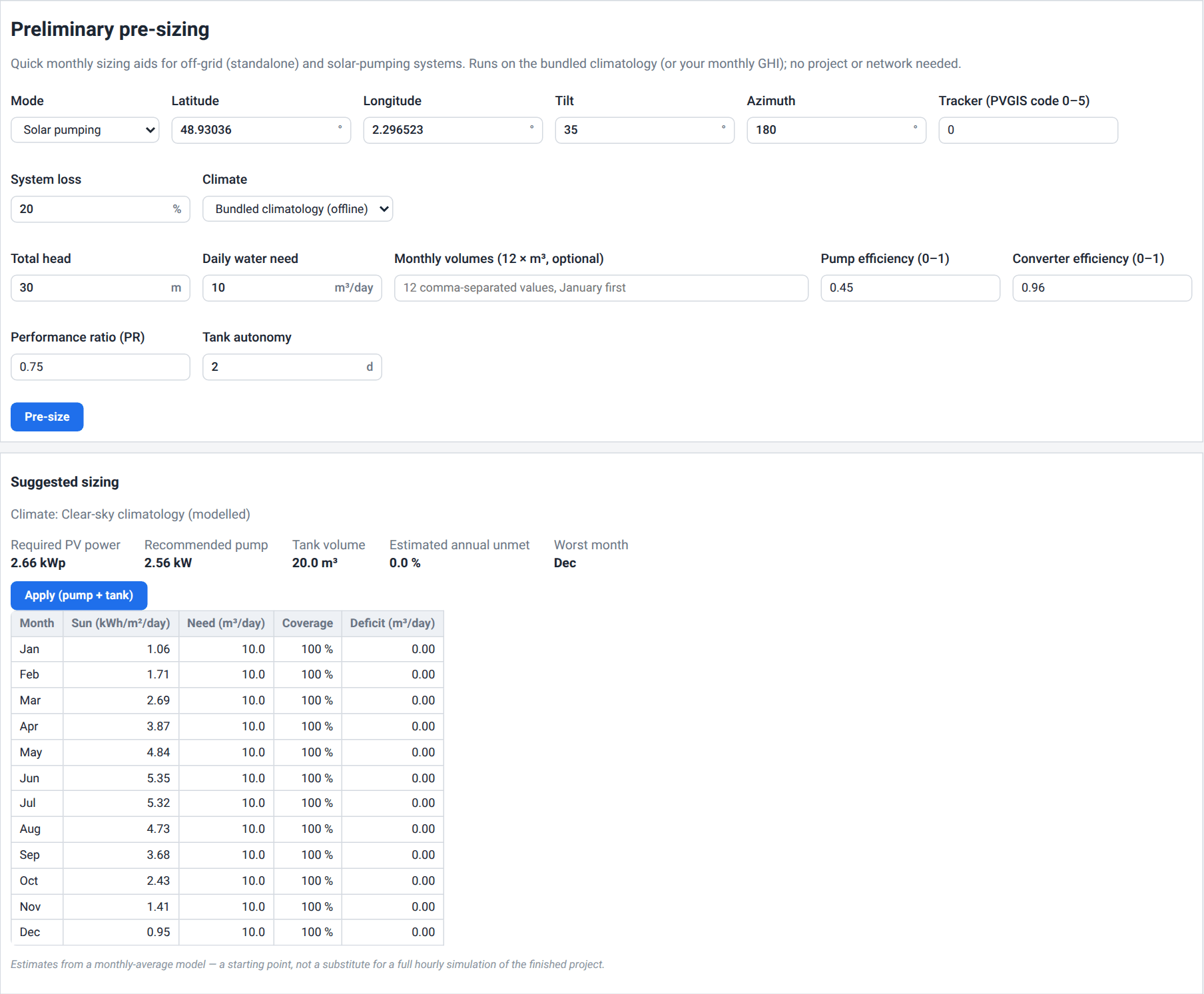
Click Pre-size and read Required PV power, Recommended pump, Tank volume, Estimated annual unmet and the Worst month, plus the monthly sun/need/coverage/deficit table. The array is sized on the worst month, the pump to absorb the array's converter output, and the tank to hold Tank autonomy days of the highest daily need.
Click Apply (pump + tank) to write the recommended pump power and tank volume straight into the working project's pumping block. The button is only active when the project actually has one — otherwise a note tells you to enable the pumping mode first. A confirmation line names the values written, and the change can be undone like any other edit.
Note
These are estimates from a monthly-average model — a starting point, not a substitute for a full simulation of the finished project. An older engine that does not offer pre-sizing replaces the form with a short note saying so.
Grid-availability schedules
Two of the loss-cascade rows on the Production tab (/production, Running a Simulation & the Production Tab) are not flat percentages but time-varying schedules, and they are edited in the Schedules & grid section of the Configuration card beside the cascade (Schedules & grid). Click Schedule… on the Availability or Grid unavailability row of the cascade and the page scrolls to that section with the right tab already selected. A badge on the cascade row — “scheduled (N h)” or “schedule” — tells you at a glance that the flat percentage is being overridden. (The card's third tab, Grid / reactive power, is a reactive-power setpoint rather than an availability schedule and is covered with the rest of the grid connection in Electrical Design & the One-Line Diagram and Running a Simulation & the Production Tab.)
Availability — dated events & recurring profile
The Availability outage schedule tab models planned outages — “swap the inverter in 2036” — and seasonal unavailability. It has two halves that combine via a maximum: a one-shot event does not add to the seasonal profile; whichever is larger for a given hour wins.
Dated events are a table of one-off windows, one row each, with a Label, a Start (local) and End (local) date-time, and a Fraction offline between 0 and 1. Add event appends a row seeded at “whole plant offline”; the × button at the end of a row removes it. With no rows, the tab says No dated outage events.
Recurring profile (month × hour) is a 12 × 24 grid of unavailability fractions that applies every year. The full 288-cell grid is heavy, so it is folded away behind Edit grid / Hide grid. Above it, type a value and click Apply to all to fill every cell at once, or Clear to empty them — which covers the common constant-unavailability case without ever opening the grid.
Watch out
The two halves use different clocks: dated events are typed in local time, and the recurring grid is read in UTC. The tab states this above the grid. It matters most for a short window near midnight or for a site well away from UTC.
Grid unavailability — weak grid
The Grid-unavailability schedule tab synthesises weak-grid outages that curtail production. Synthesis mode chooses how:
| Synthesis mode | Meaning / effect |
|---|---|
| Off (use the flat loss %) | No schedule. The cascade's flat “Grid unavailability” percentage applies. |
| Stochastic synthesis | Random outages drawn from the five parameters below. |
In Stochastic synthesis the outage series is drawn from a MTBF (mean interval) between events, a Mean duration (exponential law, so long outages are possible but rare), a Recovery delay added to the tail of every event for inverter resynchronisation, an Impacted fraction of the plant, and an RNG seed (0 = deterministic). At 0 the seed is derived from the project identifier and the simulation year, so the series is reproducible project by project; a fixed non-zero value locks the same series across projects and sessions.
Each of these five fields shows the engine's own default in grey when you leave it empty — an empty field means “use that value”, not “use zero”.
Note
A project configured from an 8760-hour availability file shows a third, non-selectable mode, 8760-hour file (imported), with a note that the configuration is preserved as it stands. The browser app keeps such a schedule intact but does not author or edit one.
When the battery's Dispatch strategy is Weak-grid backup and a run has landed, a second badge on the tab — “+ N kWh battery” — reports the energy the battery rescued during outages. It appears in the Sankey waterfall as a negative loss just after Grid unavailability; see Charts, Heatmaps & Tables.
Injection (export) cap
The export limit is a rule of the grid connection, so it lives on the GRID PRICING card of the Project tab rather than in the schedules card. It is not a price: it applies whatever the card's Granularity, None included. The row shows a one-line summary of the current state — No cap, Uniform cap N kW, or Custom schedule (N capped cells) — and an Edit schedule button that unfolds the editor.
Inside is a 12-month × 24-hour grid of injection caps in kW. Uncapped cells read -1; any blank or negative cell means no cap, and 0 forbids any export in that slot. Type a value in Apply to all cells and click Apply to fill the whole grid, or Clear all to remove every cap. The cap is applied per 5-minute slot and energy above it is curtailed — the usual way to model a grid-code export limit that varies by season or time of day.
Field reference
System type (SIMULATION card)
| Field / Control | Type & unit | Default | What it does & how to set it |
|---|---|---|---|
| System type | dropdown | Self-consumption + storage | Six modes in three groups (Grid-connected / Off-grid / DC grid). Decides which cards in this chapter appear. |
BATTERY card
| Field / Control | Type & unit | Default | What it does & how to set it |
|---|---|---|---|
| Dispatch strategy | dropdown | Self-consumption (default) | Self-consumption (charge on surplus, discharge on deficit), Peak shaving (evening peak / demand charge), Time of use (tariff arbitrage), Weak-grid backup (island on outage — needs a hybrid inverter, and reveals the backup-generator block). Peak shaving and Time of use run at the Peak-shave target power of the GRID PRICING card and fall back to Self-consumption while it is 0; the card shows that row whenever one of the last three strategies is selected. Time of use also runs as Self-consumption under a Flat rate tariff or an hourly price CSV. |
| Battery from the catalogue | dropdown | None | The battery for this bank. Lists your favourited batteries prefixed [Phys.] or [Virt.], plus None. Picking one applies its whole specification. A saved pick this host cannot list stays selectable. The last entry, Add from the catalogue…, opens the catalogue's Physical batteries tab and leaves the line as it was. |
| Number of identical units | number | 1 | Primary line only. Count of identical packs in the primary bank; minimum 1. |
| Quantity | number | 1 | Extra bank lines. Count of identical packs; 0 removes the line. |
| + Add a battery bank | button | — | Appends a blank bank line. A line with no battery picked is never saved. |
Electric-vehicle source
Reached from the Consumption tab: add a source with + and set Type to Electric vehicle.
| Field / Control | Type & unit | Default | What it does & how to set it |
|---|---|---|---|
| Model | dropdown (inline) | Custom | Pre-fills pack capacity, charger power and Wh/km from one of ten common models, and reseeds the initial charge to half the new pack. Custom turns the token into a name field and opens the numbers drawer. Editing any spec snaps back to Custom. |
| Vehicle name | text | empty | Shown in place of the model name when no model is picked. It is the source's label, so it titles the source tab too. Placeholder: car. |
| Weekday plug-in | time · 15-min steps | 18:00 | Time the car gets home (Mon–Fri). Charging happens only inside the plug-in window. |
| Weekday unplug | time · 15-min steps | 07:00 | Time it leaves again (Mon–Fri). May cross midnight. |
| Charging need (value) | number · kWh, % or km | 10 kWh | Envelope 0–200 kWh; narrowed to 0–100 in the percentage mode and to 0–pack-capacity otherwise. In the km/day mode this slot becomes the weekday distance (0–1000 km, step 5, default 40). |
| Charging need (mode) | dropdown | kWh this session | kWh this session · kWh in the pack by departure · % charged by departure · km of driving. Switching between kWh and % converts the value against the pack capacity. |
| Charging strategy | dropdown | on sunshine only | on sunshine only · on the cheap tariff · on sunshine, lending power back to the house · on the cheap tariff, lending power back to the house. The last two enable vehicle-to-home discharge, which never eats into the charge the car needs for its departure. |
| Consumption | number · Wh/km | 175 | Range 80–400, step 5. WLTP figure, pre-filled by the model. Shown in the sentence in km/day mode, and in the numbers drawer otherwise. |
| Weekends are different | checkbox | off | Arms a separate Sat–Sun plug-in window. Both times are set (09:00 → 18:00) or cleared together. |
| Weekend plug-in / unplug | time · 15-min steps | 09:00 / 18:00 | The Sat–Sun window, when armed. May cross midnight. |
| It also drives a different distance at weekends | checkbox | off | km/day mode only. Arms a distinct weekend distance; off means the weekday distance is driven every day. |
| Distance, weekend | number · km/day | 60 | km/day mode; greyed out until the checkbox above is ticked. Range 0–1000, step 5. Placeholder same as weekday. |
| EV battery | number · kWh | 50 | Numbers drawer. Range 5–500, step 1. Usable pack capacity. |
| Charger | number · kW | 7.4 | Numbers drawer. Range 0.5–350, step 0.5. Onboard AC charger power. Pressing the wallbox in the picture steps through 3.7 / 7.4 / 11 / 22 kW. |
| Initial charge | number · kWh | 25 | Numbers drawer. Charge when the car first gets home (later arrivals follow from the charging, any lending and the trips), ranged to 20 %–100 % of the pack capacity. |
| Pack bar — charge knob | drag | — | Sets the arriving charge, clamped to the 20 %-of-pack floor. |
| Pack bar — target flag | drag | — | Sets the charge wanted at departure and switches the need mode to kWh in the pack by departure. |
| Verdict fixes | buttons | — | Fit a bigger wallbox steps the charger up, Plug in an hour earlier moves the plug-in time back one hour, Charge on the cheap tariff instead switches the strategy (keeping lend-back). |
Off-grid system (Systems card)
| Field / Control | Type & unit | Default | What it does & how to set it |
|---|---|---|---|
| Off-grid (no grid connection) | checkbox | on | Master toggle; the block shows only while it is ticked. No grid injection or withdrawal; energy not covered by PV + battery (+ genset) becomes missing energy (loss of load). Armed by picking Off-grid site; unticking returns the mode to Self-consumption + storage. |
| Deep-discharge floor | number · % | 20 | Range 0–95, step 1. Protected SOC floor: the battery never drops below capacity × this percentage. |
| Autonomy target (pre-sizing) | number · d | 2 | Range 0–30, step 0.5. Sunless days the battery must cover from full charge. Stored with the project; neither the run nor the pre-sizing page reads it. |
| Target loss of load (pre-sizing) | number · % | 1 | Range 0–50, step 0.5. Acceptable share of the annual need left unserved. Stored with the project; neither the run nor the pre-sizing page reads it. |
| Value of lost load | number · €/kWh | 0 | Minimum 0, step 0.1. Monetises the missing energy in the financial balance. 0 = reliability reported but not valued. |
| Backup genset | checkbox | off | Adds a genset that takes over when PV + battery are not enough. Off = PV + battery only. |
| Genset rated power | number · kW | 0 | Minimum 0, step 0.5. Maximum genset electrical power. |
| Genset fuel | number · L/kWh | 0.30 | Minimum 0, step 0.01. Litres of fuel per kWh produced (diesel ≈ 0.3). |
| Genset start SOC | number · % | 30 | Range 0–100, step 1. Recharge mode: the genset starts when the SOC drops below this. |
| Genset stop SOC | number · % | 80 | Range 0–100, step 1. Recharge mode: it runs until the battery is recharged to this level. |
| Genset fuel price | number · €/L | 0 | Minimum 0, step 0.01. Enters the financial OPEX. |
| Genset recharges the battery | checkbox | off | On: set-point mode using the start/stop SOC band. Off: the genset only follows the load. |
| Pre-sizing aids (off-grid / pumping)… | link | — | Opens /presize. Shown whenever the off-grid or pumping block is on screen. |
Backup generator (weak grid) — Systems card
Visible only in Self-consumption + storage with the Weak-grid backup dispatch strategy.
| Field / Control | Type & unit | Default | What it does & how to set it |
|---|---|---|---|
| Enabled | checkbox | off | Master toggle. Adds a diesel generator as a third backup source (PV → battery → generator → uncovered load). Off = no generator. |
| Model / template | dropdown | Custom | Custom keeps typed values; four generic diesel presets (8 kVA / 6.4 kW, 30 kVA / 24 kW, 100 kVA / 80 kW, 250 kVA / 200 kW) and every catalogue generator fill the datasheet fields only — economics and SOC thresholds stay manual. The last entry, Add from the catalogue…, opens the catalogue's Generators tab. |
| Control strategy | dropdown | Load following | Load following (produces only the deficit) or Cycle charging (runs at full power between the SOC thresholds). |
| Rated power | number · kW | 0 | Minimum 0, step 0.5. Rated electrical power of the generator. |
| No-load fuel F0 | number · L/h/kW | 0.08 | Minimum 0, step 0.01. Idling term of Fuel(L/h) = F0·P_rated + F1·P_out. |
| Marginal fuel F1 | number · L/kWh | 0.25 | Minimum 0, step 0.01. Per-kWh term; F0 + F1 ≈ 0.30 L/kWh at full load. |
| Minimum load | number · % | 30 | Range 0–100, step 1. Load floor (wet-stacking guard); surplus above the served load recharges the battery. |
| Minimum run time | number · h | 0 | Minimum 0, step 0.25. Minimum run after each start, for realistic start counting. 0 = no minimum. |
| Start SOC threshold | number · % | 40 | Range 0–100, step 1. Cycle-charging start level — the generator starts before the load is cut for deep discharge. |
| Stop SOC threshold | number · % | 80 | Range 0–100, step 1. Cycle-charging stop level — it runs until the battery reaches this. |
| Fuel price | number · €/L | 0 | Minimum 0, step 0.01. Multiplied by the litres burned for the operating cost. |
| Fuel escalation | number · %/yr | 0 | Step 0.1. Annual escalation of the fuel price, independent of general OPEX inflation. |
| Maintenance | number · €/h | 0 | Minimum 0, step 0.1. Maintenance charged per running hour. |
| Overhaul cost | number · € | 0 | Minimum 0, step 100. One-time mid-life major service. 0 = disabled. |
| Overhaul year | number | 0 | Range 0–40, step 1. Year of the major overhaul. 0 = none. |
| CAPEX | number · € | 0 | Minimum 0, step 100. Purchase cost, folded into the installation cost (depreciated, financed, included in the LCOE). |
| CO2 | number · kg/L | 2.68 | Minimum 0, step 0.01. Combustion emission factor; adjust for gas or biofuel. |
Solar pumping (Systems card)
| Field / Control | Type & unit | Default | What it does & how to set it |
|---|---|---|---|
| Hydraulic circuit | dropdown | Deep borehole | Deep borehole (drawdown), Lake / river (surface) or Pressurisation (pressure setpoint). |
| Static head | number · m | 20 | Minimum 0, step 1. Depth of the resting water level / geometric head. |
| Specific drawdown | number · m/(m3/h) | 0 | Range 0–100, step 0.001. Metres of drawdown per m3/h pumped (borehole). |
| Friction k_f | number · m/(m3/h)2 | 0 | Range 0–100, step 0.0001. Quadratic head-loss coefficient, Hf = kf · Q2. |
| Setpoint pressure | number · bar | 0 | Minimum 0, step 0.1. Pressure setpoint (pressurisation). |
| Max pumping depth | number · m | 0 | Range 0–2000, step 1. Maximum suction level of the borehole. 0 = disabled. |
| Choose from the catalogue | dropdown | — | Loads a library pump into the rows below and records which one. The last entry, Add from the catalogue…, opens the catalogue's Pumps tab. Present only when the engine publishes a pump catalogue. |
| Pump technology | dropdown | Centrifugal | Centrifugal (low head / high flow) or Positive displacement (high head, flow ∝ speed). |
| Pump nominal power | number · kW | 1.5 | Minimum 0, step 0.1. Nominal motor power. |
| Max flow | number · m3/h | 5 | Minimum 0, step 0.5. Flow at zero head (pump-curve intercept). |
| Max head | number · m | 60 | Minimum 0, step 1. Head at zero flow (shut-off head). |
| Power threshold | number · W | 0 | Minimum 0, step 10. Minimum electrical power before rotation (motor torque). |
| Pump efficiency (0–1) | number | 0.40 | Range 0–0.95, step 0.01. Wire-to-water efficiency. |
| Coupling | dropdown | MPPT converter | MPPT converter, AC inverter, or Direct coupling (operating point off MPP, ~half the performance). |
| Converter efficiency (0–1) | number | 0.96 | Range 0–1, step 0.01. MPPT / inverter efficiency. |
| Direct-coupling efficiency (0–1) | number | 0.50 | Range 0–1, step 0.01. Direct coupling only. Fraction of the maximum power point captured off MPP. |
| Tank capacity | number · m3 | 50 | Minimum 0, step 1. Volume of the storage tank. |
| Initial tank level | number · m3 | 0 | Minimum 0, step 1. Water in the tank at the start of the simulation. |
| Battery buffer | checkbox | off | Optional DC buffer to keep the pump running through a cloud pass or at dawn. |
| Buffer capacity | number · kWh | 0 | Minimum 0, step 0.5. Capacity of the buffer battery. |
| Buffer round-trip efficiency (0–1) | number | 0.90 | Range 0–1, step 0.01. |
| Daily need | number · m3/day | empty | Minimum 0, step 0.5. A convenience entry; Fill the 12 months copies it into all twelve monthly cells. |
| Fill the 12 months | button | — | Writes Daily need into every month of the grid below. |
| Monthly water need (m3/day) | 12 numbers | — | Minimum 0, step 0.5 per cell. The authoritative demand figure — edit individual months for a seasonal profile. |
DC traction grid (Systems card)
| Field / Control | Type & unit | Default | What it does & how to set it |
|---|---|---|---|
| Network type | dropdown | Trolleybus | Trolleybus, Tram, Metro or Rail. Selects the typical daily demand profile and resets the nominal voltage to that network's canonical value (600 / 750 / 750 / 1500 V) — only when you change it, never on opening a project. |
| Nominal voltage | number · V | 600 | Minimum 0, step 50. Catenary / line voltage; the physical range is 600–1500 V. |
| Converter efficiency (0–1) | number | 0.97 | Range 0–1, step 0.01. Flat efficiency of the DC/DC line-matching converter. |
| Converter threshold | number · W | 0 | Minimum 0, step 10. Minimum input power before the converter starts. 0 = no threshold. |
| Reversible substation | checkbox | off | Off (diode substation): PV beyond the instantaneous traction demand is curtailed. On: the surplus is fed back to the AC grid. |
| Feed-back limit | number · kW | 0 | Minimum 0, step 10. Maximum power fed back at a reversible substation. 0 = unlimited; no effect when non-reversible. |
| Peak traffic power | number · kW | 0 (auto) | Minimum 0, step 10. Scales the network's normalised daily demand profile. 0 sizes the demand peak on the PV production peak; an empty box shows the hint “auto (≈ PV peak)”. |
| Weekend factor (0–1) | number | 0.60 | Range 0–1, step 0.05. Scales weekend traction demand for reduced service. |
Pre-size page
| Field / Control | Type & unit | Default | What it does & how to set it |
|---|---|---|---|
| Mode | dropdown | Off-grid (standalone) | Off-grid (standalone) or Solar pumping. Switches the whole form. |
| Latitude / Longitude | number · ° | from project | -90 to 90 and -180 to 180, step 0.0001. Pre-filled from the working project's site when one is open. |
| Tilt | number · ° | 35 | Range 0–90, step 1. |
| Azimuth | number · ° | 180 | Range 0–360, step 1. |
| Tracker (PVGIS code 0–5) | number | 0 | Range 0–5, step 1. PVGIS mounting/tracking code. |
| System loss | number · % | 20 | Range 0–99, step 1. Flat system loss for the estimate. Replaced by Performance ratio (PR) in the pumping mode. |
| Climate | dropdown | Bundled climatology (offline) | Bundled climatology (offline) · My monthly GHI values · Annual yield (off-grid only). Opens on the annual-yield path when the project has a PVGIS run. |
| Annual yield | number · kWh/kWp/yr | 1100 | Range 100–3000, step 10. Annual-yield climate only. Read-only and taken from the project when a PVGIS run exists. |
| Monthly GHI (12 × kWh/m2, comma-separated) | text | empty | “My monthly GHI values” climate. Twelve comma-separated numbers, January first. |
| Monthly ambient °C (12 values, optional) | text | empty | Optional twelve monthly ambient temperatures. |
| Daily load | number · Wh/day | 5000 | Off-grid mode. Minimum 0, step 100. Average electrical consumption over one day. |
| Monthly loads (12 × kWh, optional) | text | empty | Off-grid mode. Monthly balance the sizing runs on, in place of the daily load; the month with the largest deficit is reported as the Worst month. |
| Battery autonomy | number · d | 3 | Off-grid mode. Minimum 0, step 0.5. Sunless days the battery must cover. |
| Target loss-of-load (0–1) | number | 0.05 | Off-grid mode. Range 0–1, step 0.01. The lower the target, the more oversized the system. |
| Battery depth of discharge (0–1) | number | 0.80 | Off-grid mode. Range 0.1–1, step 0.05. |
| Total head | number · m | 30 | Pumping mode. Minimum 0.1, step 1. Total dynamic head: static lift + friction losses. |
| Daily water need | number · m3/day | 10 | Pumping mode. Minimum 0, step 0.5. |
| Monthly volumes (12 × m3, optional) | text | empty | Pumping mode. Monthly water balance; the worst month drives the sizing. |
| Pump efficiency (0–1) | number | 0.45 | Pumping mode. Range 0.05–1, step 0.05. Wire-to-water efficiency of the motor-pump set. |
| Converter efficiency (0–1) | number | 0.96 | Pumping mode. Range 0.5–1, step 0.01. Drive/converter feeding the pump motor. |
| Performance ratio (PR) | number | 0.75 | Pumping mode. Range 0.3–1, step 0.01. Overall PV performance ratio (temperature, soiling, wiring). |
| Tank autonomy | number · d | 2 | Pumping mode. Minimum 0, step 0.5. Days of demand the tank should store. |
| Pre-size | button | — | Runs the estimate and fills the results panel and monthly table. |
| Apply (pump + tank) | button | — | Pumping results only. Writes the recommended pump power and tank volume into the working project's pumping block. Disabled when the project has no pumping system. |
Availability outage schedule (Production tab)
| Field / Control | Type & unit | Default | What it does & how to set it |
|---|---|---|---|
| Label | text | empty | Name of a dated maintenance/outage window. |
| Start (local) / End (local) | date-time | empty | Window bounds, typed in local time. |
| Fraction offline | number | 1.00 | Range 0–1, step 0.05. Share of the plant out of service (1 = fully unavailable). |
| Add event | button | — | Appends a row seeded at fraction 1. |
| Remove event | button (×) | — | Deletes that row. |
| Recurring profile (month × hour) | 12×24 grid | empty | Range 0–1 per cell, step 0.1. Unavailability fraction by month and UTC hour, applied every year. Combined with the dated events via max(). |
| Uniform value | number | empty | Placeholder e.g. 0.1. The value Apply to all writes into every cell (clamped to 0–1). |
| Apply to all / Clear | buttons | — | Fill every profile cell with the uniform value / empty them all. |
| Edit grid / Hide grid | button | hidden | Folds the 288-cell grid away; the uniform controls stay usable while it is folded. |
Grid-unavailability schedule (Production tab)
| Field / Control | Type & unit | Default | What it does & how to set it |
|---|---|---|---|
| Synthesis mode | dropdown | Off (use the flat loss %) | Off, or Stochastic synthesis. A project configured from an 8760-hour file shows a third, non-selectable entry, 8760-hour file (imported), and is preserved as it stands. |
| MTBF (mean interval) | number · h | 720 | Minimum 1, step 24. Mean time between outage events. 720 h ≈ 30 days is typical of a weak rural grid; 8760 h ≈ 1 event/year for an urban one. |
| Mean duration | number · h | 2 | Minimum 0.1, step 0.5. Mean event length, drawn from an exponential law. |
| Recovery delay | number · h | 0.25 | Minimum 0, step 0.25. Inverter resynchronisation delay added to the tail of every event. 15 min is representative of modern string inverters. |
| Impacted fraction | number · % | 100 | Range 0–100, step 5. Share of the plant affected per event. Intermediate values model a partial curtailment. |
| RNG seed (0 = deterministic) | number | 0 | Minimum 0, step 1. 0 derives the seed from the project identifier and the simulation year; a fixed value locks the series across sessions and projects. |
Injection cap (GRID PRICING card)
| Field / Control | Type & unit | Default | What it does & how to set it |
|---|---|---|---|
| Injection cap | summary + button | No cap | Shows No cap, Uniform cap N kW or Custom schedule (N capped cells). Edit schedule unfolds the grid below. |
| Injection cap grid | 12×24 grid · kW | -1 (uncapped) | Step 0.1 per cell. Export cap per month × hour. Blank or negative = no cap; 0 forbids export in that slot. Applied per 5-minute slot; energy above it is curtailed. |
| Apply to all cells | number · kW | empty | The value Apply writes into all 288 cells. |
| Apply / Clear all | buttons | — | Fill every cell with the uniform value / reset every cell to uncapped. |