The Project Tab
At a glance
The Project tab (branch icon, top of the left navigation rail) lives at
/projectand is the home base of every study: you open, create, save and close projects here. It is also where the app lands when you open/with no path.It has two modes. With no project open, the Projects browser fills the tab, with the interactive tutorials below it. Once a project is open, the browser collapses to a single card and the data-entry cards pack around it.
Which cards appear depends on the System type you pick: grid-connected projects show the financial, tariff and grid-pricing cards; off-grid pumping and DC-grid modes hide grid economics entirely.
Here you record who the project is for (client identity, address, contact details), what it is (system type, feed-in tariff) and how it pays back (CAPEX, OPEX, subsidies, loan terms, project horizon), plus the carbon balance and, for calls for tender, the tender parameters.
Everything you type feeds the simulation engine: the numbers here drive the loss cascade, the financial table (NPV/IRR/LCOE), the carbon balance and the probabilistic-yield curve you review in Running a Simulation & the Production Tab, Charts, Heatmaps & Tables and Reporting & Export.
Prerequisite: none. The site's location comes from the address you type on the CLIENT card; the array is drawn on the The Map & Site Design Tab tab, so the peak power is never typed here.
Where it lives and how it is laid out
The Project tab is the top entry in the left navigation rail (branch icon), at /project. The older deep links /projects, /run and /edit all redirect here, so a bookmark from any of them still works. The rail entries that work on a project — Consumption, Map, Batch, Production, Diagram, 3D view, the video player and Results — are greyed out and refuse clicks until one is open, so this tab is the way in. Catalogue and the account page stay live with nothing open, and the guided tutorials are launched from this tab (Guided Tutorials & Onboarding).
The tab behaves differently depending on whether a project is open:
Browse mode — no project open. The Projects browser expands to fill the tab. This is your gallery of saved projects, one card per project, with the dashed New project tile on a tinted band above the grid. The Interactive tutorials cards follow below it (Guided Tutorials & Onboarding).
Edit mode — project open. The browser shrinks to a normal card and the data-entry cards appear beside it. The tab uses a masonry layout: cards pack into the shortest column, and the column count steps through fixed window widths — one column below 900 px, two from 900, three from 1350, four from 1800, five from 2250. The layout never spreads across more columns than there are cards, so a short card set stays packed instead of scattering.
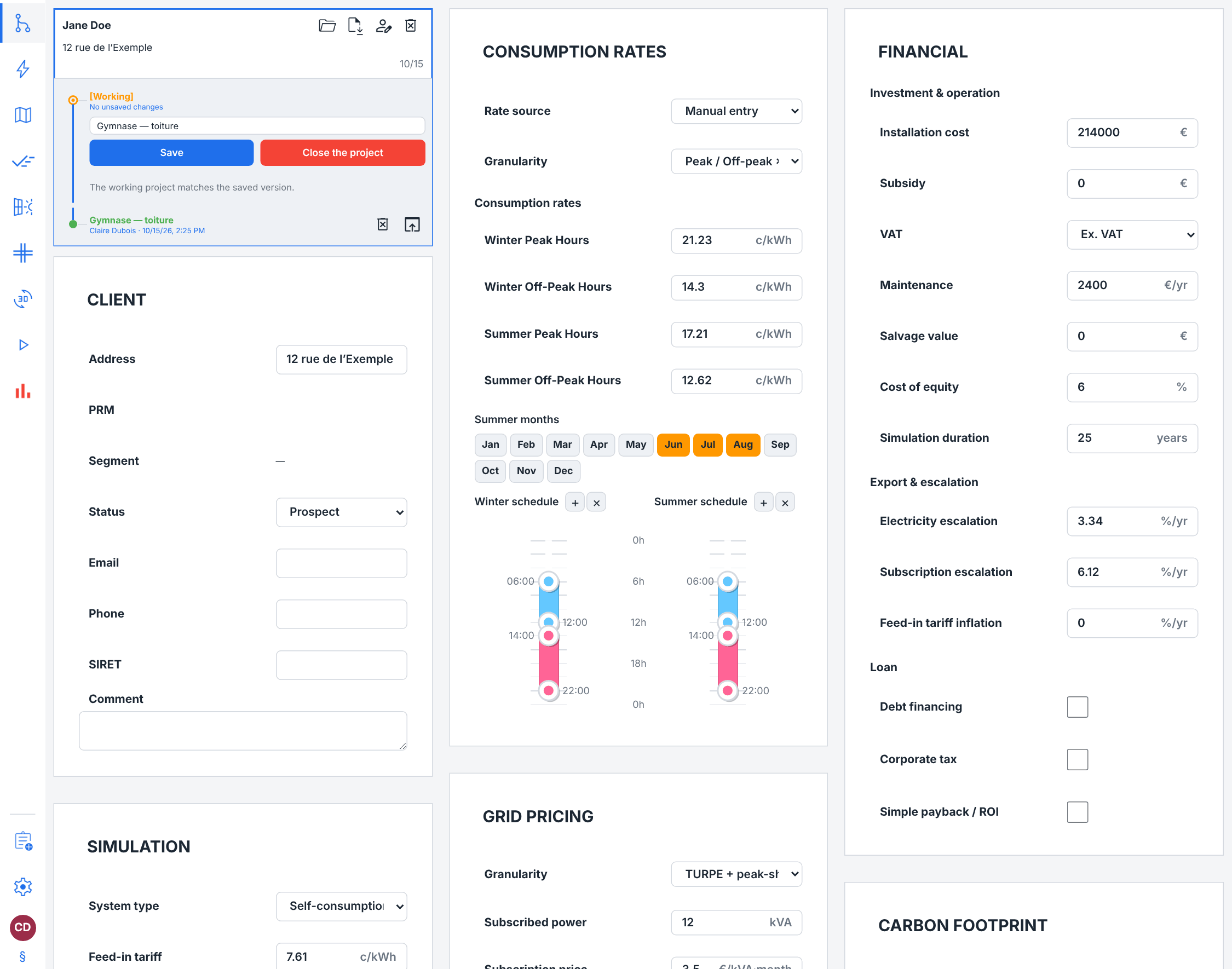
In edit mode the cards always render in this order, top-left first: the collapsed Projects browser, CLIENT, SIMULATION, BATTERY, CONSUMPTION RATES, GRID PRICING, FINANCIAL, CARBON FOOTPRINT, TENDER, then the specialised system cards. This chapter documents CLIENT, SIMULATION, FINANCIAL, CARBON FOOTPRINT and TENDER. The others have chapters of their own: BATTERY and the specialised system cards (back-up generator, off-grid site, solar pumping, DC grid) in Storage, EV & Specialized Systems, CONSUMPTION RATES and GRID PRICING in The project's consumption-rate and grid-pricing cards, and the consumption sources themselves in The Consumption Tab.
Note
Not every card is always visible. The System type selector on the SIMULATION card gates the rest: off-grid solar pumping and DC grid modes hide CONSUMPTION RATES, GRID PRICING and FINANCIAL (grid economics do not apply), Full export hides CONSUMPTION RATES (all energy is sold) and the PRM/Segment rows, and BATTERY appears only in Self-consumption + storage and Off-grid site. If a card described below is missing, check the system type first. Hiding a card never discards what it holds — the stored values round-trip untouched, and the engine ignores the ones the active mode cannot use.
Watch out
If the open project is not valid JSON — for instance after importing a damaged file — the cards do not render at all. You get the browser card plus a short error line, so that you can still close the project or import a replacement.
Where your projects live, and signing in
There is no connection form on this tab. Signing in happens on the account page, reached from the circle at the foot of the navigation rail or directly at /account; see Your Account, Team & Cloud Runs.
What the Projects browser can do depends on which store the page is attached to:
A signed-in cloud account. The browser lists the saves of your account (and, for a management or admin account, of your whole company), with server-side version history under each one.
Signed out. There is no store at all. The browser then says so and offers only Import .json, Export .json and Close the project, plus a Go to sign-in link. Nothing is lost — the portable file is the project.
On the hosted service you do not meet the signed-out state on this tab: signed out, every page except sign-in and the legal notices sends you to sign in first (Getting Started).
Note
Deleting a cloud save needs an admin or management role; a plain user sees no delete button.
The Projects browser
The Projects browser is your project library. Each card represents one project — saves are folded into a single card by their meter reference (PRM) when they have one, otherwise by client name, otherwise by save name, and the newest one fronts the card — and carries a compact summary.
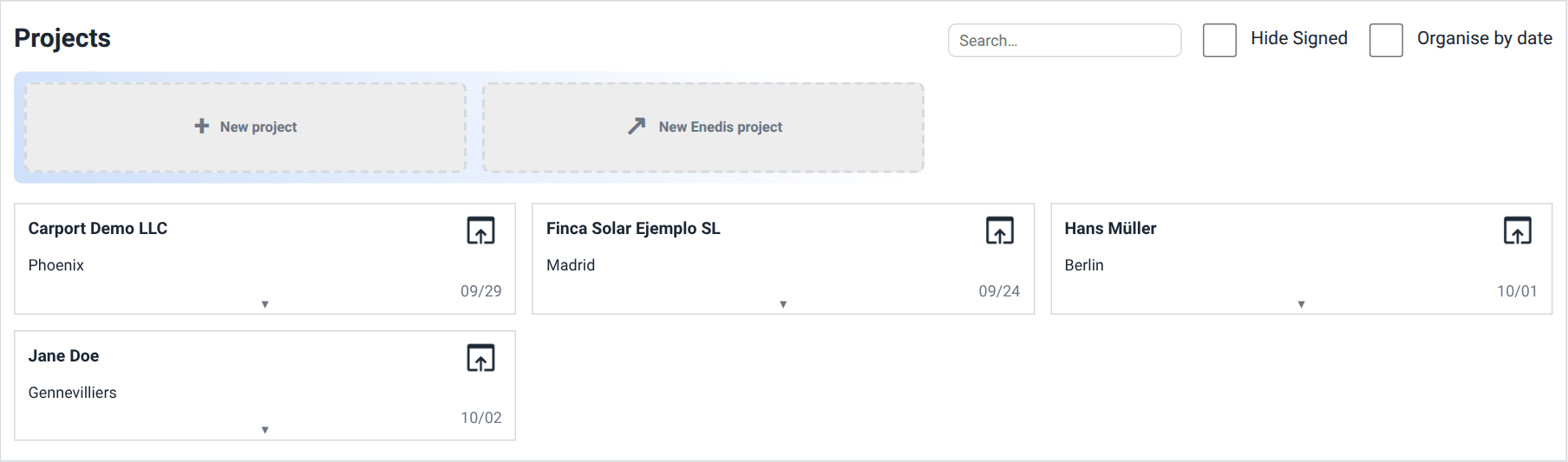
The browse header
Above the grid, and only while no project is open:
A search box (placeholder
Search…). It filters the cards you already have, case-insensitively, against the client name, the save name and the PRM; any member save that matches keeps its card.Hide Signed — hides projects whose status is Signed, Installed or Completed, so the grid shows live opportunities only.
Organise by date — sorts by last modification, newest first, and cuts the grid into dated section headers (Today, Yesterday, This week, This month, Older, No date). Unticked, the grid sorts by client name. Both switches are remembered across sessions and across devices.
There is no refresh button: the list re-reads itself on arrival and after every action that changes it.
Starting a new project
A tinted band above the grid carries the dashed add-cards:
New project — asks who the project is for, in the New client dialog below, then saves a blank project to your account and opens it right here: named after the client, and sited in the centre of France until you type the client's address on the CLIENT card; its array is drawn on Map (The Map & Site Design Tab). It is a save from the start, under the client's name; the save button on the [Working] row adds its next versions.
New Enedis project — opens the Enedis consent flow for your company in a new browser tab, so a new delivery point can authorise you to download its metered load curve.
Both disappear while a project is open.
The New client dialog asks for the two things the project's saves are filed under. The project browser groups a project's saves by its delivery point (PRM) and, while it has none, by client name, so a prospect's studies stay on one card:
| Field / Control | Type & unit | Default | What it does & how to set it |
|---|---|---|---|
| Client name * | text | blank | Required: Create stays greyed out until it holds something. Names the project and the save Create writes. |
| Client email (optional — for Enedis authorisation) | blank | Optional. When given it must look like an address (example@domain.com); a malformed one is refused under the field. It fills the Email field of the CLIENT card. |
Enter presses Create; Cancel, Esc or a click outside the dialog closes it without creating anything. While the save is being written the dialog holds still and the button reads Creating…; if the save fails, nothing is created and the dialog stays open with your entries and the reason, so you can press Create again.
What a project card shows
The card's cover is the project's map thumbnail, fetched as the card scrolls into view; a project with no stored thumbnail simply shows none. Over it:
A status pill, when the status is set and is not the default Prospect.
An Enedis chip — Authorised · real? or Not authorised. A project whose authorisation state is unknown carries no chip at all, rather than a fabricated one. An authorisation that has reached the end of its validity leaves your account, so its project carries no chip either. The browser cannot measure how much of the year is genuine metered data; The Consumption Tab shows that per month.
An N PRM chip when the project covers more than one delivery point.
The client name in bold, then the address, then the client email.
A colleague's account number (for example
#17), when the save belongs to somebody else in your company. Your own saves carry no such marker.The last-modified date at the right, day and month only; its tooltip gives the creation date.
A bottom band with the simulation type and, each only when it exists, the installed power (kWp), the annual production and consumption (MWh), the installation price (in thousands) and the payback in years. A project that has never been simulated shows none of them. A solar pumping or DC-grid project shows neither the installation price nor the payback: it has no grid economics.
The commit tail
Click a card and its commit tail unfolds in place — a vertical history, newest at the top, one row per stored version. Each row shows the save name over a user · date line, with a version tag (v3) where the store keeps several versions under one save. The newest row of each save carries a delete button; every row carries a load button.
When the project you have open belongs to a listed card, that card is always unfolded and its tail leads with the [Working] row: the unsaved-changes count, the inline changed-keys list, the save-name field and the Save and Close the project buttons. The count refreshes a moment after you stop typing and reads No unsaved changes when the project matches the saved version; click it to fold a long list away. On a project that is not bound to a save, or against an engine that cannot produce the comparison, the row says (in progress) instead — an absent count rather than a misleading zero.
Open, work on, and save a project
On the Project tab with no project open, scan the grid. Use the search box to filter by client name, save name or PRM.
Click a card to unfold its history, or click the load button on the card face to open the newest save directly.
Click the load button on a specific history row to open that version instead. The app says “Version N opened read-only — save a version to keep any edits”: you can edit freely, but the edits become a new version rather than overwriting the one you opened.
Edit the fields on the cards. The [Working] row keeps a live count of unsaved changes and lists exactly which settings moved.
Type a name in the field on the [Working] row and press Enter (or click Save) to commit. On a project that has never been saved this creates it; on a bound project it appends a version.
Click Close the project on the [Working] row to drop the project. If it is dirty you are asked to confirm first.
Actions on the open project
Once a project is open the browse header and the add-cards disappear, and the grid collapses to the one card that hosts the working project. Its face gains a row of buttons:
Import .json — opens a portable
.pvspline.jsonfile as the working project. Files above 64 MiB are refused before anything is read, and replacing a dirty project asks for confirmation first.Export .json — downloads the open project as
<name>.pvspline.json. It is self-contained: since the file format embeds the fetched PVGIS, Enedis and Open-Meteo series, a colleague who opens it gets the same run.Rename — renames the save. The open document follows the new name; this is bookkeeping, not an edit you still have to save.
Delete — deletes the project. On a single-save project this is the same confirmation as the row-level delete; on a packed card it names how many saves go with it. Both confirmations spell out that the action cannot be undone.
If the open project is not bound to any listed save — a freshly seeded project, or an imported file — the grid grows one synthetic card titled with the project name (or Untitled), marked Not saved yet, carrying the same [Working] row and the same import/export pair.
The browse header carries no import button while you are signed in: to open a file from an empty tab, open or start any project first and use Import .json on its card.
Caution
Deleting a save deletes its whole version history with it. Export a portable file first if you might want the project back.
Tip
The working project survives a reload of the same tab. If the tab itself is closed with unsaved changes, the app keeps a recovery snapshot and offers it back with a Restore / Discard bar the next time you open pvSpline with nothing loaded. That is a safety net, not a save — only a committed version reaches the store.
How your edits reach the engine
The cards on this tab are a staged editor. What you type is held on the card and written into the working project when you leave the tab, when the browser page is hidden or closed, when you launch a run with Ctrl+Enter from anywhere in the app, or when you save or export the project from the projects browser beside the cards. You never have to press an apply button, and you cannot lose an edit by navigating away.
Three consequences are worth knowing:
A blank numeric field means “keep”, not zero. Clearing a box leaves the project's stored value alone; to set a value to zero, type
0.Untouched fields are never rewritten. Only the settings you actually moved are written back, so a project opened and closed without edits round-trips byte for byte — and the [Working] row's change list stays honest.
Validation runs as you type. Roughly a third of a second after your last keystroke the project-logic rules re-evaluate over the staged values, and the affected rail entries tint amber (warning) or red (error) with the messages in their tooltip. You do not have to leave the tab to see the verdict.
The rules that watch this tab's fields are:
Errors — the client name is required; the client address is required; the installed power must be greater than 0 (it is not typed here: it is the sum of the panels drawn on Map); the installation cost must be greater than 0.
Warnings — the subsidy exceeds the installation cost; electricity escalation above 6 %/yr; subscription escalation above 10 %/yr; a cost of equity outside 0.5–15 % (usually a decimal typed into a percent field); a cost of equity at or below the loan rate on a debt-financed project; a feed-in tariff of 0 in an export mode; no battery selected in the storage mode; every consumption price at 0, or an off-peak price above the peak price (both on the CONSUMPTION RATES card).
Tip
Scrolling the page with the pointer over a number field will not change its value — the wheel only adjusts a field you have clicked or tabbed into. Ctrl+Z and Ctrl+Y undo and redo document-level changes, except while the caret is in a text box, where the browser's own text undo takes over.
The Client card — project identity
The CLIENT card records who the project is for and where. It is a plain form; every field is optional except where your workflow needs it downstream (the client name and address are validation errors while blank).
Address — the client's full street address. It is also how the site gets located: 500 ms after you stop typing, the address is geocoded, the coordinates are written into the project and the 2-D map recentres on them the next time you open The Map & Site Design Tab. The line under the field says what came of it: “Address found: …” followed by the place the site was put on, or “Address not found — refine the query and try again” when the lookup found nothing; an engine without the geocoding route says so once and stops trying, leaving you to set the point on the map by hand. From 10 characters on, the other addresses the lookup matched are listed under the field, best first: click one — or reach it with the arrow keys and press Enter — and the site is placed on it, the field taking its full address.
PRM — the Point de Référence et de Mesure, the unique identifier of the Enedis meter. Read-only: it is filled from the Enedis authorisation, not typed. Hidden in Full export mode, where no consumption data is needed.
Segment — the Enedis market segment (for example C5 — Mass Market ≤ 36 kVA (Linky)), shown read-only and colour-coded. It matters because it fixes the timestamp convention of the load curve (mass-market meters are end-of-interval, business meters start-of-interval). It reads
—until an Enedis download has established it. Hidden alongside PRM in Full export mode.Status — the project's stage in your sales pipeline (dropdown). Purely organisational; it drives the status pill on the project card and the Hide Signed filter in the browser.
Email, Phone, SIRET — client contact details. SIRET is the French business registration number, relevant for professional clients. The email also appears on the project card.
Comment — free-text, multi-line notes about the client or project. The box grows as you type.
Note
The client name is not edited here: a project is filed under the name you give its save, and the save name is what the card, the browser search and the report header all use. Set it in the field on the [Working] row.
The System card — what you are building
The SIMULATION card sets the fundamental nature of the installation. Its most important control is System type, the selector that decides how the whole simulation — and the rest of this tab — behaves. Its six entries are grouped into Grid-connected, Off-grid and DC grid; a project that stores no system type opens on Self-consumption + storage, and nothing is written until you pick one.
| System type | Meaning / effect |
|---|---|
| Self-consumption + storage | Production is consumed on site; surplus charges a battery. Shows the battery card. No feed-in tariff row appears and none is paid: what the load and the battery cannot absorb goes to the grid unpaid, whatever value the hidden row still holds (one typed in an export mode, or a catalogue tariff's feed-in tariff). Only Net metering on the GRID PRICING card still credits exports, through its offset and its True-up tariff. |
| Full export | All production is sold to the grid (EDF OA or equivalent). Hides the consumption-rates card and the PRM/Segment rows; the feed-in tariff row is what the energy earns, unless a CRE tender bid replaces it. The run takes the site's load as zero: the Consumption tab stays open and keeps what you entered, but none of it is netted off the export; inverter clipping and the Injection cap still apply. |
| Self-consumption + export | Production is self-consumed first, then the surplus is exported at the feed-in tariff. |
| Off-grid site | Battery (and optionally a generator) supplies a load with no grid connection; unmet energy is counted as loss-of-load. Shows the battery and off-grid cards. |
| Off-grid solar pumping | A pump and tank driven directly by the PV array. Shows the pumping card and hides the grid-economics cards. |
| DC grid (rail / trolleybus) | Injection into a DC traction network through a DC/DC converter. Shows the DC-grid card and hides the grid-economics cards. |
Apart from the selector, this card carries a single mode-dependent control:
Feed-in tariff — a number field in euros per kWh that appears only in the two export modes (Full export and Self-consumption + export). It is the price at which exported energy is bought back, fixed by contract, and it feeds the export-revenue side of the financial table. In the storage and off-grid modes the row is hidden, and the run pays no feed-in tariff there, even if the hidden row still holds a value. In Full export a CRE tender bid's reference price takes its place (see the TENDER card). Leaving it at 0 in an export mode raises a warning.
Note
The array's peak power (kWp) is not typed here — it is derived from the modules you place on The Map & Site Design Tab, which is also where the site coordinates come from. Battery sizing is not here either: the battery itself is chosen on the battery card (Storage, EV & Specialized Systems) and the automatic capacity sweep lives on Batch Simulation & Scenario Sweeps.
The Financial card — how it pays back
The FINANCIAL card holds the economic inputs that drive the financial table: NPV, IRR, LCOE, payback and, when enabled, the debt and corporate-tax model. It appears in every mode except Off-grid solar pumping and DC grid (rail / trolleybus), which ignore grid economics and hide it.
The card is organised into four labelled blocks (Investment & operation, Incentives, Export & escalation, Loan) and decluttered by checkboxes. The loan rows, the corporate-tax rows, the IFER rows and the French-incentive rows stay hidden until you tick their toggle, so a simple cash purchase shows only a handful of fields.
Investment & operation
Installation cost — the total installed cost of the system (incl. tax, before subsidies), i.e. the CAPEX. This is the headline number for IRR and overall profitability, and the amount shown on the installer's invoice. Enter grants in Subsidy rather than netting them out here: the subsidy is credited separately, so a cost typed net of it would count it twice. It must be greater than 0.
Subsidy — total grants and incentives received (self-consumption bonus, local grants, CEE energy-savings certificates, etc.). Credited once, as an inflow in year 1 of the cash flow (NPV, IRR, payback) in every system type, and deducted, discounted one year, from the LCOE numerator. The shapes of the Incentives block add to it. A subsidy larger than the installation cost raises a warning.
VAT — the VAT treatment of the installation, as one of four buckets: Ex. VAT, VAT 5.5%, VAT 10% and VAT 20%. It is a choice, not a free percentage, so that a project reopens on exactly the bucket you picked.
VAT in the cash flow — whether the cash flow pays that VAT. Not modelled (the default) takes the costs as typed. Recoverable (business) is a VAT-registered company that gets the VAT back: type the costs excluding VAT. Not recoverable (household) pays the VAT bucket on the installation, the maintenance and every replacement: type those costs excluding VAT too, and the run adds the VAT.
Maintenance — annual OPEX of the installation, in currency per year.
Salvage value — the net salvage credit at end of life (decommissioning less equipment resale). Added to the final-year cash flow and deducted from the LCOE numerator. Typical values: 0 for a residential system, where decommissioning roughly cancels resale; 5–10 % of CAPEX for a utility-scale plant with a secondary market.
Inverter replacement and Inverter replacement year — the cost of replacing the inverters once, paid in the operating year beside it (0 = no replacement). It is a cash outflow whatever the tax set-up; with the corporate-tax option Depreciate replacements as components it is depreciated rather than expensed.
Cost of equity — the annual return you require on your own funds, i.e. the opportunity cost of the cash you put in. NPV is discounted at this rate directly, because the cash flow it discounts is what you actually pocket (already net of any loan payments). LCOE instead discounts at the weighted average cost of capital,
WACC = own_funds_share * cost_of_equity + loan_share * interest_rate, since a cost per kWh spans the whole financing; with no loan the two rates are identical. Typical values: 3–4% for a residential cash purchase (the household's savings or bond alternative), 6–8% for a commercial rooftop or corporate investor, 8–12% for utility-scale or tender equity. It should normally exceed your loan interest rate — equity is repaid after the debt and carries the residual risk, so a premium of several points is usual; a value at or below the loan rate raises an advisory warning. Payback is a simple, undiscounted figure and is not affected by this rate.Simulation duration — the number of operating years the whole projection covers. This single control sets the length of the financial table (and thus the simulation end year), the LCOE and salvage horizon, the P50/P90 yield curve and the carbon balance. 20 years is the default, 25 matches a standard module warranty, 30 suits a long EPC contract or a utility-scale plant.
IFER
Tick IFER (plants of 100 kW or more) to book the French yearly tax on power plants of 100 kW or more, per kW installed. A plant connected since 2021 pays the reduced rate for its first 20 years, then the full rate; the run uses the latest rates published by the tax administration and revalues them every year. Below 100 kW nothing is booked. A line under the fields gives the year-one amount and the rates it will use. Two rows appear:
IFER rate — a rate of your own, in € per kW and year, used for every year. Blank: the published rates.
IFER revaluation — the yearly revaluation of the rates. Blank: 1.3 %/yr, the latest published revaluation.
The tax appears as an IFER column of the financial table and counts in the LCOE.
Incentives
The Incentives block computes the French support schemes for you and adds other forms of aid to the Subsidy.
Tick French incentives (CRE grid) and the run fills in the EDF OA purchase obligation from the grid the CRE publishes every quarter, as in force on your Connection request date — the date of the complete grid-connection request, which is what decides the quarter, not the commissioning date. The sale follows the System type: in Self-consumption + export the surplus tariff and the self-consumption prime of your power band, in Full export the full-sale tariff. The tariff replaces the Feed-in tariff for a 20-year contract, with the yearly cap on the energy bought at the tariff (1 600 hours × kWp up to 100 kWp) and the price paid beyond it; after the 20 years the surplus sells at Price after the contract. The prime is paid in year 1, or spread over several years where the grid says so. Nothing is applied under Net metering, nor when a CRE tender bid is booked.
Under the fields, a preview names the grid — its identifier, such as s21-n17, and its dates — the band, the tariff, the prime and the cap the run will use, or why nothing applies (a surplus sale above 100 kWp, a full sale not offered at that power, a system type that sells nothing). After the run, the report cites the same grid and its published source on its French incentives (EDF OA) page (Taxes, incentives and tender settlement), so a study can say which quarter's rates it used.
Connection request date — a date field. Blank: the latest grid in pvSpline's table, and the preview says so.
Tariff index growth — the assumed yearly growth of the two INSEE indices that revalue the tariff at every contract anniversary. Default 2 %/yr. Under the tariff in force since June 2026 the tariff rises a fixed 2 % a year instead.
The other forms of aid apply in every system type, on top of the Subsidy:
Investment grant — a share of the Installation cost, received in year 1.
Capacity grant — an amount per installed kWp, received in year 1.
Production incentive and Production incentive duration — a payment per kWh produced, for that many years from year 1.
They appear in the Subsidy column of the financial table. Tax credits (the US ITC and PTC) are corporate-tax settings, below.
Export & escalation
Electricity escalation — the annual escalation applied to the per-kWh energy part of the grid bill. Higher escalation makes self-consumption savings grow faster over time. The shipped default, 3.34 %/yr, is the realised compound growth of the French regulated tariff (Base option, 6 kVA, incl. tax) measured over 2012–2026 from the CRE's published history — measured history, not a forecast. Above 6 %/yr the field raises a warning.
Subscription escalation — the annual escalation of the fixed part of the bill, the subscription and capacity charge billed per kVA, as the GRID PRICING card bills them: with its Granularity at
Nonethere is no fixed part, and this field has no effect. It is kept separate because in the same published history the fixed part grew at roughly twice the energy rate, as network cost shifted off the volumetric part. Default 6.12 %/yr; above 10 %/yr the field raises a warning.Feed-in tariff inflation — an independent annual escalator for the feed-in tariff. Most feed-in contracts (OA in France, EEG in Germany, FIT in the UK) are fixed at signing, so leaving this at 0 keeps the tariff flat — a more honest default than tying it to grid inflation. Use 1–2 % for a moderate contractual escalation, 3–5 % for an open-market or post-contract view.
Feed-in contract length — the years the feed-in tariff is paid. 0 (the default) keeps it for the whole projection.
Price after the contract — the price of the exported energy once the contract has ended, in €/kWh like every price on the card (market or a new contract). Blank: the energy earns nothing after the contract.
With the French incentives ticked, the run sets the contract (20 years) and revalues the tariff itself; Feed-in tariff inflation is then not used.
Tip
Hover either escalation field: the tooltip names the exact measurement window and gives the same series read over three windows (full history, 10 years, 5 years), so you can see how much the 2022–23 energy crisis moves the number before you override it.
Debt financing
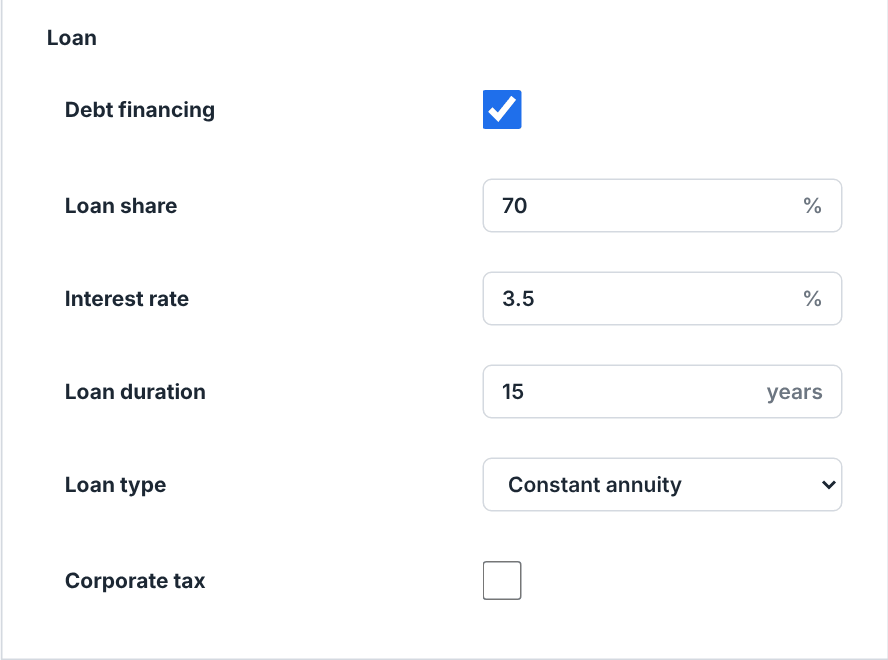
Tick Debt financing to model a loan. Four rows appear:
Loan share — percentage of the CAPEX financed by loan (0 % = fully self-financed, 100 % = fully loan-financed). It drives the repayments deducted from each year's cash flow, and the WACC that LCOE is discounted at (
wacc = loan_share * interest_rate + own_funds_share * cost_of_equity). It does not change the Cost of equity field, and NPV is discounted at that field directly — the loan reaches NPV through the repayments in the cash flow, not through the rate.Interest rate — the annual nominal loan rate. Engine default 3.5 %; as a reference, 2–3 % is a favourable green loan, 3–5 % a standard rate, 5–7 % an unsecured personal loan.
Loan duration — the repayment period in years; annual payments are deducted from cash flow over this span. Engine default 20 years.
Loan type — the repayment schedule (see the choice table below).
| Loan type | Meaning / effect |
|---|---|
| Constant annuity | A fixed yearly payment over the full term (interest-heavy early, capital late). The historical default. |
| Constant amortization | Principal repaid linearly (capital/N per year) plus interest on the balance; highest payment in year 1, then falling. Lower total interest than the annuity. |
| Bullet (balloon) | Interest only for N-1 years, then full principal plus the last interest in the final year. For bridge or tax-equity structures. |
Watch out
If you untick Debt financing, the engine forces the loan share to 0 so a stale value cannot leak into the discount rate: the project is costed as a cash purchase, with no loan repayments and no debt-coverage ratios (DSCR, LLCR), and LCOE's WACC collapses to your cost of equity. Re-tick it to expose and edit the loan rows again.
Corporate tax
Tick Corporate tax to expose the pro-only rows. With the toggle off, the engine uses linear depreciation over 20 years, a 0 % tax rate and full (100 %) distribution, and books no tax credit.
Depreciation term — the number of years over which the investment is depreciated, by the straight-line and the declining-balance methods (MACRS follows its own class). Shorter horizons front-load the depreciation charge and reduce early-year tax (tax shield). Guide values: 20 years for standard French commercial depreciation, 25–30 for a utility-scale horizon.
Tax rate — the corporate income-tax rate applied to net income each year; a loss-making year pays none, and Tax losses says what the loss is worth later. Reduces cash flow and NPV. The headline IRR stays pre-tax for comparability; the strip on Results and the report's financial projection add the IRRs after tax. Benchmarks: 0 % for a household or a non-profit, 15 % reduced French rate, 25 % standard French rate, 30–35 % international utility-scale.
Distribution rate (0–1) — the fraction of yearly cash flow paid out to the shareholder as dividends (1.00 = full distribution). Use it as a sensitivity variable; the model does not carry retained reserves across years, so the undistributed portion simply leaves the shareholder flow.
Depreciation method — how the depreciation is spread (see the choice table). Declining balance adds a Declining-balance coefficient (blank: the French statutory coefficient for the term); US MACRS adds the MACRS class (solar is 5-year property) and a Bonus depreciation (year 1) share expensed at once.
Grant tax treatment — how the subsidy and grants are taxed (see the choice table).
Tax losses — what a loss-making year is worth (see the choice table). Early losses (heavy depreciation, loan interest) carried forward lower the later tax, which lifts the after-tax return of a leveraged project.
Depreciate replacements as components — capitalises a replaced inverter or battery and depreciates it over Component depreciation term (blank: 10 years) instead of expensing it the year it is bought.
Investment tax credit (ITC) — the US credit, a share of the installation cost credited against the tax in year 1; half of it comes off the depreciable base.
Production tax credit (PTC) and PTC duration — the US credit per kWh produced, for that many years.
Unused credits paid out in cash — pays out the credits the tax cannot absorb (transferable or direct-pay credits); otherwise they carry forward against later tax.
| Depreciation method | Meaning / effect |
|---|---|
| Straight-line | The cost divided by the term, every year. The default. |
| Declining balance | A fixed share of the remaining value each year, switching to straight-line when that becomes larger. The coefficient defaults to the French statutory one: 1.25 up to 4 years, 1.75 for 5 and 6, 2.25 beyond. |
| US MACRS | The IRS half-year tables for the chosen class (3, 5, 7, 10, 15 or 20 years), with the optional bonus depreciation in year 1. |
| Grant tax treatment | Meaning / effect |
|---|---|
| Taxed when received | The grant is taxable income of year 1. The default. |
| Reduces the depreciable base | The grant is not income; the asset depreciates net of it. |
| Spread over depreciation | The grant is taken into income at the pace of the depreciation — the French treatment of investment grants. |
| Tax losses | Meaning / effect |
|---|---|
| Forfeited | A loss saves nothing. The default. |
| Carried forward | The loss offsets the next profits. |
| Carried forward (French cap) | Later profits are offset up to 1 M€ plus 50 % of the excess. |
| Carried forward (US 80 % cap) | Up to 80 % of later taxable income. |
| Offset against other income | The loss saves tax at once, as for a profitable group. |
Note
The grid subscription (abonnement), the TURPE components and the consumption tariffs are not on this card — they live on the CONSUMPTION RATES and GRID PRICING cards beside it, documented in The project's consumption-rate and grid-pricing cards.
The Carbon Footprint card — ESG and bankability
The CARBON FOOTPRINT card computes the avoided and embodied CO2 of the project: the emissions the PV energy displaces on the grid versus the emissions embedded in manufacturing, transport and disposal. It sits next to the FINANCIAL card so a bankability review covers both at once, and it applies to every system mode.
The card is gated by the Carbon footprint enabled checkbox — all inputs below stay hidden until it is ticked (it is off on projects that predate the feature).
Country code — a text field for the country the grid figure below refers to, as its two-letter ISO code (
FR,DE, …). It travels with the project so a reviewer can see which grid you priced the avoided emissions against, and a blank Grid carbon intensity is looked up by it.Grid carbon intensity — the CO2 emitted per kWh drawn from (or fed into) the grid. A figure you type is used as it is. Left blank, the run looks it up for the Country code — or, with that field empty, for the site's country when the project records one — in a country table built from the open references the field's tooltip names: Ember's Yearly Electricity Data (CC BY 4.0) for the generation mix and the life-cycle figure, the IPCC AR5 direct-emission medians for the operational figure, and ADEME's Base Carbone® for France, which is about 35 g (operational) or 52 g (life-cycle).
Accounting mode — Operational counts combustion emissions only; Life-cycle adds the upstream fuel chain and power-plant construction. It is a declaration of which convention your intensity figure follows, so set the two together; with Grid carbon intensity left blank, it also picks which of the country's two figures the run takes.
Module footprint, Structure, Wiring, Inverter, Battery, Transport, End of life — the embodied-carbon intensities of each component (see the field table for units and reference values). These multiply by the system's power, energy or capacity to give the manufacturing footprint. Left blank, a field takes the figure its tooltip calls the default, from the public references the tooltip cites; type the one in your supplier's environmental product declaration (EPD) where you have it. End of life may be negative if recycling earns a credit.
Inverter replacement / Battery replacement — the year each component is replaced once over the project life (0 disables). A replacement doubles the corresponding embodied-carbon line.
The horizon the balance is computed over is Simulation duration on the FINANCIAL card — the two share one setting, so a 30-year financial projection is a 30-year carbon balance.
In Off-grid solar pumping and DC grid (rail / trolleybus), which hide the FINANCIAL card, the same Simulation duration field appears as the last row of this card once Carbon footprint enabled is ticked, so the carbon horizon stays editable.
Watch out
Left blank, Grid carbon intensity is computed at 400 g/kWh when the run finds no country to look it up for — no Country code (a project drawn in the app records no site country to fall back on), or a code the table does not list, such as a country name typed in full. That is roughly eight to eleven times the French figures, so a French site's avoided CO2 comes out heavily overstated. Type the site's two-letter country code, or the figure itself, before you quote the balance.
Tip
For thin-film modules, set Module footprint to the technology's figure instead — CdTe is about 260 kg/kWp in the same IEA PVPS Task 12 data as the mono-Si reference. Always fill in Country code or Grid carbon intensity for the site's country. The carbon payback time and lifetime balance appear in the results (see Charts, Heatmaps & Tables).
The Tender card — calls for tender
The TENDER card captures the parameters of a French CRE call for tender, so that the report and the tender dossier carry the bid's assumptions and, in Full export, the cash flow is priced on it.
Like the carbon card, it is gated by a checkbox: CRE tender bid enabled. Unticked, nothing is written and the engine's tender arc stays inert; ticked, the family defaults to the simplified building scheme and four rows appear:
Tender family — which scheme the project bids into. Two entries: AO simplifié — building/canopy/ground 100–500 kWp and PPE2 — ground-mounted > 500 kWp.
Tender period — the bidding round set by the tender specifications (cahier des charges). It is a text field with
P9andP10suggested, so a future period can simply be typed; leave it blank for the family default.Reference price — the proposed reference tariff T0, in €/MWh.
Indexation coefficient — the tariff indexation factor L = a + b·(ICHT/ICHT0) + c·(FM0/FM00). Enter 0 for no indexation (L = 1).
The bid replaces the feed-in tariff only in Full export: the whole production is then sold at the indexed reference price — Reference price × Indexation coefficient, flat over the projection unless the settlement options below say otherwise — so the financial table, NPV and IRR reflect the bid. In every other System type the card says “The bid only replaces the feed-in tariff in Full export; the ECS check and dossier still apply.” and greys out Reference price and Indexation coefficient. Tender family and Tender period stay editable, because the tender dossier and its simplified carbon assessment (ECS) still use them (The tender dossier). A run that carries a reference price outside Full export lists “Tender revenue is not booked in the cash flow: the bid applies to total export only.” in the Warnings card on Results.
Four settlement options follow, greyed out outside Full export like the price:
L from the INSEE indices — computes the indexation coefficient of every contract year from the official indices instead of the typed one (which greys out): enter ICHTrev-TS at the bid, ICHTrev-TS latest, FM0ABE0000 at the bid, FM0ABE0000 latest and the Index growth expected after the latest value (default 2 %/yr). Each year applies the family's formula to that year's projected indices.
Monthly market price M0 (€/MWh) — twelve monthly market reference prices, January to December, with their M0 escalation. The reference revenue then splits into market sales and the complement, settled month by month over the site's monthly production. Fill all twelve months or none; blank, the plant is paid the reference price.
Management premium — paid per MWh on top of the complement.
Negative complement — what happens when M0 is above the reference price: Paid back (two-way), the CRE rule; Paid back up to a cap, with the Claw-back cap per MWh; or Not paid back (one-way).
After the run, the report sets out the settlement year by year (Taxes, incentives and tender settlement).
Unticking the checkbox clears the family (and with it the tender arc) but keeps the period, price and coefficient you typed, so re-ticking it straight away restores them. Once your edits reach the project — when you leave the tab, for instance — an unticked card drops the whole bid, and ticking it again starts afresh on the default family.
The Degradation card — lifetime and warranty
The array's degradation model is edited on the Running a Simulation & the Production Tab tab, inside the loss cascade, but it drives this project's lifetime economics — the retention curve, the financial table's yearly production and the carbon balance — so it is documented here.
Degradation is one row at the foot of the cascade, Lifetime degradation. It carries no bar, because the cascade is a year-one picture and this term compounds over the horizon. Instead it carries a small cluster:
A read-only annual rate in %/yr. You do not type it. It is derived from the datasheet warranty beside it and from the year-one LID, as (100 - warranty % - LID %) / (years - 1), and it updates as you type either input. There is no Calculate button — the derivation is continuous, so the button would have nothing left to do.
Datasheet warranty — the two inputs the rate comes from: the guaranteed remaining power at the end of the warranty (50–100 %, placeholder 80) and the warranty duration (1–40 years, placeholder 25). Both are also real engine inputs in their own right: they set the floor the production factor may not fall below.
A warranty corridor verdict line underneath, in green, amber or red. Green means the modelled rate is below the warranty-implied rate, with the margin in percentage points — the financial outcome sits inside the manufacturer-warranted limit. Amber means the two are aligned, which is the steady state now that the rate is derived from the warranty. Red means either the modelled rate exceeds the warranty rate, or the configuration is inconsistent (an implied rate outside 0–5 %/yr, usually an LID or warranty figure that cannot be right).
LID (year 1) is a row of its own higher in the cascade — the light-induced degradation drop in the first year. It has an Auto (tech) checkbox: while it is ticked the value tracks the published default for the dominant cell technology of the modules you assigned to your polygons, and the technology itself is shown as a read-only Cell technology line further down the Production tab. Untick it to type your own figure; either way, moving LID moves the derived annual rate.
Note
The web version always runs the full local physical chain — the hourly AOI, spectral and temperature model — so there is no checkbox to turn it off. Weather-driven soiling and snow profiles are fetched automatically when the site changes, and a weather file (EPW, TMY3, NSRDB, Solcast or Solargis) can be imported in the same band; both are covered in Running a Simulation & the Production Tab.
Caution
The Reset all to defaults button at the foot of the cascade restores both the loss percentages and the degradation parameters — it re-ticks every Auto box including Auto (tech), sets the LID field back to 2.0 % (the figure the run uses only when no cell technology is known; otherwise the re-ticked Auto (tech) applies the technology's default), and clears the monthly soiling and snow ladders. It asks for confirmation first. Do not use it if you have hand-tuned values you want to keep.
Field reference
Projects browser
| Field / Control | Type & unit | Default | What it does & how to set it |
|---|---|---|---|
| Search | search box | empty | Case-insensitive substring filter over the client name, save name and PRM of every save in a project. Purely client-side. |
| Hide Signed | checkbox | off | Hides projects whose status is Signed, Installed or Completed. Remembered across sessions and devices. |
| Organise by date | checkbox | off | Sorts by last modification (newest first) and adds dated section headers. Off = sorted by client name. |
| New project | button | — | Asks for the client's name and email in the New client dialog, then saves the new project and opens it on this tab. Hidden while a project is open. |
| New Enedis project | link | — | Opens the Enedis consent flow for your company in a new tab. Signed-in cloud session only. |
| Import .json | file picker | — | Opens a portable .pvspline.json file as the working project. Max 64 MiB. Asks before replacing unsaved work. On the open project's card only while you are signed in. |
| Export .json | button | — | Downloads the open project as <name>.pvspline.json, embedded data included. Disabled with no project open. |
| Save name | text | save's own name | Names the version about to be written; Enter saves. Prefilled from the bound save, else from the document. |
| Save | button | — | Creates the save (first time) or appends a version. Disabled while the name is blank on a new project. |
| Close the project | button | — | Drops the working project and its binding. Asks first if there are unsaved changes. |
| Open / Load this version | button | — | On the card face, opens the newest save; on a history row, opens that version. Asks before replacing unsaved work. |
| Rename | button | — | Renames the save. Shown on the open project's card only. |
| Delete | button | — | Deletes a save (history row) or the whole project (card face). Confirms, and lists what goes with it. |
Client card
| Field / Control | Type & unit | Default | What it does & how to set it |
|---|---|---|---|
| Address | text | blank | Client's full street address. Geocoded 500 ms after you stop typing; fills the site coordinates and recentres the map. The place found is named under the field; from 10 characters on, the matching addresses are listed there to pick from. |
| PRM | text · read-only | from Enedis | Enedis meter reference. Filled from the authorisation, not typed. Hidden in Full export mode. |
| Segment | label · read-only | — | Enedis market segment; fixes the load-curve timestamp convention. Colour-coded. Reads — until an Enedis download sets it. Hidden in Full export mode. |
| Status | dropdown | Prospect | Sales-pipeline stage: Prospect, Quote, Signed, Installed, Completed. Drives the card's status pill and the Hide Signed filter. |
blank | Client email address. Also shown on the project card. | ||
| Phone | text | blank | Client phone number. |
| SIRET | text | blank | French business registration number, for professional clients. |
| Comment | multi-line text | blank | Free-text notes about the client or project. The box grows with its content. |
System card (SIMULATION)
| Field / Control | Type & unit | Default | What it does & how to set it |
|---|---|---|---|
| System type | dropdown | Self-consumption + storage | Fundamental mode of the installation; gates which other cards appear. Six entries in three groups; a project that stores none opens on Self-consumption + storage. See the System type choice table. |
| Feed-in tariff | number · €/kWh | blank | Buy-back price of exported energy. Appears only in Full export and Self-consumption + export; hidden otherwise, and the run then pays no feed-in tariff, whatever value the row still holds. Minimum 0, steps of 0.0001. Feeds export revenue in the financial table; 0 raises a warning in an export mode. In Full export, a CRE tender bid's reference price replaces it. |
Financial card — Investment & operation
| Field / Control | Type & unit | Default | What it does & how to set it |
|---|---|---|---|
| Installation cost | number · € | blank | Total installed cost (CAPEX, incl. tax, before subsidies; grants go in Subsidy). Minimum 0, steps of 1. Drives IRR and profitability; must exceed 0 or validation errors. |
| Subsidy | number · € | blank | Total grants and incentives received. Minimum 0, steps of 1. Credited once in year 1 of the cash flow in every system type and, discounted one year, deducted from the LCOE numerator. A value above the installation cost warns. |
| VAT | dropdown | Ex. VAT | VAT treatment as one of four buckets: Ex. VAT, VAT 5.5%, VAT 10%, VAT 20%. Stored as the bucket, not a free percentage. |
| VAT in the cash flow | dropdown | Not modelled | Not modelled, Recoverable (business) or Not recoverable (household). Not recoverable adds the VAT bucket to the installation, maintenance and replacements; with either VAT option, type costs excluding VAT. |
| Maintenance | number · €/yr | blank | Annual OPEX. Minimum 0, steps of 1. Deducted yearly from cash flow. |
| Salvage value | number · € | blank | Net salvage credit at end of life. Minimum 0, steps of 1. Added to the final-year cash flow; deducted from the LCOE numerator. 0 for residential, 5–10% of CAPEX for utility-scale. |
| Inverter replacement | number · € | blank | One inverter replacement, paid in the year below. Minimum 0, steps of 1. 0 = none. |
| Inverter replacement year | number | blank | Operating year of the replacement. Minimum 0, steps of 1. |
| Cost of equity | number · % | blank | Annual return required on your own funds. Minimum 0, steps of 0.25. NPV discounts at it directly; LCOE blends it with the loan rate into a WACC. Typical 3–4% residential cash, 6–8% commercial, 8–12% utility-scale. Warns outside 0.5–15%, or at/below the loan rate. |
| Simulation duration | number · years | blank | Operating years covered by the projection. Minimum 0, steps of 1. Sets the financial table length, the LCOE and salvage horizon, the yield curve and the carbon balance. 20 is the usual default. |
Financial card — IFER (shown when enabled)
| Field / Control | Type & unit | Default | What it does & how to set it |
|---|---|---|---|
| IFER (plants of 100 kW or more) | checkbox | off | Books the French yearly tax per kW installed, from 100 kW: the reduced rate for 20 years, then the full rate, revalued yearly. Below 100 kW nothing is booked. |
| IFER rate | number · €/kW/yr | published | A flat rate of your own for every year. Minimum 0, steps of 0.01. Blank: the published rates. |
| IFER revaluation | number · %/yr | 1.3 | Yearly revaluation of the rates. Minimum 0, steps of 0.1. |
Financial card — Incentives
| Field / Control | Type & unit | Default | What it does & how to set it |
|---|---|---|---|
| French incentives (CRE grid) | checkbox | off | Fills the EDF OA tariff, contract and cap, and the self-consumption prime, from the CRE grid in force on the connection request date. Surplus sale in Self-consumption + export, full sale in Full export. Not applied under Net metering or a CRE tender bid. A preview names the grid and the amounts. |
| Connection request date | date | blank | Date of the complete grid-connection request; it selects the CRE quarter. Blank: the grid in force today. |
| Tariff index growth | number · %/yr | 2 | Assumed yearly growth of the INSEE indices that revalue the tariff each contract year. Steps of 0.1. |
| Investment grant | number · % | blank | Share of the installation cost received in year 1. Range 0–100, steps of 1. |
| Capacity grant | number · €/kWp | blank | Amount per installed kWp received in year 1. Minimum 0, steps of 1. |
| Production incentive | number · c/kWh | blank | Payment per kWh produced. Minimum 0, steps of 0.1. |
| Production incentive duration | number · years | blank | Years the production incentive is paid, from year 1. Minimum 0, steps of 1. |
Financial card — Export & escalation
| Field / Control | Type & unit | Default | What it does & how to set it |
|---|---|---|---|
| Electricity escalation | number · %/yr | blank | Annual escalation of the per-kWh energy part of the grid bill. Steps of 0.1. Default 3.34%/yr, the realised growth of the French regulated tariff 2012–2026. Above 6%/yr warns. |
| Subscription escalation | number · %/yr | blank | Annual escalation of the fixed part (subscription and capacity charge). Steps of 0.1. Default 6.12%/yr in the same series. Above 10%/yr warns. No effect while the GRID PRICING Granularity is None. |
| Feed-in tariff inflation | number · %/yr | blank | Independent annual escalator for the feed-in tariff. Steps of 0.1. Leave at 0 for a flat, contract-fixed tariff. Not used when the French incentives set the tariff. |
| Feed-in contract length | number · years | blank | Years the feed-in tariff is paid. Minimum 0, steps of 1. 0 = the whole projection. |
| Price after the contract | number · c/kWh | blank | Price of the exported energy once the contract has ended. Minimum 0, steps of 0.1. |
Financial card — debt financing (shown when enabled)
| Field / Control | Type & unit | Default | What it does & how to set it |
|---|---|---|---|
| Debt financing | checkbox | off | Reveals the four loan rows. When off, the engine forces loan share to 0, so LCOE's WACC collapses to the cost of equity. |
| Loan share | number · % | blank | Share of CAPEX financed by loan. Range 0–100, steps of 1. Drives the annual repayments and blends into the WACC used for LCOE. Does not alter the cost of equity or the NPV discount rate. |
| Interest rate | number · % | blank | Annual nominal loan rate. Minimum 0, steps of 0.05. Engine default 3.5%. |
| Loan duration | number · years | blank | Repayment period. Minimum 0, steps of 1. Payments deducted from cash flow over this span. Engine default 20 years. |
| Loan type | dropdown | Constant annuity | Repayment schedule: Constant annuity, Constant amortization, or Bullet (balloon). See the choice table. |
Financial card — corporate tax (shown when enabled)
| Field / Control | Type & unit | Default | What it does & how to set it |
|---|---|---|---|
| Corporate tax | checkbox | off | Reveals the corporate-finance rows. When off: 20-year linear depreciation, 0% tax, 100% distribution, no tax credit. |
| Depreciation term | number · years | blank | Depreciation horizon of the straight-line and declining-balance methods. Minimum 0, steps of 1. Shorter horizons front-load the tax shield. Engine default 20 years. |
| Tax rate | number · % | blank | Corporate income tax on net income; a loss year pays none (see Tax losses). Minimum 0, steps of 0.1. Reduces cash flow and NPV; the headline IRR stays pre-tax, the after-tax IRRs show beside it. Engine default 0%. |
| Distribution rate (0–1) | number · ratio | blank | Dividend payout fraction. Range 0–1, steps of 0.05. 1.00 = full distribution, the engine default. |
| Depreciation method | dropdown | Straight-line | Straight-line, Declining balance or US MACRS. See the choice table. |
| Declining-balance coefficient | number | statutory | Shown for Declining balance. Multiplier of the straight-line rate. Minimum 0, steps of 0.25. Blank or 0: the French statutory coefficient. |
| MACRS class | dropdown | 5-year property | Shown for US MACRS: 3, 5, 7, 10, 15 or 20-year property. |
| Bonus depreciation (year 1) | number · % | blank | Shown for US MACRS. Share of the depreciable base expensed in year 1. Range 0–100, steps of 1. |
| Grant tax treatment | dropdown | Taxed when received | Taxed when received, Reduces the depreciable base, or Spread over depreciation. See the choice table. |
| Tax losses | dropdown | Forfeited | Forfeited, Carried forward, Carried forward (French cap), Carried forward (US 80 % cap) or Offset against other income. See the choice table. |
| Depreciate replacements as components | checkbox | off | Capitalises a replaced inverter or battery and depreciates it instead of expensing it. |
| Component depreciation term | number · years | 10 | Shown when the box above is ticked. Minimum 1, steps of 1. |
| Investment tax credit (ITC) | number · % | blank | US credit as a share of the installation cost, in year 1. Range 0–100, steps of 1. Half of it comes off the depreciable base. |
| Production tax credit (PTC) | number · c/kWh | blank | US credit per kWh produced. Minimum 0, steps of 0.05. |
| PTC duration | number · years | blank | Years the production tax credit runs. Minimum 0, steps of 1. |
| Unused credits paid out in cash | checkbox | off | Pays out the credits the tax cannot absorb; otherwise they carry forward. |
Carbon Footprint card
| Field / Control | Type & unit | Default | What it does & how to set it |
|---|---|---|---|
| Carbon footprint enabled | checkbox | off | Master switch; every row below appears only when ticked. |
| Country code | text | blank | Country the grid figure refers to, as its two-letter ISO code (FR, DE, …). Carried with the project. With Grid carbon intensity blank, the run looks the figure up for it — for the site's country when this is empty and the project records one. |
| Grid carbon intensity | number · gCO2/kWh | blank | CO2 per grid kWh. Minimum 0, steps of 1. A typed figure is used as is. Left blank, the run looks it up in the country table for the Country code and the Accounting mode — for France, ADEME's Base Carbone® (2024 mix): about 35 g operational, 52 g life-cycle — and uses 400 g/kWh when it finds no country, so enter one or the other. |
| Accounting mode | dropdown | Operational | Operational (combustion only: the generation mix weighted by the IPCC AR5 direct-emission medians) or Life-cycle (Ember's intensity, which adds the upstream fuel chain, methane and power-plant construction; ADEME's Base Carbone® for France). Declares which convention your intensity follows; with Grid carbon intensity blank, also picks which of the country table's two figures the run uses. |
| Module footprint | number · kg/kWp | blank | Embodied carbon of the PV modules (cradle-to-gate). Minimum 0. Left blank, the run uses the tooltip's default, 591.5 for mono-Si (IEA PVPS Task 12, 2023 data update); CdTe is about 260. Type the figure that fits your modules. |
| Structure | number · kg/kWp | blank | Mounting structure and electrical installation. Minimum 0. Left blank, the run uses the tooltip's default, 145.1 (IEA PVPS Task 12 balance of system, less the wiring line). |
| Wiring | number · kg/kWp | blank | DC + AC wiring. Minimum 0. Left blank, the run uses the tooltip's default, 4.2 (11 m of cable per kWp at ADEME Base Carbone®'s 0.378 kg CO2e/m). |
| Inverter | number · kg/kW | blank | Per kW of nominal inverter, per unit. Minimum 0. Doubled if replaced. Left blank, the run uses the tooltip's default, 144.9, half the IEA PVPS Task 12 (2024) figure for two inverters over 30 years. |
| Battery | number · kg/kWh | blank | Per kWh of Li-ion battery, cradle-to-gate. Minimum 0. Left blank, the run uses the tooltip's default, 54.68 for an LFP pack (77.37 for NMC811; Llamas-Orozco et al., PNAS Nexus 2023, CC BY 4.0). |
| Transport | number · kg | blank | Upstream transport (truck + sea freight), lump sum. Minimum 0. Left blank, none is counted, which matches the tooltip's reference of 0: transport to the European market is already inside the IEA PVPS figures, so enter extra transport only. |
| End of life | number · kg/kWp | blank | Decommissioning and recycling at end of operation. Left blank, the run uses the tooltip's default, 17.9 (PV module end of life, IEA-PVPS T12-29:2024). May be negative for a recycling credit — this is the one carbon field with no lower bound. |
| Inverter replacement | number · yr | blank | Year of the single inverter replacement. Minimum 0; 0 disables. Industry convention: year 10. Left blank, the run replaces the inverter in year 10, which doubles its line; enter 0 for no replacement. |
| Battery replacement | number · yr | blank | Year of the single battery replacement. Minimum 0; 0 = none, the default. |
| Simulation duration | number · years | blank | Off-grid solar pumping and DC grid only, where the FINANCIAL card is hidden. The same project horizon as that card's field: the length of the carbon balance, 20 years when none is stored. Minimum 0, steps of 1. |
Tender card
| Field / Control | Type & unit | Default | What it does & how to set it |
|---|---|---|---|
| CRE tender bid enabled | checkbox | off | Master switch. Unticked, nothing is written and the engine's tender arc stays inert. Ticking it seeds the family below. |
| Tender family | dropdown | AO simplifié | Scheme bid into: "AO simplifié — building/canopy/ground 100–500 kWp" or "PPE2 — ground-mounted > 500 kWp". No blank entry — the checkbox is the off switch. |
| Tender period | text · suggestions | blank | Bidding round of the tender specifications (cahier des charges), with P9 and P10 suggested and any value typeable. Blank = the family default. |
| Reference price | number · €/MWh | blank | Proposed reference tariff T0. Minimum 0, steps of 0.1. In Full export, times the indexation coefficient, it replaces the feed-in tariff in the cash flow. Greyed out in every other System type. |
| Indexation coefficient | number · ratio | blank | Tariff indexation factor L. Minimum 0, steps of 0.01. 0 = no indexation (L=1). Greyed out outside Full export, and when L comes from the INSEE indices. |
| L from the INSEE indices | checkbox | off | Computes L for every contract year from the four index values below and the index growth. |
| ICHTrev-TS at the bid | number | blank | Labour cost index at the bid's reference date. Minimum 0, steps of 0.1. |
| ICHTrev-TS latest | number | blank | Latest published value. Minimum 0, steps of 0.1. |
| FM0ABE0000 at the bid | number | blank | Producer price index at the bid's reference date. Minimum 0, steps of 0.1. |
| FM0ABE0000 latest | number | blank | Latest published value. Minimum 0, steps of 0.1. |
| Index growth | number · %/yr | 2 | Assumed yearly growth of both indices after the latest value. Steps of 0.1. |
| Management premium | number · €/MWh | blank | Paid per MWh on top of the complement. Minimum 0, steps of 0.1. |
| Negative complement | dropdown | Paid back (two-way) | Paid back (two-way), Paid back up to a cap, or Not paid back (one-way). |
| Claw-back cap | number · €/MWh | blank | Shown for the capped mode: the largest repayment per MWh. Minimum 0, steps of 0.1. |
| M0 escalation | number · %/yr | blank | Yearly escalation of the monthly M0 series. Steps of 0.1. |
| Monthly market price M0 (€/MWh) | 12 numbers | blank | One market reference price per month, January to December. Fill all twelve or none. |
Degradation (on the Production tab)
| Field / Control | Type & unit | Default | What it does & how to set it |
|---|---|---|---|
| Lifetime degradation | read-only · %/yr | derived | The annual decay applied from year 2 onward. Computed live as (100 - warranty % - LID %) / (years - 1); edit the warranty pair or LID to change it. |
| Datasheet warranty (end %) | number · % | placeholder 80 | Guaranteed remaining power at the end of the warranty. Range 50–100, steps of 1. Also sets the engine's production-factor floor. |
| Datasheet warranty (years) | number · years | placeholder 25 | Warranty duration. Range 1–40, steps of 1. |
| Warranty corridor | verdict line | — | Live green/amber/red check of the modelled rate against the warranty-implied rate. Red also flags an implied rate outside 0–5%/yr. |
| LID (year 1) | number · % | placeholder 1.5 | First-year light-induced degradation, two decimals. A cascade row of its own; feeds the derived annual rate. |
| Auto (tech) | checkbox | on | While ticked, LID tracks the published default for the dominant cell technology of the assigned modules. Untick to type your own. |
| Reset all to defaults | button | — | Restores the loss percentages and the degradation parameters: re-ticks every Auto box, sets the LID field to 2.0% (used only when no cell technology is known; otherwise Auto (tech) applies the technology's default), clears the monthly soiling and snow ladders. Confirms first. |