Running a Simulation & the Production Tab
At a glance
The Production tab (solar-panel icon in the left rail, at
/production) is where the simulation engine is tuned and its verdict is read: it turns your site, array, components and tariff into an annual energy figure, a stage-by-stage loss cascade and a set of bankability metrics.You reach it after a location and array are set (The Map & Site Design Tab), modules and inverters are chosen (The Component Catalogue) and, optionally, storage is configured (Storage, EV & Specialized Systems). Like every project-bound rail entry, it stays greyed out until a project is open.
A run is a job: you start it from the Results tab, which says where it stands, you can leave the page while it runs, and the numbers fill in when it lands. A stale badge, with a Re-run button in it, appears as soon as the results stop matching the project.
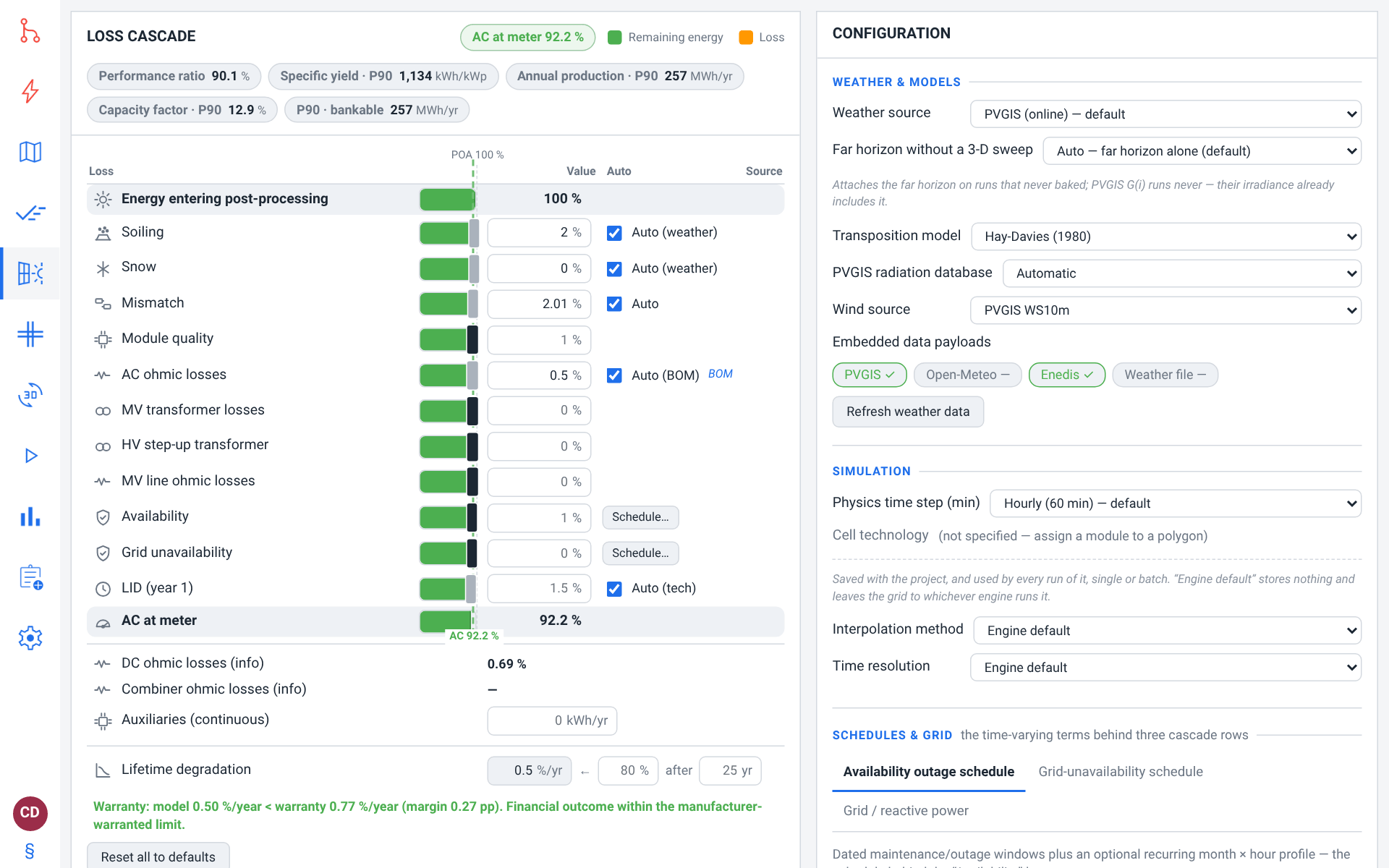
Its heart is the Loss cascade card, where you tune every loss term (soiling, mismatch, LID, ohmic, availability, snow, transformer, auxiliaries…) by dragging a bar or typing a percentage, and the Configuration card beside it, where you pick the weather source, the physics models and the simulation grid.
It produces the annual production, the Performance Ratio, the specific yield, the capacity factor and the P50/P75/P90/P99 probabilistic yield — read as KPI chips at the head of the loss cascade here and in full on the Results tab (Charts, Heatmaps & Tables).
Set the tariff and simulation duration on the Project tab (The Project Tab) first; sizing a whole system is a separate study on Batch (Batch Simulation & Scenario Sweeps) or on the pre-sizing page (
/presize).
Where the Production tab lives
Open /production from the left rail. The page puts the Loss cascade card beside the Configuration card, with the Real vs simulated production card underneath. On a narrower window the Configuration card drops below the cascade.
The head of the Loss cascade card reads the run of record back. Under its title line, which carries the AC at meter <pct> % chip, a row of five KPI chips gives each figure a caption, a value with its unit and, from the second run on, its change against the previous run (Reading the results); the stale badge follows them once the project has moved on (The stale badge: when results stop matching the project). The chips wrap onto a second row when the card is narrow. Apart from that badge's Re-run, the page has no run button: start a run from the Results tab, or with Ctrl+Enter from anywhere in the app (How a simulation runs).
The run of record is the newest successful run of the open project among the runs started or opened in this browser tab — one started from it since you opened it, one filed under the save it is bound to, or one of exactly the text it holds now. Every figure the page takes from a run — the KPI chips, the engine figures in the loss cascade, the Real vs simulated production card — describes that run. Open a project that has no run in this tab and they wait for one: the chips read — until you run it, rather than show the previous project's figures under the new name.
Everything you change here edits the working project — the document the tab holds open. Nothing is written to a stored save until you save it (The Project Tab).
Without an open project the tab shows only a note: No working project yet — open or import one on the Project tab first.
How a simulation runs
On the web a simulation is a job, not a blocking calculation. Press Run the project on the Results tab (or Ctrl+Enter, Cmd+Enter on macOS, from anywhere in the app except while the cursor is in a text field) and the working project is submitted to the engine, which answers immediately with a job id. The browser then navigates to that job's own results page — /results/cloud/<job id> — an address you can bookmark and come back to for as long as the run is retained. The job passes through four states: Queued, Running, then either Succeeded or Failed; while it is on its way, the report's place on Results says which.
While a job runs you are free to keep working: switch tabs, edit another card, open the map. The app polls the engine for you — about every three seconds — and every view that reads results updates the moment the job lands.
The ordered pipeline the engine walks is always the same: plane-of-array irradiance → shading → module physics (STC, angle-of-incidence, spectral, temperature) → DC wiring → inverter → AC and grid losses. The Loss cascade card on this tab lists only the terms you set yourself, grouped broadly in that order; the full chain, in its exact order, is the loss diagram on the Results tab (Reading the results).
Every run is checked first
Before a run is submitted, the engine checks the working project against its own rules — coordinates, array geometry and power, tariff and consumption inputs. There is no separate button for it: Run the project, Ctrl+Enter and the stale badge's Re-run are all checked the same way.
An error stops the run before anything is submitted. The Run the working project card reads
The run was not started: the project has N error(s)., followed by each error with the field it concerns and what is wrong with it. Editing the project clears the list; fix the errors and run again. A project the engine cannot read at all is refused the same way, with the engine's reason.A warning does not stop the run. It goes with the run to its Warnings card on Results (Charts, Heatmaps & Tables), listed with the field it concerns, ahead of the warnings the engine raises while it computes.
The check also hands the editing forms the numeric bounds it checked against, so out-of-range values are refused at the field from then on. If the check itself cannot be reached, the run goes ahead unchecked, and the first line of its Warnings card says so.
The weather pre-fetch
If the project carries no embedded weather series the run can use — no PVGIS series, and no imported weather file while Weather source is set to the file — a run fetches one before computing rather than silently producing a zero-energy result. While that happens the Run the working project card on Results shows Fetching weather data for the site first — the run starts as soon as it lands… and the run begins as soon as the series arrives. On success the working project now embeds the series, so the next run needs no network at all. If the fetch fails or is refused, the run proceeds on what the project already has.
The session's runs and failures
The runs of the session are listed on the Results tab (/results), in the Choose a job dropdown beside Run the project (Charts, Heatmaps & Tables): each by its job id and status. Picking one opens its results. The run on screen says where it stands in the report's place — Queued…, Running…, then Loading results… — and a run that failed says why there: This job failed: …. The chip beside the dropdown names the save the run on screen was filed under (from save …).
A run cannot be withdrawn from Results: a cloud run still
Queuedis cancelled from the account page (below).job no longer exists on the enginemeans the engine restarted or evicted the id;engine unreachableappears after roughly ninety seconds of failed polls.
Note
The list belongs to the browser tab. It survives a page reload, is capped at the fifty newest jobs, and is forgotten when you close the tab. A second tab keeps its own list. The results themselves live in your account, not in the list.
A cloud run's own results page (/results/cloud/<job id>) does not show this list. The full history of your company's cloud runs — every member, every tab — is the Cloud runs list on the account page (Your Account, Team & Cloud Runs), where a run that is still Queued can be cancelled.
Where the run executes
- The cloud service
— when you are signed in, the run is queued on pvSpline's own compute workers. It counts against your monthly simulation allowance — your own on a subscription, your company's on the free plan. Expect a short wait before it reads
Running: a worker has to pick the job up, and pickup is measured in seconds rather than milliseconds. The workers are shared by every pvSpline customer and take turns between companies: when all of them are busy, your run waits for your company's turn, never behind another company's whole queue, and your company's own earlier runs start first (Cloud runs: the job history). Paying customers' runs go first, though: on the free plan, a run starts only once no paying customer's run is waiting, so it can wait behind a paying customer's whole queue (Paying customers' work goes first).
A cloud run has to be filed under a cloud save, because that save is what authorises it and what the quota is counted against. If the working project is already bound to one, that save is used; if not, a save is created from it (named after the project) and the binding installed, which is what the from save … chip beside the run selector records. If the save it is filed under no longer matches the project open in the tab (its meter number or client e-mail differs), you are asked whether to run anyway and file the run under that save. A few refusals are worth recognising:
your monthly simulation allowance is used up — the run was not queued. The meter is on the Account page.your company's subscription is inactive — cloud runs are paused. See the Account page.A message that your monthly cloud API allowance is used up: the run was not queued, and other cloud work is refused too until the allowance renews on the 1st.
this project is too large to submit to the cloud — the run was not queued. Re-fetch its weather and consumption data, then run it again.
The allowances are settled on the account page (Your Account, Team & Cloud Runs), where the meter lives.
Tip
In the cloud, each run is a deliberate act with a queue in front of it — so make all the edits you intend, and then run once.
The stale badge: when results stop matching the project
A completed run is a snapshot. The moment the thing it describes moves, an amber badge appears — at the head of the Production tab's Loss cascade card, after the KPI chips, and on Results, right after Run the project. It names what drifted:
Stale — the project changed since this run— you edited the project after the run. That includes the interpolation method and time resolution, which are saved with the project (The Configuration card). A finished batch study counts too: the Batch tab stores it in the project (Batch Simulation & Scenario Sweeps), and running again is what puts its Batch study — scenario comparison page into the results and the PDF report. The badge also appears once you open another project — except on a cloud run you opened from the account page rather than started in this tab, which carries no project stamp and so never shows it.
On Production, the badge carries a Re-run button (Re-running… while it works) that submits the current working project and takes you to the new job; on Results it sits right after Run the project, which does the same, and carries none. It asks for no confirmation of its own, because the results on screen genuinely do not describe what is open. It is an ordinary run all the same: it counts against your own monthly simulation allowance, and it asks first when the save it is filed under no longer matches the project (Where the run executes).
A run that carries no evidence on an axis — an older job saved before that stamp existed — is simply not judged on it, and shows nothing for it. An export ships the report the cloud stored for the previewed run as it stands (What an export ships): when the badge shows, re-run before you export.
The Loss cascade card
The Loss cascade card is the tab's hero. It is a ladder of bars, read top to bottom, with four columns: Loss (the term and its icon), Value (the editable percentage), Auto (an automatic-tracking checkbox or a Schedule… button), and Source (a provenance tag saying where the number actually came from).
The head row, Energy entering post-processing, is pinned at
100 %.Eleven stage rows follow, each drawn as a green “remaining energy” bar with that stage's loss floating beside it as an orange chunk. The legend above reads Remaining energy / Loss.
The tail row, AC at meter, shows what is left. The same figure is repeated as a chip in the card head (
AC at meter <pct> %) so the outcome stays in view when the tail scrolls off.Two dashed reference lines cross the bar column:
POA 100 %at the head andAC <pct> %at the final value.
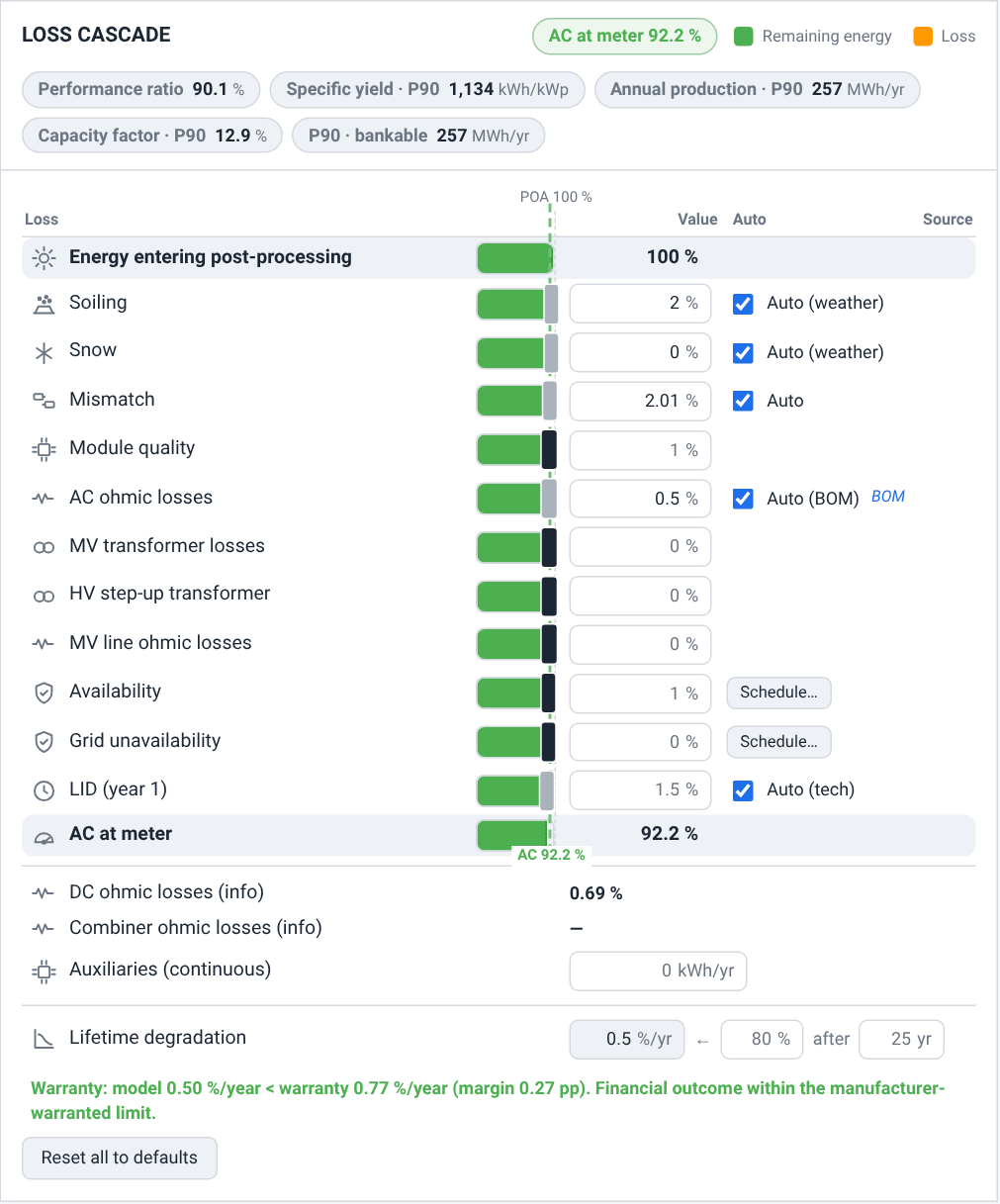
The cascade is a pure running product of the percentages: each stage debits its share of what is left, so it redraws instantly as you edit — no run required. Losses compound multiplicatively; they do not add up.
Three ways to set a loss
Drag the handle at the end of a bar. The value follows the pointer and commits as you drag.
Nudge a focused handle with Left / Right — 0.1 percentage points a press, 1 point with Shift held.
Type in the Value field. It accepts anything while you type and clamps when you leave the field or press Enter: 0–50 % for a loss stage, 0–100 000 for the auxiliaries load. Leave it blank to fall back to the default shown as the placeholder.
Most rows carry one decimal; Mismatch and LID (year 1) carry two.
Auto tracking and the Source column
Five rows carry an Auto box that hands the value to a computed source instead of the number you typed:
Auto (weather) on Soiling and Snow — the row follows the annual loss derived from the automatic weather profile (the Kimber model for soiling, the Marion model for snow), computed from the site coordinates.
Auto on Mismatch — the run derives PVsyst's default mismatch for your system from the number of modules placed, their technology and the number of strings per MPPT input, in place of the stored percentage. Untick it and your own percentage applies.
Auto (BOM) on AC ohmic losses — the row follows the I2R figure integrated hour by hour over the cables sized on the Diagram tab (Electrical Design & the One-Line Diagram). Its Source cell carries a
BOMtag.Auto (tech) on LID (year 1) — the row follows the Jordan-Kurtz (NREL 2016) default for the project's dominant cell technology.
All five start ticked. While a row is on Auto its bar is a readout, not a control: the handle is greyed, dropped out of the tab order, and hovering it says Computed automatically — untick ``<Auto label>'' to set this loss by hand. The typed field stays live, and entering a value there unticks Auto for you — a deliberate keystroke, unlike a stray click on a bar.
Auto (tech) is saved with the project, so a project reopens with the box as you left it.
After a run, the Auto (weather) and Auto (BOM) rows display the figure the engine resolved rather than the constant stored in the project, because that is the number the simulation actually used.
Tip
Leave the Auto boxes on for a first pass — they give you figures straight from the site and the wiring without any manual tuning. Only override a field when you have a measured or contractual number that beats the model (for instance a soiling rate from an on-site study).
Cascade stage by stage
Weather losses. Soiling (default 2 %) is progressive fouling between cleanings. Snow (default 0 %) is the average annual loss caused by snow cover, computed by the Marion model from the automatic weather profile and left at 0 % when no weather data is loaded. Both track the weather profile while their Auto (weather) box is ticked.
System losses. Mismatch (default 1 %, two decimals) is module-to-module current variation within a string. Module quality (default 1 %) is the gap between the manufacturer's nominal STC power and the power actually measured at delivery (typically 0.5–1.5 % for tier-1 c-Si); it appears in every standard loss report. AC ohmic losses (default 0.5 %) are the Joule losses between inverter and meter.
Utility-scale terms. MV transformer losses (total no-load + load losses of the step-up transformer, typically 1.0–1.5 % for a dry distribution transformer, 0 % for an LV-connected residential system), HV step-up transformer (an opt-in second transformer for plants with a separate delivery substation, e.g. 33 kV → 110 kV, typically 0.5–1.5 %) and MV line ohmic losses (Joule losses on the MV link between the transformer secondary and the delivery point, typically 0.1–0.3 %). All three default to 0 % and are listed inline with every other stage — residential and small-commercial projects simply leave them at zero.
Availability. Availability (default 1 %) is downtime due to maintenance, faults and outages. Grid unavailability (default 0 %) is the orthogonal grid-side term: dips and outages (LVRT/FRT trips) plus the inverter resynchronisation delay. Leave it at 0 on a strong grid; opt in for weak-grid sites. Both rows carry a Schedule… button that jumps to the Schedules & grid band of the Configuration card (Schedules & grid), and both dim their percentage when a schedule is active, because the schedule then replaces the flat figure. Their badges say so: scheduled (N h) on availability, schedule on grid unavailability, and a green + N kWh battery credit when a battery rescued load during outages.
Degradation. LID (year 1) (two decimals; while its Auto (tech) box is ticked, as it is on a new project, the figure for the project's cell technology; with the box unticked or no technology known, the value in the field — 1.5 % when left blank) is the Light-Induced Degradation applied in the first operating year, typically 1–3 % for crystalline silicon. A run applies the figure the row shows — in the loss diagram and in the financial projection alike — on a project never changed on this tab too. Multi-year ageing beyond LID is the Lifetime degradation row described below.
Rows below the tail
Three kinds of row sit under the tail, outside the multiplicative ladder:
DC ohmic losses (info) and Combiner ohmic losses (info) — display only, no bar and no field. They show the Joule losses the engine computed from your wiring diagram (the bill of materials) over the DC cabling and the combiner boxes respectively. Both read
—until a run reports them, and both are set indirectly by sizing cables on the Diagram tab.Auxiliaries (continuous) — a constant parasitic consumption (inverter fans, monitoring, tracker actuators) entered in kWh per year rather than as a percentage, because it is a constant-watt load independent of production. Order of magnitude: 100 W × 8760 h ≈ 876 kWh/yr for a residential inverter; a few thousand to tens of thousands of kWh/yr for a utility-scale plant with active trackers.
Lifetime degradation — the row that compounds over the project horizon rather than within year 1, so it carries no bar either.
Lifetime degradation and the warranty corridor
The Lifetime degradation row reads left to right as a derivation: a read-only annual rate in %/yr, an arrow, and the datasheet warranty it comes from — a guaranteed remaining power in % (placeholder 80, range 50–100) after a number of years (placeholder 25, range 1–40).
The rate is not typed. It is the warranty-implied rate, recomputed on every warranty or LID edit as (100 - warranty end % - LID year-1 %)/(max(1, years - 1)) which is why there is no Calculate button to press: the number on screen is always the number the engine gets. Until you touch the warranty pair, the field mirrors whatever rate the project already stores (0.5 %/yr when it stores none), so simply opening the tab never rewrites a project's degradation assumption.
Underneath, a permanent verdict line compares the rate in use against the warranty-implied rate and colours itself:
Green — your model is more optimistic than the warranty; the manufacturer's binding floor covers the downside.
Amber — the two agree to within 0.1 percentage points. This is the steady state once you have set the warranty, because the rate is derived from it.
Red — your model is more pessimistic than the warranty, or the configuration is inconsistent (
implied rate … outside 0–5 range). Check the LID, the warranty end percentage or its duration.
Where the cell technology comes from
A read-only Cell technology line in the Simulation band of the Configuration card shows the technology inherited from the panels you assigned to polygons on the Map tab, weighted by installed peak power: <tech> (inherited from selected modules), or (not specified — assign a module to a polygon). It is the single source of truth — there is no override — and it is what the LID row's Auto (tech) tracking reads.
Resetting
Reset all to defaults at the foot of the card restores every loss percentage to its industry-consensus c-Si default and ticks every Auto box again. The datasheet warranty pair is left as it is, so the lifetime-degradation rate is simply re-derived from it. It asks first: Reset all settings? Restores the loss percentages and degradation parameters to their default values. Continue?
Note
The reset puts 2.0 % into the LID (year 1) field — not the 1.5 % placeholder a fresh project shows — and ticks Auto (tech) again. While Auto (tech) stays ticked, the row shows, and the run uses, the figure for the inherited cell technology; the 2.0 % applies only when no cell technology is known, or once you untick Auto (tech).
Tune the loss cascade for a commercial rooftop
Open
/production. Confirm a location and array are already set, and run the project once from the Results tab so the info rows and the Auto rows have engine figures to report.Leave Soiling and Snow on Auto (weather) and wait for the weather provenance line under the weather source (
Weather profile applied…). This pulls site-specific figures automatically.Size your cables on the Diagram tab, then return: with Auto (BOM) on, AC ohmic losses now tracks the integrated I2R figure and shows the
BOMtag, and the two (info) rows stop showing dashes.Leave Mismatch on Auto to use PVsyst's default for your system, or type your own estimate, which unticks it; set Module quality to the datasheet tolerance if you know it.
Set Availability to your maintenance assumption, or click Schedule… to enter dated outage windows.
Run the project again — Ctrl+Enter works from this tab — then read the refreshed Performance Ratio and specific yield in the KPI chips at the head of the cascade, and confirm the cascade balances against the Sankey diagram on the Results tab (Charts, Heatmaps & Tables).
The Configuration card
Beside the cascade sits the Configuration card. It holds every other setting the tab edits, as four bands: Weather & models, Simulation, Schedules & grid and Probabilistic production.
Weather & models
This band decides where the irradiance comes from and how it is transposed onto your array.
Weather source — PVGIS (online) — default, or Imported weather file. Choose the file entry and a Weather file chooser appears on the same row (Choose a file…, then Reading…, then the file name). It loads an EnergyPlus EPW, an NREL TMY3, an NSRDB CSV download (a single year or a typical year), a Solcast CSV (a historical time series or a typical year), a Solargis CSV (a time series or a TMY), a PVGIS TMY downloaded as CSV or JSON, or a pvSpline JSON series — for example an ERA5 or SARAH-3 export. Once applied, the file is the project's irradiance source in place of PVGIS, which is what you want offline or where PVGIS has no coverage. The chooser is offered only under the file entry, so a project can never run a file while its source still reads PVGIS. Setting the source back to PVGIS (online) — default keeps the file in the project — its Weather file data embedded badge stays — but runs use the PVGIS series: if its badge reads PVGIS data not embedded, a run fetches that series first, as for any project without weather (How a simulation runs). Choosing the file entry again returns to the embedded file without a new import. The NSRDB, Solcast, Solargis and JSON forms additionally preserve precipitable water for the spectral correction, which EPW does not. A parsed file is summarised — Station, Samples, Year range and which Series it carries (GHI, DNI, DHI, Temperature, Wind), plus a Wind height line for a file whose wind is not given at 10 m (an NSRDB download: 2 m) — and applied only when you press Apply weather file. A project saved to your account keeps the imported file, stored beside the save, and so does an exported project file (Export .json, The portable project file); should a reopened project's badge read Weather file data not embedded, import the file again before you run.
A typical-year file — each month taken from a different year, as in a TMY EPW, an NREL TMY3 or a PVGIS TMY — is placed on one calendar year, the newest it draws from (a 29 February that year lacks is dropped). PVGIS's own EPW download is refused: PVGIS labels its hours an hour early for the western and central European time zones, and EPW cannot carry the time of its satellite scans, so download the same TMY as CSV or JSON instead. When a file cannot be used, the line under the row gives the engine's reason — for example two rows out of time order, named, or no GHI column.
A provenance line beneath, filled in by the check that starts each run, reports the weather the project embeds: Weather profile applied (N-year average, M polygon(s))., Weather profile imported (<file>, M polygon(s))., and Series embedded in project saves/exports (N rows). It names an embedded file even while the source is PVGIS, so read the Weather source field and the PVGIS badge to know what a run uses. Its year count covers every embedded Open-Meteo year (about twelve), not the last three complete years the soiling and snow losses average, and its polygon count is one per drawn vertex, so a single rectangle reads 4.
Far horizon without a 3-D sweep — what a run does about the distant horizon (hills, mountains) for an array the 3-D viewer has not swept. Auto — far horizon alone (default) and On — far horizon alone shade the direct beam with the far horizon alone: the terrain model published with the 3-D tiles when there is one, else the PVGIS horizon fetched for the array. Off — only with a 3-D sweep applies no far shading without a sweep. It never applies to a run on PVGIS irradiance, which already includes PVGIS's own horizon. The loss diagram names the source used, and the setting is saved with the project (Simulation Physics & Data Reference).
Transposition model — the GHI → POA model applied in the loss chain:
Hay-Davies (1980) (default) — uses PVGIS's own plane-of-array irradiance directly, corrected where a tracker's backtracking, rotation limit or wind stow turns it away from the ideal tracking PVGIS assumes (Tracking). Fastest, matches PVGIS's published numbers, one request per polygon.
Perez (1990) — inverts the PVGIS tilted components to the horizontal with the Hay-Davies sky, then re-transposes with the anisotropic Perez kernel (circumsolar + horizon brightening), for the same network cost. PVsyst's default model.
Perez (1990, from GHI) — feeds Perez directly from PVGIS's raw horizontal irradiance, the most accurate input. That series takes a second PVGIS request per array, made whenever this model is selected (and, under any model, for an East-West dome, a carport with Butterfly (E-W) on, a Brise-soleil or agrivoltaic field and a single-axis tracker set to Irradiance optimization); an hour without it inverts the tilted components, as with Perez (1990).
With the last option selected, a coverage line appears once you run the project: Perez 1990 (raw GHI) active. Full coverage: N / M polygons use PVGIS raw GHI., or a partial form naming how many polygons still invert the tilted components — a project fetched before the model was switched carries no horizontal series, so fetch the weather data again.
PVGIS radiation database — Automatic (default, lets PVGIS pick the best database for the location), PVGIS-SARAH3 (satellite-derived, Europe) or PVGIS-ERA5 (global reanalysis). Force one of the latter two to compare sources or to cover a site outside satellite coverage.
Wind source — the hourly wind speed used by tracker wind-stow and by the wind-sensitive cell temperature: PVGIS WS10m (default, the 10 m column from the same PVGIS request as the POA, so the same TMY year) or Open-Meteo (the 10 m wind channel from the archive already used for particulates and snow). On an imported weather file the first entry reads From the weather file: the run uses the file's own wind — none, if the file has no wind column — while Open-Meteo replaces it with the archive's 10 m wind.
Site surroundings (wind profile) — shown while a run takes its wind from an imported weather file. The model reads the wind at 10 m; a file that gives it lower — an NSRDB download, at 2 m — has it raised to 10 m at each run, by more the rougher the ground around the site: from 2 m, ×1.18 for Open water or shore, ×1.38 for Open land, short grass (default), ×1.54 for Low crops, few obstacles, ×1.77 for High crops, hedges, scattered farms and ×2.16 for Orchards, trees, scattered buildings. It changes how often trackers stow, and slightly how warm the panels run. A file whose wind is already at 10 m (EPW, TMY3) is not changed. The setting is saved with the project, and a change applies at the next run without importing the file again.
Embedded data payloads — four badges reading PVGIS data embedded / PVGIS data not embedded and the same for Open-Meteo, Enedis and Weather file. They tell you at a glance whether the project can run offline. Under them sits the weather fetch itself, which normally shows only one line — Weather data is fetched automatically — when an array is drawn or edited, before the next run, and again whenever the site moves. Only what the project lacks is downloaded. — and offers Fetch weather data or Refresh weather data only when there is something the automation will not do on its own. Drawing a second array, or tilting or moving one, fetches the weather for that array alone a moment after the edit settles; the series the other arrays already have are kept, so the project is ready to run without a full download. When a fetch could not serve an array (its point refused, say), the lines the fetch reported appear under the job line, and the next Run tries that array again.
Simulation
Physics time step (min) — the integration cadence of the physical chain: Hourly (60 min) — default, or a sub-hourly step (30, 15, 10, 5, 1 min). A sub-hourly step synthesises a sub-hourly irradiance series (clear-sky shaped, hourly energy preserved) and engages the transient thermal model. Expect under 0.1 % on annual yield at stable sites, up to 0.1–0.3 % on steep-angle or high-latitude arrays from the sharper sunrise and sunset ramps. 5 min is the recommended sub-hourly setting.
Cell technology — the read-only inherited technology described above.
Interpolation method — Engine default, Linear, Cubic spline, PCHIP, Akima or Catmull-Rom: the kernel that rebuilds the coarse input series (hourly PVGIS, half-hourly Enedis) into a fine one.
Time resolution — Engine default, or 1 minute, 5 minutes (recommended), 10 minutes, 15 minutes, 30 minutes or 60 minutes: the cadence of that rebuilt series, which is also the step the consumption and the battery dispatch run on.
Both are saved with the project and used by every run of it, single or batch. Leaving either on Engine default stores nothing and leaves the choice to the engine that runs the project: out of the box, Akima for production and PCHIP for consumption, on the recommended 5-minute grid. A kernel you pick instead applies to production and consumption alike; only Engine default keeps the two apart. Changing either is an ordinary project edit, so it marks earlier results stale (The stale badge: when results stop matching the project).
Note
Sub-hourly deterministic shaping does not by itself reproduce the inverter clipping-capture benefit of real minute-scale cloud cycling — that needs genuine variance. At the default hourly step every output is identical to the historical path.
Note
There is no “local physical chain” switch here, and none for wind-sensitive cell temperature or the richer virtual-battery billing model: the engine behind the web app always runs the local physical chain (hourly sun position, Martin-Ruiz angle-of-incidence, Sandia thermal model, wind coupling included), and always prices the full virtual-battery terms. What you configure is which data feeds that chain and how finely it integrates. The physics itself is documented in Simulation Physics & Data Reference.
Schedules & grid
Three time-varying terms sit behind cascade rows and get a band of their own in the Configuration card, reached either by scrolling or by the Schedule… buttons on the rows themselves. It is one band with three tabs, each carrying a badge so a configured setpoint stays visible while another tab is selected.
Availability outage schedule
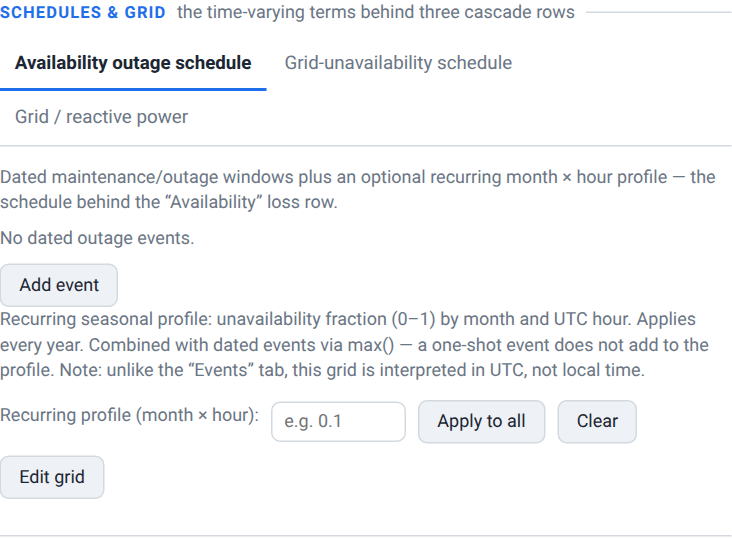
Dated maintenance windows plus an optional recurring profile — the schedule behind the Availability loss row. While it holds anything, the flat percentage is ignored and the tab badge reads scheduled (N h).
A table of dated events, each with a Label, a Start (local) and End (local) date-and-time, and a Fraction offline between 0 and 1. Add event appends a row; the cross button at the end of a row removes it. Empty, it reads
No dated outage events.A Recurring profile (month × hour): a 12-month × 24-hour grid of unavailability fractions that applies every year. Edit grid shows it, Hide grid folds it away; typing a value beside it and pressing Apply to all fills every cell, and Clear empties them.
Watch out
The recurring grid is read in UTC, while the dated events above it are typed in local time. The two combine by maximum — a one-shot event does not add to the seasonal profile; whichever is larger for a given hour wins.
Grid-unavailability schedule
Synthesises weak-grid outages that curtail production — the schedule behind the Grid unavailability row. Synthesis mode offers Off (use the flat loss %) (default) and Stochastic synthesis. A project that already carries an 8760-hour availability file shows a third, read-only entry for it; the file is preserved exactly as it is and keeps driving the run, but it cannot be edited here.
Stochastic mode exposes five parameters: MTBF (mean interval) in hours (placeholder 720), Mean duration in hours (placeholder 2), Recovery delay in hours — the inverter resynchronisation time — (placeholder 0.25), Impacted fraction in percent (placeholder 100), and RNG seed (0 = deterministic).
If a battery rescues load during those outages, the tab shows a + N kWh battery credit; the Sankey waterfall renders it as a negative loss just after Grid unavailability. Battery dispatch itself is configured in Storage, EV & Specialized Systems.
Grid / reactive power
The plant's cos φ setpoint as required by the grid operator. A value below 1 clips the active power to P = min(Pac, S · cosφ) and raises the AC ohmic and transformer copper losses by 1/cos2φ.
Reactive power mode offers Disabled (cos φ = 1) (default), Fixed cos φ and Monthly cos φ. Every control stays visible in every mode and is simply disabled where the mode does not use it, so a stored setpoint is always readable: the single cos φ field (0.5–1), the twelve-month grid, the Direction (Inductive / under-excited (supplies Q) or Capacitive / over-excited (absorbs Q)) and the Nominal inverter power expressed in kVA (apparent) checkbox. Two further fields are never mode-gated because they belong to the reactive-energy tariff: tan φ threshold (reactive tariff) and its Price (reactive tariff) in €/kVArh.
When a non-unity setpoint is configured the tab badge shows cos φ <value> or monthly cos φ, so it cannot silently change your yield while another tab is open.
Probabilistic production (P50/P75/P90/P99)
The Probabilistic production band carries one control: a four-segment Exceedance percentile selector, each segment showing its own year-1 figure in MWh. The choices are P50, P75, P90 (the default) and P99. The segment you pick is the percentile the financial table is computed on — lenders size the Debt Service Coverage Ratio on P90.
The pick also frames the run's energy figures, from the next run on: the Specific yield, Annual production and Capacity factor chips at the head of the loss cascade, whose captions then name it (Annual production · P90, Reading the results), and the energy charts and the loss diagram on the Results tab (Charts, Heatmaps & Tables). At P50 the chips carry no tag. The PDF report's cover and the energy rows of the Excel workbook's summary always stay at P50, the deterministic estimate (Reporting & Export).
The ? button beside the band title opens the methodology note. These are exceedance probabilities: the actual annual production exceeds PX in X % of years over the project lifetime. P50 is the median, equivalent to the deterministic estimate and the basis for a typical IRR; P90 is the banking convention; P99 is a pessimistic stress case reserved for stress analyses. The spread is built by combining, in quadrature, inter-annual variability (∼3–6 %), irradiance measurement uncertainty (∼4–5 %), transposition-model uncertainty (∼2–3 %), year-on-year soiling (∼1–2 %), inverter and grid availability (∼0.5–1 %) and the degradation term growing over the lifetime. The methodology follows IEC 61724-3 and IEA PVPS T13.
Tip
Report P50 to the client and P90 to the bank. Because the random uncertainty terms shrink as 1/√(N) over the project lifetime while the systematic ones do not, the lifetime-cumulated P90 sits closer to the P50 than a single-year P90 would — which is exactly why lenders accept it. The report's charts and financial projection follow your pick, so select P50 and run again before exporting a client report at the median.
Reading the results
Five chips at the head of the Loss cascade card report the run of record (Where the Production tab lives), the open project's newest successful run. Each shows a caption, a value with its unit, and — when the project has an earlier completed run to compare against — a signed change against it, marked ▲ or ▼ (Change against the previous completed run). A chip reads — until its inputs exist.
Performance ratio (%) — EAC / (Pnom× HPOA/GSTC), dimensionless: how much of the theoretically available energy the plant actually delivers, per IEC 61724-1.
Specific yield (kWh/kWp) — net AC energy per installed peak power, the final yield Yf. The headline banker metric.
Annual production (MWh/yr) — net AC energy at the meter after the whole cascade, at the project's exceedance percentile (Probabilistic production (P50/P75/P90/P99)), which the caption names:
Annual production · P90unless you pick another, so by default this chip and the P90 chip show the same figure.Capacity factor (%) — net AC energy divided by (Pnom× 8760 h): the plant's average output as a share of its nameplate.
P90 · bankable (MWh/yr) — the year-1 P90 yield, the DSCR basis.
Specific yield and capacity factor are worked out from that same net AC energy, so their captions carry the same percentile (Specific yield · P90); hover over a chip for what the percentile means. The performance ratio does not depend on it, and a P50 project shows no percentile at all. Against a run computed at a different percentile, those three chips show no change: the difference would be the percentile, not the design.
The full set — the reference yield Yr (annual POA irradiation as equivalent peak-sun-hours), the temperature-corrected PR, the monthly and hourly series, the Sankey loss diagram and the multi-year financial table — lives on the Results tab (Charts, Heatmaps & Tables) and in the PDF report (Reporting & Export).
Reading the loss cascade and the Sankey
The Loss cascade card and the Sankey diagram describe the same cascade. The Sankey shows every term, top to bottom, in the engine's canonical order; the card shows only the terms you set, in its own fixed row order. The canonical order is: transposition gain (a credit) → far and near shading → tracker backtracking / rotation limit → tracker wind stow → row shading (beam, vegetation, diffuse) → angle of incidence → soiling → snow → spectral → STC conversion → irradiance level → temperature → (bifacial rear-side gain, a credit) → row shading (electrical) → module quality → LID → mismatch → DC ohmic and combiner → inverter (conversion, operating-envelope clipping, night consumption, power factor) → AC ohmic → MV/HV transformer and line → auxiliaries → availability → grid unavailability (less any battery backup credit) → multi-year degradation.
Note where soiling, snow, module quality, LID and mismatch sit. They are user-adjustable percentages, which makes them easy to mistake for an end-of-chain adjustment, but the engine applies each one where it physically acts: soiling and snow with the optical terms, before the cells convert anything; module quality, LID and mismatch on the DC side, before the wiring and the inverter see the power. Simulation Physics & Data Reference walks the whole chain stage by stage.
To reconcile the two: a percentage in a card row is a loss of the energy remaining at that stage, and the Sankey shows the same figure as an absolute kWh bar. Credits — transposition gain, bifacial rear-side gain, any weak-grid battery recovery and, on a site where cold hours outweigh hot ones, temperature — appear as negative bars. If a card figure and its Sankey bar seem to disagree, remember the compounding: an early-stage 2 % and a late-stage 2 % remove different absolute amounts of energy.
Validation: real versus simulated production
The last section of the tab compares what the model says against what the plant (or a reference calculation) actually produced. It is a chart of the twelve simulated monthly totals overlaid with a metered series — Simulated in the primary colour, Real (metered) in amber — beside a month-by-month table with the columns Month, Simulated, Real, Δ and, when the project carries them, Cached.
Before a run it says Run a simulation to see the monthly production. With a real series loaded but no run, Run a simulation to compare against the real series. With a run but nothing to compare, Load a real (metered) series to compare.
Loading a real series
Load real production (JSON)… opens a file picker for an inverter production series. It is parsed in the browser.
Fetch from inverter… pulls a series live from the inverter cloud. Pick a Provider — Enphase, SolarEdge, APsystems or SolaX — then fill in the Site id, the API key, and, for Enphase and APsystems, a Token. Start and End bound the range (defaulting to the last thirty days), and a Time zone, set to the project's, applies to the providers that stamp samples in site-local time. On an engine that does not offer the route the button is disabled and says so.
Caution
Inverter credentials are sent once per fetch and are never stored: they travel over TLS to the engine service, which calls the vendor API on your behalf. They are not written into job documents or saved projects. A note beside the fields restates this posture.
Once both series exist, a readout under the chart gives the Global deviation in percent, the real-versus-simulated totals over the overlapping days, and the MBE and RMSE in kWh/day. A month metered only in part is scored against the simulated energy pro-rated by the days covered, so a feed that stops mid-month does not read as a shortfall. If nothing overlaps you get No overlapping period between the real and simulated series.
The cached monthly column
Twelve monthly production figures may be stored in the project itself — written by an earlier PVGIS fill or by a report import. In the web application these are a read-only Cached column of the table, shown only when the project actually carries values. They are kept for the save history; the simulation never reads them back, so there is nothing to edit and no “production card” to fill in. Production is computed, not typed.
Importing a PVGIS production report
Fold open Import a PVGIS production report (PDF) into the cached column at the foot of the section to extract monthly production values from a PVGIS report PDF into that cached column.
Import a PVGIS production report
Pick the PDF in the Report PDF field.
Press Parse report. pvSpline extracts the monthly figures and lists them as Month / Grid value rows, with a heading naming the file and how many months were found (
12 month(s) found).Check the table, then press Apply to write them into the working project. Nothing changes until you do.
Months missing from the report keep their current values. Two refusals are specific: The PDF does not look like a PVGIS report. and No month rows were found — automatic extraction supports French-language PVGIS reports. An engine that predates the feature answers This engine does not offer PVGIS report import (route unavailable).
Auto-sizing and off-grid pre-sizing
Sizing a system for you is a separate study, not a field on this tab.
For a grid-connected plant, the automatic power and battery optimisation is the Auto-size study on the Batch tab (/batch, Batch Simulation & Scenario Sweeps). It builds a grid of candidate sizes — optionally crossed with your favourited modules and batteries (Sweep modules, Sweep batteries) — each costed at its own power and parts, and runs it as a batch through the same engine; the batch names its winner by the page's Objective — the highest NPV, or the highest equity IRR under Equity IRR — and you can sort the results on another column (LCOE, for example) to favour a different criterion. Optimize now on the same page does the whole loop in one click: it builds the grid, runs it as a batch and applies the winner to the working project (Deciding and applying).
For an off-grid or solar-pumping system, the Preliminary pre-sizing page at /presize gives you a first size in seconds. It is reached from the Systems section of the Project tab (Pre-sizing aids (off-grid / pumping)…) once the project carries an off-grid or pumping system, and it is also a bookmarkable page in its own right. It needs no project and no network: it runs on bundled monthly climatology — or on monthly GHI values you supply — rather than on an hourly simulation.
Pre-size an off-grid site
Open
/presize. Leave Mode on Off-grid (standalone).Check the Latitude and Longitude — they prefill from the working project's site when one is open — and the shared orientation fields Tilt (default
35°), Azimuth (default180°), Tracker (PVGIS code 0–5) and System loss (default20%).Choose a Climate: Bundled climatology (offline), My monthly GHI values (twelve comma-separated numbers, January first, with an optional twelve-value ambient-temperature row), or Annual yield — an annual specific yield spread over a generic mid-latitude monthly profile. If the open project already has a real PVGIS run, that last option is selected for you and the Annual yield field is locked to the project's own figure.
Enter the load and reliability targets: Daily load in Wh/day, an optional twelve-month load table, Battery autonomy in days, Target loss-of-load (0–1) and Battery depth of discharge (0–1).
Press Pre-size. The Suggested sizing card gives Suggested PV array (kWp), Battery (nominal) (kWh), Estimated loss-of-load (%) and the Worst month, over a twelve-row monthly table of load against yield.
Switching Mode to Solar pumping replaces the load block with a hydraulic one — Total head, Daily water need, an optional monthly volume table, Pump efficiency, Converter efficiency, Performance ratio (PR) and Tank autonomy — and the results become Required PV power, Recommended pump, Tank volume, Estimated annual unmet and the Worst month, over a monthly table of available sun, water need, coverage and deficit. When the open project carries a pumping system, Apply (pump + tank) writes the recommended pump power and tank volume straight into it; the page confirms with Applied — pump N kW · tank M m3 written to the working project.
Note
Pre-sizing results are estimates from a monthly-average model — a starting point, not a substitute for a full hourly simulation of the finished project. Feed the suggested size back into the project and run it properly. The off-grid site card itself (deep-discharge floor, autonomy and loss-of-load targets, value of lost load, backup generator) lives on the Project tab and is documented in Storage, EV & Specialized Systems.
Field reference
Loss cascade head
Run the project sits on the Results tab (Charts, Heatmaps & Tables); the only run button on this tab is the stale badge's Re-run.
| Field / Control | Type & unit | Default | What it does & how to set it |
|---|---|---|---|
| KPI chips | label | — | Five read-outs of the run of record under the card title: performance ratio, specific yield, annual production, capacity factor and P90 · bankable, each with its change against the previous completed run (Reading the results). — until the project has run. |
| Re-run | button | — | On the stale badge: resubmits the current working project and navigates to the new job. No confirmation of its own; it counts against the monthly simulation allowance like any other run. |
Loss cascade — editable stages
Every percentage spans 0–50 % and clamps when you leave the field. Values are fractions of the energy remaining at that stage.
| Field / Control | Type & unit | Default | What it does & how to set it |
|---|---|---|---|
| Soiling | number · % · Auto (weather) | 2.0 | Progressive panel fouling between cleanings. With Auto on, tracks the Kimber figure from the automatic weather profile. |
| Snow | number · % · Auto (weather) | 0.0 | Average annual snow-cover loss. With Auto on, tracks the Marion figure; 0 % when no weather data is loaded. |
| Mismatch | number · % · Auto | 1.0 | Module-to-module current mismatch within a string. Two decimals. With Auto on, the run derives PVsyst's default mismatch for the system from its module count, module technology and strings per MPPT input, in place of this value; untick Auto, or type a value, to use your own. |
| Module quality | number · % | 1.0 | Gap between nominal STC power and the power measured at delivery. Typical 0.5–1.5 % for tier-1 c-Si. |
| AC ohmic losses | number · % · Auto (BOM) | 0.5 | Joule losses between inverter and meter. Auto follows the BOM-integrated I2R once cables are sized on Diagram; carries a BOM tag in the Source column. |
| MV transformer losses | number · % | 0.0 | Step-up transformer no-load + load losses. Typical 1.0–1.5 % for a dry distribution transformer; 0 % if LV-connected. |
| HV step-up transformer | number · % | 0.0 | Grid-side HV transformer, opt-in for a separate delivery substation (e.g. 33 kV → 110 kV). Typical 0.5–1.5 %. |
| MV line ohmic losses | number · % | 0.0 | Joule losses on the MV link, transformer secondary → delivery point. Typical 0.1–0.3 % for short links. |
| Availability | number · % · Schedule… | 1.0 | Downtime from maintenance, faults and outages. Schedule… opens the outage editor; an active schedule overrides this value and the field dims. |
| Grid unavailability | number · % · Schedule… | 0.0 | Grid-side dips and outages (LVRT/FRT) plus inverter resync delay. Schedule… opens the weak-grid editor; an active schedule overrides this value. Opt-in for weak-grid sites. |
| LID (year 1) | number · % · Auto (tech) | 1.5 | Light-induced degradation applied in year 1. Two decimals. With Auto on (the default on a new project), the row shows the Jordan-Kurtz default for the project's dominant cell technology; with Auto off or no technology known, the field's value, 1.5 % when blank. A run applies the figure the row shows, in the loss diagram and the financial projection alike. Typical 1–3 % for c-Si. |
Loss cascade — rows below the tail
| Field / Control | Type & unit | Default | What it does & how to set it |
|---|---|---|---|
| DC ohmic losses (info) | read-only · % | — | Joule losses on the DC cabling, computed by the engine from the wiring diagram. Two decimals, or — until a run reports it. Set indirectly by cable sizing on Diagram. |
| Combiner ohmic losses (info) | read-only · % | — | Joule losses in the combiner boxes, computed from the wiring diagram. Display only; — until a run reports it. |
| Auxiliaries (continuous) | number · kWh/yr | 0 | Constant parasitic load (inverter fans, monitoring, tracker actuators), subtracted directly from annual production. Range 0–100 000. Roughly 876 kWh/yr for a 100 W residential inverter. |
| Lifetime degradation — rate | read-only · %/yr | 0.5 | The warranty-implied annual rate, (100-end %-LID %)/max(1,years-1). Recomputed on every warranty or LID edit; mirrors the project's stored rate until you touch the warranty. |
| Datasheet warranty — end % | number · % | 80 | Guaranteed remaining power at the end of the warranty. Range 50–100. |
| Datasheet warranty — after | number · yr | 25 | Warranty duration. Range 1–40. |
| Warranty corridor | read-only verdict | — | Green = model more optimistic than the warranty; amber = agrees within 0.1 pp (the steady state); red = more pessimistic, or the implied rate falls outside 0–5 %/yr. |
| Cell technology | read-only | — | Technology inherited from the modules assigned to polygons on Map, weighted by peak power. Drives the LID Auto (tech) default. |
| Reset all to defaults | button | — | Restores every loss percentage to its c-Si default and re-ticks every Auto box, Auto (tech) included, after a confirmation. Sets the LID (year 1) field to 2.0 %, which applies only while no cell technology is known or Auto (tech) is off, and leaves the warranty pair untouched. |
Weather & models
| Field / Control | Type & unit | Default | What it does & how to set it |
|---|---|---|---|
| Weather file | file picker | — | Loads an EPW, TMY3, PVGIS TMY (CSV or JSON), NSRDB, Solcast or Solargis CSV, or pvSpline-JSON weather series. Shown only when Weather source is set to the imported file, which then drives the irradiance. Applied on Apply weather file. With the source back on PVGIS the series stays embedded but unused. |
| Embedded data payloads | read-only badges | — | Whether the project embeds PVGIS, Open-Meteo, Enedis and weather-file series — i.e. whether it can run offline. |
| Fetch weather data | button | — | Downloads PVGIS / Open-Meteo series for the site and replaces the working project with the enriched version. Normally hidden: the fetch is automatic before a run and whenever the site moves. Reads Refresh weather data once a series is embedded. |
| Weather source | Meaning / effect |
|---|---|
| PVGIS (online) — default | Fetch POA / GHI from PVGIS. |
| Imported weather file | Drive irradiance from the imported file — EPW, TMY3, PVGIS TMY (CSV or JSON), NSRDB, Solcast or Solargis CSV, or pvSpline JSON, e.g. an ERA5 or SARAH-3 series, including for sites PVGIS does not cover. The NSRDB, Solcast, Solargis and JSON forms also carry precipitable water for the spectral correction. |
| Far horizon without a 3-D sweep | Meaning / effect |
|---|---|
| Auto — far horizon alone (default) | An array the 3-D viewer has not swept is shaded by the far horizon alone: the terrain model published with the 3-D tiles, else the PVGIS horizon. |
| On — far horizon alone | The same, pinned against a later refinement of Auto. |
| Off — only with a 3-D sweep | No far shading for an array without a sweep. Never used on a PVGIS-irradiance run, which carries PVGIS's own horizon. |
| Transposition model (GHI → POA) | Meaning / effect |
|---|---|
| Hay-Davies (1980) — default | Uses the PVGIS POA directly, corrected for a tracker's backtracking, rotation limit or wind stow. Fastest, one request per polygon, matches PVGIS's published figures. |
| Perez (1990) | Inverts the PVGIS tilted components to the horizontal (Hay-Davies sky) and re-transposes with the anisotropic Perez kernel; same network cost. PVsyst's default model. |
| Perez (1990, from GHI) | Feeds Perez from PVGIS's raw horizontal irradiance; most accurate. That series is fetched for every array when this model is selected (and under any model for East-West domes, butterfly carports, Brise-soleil and agrivoltaic fields and single-axis trackers set to Irradiance optimization); an hour without it inverts the tilted components — the coverage line reports how many polygons do, and a project fetched before the switch needs its weather fetched again. |
| PVGIS radiation database | Meaning / effect |
|---|---|
| Automatic — default | Lets PVGIS pick the best database available for the location. |
| PVGIS-SARAH3 | Satellite-derived, Europe. Force it to compare sources. |
| PVGIS-ERA5 | Global reanalysis. Force it for sites outside satellite coverage or to compare. |
| Wind source | Meaning / effect |
|---|---|
| PVGIS WS10m — default | 10 m wind speed from the same PVGIS request as the POA, so the same TMY year. Reads From the weather file on an imported weather file: the file's own wind (none without a wind column), raised to 10 m over the Site surroundings when the file gives it lower. |
| Open-Meteo | 10 m wind from the Open-Meteo archive already used for particulates and snow — on an imported weather file too, in place of the file's own wind. |
| Site surroundings (wind profile) | Meaning / effect |
|---|---|
| Open water or shore | The smoothest ground (roughness length 0.0002 m): a 2 m wind is raised ×1.18 to reach 10 m. |
| Open land, short grass (default) | Roughness length 0.03 m: ×1.38. |
| Low crops, few obstacles | Roughness length 0.10 m: ×1.54. |
| High crops, hedges, scattered farms | Roughness length 0.25 m: ×1.77. |
| Orchards, trees, scattered buildings | Roughness length 0.5 m: ×2.16. Rougher surroundings — suburbs, forest — would put a 2 m reading inside the obstacles, where no wind profile holds. |
| Field / Control | Type & unit | Default | What it does & how to set it |
|---|---|---|---|
| Interpolation method | dropdown | Engine default | Kernel every run of the project uses, for production and consumption alike. Options: Engine default; Linear; Cubic spline; PCHIP; Akima; Catmull-Rom. Engine default stores nothing and leaves the choice to the engine (out of the box, Akima for production and PCHIP for consumption). Saved with the project; changing it marks existing results stale. |
| Time resolution | dropdown | Engine default | Step of the interpolated series, and of the run's energy balance and battery dispatch. Options: Engine default; 1, 5 (recommended), 10, 15, 30, 60 minutes. Engine default resolves to 5 minutes out of the box. Saved with the project; changing it marks existing results stale. |
| Interpolation method | Meaning / effect |
|---|---|
| Linear | Straight-line segments between samples. It introduces no overshoot and preserves energy exactly, but the curve has sharp corners at every sample and misses the true sub-hourly shape. Useful as a baseline reference. |
| Cubic spline | A globally smooth, C2-continuous curve — the smoothest option, ideal for naturally gentle data such as clear-sky solar curves. Because it is global, it can overshoot near sharp changes, which shows up as a small energy deviation. |
| PCHIP | Piecewise cubic Hermite interpolation that preserves monotonicity: it will not invent a new peak or dip between two samples, so it never overshoots. The safest choice for spiky consumption data, and the default for Enedis consumption. |
| Akima | Locally-weighted spline that is robust to outliers. A single odd sample perturbs only its immediate neighbourhood, not the whole curve. A good all-round balance of smoothness and stability — the default for PVGIS production, whose bell-shaped daily curve it follows cleanly. |
| Catmull-Rom | Passes exactly through every sample with uniform tension. Visually smooth and easy to read, but like the cubic spline it may overshoot around sharp corners. |
| Physics time step (min) | Meaning / effect |
|---|---|
| Hourly (60 min) — default | Hourly integration, identical to the historical behaviour. |
| 30 / 15 / 10 / 5 / 1 min | Sub-hourly synthesis (clear-sky shaped, hourly energy preserved) plus the transient thermal model. 5 min recommended. Effect on annual yield: under 0.1 % typically, up to 0.3 % on steep-angle arrays. |
Schedules & grid
| Field / Control | Type & unit | Default | What it does & how to set it |
|---|---|---|---|
| Label / Start (local) / End (local) | text · datetime | — | One dated outage window. Start and end are typed in your local time. |
| Fraction offline | number | — | Share of the plant out of service during that window. Range 0–1. |
| Add event | button | — | Appends an empty dated outage row. |
| Recurring profile (month × hour) | 12 × 24 grid | empty | Unavailability fraction (0–1) by month and UTC hour, applied every year. Combined with dated events by maximum. Edit grid / Hide grid show and fold it. |
| Apply to all | value + button | — | Fills every cell of the recurring grid with one fraction; Clear empties it. |
| Synthesis mode | dropdown | Off (use the flat loss %) | Weak-grid outage synthesis: Off, Stochastic synthesis, or — for a project that already carries one — a read-only 8760-hour availability file, preserved and honoured but not editable here. |
| MTBF (mean interval) | number · h | 720 | Mean interval between grid outage events. |
| Mean duration | number · h | 2 | Mean length of an outage. |
| Recovery delay | number · h | 0.25 | Inverter resynchronisation time after the grid returns. |
| Impacted fraction | number · % | 100 | Share of the plant affected by an outage. Range 0–100. |
| RNG seed (0 = deterministic) | number | 0 | Seed for the outage synthesis; 0 derives a reproducible series. |
| Reactive power mode | dropdown | Disabled (cos φ = 1) | Disabled, Fixed cos φ or Monthly cos φ. Every control below stays visible in every mode, disabled where unused. |
| cos φ | number | 1.00 | Fixed power-factor setpoint. Range 0.5–1. Below 1 it clips active power and raises AC/transformer copper losses by 1/cos2φ. |
| Monthly cos φ | 12 × number | 1.00 | Per-month setpoint, used in Monthly mode. Range 0.5–1 each. |
| Direction | dropdown | Inductive / under-excited (supplies Q) | Or Capacitive / over-excited (absorbs Q). |
| Nominal inverter power expressed in kVA (apparent) | checkbox | off | Treats the inverter nameplate as apparent power rather than active power. |
| tan φ threshold (reactive tariff) | number | 0.40 | Threshold above which reactive energy is billed. Range 0–2. |
| Price (reactive tariff) | number · €/kVArh | 0 | Penalty price for reactive energy beyond the threshold. |
Probabilistic production
| Exceedance percentile (year-1 MWh) | Meaning / effect |
|---|---|
| P50 | Median production, equivalent to the deterministic estimate. Report figure for clients and the typical IRR. |
| P75 | Intermediate conservative case. |
| P90 — default | Reached in 90 % of years. Banking convention for sizing the Debt Service Coverage Ratio. |
| P99 | Pessimistic stress case, reached in 99 % of years. |
Validation — real versus simulated
| Field / Control | Type & unit | Default | What it does & how to set it |
|---|---|---|---|
| Fetch from inverter… | button | — | Pulls a metered series live from the inverter cloud. Opens the fetch form; its Fetch button runs the fetch (Fetching…) and Cancel closes it. Disabled on an engine without the route. |
| Provider | dropdown | Enphase | Enphase, SolarEdge, APsystems or SolaX. |
| Site id | text | — | Site / system id / wifi serial number, as your provider names it. |
| API key | text | — | Vendor API key. Sent once per fetch, never stored and never written into job documents. |
| Token (Enphase / APsystems) | text | — | OAuth bearer (Enphase) or App Secret (APsystems). Required for those two providers only. |
| Start / End | date | last 30 days | Range to fetch. The end date must be on or after the start date. |
| Time zone | text | project's zone | e.g. Europe/Paris. Starts on the project's time zone (Europe/Paris when it records none). Consulted only for providers that stamp samples in site-local time (SolarEdge, SolaX, APsystems); left blank, their stamps are read as UTC. |
| Load real production (JSON)… | button | — | Loads an inverter series. Parsed in the browser. |
| Monthly table | read-only | — | Columns Month, Simulated, Real, Δ and Cached (only when the project carries cached figures), in kWh. |
| Global deviation | read-only | — | Deviation (%) with the real and simulated totals over the overlapping days, plus MBE and RMSE in kWh/day. |
| Report PDF | file picker | — | A PVGIS production report to extract monthly values from. |
| Parse report | button | — | Extracts the monthly figures and lists them for review. Nothing is written yet. |
| Apply (report) | button | — | Writes the parsed months into the working project's cached column. Months absent from the report keep their current values. |
Pre-sizing (/presize)
| Field / Control | Type & unit | Default | What it does & how to set it |
|---|---|---|---|
| Mode | dropdown | Off-grid (standalone) | Or Solar pumping, which swaps the load block for a hydraulic one. |
| Latitude / Longitude | number · ° | from project | Site coordinates, prefilled from the working project. Ranges -90–90 and -180–180. |
| Tilt | number · ° | 35 | Panel inclination from horizontal. Range 0–90. |
| Azimuth | number · ° | 180 | Array orientation. Range 0–360. |
| Tracker (PVGIS code 0–5) | number | 0 | PVGIS tracking-mode code; 0 = fixed. |
| System loss | number · % | 20 | Flat system loss for the estimate. Range 0–99. |
| Climate | dropdown | Bundled climatology (offline) | Or My monthly GHI values, or (standalone only) Annual yield. |
| Monthly GHI | text · 12 × kWh/m2 | — | Twelve comma-separated values, January first. Required in My monthly GHI values mode. |
| Monthly ambient °C | text · 12 values | — | Optional twelve-value ambient-temperature row. |
| Annual yield | number · kWh/kWp/yr | 1100 | Site specific yield, spread over the year with a generic mid-latitude profile. Range 100–3000. Locked read-only to the project's own figure when it already has a PVGIS run. |
| Daily load | number · Wh/day | 5000 | Average daily site consumption. |
| Monthly loads | text · 12 × kWh | — | Optional monthly load table; the worst month drives the sizing. |
| Battery autonomy | number · d | 3 | Sunless days the battery must cover. Sizes the storage capacity. |
| Target loss-of-load (0–1) | number | 0.05 | Acceptable probability of a supply shortfall. The lower the target, the more oversized the system. |
| Battery depth of discharge (0–1) | number | 0.8 | Usable fraction of the nominal battery capacity. Range 0.1–1. |
| Total head | number · m | 30 | Pumping: total dynamic head including static lift and friction losses. |
| Daily water need | number · m3/day | 10 | Pumping: average daily volume to deliver. |
| Monthly volumes | text · 12 × m3 | — | Optional monthly water balance; the worst month drives the sizing. |
| Pump efficiency (0–1) | number | 0.45 | Wire-to-water efficiency of the motor-pump set. Range 0.05–1. |
| Converter efficiency (0–1) | number | 0.96 | Efficiency of the drive feeding the pump motor. Range 0.5–1. |
| Performance ratio (PR) | number | 0.75 | Overall PV performance ratio (temperature, soiling, wiring). Range 0.3–1. Replaces the flat system loss for the pumping estimate. |
| Tank autonomy | number · d | 2 | Days of water demand the tank should store. |
| Pre-size | button | — | Runs the offline estimator and fills the Suggested sizing card and monthly table. |
| Apply (pump + tank) | button | — | Writes the recommended pump power and tank volume into the working project. Enabled only when the project carries a pumping system; otherwise a note says so. |