Preferences, Tariffs & Theming
At a glance
Your preferences are the Preferences section of the account page (
/account/preferences), which the avatar at the foot of the left navigation rail opens: how the application looks and reads for you, set once and for all.They are one labelled band, titled Preferences (SETTINGS while you are signed out): a responsive grid of three cards.
There is no separate settings page: the old
/settingsaddress opens the account page's Preferences section.No prerequisite: the avatar stays clickable with no project open, unlike most of the rail, and your preferences need no sign-in. Almost every change takes effect the instant you make it.
Settings are global, not part of a project file. They are kept in this browser and, while you are signed in, in your pvSpline account, so every browser you sign in from picks them up (What each setting is stored in, and what follows you).
Electricity tariffs are a different kind of data: you author them in the Catalogue (
/catalogue, category Tariffs), attach them to projects, and they drive the financial, consumption and battery-dispatch results.The working project's own CONSUMPTION RATES and GRID PRICING cards, with the Tempo calendar editor and the hourly/Tempo CSV imports, live on the Project tab and are described here alongside the catalogue editor.
The theme chosen on the account page is the application theme. The look of the exported PDF report is a separate system — see Reporting & Export.
Where these settings live
Click the account avatar at the foot of the left navigation rail, just below Catalogue (your initials, or ? while you are signed out), to open the account page, /account. Signed in, your preferences are its last section, Preferences, at /account/preferences; signed out, they follow the sign-in card (Your preferences, on the account page). The old /settings address opens the Preferences section, so a bookmark to it still works.
Most controls write their value the instant you change them and take effect live; there is no Save for your preferences. The exceptions are called out where they occur.
Your preferences, on the account page
Signed in, your preferences are the account page's last section (Your Account, Team & Cloud Runs), a band titled Preferences; signed out, they are the SETTINGS band, under the sign-in card. Either way the band is a title with a hairline rule, under which its three cards pack into one, two or three columns depending on how wide your window is:
COLORS — the theme, the button, background and card colours, and Reset (Appearance: the application theme).
LANGUAGE — the interface language and the currency symbol.
DATA & MAINTENANCE — the preferences export/import pair.
They are settings like the rest of this chapter: global, kept in this browser and, while you are signed in, roamed through your account (What each setting is stored in, and what follows you). So they need no session — they are on the account page whether you are signed in or not — except on a deployment that asks you to sign in before anything else: there the sign-in page shows the sign-in card alone, and your preferences appear once you are signed in.
What each setting is stored in, and what follows you
This is worth answering before you start tuning anything: if you reload the page, open the app in another browser, or sit down at another machine, which of these settings come with you?
This browser, always. Every setting is written into your browser's local storage as you change it. It survives a reload, a closed tab and a restarted machine — but it is tied to this browser profile on this computer. Another browser or a private window starts from the defaults until you sign in there.
Your account, always. While you are signed in, the page roams your settings through your pvSpline account (Your Account, Team & Cloud Runs): they are pulled and merged when you sign in, pushed a moment after each edit, and re-checked periodically and whenever you come back to the tab. There is nothing to switch on — every browser you sign in from picks up the same settings. Someone else signing in on the same browser gets their own account's settings: one account's settings never travel into another's.
Note
Catalogue favourites are edited from the Catalogue tab (The Component Catalogue), not among your preferences, but they are saved with the rest of your settings: they are kept in this browser and, while you are signed in, follow you through your account like the rest.
Appearance: the application theme
The COLORS card of the account page's preferences band chooses how the application itself looks.
Theme
Theme is a dropdown with four entries:
| Theme | Meaning / effect |
|---|---|
| System default | Follow your operating system's light/dark preference. Changing the OS setting re-themes the page with no further action. |
| Classic | The original teal-on-dark palette. This is the only theme whose background and card colours you can override (below). |
| Modern (light) | The modern light palette. |
| Modern (dark) | The modern dark palette. |
Colour overrides
Three colour wells sit under the theme picker. Each is a browser colour input: click the swatch to open your system colour picker.
Button color — the accent used for primary buttons, active states, progress and highlights. It overrides the accent of whichever theme is selected; the application derives the hover and pressed shades from it automatically. Reset, at the foot of the card, drops the override and goes back to the theme's own accent (see below).
Background — the page background. Default
#222831.Cards — the surface colour of cards and panels. Default
#393e46.
Watch out
Background and Cards only take effect under the Classic theme. The two modern palettes are fixed: you can still pick a colour there and it is stored, but nothing on screen changes until you switch to Classic. Button color applies under every theme.
Reset
The Reset button at the foot of the COLORS card restores every colour on it: Button color goes back to the theme's own accent, and Background and Cards to their defaults. Your Theme is kept. The change is silent; the controls simply move to their default values in front of you.
Note
This is not the report theme. The theme chosen here dresses the application. The cover, fonts and colours of the exported PDF report are a separate system with its own editor, in the report workspace of the Results view — see Reporting & Export. Changing one never changes the other.
Language and currency
The LANGUAGE card, beside COLORS on the account page, holds two dropdowns.
Language offers System — follow your browser's language — plus Français and English, the two languages the application ships. The change is applied immediately: the interface re-renders in the new language without a reload.
The language also decides how numbers are written wherever the page writes them: in English with a decimal point and a comma between thousands (14.52 MWh, 12,345.6), in French with a decimal comma and a narrow space between thousands (14,52 MWh, 12 345,6). It is this setting that counts, not your computer's regional format: System gives French when your browser's preferred language is French, and English for any other. What pvSpline writes for you follows it too — wording built from your results (a payback reads 9 years or 9 ans), the one-line diagram on Diagram and its exports, and the report and workbook of a cloud run, which keep the language the page had when you started the run (Reporting & Export). That run's messages on the Warnings card of Results are in the same language wherever pvSpline has them translated, and in English otherwise; so are the warnings of a batch, the problems the project check reports, and the reason the Map tab gives when it finds no tilt for a zone. The table rows of a CSV export keep a plain decimal point in every language, so a spreadsheet reads them as numbers. The language never decides the electrical code the Diagram tab sizes cables under: that is the project's own Electrical code (Electrical Design & the One-Line Diagram).
Currency sets the currency symbol used in the results. Leave it at Same as language to derive the symbol from the interface language, or pick an explicit ISO-4217 code from the list (Euro, US dollar, Pound sterling, Swiss franc, Canadian dollar, Australian dollar, Japanese yen, Chinese yuan, Indian rupee, Brazilian real, Moroccan dirham, Czech koruna, Danish krone, Hungarian forint, Israeli shekel, South Korean won, Mexican peso, Norwegian krone, New Zealand dollar, Polish złoty, Russian ruble, Swedish krona, Turkish lira and South African rand). Each entry shows the currency's name, its glyph and its code.
This is a display choice: it changes the symbol printed against money on the results page — the financial projection's strip and exports (The multi-year financial projection) — and in the project browser's summary bar. It does not convert any monetary value you have already entered.
Note
Tariffs are authored in whatever currency you enter on the tariff record (default EUR); the currency preference here governs how amounts are shown, not how tariffs are stored.
Behaviour
What the application does on its own is not a setting: it is the same for everyone, and there is no switch to look for.
Weather is fetched for you. The irradiation series is fetched from PVGIS without your asking: when you first place the site on the Project tab, before a run on a project that has no weather yet, and again when the site moves far enough to need fresh data. The weather fetch button on the Production tab is there to refresh it or to try again (Running a Simulation & the Production Tab).
The 3-D view follows the map. Every polygon, module-layout, building and vegetation edit reaches the streamed 3-D view a fraction of a second after it lands in the project (The 3D Earth Site View).
A 3-D session starts when you start it. Opening 3D view never starts one by itself — on the cloud a session is metered by the minute (The 3D Earth Site View).
Settings follow your account. While you are signed in, they roam through your pvSpline account (What each setting is stored in, and what follows you).
Full screen is your browser's own. Use the browser's full-screen command — F11, or Ctrl+Cmd+F on a Mac — to give the page the whole screen.
Administrator accounts find a BEHAVIOUR card in the preferences band too, holding the Map imagery dropdown (IGN (Géoplateforme) or Google); for everyone else the plan view always draws on IGN Ortho orthophotography (The Map & Site Design Tab).
The project browser's Hide Signed and Organise by date switches are not among your preferences: they sit in the browser's own header (The Project Tab).
Interpolation, time resolution and starting runs
Your preferences do not set the interpolation method or the time resolution: both are saved with each project. Set Interpolation method and Time resolution on the Production tab, in the Simulation band of the configuration cards (The Configuration card), and they apply to every run of that project, single or batch. Leaving both on Engine default stores nothing and lets the engine choose — the same 5-minute step the (recommended) annotation marks.
Nothing recomputes on its own: every run is one you start — Run the project on Results, Ctrl+Enter from anywhere in the app except while the cursor is in a text field, or the stale badge's Re-run (The stale badge: when results stop matching the project).
Data and maintenance
The DATA & MAINTENANCE card, the last of the account page's preferences band, carries the settings export/import pair.
Export preferences downloads your whole settings document as
pvspline-settings.jsonthrough the browser's normal download flow.Import preferences… opens a file picker for such a file and applies it value by value. A progress bar shows the read, then a line reports how many preference values were applied. If the file is not a settings document — or if it is one but contains nothing this application understands — you get an explicit error instead of a silent no-op.
Import/export is the fastest way to copy a tuned setup between machines or share a house style with colleagues, and it is the way to move settings to a browser you do not want to sign in from. Picked files above roughly 67 MB are refused before they are read.
About, credits and legal notices
The version you are running, the credits for the data pvSpline reuses and the legal documents are not among your preferences: the section-sign (§) button at the foot of the navigation rail opens them from any tab, signed in or not, on the legal notices page, /legal (Legal notices and version information).
The project's consumption-rate and grid-pricing cards
The prices a project is billed at sit on the Project tab (/project), on two cards: CONSUMPTION RATES and GRID PRICING. Unlike the catalogue editor below, they edit the working project itself. Each starts with a source selector — where its prices come from — and, under manual entry, a Granularity dropdown that shows only the fields the chosen scheme uses. Whatever it hides plays no part in the run — the run bills only what the card shows — and the rates and prices it hides are kept for when you switch back. One exception: until From an hourly CSV has a grid loaded, or Tempo (EDF) its prices filled in, the run falls back to the rates the card hides — and once you type one Tempo price, any you leave blank bills at 0. A run warns in each of these cases, naming how many Tempo prices are blank.
Above the selector, each card names the part of the bill it holds and points to the other card for the rest. CONSUMPTION RATES holds the energy part, the price of each kWh you buy from the grid; GRID PRICING holds the power part — the kVA subscription and the overshoot penalties — and the export rules, net metering and the injection cap. In Full export, which hides CONSUMPTION RATES, GRID PRICING leaves out its pointer to that card.
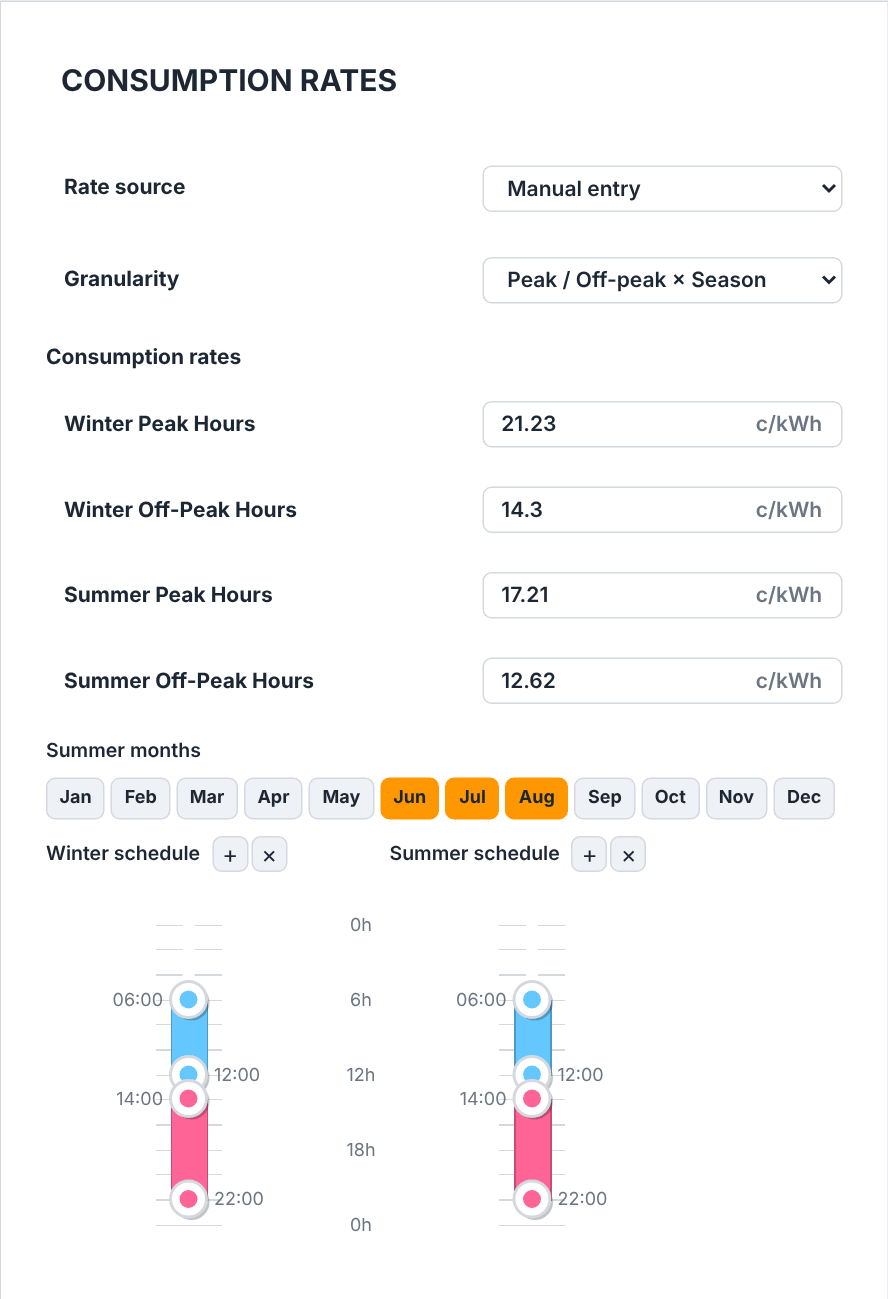
Peak / Off-peak × Season: the four rates, the summer months and the winter and summer peak-hour timelines.Consumption rates
Rate source — where the rates come from:
Manual entry,From the catalogue,From a PDF billorFrom an hourly CSV. WithManual entryyou choose the scheme and type every rate yourself. The catalogue and the bill fill the card from a catalogue tariff or a supplier bill and then lock what they set — the Granularity, the rates, the Summer months, the Tempo colour prices and the hourly price curve — so the card always shows the tariff a run bills; a line under the selector names it (Where the rates come from).From an hourly CSVreplaces the typed rates with a price for every hour of the year, loaded from a file (The hourly price grid). A project opens on the source its rates came from; one that carries no consumption tariff at all opens onFrom the catalogue.Granularity —
Flat rate,Peak / Off-peak,Peak / Off-peak × SeasonorTempo (EDF); the row is absent while the source isFrom an hourly CSV, or while a catalogue tariff or a bill prices the project by the hour. The choice also reshapes the monthly grid on the Consumption tab (The Consumption Tab):Flat ratekeeps a single value per month, as the hourly CSV does, and switching to either adds each month's off-peak figure into it, which leaves the off-peak column at 0 if you later return to a split scheme. A project that has never stored a scheme — an imported file, typically — opens onFrom an hourly CSVif it carries a full 8760-value price curve, onPeak / Off-peak × Seasonif it carries any rate or peak-hour window, and onFlat rateotherwise.A project that carries no consumption tariffs at all shows, under
Manual entry,This project has no consumption tariffs.and an Add tariffs button that creates them.The rate fields, in €/kWh from 0 to 10, to four decimals: Flat rate alone; Peak hours and Off-peak hours; or, in the seasonal scheme, Winter Peak Hours, Winter Off-Peak Hours, Summer Peak Hours and Summer Off-Peak Hours. They are hidden under the hourly CSV and in the Tempo scheme, whose prices come from elsewhere.
Summer months — in the seasonal scheme, twelve month toggles choosing which months bill at the summer rates and follow the summer schedule. April to October are summer until you change them, unless the project brings summer months of its own — an imported project file, for instance — which the toggles then show.
In
Tempo (EDF), six prices in €/kWh — Blue off-peak, Blue peak, White off-peak, White peak, Red off-peak and Red peak — plus White curtailment and Red curtailment in %: the share of those days' consumption you curtail or defer (0 = none), which reduces both the Tempo bill and the total consumed. The day colours come from the Tempo calendar (The Tempo calendar editor).Under
From an hourly CSVthe card holds the hourly grid's line (The hourly price grid); inTempo (EDF)it ends on the Tempo calendar row and its editor (The Tempo calendar editor).
In the two peak/off-peak schemes the card ends with the peak-hour schedule: one vertical 24-hour timeline headed HP/HC hours, or two — Winter schedule and Summer schedule — in the seasonal scheme. Each band on a timeline is a peak-hours (HP) window; the rest of the day is off-peak. Drag a band's knob to retime it, or hover a printed time and type it exactly. The + button on a timeline's header adds a window — 08:00–10:00 first, then the first free two-hour gap — and × removes the last one; each season holds up to three. An empty timeline reads No time ranges in this project.
In Peak / Off-peak the single HP/HC hours timeline applies to every month, summer included, and the project keeps its summer windows as a copy of it. A separate summer schedule set under Peak / Off-peak × Season is therefore overwritten once you switch to Peak / Off-peak and then leave the tab or start a run, and does not come back if you return to the seasonal scheme: both timelines then start from the HP/HC hours windows.
Watch out
With no window on a timeline, the engine bills every hour of the year at the peak rate and the off-peak rate is never used. In the seasonal scheme one empty season is enough. Once off-peak consumption is entered, the Consumption tab flags it with a warning starting No peak-hour ranges are set, which asks for the peak hours: the rest of the day around the off-peak hours the bill prints.
Where the rates come from
The Rate source at the head of the card decides who sets the prices.
From the catalogue adds a Catalogue tariff dropdown listing the tariffs you have favourited in the catalogue (The tariff catalogue editor) that price consumption — a grid-only tariff such as a TURPE network charge is offered on the GRID PRICING card instead. Pick one and the card shows Applying the rate… while it copies every rate into the project, with the scheme they belong to. The pick also sets the GRID PRICING level from the tariff's grid model, and so what the network side bills. The dropdown's last entry, Add from the catalogue…, applies nothing: it opens the catalogue's Tariffs tab, where hearting a tariff adds it to the list.
From a PDF bill adds a PDF bill row whose Choose a PDF… reads the rates, the subscription and the off-peak windows off a supplier bill; the importer and its confirmation dialog are described in The Consumption Tab. Applied with tariffs ticked, it also sets the GRID PRICING level to Subscription when the bill itemises a subscription, or to TURPE + peak-shaving when it prints an overshoot price. Applied with Update the project's HP/HC schedule timelines (both seasons) ticked, it rebuilds the timelines from the bill: the hours outside the bill's off-peak windows become the peak-hour windows, the same in both seasons, and replace every window the timelines held. An import that leaves tariffs unticked does not make the bill the source.
Once a tariff or a bill has been applied, the fields it set are greyed out: the Granularity, the rates, the Summer months, the six Tempo colour prices and the hourly price curve. A line under the selector names their origin — Rates of the “…” tariff. or Rates read from the bill “…”., with the bill's file name — and stays with the project, so it opens on the same source next time. What a tariff does not set stays editable: the peak-hour schedule, which depends on the meter, the Tempo day calendar and the Tempo curtailment shares. To adjust a rate, switch the source back to Manual entry: the rates stay as the source set them, now editable, and the project no longer names a catalogue tariff or a bill once you leave the tab. From an hourly CSV is manual entry's twin for a price file: nothing locks, and the project names no source either.
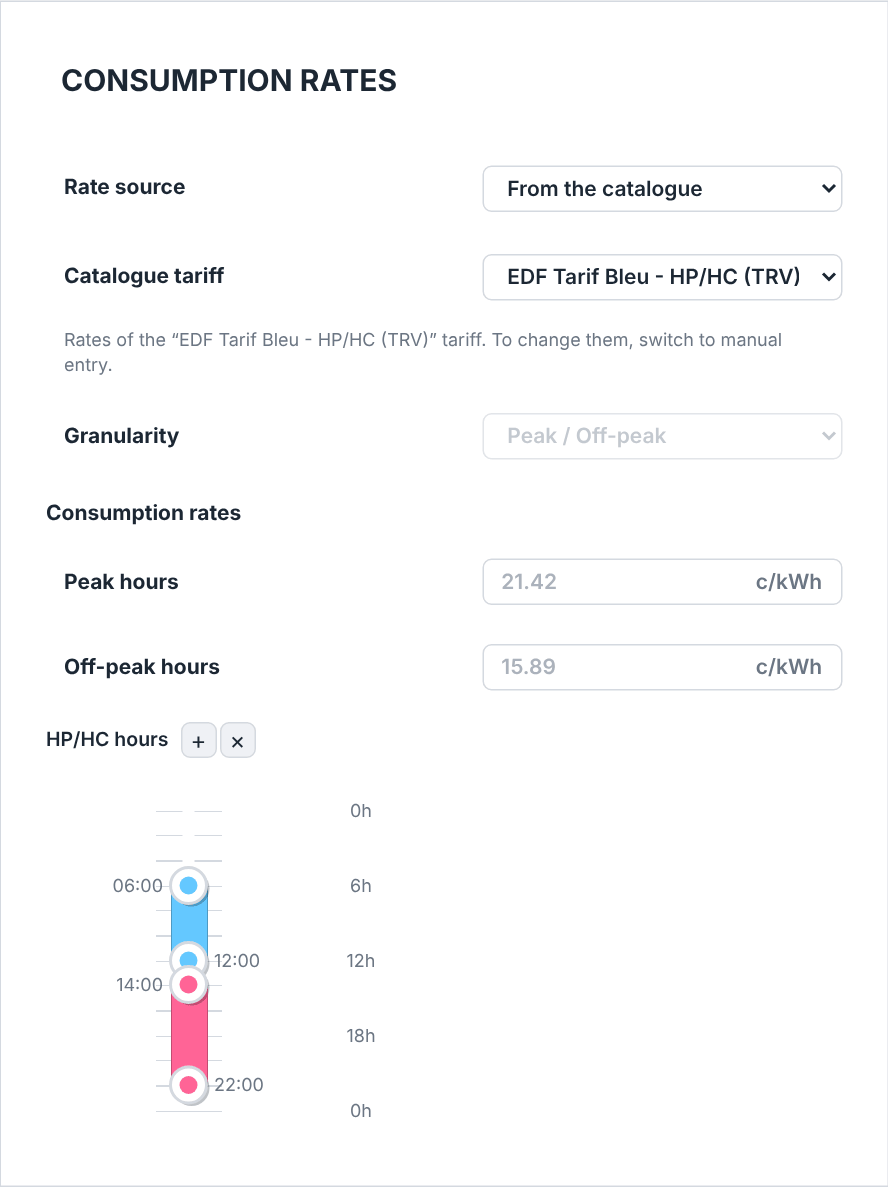
From the catalogue: the applied tariff named under the selector, its scheme and rates greyed out, the peak-hour timeline still editable.Picking From the catalogue or From a PDF bill changes nothing by itself. Until a tariff is applied from it, the rest of the card steps out of sight — the project's own rates would otherwise show under the new source's name — and the line under the selector says what to do: No catalogue tariff applied yet: pick one and its rates fill the card. or No rates read from a bill yet: choose a PDF and its rates fill the card. Rates typed under Manual entry during the same visit are set aside when you switch; switching back shows the rates the project holds. A project with no consumption tariff opens on From the catalogue in just this state: pick a tariff, or choose Manual entry to type the rates yourself.
A level that a catalogue tariff takes from its grid model, or a bill from its subscription or overshoot price, switches the import/export reconciliation off on a project that had Net metering, just as picking that level on the GRID PRICING card does.
Two rate mistakes are flagged on the Project entry of the rail: All consumption tariffs are 0 and Off-peak tariff higher than peak (unusual).
Grid pricing
The GRID PRICING card bills the network side. Like CONSUMPTION RATES it opens on a Source: Manual entry, the rows below typed by hand, or From the catalogue, a Grid tariff dropdown of the grid-only tariffs you have favourited in the catalogue (a TURPE network charge, say) — picking one fills the rows in one go, after which they show, still editable, under Grid pricing filled from “…”. The rows below stay editable. Until then the line reads No grid tariff applied yet: pick one and it fills the grid pricing. and the rows stay out of sight. A project that holds any grid pricing opens on Manual entry; one that holds none opens on From the catalogue. The selector is a card setting, not a project one: the project records what the rows hold, not where it came from. Under manual entry, its Granularity offers None, Subscription, TURPE + peak-shaving and Net metering, and the level you pick decides both the rows the card shows and what the run bills:
Noneshows no price row and bills no grid charge — the choice for an all-inclusive tariff whose energy price already carries the grid fee;from
Subscriptionon: Subscribed power (kVA, whole numbers) and Subscription price (€/kVA per month), billed as 12 × the subscribed power × the price each year — atSubscription, that is all this card bills;TURPE + peak-shavingandNet meteringadd Overshoot price (€/kVA·h), Peak demand price (€/kW·month, on each month's peak draw) and Peak window (minutes;0keeps the default 15 minutes), and bill the overshoot penalty and the peak demand charge on top of the subscription (the demand charge even without one);Net meteringadds Billing period (MonthlyorAnnual, defaultAnnual), Offset ratio (0–1) and True-up tariff (€/kWh) for the surplus. Picking it switches the import/export reconciliation on; picking any other level switches it off, and so does any other level that From catalogue or From PDF bill sets.
Peak-shave target (kW) is not a price: it is the power the battery's Peak shaving, Time of use and Weak-grid backup strategies run at (Storage, EV & Specialized Systems). Its row shows at TURPE + peak-shaving and Net metering, and at any level while the BATTERY card's Dispatch strategy is one of those three.
In every mode the Injection cap row summarises the export limit — No cap, Uniform cap 6 kW or Custom schedule (12 capped cells), for example. Edit schedule opens a 12 × 24 grid in place, one cell per month and hour of the day, in kW; -1 means no cap. Type a value in Apply to all cells and press Apply to fill the whole grid, or press Clear all to remove every cap. The engine applies the cap per 5-minute slot and curtails the energy above it.
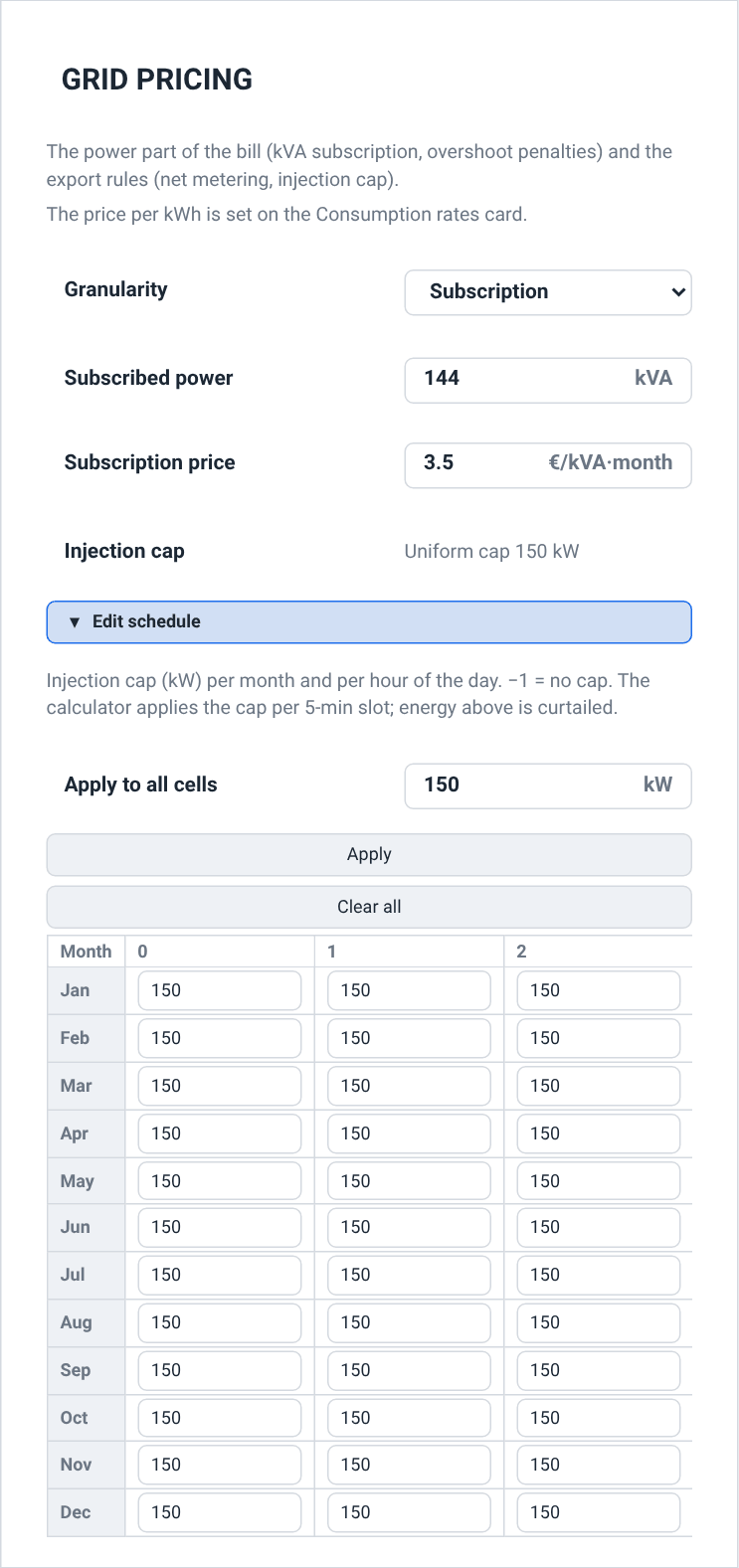
Subscription, with the injection-cap editor open after a uniform cap was applied to every cell; the month-by-hour grid scrolls sideways through the day.Watch out
Switching the grid Granularity hides rows without clearing them, and a hidden row is not billed: None bills nothing on this card and Subscription no overshoot penalty, whatever the hidden rows still hold. Switch back up and the kept values are billed again. A project that has never had a level saved — an older save or an imported project file — opens on the level that shows every value it holds (Net metering when net metering is on), and its runs bill all of them until you pick a level.
Once a grid-only tariff is favourited in the catalogue — one with a grid model and no consumption price, such as a TURPE network charge — the card ends with a From the catalogue row. Picking a tariff there fills the rows above from it in one step and confirms with Grid pricing filled from “…”.; the rows stay editable, and the consumption rates and their source are left as they were. That dropdown, too, ends on Add from the catalogue…, which opens the catalogue's Tariffs tab.
The tariff catalogue editor
Electricity tariffs are authored in the component catalogue: open Catalogue (/catalogue), choose the Tariffs category, and click Add part… — or select a row and click Edit. Either opens the part editor panel, a single form grouped into identity, buy side, and sell side & grid. The general catalogue mechanics — search, favourites, fingerprints, who may edit — are covered in The Component Catalogue.
Authoring tariffs needs the Manager or Admin role in your company. For other roles Add part…, Edit and Import a file… are absent, and the catalogue says Catalogue changes require the Manager or Admin role.
Create a peak/off-peak tariff
In the Catalogue tab, choose the Tariffs category and click Add part….
Give the record a Name (e.g.
Blue Tariff - Peak/Off-peak) and fill in Supplier (e.g.EDF). Leave Country atFRand Currency atEURunless you are modelling another market.Set Granularity to
Peak / Off-peak.Enter the Peak winter and Off-peak winter rates in cents per kWh. (The summer fields become relevant only for the seasonal granularity.)
If you sell surplus PV, enter a Feed-in tariff and, optionally, an annual Feed-in tariff indexation.
Choose the Grid charge model and, for a subscription/TURPE offer, the Subscribed power and its Price per kVA·month.
Click Save. The tariff joins the catalogue and can be attached to any project.
Tip
Pick from the catalogue… at the top of the panel pre-fills every field from an existing tariff, so a supplier's next contract year is a copy plus two edits rather than a full retype.
Granularity and which fields matter
The Granularity dropdown decides which purchase-price fields are meaningful. All the rate fields stay visible whatever you choose; only the ones belonging to the selected granularity are saved onto the record, so fill in those and leave the rest alone.
| Buy granularity | Meaning / effect |
|---|---|
| Flat rate | One price at all hours. Only Flat rate is used. |
| Peak / Off-peak | Two prices split by time of day. Uses Peak winter and Off-peak winter. |
| Peak / Off-peak × Season | Four prices split by time of day and season. Uses Peak winter, Peak summer, Off-peak winter and Off-peak summer. |
Note
Two further buy modes exist but are not authored in this form: Tempo (see The Tempo calendar editor) and an hourly-price tariff. A catalogue record for either is imported from a .yaml file — through Import a file… in the catalogue. If you open one of them for editing, the form still lets you adjust its identity, feed-in and grid fields without disturbing the imported prices.
Sell side and grid charges
Feed-in tariff is the price paid to you for exported PV surplus, in cents per kWh, and Feed-in tariff indexation is its annual escalation in percent — model a long-term feed-in contract by giving it a small yearly rise.
The Grid dropdown selects how network charges are billed. Applying the tariff to a project sets the project's GRID PRICING level to match — None, Subscription or TURPE + peak-shaving — and that level decides what the project is billed (The project's consumption-rate and grid-pricing cards):
| Grid charge model | Meaning / effect |
|---|---|
| None (included in the tariff) | An all-inclusive regulated tariff where the grid fee (TURPE) is already baked into the energy price. No extra grid fields apply, and a project it is applied to bills no grid charge — not even a subscription it carried before. |
| Subscription | A fixed subscription based on subscribed capacity. Only the Price per kVA·month is billed; an Overrun price saved with it is not. |
| TURPE | A market offer where the grid is billed separately, with a capacity charge and an overrun penalty. |
A new record whose Grid is left on its blank choice (—) carries no grid model, and applying it leaves the project's level as it is.
When a grid charge applies, Subscribed power is your contracted capacity in kVA, Price per kVA·month the monthly capacity price (Enedis publishes this per year, so divide by 12), and Overrun price the penalty per kVA·h when you exceed the subscribed power, billed for a TURPE tariff only.
Note
Only the fields you fill in are written. An empty field keeps the record's current value rather than zeroing it, which is what makes editing one rate of an existing tariff safe. Parts are identified by their specification, so changing a value creates a new tariff record with its own identity — projects already saved keep the tariff they were built with.
Attaching a catalogue tariff to a project
A catalogue tariff reaches a project through the Rate source of the working project's tariff card (The Project Tab): set it to From the catalogue and pick the tariff in the Catalogue tariff dropdown, which lists the tariffs you have marked as favourites in the catalogue that price consumption. Picking one copies every rate into the project in a single step and locks them on the card until its source is switched back to Manual entry (Where the rates come from). If it offers no tariff, nothing has been hearted yet — its last entry, Add from the catalogue…, takes you straight to the catalogue's Tariffs tab so you can do it. A grid-only tariff — a TURPE network charge, say — is applied from the GRID PRICING card's own Source instead.
Applying a tariff writes more than the buy rates. Its Grid model becomes the project's GRID PRICING level (Net metering for an imported tariff that enables it), so an all-inclusive tariff also stops a subscription the project was billing; a tariff with no grid model leaves the level alone. On a project that had Net metering, a tariff that sets any other level also switches the import/export reconciliation off, as picking that level on the card does (The project's consumption-rate and grid-pricing cards). Its Feed-in tariff becomes the project's Feed-in tariff on the SIMULATION card and its Feed-in tariff indexation the Feed-in tariff inflation on the FINANCIAL card. The feed-in tariff is paid only in the Full export and Self-consumption + export system types (The Project Tab), so on a Self-consumption + storage project the copied rate earns nothing.
The hourly price grid
A tariff that does not fit any typed scheme — market-indexed pricing, a bespoke commercial contract, an EJP or professional bill — is billed from a file: a price for every hour of the year. On the working project's tariff card, set the Rate source to From an hourly CSV. The typed-rate fields and the Granularity leave the card, and one line takes their place.
A paragraph first states the format the file must have: one price (€/kWh) per line in its first column, 8760 values, an optional header row that is skipped, with commas, semicolons or tabs as separators — then the clock its rows follow and how 29 February is read, the rules below.
Hourly CSV — the Choose a CSV… button. Choosing the file is the import: it is read, checked and applied to the working project in one step, with a progress bar while the engine has it. There is no parse step and no confirmation; Ctrl+Z takes the grid back if it was the wrong file. A file the engine cannot read is refused with the format it expected, and the project is left as it was.
Clear — deletes the grid from the project.
The engine reads the file by these rules:
Columns and decimals. With a semicolon or a tab between the columns, a comma inside a column is a decimal comma (
0,1534;…). A file of a single column whose every line is one number written with a decimal comma (0,1534) is read the same way. Otherwise a comma separates the columns and the decimals take a point (0.1534). Only the first column is read.The clock. Row 1 is 1 January, 00:00–01:00, on the site's local clock, summer time included. Every day has 24 rows, one per hour of the clock, also on the two days the clocks change: the hour skipped in spring keeps its row, and the hour repeated in autumn is priced twice at its one row.
29 February. The grid has no row for it: in a leap year, that day is priced at 28 February's prices. A leap-year file of 8784 values is accepted and its 29 February dropped, so every later day keeps its own prices. Any other number of rows is refused.
A file whose first column is not a price — a time stamp first, say — is refused rather than misread.
The line under the button states what prices the project. While no grid is loaded it is the warning No hourly grid loaded yet: choose a CSV and its 8,760 prices replace the typed rates., in the same tone as a source picked but not applied: the run then falls back to the rates the card hides, which a run's Warnings card flags. Once a grid is loaded it reads Hourly grid “…” loaded (8760 values): it replaces the four peak / off-peak rates., naming the file for the rest of the visit; a reopened project names the grid without its file.
Watch out
An imported hourly grid prices the project only while the Rate source is From an hourly CSV. There it replaces the four peak/off-peak rates entirely — they are hidden and play no part — and both bills follow it hour by hour: each interval of your consumption (the bill before PV) and of your grid import (the bill after PV) is priced at the curve's price for its hour, so energy drawn in the curve's dear hours costs more. Under Manual entry the grid stays stored with the project but prices nothing: the rates the scheme shows are billed, and the battery is valued at them. Switching to Manual entry from the hourly CSV lands on the scheme the project's rates suggest — Peak / Off-peak × Season when it holds any rate or peak-hour window, Flat rate otherwise — or on the scheme the card showed when you arrived.
Choosing the file first writes any change still pending on the tab's cards into the project (The Project Tab), so the grid is applied to the project as you see it. A picked file is checked for size before it is read, so an oversized file is refused immediately with both numbers named rather than after a long upload. The ceiling is about 25 MB. A tariff CSV is far below it — 8760 numbers is well under a megabyte — so in practice you meet this only with the wrong file.
A catalogue tariff or a bill can price the project by the hour too (an EJP bill, say). The card then opens on that source with the grid named on the same line, read-only like the rest of what the source set.
The Tempo calendar editor
EDF's Tempo tariff colours each of the 365 days of the year Blue, White or Red, with progressively higher prices; Red days (typically winter working days) are the most expensive. The Tempo calendar editor lets you paint that day-colour calendar by hand, with no CSV at all.
Set Granularity to Tempo (EDF) on the working project's tariff card. The card ends on the Tempo calendar row, whose state reads Typical calendar, Custom calendar or, for the rest of the visit after an import, Custom calendar (…) with the file's name. Under it, Edit the Tempo calendar unfolds the editor in place — the same fold as the injection-cap schedule on GRID PRICING — and folds it away again. The editor shows each day at the colour the simulation bills it: a stored calendar by date, and otherwise the typical calendar laid on your consumption year (below).
Import a CSV… opens the file picker straight away; its tooltip states the format: one
date, colourpair per line, the date asYYYY-MM-DD(orD/M/YYYY) and the colour as1/2/3orblue/white/red; days you do not list stay blue. Choosing the file applies the calendar to the project; a file the engine cannot read is refused with that same format, and the project is left as it was.Reset puts the typical calendar back, at once.
Below, a 12 × 31 grid — one row per month, one square per day; short months simply have fewer squares. Click a day to cycle its colour Blue → White → Red → Blue.
A running count under the grid shows how many Blue / White / Red days you have assigned, next to EDF's reference quotas (300 / 43 / 22).
While the typical calendar shows, a last line names the dates it is laid on: the consumption year the simulation bills — the dates your consumption data covers, or the year a generated profile is laid out on — or, while the project holds no consumption, the year the simulation falls back on.
Every change is saved: a painted day reaches the project a moment after the click — a run of clicks lands as one change, which one Ctrl+Z takes back — and an import or a reset at once. The grid and the state line follow each change. There is nothing to save, cancel or confirm; an import or a paint made while a Tempo pick is still pending on the card writes that pick with it, so the card stays on Tempo. A paint keeps the colours the grid showed — the typical calendar on your consumption year, with your changes — and the calendar is then read by date, like an imported one.
The reference calendar is not a naive fill: it follows EDF's published rules, so Red days fall only on winter weekdays that are not public holidays, White days avoid Sundays and holidays, Sundays and summer stay Blue, and no run of non-Blue days exceeds five. That matters because the engine prices each day by its colour, so which days are Red changes both the bill and the modelled battery behaviour — not just the annual totals.
The typical calendar is built on the weekdays of one reference year, and the simulation reads it on each real date: a date takes the reference day that falls on its own weekday, at most three days away (a week further at the edge of the year or of the winter season), and the year's own public holidays stay Blue. So Red days fall Monday to Friday whatever the year, and the counts stay within a day or two of the quotas. A calendar you import or paint is read by date, as it is.
Tip
Aim to keep your Blue/White/Red counts close to the EDF quotas of 300 / 43 / 22. The count line turns your edits into an at-a-glance check that the calendar is realistic before you commit it.
Note
The six Tempo prices themselves — blue, white and red, each peak and off-peak — plus the two curtailment shares are ordinary fields on the tariff card, shown whenever the granularity is Tempo (EDF). The calendar editor decides which day gets which of those prices.
How tariffs flow into the calculation
A tariff you author here is not just bookkeeping — it feeds three parts of the simulation engine:
Consumption billing (The Consumption Tab). The buy-side prices — flat, peak/off-peak, seasonal, Tempo or hourly-CSV — are applied to each interval of your load to compute what the electricity costs, and the subscription and overrun charges that the GRID PRICING level bills add the network component — none at
None, the subscription alone atSubscription.Financials (Running a Simulation & the Production Tab, Reporting & Export). The feed-in tariff and its indexation value the PV surplus you export — in the
Full exportandSelf-consumption + exportsystem types only; aSelf-consumption + storageproject sells none, unless net metering credits it — while avoided purchases value the energy you self-consume; together with the billed grid charges these drive savings, payback and the long-term financial cascade.Battery dispatch (Storage, EV & Specialized Systems). Time-of-use structure is exactly what makes a battery worthwhile: the dispatch logic uses the peak/off-peak or Tempo price signal to decide when to charge and discharge, so the tariff you pick directly changes the modelled battery savings.
Flat rateand theFrom an hourly CSVsource give it no peak/off-peak window to steer by, so theTime of usestrategy then plans likeSelf-consumption (default); under the hourly CSV the battery's savings are still valued at the hourly curve.
Watch out
Because the tariff drives money-related outputs, an unrealistic tariff quietly produces unrealistic savings and payback. Double-check the rates, the granularity and the grid model before trusting a financial report.
Field reference
Appearance — Colors
On the account page's preferences band, like the LANGUAGE, BEHAVIOUR and DATA & MAINTENANCE cards below.
| Field / Control | Type & unit | Default | What it does & how to set it |
|---|---|---|---|
| Theme | dropdown | System default | Application-wide look. System default follows the OS light/dark preference; the other entries are Classic, Modern (light) and Modern (dark). |
| Button color | colour picker | theme accent | Overrides the accent colour under every theme. Hover and pressed shades are derived from it. |
| Background | colour picker | #222831 | Page background. Applied under the Classic theme only. |
| Cards | colour picker | #393e46 | Card and panel surface colour. Applied under the Classic theme only. |
| Reset | button | — | Restores the card's colours: the accent to the theme's own, the background and card colours to their defaults. Your theme is kept. |
Language
| Field / Control | Type & unit | Default | What it does & how to set it |
|---|---|---|---|
| Language | dropdown | System | Interface language, and the way every figure is written (decimal mark, thousands grouping). Options: System (French for a French-language browser, English otherwise), Français, English. Applied immediately, no reload. Also the language of the one-line diagram and of a run's report, workbook and warnings. |
| Currency | dropdown | Same as language | Currency symbol shown against money in results and the project browser. Same as language derives it from the interface language; otherwise pick an ISO-4217 code. Display only — no conversion. |
Behaviour
| Field / Control | Type & unit | Default | What it does & how to set it |
|---|---|---|---|
| Map imagery | dropdown | IGN (Géoplateforme) | Basemap provider for the plan view: IGN (Géoplateforme) or Google. Shown to administrator accounts only; every other session gets IGN Ortho. |
Data and maintenance
| Field / Control | Type & unit | Default | What it does & how to set it |
|---|---|---|---|
| Export preferences | button | — | Downloads the whole settings document as pvspline-settings.json. |
| Import preferences… | file picker | — | Reads such a file and applies it value by value; reports how many values were applied, or an error if the file is not a settings document. Files over roughly 67 MB are refused unread. |
Consumption-rate card
| Field / Control | Type & unit | Default | What it does & how to set it |
|---|---|---|---|
| Rate source | dropdown | Manual entry | Manual entry, From the catalogue, From a PDF bill or From an hourly CSV. A catalogue tariff or a bill, once applied, sets the granularity, the rates, the summer months, the Tempo colour prices and the hourly price curve and locks them; a line names it, and until one is applied the rest of the card is out of sight. Manual entry unlocks them as they are. From an hourly CSV replaces the typed rates with a price file. A project opens on the source its rates came from; one with no consumption tariff opens on From the catalogue. |
| Catalogue tariff | dropdown | Choose a tariff… | From the catalogue only. The favourited catalogue tariffs that price consumption; picking one copies its rates and sets the GRID PRICING level from its grid model, switching net metering off for any other level. The last entry, Add from the catalogue…, opens the catalogue's Tariffs tab instead. |
| PDF bill · Choose a PDF… | file picker | — | From a PDF bill only. Imports rates, subscription and off-peak windows from a supplier bill, sets the GRID PRICING level the bill implies (net metering off), and rebuilds the timelines from the bill's off-peak hours, replacing their windows; see The Consumption Tab. |
| Granularity | dropdown | — | Flat rate, Peak / Off-peak, Peak / Off-peak × Season or Tempo (EDF); absent while the rate source is From an hourly CSV or a locked source prices by the hour. Shows only the fields the scheme uses; hidden rates are kept but not billed, except as the fallback of the hourly CSV with no grid loaded or Tempo (EDF) with no prices, which a run flags. Switching to Flat rate (or to the hourly CSV source) folds each month's off-peak consumption into its single value. With no scheme saved, the card opens on From an hourly CSV for a full price curve, Peak / Off-peak × Season for any rate or peak-hour window, Flat rate otherwise. |
| Add tariffs | button | — | Shown under Manual entry when the project has no consumption tariffs; creates them. |
| Flat rate / Peak hours / Off-peak hours | number · €/kWh | — | The flat and peak/off-peak rates. Range 0–10, step 0.0001. |
| Winter Peak Hours / Winter Off-Peak Hours / Summer Peak Hours / Summer Off-Peak Hours | number · €/kWh | — | The four seasonal rates. Range 0–10, step 0.0001. |
| Summer months | 12 toggle buttons | Apr–Oct | Months billed at the summer rates and following the summer schedule. Seasonal scheme only. A project that names its own summer months (an imported file, for instance) opens on them. |
| Blue off-peak … Red peak | number · €/kWh | — | The six Tempo colour rates. Minimum 0, step 0.0001. |
| White curtailment / Red curtailment | number · % | — | Share of those days' consumption curtailed or deferred; reduces the Tempo bill and the total consumed. |
| HP/HC hours / Winter schedule / Summer schedule | 24-hour timeline | — | Peak-hours windows. Drag a knob or type a time; + adds a window, × removes the last; up to three per season. An empty timeline bills every hour at peak. In Peak / Off-peak the single timeline applies all year and replaces the summer windows. |
Grid-pricing card
| Field / Control | Type & unit | Default | What it does & how to set it |
|---|---|---|---|
| Source | dropdown | Manual entry | Manual entry or From the catalogue. From the catalogue offers the favourited grid-only tariffs; the rows below show once one has filled them, editable. A project with no grid pricing opens on From the catalogue, one with any on Manual entry; the choice is a card setting, not saved with the project. |
| Grid tariff | dropdown | Choose a grid tariff… | From the catalogue only. The favourited catalogue tariffs that only set grid pricing (a TURPE network charge); picking one fills the rows once, and a line names it. The last entry, Add from the catalogue…, opens the catalogue's Tariffs tab instead. |
| Granularity | dropdown | — | None, Subscription, TURPE + peak-shaving or Net metering. Decides which rows show and what is billed: None nothing on this card, Subscription the subscription alone, TURPE + peak-shaving and Net metering every term. Hidden values are kept, not billed. Picked here, Net metering switches the import/export reconciliation on and any other level off; so does any other level a catalogue tariff or a bill sets. With no level saved, opens on the level that shows every stored value (None when there is none) and bills them all. |
| Subscribed power | number · kVA | — | Contracted power; 0 bills no subscription. Billed from Subscription on: 12 × kVA × Subscription price a year. Minimum 0, step 1. |
| Subscription price | number · €/kVA·month | — | Per kVA and per month. Billed from Subscription on. Minimum 0, step 0.01. |
| Overshoot price | number · €/kVA·h | — | Penalty per kVA·h drawn above the subscribed power. Shown and billed at TURPE + peak-shaving and Net metering only. Minimum 0, step 0.01. |
| Peak demand price | number · €/kW·month | — | Price per kW of the month's highest power draw, averaged over the peak window, billed on each month's peak before and after the installation. Shown and billed at TURPE + peak-shaving and Net metering only, with or without a subscribed power. Minimum 0, step 0.01. |
| Peak window | number · min | — | Window over which peaks are measured; 0 keeps the default 15 minutes. Step 1. TURPE and net metering. |
| Peak-shave target | number · kW | — | Power the battery's Peak shaving, Time of use and Weak-grid backup strategies run at (Storage, EV & Specialized Systems); not a price. Shown at TURPE + peak-shaving and Net metering, and at any level while one of those strategies drives the battery. Minimum 0, step 0.1. |
| Injection cap | summary + grid editor | No cap | 12 × 24 caps in kW, -1 = no cap. Apply to all cells with Apply, and Clear all. |
| Billing period | dropdown | Annual | Monthly or Annual. Net metering only. |
| Offset ratio (0–1) | number | — | Step 0.05. Net metering only. |
| True-up tariff | number · €/kWh | — | Price of the surplus at reconciliation. Step 0.001. Net metering only. |
| From the catalogue | dropdown | Choose a grid tariff… | Shown once a grid-only tariff is favourited in the catalogue. Fills the rows above from it in one step; they stay editable. The last entry, Add from the catalogue…, opens the catalogue's Tariffs tab instead. |
Tariff catalogue editor — identity
| Field / Control | Type & unit | Default | What it does & how to set it |
|---|---|---|---|
| Name | text | — | Tariff name (e.g. Blue Tariff - Peak/Off-peak). Required for a new record. |
| Supplier | text | — | Electricity supplier name, free text (e.g. EDF). |
| Country | text | — | ISO-3166 country code (FR, DE, …). |
| Currency | text | — | ISO-4217 currency code (EUR, USD, …). |
| Valid from | text · YYYY-MM-DD | — | Validity start date; makes obsolescence visible in the listing. |
| Pick from the catalogue… | button | — | Pre-fills every field from an existing tariff, so a new contract year is a copy plus a few edits. |
Tariff catalogue editor — buy side
| Field / Control | Type & unit | Default | What it does & how to set it |
|---|---|---|---|
| Granularity | dropdown | — | Purchase granularity: Flat rate, Peak / Off-peak, or Peak / Off-peak × Season. Only the selected granularity's rates are saved. Tempo and hourly-price tariffs are imported, not authored here. |
| Flat rate | number · c/kWh | — | Single all-hours rate. Used by the Flat granularity. Step 0.5. |
| Peak winter | number · c/kWh | — | Winter peak-hour rate. Used by the Peak/Off-peak and seasonal granularities. Step 0.5. |
| Peak summer | number · c/kWh | — | Summer peak-hour rate. Used by the seasonal granularity only. Step 0.5. |
| Off-peak winter | number · c/kWh | — | Winter off-peak rate. Used by the Peak/Off-peak and seasonal granularities. Step 0.5. |
| Off-peak summer | number · c/kWh | — | Summer off-peak rate. Used by the seasonal granularity only. Step 0.5. |
Tariff catalogue editor — sell side and grid
| Field / Control | Type & unit | Default | What it does & how to set it |
|---|---|---|---|
| Feed-in tariff | number · c/kWh | — | Price paid for exported PV surplus (feed-in). Step 0.5. |
| Feed-in tariff indexation | number · % | — | Annual escalation of the feed-in tariff. Step 0.1. |
| Grid | dropdown | — | Grid charge model: None (included in the tariff), Subscription, or TURPE (billed separately). Sets the project's GRID PRICING level when the tariff is applied; left blank, the project's level is kept. |
| Subscribed power | number · kVA | — | Contracted grid capacity. The capacity price applies to it, and the overrun penalty too for a TURPE tariff. Step 1. |
| Price per kVA·month | number | — | Monthly capacity price per kVA. Enedis publishes this per year, so divide by 12. Step 0.001. |
| Overrun price | number | — | Penalty per kVA·h when the subscribed power is exceeded. Billed for a TURPE tariff only. Step 0.001. |
| Save / Cancel | buttons | — | Save writes the record to the catalogue; Cancel closes the panel and changes nothing. |
Hourly price grid
| Field / Control | Type & unit | Default | What it does & how to set it |
|---|---|---|---|
| Hourly CSV · Choose a CSV… | file picker | — | From an hourly CSV only. The price file: one price (€/kWh) per line in the first column, 8760 values (8784 for a leap year, whose 29 February is dropped), optional header skipped; a decimal comma is read with semicolon or tab separators, or in a single column; row 1 is 1 January, 00:00–01:00, on the site's local clock. Size-checked before it is read. Choosing it writes the changes still pending on the tab into the project, then applies the grid — no parse or confirmation step; Ctrl+Z takes it back. An unreadable file is refused with the expected format. |
| Clear | button | — | Deletes the grid from the project, after which the hourly CSV source prices every hour at the hidden rates, which a run flags. |
| Status line | label | No hourly grid loaded yet… | The warning while no grid is loaded; once one is, how many values it holds and, for the visit, the file it came from. The grid prices the project only under From an hourly CSV; switch to Manual entry to bill typed rates. |
Tempo calendar editor
| Field / Control | Type & unit | Default | What it does & how to set it |
|---|---|---|---|
| Tempo calendar | label | Typical calendar | Tempo (EDF) only. Whether the calendar is the reference one, a custom one, or — for the visit — a custom one named after the CSV it came from. |
| Edit the Tempo calendar | toggle button | folded | Unfolds the editor below the row, and folds it away. |
| Import a CSV… | file picker | — | Applies a calendar file to the project at once: one date, colour pair per line, the date as YYYY-MM-DD or D/M/YYYY, the colour as 1/2/3 or blue/white/red; unlisted days stay blue (the format is the button's tooltip, and the message of a refused file). |
| Reset | button | — | Puts the reference calendar back at once. |
| Day grid | 12×31 clickable grid | typical calendar | Each square is a day, at the colour the simulation bills it; click to cycle Blue → White → Red. Every change is saved after a moment; a run of clicks is one change for Ctrl+Z. |
| Count line | label | — | Live Blue / White / Red totals against EDF's quotas 300 / 43 / 22. |
| Dates line | label | — | While the typical calendar shows: the dates it is laid on — the consumption year the simulation bills (the dates your data covers, or a generated profile's year), or the year it falls back on while the project holds no consumption. |