Charts, Heatmaps & Tables
At a glance
Results (
/results) is the reading room for a finished run: a scrollable list of every chart the run can draw, beside the run's PDF report. Click a chart's name and the report turns to its page.You reach it after the engine has run — set a location and array (The Map & Site Design Tab), pick components (The Component Catalogue) and, optionally, storage (Storage, EV & Specialized Systems); starting a run is covered in Running a Simulation & the Production Tab.
The list holds 50 engine-rendered charts plus 8 other rows (the financial projection's yearly bars and its table, the energy-flow summary, bankability, the bill of materials, the agrivoltaic transect and the two 3-D point-of-view pictures), and the financial projection's detail pages when the run has them. The report prints each of them as pages of its own.
Most rows carry a tick box that decides whether that chart lands in the exported PDF report (Reporting & Export), which fills the rest of the view.
The families cover daily and monthly energy, power profiles, self-consumption, the loss diagram, production probability (P10/P50/P90), the multi-year financial projection, bankability (DSCR/LLCR), carbon balance, and a large set of day-by-hour and 5-minute heatmaps (battery SOC, EV, wind stow, genset runtime, DNI utilisation, pumping, DC-grid clipping, cell temperature, shading).
Which charts are listed depends on what the run actually produced, on the simulation mode (Self-consumption + storage, Full export or Self-consumption + export) and on the system type (grid-connected, off-grid solar pumping, DC traction grid) — irrelevant charts are never offered, so the list only ever shows what your project can really draw.
A specific run is deep-linkable:
/results/cloud/<job-id>is an ordinary link you can bookmark. It also opens for a colleague with the Manager role, who can open every cloud run of the company; a User account opens only its own (Cloud runs: the job history).
Where it lives and how it is laid out
Results is the bar-chart entry in the left navigation rail, at /results. The page is stacked top to bottom:
Run the working project — the Run the project button for the project currently open. The engine checks the project first, and an error that stops the run is listed here. It leads the page because everything below it is what that action produced; Running a Simulation & the Production Tab covers running in full.
The run selector, on the same line as the button — a Choose a job dropdown and a Follow latest run tick box, or, while a cloud run is open, the report's Run to preview dropdown. The stale badge follows the button when the run on screen no longer matches the project (below).
The results body — a fixed-width chart list on the left and the report workspace on the right: the run's PDF report under the documents' header, a tab per document with Download PDF beside them, its menu holding the rest and the project's other files (Reporting & Export). On the tender dossier, permit and Consuel tabs, the column of the chart list holds that document's own panel instead.
The chart list keeps its width so the names never truncate; the report absorbs the rest of the window. Below about 900 pixels of width — a phone, or a narrow side-by-side window — the two stack instead, with the chart list on top and its own scrollbar.
Selecting a run puts its id in the address bar, so /results/cloud/<job-id> is a shareable link to exactly the results you are looking at.
While the project open in this tab has no successful run, the Results icon in the rail is red and its tooltip reads Calculation: The calculation has not been run. The flag speaks for the open project, not for the run on screen: it clears as soon as a run of that project succeeds, and stays clear while you go on editing — saying that the numbers no longer match is the stale badge's job (below). Open, import or start a project that has not been run in this browser and the flag comes back, even though Follow latest run still takes Results to the newest run of the session, which is then the previous project's. A saved project you have run reads as calculated again when you reopen it, in this tab or another tab of the same browser, even after the tab that ran it was closed; opening one of its cloud runs from the account page (Cloud runs: the job history) counts too. The record belongs to the browser: in another browser or on another computer, the flag shows until you run the project, or open one of its cloud runs, there.
Note
There is no Refresh button on this page. Cloud runs are metered, so you always start those yourself.
The report beside the list
The view's canvas is the run's PDF report, with the documents' header above it and its theme panel. The header's tabs hold the project's other documents — the tender dossier, the town-hall permit and the Consuel dossier. The menu beside Download PDF holds the report's signature file and the financial projection's Excel workbook, and the projection's KPI strip sits under the preview (The multi-year financial projection). Reporting & Export covers the workspace in full.
While the run on screen is on its way — queued, running, or its results still loading — a loading mark takes the report's place and says what it waits for. The chart list keeps the rows of the run it last showed and nothing else on the page moves; the new run's report, charts and figures land together. A run that fails says why in the report's place.
The chart list is the report's outline. Clicking a chart's name scrolls the report to that chart's page and highlights the row. A chart the report does not print (unticked, nothing to show for the run, or a page the report never carries) leaves the pages where they are and says so over the preview. The tick box beside the name is untouched by that — it only edits the print list.
Note
If the run has anything to warn about, a Warnings card appears above the chart list and lists each message: first what the check before the run found, each with the field it concerns — the card is up as soon as the run is submitted — then the problems the engine could still finish around while computing. A message both give word for word is listed once. Warnings do not invalidate the run; read them before you quote the numbers.
Three of the messages concern the inverter the run used:
Inverter clipping costs … kWh/yr (… % of production): the inverters (… kW AC) are small for the … kWp array (DC:AC …). Check the inverter on the Diagram tab. — clipping costs 2 % of the year's production or more (a shorter form leaves out the sizes when they are unknown). A deliberately oversized array (DC:AC 1.2 to 1.5) normally clips well below that, so this message means the inverter really is small for the array.
No inverter in the electrical design: conversion is modelled as a flat loss with no clipping, so the yield may be a few percent optimistic. Create a design or add an inverter on the Diagram tab. — the project has no electrical design, or one without an inverter, so every run of it carries this note until you add one (Electrical Design & the One-Line Diagram).
Results use the generic starter inverter (… kW AC), with no datasheet efficiency, not a catalogue model. Pick your actual inverter on the Diagram tab. — the design still uses the generic starter inverter that Create initial design places (The starter inverter).
The last two are reminders rather than faults, which is why a first run often shows the card. An off-grid pumping or DC-grid run shows none of the three, since the inverter has no effect on the energy those runs compute.
Another concerns the consumption: primary consumption PRM … has no embedded consumption series: this run bills zero consumption (self-consumption, savings and NPV are not meaningful). Download the meter data again, or tick Manual consumption, before relying on the result. The project names a metered delivery point but carries no downloaded series for it, so the run billed no consumption at all. Download the series again on Consumption (The Consumption Tab) and run again. The check before the run raises the same warning, so it is on the card while the run is still queued.
Choosing which run you are looking at
Because the web app submits runs as jobs, this page always shows one particular run — not "the current state of the project". Two things decide which: the run selector and the stale badge.
The run selector
Choose a job — a dropdown of every run tracked in this browser session, each entry reading
<job-id> · Succeeded(orQueued/Running/Failed). Picking one navigates to its results.Follow latest run — when ticked, the page re-targets the newest successful run as results land, so an edit-then-recompute loop keeps showing the freshest numbers without a click. It is on by default. A deep link to a specific run is never hijacked on arrival, and picking an older run by hand simply stays put.
The report always describes the run the tab shows; the documents' header above it has no run choice of its own.
While a cloud run is open, the selector gives way to the report's Run to preview dropdown: Latest run, then the succeeded runs this browser session tracks, each named by its id and the time it was submitted. Latest run follows the newest run that succeeded; picking a run pins it — the tab shows it and stops following newer ones — and choosing Latest run again brings the tab back to the newest run (Choosing which run the report describes). A run still queued or running has no report yet, so the dropdown reads Latest run while the report's place says where the run is: a queued cloud run says Queued — pickup typically ≤ 5 s, a running one Running…. On the free plan, where paying customers' runs go first, a queued run says Queued — on the free plan, runs start once no paying customer’s run is waiting instead (Paying customers' work goes first).
Note
With Follow latest run ticked, clicking Results in the rail takes you straight to the newest run that succeeded in this browser session, so the Choose a job dropdown shows only before your first run lands. Your earlier cloud runs are listed on the account page (Your Account, Team & Cloud Runs), each opening in this view.
Beside the selector, small chips describe the run: from save <name> (and its version) when the run was submitted from a stored save.
Note
The runs the selector lists belong to this browser tab and this session. Closing the tab does not cancel anything already running on the engine, but the list that tracked it is gone; a cloud run stays listed in your account (Your Account, Team & Cloud Runs).
The stale badge
A finished run is a photograph, not a live view. As soon as what it was computed from no longer matches what you have now, an amber badge appears right after Run the project. The badge names what drifted:
| Stale badge | Meaning / effect |
|---|---|
| Stale — the project changed since this run | You edited the project after submitting. The numbers on screen describe the older project. The interpolation method and the time resolution are part of the project (Running a Simulation & the Production Tab), so changing them counts too. So does a batch study finishing on the Batch tab, which stores the study in the project (Batch study — scenario comparison): re-run to bring its page into the charts and the report. |
The badge carries no button of its own: Run the project, right before it, submits the project as it stands now and takes you to the new run's results. A run that carries no evidence on an axis — an old job from before a stamp existed — is never flagged on that axis, so the badge stays quiet rather than crying wolf.
Caution
Export a PDF or a workbook from a run showing a stale badge and you are exporting the old numbers. Re-run first, then export.
The chart list, panel by panel
Header
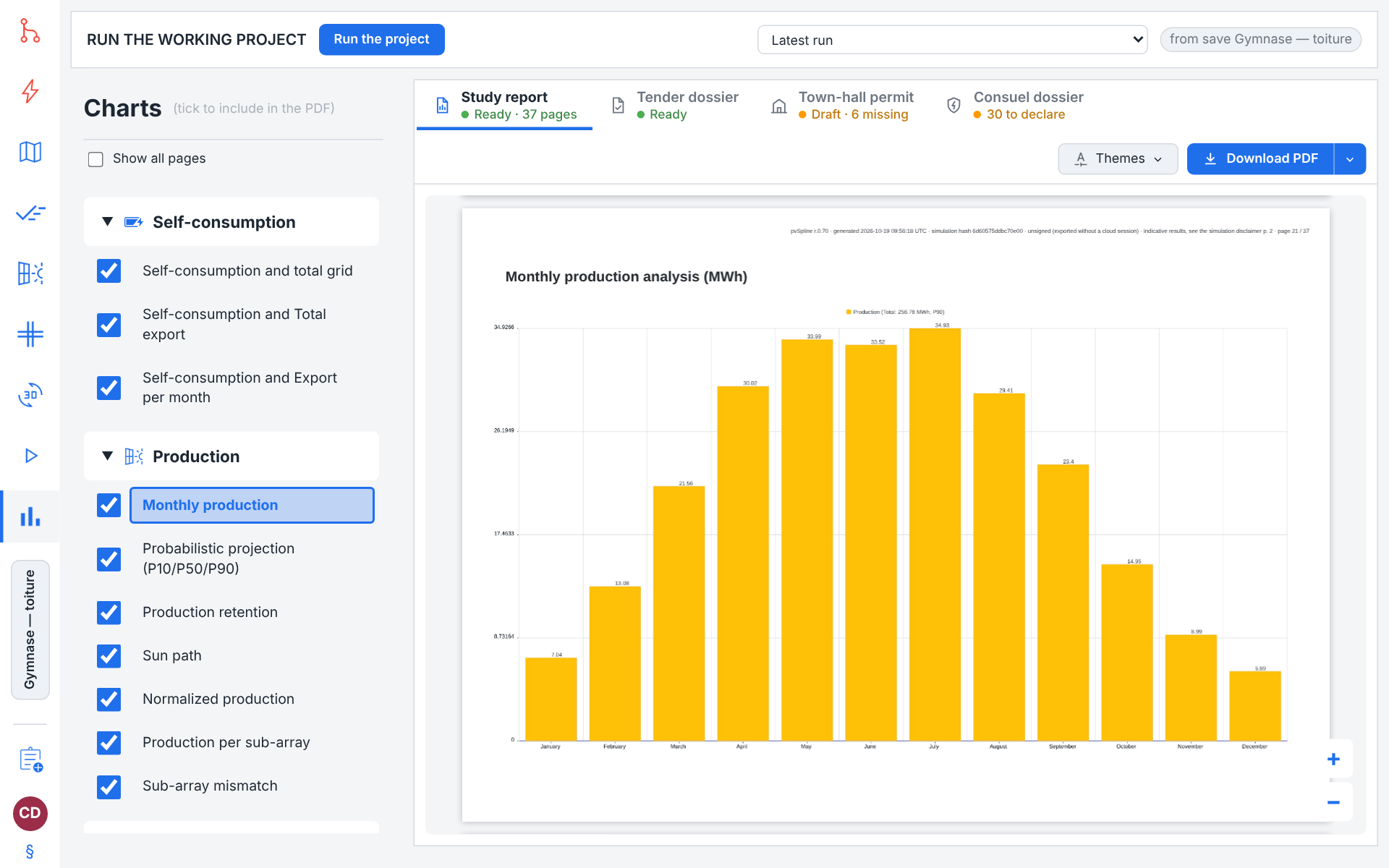
The list is headed Charts, with the reminder (tick to include in the PDF).
Under it, Show all pages decides which pages the list shows. Unticked — the default — it lists only the pages of the PDF on screen, its table of contents: the charts it prints and its other pages. Ticked, it lists every page the report can hold, those the PDF on screen does not print greyed out: the rows to tick a chart back into the report from. Your choice is kept in your settings. The box shows once a run is on the tab; while a tutorial runs, the list shows every page whatever the box says.
Category sections
Charts are grouped into collapsible families, always in this order. A family appears only when the run has at least one chart in it:
| Chart families | Meaning / effect |
|---|---|
| Report pages | The report's pages that are not charts, in the order the report prints them: Cover, Site plan, One-line diagram, and the Simulation disclaimer and Financial disclaimer that close the report (Which pages the report contains). A page the report on screen does not print is greyed out. |
| Analysis | The three headline overlays of production, consumption, self-consumption and (if present) battery level — your daily and average day-shape charts. This header also hosts the series toggles. |
| Consumption | How you draw energy: average power by weekday, the monthly min/avg/max power band, and the off-peak/peak energy and bill breakdowns. |
| Self-consumption | How much PV you keep versus store or export — pie splits and the monthly bars. |
| Production | What the array makes: monthly production, the probabilistic P10/P50/P90 projection, long-term retention, the horizon profile and sun path, per-sub-array yield and mismatch, and the normalised-production heatmap. |
| Losses and shading | Where energy is lost: the loss diagram, snow/soiling degradation, the clear-sky ratio, losses by hour of day, cell-temperature and near/horizon shading heatmaps, plus the two 3-D point-of-view pictures. |
| System and grid | Grid and system-type diagnostics: grid availability, wind stow, HCPV/LCPV DNI utilisation, generator-set runtime, pumping (tank / flow / missing water / water balance), DC-grid clipping and balance, and the agrivoltaic ground-light pages. The report pages of those projects head their charts, as the report prints them: Off-grid site, Solar pumping, DC grid and Agrivoltaics. |
| Battery | Storage and EV behaviour: EV charge/discharge by hour, battery and EV state-of-charge and net-flow heatmaps, and battery state of health (aggregate and per unit). |
| Financial | Money and carbon: the multi-year projection, the production/consumption summary, bankability, the CO2 charts, the bill of materials and the batch-study comparison. With the carbon footprint on, the Carbon balance page heads the CO2 charts, as the report prints it. |
Clicking a family header collapses or expands it; the arrow flips between ▼ and ▸. Collapse state is per browser session and is not saved with the project.
Chart rows and the include-in-PDF tick box
Each row is a tick box (tooltip Include in PDF) followed by the chart's name as a button (tooltip Show chart: …). Clicking the name scrolls the report to that chart's page; the row is highlighted. By default every chart is ticked.
The tick boxes are stored in the project, so a report layout you curate survives a save, a reload and a hand-off to a colleague — and the exported PDF really does drop what you untick. If no project is open the boxes render disabled with the note Load a working project to store the include-in-PDF choices in it.
Two rows carry no tick box — the two point-of-view pictures, which the report prints whenever the project carries them (Summary and picture pages).
The rows of Report pages, the system pages under System and grid and the Carbon balance page under Financial carry a locked box, ticked while the report on screen holds the page: such a page is in the report whenever the project has what it shows. Its tooltip says why — This page is always part of the PDF report and cannot be removed. for the cover, the simulation disclaimer and the site plan, Added to the PDF report automatically whenever the project has the data this page needs. for the rest. Clicking the page's name scrolls the report to it, like a chart's (tooltip Show page: …).
The financial projection prints more than one page — its yearly bars, then its year-by-year table and, when the run has them, the pages detailing its incentives and taxes (Taxes, incentives and tender settlement) — and each page has a row of its own under Financial, in the order the report prints them: Financial projection (the yearly bars), Multi-year financial summary (the table), then whichever of French incentives (EDF OA), IFER, Tax computation, year by year and CRE tender settlement, year by year the run has. Each has its own tick box, so you can leave one page out and keep the others. Clicking a row's name scrolls the report to its page (tooltip Show page: …).
Tip
Curate the report here before exporting: untick the diagnostics you do not want (heatmaps, per-sub-array charts) and leave the headline energy, loss and financial charts ticked.
Note
If a chart is empty for this run, the engine simply does not offer it and no row appears — so the list is already filtered to what your project can draw. The one exception is Batch study — scenario comparison, which stays listed until a run carries a study (Batch study — scenario comparison). On the rare occasion a row survives without data, its tooltip ends (no data for this run) and the report has no page for it.
How the mode and system type filter the list
On top of "did the run produce it", two project settings remove rows:
Full export projects drop the consumption block, the self-consumption block, the production/consumption summary and First-year financials — there is no consumption or self-consumption to show in that mode.
Off-grid solar pumping shows the four pumping charts, headed by its Solar pumping page, and DC grid shows the two DC-grid charts, headed by its DC grid page; each family appears only in its own mode. Both of these off-grid-like system types also drop the grid-economics families (consumption, self-consumption, financial and battery), except the three carbon charts, which stay meaningful off grid, and the bill of materials: an off-grid array has modules, cables and a mounting structure to order like any other.
A chart the list drops is not printed in the report either, whatever data the run has for it.
Three self-consumption rows also rename themselves with the mode. In self-consumption + storage they read Self-consumption and Total storage and Self-consumption and Storage per month; in the modes that sell, they read Self-consumption and total grid, Self-consumption and Total export and Self-consumption and Export per month.
Note
The filter follows the run, not the editor. If the result identifies its own mode and system type — which it does for a cloud run submitted from a different project — those win over whatever is open in your tab, so the list always describes the picture you are looking at.
Series toggles on the Analysis header
The Analysis charts overlay several series at once. Small colour-coded tick boxes on the Analysis family header let you decide which are drawn (tooltip Show/hide “…”):
Loss / Export (red) — the loss-or-export curve; the label reads Loss in self-consumption + storage mode and Export otherwise.
Battery (brown) — the battery charge level; offered only in self-consumption + storage mode.
Self-cons. (green) — the self-consumption curve.
The consumption and production series are always drawn and have no toggle. In Full export mode every toggle is hidden — only production is meaningful there. The choices are stored in the project and are honoured by the engine when it draws the charts and the PDF.
Watch out
A series toggle applies from the next run. The report on screen was drawn from an already-computed run, so turning a series off does not repaint it. The page says so under the report: Series visibility applies per run: the report follows the toggles as they were when the run was computed. Recompute to apply the new selection.
The chart catalogue
The following catalogue lists every chart the app can offer, family by family and in the order the list shows them. Charts marked heatmap render a 365 × time-of-day grid (see Heatmaps: how to read them); the rest are line, bar or pie charts unless noted. Rows tagged [page] are not engine charts: the report prints the financial projection as described in The multi-year financial projection, and the others as pages of their own (Summary and picture pages).
Analysis
| Analysis | Meaning / effect |
|---|---|
| Energy per day | Daily production, consumption, self-consumption and (if present) battery level over the year — the master overview. |
| Energy per day (moving average) | The same daily series smoothed by a moving average, so the seasonal trend reads clearly through day-to-day scatter. |
| Average power by hour | The average 24-hour shape — mean power at each moment of the day, averaged across the year. |
Consumption
| Consumption | Meaning / effect |
|---|---|
| Average power by weekday | Mean power for each day of the week, exposing weekday-versus-weekend consumption patterns. |
| Monthly power range (min/avg/max) | Per-month minimum, average and maximum power, showing the seasonal spread of the load. |
| Consumption by time-of-use band | A pie of consumed energy split across the off-peak/peak bands set on the tariff timeline (The Consumption Tab). |
| Monthly consumption by band | Monthly consumption bars split into off-peak and peak. |
| Monthly bill by band | Monthly cost bars split into off-peak and peak — what the consumption actually costs. |
Self-consumption
| Self-consumption | Meaning / effect |
|---|---|
| Self-consumption and Total grid | Pie of PV used on site versus drawn from the grid. Renamed by mode (see above). |
| Self-consumption and Total storage | Pie of PV used directly versus routed through storage — or export, in the selling modes. |
| Self-consumption and Storage per month | Monthly bars of direct self-consumption versus stored (or resold) energy. |
Production
| Production | Meaning / effect |
|---|---|
| Monthly production | The array's monthly energy yield — the classic twelve-bar production chart. |
| Probabilistic projection (P10/P50/P90) | The long-term yield band: the P50 expected year with its P10/P90 confidence envelope from the inter-annual variability model. |
| Production retention | How production decays over the project lifetime as the modules degrade year by year. |
| Horizon profile | The far horizon (skyline) elevation around the site — the terrain that blocks low sun. |
| Sun path | The sun's elevation and azimuth track across the sky through the seasons, for the site latitude. |
| Normalized production (heatmap) | AC production per day × 5-minute slot (local time, summer time included), coloured against the installed power, so clear and cloudy days stand out. |
| Production per sub-array | Monthly DC yield of each string painted on the Map (The Map & Site Design Tab); a zone with no strings painted keeps one line of its own. Strings that produce the same share one line, named for all of them (Strings 1–6); from the second line on, lines are dashed or dotted so close curves stay readable. |
| Sub-array mismatch | One bar per string, matching the production lines: the spread between strings — how much unequal strings cost the system. |
Losses and shading
| Losses and shading | Meaning / effect |
|---|---|
| Loss diagram | The canonical loss cascade from plane-of-array irradiance down to energy at the grid meter, each stage a labelled bar (see The loss diagram). |
| Snow coverage and soiling | Daily snow-cover and soiling degradation over the year, from the automatic weather profile. A right-hand axis overlays the weather that drives them — rain (the only thing that cleans the array, so every soiling sawtooth resets on a wet day), snowfall (which sets the snow coverage), and ambient temperature (which decides whether that coverage slides off again). Wind is plotted alongside as site context only: no loss model reads it. All four are climatology means over the fetched years, so they show the site's tendency to rain or freeze on a given date rather than the individual storms of any one year. |
| Production / clear-sky expected (heatmap) | Ratio of the simulated production (the PVGIS years averaged into one year, after the year-1 losses) to a modelled cloudless-sky production, per day × 5-minute slot (local time, summer time included). Both are models, not metered data: values near 1 mark slots that are clear year after year, below 1 mostly means average cloudiness, so a largely red map is normal. |
| Losses by hour of day | Average loss broken down by hour of the day (local time, summer time included), showing when in the day the system sheds most energy. |
| Cell temperature (heatmap) | Module cell temperature (°C) per day × hour — the thermal map behind temperature losses. |
| Near shading (heatmap) | When near obstacles (rows, structures, vegetation) shade the array, per day × hour. |
| Horizon shading (heatmap) | When the far horizon blocks the sun, per day × hour — the time-resolved companion to the horizon profile. |
| Horizon panorama (3-D sweep POV) [page] | The 360° strip the 3-D server rendered from the point the terrain sweep measured from, with the measured skyline drawn over it (Summary and picture pages). |
| Near shading render (sun POV) [page] | The array seen from the sun's own direction, each sampled panel spot marked sunlit or shaded (Summary and picture pages). |
System and grid
These charts depend on the system type and on the matching feature being configured.
| System and grid | Meaning / effect |
|---|---|
| Grid availability (heatmap) | Hours the weak grid was available versus down, per day × hour. |
| Wind stow (heatmap) | Hours the tracker was stowed for wind, per day × hour. |
| HCPV DNI utilisation (heatmap) | Per-hour beam (DNI) utilisation for high-concentration PV. |
| LCPV DNI utilisation (heatmap) | Beam-acceptance mask for a low-concentration concentrator — bright where it is on-pointing, dark where beam spills. |
| Generator set (heatmap) | Backup generator electrical output per day × hour, for hybrid projects with a genset. |
| Tank level (heatmap) | Reservoir state of fill per day × hour, for off-grid sun-driven pumping. |
| Pumped flow (heatmap) | Water pumped per day × hour. |
| Missing water (heatmap) | Unmet demand per day × hour — when the tank could not cover the draw. |
| Monthly water balance | Monthly pumped-versus-demanded water bars for the pumping system. |
| DC-grid clipping (heatmap) | PV the DC traction grid could not absorb, per day × hour. |
| Monthly DC-grid energy balance | Monthly demand / injected / curtailed bars for a DC-grid project. |
| Agrivoltaic ground light (heatmap) | Crop-level ground-light availability under the array, per day × hour. |
| Ground light across the row pitch [page] | The annual-mean ground-light profile from one row base across the gap to the next, labelled under row → mid-gap → under row. Its axis reads Ground light (% of open field). Listed only when an agrivoltaic array ran; the report prints it as a page of its own (Summary and picture pages). |
Battery
| Battery | Meaning / effect |
|---|---|
| EV charge / discharge by hour | Electric-vehicle charging and V2H/V2G discharge, hour by hour. |
| Battery state of charge (heatmap) | Battery state of charge per day × hour — the storage fill map across the year. |
| Battery net flow (heatmap) | Battery charge (positive) versus discharge (negative) per day × hour, on a diverging colour scale centred at zero. |
| EV state of charge (heatmap) | The same state-of-charge map for the electric-vehicle battery. |
| EV net flow (heatmap) | EV charge/discharge net flow per day × hour, diverging scale. |
| Battery state of health | Aggregate battery capacity retention over the project lifetime. |
| Battery state of health by unit | One retention curve per battery unit in the fleet, for multi-bank systems. |
Financial
| Financial | Meaning / effect |
|---|---|
| First-year financials | Year-one revenue and costs at a glance. Not offered in Full export mode. |
| Financial projection [page] | The multi-year cash-flow projection's first page, its yearly bars. The year-by-year table and each page detailing the run's incentives and taxes follow it, each a row with its own tick box; a strip under the preview and an Excel export in the menu beside Download PDF above it go with the table (The multi-year financial projection). |
| Multi-year financial summary [page] | The projection's year-by-year table (The multi-year financial projection). |
| French incentives (EDF OA), IFER, Tax computation, CRE tender settlement [page] | The financial-model details, each listed when the run has it (Taxes, incentives and tender settlement). |
| Production / consumption summary [page] | The energy-flow diagram: where the year's energy went, and what each flow is worth (Summary and picture pages). |
| Bankability — DSCR / LLCR + sensitivity [page] | The debt-service coverage summary and one-at-a-time sensitivity table (Summary and picture pages). Listed only for a financed project. |
| Cumulative carbon balance | Avoided emissions accumulating past the array's embodied carbon over time. |
| Carbon breakdown | A pie of embodied CO2 by component (modules, inverters, structure…). |
| Carbon balance by year | Embodied versus avoided emissions year by year. |
| Bill of materials [page] | The electrical purchase list — sized wire runs and a priced component list (Summary and picture pages). |
| Batch study — scenario comparison | Your batch study as the engine draws it for the report: one annotated chart of the completed scenarios, the best one named in a verdict block. It is the page the run's PDF prints (Batch study — scenario comparison); until a run carries a study, the report has no page for it. |
Heatmaps: how to read them
A large share of the catalogue is heatmaps — a rectangular grid where each cell is one moment of one day, coloured by a value. They all share the same layout, so once you can read one you can read them all:
Vertical axis (rows): the day of the year, top (January) to bottom (December). Month initials (J F M A M J J A S O N D) label the left edge, set at mid-month, with ticks at the first of each month.
Horizontal axis (columns): the time of day,
0hto24h, labelled every six hours. Fine-cadence maps (sub-hourly slots) add unlabelled minor ticks every two hours. The hours are the site's local time, summer time included: the time zone the project's consumption data were recorded in (French legal time for Enedis data), else the legal time of the place where the site lies. The same clock lays out the consumption profiles, the peak and off-peak hours and the months of every total.Colour: the value in that cell, decoded by the colour-scale legend under the plot.
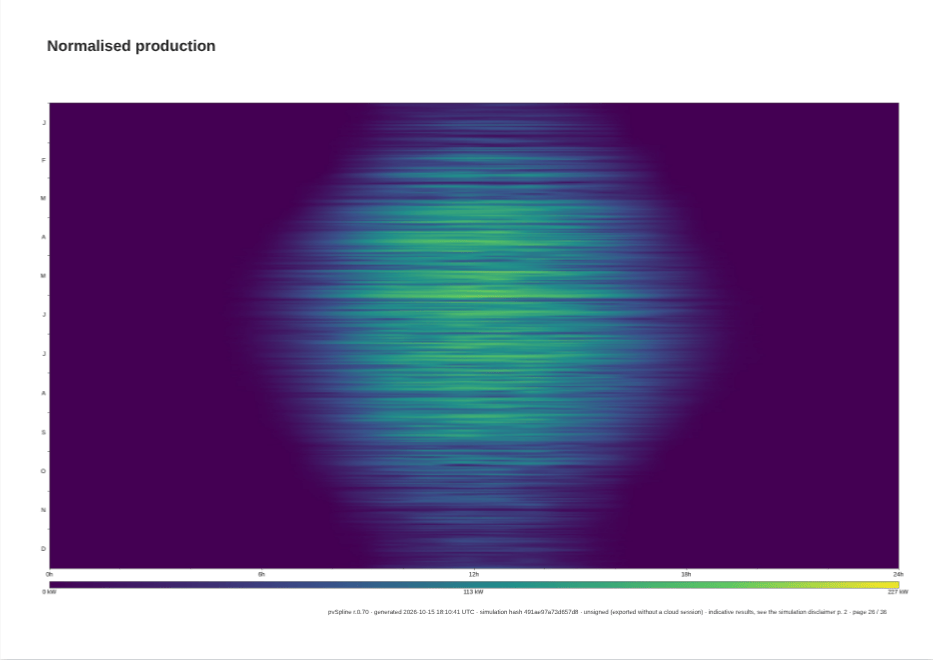
Most heatmaps use a sequential viridis ramp (dark = low, bright = high). The net-flow maps use a diverging ramp centred on zero, so charge and discharge read as opposite colours with white in the middle, and the clear-sky ratio diverges the same way around 1.0. The legend labels tell you the exact scale for each map:
| Heatmap colour scales | Meaning / effect |
|---|---|
| State of charge | Sequential, labelled 0 % – 50 % – 100 % of the configured capacity; with no capacity configured the ramp spans the observed maximum instead. Where the chart carries a unit, the three labels read real values (for example kWh) rather than percentages. |
| Net flow | Diverging -max … 0 … +max kWh. Positive = charging, negative = discharging; the legend shows the symmetric kWh extremes to two decimals. |
| Normalized production | Sequential, labelled in kW at zero, half the installed power and the installed power (the observed maximum when the project has no nameplate). Cells with no value are left white. |
| Clear-sky ratio | Diverging around 1.0, labelled 0.5× / 0.85 / 1.0 / 1.15 / 1.5×. Below 1 is mostly average cloudiness, plus effects the simple clear-sky model leaves out (terrain horizon, inverter clipping, losses at low sun); above 1 means the clear-sky model is pessimistic for that slot. Neither is a measure of system underperformance. |
| Cell temperature | Sequential, with the two end labels at the run's true observed minimum and maximum °C, so the ramp spans the full thermal swing. |
Tip
Heatmaps are diagnostics, not deliverables. They are the fastest way to find when something went wrong — a shading band that creeps later through the winter, a battery that never leaves the top of its range, a pump that stalls every afternoon in August — and the slowest pages in a client report. Untick them before exporting the PDF.
The loss diagram
The Loss diagram is the single most important diagnostic chart. It draws the loss cascade as a waterfall of horizontal bars, one row per stage, from plane-of-array irradiance at the top down to energy delivered at the grid meter at the bottom. The first and last rows are full green bars — the energy you start with and the energy that reaches the meter, in kWh. Every row between them draws only the slice that stage removes, placed at the level where it happens, so the bars step down the page like a staircase. Each row's label names the stage and its share in percent. Red slices are losses modelled by PVGIS, orange ones the pvSpline losses you set (soiling, mismatch, AC cabling…) and teal ones gains such as transposition or the bifacial rear side; the legend lists only the colours the diagram uses. Module conversion (STC) is the modules' rated efficiency — not a loss you can reduce.
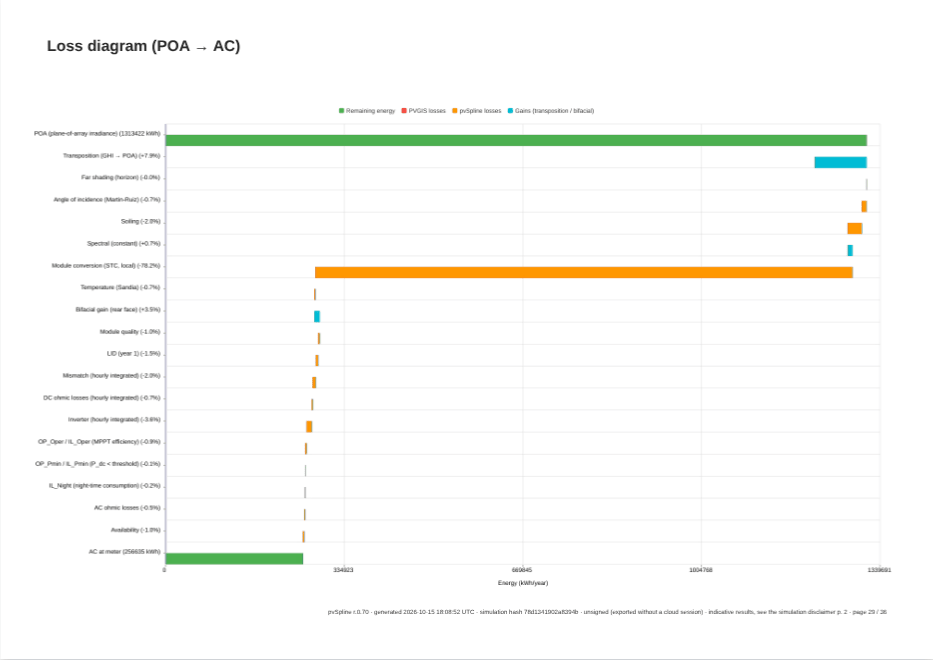
The rows follow the engine's canonical loss order — POA irradiance → shading → module physics → DC wiring → inverter → AC/grid. The Loss cascade card on the Production tab (Running a Simulation & the Production Tab) lists the same losses, but in its own row order, so match stages by name rather than by position.
The difference between the two is what you can do with them. The card on Production is editable — you set the loss percentages there. This chart is the run's own answer, fixed at the moment the engine computed it, and it is what goes into the report.
Its kWh figures are year 1 at the project's exceedance percentile (Probabilistic production (P50/P75/P90/P99)): at the default P90, the bottom bar is the figure of the Annual production · P90 tile on Production. The stage percentages are the same whatever the percentile.
Batch study — scenario comparison
Batch study — scenario comparison is your batch study (Batch Simulation & Scenario Sweeps) as one page of the report. The engine draws it, like the charts above, from the study stored in the project the run was computed from — the Batch tab stores a finished study in the open project (The study in the project and in the report) — so the page is that project's own study, never a study from another project.
The page is one annotated chart:
every completed scenario is a marker in the column of its swept value (or of its run order on the
Index (order)axis), labelled with its name and score where the label fits; failed scenarios are left off;a verdict block names the best scenario on the plotted metric — Best NPV, its name and value and, when you pinned a baseline, the gap to it (… vs baseline · … %);
the baseline is a hollow marker with a reference line through it and a baseline: … — … chip;
each column is headed by its value, with the number of scenarios in it and the range of their scores beneath (
3scenarios · … – …);a scenario far outside the rest sits on the edge of the axis, noted as
1scenario past the axis, drawn on its edge;when the page has just two columns and their ranges do not meet, the gap between them is called out: No overlap — … ranks entirely above … on …;
a caption at the foot gives the run's shape, for example
3scenarios ·1failed · best (NPV):large—12000 €· plot:NPVvsBattery capacity (kWh), beside a legend for the best, baseline and scenario markers.
The axes are the ones last picked under the Batch tab's chart (X axis:, Y axis:), and the baseline is the row starred with Set as baseline in its results grid; sorting that grid changes nothing here. The metric is NPV unless you chose another; on IRR (%), DSCR min or LLCR, scenarios without that figure are left off. When nothing can be plotted — on DSCR min, for example, for a study whose scenarios carry no debt — the page reads No numeric data to plot for this axis. The caption always names the NPV winner while the verdict block names the best on the plotted metric, so on another axis the two can differ. There is no scenario cap: a long study makes a busier page, not a clipped one.
The row is listed whenever a project is open — last under Financial, except for off-grid pumping and DC-grid projects — and its include-in-PDF tick box works like any chart's. Until the run on screen carries a study, the report has no page for it. If the open project stores one already, the run was computed before it: storing it changed the project, so the run is stale too (see the stale badge above) — run the project again and the new run carries the page. Otherwise, run a batch on the Batch tab first (Batch Simulation & Scenario Sweeps).
The multi-year financial projection
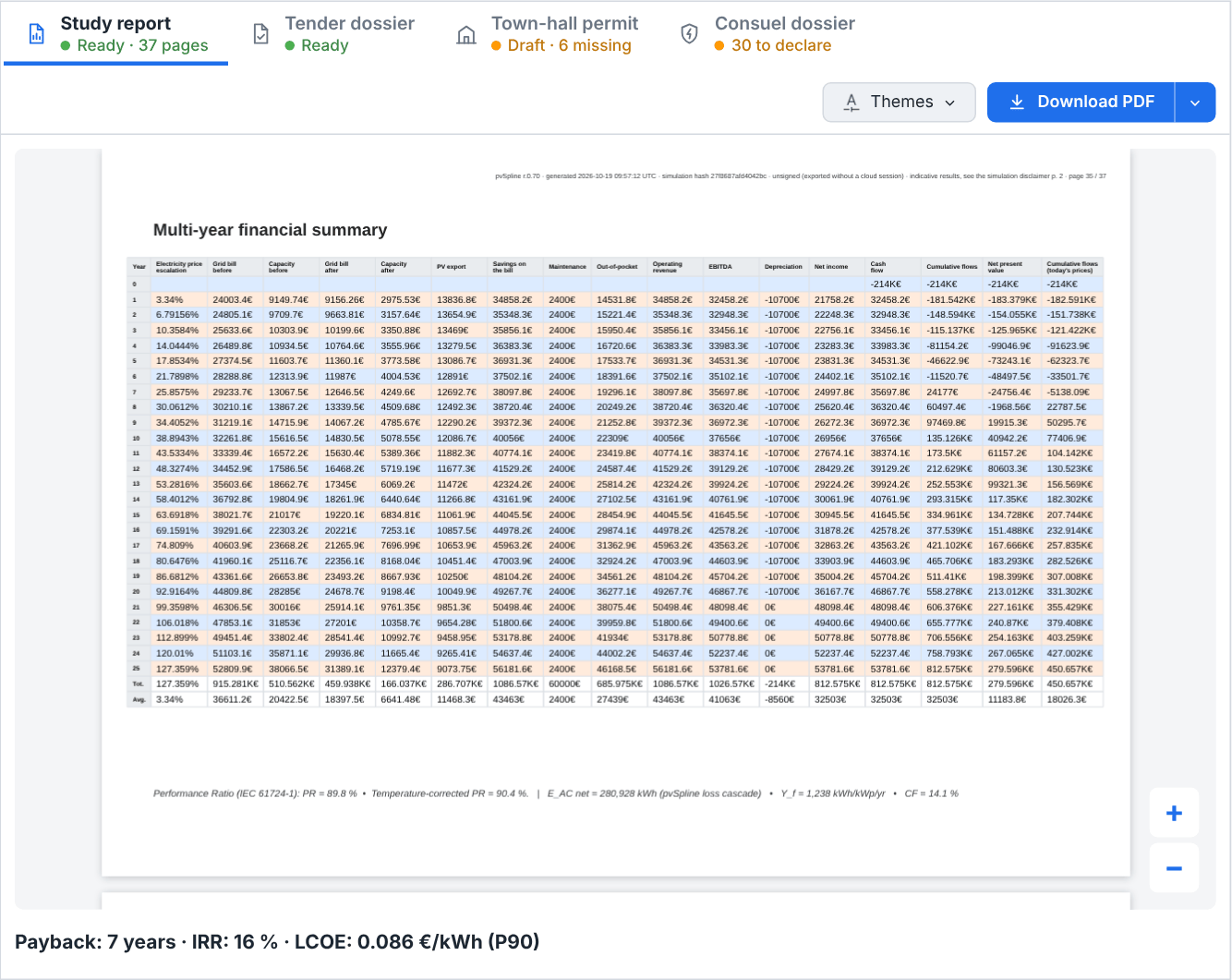
Financial projection is the data table behind the money charts: a year-by-year projection over the project's operating lifetime, from the run's own figures. The report prints it on two pages (Reporting & Export); its Excel export sits in the menu beside Download PDF above the report, and its headline strip under the preview.
Rows and columns
The first column is Year: row 0 is the installation year, then one row per operating year, closed by two summary rows — Tot. (total) and Avg. (yearly average). For a per-year flow, Tot. is the column's sum and Avg. is that sum over the number of operating years; for the already-cumulative columns (cumulative cash flow, NPV, cumulative cash flow at today's prices) Tot. is the final value and Avg. is that value spread over the operating years; for the escalation column Tot. is the last year's rate and Avg. is year 1's.
Columns the project does not use are dropped rather than shown as zeros; if the capacity charge is identical before and after PV, the "before" column disappears and the remaining one is simply labelled Capacity charge. Which capacity columns exist follows the Granularity of the GRID PRICING card (The project's consumption-rate and grid-pricing cards): at None there is none; at Subscription no overshoot is billed, so the charge is the same before and after PV and only Capacity charge shows; the before/after pair appears only at TURPE + peak-shaving or Net metering, when the system changes the overshoot penalty.
The exact column set depends on the mode. A self-consumption project gets the wide table (escalation, bills and capacity charges before and after, savings, subsidy, maintenance, storage and EV costs, then the results block); in Self-consumption + export it also carries PV export, the surplus sold, while a run that simulates storage — Self-consumption + storage with a virtual bank or a physical pack, or an off-grid site — stores its surplus and has no sale column. A Full export project gets a narrower table built around PV export. The full list is in Financial projection: columns.
The KPI strip
A single line under the preview states the run's headline money figures, for example Payback: 8.6 years · IRR: 8 % (before tax) · LCOE: 0.048 €/kWh (P90). Each part appears only when it has a value:
Payback — the payback period to a tenth of a year (when the cumulative cash flow crosses zero, read between the two year-ends), in the interface language:
8.6 years,12,8 ans. A project that has not paid back by the end of its horizon reads>25 yearsfor a 25-year horizon. The part is left out when the run gives no payback or a zero one — the cumulative cash flow is already at zero in the installation year, which happens only when none of the investment comes from your own funds: a project with no investment, or one financed at a Loan share of 100 %.IRR — the equity internal rate of return, on your own funds after loan repayments, to the nearest whole percent: the IRR the PDF report and the workbook headline too. When a loan makes it differ from the project IRR, on the whole installation cost, it is tagged (equity). It is tagged (before tax) when corporate tax is switched on with a non-zero rate (both IRRs are pre-tax returns). When the run books tax — a tax rate, or tax credits alone — the same IRR after tax follows it, for example IRR: 8 % (before tax), 6 % after tax.
LCOE — levelised cost of energy, to three decimals per kWh in your currency.
A (P75) / (P90) / (P99) tag when the run was sized at a conservative exceedance percentile.
Note
When a run produces no payback, IRR or LCOE at all, the strip is hidden, and Export tables (XLSX) with it. There is nothing to export from a projection with no result. A project with no installation cost has no payback or IRR, but running costs such as maintenance still give it an LCOE, so its strip and export stay.
Taxes, incentives and tender settlement
What the financial model adds to the table, the report prints with it, each block behind its own tick box in the chart list and only when the run has it, so a simple project shows none of them (Reporting & Export):
Taxes and incentives — a column beside the headline figures of the bar-chart page: the project IRR and the equity IRR after tax, the corporate tax over the projection, the IFER over the projection, the VAT paid on the installation when it is not recoverable, the grants and incentives received and the tax credits.
French incentives (EDF OA) — a page on the EDF OA contract the run booked from the CRE grid (Incentives): whether it was booked or why not, the grid's identifier and dates, the connection request date, the tariff and contract length, the self-consumption prime and how it is paid, the yearly cap and the tariff's revaluation, with a link to the CRE's published source. This is the line a study quotes to say which quarter's rates it used.
IFER — the rates the run used and the year-one amount, or why none was booked: under the EDF OA text, or at the top of the first table page when it is the only text.
Tax computation, year by year — a page with the table: taxable income, losses used and carried forward, the tax before credits, the credits used and the tax, per year.
CRE tender settlement, year by year — for a tender bid, a page with the table: the reference price applied each year, the reference revenue, the market sales (with a monthly M0), the complement, the management premium and what the plant receives, under a line naming the settlement options in use.
The Excel workbook carries the same blocks, in the same words, on a sheet of its own (Exporting the financial table and the bill of materials).
The calculation legend
The Excel workbook carries a calculation legend under the table's summary rows: one line per column, with the column header and the formula behind it, so a reader can audit the numbers. The PDF's table page carries none.
Exporting the table
Export tables (XLSX) sits in the menu beside Download PDF above the report, under From this run. Like the strip, it describes the run chosen at the top of the page — the run the report previews too (Choosing which run the report describes). It asks the engine for the run's workbook and downloads it as <job-id>-tables.xlsx. The button reads Preparing the workbook… while it works. If the engine has no such route, the page says The XLSX export is not available on this engine. For a cloud run it is the workbook rendered with the run, so its summary rows — words, units and figures — are in the language the page used when the run was started.
Summary and picture pages
Six rows of the list are not engine charts, yet the report prints each of them as a page of its own:
Production / consumption summary — the energy-flow diagram: PV, house, grid and, when the project has them, battery and vehicle, with their annual energies, the savings each flow brings and the self-consumption and coverage rates. Printed whenever the run moved any energy, except in Full export mode, which has no consumption side to describe.
Bankability — DSCR / LLCR + sensitivity — the four coverage figures (DSCR year 1, DSCR min, average DSCR, LLCR) under the yield percentile they were sized on, and the one-at-a-time sensitivity table, the base case first. Printed for a financed project only.
Bill of materials — the project's purchase list, drawn from its wiring and components: the system components with their quantity, unit, unit cost and line total, then the conductors by size, metal and insulation with their run count and total length, and the material total. It is headed with the electrical code the conductors were sized under and closed by the note that its figures are indicative pre-design values. A long bill runs on over as many pages as it needs. Printed whenever the project has something to bill, off-grid pumping and DC-grid projects included; like the rest of the report it describes the project the run was computed from, whereas Bill of materials (CSV) and Bill of materials (XLSX), in the menu beside Download PDF, follow the open project (Exporting the financial table and the bill of materials).
Ground light across the row pitch — the agrivoltaic transect, printed when an agrivoltaic array ran.
Horizon panorama (3-D sweep POV) and Near shading render (sun POV) — the two point-of-view pictures, with the measured skyline drawn over the panorama and the sun's position and shaded fraction under the render. They are taken on the 3-D view, which writes them into the project (The 3D Earth Site View); the report prints them from the project the run was computed from, so a picture taken after the run reaches the report from the next run.
The first four keep their include-in-PDF tick box, like any chart; the two pictures have none and print whenever the project carries them. Clicking any of the six rows brings its page into view. A row the report has no page for — a page that has nothing to show for this run — leaves the report where it is and says so over the preview: “…” has no page in this report.
The debt-coverage ratios also ride the summary rows of the Excel workbook (The multi-year financial projection).
Getting a chart out
There is no per-chart download: the report is the way out for a finished document. Untick what you do not want, export the PDF (Reporting & Export) and lift a single chart from it with your PDF viewer — or zoom the preview onto its page and take a screenshot. The financial projection also leaves as numbers, through its Export tables (XLSX) button (The multi-year financial projection).
How results reach the report
The tick boxes in the chart list are the report's contents page. The workspace renders the PDF for the run it previews, with exactly the charts you left ticked, in the theme you chose; Reporting & Export covers the preview, the theme editor, printing, the tender dossier, the permit package and the Consuel dossier. Untick a chart here and it is gone from the exported file — the exclusion is carried in the project. A cloud run's report was rendered when the run was computed, so a change here reaches its PDF from the next run.
Read the loss cascade and export a curated report
Open Results (
/results) and make sure the run you want is selected.Check for a stale badge beside Run the project. If one is showing, press Run the project before reading anything.
Expand Losses and shading and click Loss diagram: the report turns to its page. Read the cascade top to bottom: each slice is what that stage costs you, and the green bar at the bottom is what reaches the meter.
Cross-check a suspicious stage against the Loss cascade card on Production (Running a Simulation & the Production Tab), matching the stage by name.
Back in the chart list, untick the diagnostics you do not want in the report (the heatmaps and the per-sub-array charts are the usual candidates), leaving the energy, loss and financial charts ticked.
If you need the numbers in a spreadsheet, open the menu beside Download PDF and click Export tables (XLSX).
Download the PDF with Download PDF above the report (Reporting & Export). It prints exactly the charts you left ticked.
Field reference
Run selector
| Field / Control | Type & unit | Default | What it does & how to set it |
|---|---|---|---|
| Run the project | button | — | Has the engine check the working project, then submits it as a new job: an error stops the run and is listed under the button, a warning goes to the run's Warnings card (Running a Simulation & the Production Tab). Fetches any missing weather first, saying so while it does. |
| Choose a job | dropdown | newest | Every run tracked in this session, each reading <id> · <status>. Selecting one navigates to its results. Hidden while a cloud run is open. |
| Follow latest run | checkbox | on | Re-targets the view at the newest successful run as results land. A deep link to a specific run is never hijacked. Hidden while a cloud run is open. |
| Run to preview | dropdown | Latest run | Replaces the picker while a cloud run is open. Latest run follows the newest successful run; picking one of the session's succeeded runs, named by its id and submission time, pins it. |
| Stale | badge | hidden | Right after Run the project: the run on screen no longer matches the project. No button of its own — Run the project runs the project as it stands. |
| Results | rail icon | red | Red while the project open in this tab has no successful run this browser knows of, with the tooltip line Calculation: The calculation has not been run. Clears when a run of the project succeeds and stays clear while you edit (the stale badge reports drift); comes back for a project not yet run in this browser. |
Chart list
| Field / Control | Type & unit | Default | What it does & how to set it |
|---|---|---|---|
| Show all pages | checkbox | off | Unticked, the list shows only the pages of the PDF on screen; ticked, every page the report can hold, those the PDF on screen does not print greyed out. Kept in your settings. Shown once a run is on the tab. |
| Category header | button (collapse) | expanded | Click to collapse or expand a family; the arrow flips between ▼ (open) and ▸ (closed). Families with no listed chart are not rendered at all. |
| Include in PDF | checkbox | on | Per-chart tick box deciding whether the chart is printed in the exported PDF report. Stored in the project. Disabled with no project open. The two point-of-view pictures have no box: they print whenever the project carries them. The Report pages rows, the system pages under System and grid and the Carbon balance page carry a locked, ticked one: those pages print whenever the project has what they show. Each page of the financial projection has its own. |
| Chart name | button | — | Scrolls the report to that chart's page and highlights the row. When the report has no page for the chart, a note over the preview says so — and says why when the run drew nothing for it: “…” has no page in this report: this run has nothing to draw on it. |
Analysis series toggles
| Field / Control | Type & unit | Default | What it does & how to set it |
|---|---|---|---|
| Loss / Export | checkbox | on | Shows or hides the loss curve (labelled Loss in self-consumption + storage mode) or the export curve (Export in the selling modes). Hidden entirely in Full export mode. |
| Battery | checkbox | on | Shows or hides the battery charge-level series. Offered only in self-consumption + storage mode. |
| Self-cons. | checkbox | on | Shows or hides the self-consumption series. Hidden in Full export mode. |
Consumption and production are always drawn and have no toggle. All three toggles are stored in the project and take effect from the next run.
Financial projection: export
| Field / Control | Type & unit | Default | What it does & how to set it |
|---|---|---|---|
| Export tables (XLSX) | menu entry | — | In the menu beside Download PDF above the report, under From this run, for the run chosen at the top of the page. Downloads the run's workbook as <job-id>-tables.xlsx. Reads Preparing the workbook… while it works. |
Financial projection: columns
Columns the project does not use are omitted rather than shown empty.
| Field / Control | Type & unit | Default | What it does & how to set it |
|---|---|---|---|
| Year | column | — | Row index: 0 is the installation year, then one row per operating year, then Tot. and Avg. |
| Electricity price escalation | column · % | — | Cumulative escalation applied to bills and revenue. Formula: (1 + escalation)years - 1. This is an electricity-price escalation, not consumer-price inflation. |
| Grid bill before PV | column · currency | — | Annual electricity bill without the PV system, escalated. |
| Capacity charge before PV | column · currency | — | Capacity/demand charge before the system, escalated at the subscription rate. Only at TURPE + peak-shaving or Net metering, and only when it differs from the charge after PV. |
| Grid bill after PV | column · currency | — | Annual bill remaining after self-consumption, escalated. |
| Capacity charge after PV | column · currency | — | Capacity charge after the system. Reads simply Capacity charge when the before and after charges are identical and the "before" column is dropped. |
| PV storage | column · currency | — | Revenue from the PV surplus sold to the grid, degraded year by year. Hidden when nothing is sold: in Self-consumption + storage without Net metering, where the surplus charges the battery or reaches the grid unpaid, and on an off-grid site. Under Net metering it carries the true-up on the export left after the offset, in Self-consumption + storage too, once the battery has taken its share. Reads PV export in Full export, in Self-consumption + export and under Net metering. Formula: annual surplus × feed-in tariff × (1 + feed-in indexation), at the rate the run sells at: the Feed-in tariff in the two export modes, the True-up tariff on the residual export under Net metering. |
| Bill savings | column · currency | — | Bill before - bill after + PV storage (or PV export). |
| Subsidy | column · currency | — | The subsidy, grants, the self-consumption prime and production incentives received that year. Shown in Full export too when the project has any. |
| Maintenance | column · currency | — | Annual operation and maintenance cost. |
| IFER | column · currency | — | The French yearly tax on plants of 100 kW or more, when it is booked: installed kW × IFER rate × (1 + revaluation). |
| Storage cost | column · currency | — | Virtual-storage withdrawal fees, which follow the energy drawn from the bank (so they shrink with the yield percentile and module ageing), plus the flat subscription, where applicable. |
| EV net cost | column · currency | — | (EV grid charging cost - V2H credit) × (1 + escalation). |
| Out-of-pocket | column · currency | — | Bill after + capacity + maintenance + storage cost + EV cost + reactive — what you still pay each year. |
| Operating revenue | column · currency | — | Savings + subsidy - storage cost - EV cost. In Full export mode it is the PV export revenue plus the subsidy. |
| EBITDA | column · currency | — | Revenue - subscription - maintenance - reactive - battery/genset replacement. (Full export drops the subscription term.) |
| Depreciation | column · currency | — | - installation cost / depreciation period. |
| Net income | column · currency | — | EBITDA + depreciation. |
| Corporate tax | column · currency | — | The tax booked that year, when the run books tax: (net income - loan interest - losses carried forward) × tax rate - tax credits. Negative when a loss saves tax against other income or credits are paid out. |
| Cash flow | column · currency | — | (EBITDA - tax - loan annuity + residual value) × distribution ratio. Row 0 is blanked to the left of this column. |
| Cumulative cash flow | column · currency | — | Running sum of cash flow — it crosses zero at payback. |
| NPV | column · currency | — | Flows discounted at the cost of equity. |
| Cumulative cash flow (today's prices) | column · currency | — | Flows discounted at the electricity escalation rate — the cumulative cash flow at today's electricity prices, not deflated by consumer-price inflation. Hidden when the escalation is 0 % (it would repeat Cumulative cash flow) or equals the cost of equity (it would repeat NPV). |
Heatmap colour-scale legends
| Field / Control | Type & unit | Default | What it does & how to set it |
|---|---|---|---|
| State of charge | legend · % | 0–100 % | Sequential ramp over the configured capacity; falls back to the observed maximum when no capacity is configured, and reads real units where the chart carries one. |
| Net flow | legend · kWh | ± observed max | Diverging ramp centred at 0; positive = charge, negative = discharge, labelled to two decimals. |
| Normalized production | legend · kW | 0–installed power | Sequential ramp labelled in kW up to the installed power; cells with no value left white. |
| Clear-sky ratio | legend · ratio | 0.5×–1.5× | Diverging ramp labelled at 0.5×/0.85/1.0/1.15/1.5×, anchored on 1.0. |
| Cell temperature | legend · °C | observed min–max | Sequential ramp spanning the run's true observed thermal range. |